3DAin the studio
Arc
The Arc tool draws a true arc in the 3D view with three clicks: its start, the end of its chord, then a point the curve passes through. It lies on the plane under the pointer, and it carries on the same chain as the Line tool.
What it is
The Arc tool draws a curved line that is a true arc of a circle. You place it with three points: where it starts, where its chord ends, and a point the curve passes through, which sets how far it bulges and to which side.
The arc lies on one plane. Before the first click the studio shows that plane under the pointer as a light grid, its two axes coloured like the model axes they follow: the face under the pointer, or the ground when there is none. The arc shares its chain with the Line tool, so an outline can go from straight lines to arcs and back.
In the project the arc stays one curve. It is drawn as fine segments, never coarser than five degrees, so the faces it closes can be found and pulled, but erasing, picking or offsetting any part of it takes the whole arc.
When to use it
- To round a corner of an outline before you pull it into a volume.
- To draw an arched top on a face.
- To draw a curved path for Follow Me.
The steps
Take the tool. Press
A, or click Arc among the drawing tools. If a line chain is under way, the arc starts at its last point.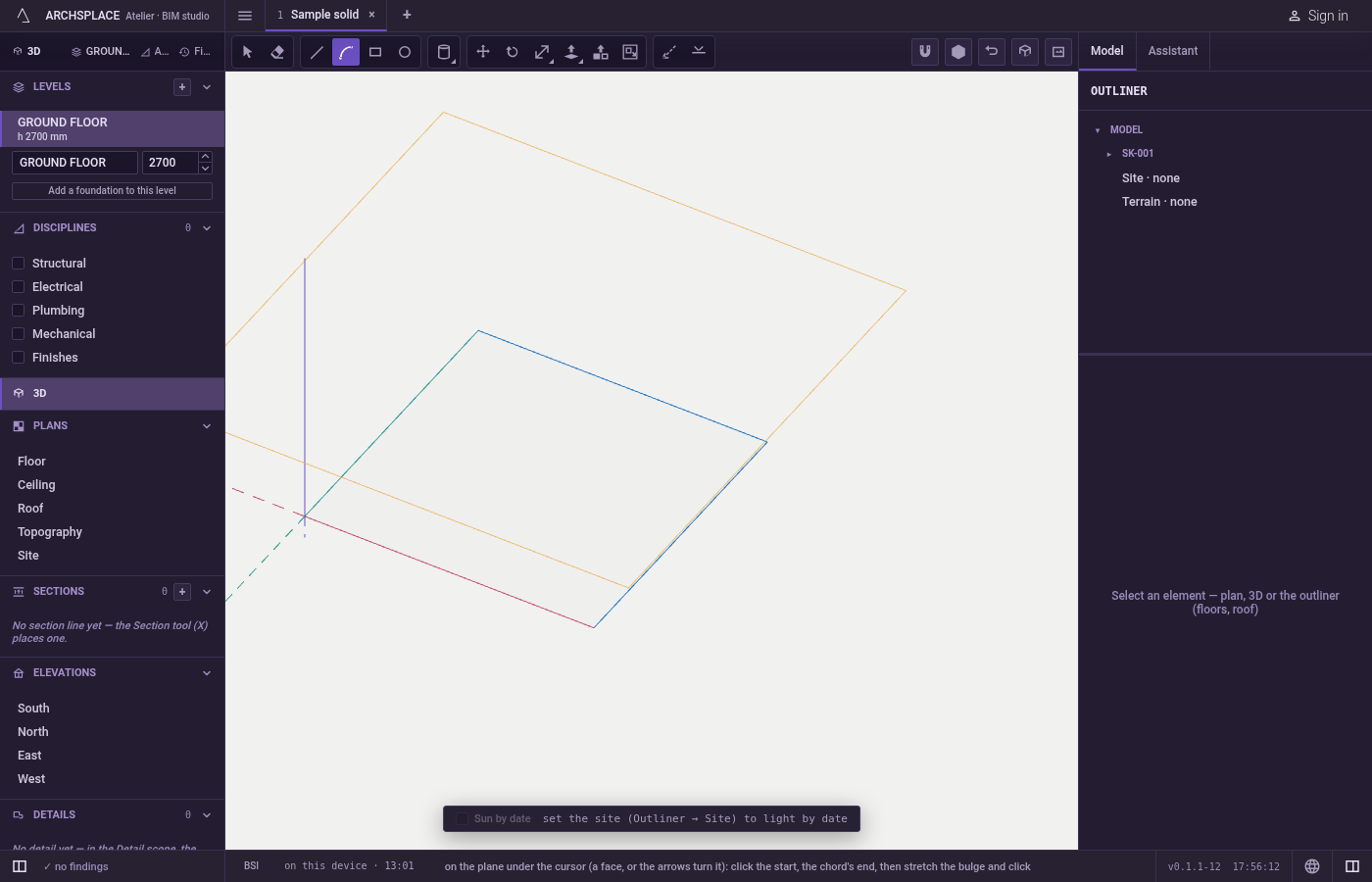
Choose the plane. Move over a face to lie on it, or over empty space for the ground. The arrow keys turn the plane before the first click:
↑level,→across x,←across y,↓back to the face under the pointer.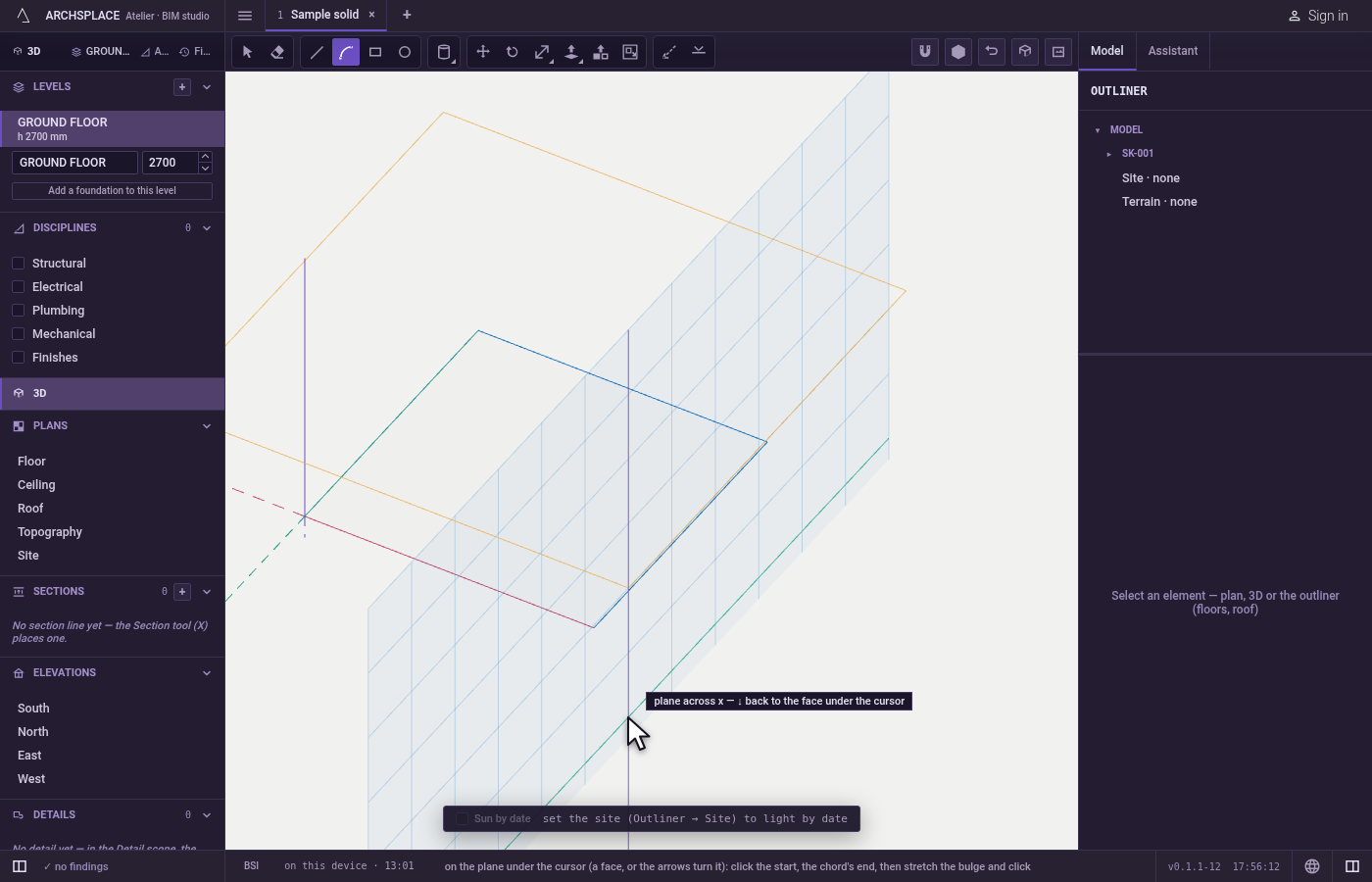
Click the start. The click fixes the plane through that point. Every later point lands on it.
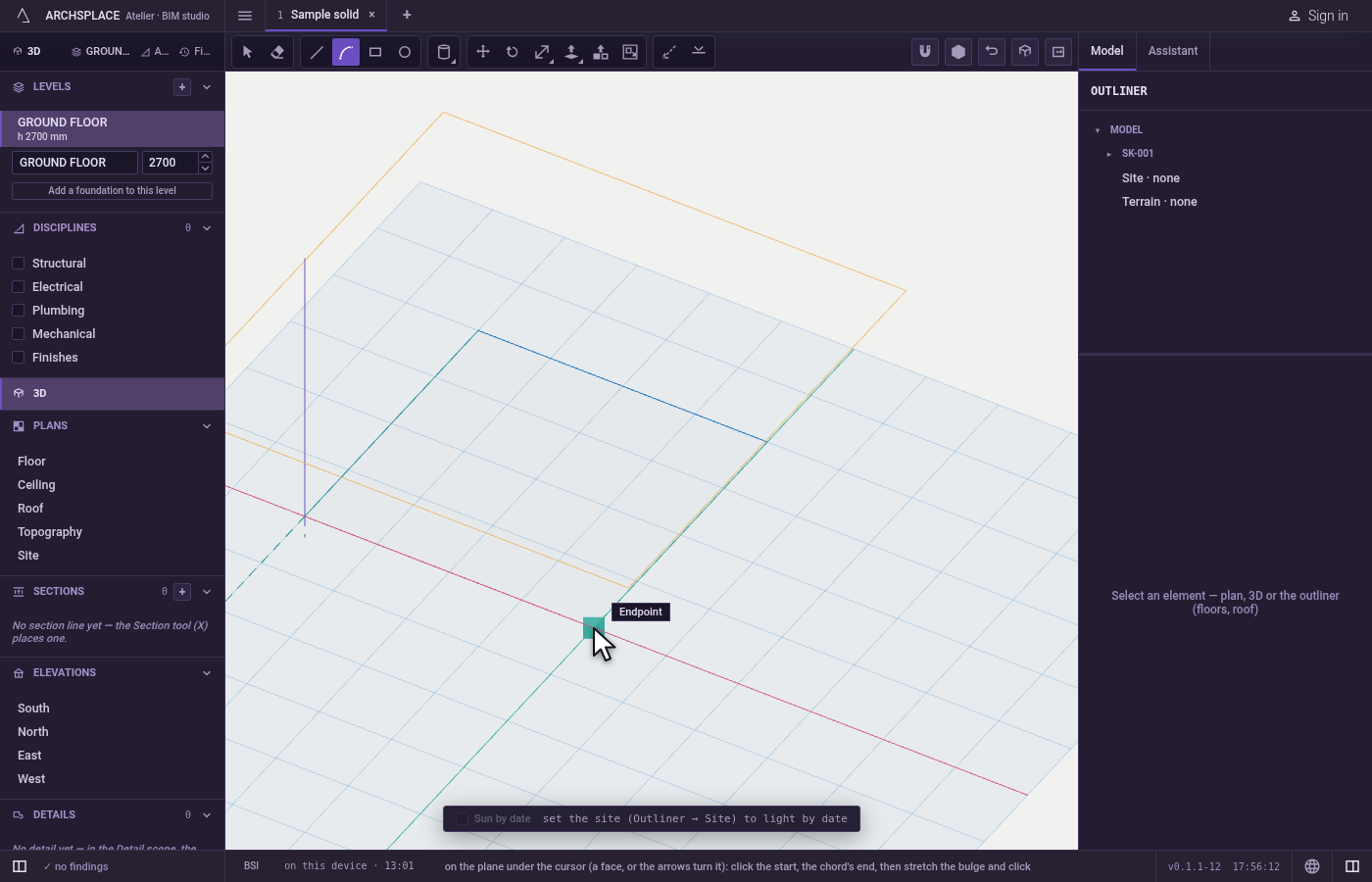
Click the end of the chord. A line follows the pointer from the start until you click.
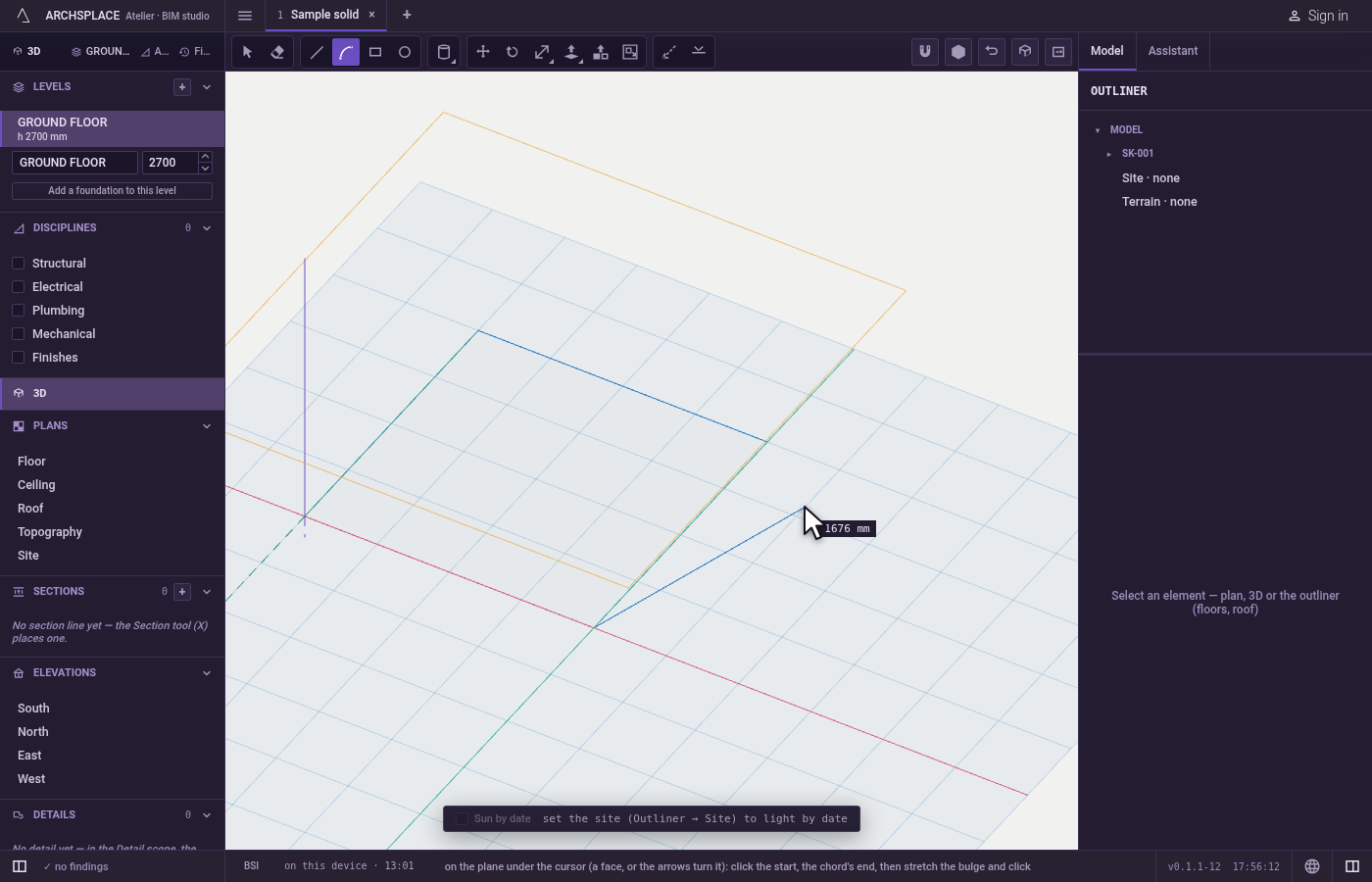
Stretch the bulge and click. The curve follows the pointer on either side of the chord, passing through it. Click where it should pass. The arc stands at once, and the chain goes on from its end: click on with the arc, or press
Lto continue straight.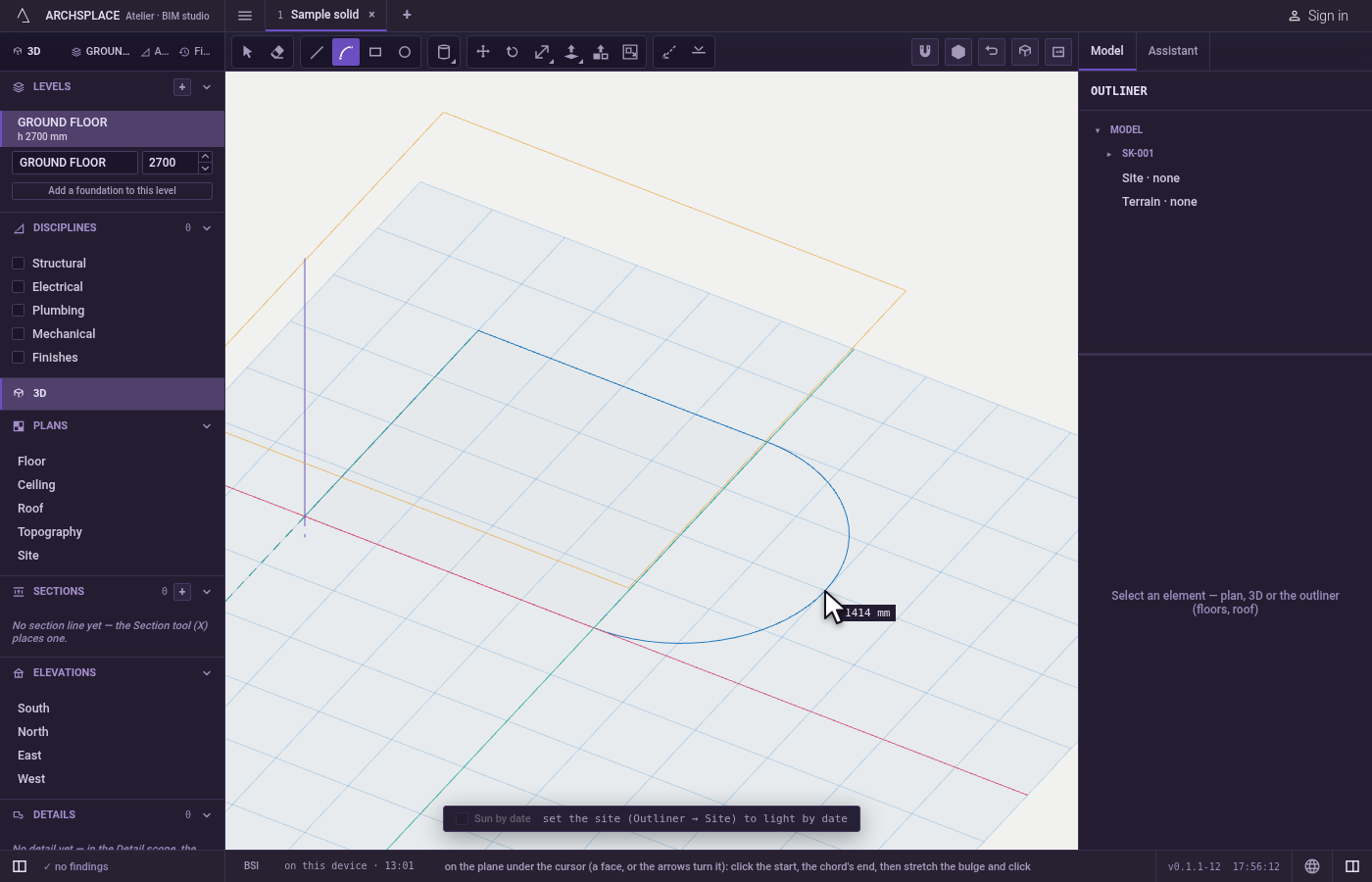
Close or stop. An arc that ends on the first point of the chain closes the outline.
Enter,Escape, the space bar or another tool end the chain; what you drew stays.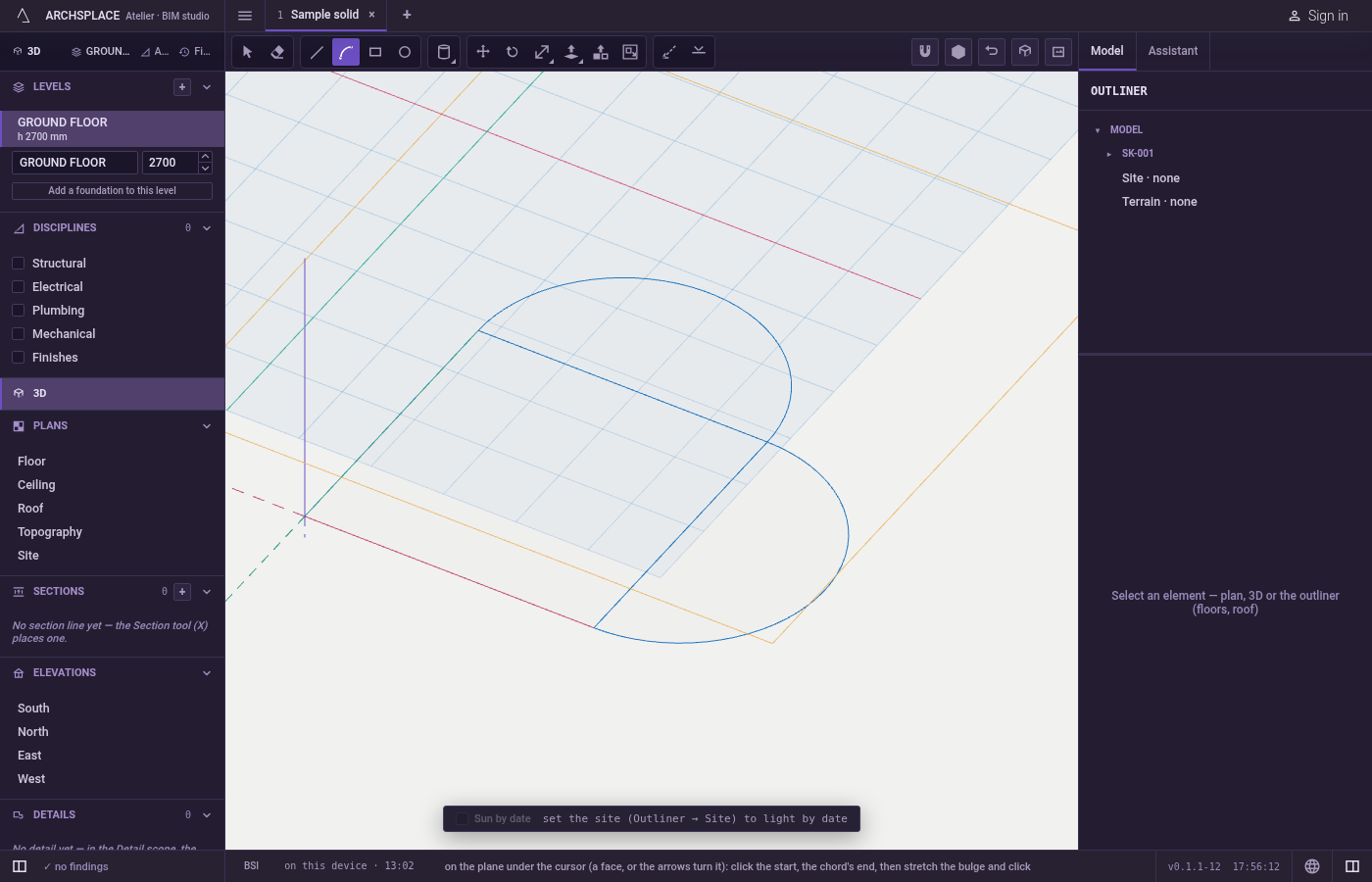
What it refuses
- An arc off the chain's plane. When the chain has left the plane it started on, an arc is refused with a notice: an arc needs a plane to lie in, so end the chain and start the arc on a face.
- A typed value. In the 3D view the arc's points are clicked; what you type does not place it.
What it writes to the contract
Each arc is added to the drawn geometry of the model, or of the component you have open, as one curve made of fine segments, at once and as one undoable step. Where it crosses other lines they split each other, and the closed outlines become faces. An arc drawn on a body's face is taken by that body.
Common questions
On which plane does the arc lie?
On the plane shown under the pointer before your first click: the face under it, or the ground. The arrow keys turn it: up for a level plane, right for a plane across x, left for a plane across y, down to go back to the face.
Can I mix lines and arcs in one outline?
Yes. Draw a line, press A, and the arc starts where the line ended; press L to go on with a straight line. An outline of lines and arcs that closes flat becomes a face.
Is the arc stored as a curve or as small segments?
As a curve. It is drawn as fine segments so faces can be found from it, but the whole arc stays one curve: a click on any part of it takes all of it.