SketchALin the studio
Align
Align moves the selected lines in the sketch editor so that points on them land on destination points: one pair of points moves them, a second pair also turns them, and S scales them to fit. It places a shape against other lines in one gesture.
What it is
Align places what you selected by pairs of points: a source point on the shape, and the destination point where it must land. With one pair, the shape moves so the source lands on the destination. With two pairs, it also turns about the first destination, so the second source point lies on the line towards the second destination. With scaling on, it also grows or shrinks so the second source lands exactly on the second destination.
Align works on the lines as you drew them: selecting one side of an outline aligns the whole outline.
When to use it
- Laying a shape along an edge that is not square to the view, in one gesture instead of a move and a rotation.
- Fitting a shape exactly between two points, with scaling on.
The steps
Choose what to align. In the sketch editor (see Select for the ways in), select the lines with Select first, or arm Align and pick them after.
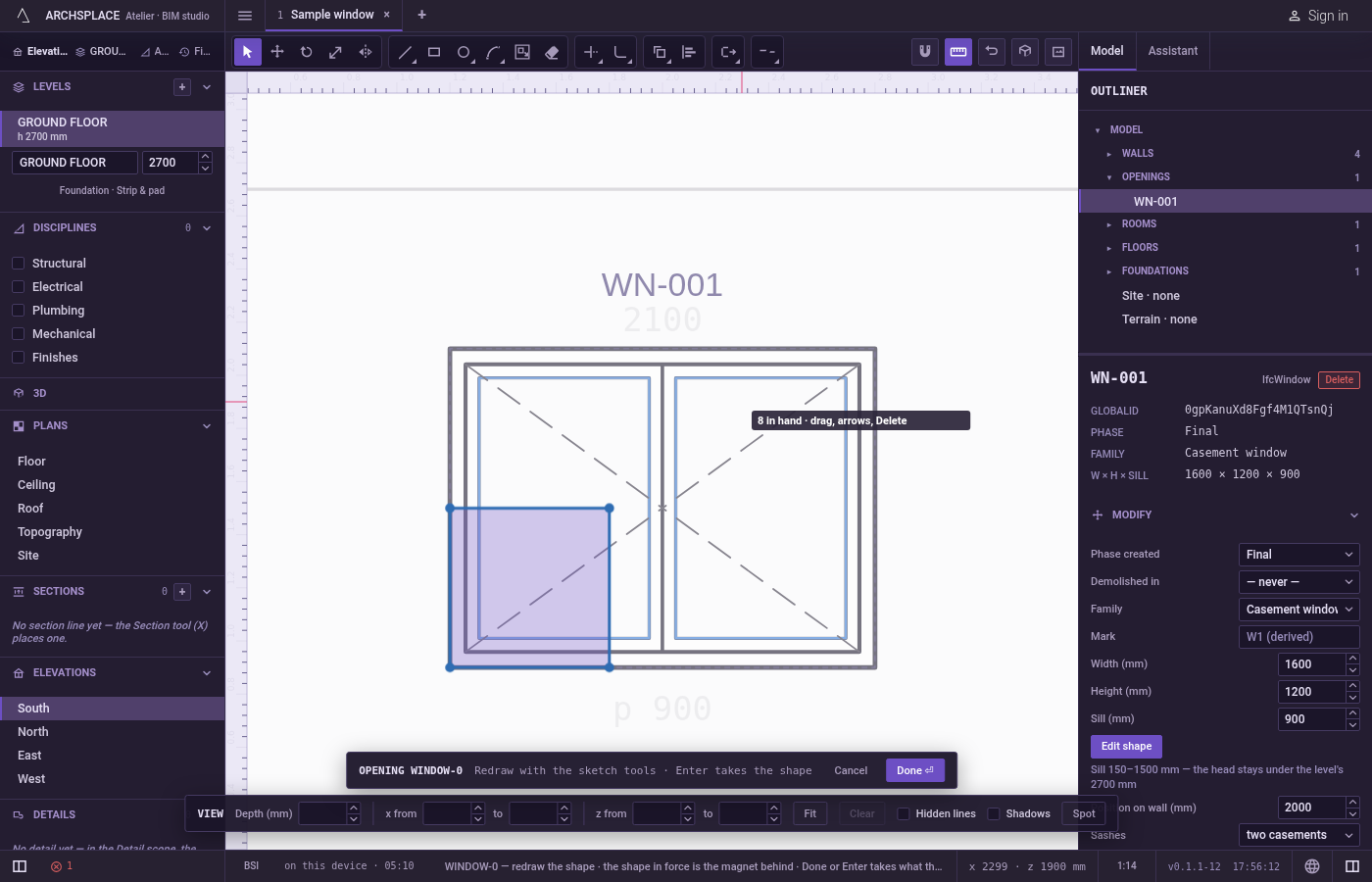
Arm Align. Type
AthenLquickly, or click Align on the editor's toolbar. The hint at the cursor says to move and turn the selection onto destination points, that one pair moves, two turn, andSscales.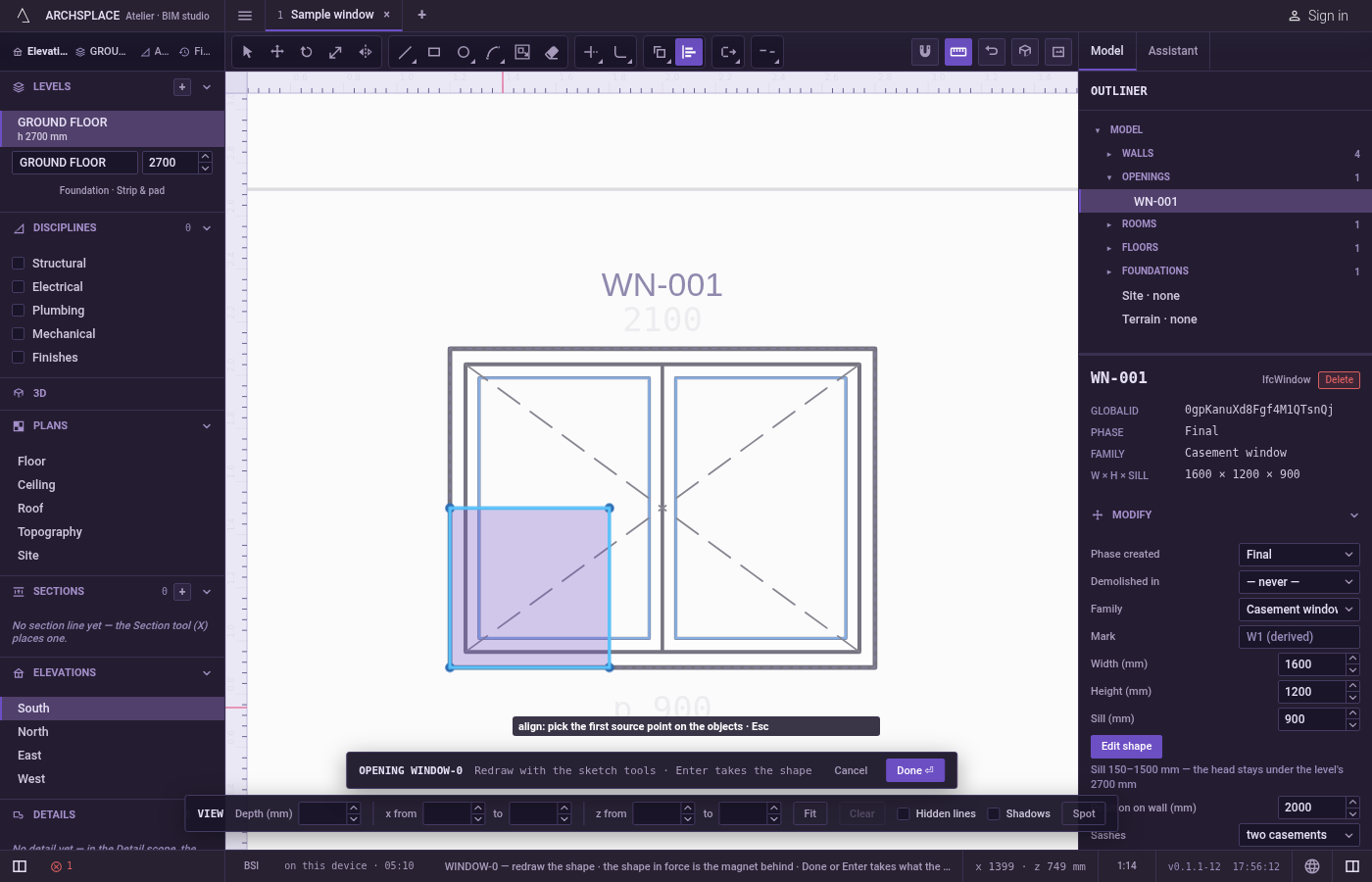
Pick the lines, if none are selected. Click lines to add them,
Shiftand a click to take one back out, drag a box to the right for the lines wholly inside or to the left for every line it touches, or pressFfor a fence. PressEnterwhen done.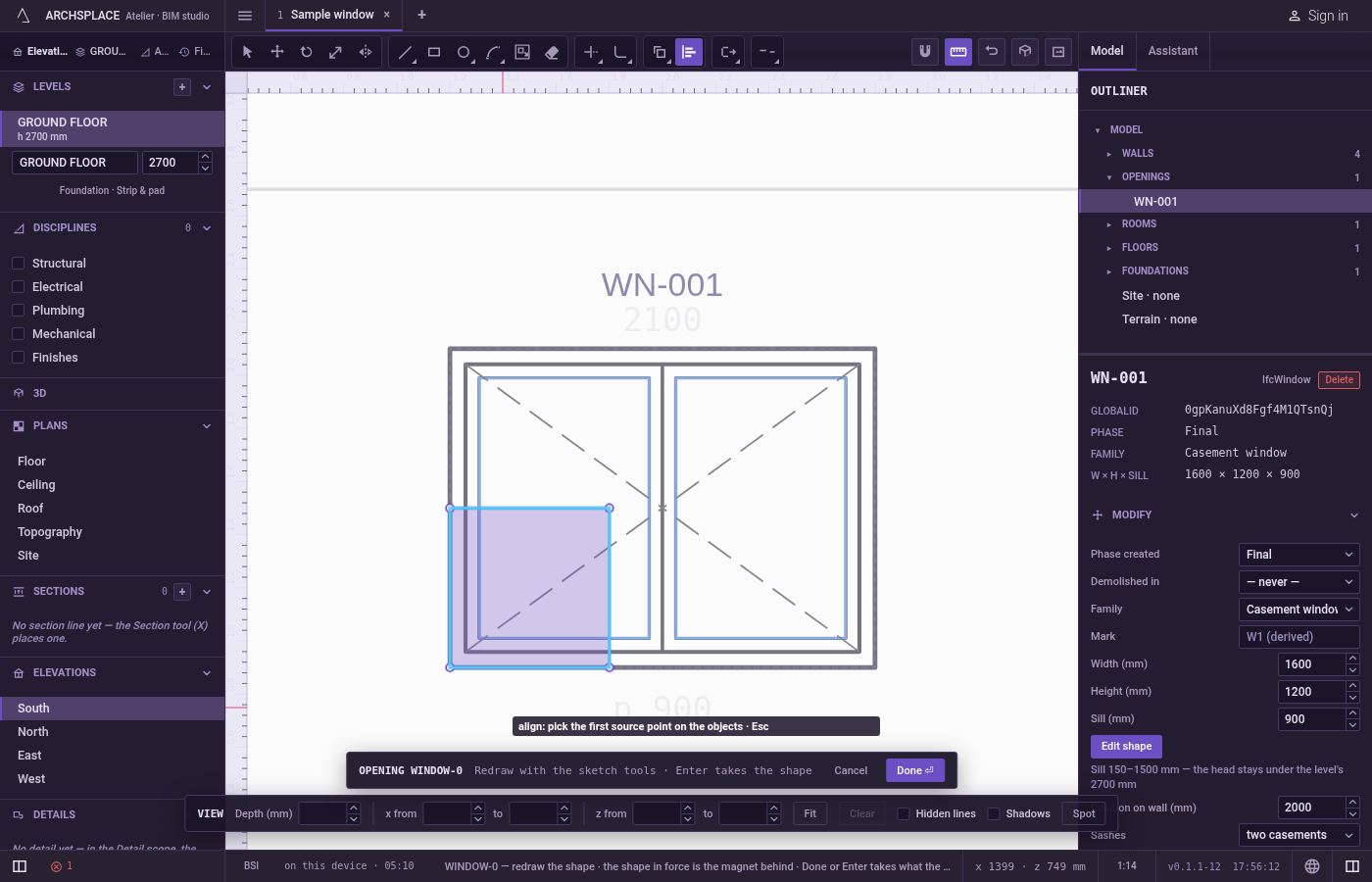
Pick the first source point, then the first destination. Both snap to corners, middles, crossings, the dimmed shape in force and the lines of the view; you can also type them as
x;y. A preview of the moved shape follows the pointer.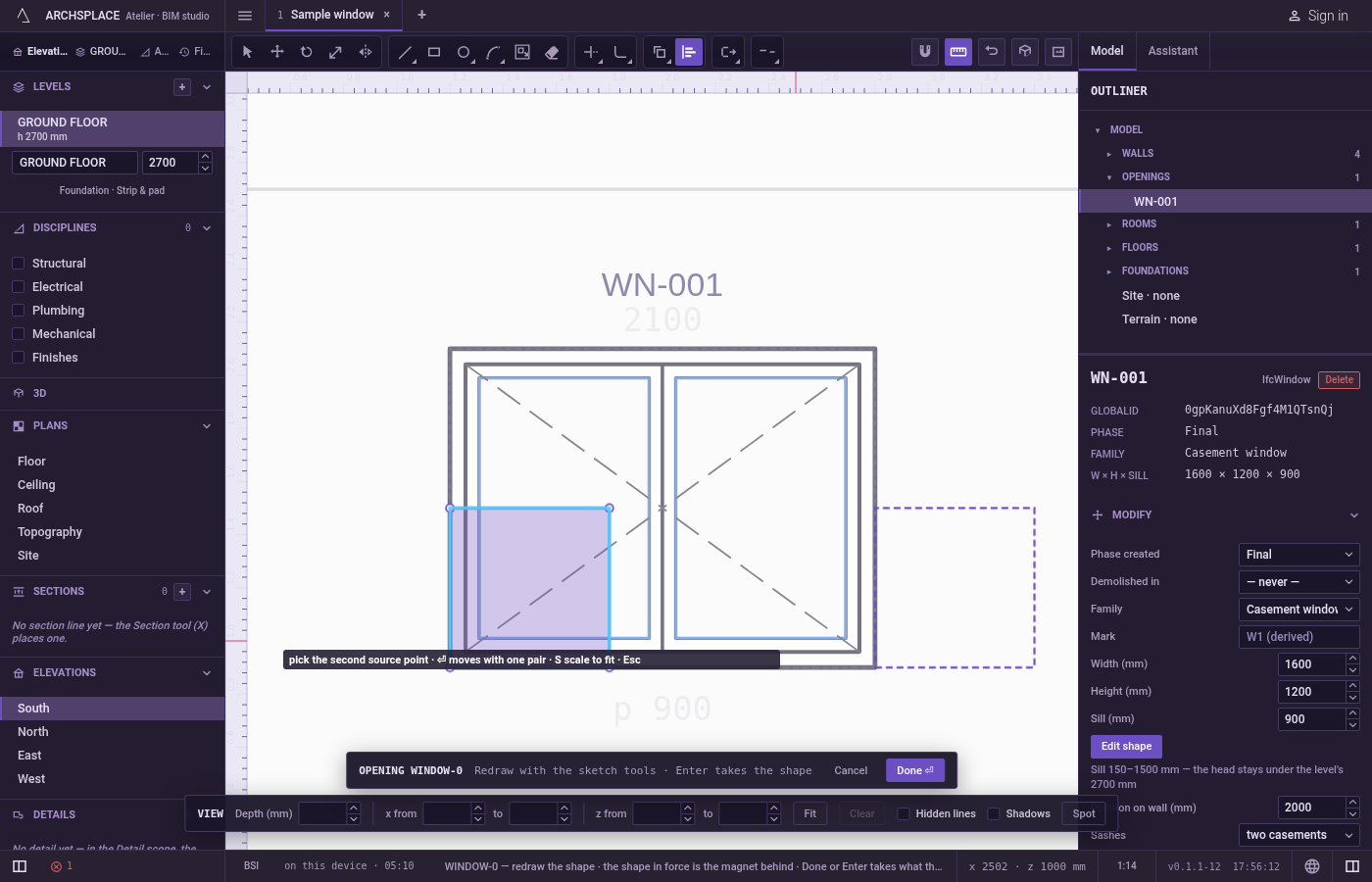
Press Enter to move only, or pick the second pair.
Enterafter the first pair moves the shape and stops there. Otherwise pick a second source point on the shape, then its destination: the preview turns as you point, and the second click places the shape.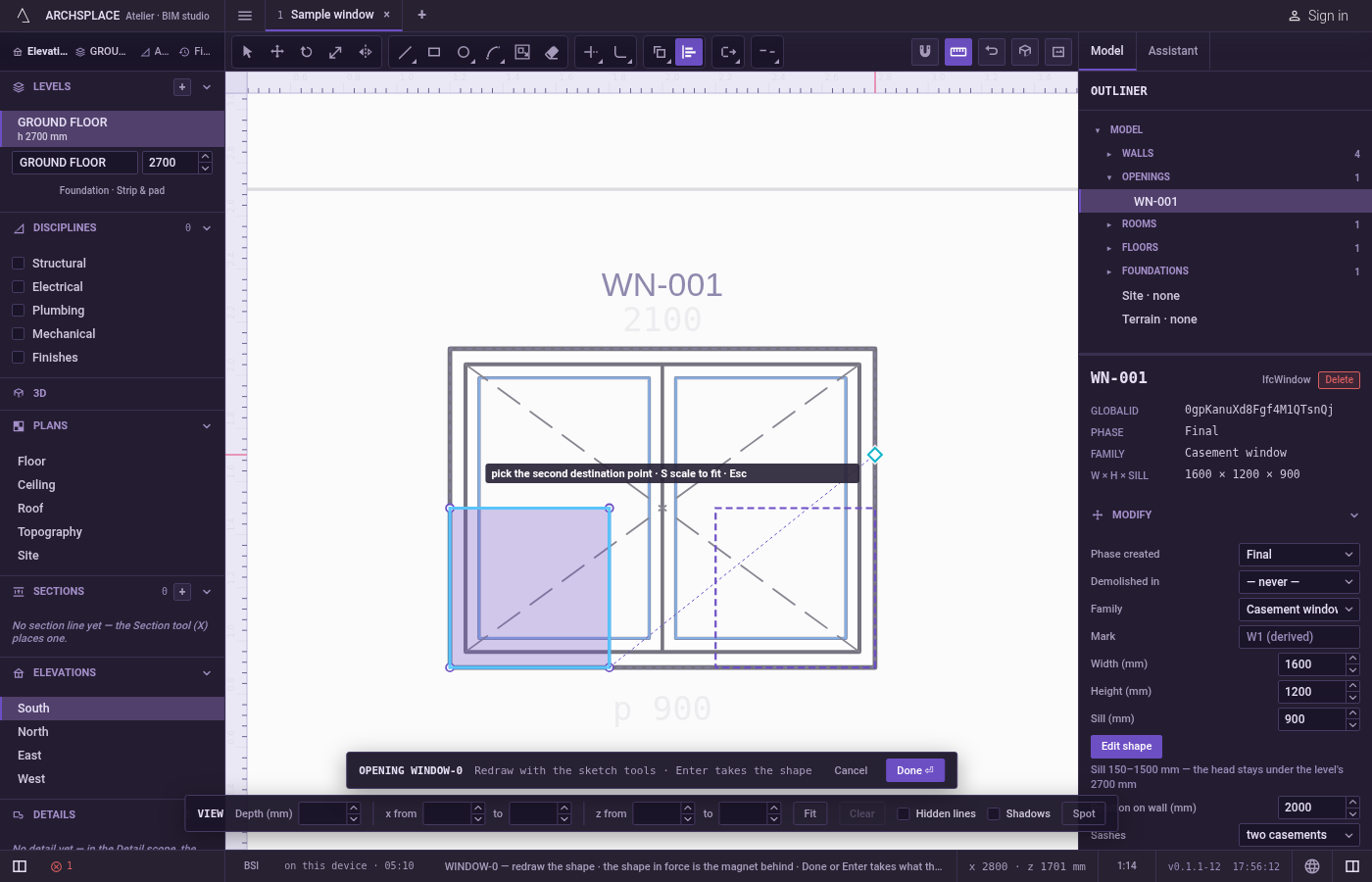
Scale to fit, if you want. Press
Sbefore the last click to switch scaling on; the hint says scaling. Press it again to switch it off.Escapetakes back the last point given, one at a time, then goes back to Select.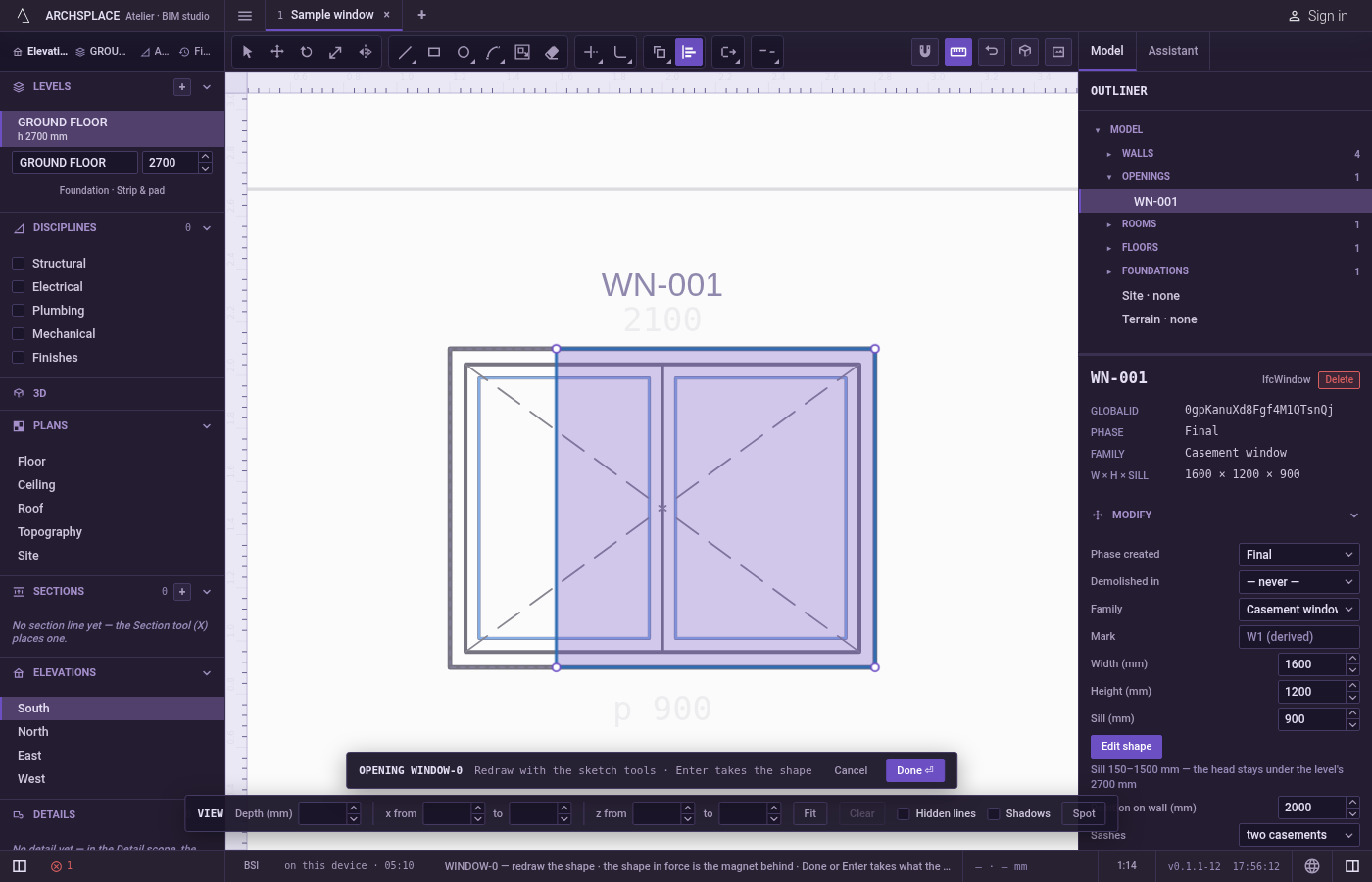
What it refuses
- Aligning with nothing selected. The points are not asked for until at least one line is picked and
Enterends the selecting. - Stretching one way. Scaling keeps the shape's proportions. To stretch a shape in one direction, use Stretch.
- Part of a line. Align always takes whole lines as drawn.
- The shape in force. The dimmed shape behind your drawing cannot be aligned, though its corners are good destinations.
What it writes to the contract
Nothing until you press Done. Each alignment is one step inside the editor, and Ctrl+Z steps back through them. The contract changes when you press Done, or Enter with nothing in progress, as one step you can undo: what the lines enclose becomes the window's or door's profile, points [u, v] in metres across the wall and up from the floor, or the pattern area's outline in the room's floorAreas or ceilingAreas, points [x, y] in plan metres.
Moving, turning and scaling keep every arc an arc: its bulge, the third number on its starting point, does not change.
Common questions
How do I just move a shape from one point to another with Align?
Pick the lines, then a source point and a destination point, and press Enter. With one pair, Align only moves.
How do I make a shape fit between two points exactly?
Give both pairs of points and press S before the last click: the shape is moved, turned and scaled so the distance between the two source points becomes the distance between the two destination points.
Does Align stretch a shape in one direction?
No. Scaling is the same in every direction, so the shape keeps its proportions.