3D
Components
A component is a piece of the model kept once, as a definition, and placed as many times as you like: change it inside one copy and every copy changes. In the 3D view you make one from a selection, open it to edit it, make one copy unique, or explode a copy back into loose geometry.
What it is
A component is made of two things. Its definition holds the content once: bodies, drawn lines and faces, or walls with their openings and devices. Each placement of it stands somewhere in the model, with its own position, turn and scale. Everything placed from one definition is the same object: edit the definition, through any copy, and every copy changes.
From outside, a component is one object. A click takes it whole, Move carries it, Ctrl with Move or Rotate places another copy, and the panel on the right shows its name, which you can change, and how many copies stand in the project. Its faces and edges are reached only once you open it.
A component can hold other components, placed inside its definition. The Sphere, Cylinder and Cone tools also make a component each time.
When to use it
- To repeat the same object, such as a chair, a window box or a column, and keep every copy alike.
- To group bodies so that one click takes them all.
- To keep a group of walls with their openings as one unit.
The steps
Make one. Select whole bodies, drawn lines and faces, or walls, then choose Make component in the right-click menu, or in the panel on the right (Group into component in a body's panel). The selection becomes a new component, named Component with a number, placed where it stood and left selected. Inside an open component, the new one is placed inside it.
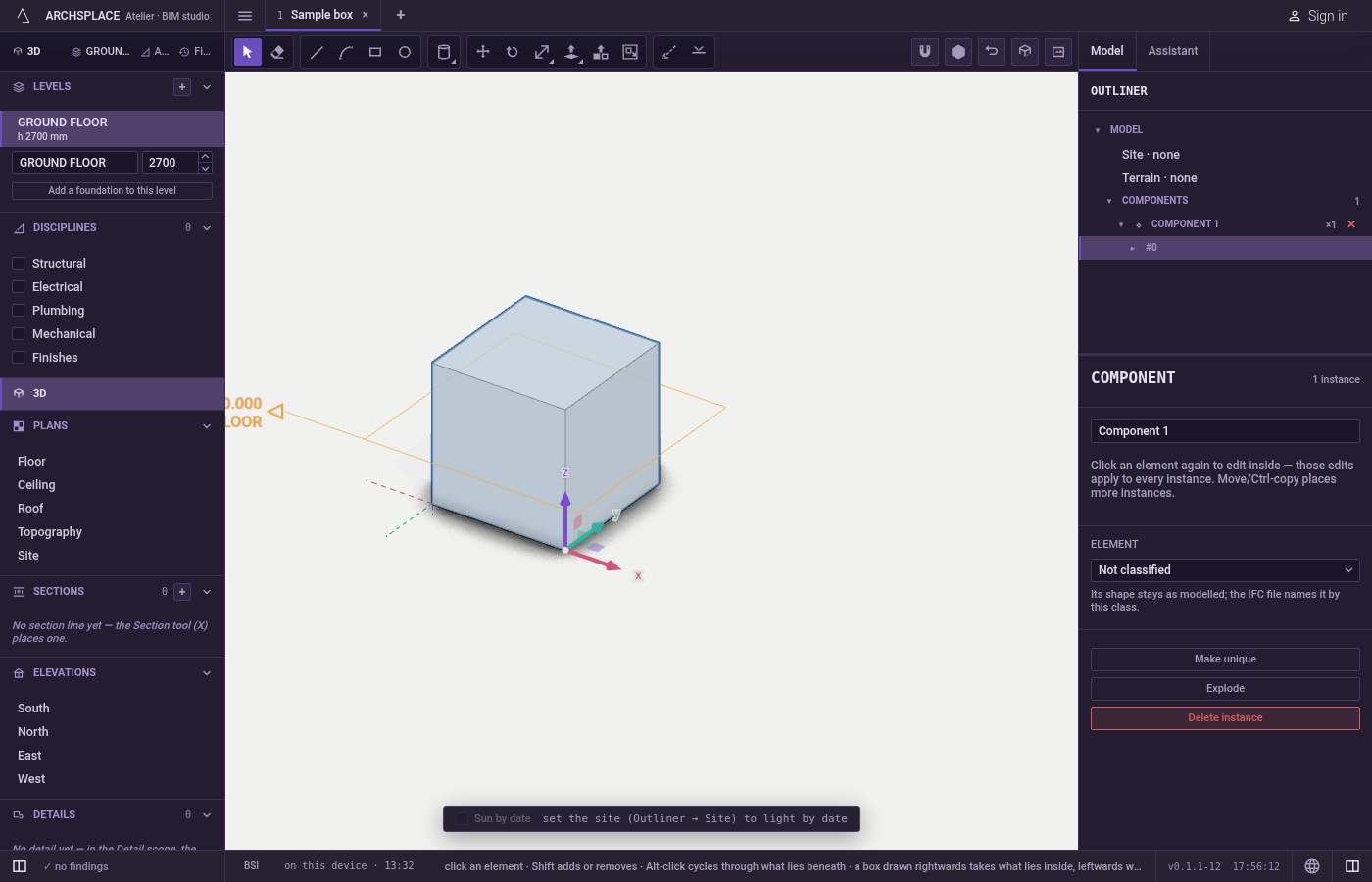
Place more copies. Move or Rotate it with
Ctrl(⌘on a Mac) held at the drop, or copy and paste it.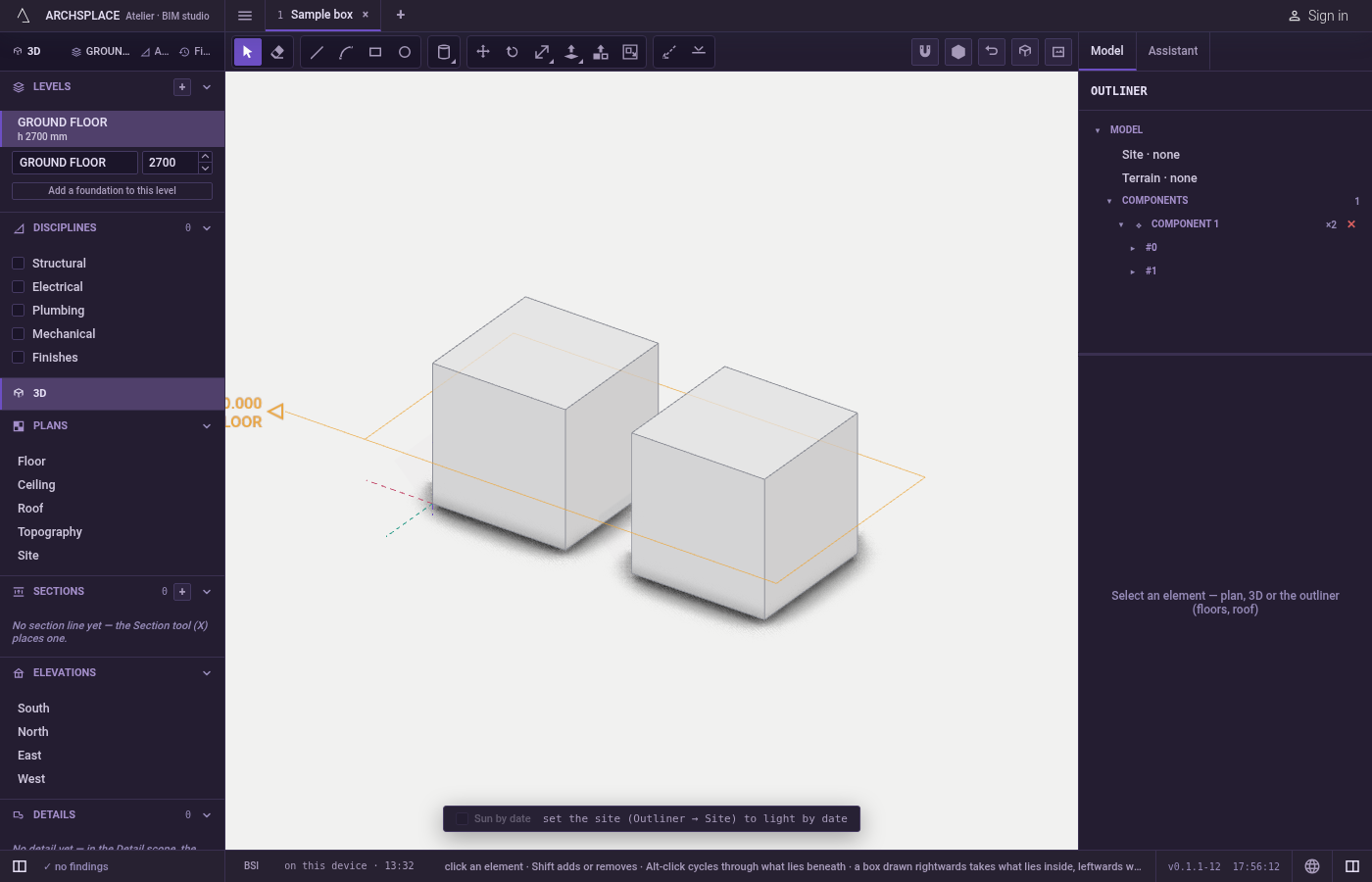
Open it. Double-click a copy, or choose Edit component in its right-click menu. The rest of the model fades, and a banner names the component and how many copies it has. Draw, push, pull and move inside: every copy follows. A component placed inside it is one object again; double-click it to go one level deeper.
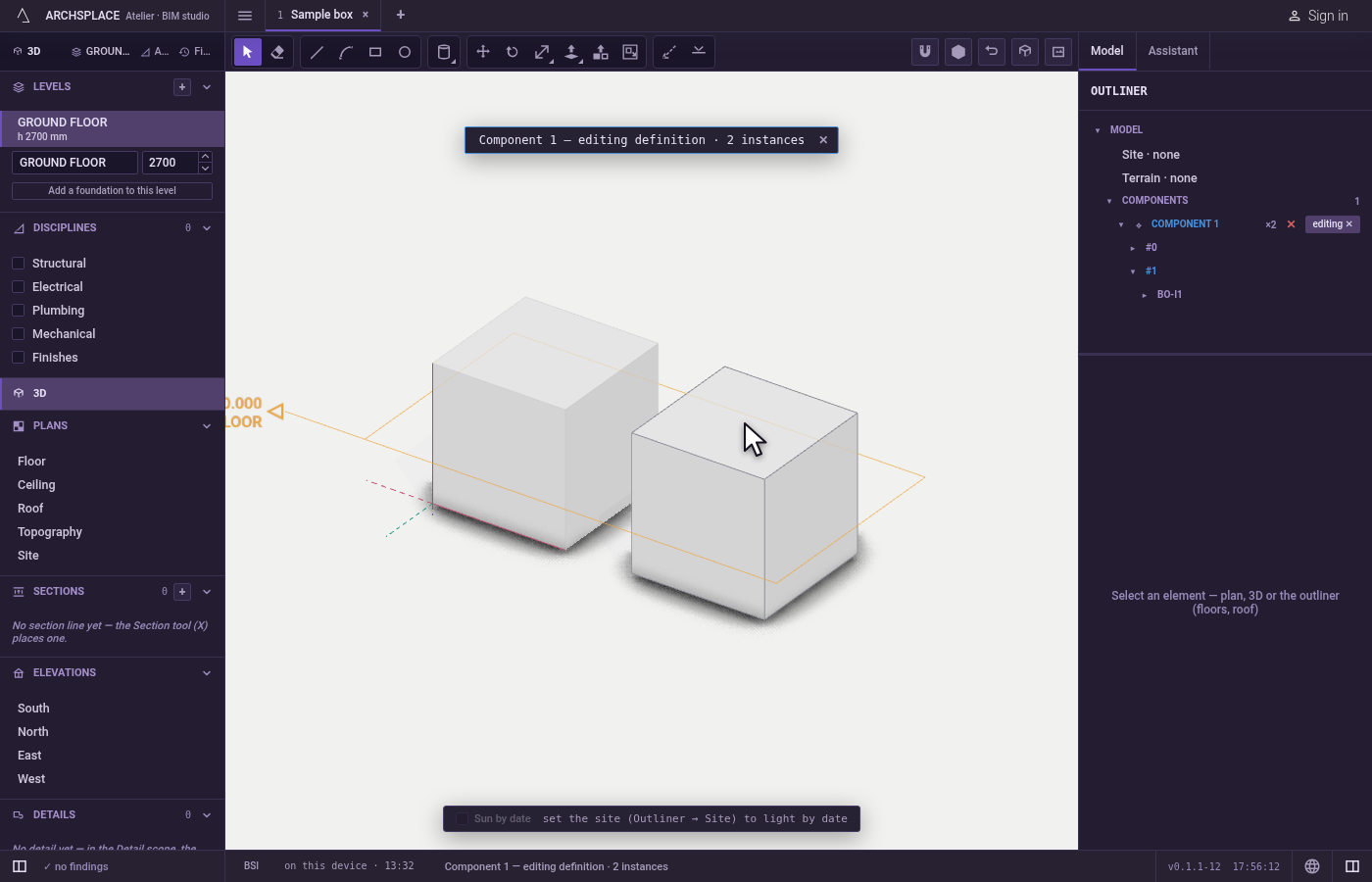
Close it. Press
Escape, or choose Close component in the right-click menu. Each press closes one level.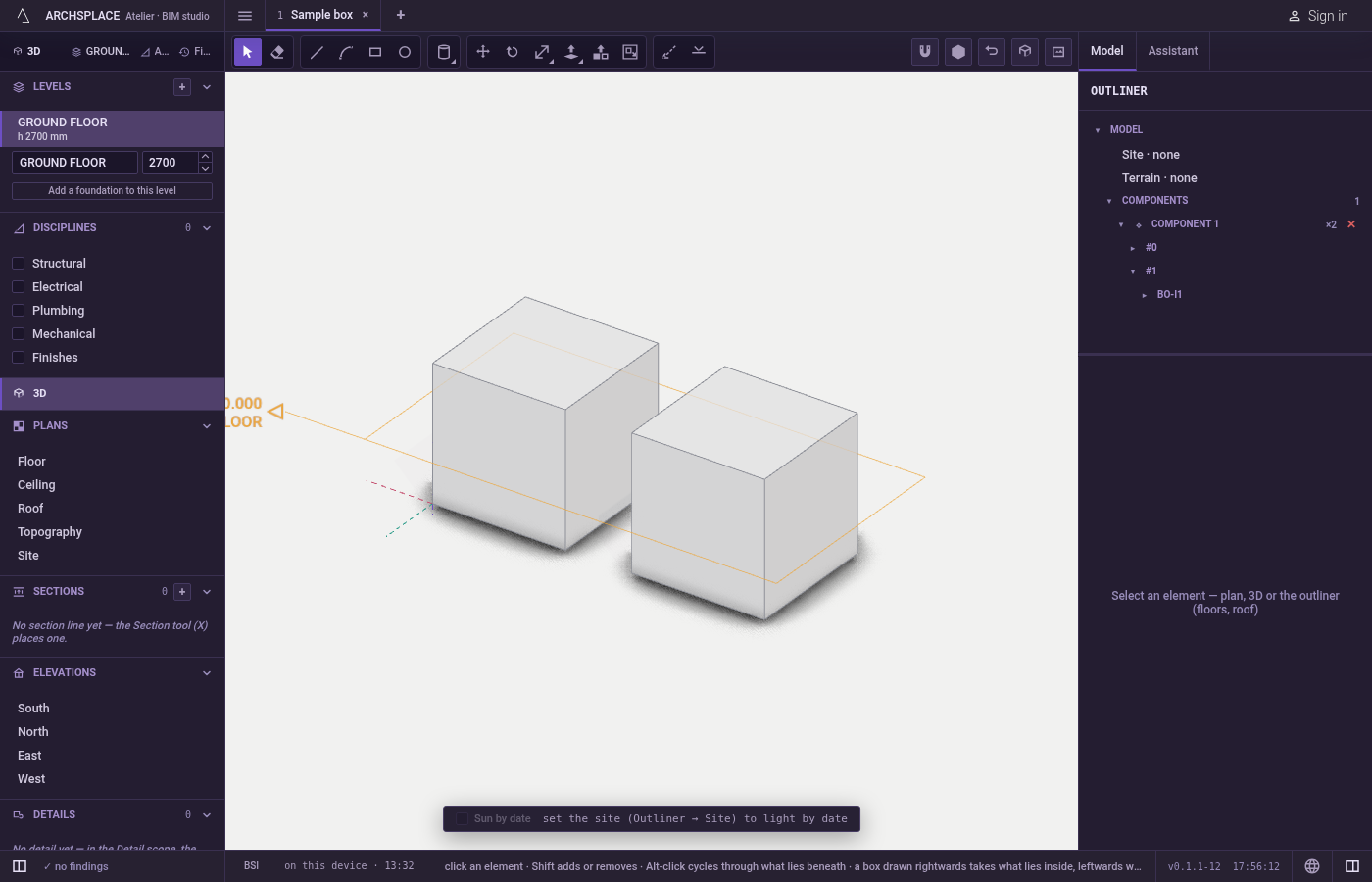
Make one copy unique. Select the copy and choose Make unique in the right-click menu or the panel. It gets a definition of its own, named after the old one with (unique).
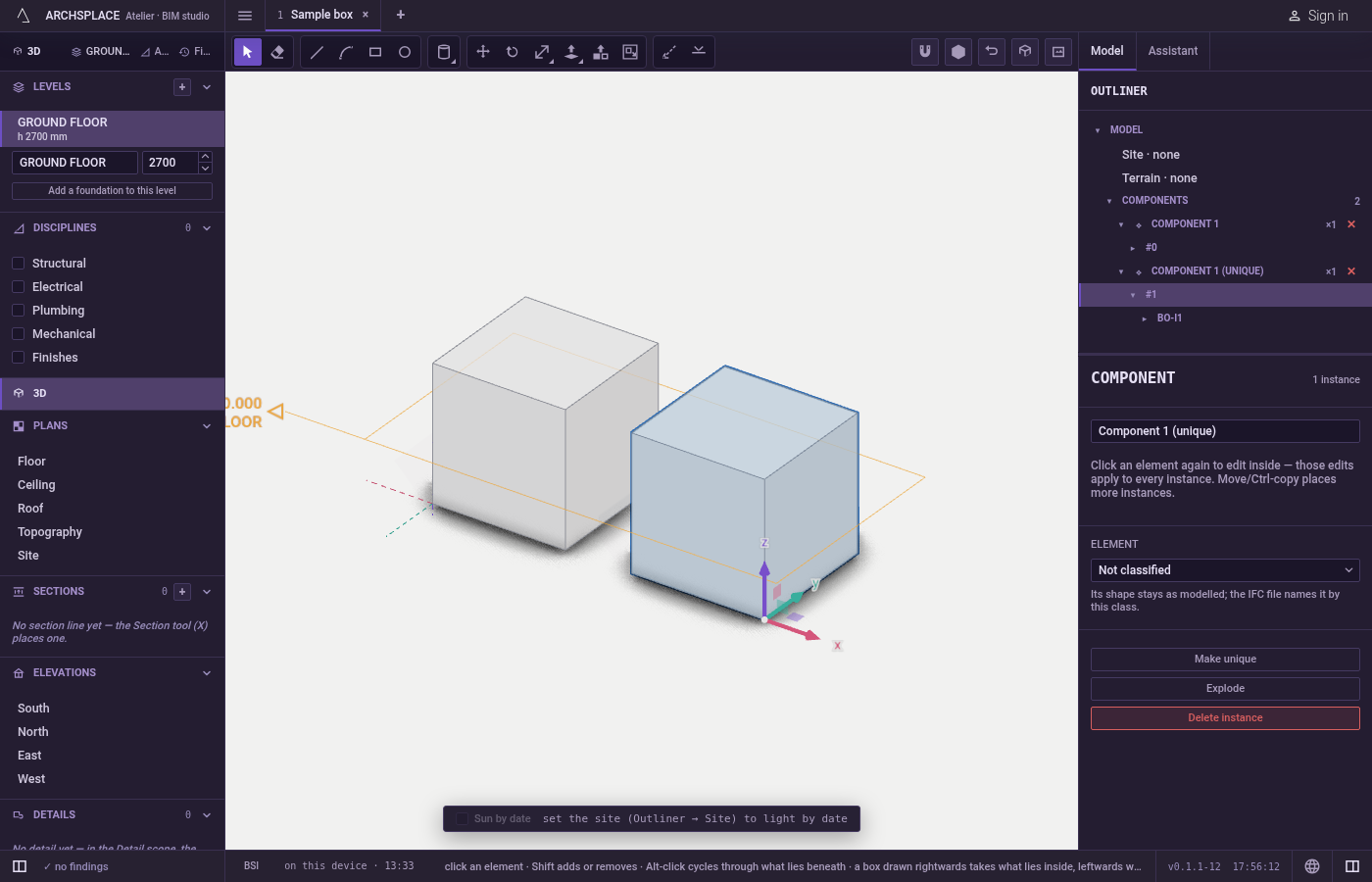
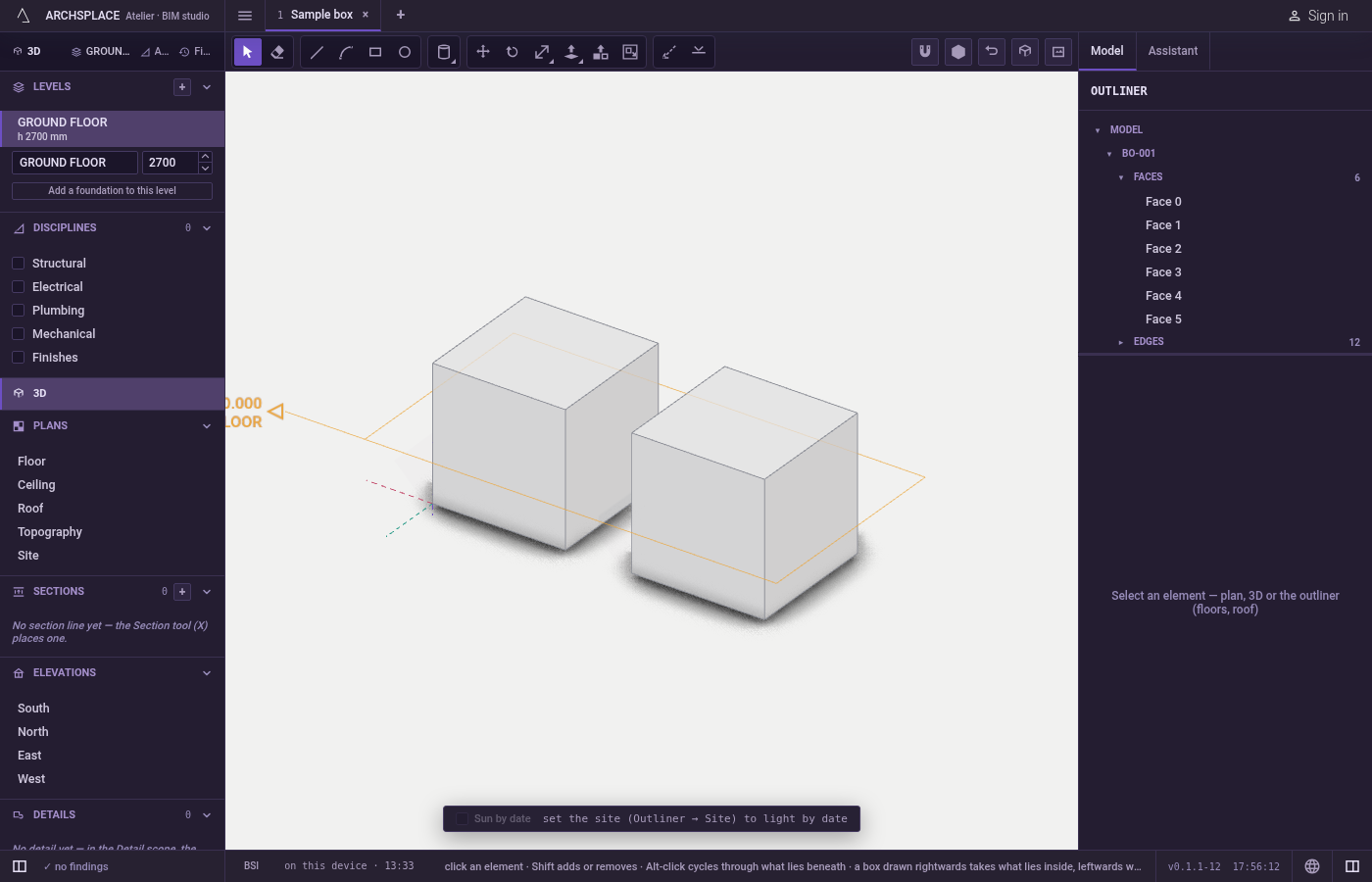
Explode a copy. Select it and choose Explode. Its content comes back into the model where the copy stood: bodies, lines and walls you can edit directly. Components it held come up one level and stay components.
What it refuses
- A selection that holds a component. Making a component from a selection with a component in it is refused: move, copy or array the component as it is, or open it and work inside.
- Walls mixed with drawn geometry. Walls and bodies make different kinds of definition: select one kind or the other.
- Part of a body. A body is taken into a component whole; a selection holding only some of its faces or edges is refused until it holds the whole body. Drawn lines and faces can be taken in part.
- Elements other than bodies, drawn lines and walls. A slab, a stair or a roof cannot become a component.
- Several copies at once. Edit component, Make unique and Explode each work on one copy at a time.
What it writes to the contract
Making a component adds a definition holding the selected content, measured from its centre, and a placement where the content stood; the content leaves the model for the definition. An edit inside an open component writes into the definition. Make unique adds a copy of the definition and points the one placement at it. Explode writes the content back into the model at the placement and removes the placement, and a definition no longer placed anywhere is removed. Each of these is one undoable step.
Common questions
How do I make a component?
Select whole bodies, drawn lines and faces, or walls, then choose Make component in the right-click menu or in the panel. The selection becomes a component, placed where it was and selected.
How do I edit all copies of a component at once?
Double-click one copy, or choose Edit component in its right-click menu. Edit what is inside; every copy changes. Press Escape, or choose Close component, to leave.
How do I change one copy without changing the others?
Select that copy and choose Make unique. It gets its own definition, named after the old one with (unique), and edits inside it no longer reach the others.
What does Explode do?
It puts the content of one copy back into the model where it stood, as loose bodies, lines or walls, and removes that copy. Components placed inside it come up one level and stay components.