Panels
Outliner
The outliner is the model as a tree, in the column on the right: every element under its kind, down to the faces and edges of free geometry, the components with their placements, the details drawn over the views and what the build refused. A click on a row selects the element as a click in a view would, and a double-click shows it in the first view that draws it.
What it is
The outliner stands at the top of the column on the right, under the title OUTLINER, with the properties of the selection under it. In the installed atelier the column has two tabs, Model, which holds them, and Assistant. On a sheet the column belongs to the sheet, and in a schedule to the schedule.
The tree starts at Model. Under it each kind of element is a group with its count: Walls, Openings, Rooms, Floors, Stairs, Columns, Beams, Roofs, Devices, Fixtures, Pipes, Risers and Foundations, with the footings of each level, and the Site and the Terrain with its spot heights. Each element is named by its reference, such as W-001. Under a wall, a room or a roof stand its laid patterns, such as Outer face · Stretcher bond, and each pattern area of a room. Free geometry opens down to its Faces and Edges. What the model derives is marked derived.
Further down:
- Components: each definition, marked ❖, with how many times it is placed (×3); its placements stand under it.
- Details: the marks drawn over a view, grouped by the view they belong to, such as Floor plan · Level 1, each with a ✕ to remove it.
- Refused: the entries the build refused, so you can select and repair them.
A row's arrow opens and closes it. The tree opens down to the selection, whichever view selected it, and scrolls it into sight.
When to use it
- Finding an element by its reference, or one hidden behind others in a view.
- Selecting all the elements of a kind, or a precise set, without clicking in a drawing.
- Seeing what a project holds, kind by kind.
- Opening, renaming or removing a component.
- Finding and repairing a refused entry.
The steps
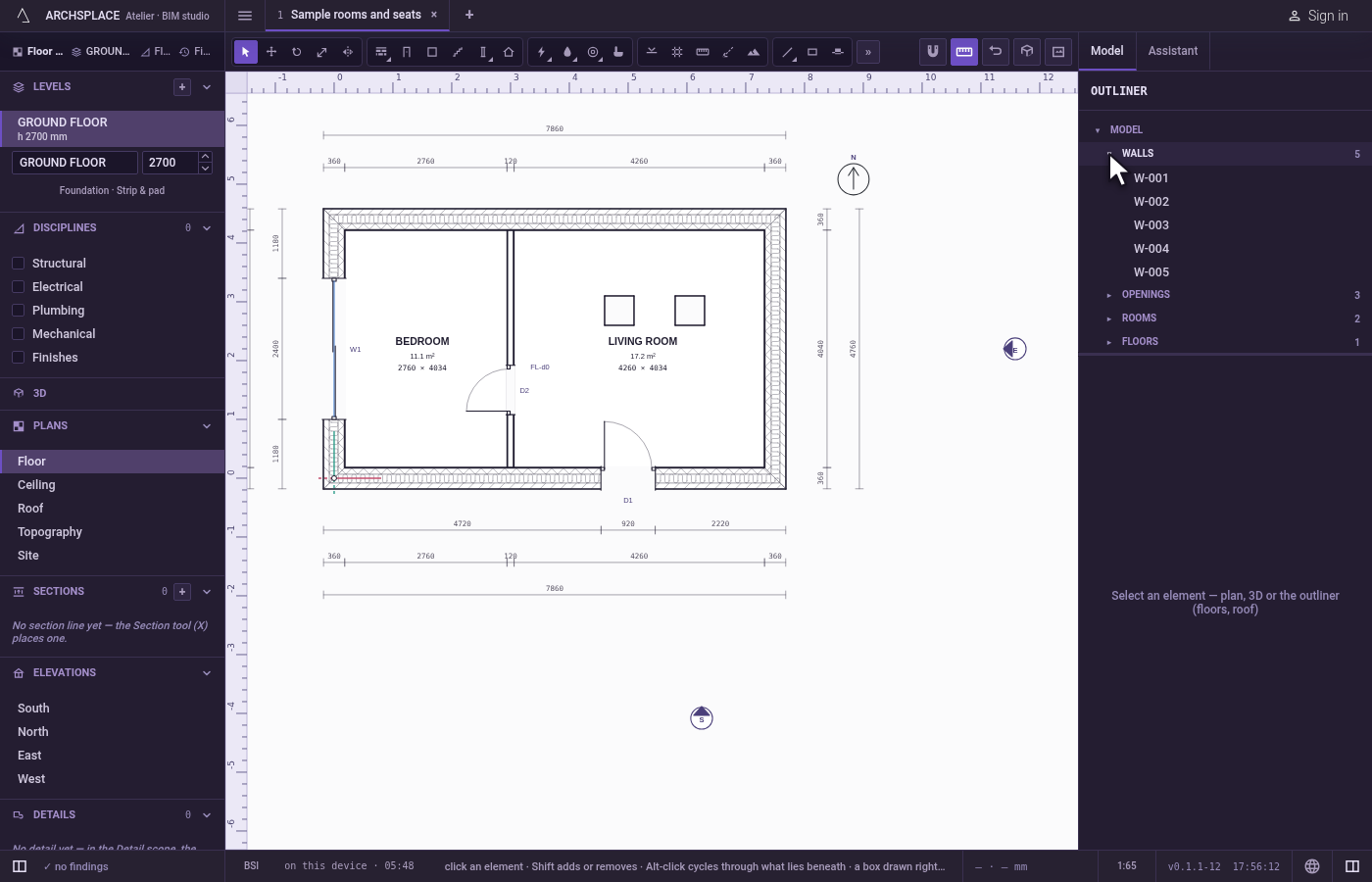
Open a group. In the outliner, click the arrow of Walls. The walls are listed by reference.
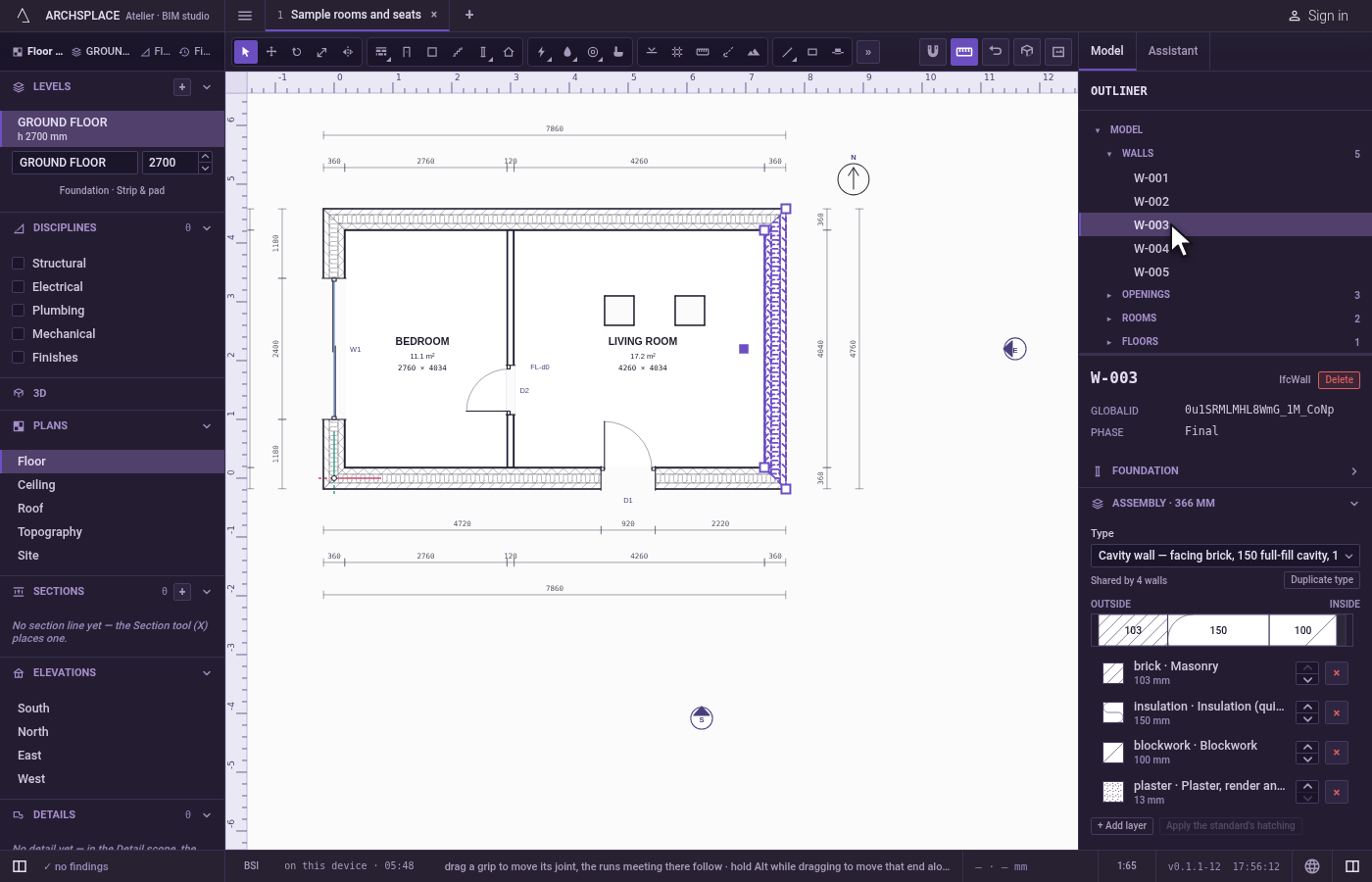
Select a wall. Click W-003. It is selected in every view, and its properties show under the outliner.
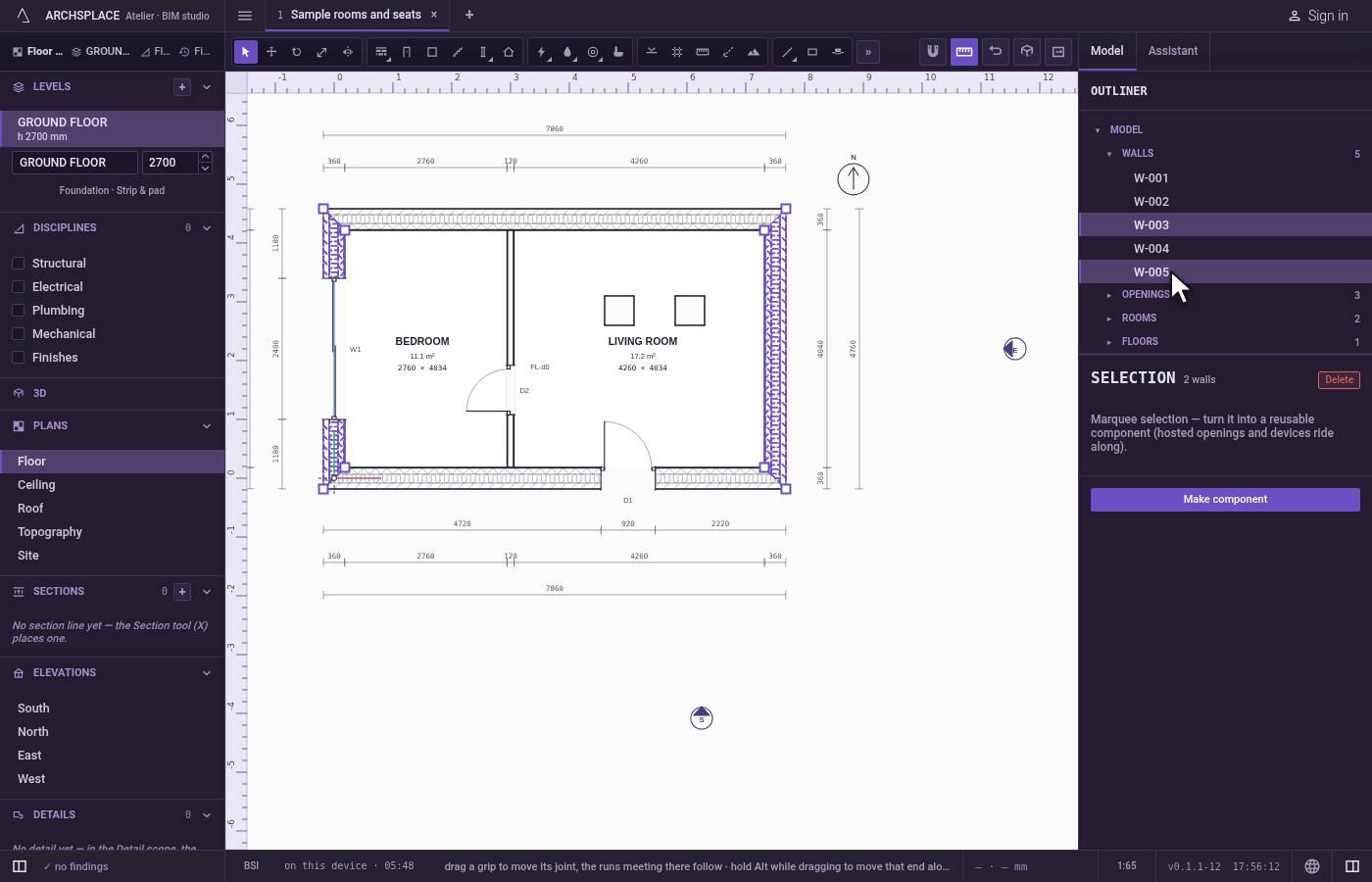
Add another. Shift-click W-005. Both are selected.
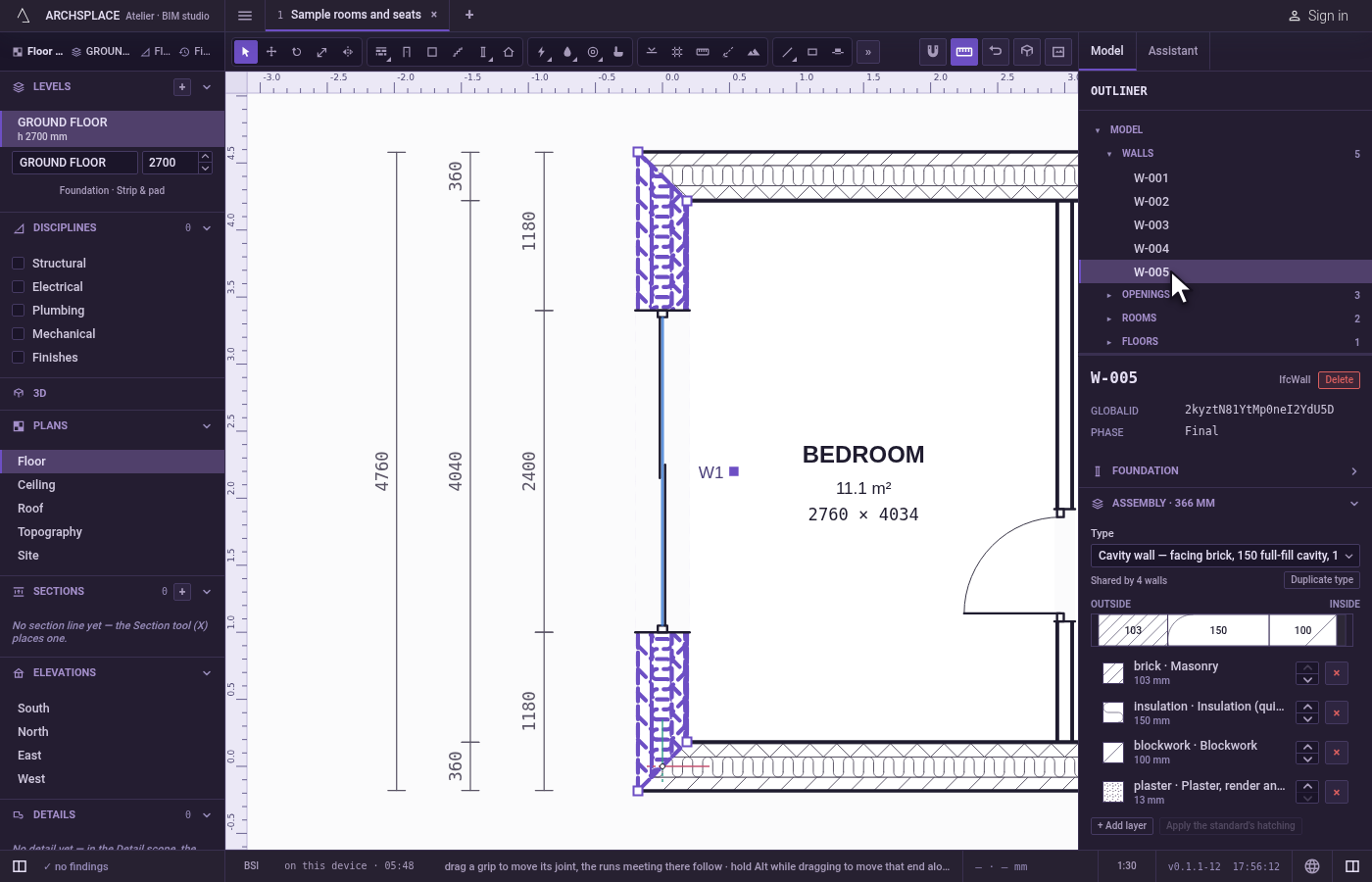
Show one in a drawing. Double-click W-005. The first view that draws it opens, framed on it.
Rename a component. Under Components, double-click a definition's name, type Chair and press
Enter.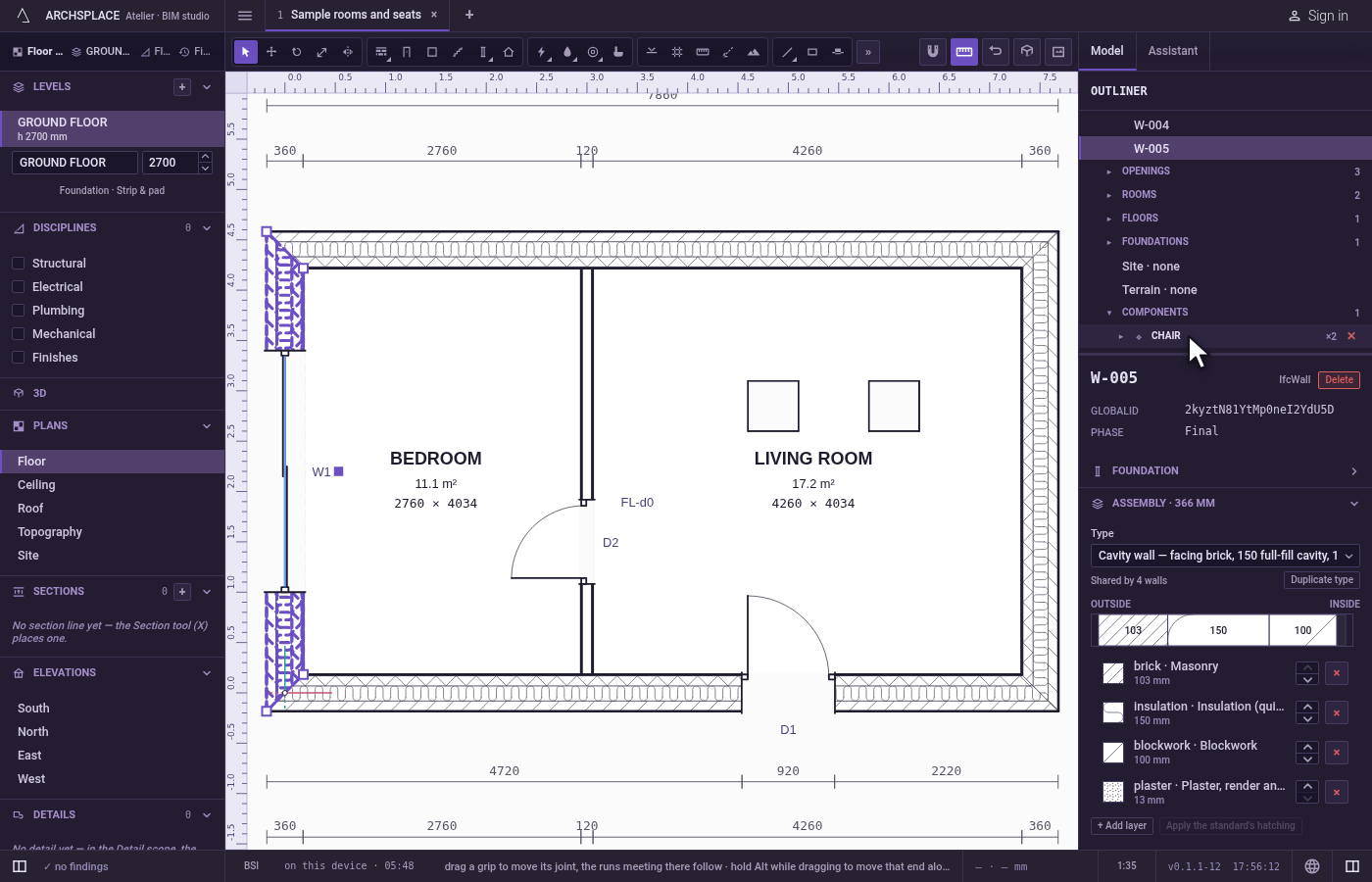
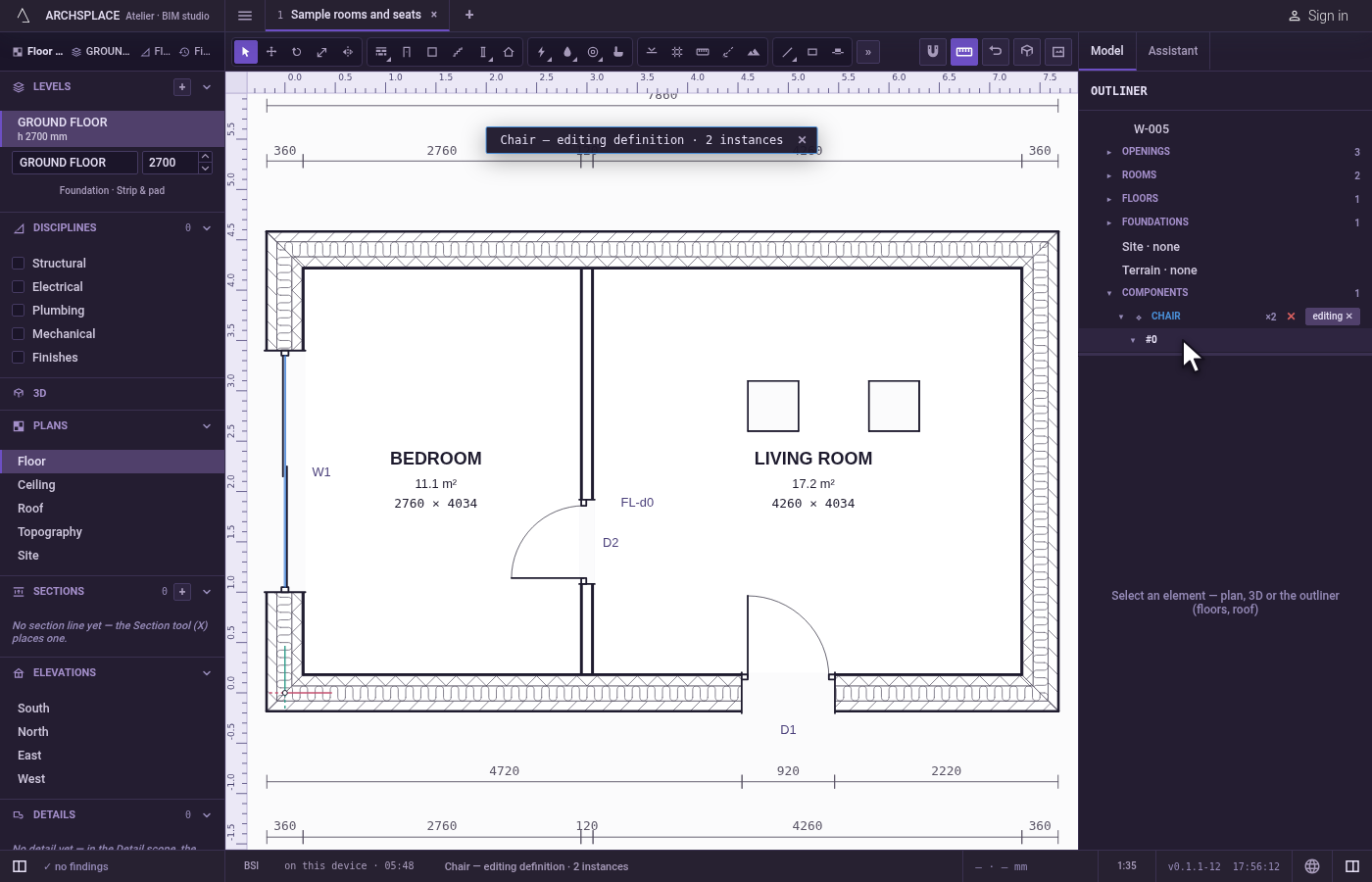
Enter a placement. Open the definition with its arrow, then double-click one of its placements. The component opens for editing, and its definition's row shows editing ✕, which closes it again.
What it refuses
- Showing a refused entry in a drawing. It was never built, so no view draws it: a double-click does nothing.
- Showing what no view draws. A toast says that no view draws it, and the view on screen stays as it was.
- Removing a component that still has placements without asking. The dialog asks first, and says how many leave.
- An empty name for a component. The name stays as it was.
What it writes to the contract
Selecting, opening a group and showing an element write nothing. Renaming a component writes its definition's name. Removing a component removes its definition and every placement of it, one change that one Ctrl+Z takes back, and so does removing a detail.
Common questions
How do I find an element I cannot see in the plan?
Find its row in the outliner, under its kind, and double-click it. The atelier opens the first view that draws it, its own level first, framing it with what surrounds it. If a discipline must be turned on to show it, it is, and the status bar says so.
How do I select several elements from the outliner?
Click the first row, then Shift-click or Ctrl-click (⌘-click on a Mac) each other row. A Shift-click on a row already selected takes it out.
How do I delete a component and every copy of it?
Click the ✕ on the component's row under Components. A dialog asks first, saying how many placements leave with it; Remove all removes them in one step, which Undo brings back.