SketchRRECin the studio
Rectangle
Rectangle draws a closed four-sided outline in the sketch editor from one corner to the opposite one, by two clicks, one drag or a typed width and height. Its sides always run along the editor's two axes, across and up on a facade, or along x and y on a plan.
What it is
Rectangle draws a closed outline of four sides from one corner to the opposite one. The sides always run along the editor's two axes: across the wall and up on a facade, along x and y on a plan. While you choose the second corner the rectangle is drawn filled, and the hint shows its width and height.
When to use it
- Starting a window or door shape from its plain frame, before adding an arch or cutting a corner.
- Drawing a rectangular pattern area, such as a rug of tiles in the middle of a floor.
- Laying a box that other tools will trim, fillet or chamfer.
The steps
Arm Rectangle. In the sketch editor (see Select for the ways in), press
Ror click Rectangle on the editor's toolbar. The hint at the cursor asks for the first corner.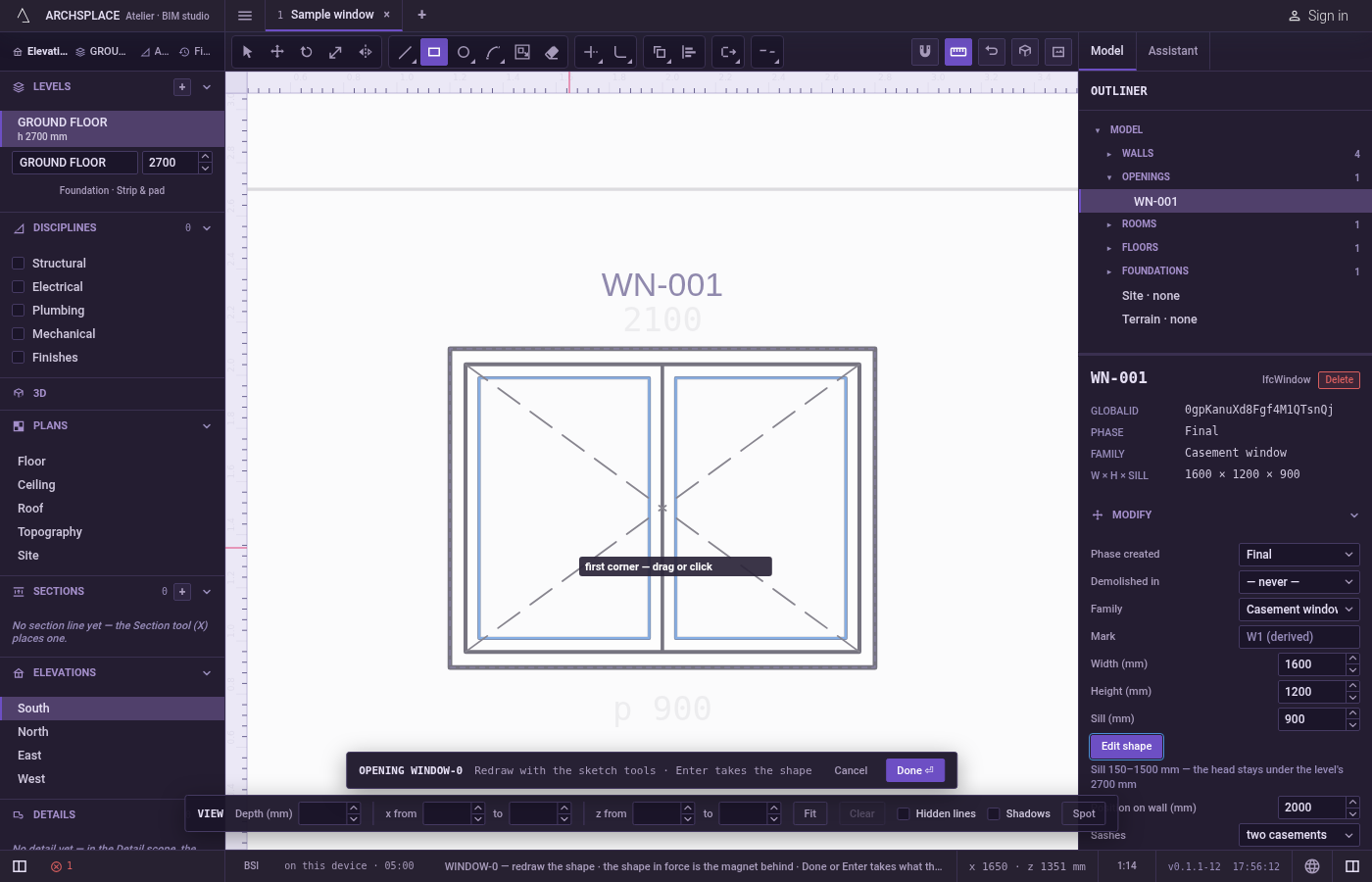
Set the first corner. Click it, or press it and keep the button down. It snaps to corners, middles, crossings, the dimmed shape in force and the lines of the view.
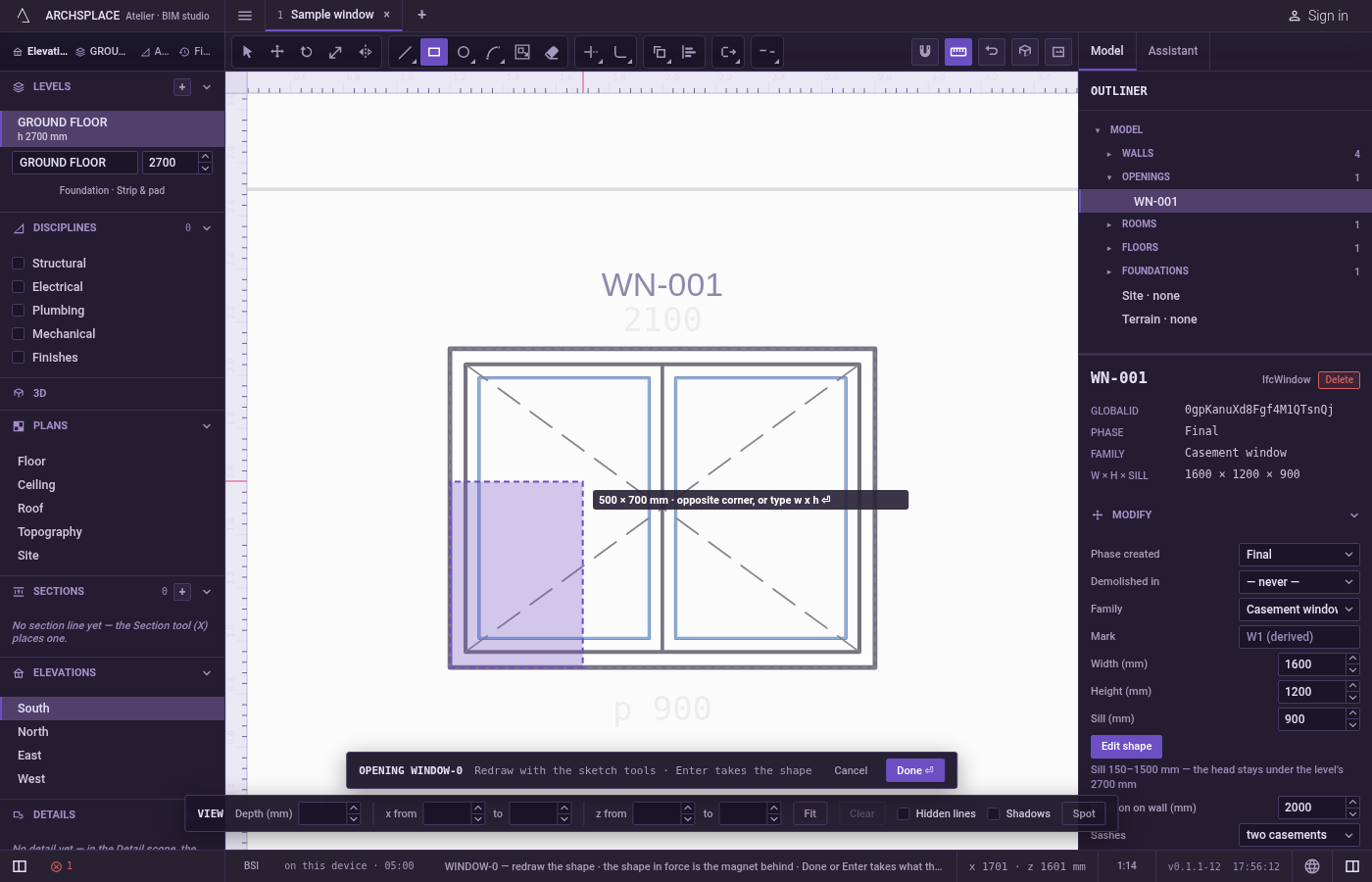
Set the opposite corner. Click it, or release the button there if you dragged. The hint shows width × height as you move.
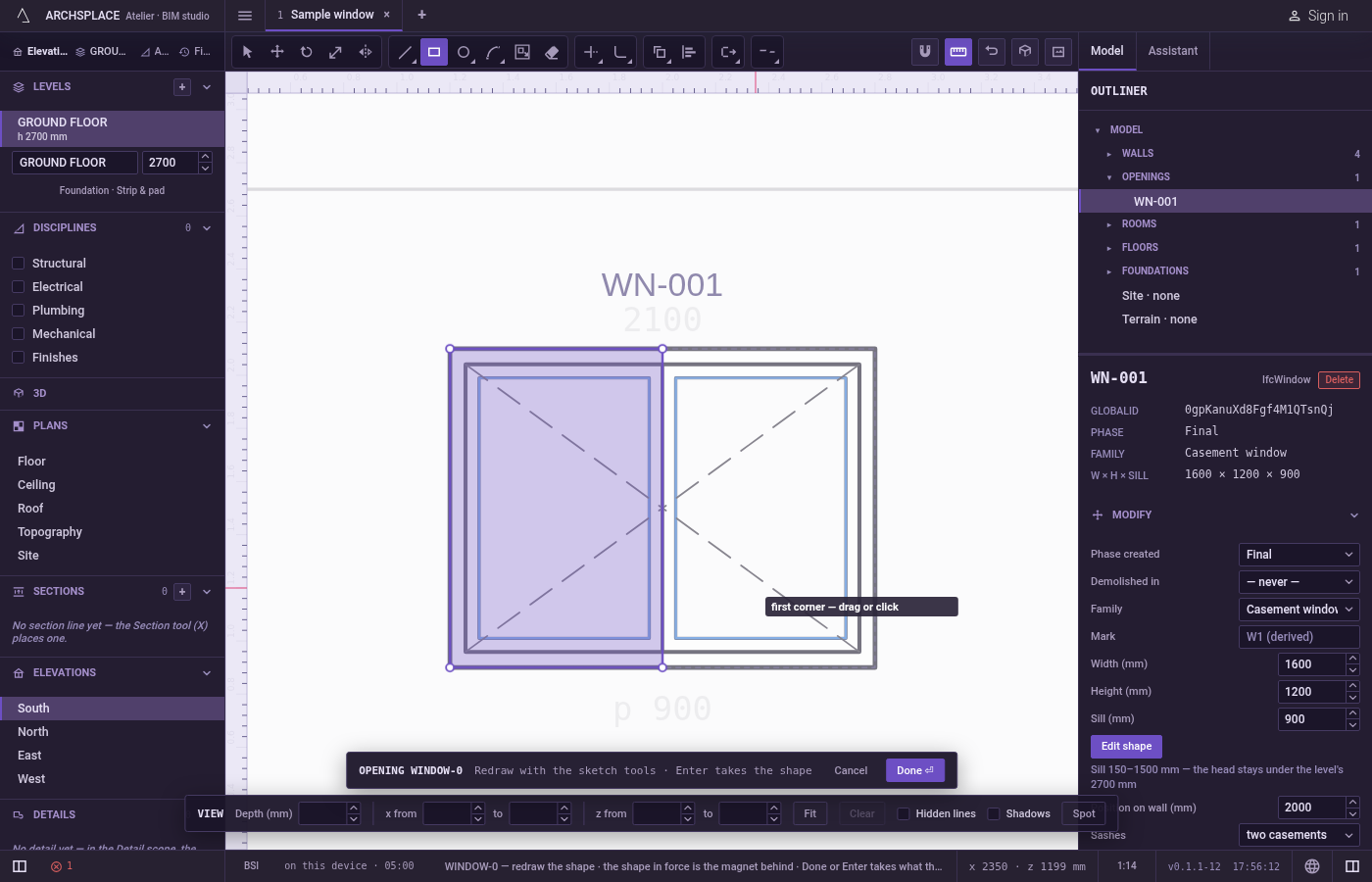
Or type the size. After the first corner, point towards where the rectangle should grow, type the width,
x, the height, and pressEnter:1.2x0.8. One number alone draws a square of that side. Sizes are in the project's units.Backspacetakes back the last character.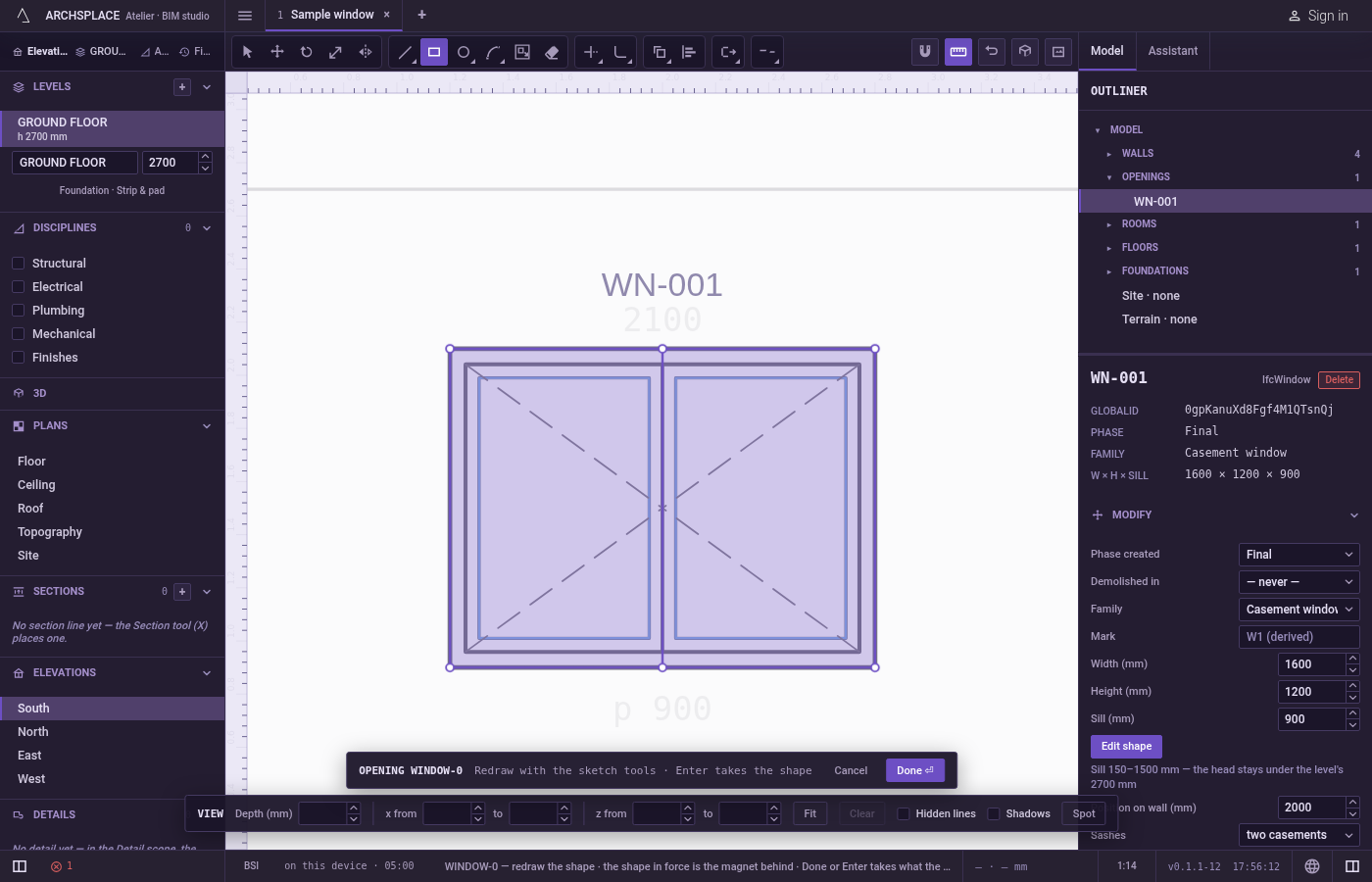
Carry on. The rectangle stays in the drawing and the tool is ready for the next one.
Escapedrops a first corner you have set.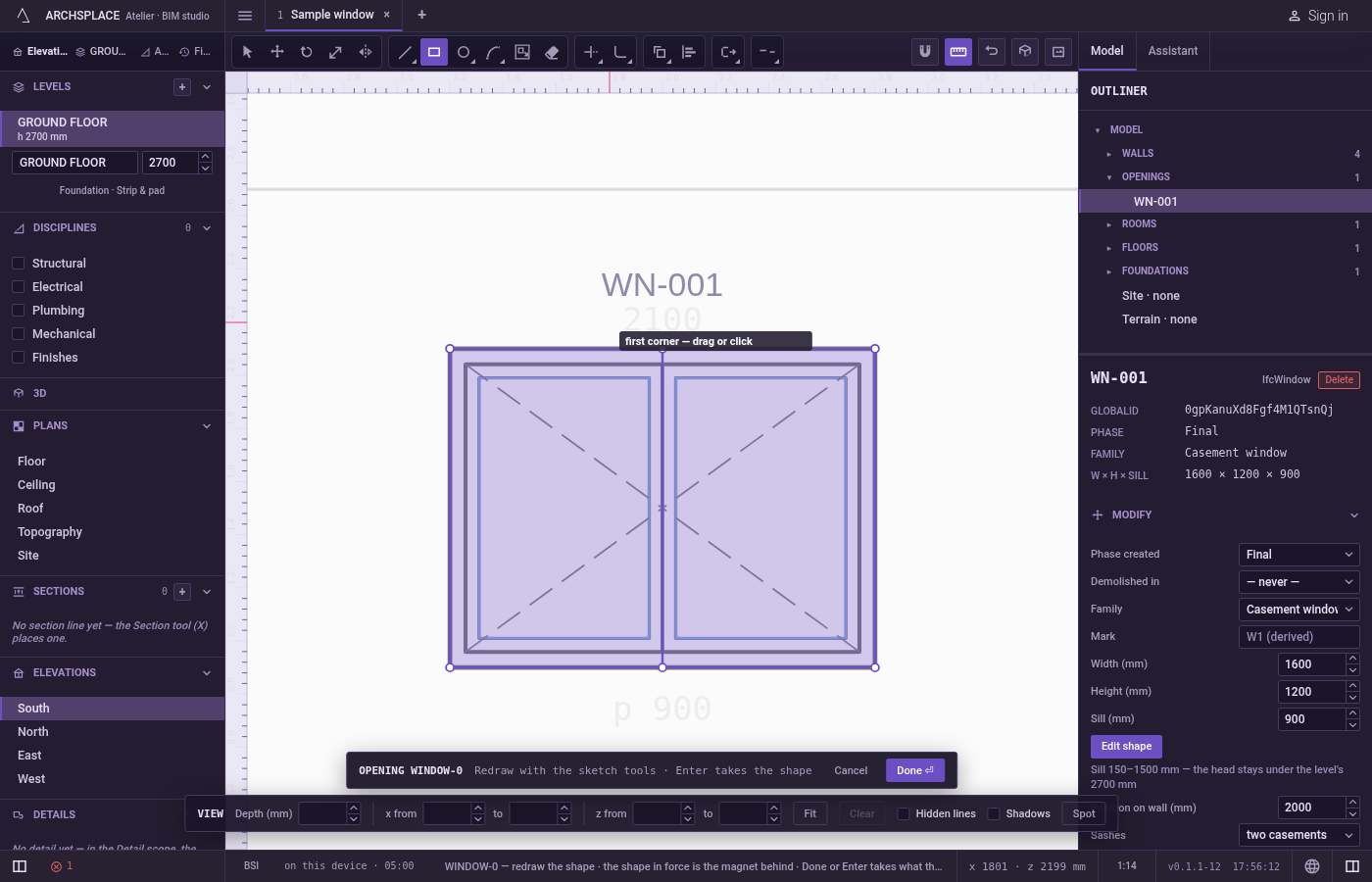
What it refuses
- A rectangle with no width or no height. A second corner level with the first, or plumb above it, draws nothing. The tool keeps the first corner and waits.
- A size typed before the first corner. Digits count only once the first corner is set.
- A turned rectangle. The sides always follow the editor's axes. Turn it afterwards with Rotate.
- Negative sizes as a direction. A minus sign in a typed size is ignored; the rectangle grows towards the pointer.
What it writes to the contract
Nothing until you press Done. The rectangle is added to the drawing inside the editor as one closed outline of four corners rounded to the millimetre, and Ctrl+Z steps back through it. The contract changes when you press Done, or Enter with nothing in progress, as one step you can undo: what the lines enclose becomes the window's or door's profile, points [u, v] in metres across the wall and up from the floor, or the pattern area's outline in the room's floorAreas or ceilingAreas, points [x, y] in plan metres.
A rectangle of 2.4 by 1.2 metres drawn as a floor area gives:
For a window, a rectangle that matches the opening's own width, height and sill, within two centimetres, removes profile instead: the opening is a plain rectangle again.
Common questions
How do I draw a rectangle of an exact size?
Press R, click the first corner, point towards where the rectangle should grow, type the width, x, the height, and press Enter, for example 1.2x0.8. One number alone draws a square.
Can I draw a rectangle at an angle?
Not directly: its sides always follow the editor's axes. Draw it square to the view, then turn it with Rotate.
Which way does a typed rectangle grow?
Towards the pointer. The typed sizes are laid from the first corner in the direction the pointer stands from it, so point first, then type.