SketchLENin the studio
Lengthen
Lengthen changes the length of an open line or arc in the sketch editor at the end you click: by a change you type, to a per cent of its length, to a total length, or to where you drag the end. Only the last stretch of the line moves.
What it is
Lengthen moves one end of an open line or arc along the line's own direction, or around an arc's own circle, so the line gets longer or shorter. The end that moves is the one nearest where you click, measured along the line. Only the last stretch of the line changes; a chain of several lines keeps its other corners.
There are four ways to say how much: a change (delta), a per cent of the whole length, a total length, or dynamically, by dragging the end to a point. The result is previewed, with the length before and after.
When to use it
- Trimming or growing a line by an exact amount with no other line to reach.
- Setting a line to an exact total length.
- Extending an arc along its own circle.
The steps
Arm Lengthen. In the sketch editor (see Select for the ways in), type
L,E,Nquickly, or click Lengthen on the editor's toolbar. The hint at the cursor says to type a delta, per cent or total, withD,PandT, or to drag the end, withY. Lengthen starts with a delta.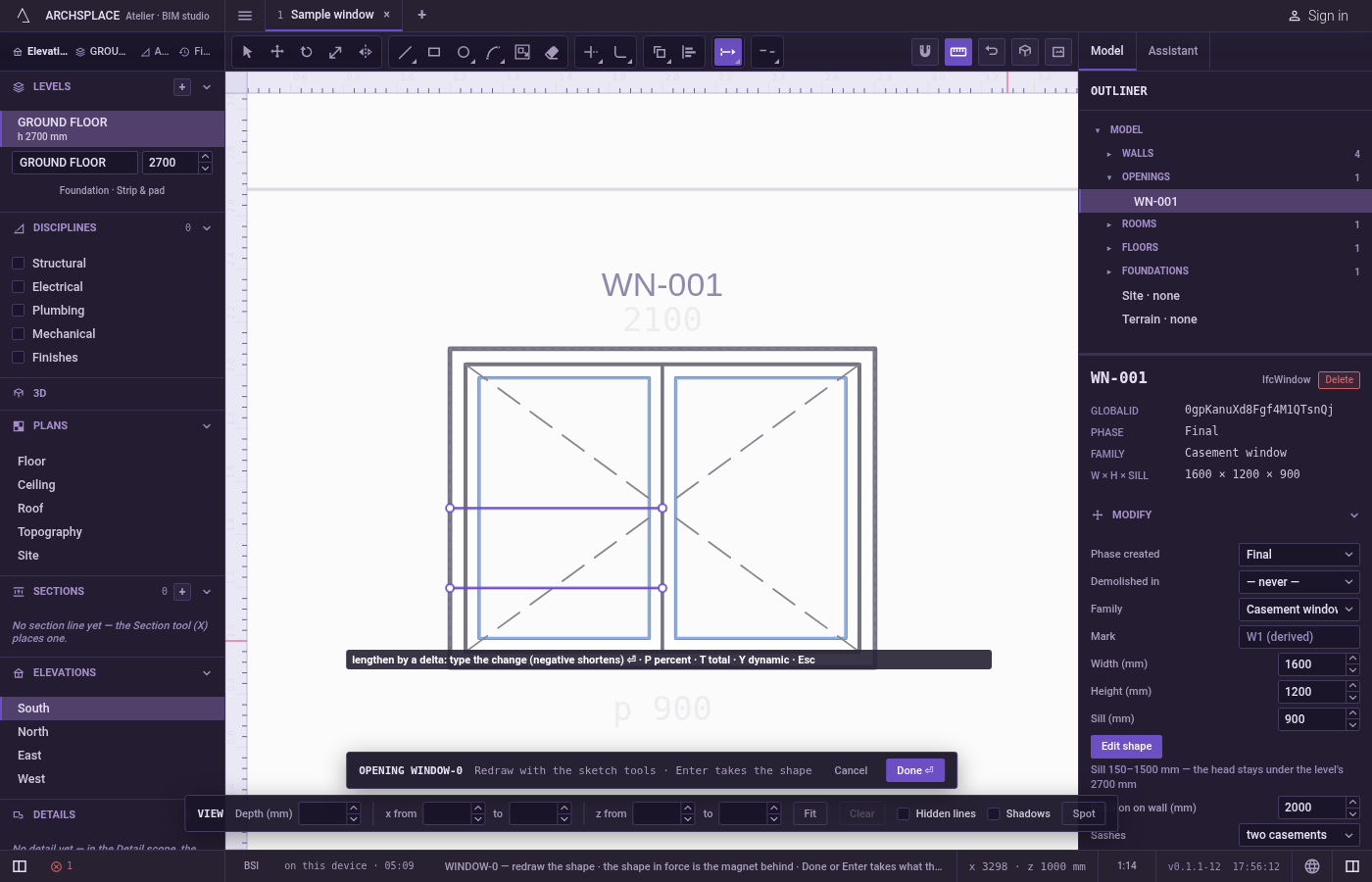
Choose the way. Press
Dfor a change in length,Pfor a per cent of the length,Tfor a total length, orYto drag the end. Each switch clears the value typed before.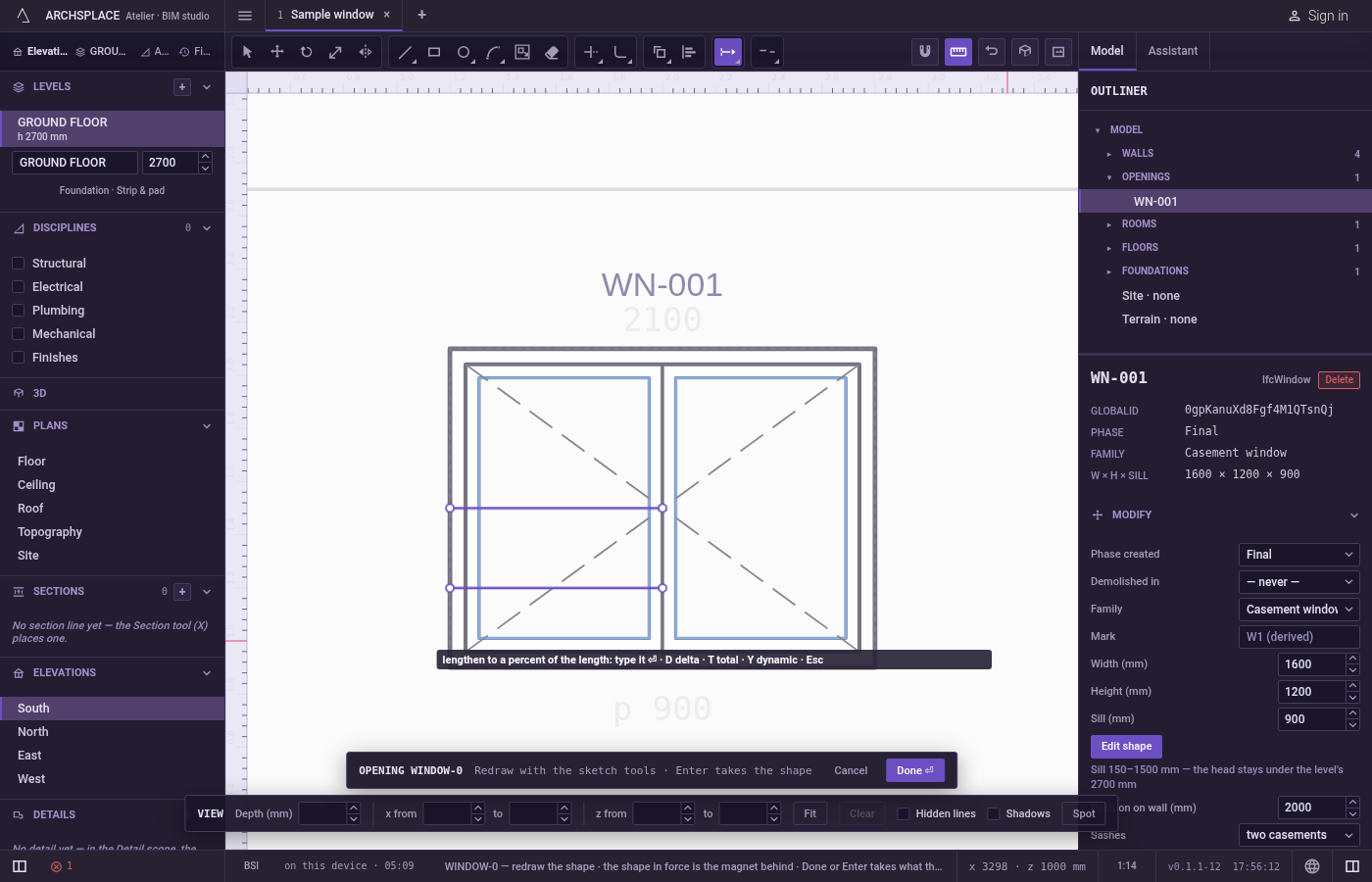
Type the value. For a delta, type the change in the project's units, negative to shorten. For a per cent, type it:
50halves the line. For a total, type the length you want. PressEnter. The hint shows the value in force, such as delta 0.200 m in a metric project.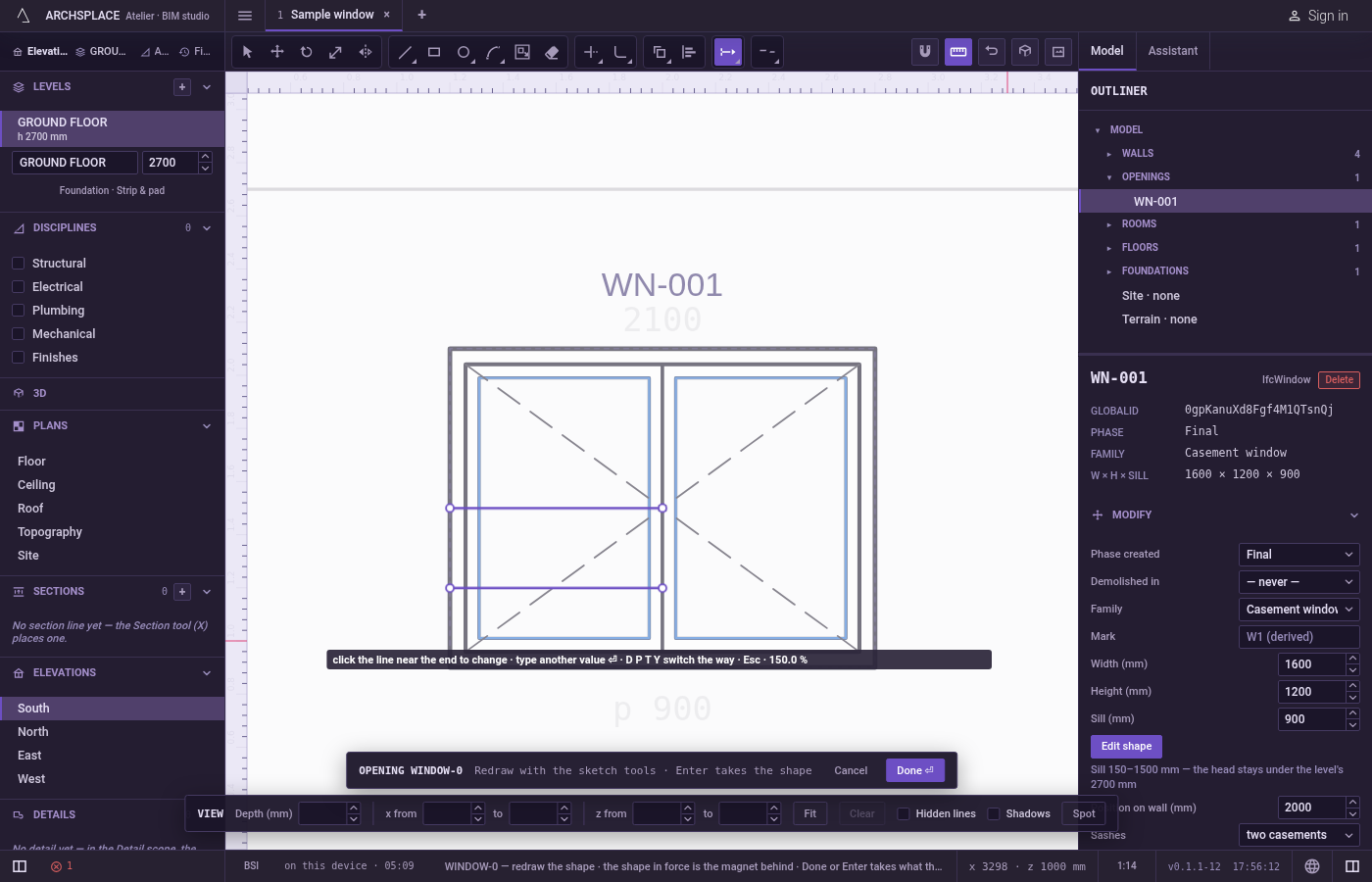
Click the line near the end to change. The preview shows the new end and the hint shows the length before and after. The click changes it, and the value stays, so each further click changes another end the same way. Lengthen reads the pointer exactly here, with no magnet.
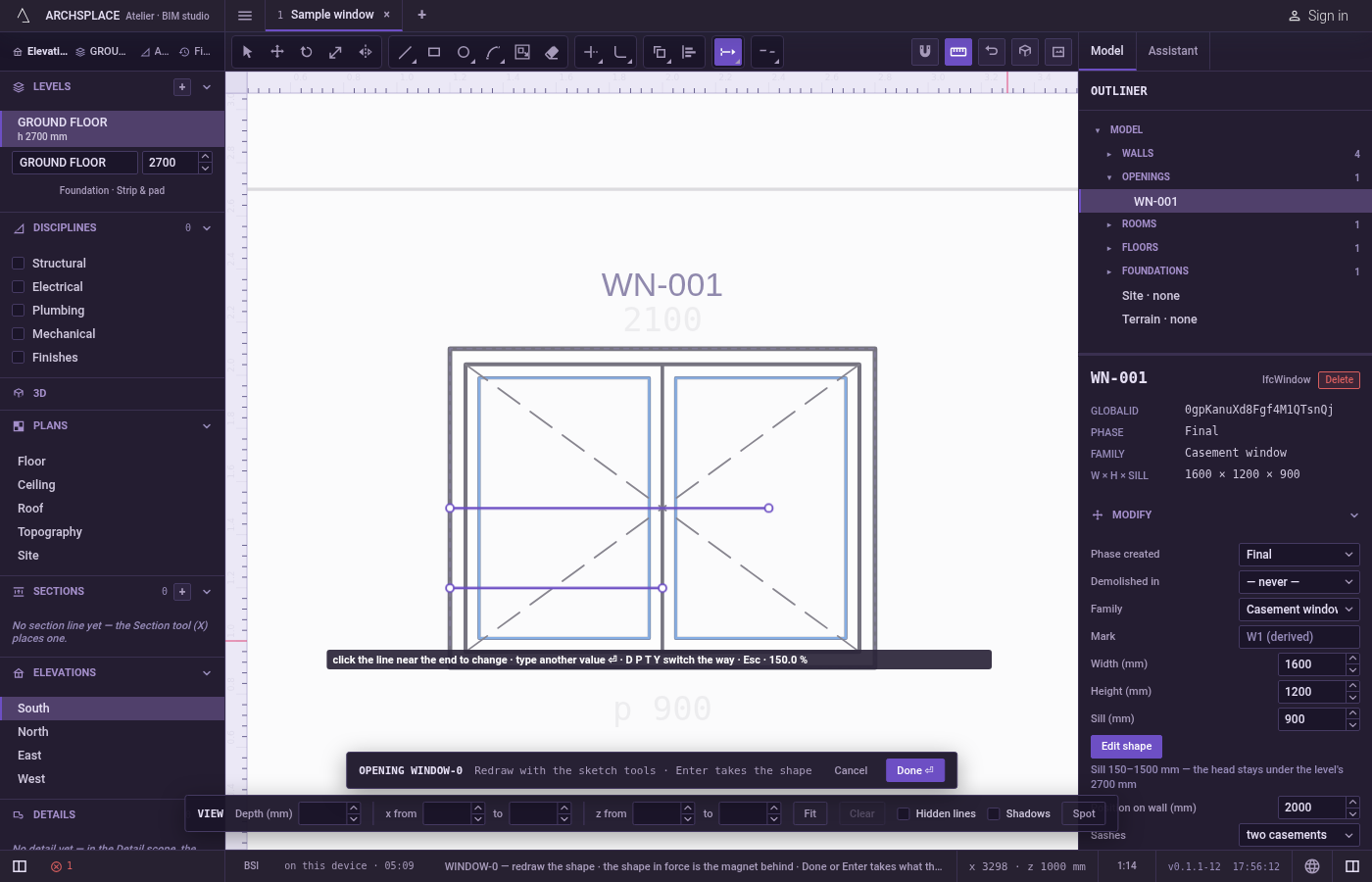
Or drag the end. In the
Yway, click the line near the end to move, then click where the end should go: the end follows the pointer along the line, or around the arc, and the second click sets it. This second point snaps like every point of the editor.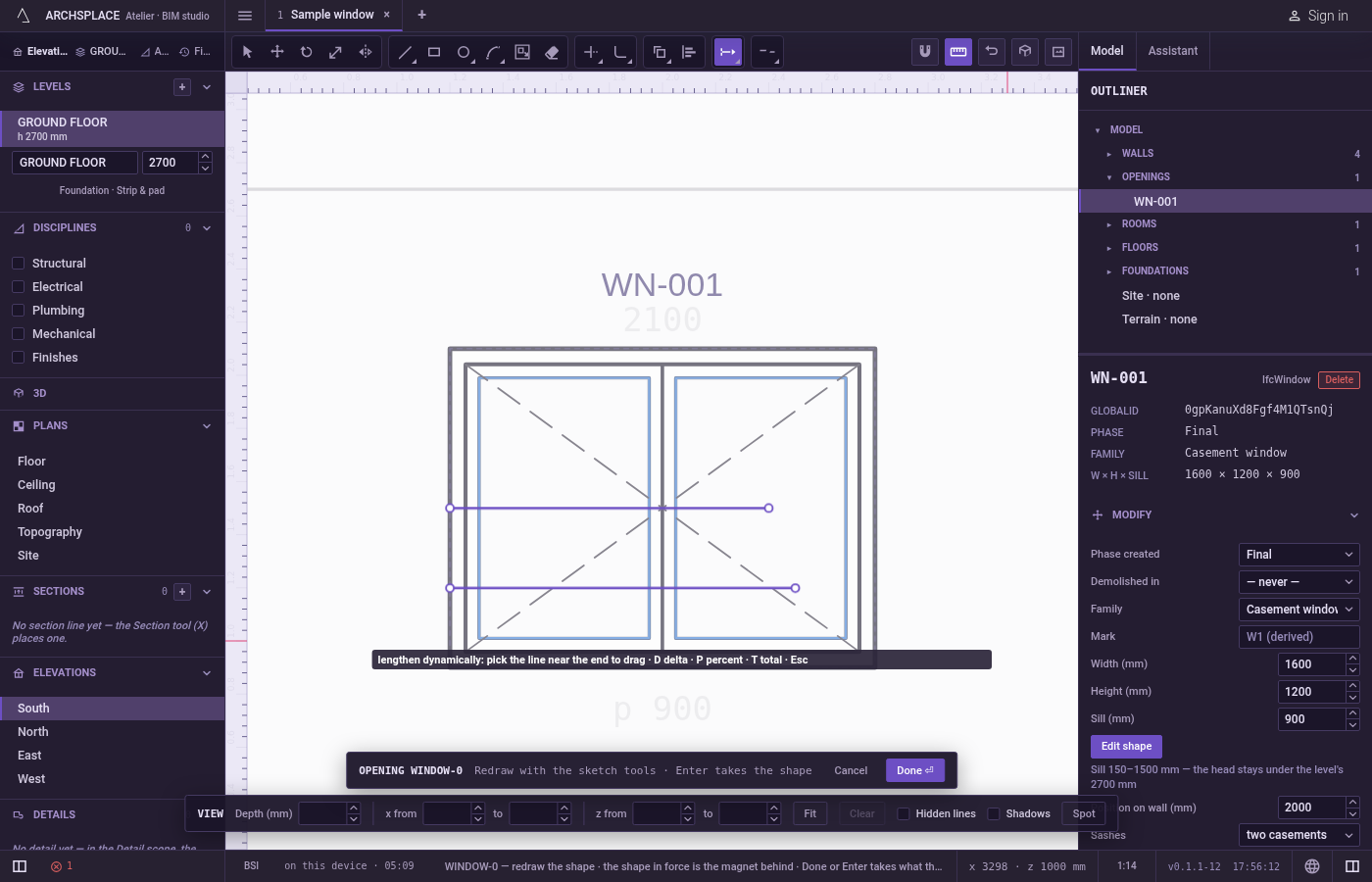
Carry on.
Escapedrops a line picked for dragging, then goes back to Select.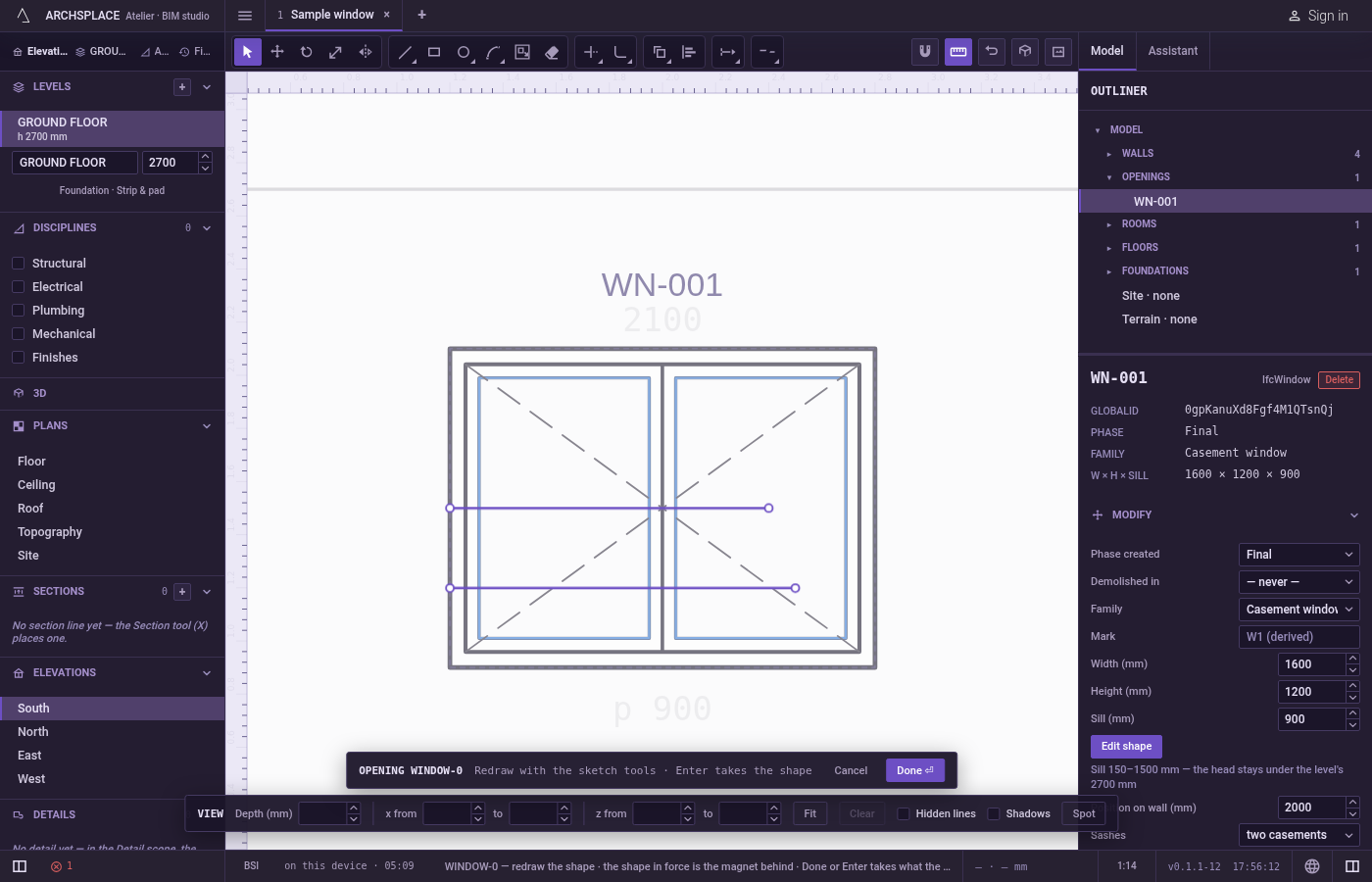
What it refuses
- A closed line. A rectangle, a circle or any closed outline has no end. The hint refuses it as a length that would leave nothing. Explode it first.
- A click before the value. In the delta, per cent and total ways, a click with no value typed only repeats the request to type it.
- A length of nothing. A change that would bring the line to zero or below is refused, and so is an arc pushed past a full circle.
- A click on nothing. The hint says nothing under the pointer.
- Reaching another line. Lengthen does not stop at other lines. To grow an end until it meets one, use Extend.
What it writes to the contract
Nothing until you press Done. Each change is one step inside the editor, and Ctrl+Z steps back through them. The contract changes when you press Done, or Enter with nothing in progress, as one step you can undo: what the lines enclose becomes the window's or door's profile, points [u, v] in metres across the wall and up from the floor, or the pattern area's outline in the room's floorAreas or ceilingAreas, points [x, y] in plan metres.
The moved end is a new point on the same line. For an arc, the bulge on its starting point, the third number, is recomputed for the new sweep, and the radius does not change.
Common questions
How do I shorten a line by 5 centimetres?
Press L, E, N quickly, type -0.05 and press Enter, then click the line near the end that should get shorter. The value stays, so each further click shortens another end by the same amount.
How do I make a line exactly 1 meter long?
Press T to switch to a total length, type 1 and press Enter, then click the line near the end that should move.
Can I lengthen a side of a rectangle?
No. A rectangle is one closed line with no end. Explode it first to make its sides separate lines.