PlanEBin the studio
Consumer unit
Consumer unit places the board the circuits start from: a click on a wall puts it there, and once the phase has one, a click moves it and every circuit follows. Ctrl and a click adds another consumer unit instead.
What it is
The consumer unit is where the circuits start. Its tool is not a plain placement: the first click on a wall places the consumer unit, and every click after that moves the consumer unit of the phase you are drawing in to the wall you click, rather than adding one. The circuits follow at once, laid again from its new position. Held with Ctrl, a click adds another consumer unit instead.
The list beside the tools offers the kinds your template provides; in a project under the UK template, that is the consumer unit itself. It is set into its wall as a cabinet. With more than one consumer unit, each device is fed by the nearest one along the cable's route, unless the device's own panel names another, and each consumer unit numbers its circuits on its own.
When to use it
- Placing the consumer unit of a new installation, before or after the devices.
- Trying the consumer unit in another position and seeing the circuits laid again from there.
- Adding a second one, such as a sub-board for a garage or an upper floor.
The steps
Take the tool. Type
EthenBquickly, or pick it on the toolbar, where it shares a button with Electrical. The status bar says that a click on a wall moves the phase's consumer unit there and that Ctrl and a click adds another.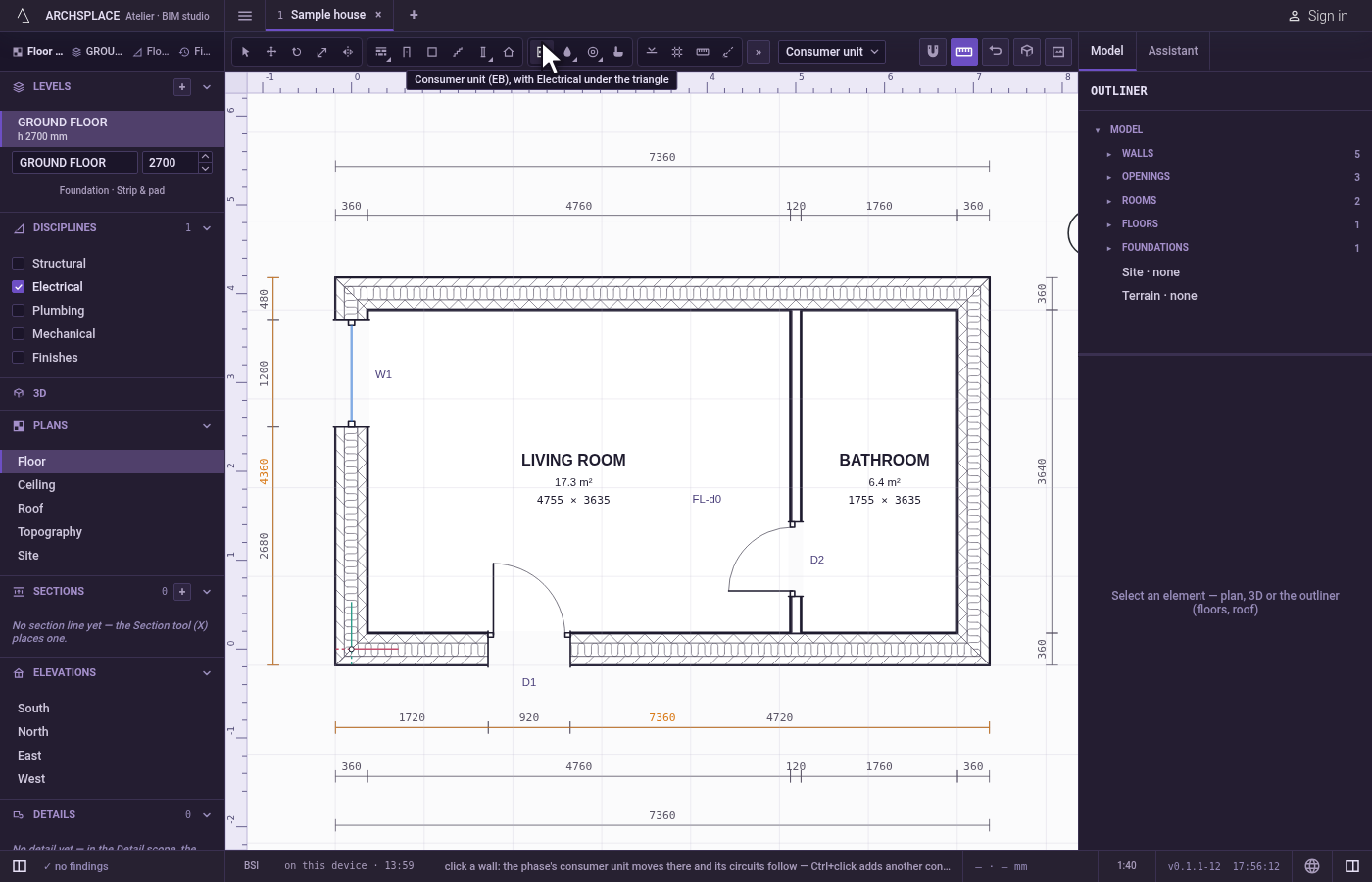
Choose the kind. Pick it in the list beside the tools, if your template offers more than one.
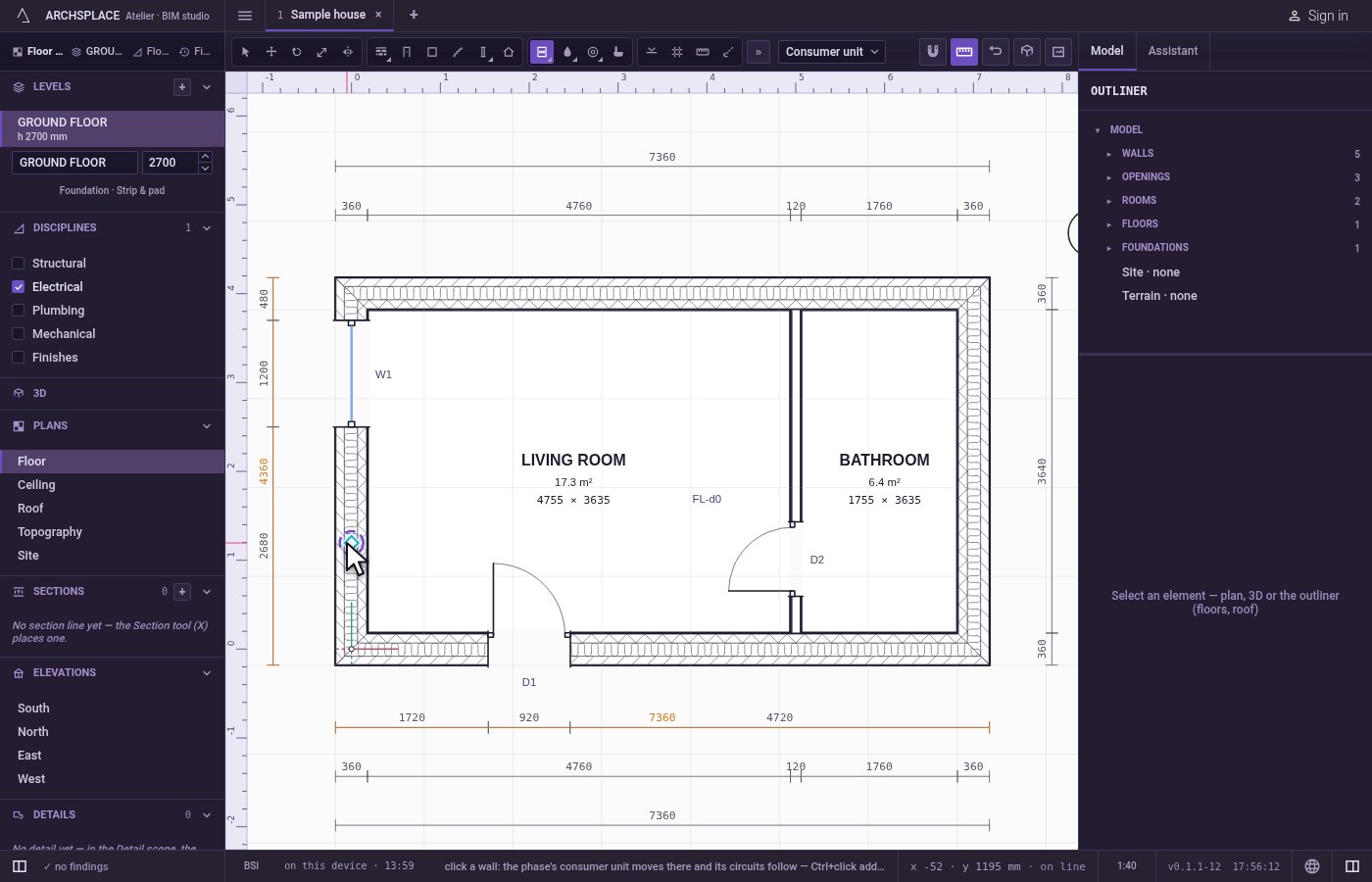
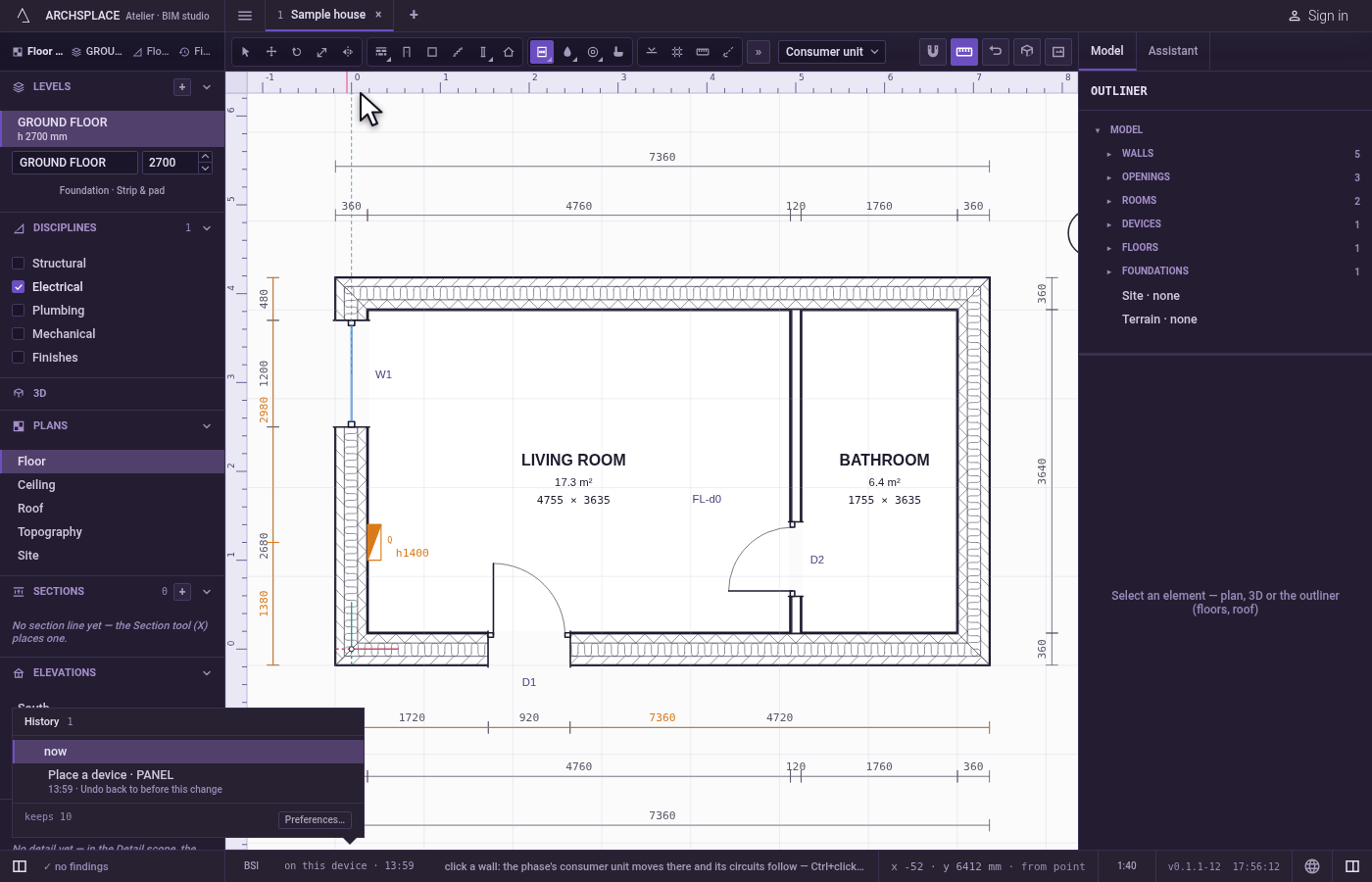
Click a wall. Click on the wall or within about 60 cm of it, on the face the consumer unit should face. With none yet in this phase, it is placed there. With one or more, the nearest one on this level moves there (the first one, if none is on this level), and the circuits follow.
Add another, with Ctrl. Hold
Ctrl(⌘on a Mac) as you click: a new consumer unit is placed, and the consumer units share the devices between them.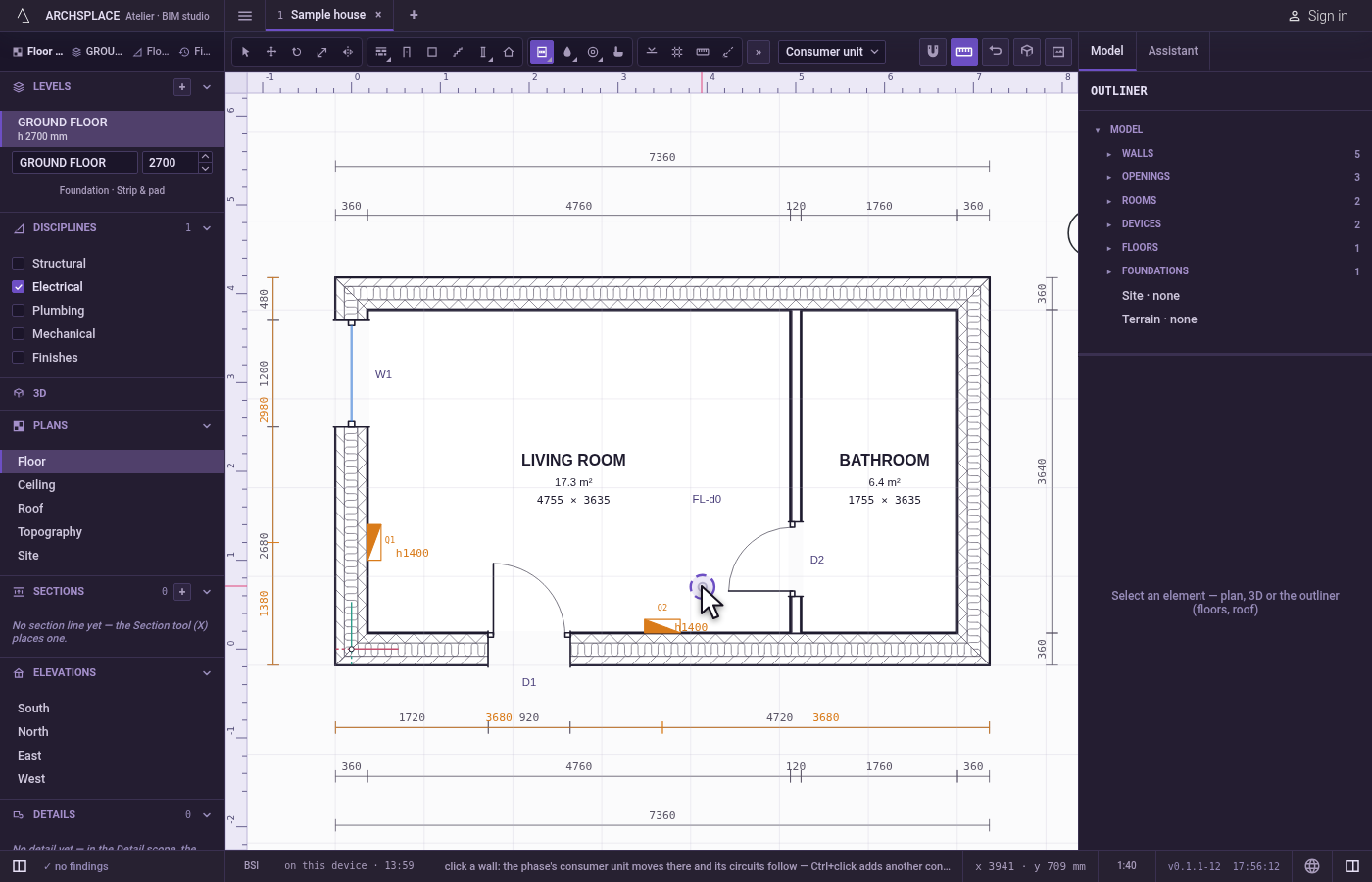
What it refuses
- A click far from every wall. Farther than about 60 cm from any wall, nothing is placed or moved.
- A device fed from something that is not a consumer unit. A device whose panel names anything other than a consumer unit is refused by the project.
What it writes to the contract
One step, which one undo takes back. The first consumer unit, and every one added with Ctrl, adds one device entry: its kind, its wall, its distance along the wall and its face, and its phase. A move changes only the moved consumer unit's wall, distance and face. The circuits are never written: they are worked out from the devices and the consumer units each time the project is built.
Concepts
Related
Common questions
How do I move the consumer unit?
Take the Consumer unit tool and click the wall where it should go. The consumer unit moves there and every circuit is laid again from its new position.
Can a project have two consumer units?
Yes. Hold Ctrl (Command on a Mac) as you click to add another one. Each device is then fed by the consumer unit nearest along the cable's route, unless you choose one in the device's panel, and each consumer unit numbers its own circuits.