SketchEin the studio
Erase in the tile editor
Erase removes joints from a pattern's tile with a click on each one, or with a sweep of the pointer across several while the button is held. It needs no selection, and each joint it removes can be brought back with Ctrl+Z.
What it is
Erase is the quickest way to take joints out of the tile. As the pointer passes over a joint, the joint lights, showing what a click would remove. A click removes it, and holding the button while you sweep removes every joint the pointer passes over. A circle, a rectangle or a polyline is one joint and goes whole.
When to use it
- To remove a few joints without selecting them first.
- To clear several joints in one sweep of the hand.
- To take away a whole shape. To take away only part of a joint, use Trim or Break instead.
The steps
Take the tool. Press
E, or click Erase on the bar. The hint at the pointer says click or sweep across joints to erase them.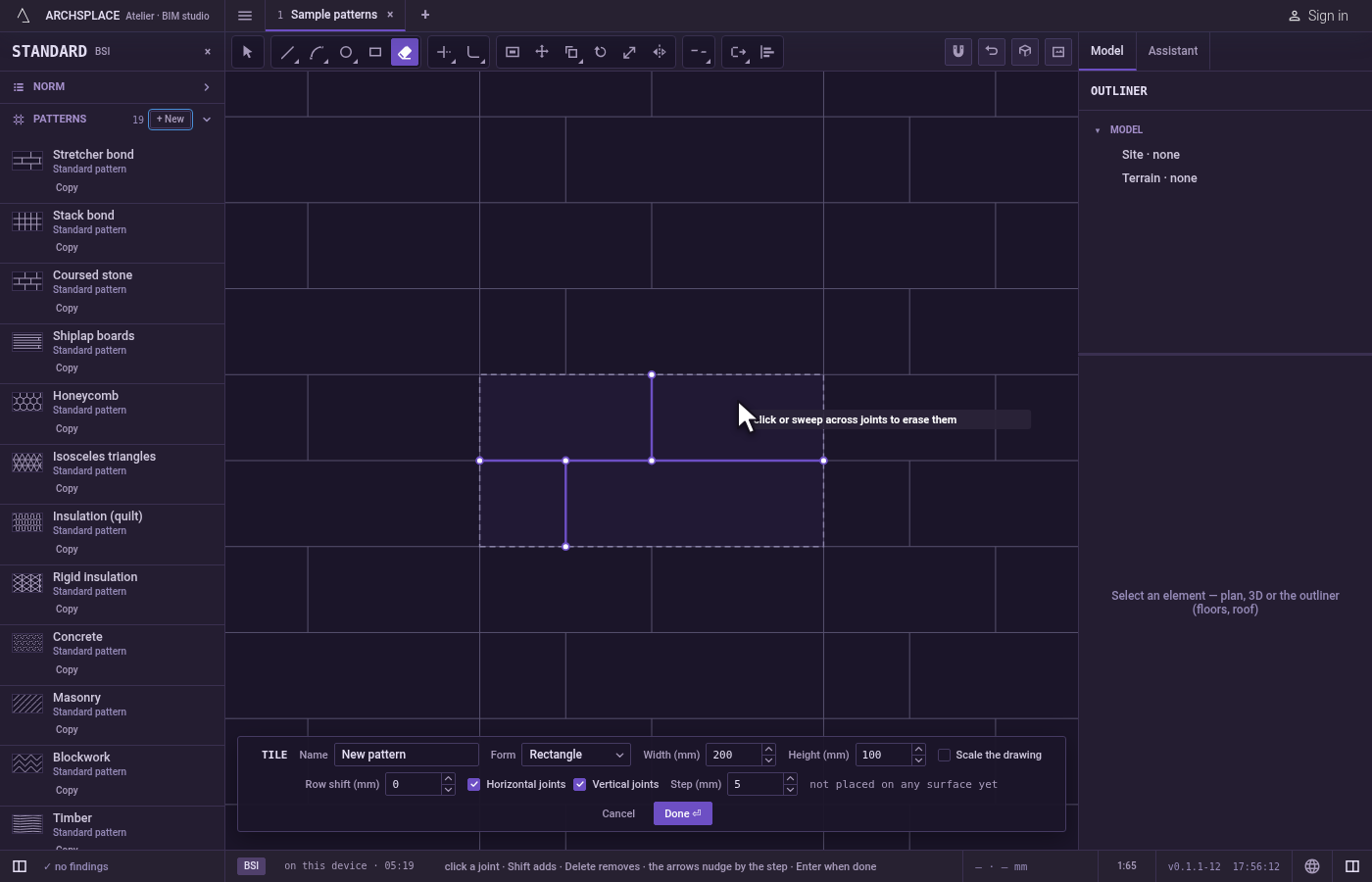
Point at a joint. The joint nearest the pointer, within a few pixels, lights.
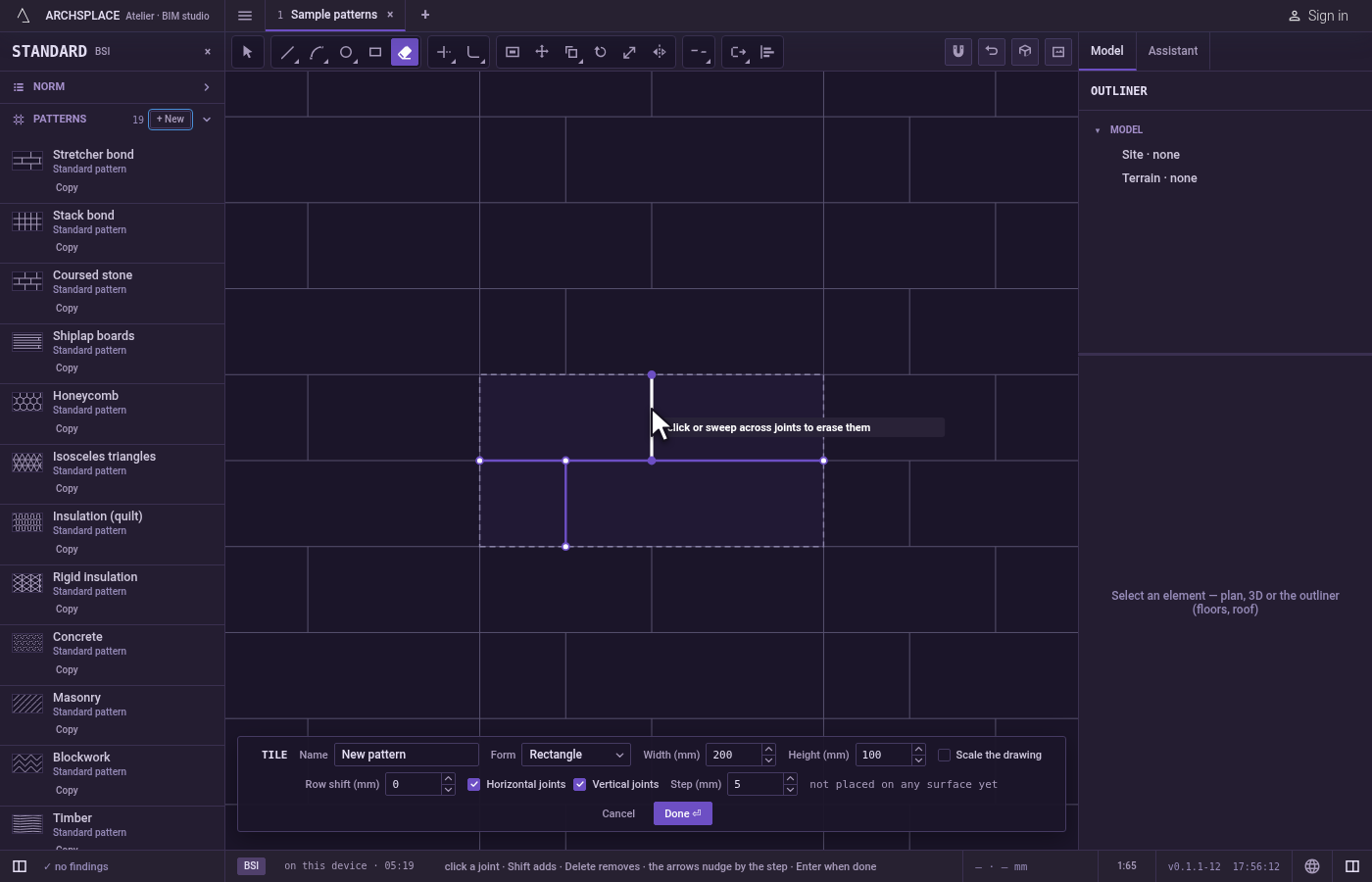
Click to erase it. The joint is removed at once. A click on empty space removes nothing and says no joint here to erase.
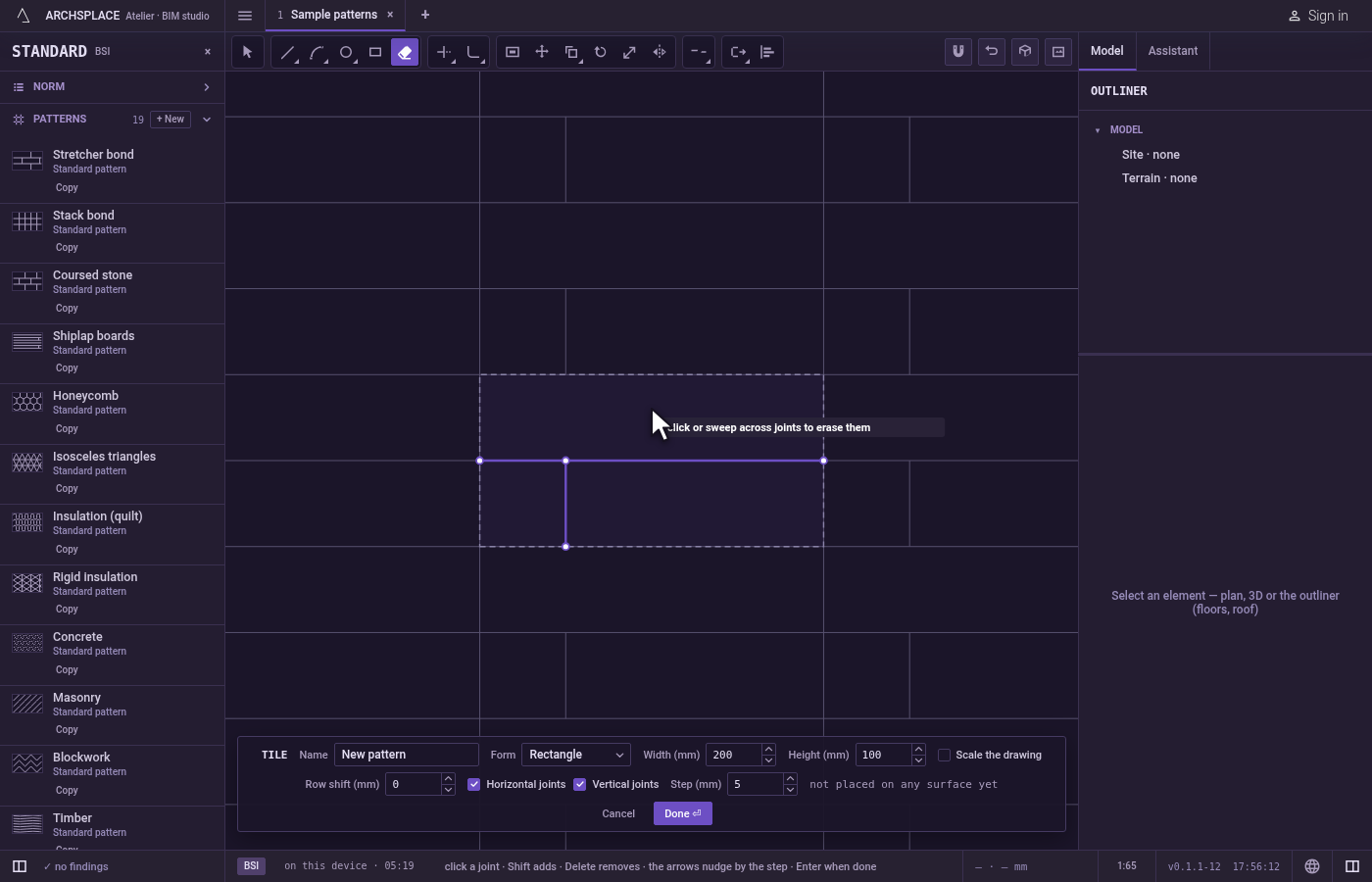
Or sweep. Press, keep the button down and move across the joints you want gone: each one the pointer passes over is removed as it is reached. Release to stop.
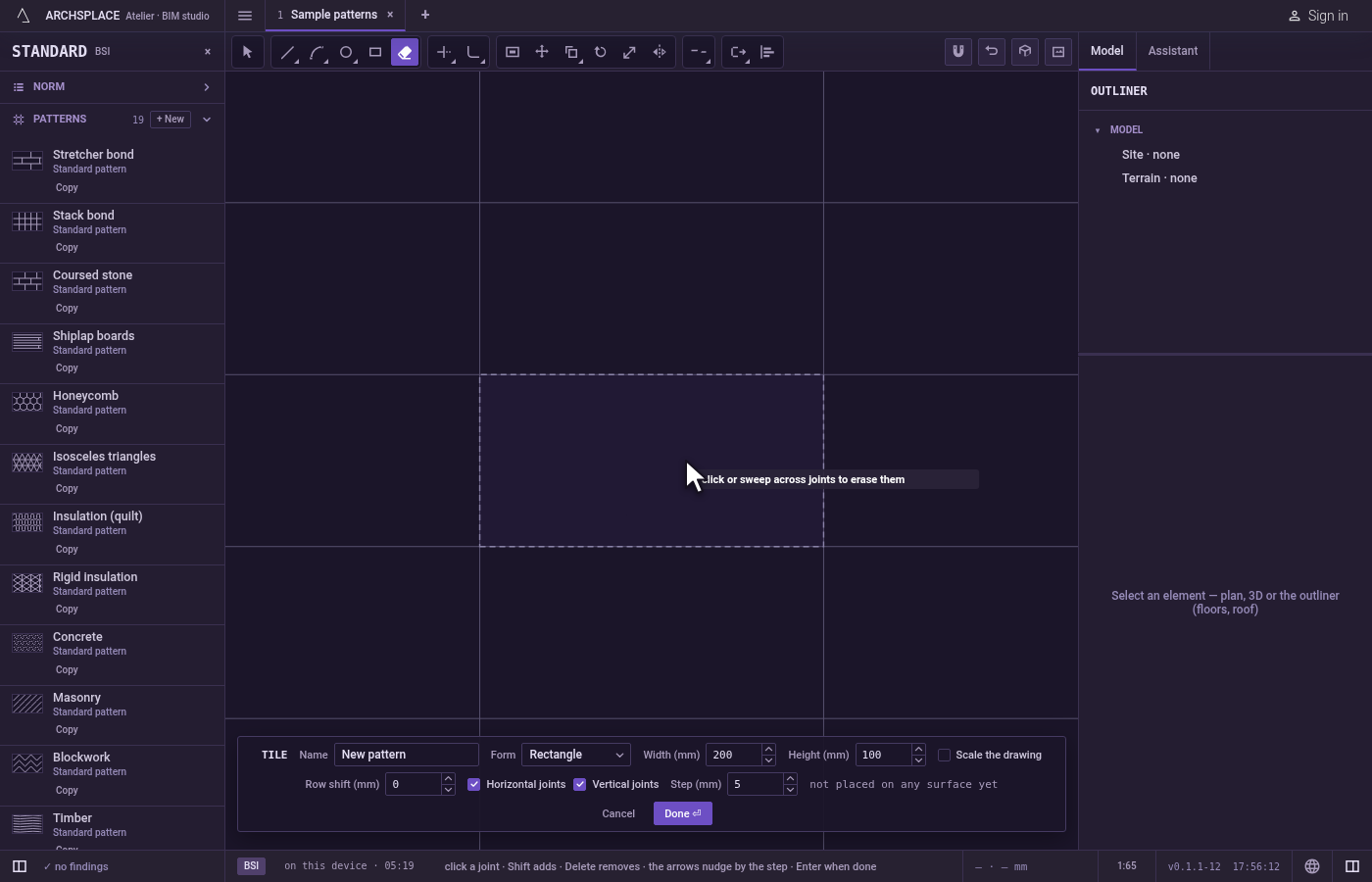
Bring one back.
Ctrl+Zbrings back the last joint removed. Each joint erased is its own step, so a sweep across several is undone one joint at a time.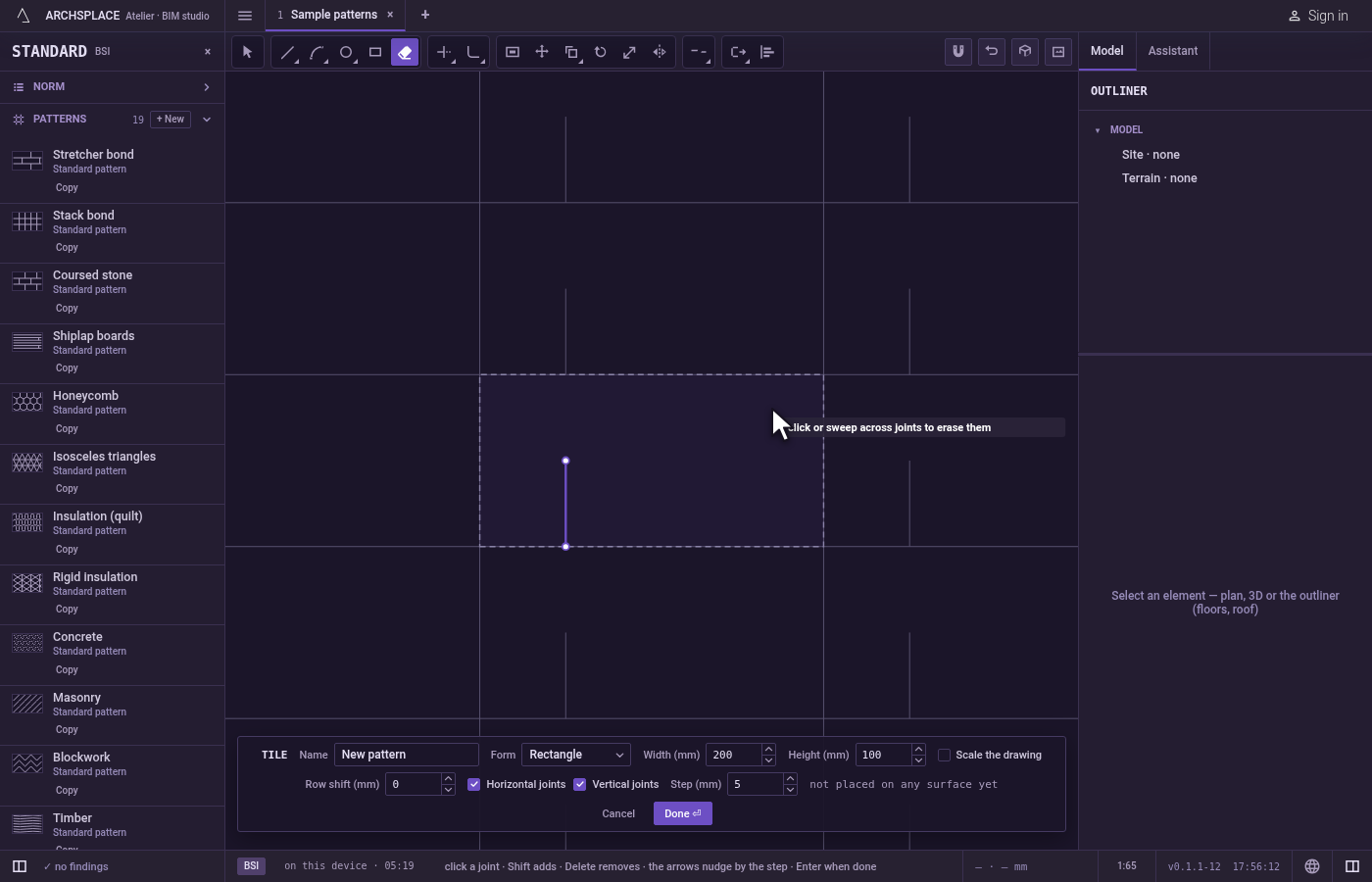
Hand the tile back. Press Done on the bar at the foot, or
Enter.Escapelets go of any joints you still hold, then closes the editor without writing anything, so press Done first if you want to keep your changes.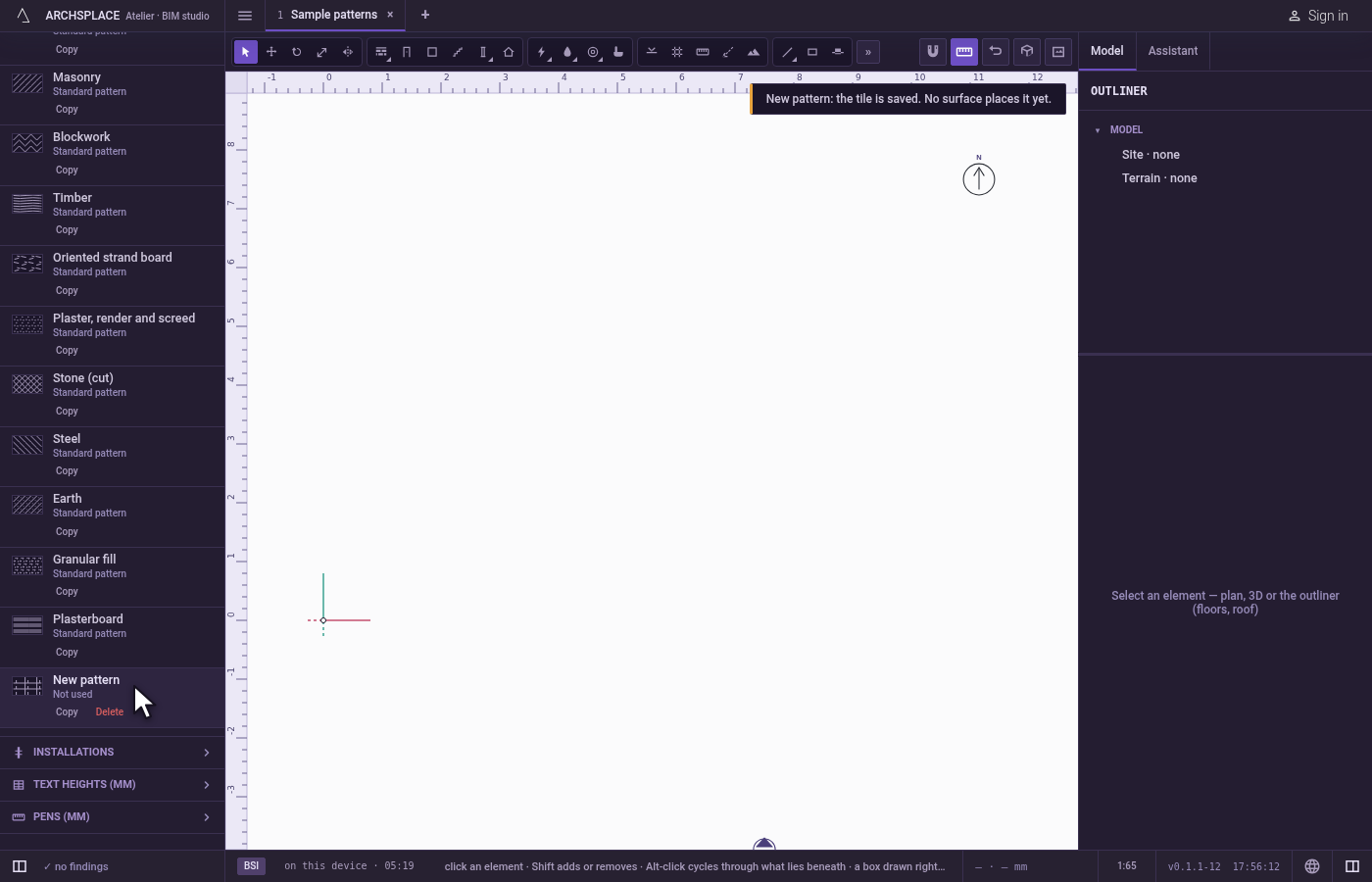
What it refuses
- A click on nothing. It removes nothing, and the editor says so.
- Part of a joint. Erase takes whole joints. A rectangle, a circle or a polyline goes whole; to remove one side of a shape, Explode it first, or cut it with Trim or Break.
- The tile's own edges. The tile's rectangle is not a joint you can erase. Whether a joint runs along its edges is set by the Horizontal joints and Vertical joints switches on the bar at the foot.
What it writes to the contract
Nothing while you work: the change stays in the tile editor, where Ctrl+Z steps back through it. When you press Done, the whole tile is written to the project's patterns in one step you can undo, without the joints you erased. When no joint is left, the tile is written with none. A standard pattern is never changed: Done saves the project's own version of it under the same name, and every surface that lays it follows. Save as new writes a new pattern instead. Cancel writes nothing.
Related
Common questions
How do I erase several joints at once?
Press on the first one and, keeping the button down, sweep the pointer across the others. Each joint the pointer passes over is removed.
How do I get back a joint I erased by mistake?
Press Ctrl+Z. Each erased joint is its own step, so a sweep across three joints takes three presses to bring all three back.
Can I erase only one side of a rectangle?
Not with Erase: a rectangle is one joint and goes whole. Explode it first, then erase the side you do not want, or use Trim.