SketchVin the studio
Select
Select is the sketch editor's hand: it takes the lines and corners you have drawn, moves them by dragging or with the arrow keys, and erases them with Delete. It also holds the editor's way out, since Enter with nothing in progress hands what the lines enclose to the window, door or pattern area you are shaping.
What it is
Select is the first tool of the sketch editor, the one place where a window's or a door's shape and a pattern area's outline are drawn again. It works on what you have drawn in the editor: each corner, and each line between two corners or two crossings. A curve counts as one line, so its inner points are never picked. The shape that was in force when you opened the editor stands behind your drawing, dimmed. It attracts your points but it is never selected, moved or erased.
With Select you take lines and corners, drag them, nudge them with the arrow keys and delete them. Select is also where you end: Enter with nothing in progress, or the Done button, hands what your lines enclose to the window, door or area.
When to use it
- Correcting a drawing: moving a corner, sliding a line, removing a stray stroke.
- Choosing what a tool will act on before you arm it, such as the lines Move, Copy or Fillet should take.
- Finishing: handing the outline over with
Enteror Done.
The steps
Open the sketch editor. For a window or a door, use Edit shape in its panel or on its right-click menu, or double-click it in the plan, in 3D or on a facade. The editor opens on the facade that shows the opening best, framed on it, with the rest of the facade veiled. For a pattern area, turn Finishes on, open the plan of the room's level, and use Add floor area or Add ceiling area in the room's panel, or Edit outline in the area's panel. Select is armed, and the hint at the cursor says draw the new shape with the tools · Enter when done while the drawing is empty, then click a line or a corner · Enter when done. A window's editor opens on an empty drawing with the shape in force dimmed behind it, and so does a new area, with the room's outline and its other areas behind. Edit outline opens with the area's outline as your drawing.
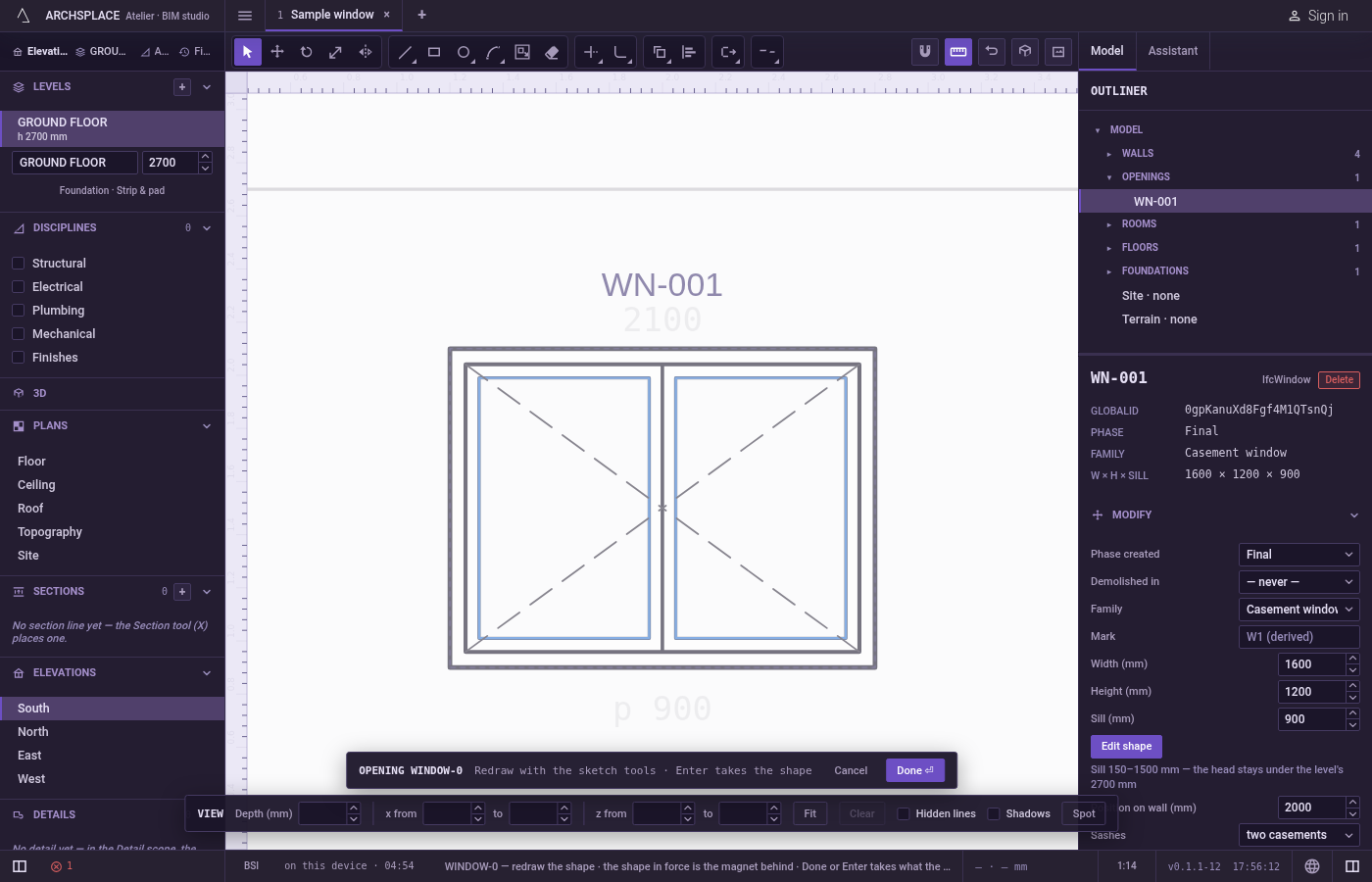
Click a line or a corner. Near a corner, the corner is taken; otherwise the nearest line within reach is. The hint at the cursor says how many things are in hand.
Shiftand a click adds what you click, or takes it back out if it was already held. A click on empty space lets go of everything, unless you holdShift.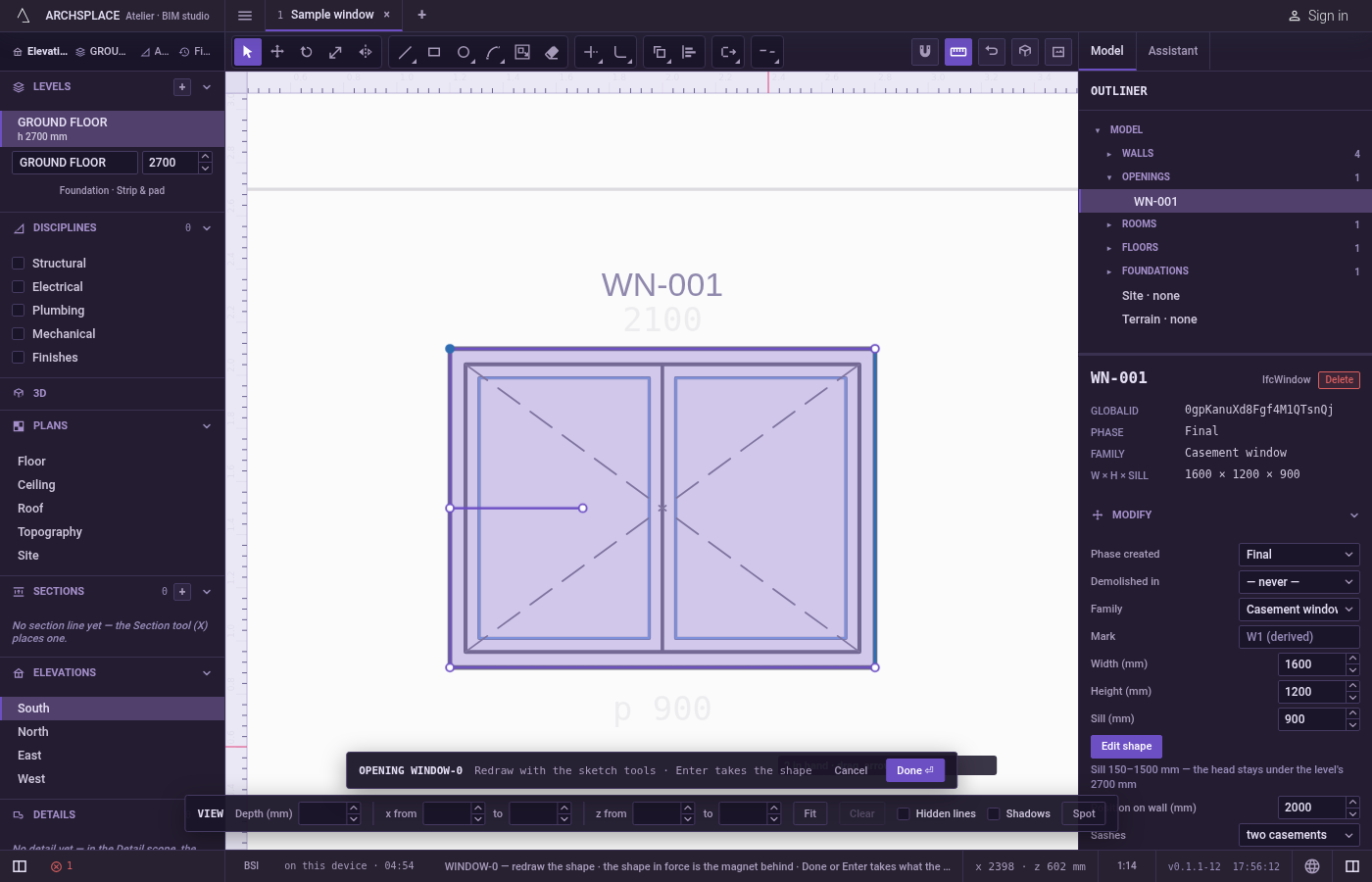
Or drag a box. Press on empty space and drag. When you release, every corner inside the box and every line lying wholly inside it is taken, whichever way you dragged. With
Shiftheld, each of them is flipped in or out of what you already hold.Ctrl+A(⌘Aon a Mac) takes every line of the drawing.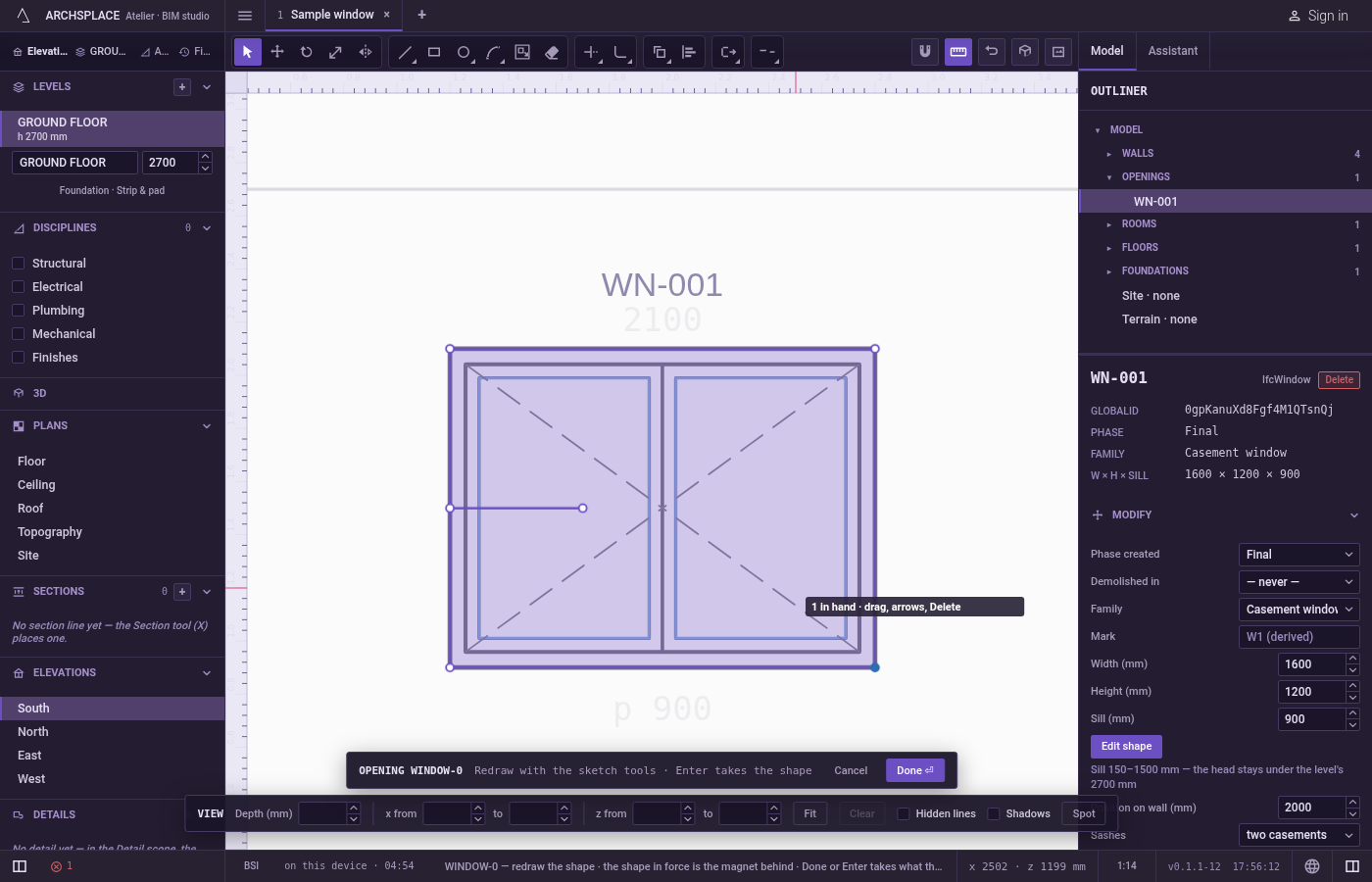
Drag to move. Press on something you hold and drag: everything in hand moves with the pointer, and the lines attached to it follow. While you drag, the points snap to the shape in force and to the lines of the view, not to the drawing you are moving. To move by an exact distance, type it while you still hold the button and press
Enter: what is in hand lands that far from where you pressed, in the direction you dragged.Escapeduring the drag puts everything back.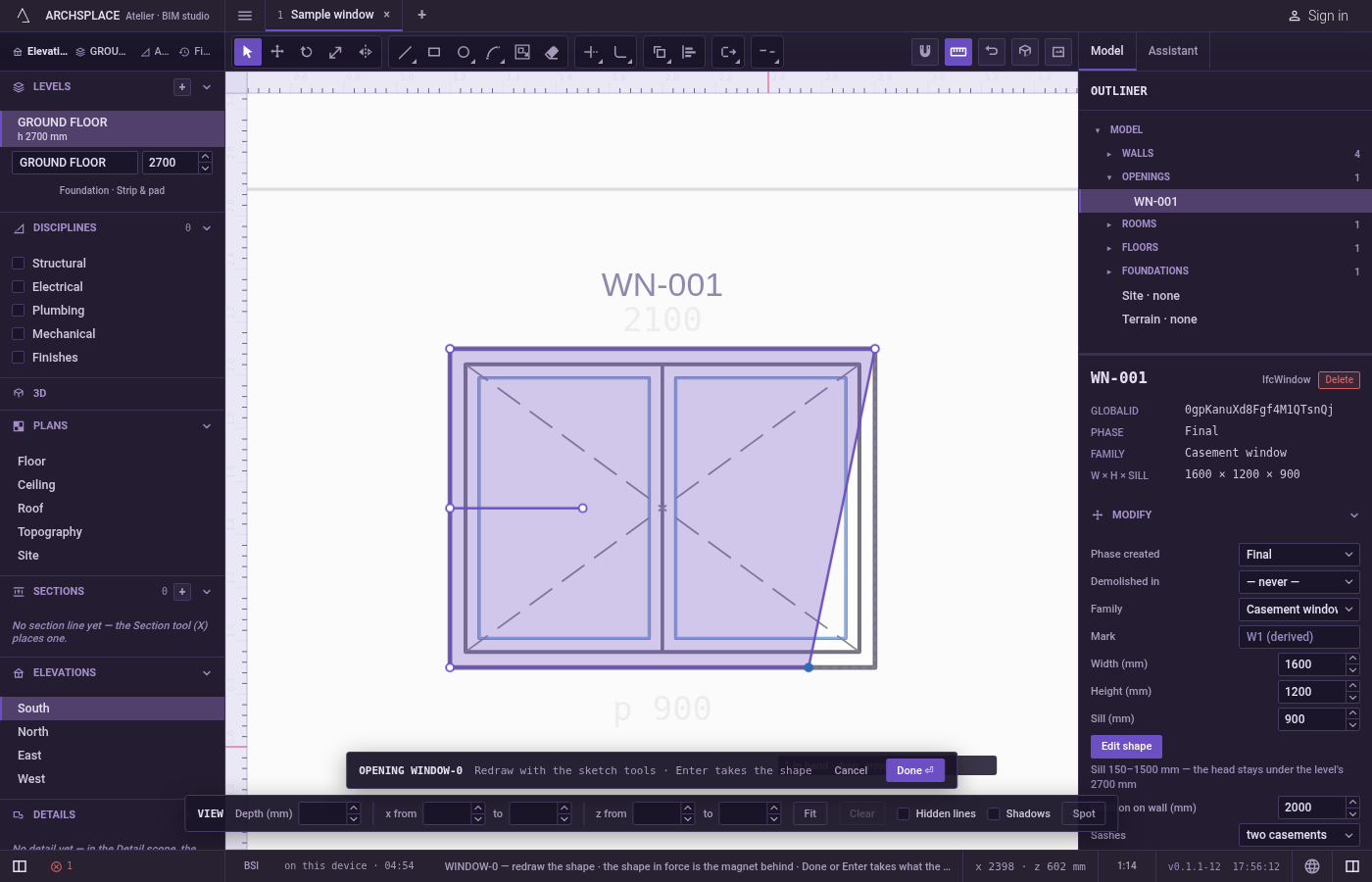
Nudge or delete. The arrow keys move what is in hand by one centimetre on the plane, ten with
Shift.DeleteorBackspaceerases the lines in hand and every line that ends on a corner in hand; a curve goes whole.Ctrl+Zsteps back inside the editor andCtrl+Yforward again (⌘Zand⌘⇧Zon a Mac).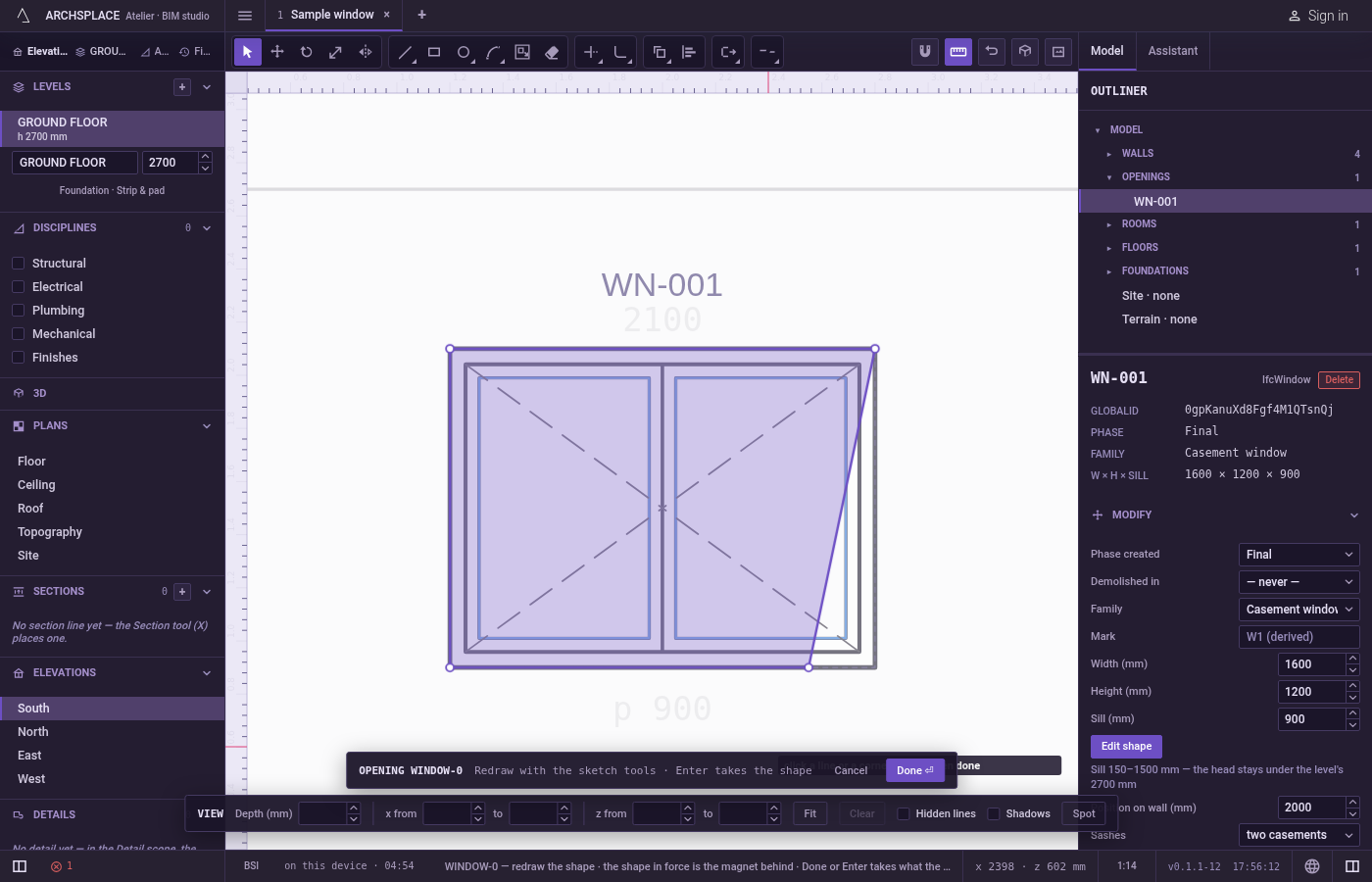
Hand the shape over. Press
Enterwith nothing in progress, or click Done on the editor's bar. What the lines enclose is checked: a window or a door must get exactly one outline with no island in it, and so must a pattern area. When it passes, the editor closes and a notice confirms the new shape or area. A window's editor brings you back to the view you opened it from; a pattern area is left selected in the plan.Escapewith nothing left to step back closes the editor without a change.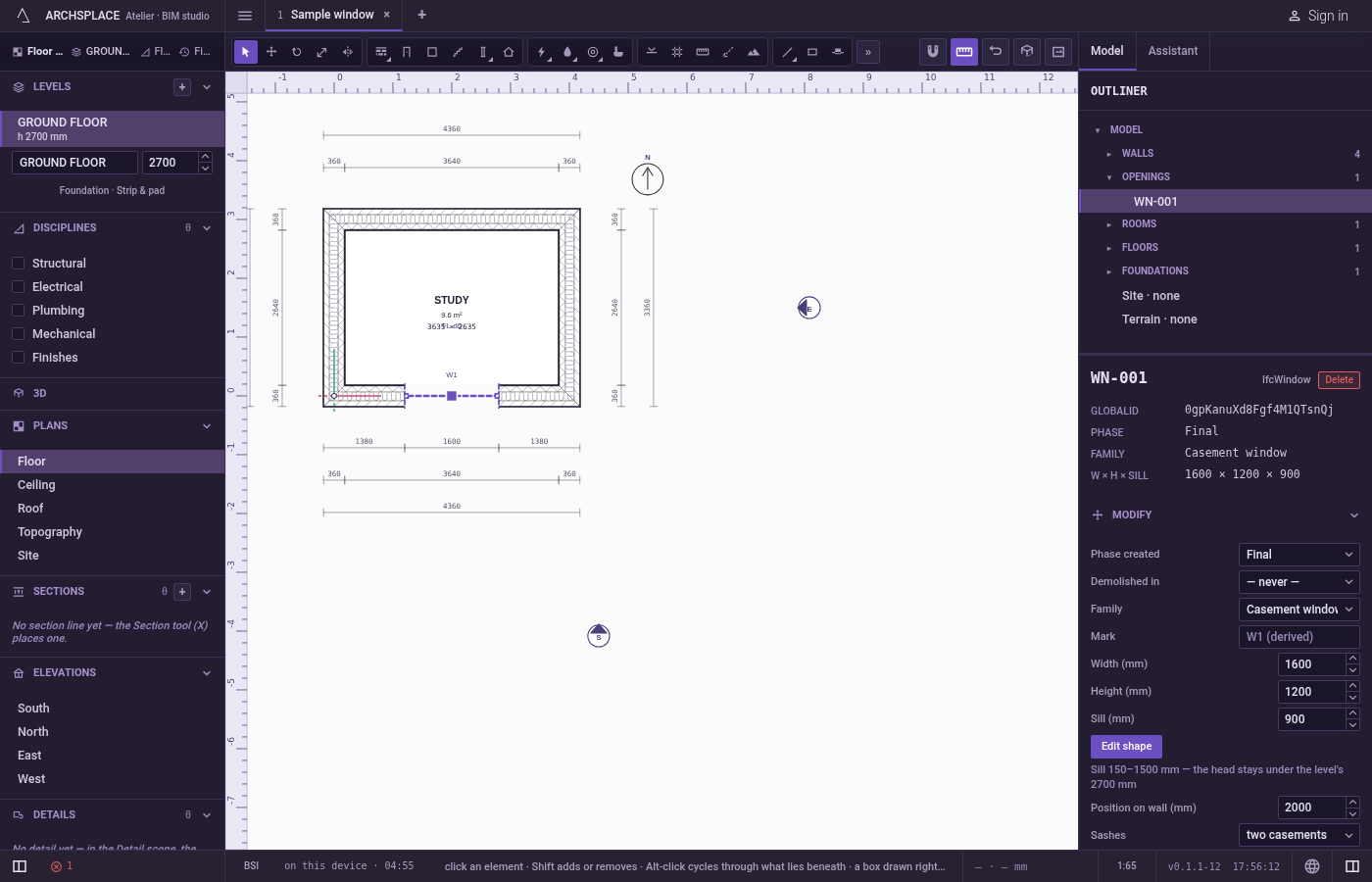
What it refuses
- The shape in force. The dimmed shape behind your drawing is never selected, dragged or deleted. It is there to snap to.
- A curve's inner points. A curve is one line to the hand. Only its two ends are corners you can take.
- Keeping a curve when only one end moves. A curve keeps its bend only when both of its ends move together. Drag one end alone and that side becomes a straight line.
- Deleting with nothing in hand. Nothing is erased. The Edit menu shows Delete greyed, with the reason that nothing is selected in the sketch editor. Undo and Redo are greyed the same way when there is nothing to step through.
- A drawing that encloses nothing. Done refuses it in a notice (shape refused for an opening, area refused for a pattern area) and asks you to close an outline. The editor stays open.
- Several outlines, or an island. Lines that enclose more than one outline are refused, and so is an outline with another one inside it: a window has no hole, and an area is one plain outline. The editor stays open so you can fix the lines.
- A shape the model cannot build. Before anything is written, the new shape is tried on the whole project. If the project would refuse it, a notice gives the reason and the editor stays open.
- Opening the editor on several openings at once. Edit shape works on a single window or door. For a pattern area, the editor does not open while Finishes is off, or away from the plan of the room's own level; a notice says which.
What it writes to the contract
Nothing while you work. Selecting, dragging, nudging and deleting change only the drawing inside the editor, and the editor's own undo steps through them. The contract changes once, when you press Done or Enter, as one step you can undo in the project.
For a window or a door, the outline becomes its profile: a closed list of points [u, v] in metres, u across the wall from the opening's position and v up from the floor, anticlockwise. A third number on a point is a bulge: the side from that point to the next is an arc, 1 for a half circle. A window 1.2 metres wide with a round head looks like this:
When the outline is the opening's plain rectangle, within two centimetres, profile is removed instead, and the opening goes back to the rectangle its width, height and sill give.
For a pattern area, the outline is written as outline in the room's floorAreas or ceilingAreas, points [x, y] in plan metres with the same bulges. A new area also gets a placement: the room's own pattern for that surface, with its turn and scale, or else the first pattern of the catalogue, anchored at the outline's first point.
Common questions
How do I move one corner of my sketch by an exact distance?
Press V, click the corner, then drag it in the direction you want. While you hold the button, type the distance and press Enter: the corner lands exactly that far from where you grabbed it.
Why can I not select the dimmed shape behind my drawing?
The dimmed shape is the one in force before you started. It is a magnet for your points, never something you can take. Draw over it, or offset it, to make it part of your drawing.
What happens if I press Escape with nothing selected?
Escape steps back one thing at a time: what you typed, a drag, a shape half drawn, the selection. When there is nothing left, it closes the sketch editor and drops the drawing, and the window or the area stays as it was.