Panels
Keyboard shortcuts
Keyboard shortcuts is the section of the Settings dialog that lists every key of the atelier: the keys that are always the same, then each editor's tools with the key that opens them. A tool's key can be changed to one to four letters, or left empty, and a key another tool of the same editor already answers is refused by name.
What it is
Keyboard shortcuts is one section of the Settings dialog. It opens from Help, Keyboard shortcuts, and from the Shortcuts entry of the dialog's rail. A line at the top says how it works: a key opens a tool in the editor it belongs to, a key another tool of the same editor already answers is refused, and the change is kept for you on this device.
The list has two parts:
- Always the same: keys no setting changes. Select is V in every editor; then come Escape (step back inside a tool, then leave it), Enter, Space (back to Select from any tool), Delete, Undo and Redo, Save, Open, the settings, the sheet's PDF, Copy, Paste, Select all, Home (frame everything), Shift+Home (frame the selection), the guide lines, the assistant's send, F8 for Ortho, F10 for polar tracking and the two brackets that size the terrain brush. In the installed atelier the list adds Save a copy, New project and Close project. Each key is written the way your keyboard writes it:
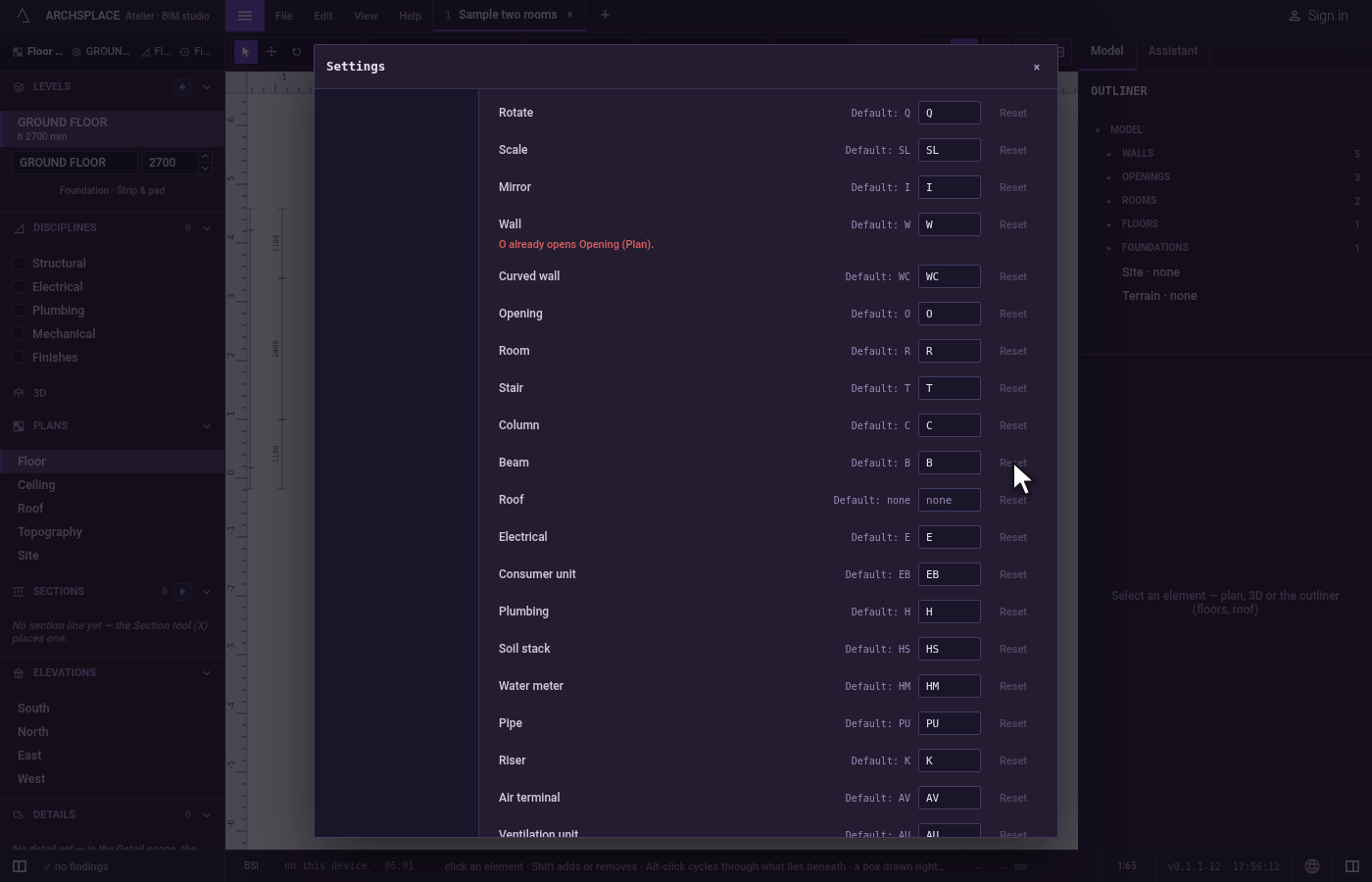
Ctrl+Shift+Zon Windows and Linux,⇧⌘Zon a Mac. - One part per editor: Floor plan (building, systems and site tools), Drawing over a view (one key each, the same on the plan, the sections, the elevations and the callouts), 3D modelling, Terrain editor, Roof editor, Sketch editor and Tile editor. Each tool stands once, with the bars it appears on when there are several, the default key (Default: W for Wall), its own key in a field, and Reset. A changed row is marked.
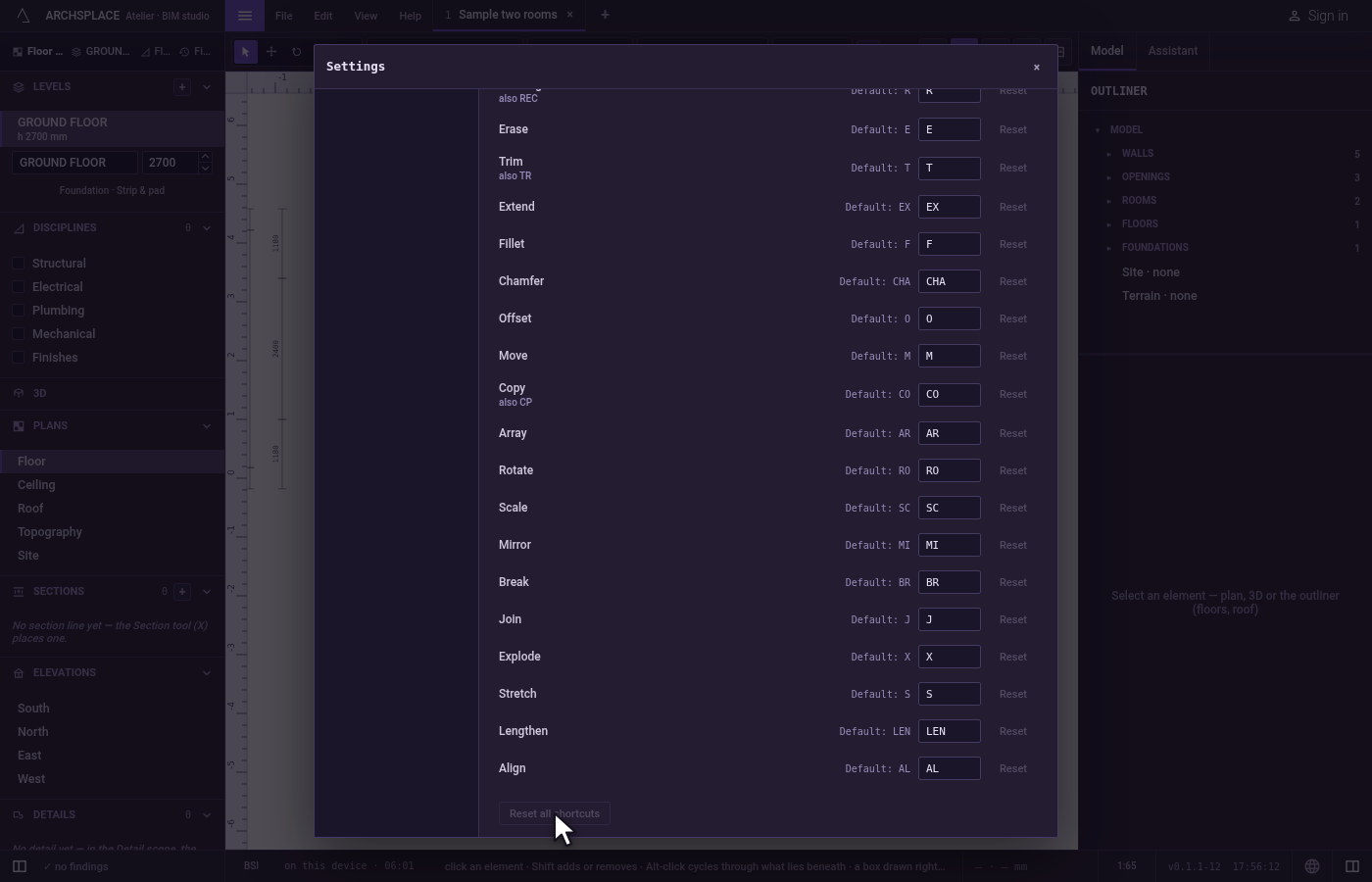
At the foot, Reset all shortcuts gives every tool its default key back.
When to use it
- Finding the key of a tool you use often.
- Giving a tool the key your hand already knows from another program.
- Taking a key off a tool so a mistyped letter never opens it.
- Going back to the keys the atelier ships with.
The steps
Open the shortcuts. Open Help and click Keyboard shortcuts. The Settings dialog opens on Shortcuts, the fixed keys on top.
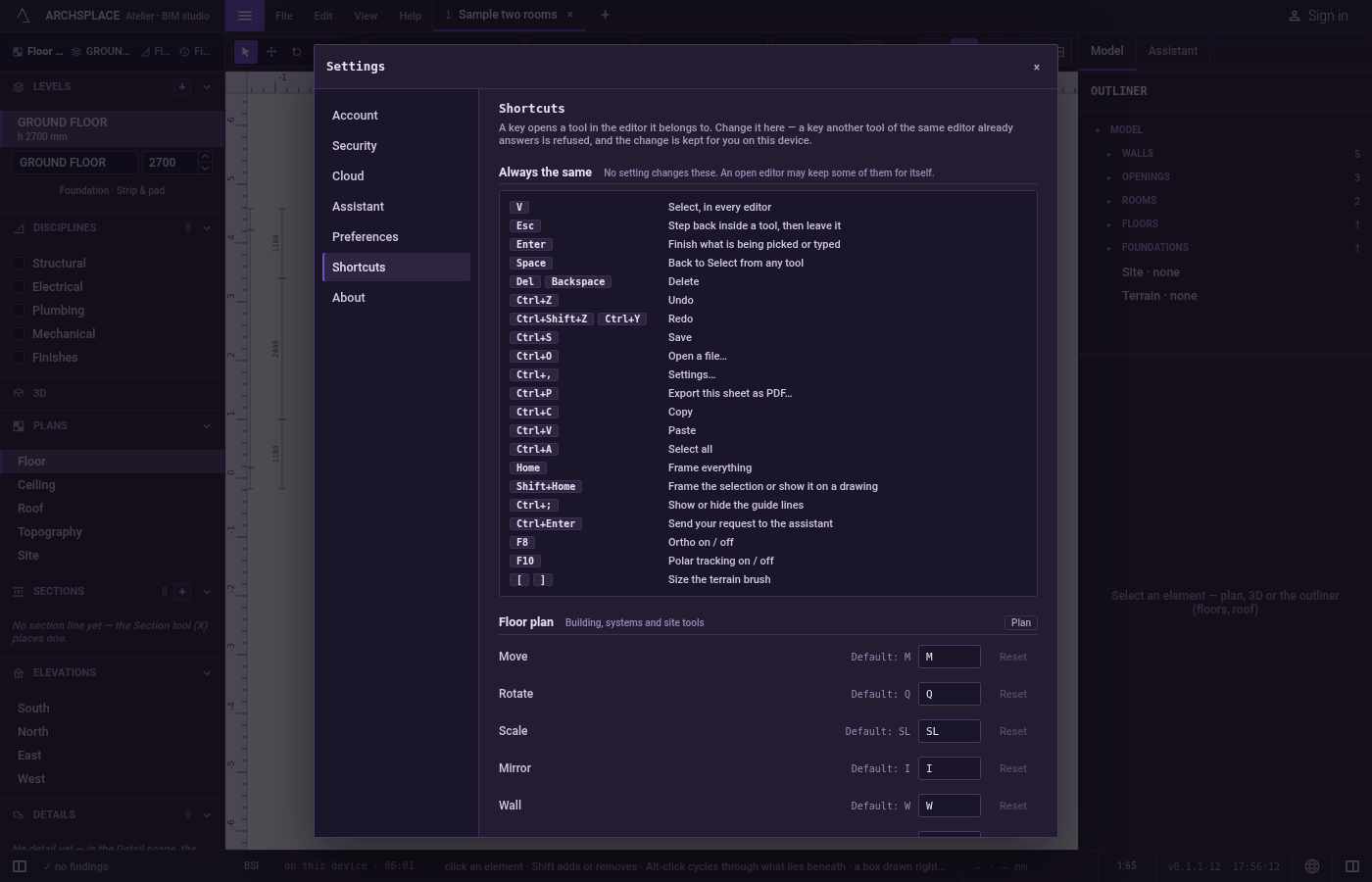
Find the tool. Scroll to Floor plan and find Beam, whose field reads B.
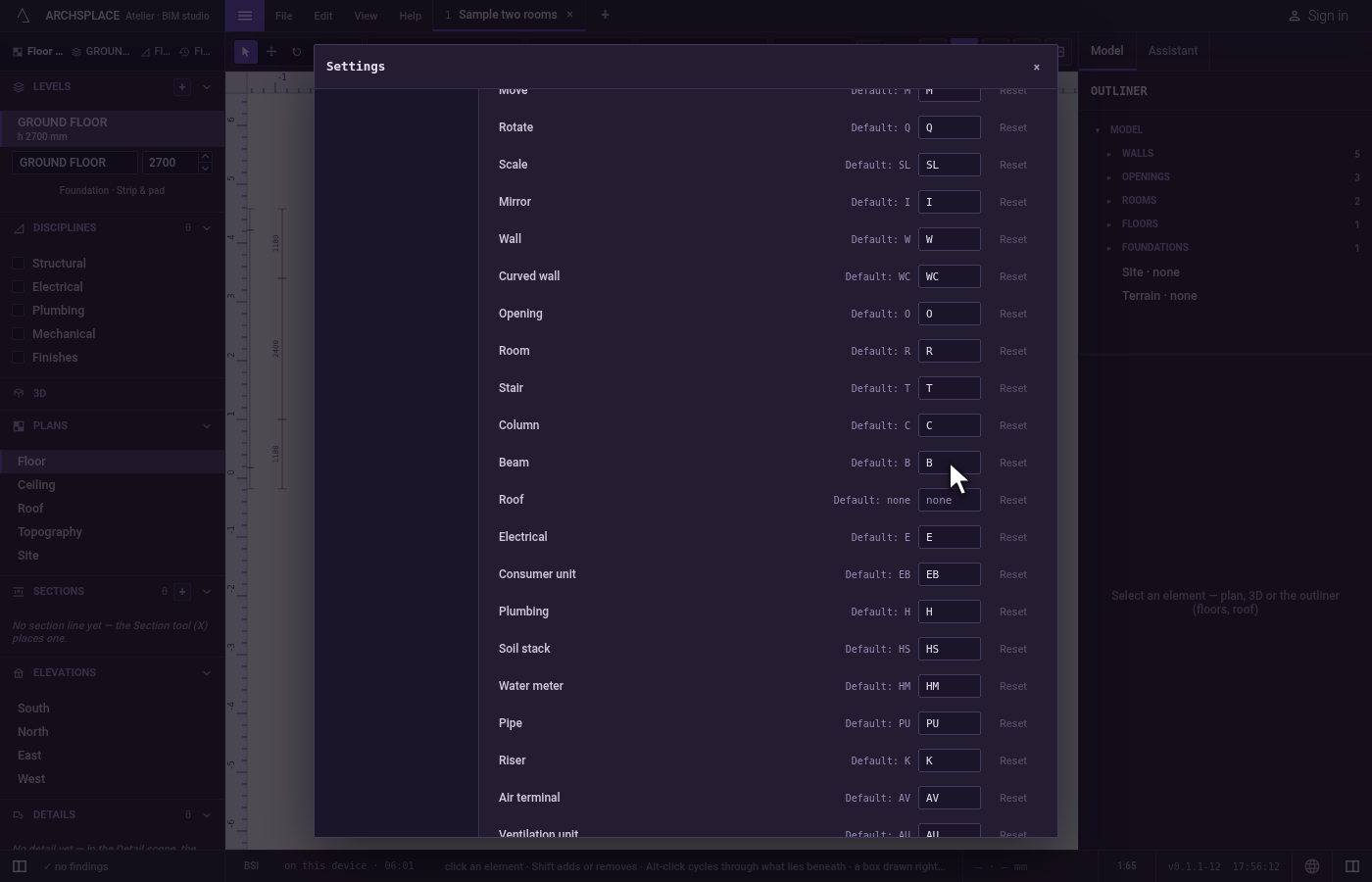
Type its new key. Select the field, type BM and press
Enter. The row is marked as changed, and B M now opens the Beam tool on the plan.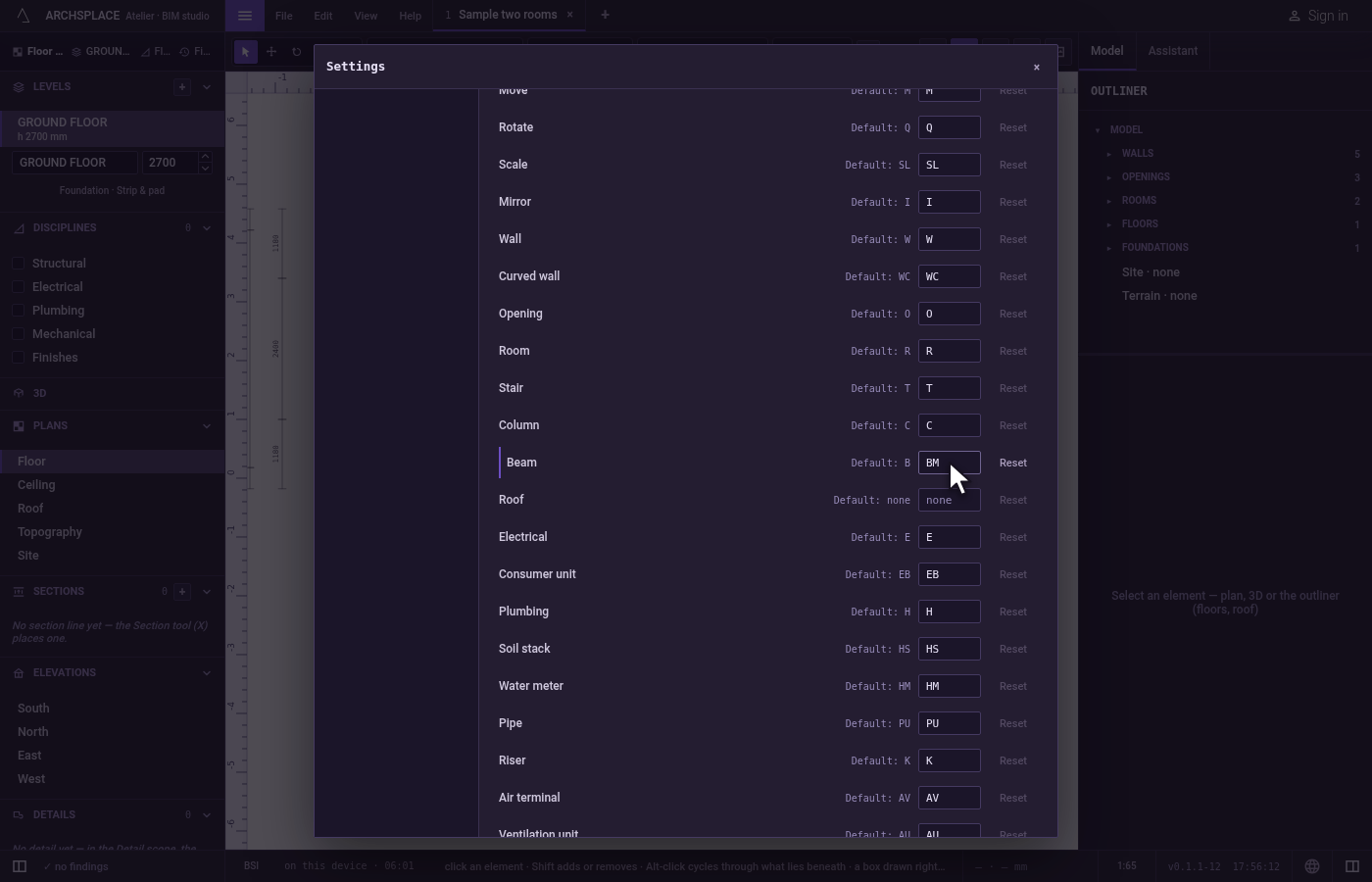
Try a key that is taken. In the Wall row, type O and press
Enter. The field goes back to W, and a message under the row says that O already opens Opening on the Plan bar.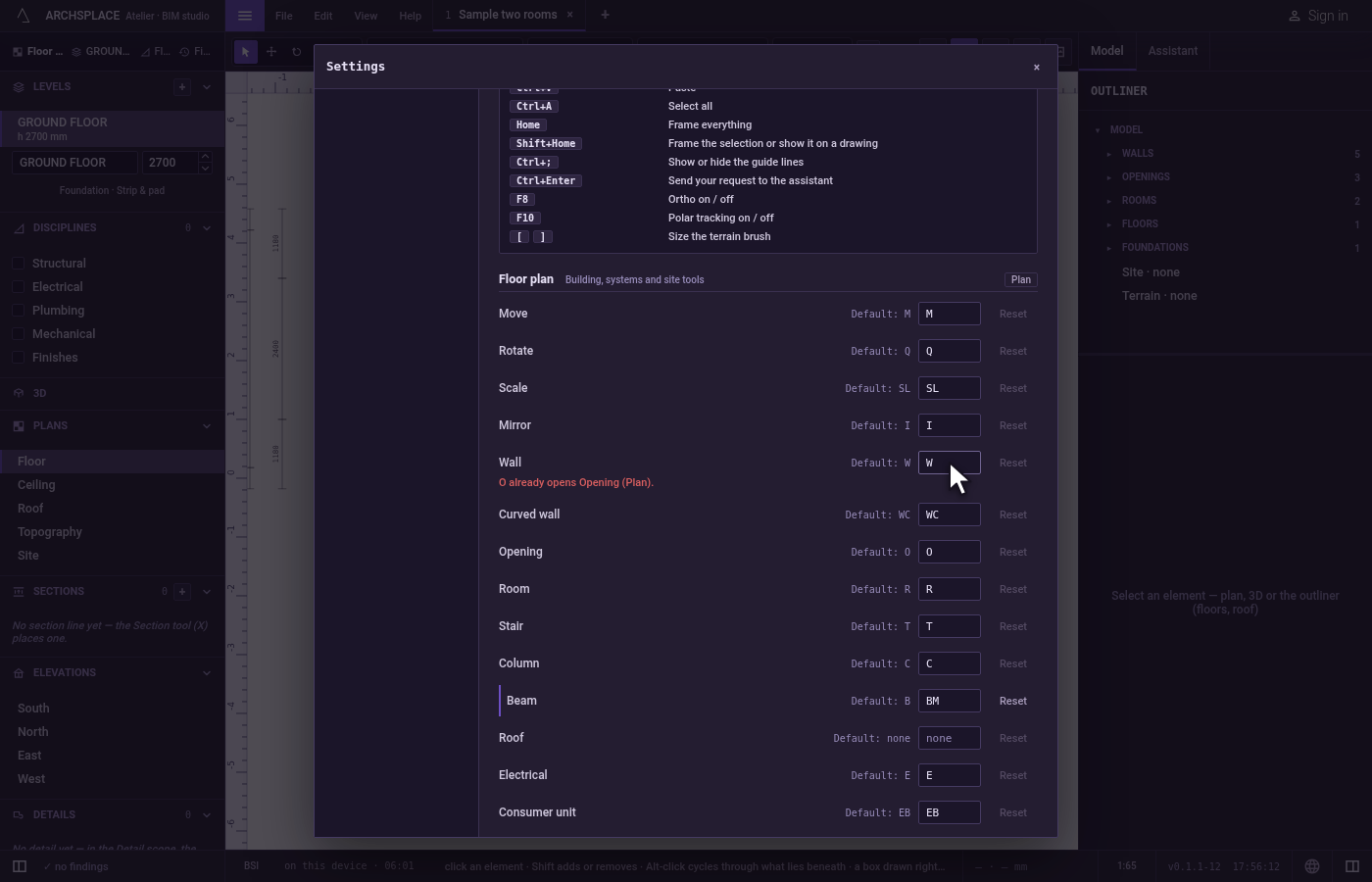
Reset one tool. Click Reset in the Beam row. Its key is B again.
Reset everything. Click Reset all shortcuts at the foot of the list. Every tool takes its default key back, and the button greys.
What it refuses
- A key another tool of the same bar answers. The message names that tool and its bar, and nothing is changed.
- A key that would hide another tool's word. When the letters you typed start a longer key of another tool on the same bar, one of the two could never be typed: the message names it.
- A fixed key. Typing a key's name such as Delete, Enter or Space is refused: that key is always the same in every editor.
- More than four letters, or anything but letters. A key is one to four letters, or empty for none.
- Changing Select. Select is V everywhere and has no field.
What it writes to the contract
Nothing. Your shortcuts are yours, not the project's: they are kept in this browser, or in the installed atelier on this computer, and every project you open answers them.
Common questions
How do I change the key of a tool?
Open Help, Keyboard shortcuts. Find the tool in its editor's list, type the new key in its field (one to four letters) and press Enter. The toolbar, the key itself and the typed words follow at once.
Why is my new shortcut refused?
Because another tool of the same editor already answers it, or because the letters you typed would start that other tool's word before yours could be typed. The message under the row names the other tool and its editor, and nothing is changed.
Can I change Ctrl+Z or the Select key?
No. Select is V in every editor, and the keys listed under Always the same, such as Undo, Save, Copy, Home or F8, never move. Only the tools' keys can be changed.
How do I get the original shortcuts back?
Click Reset beside one tool to give it back its default key, or Reset all shortcuts at the foot of the list to undo every change.