SketchFin the studio
Fillet
Fillet rounds the corner between two lines or arcs in the sketch editor with an arc of the radius you type, cutting both back to where the arc touches them. With a radius of zero it makes a clean sharp corner, and with lines selected Enter rounds every corner they have.
What it is
Fillet joins two lines, two arcs or a line and an arc with an arc of a given radius that touches both. Each of the two is cut back, or grown, to the point where the arc touches it, and the side kept is the side you picked it on. With a radius of zero, the two simply meet at a sharp corner, which also tidies two lines that overshoot or fall short of each other.
Fillet works on the lines as you drew them. Two neighbouring sides of one outline, such as two sides of a rectangle, get their corner replaced in place. Two separate open lines are joined at their own ends, and the arc between them is added as a line of its own.
When to use it
- Rounding the corners of a window or a door, or the corners of a pattern area.
- Closing a corner cleanly between two lines that do not quite meet, with a radius of zero.
The steps
Arm Fillet. In the sketch editor (see Select for the ways in), press
For click Fillet on the editor's toolbar. The hint at the cursor says to round a corner between two lines or arcs, to type the radius, thatShiftmakes it sharp, and thatTswitches trim on or off.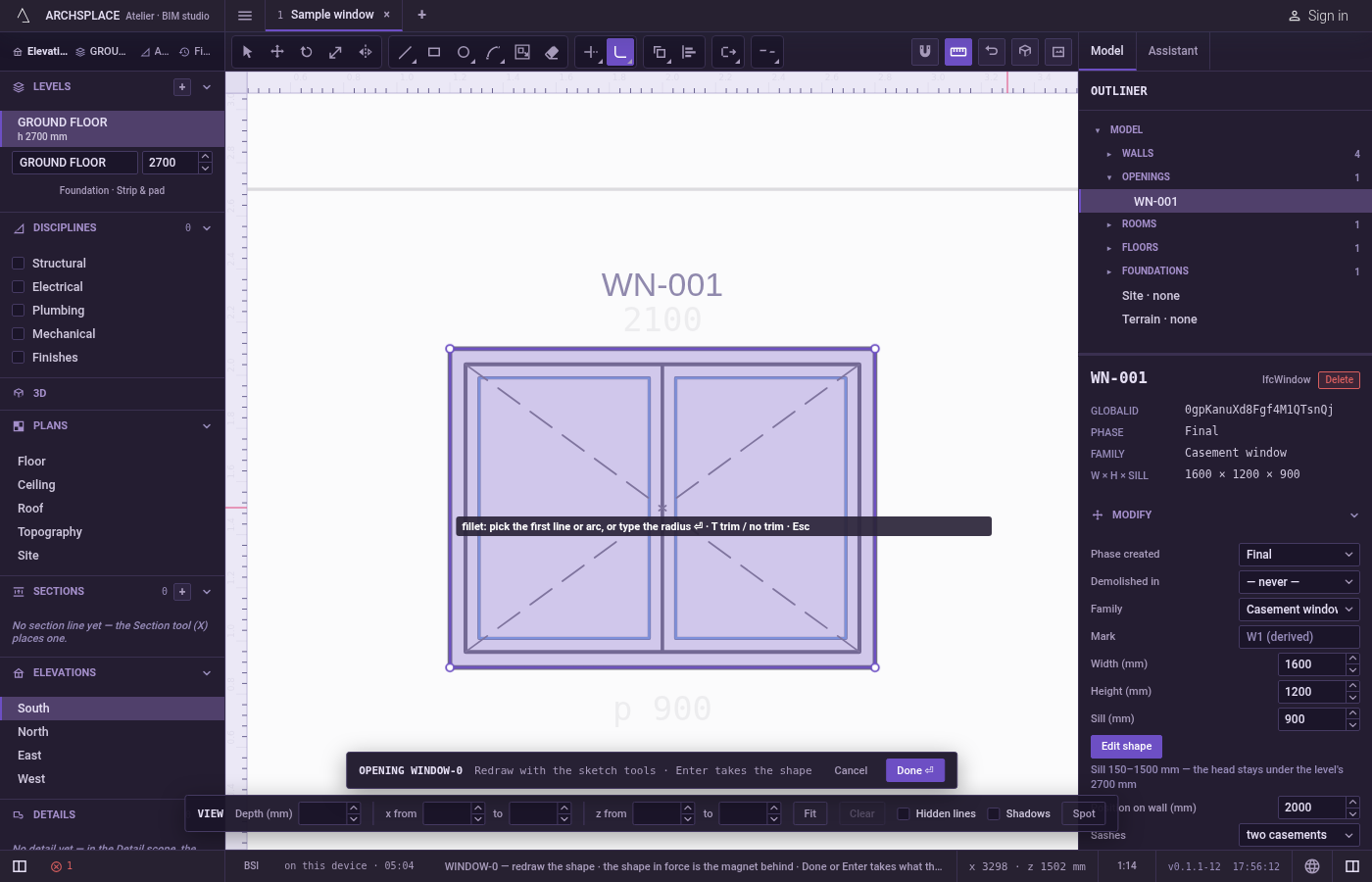
Type the radius. Type it in the project's units and press
Enter. The radius is zero each time you arm Fillet and stays as you set it for every corner until you leave the tool. You can type it again at any step.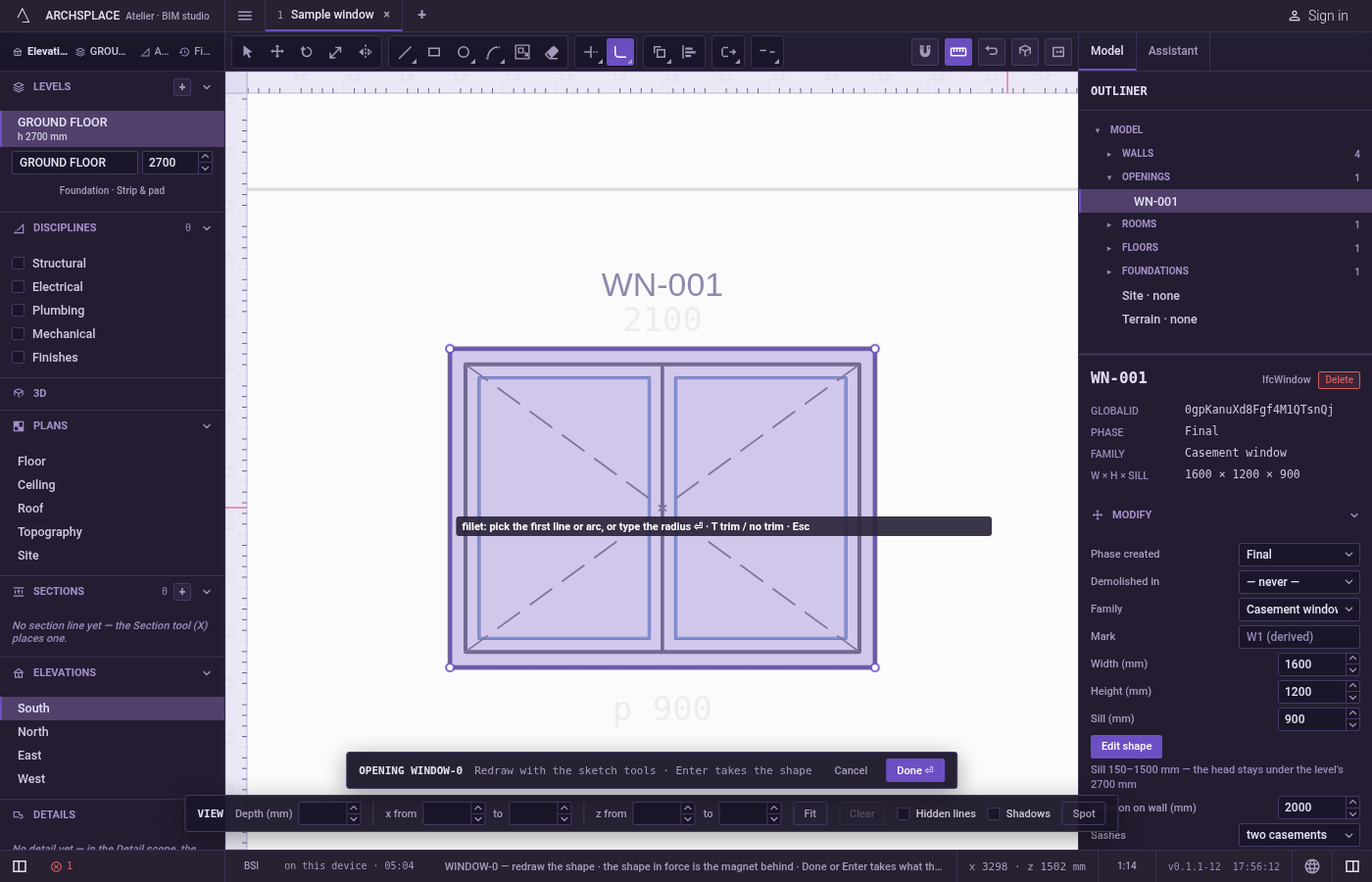
Pick the first line or arc. Click it on the side you want to keep. Fillet reads the pointer exactly, with no magnet. The hint asks for the second.
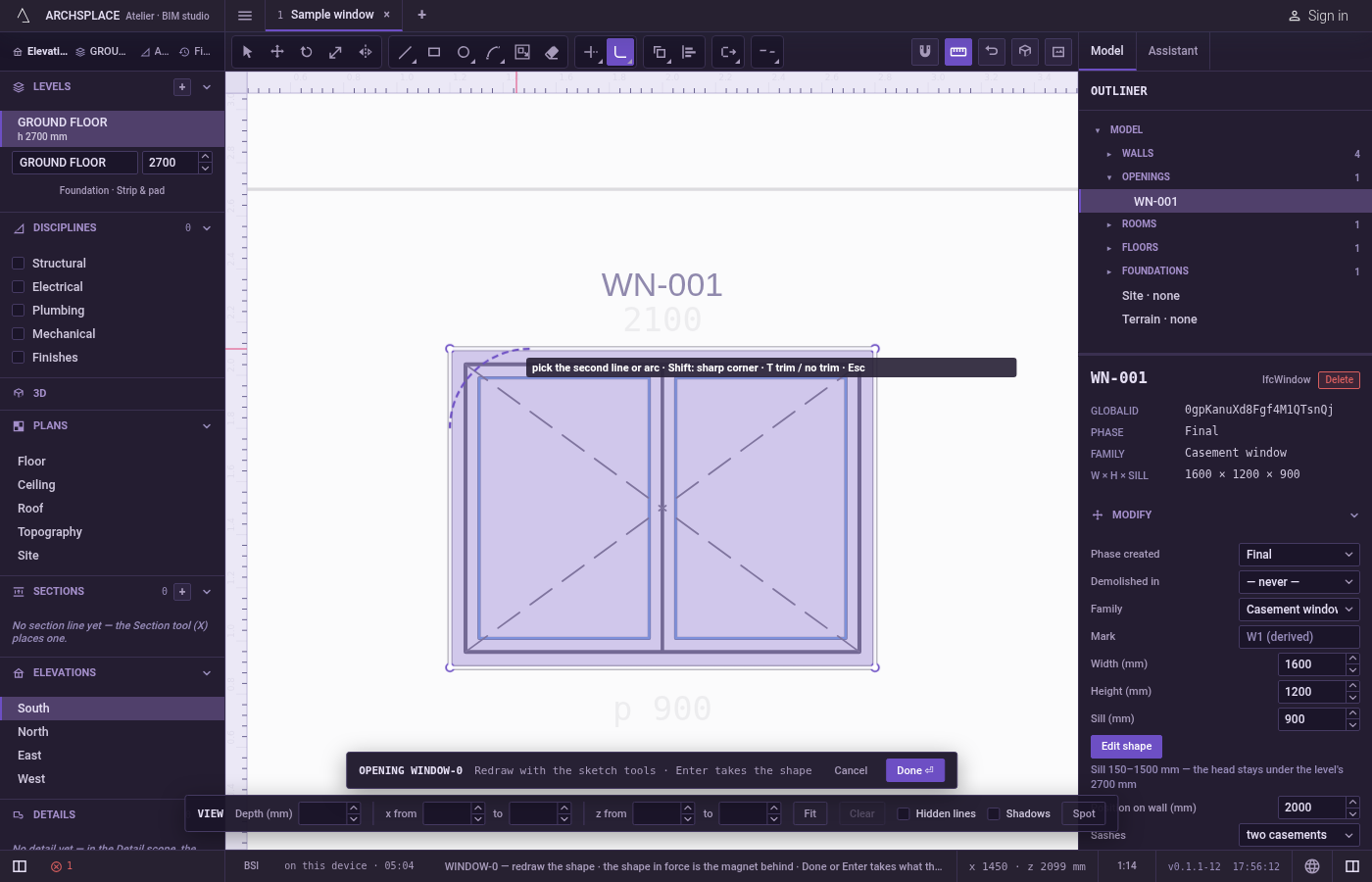
Pick the second. While you point, the arc that would be made is drawn. Click on the side of the second line you want to keep. The corner is made and Fillet waits for the next first pick. Hold
Shifton this click for a sharp corner whatever the radius.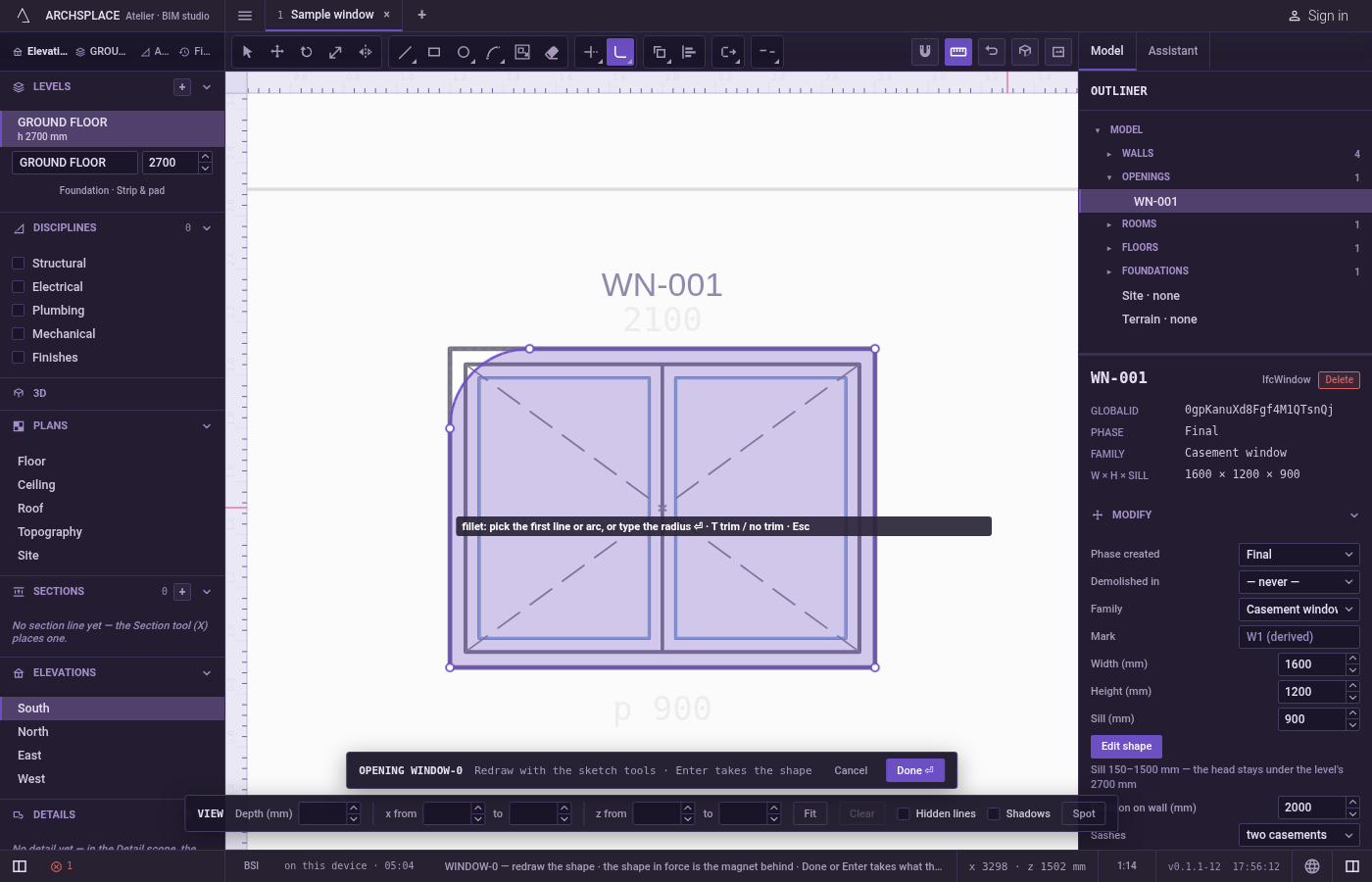
Or round a whole selection. Select lines with Select before arming Fillet, set the radius, then press
Enterwithout picking: every corner of the selected lines that the radius fits is rounded. The hint says how many corners were treated and how many were left as they were.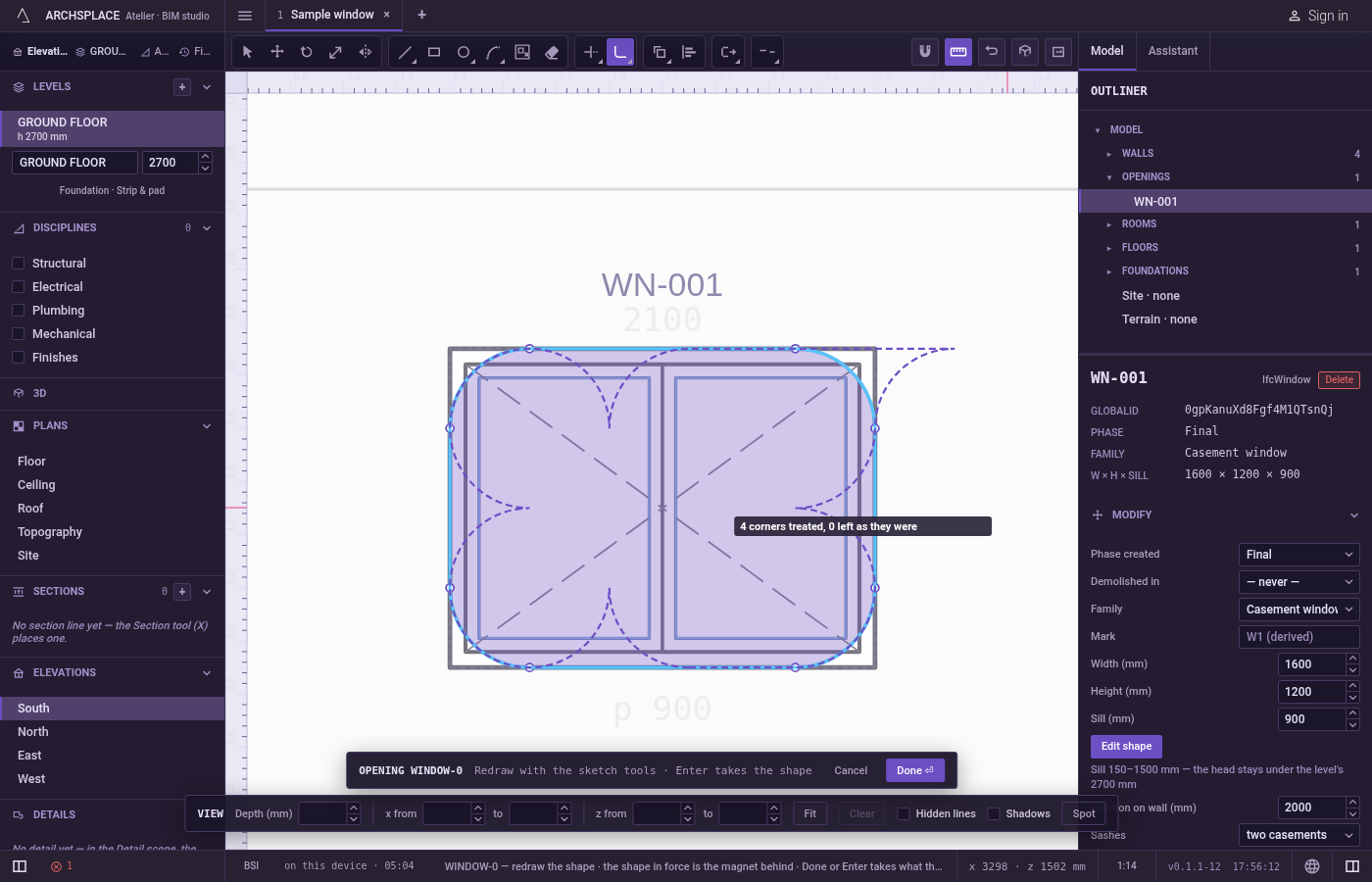
Trim or not. Press
Tto switch to no trim: the arc is added and both lines stay whole. The hint says no trim while it is on.Escapetakes back the first pick, then goes back to Select.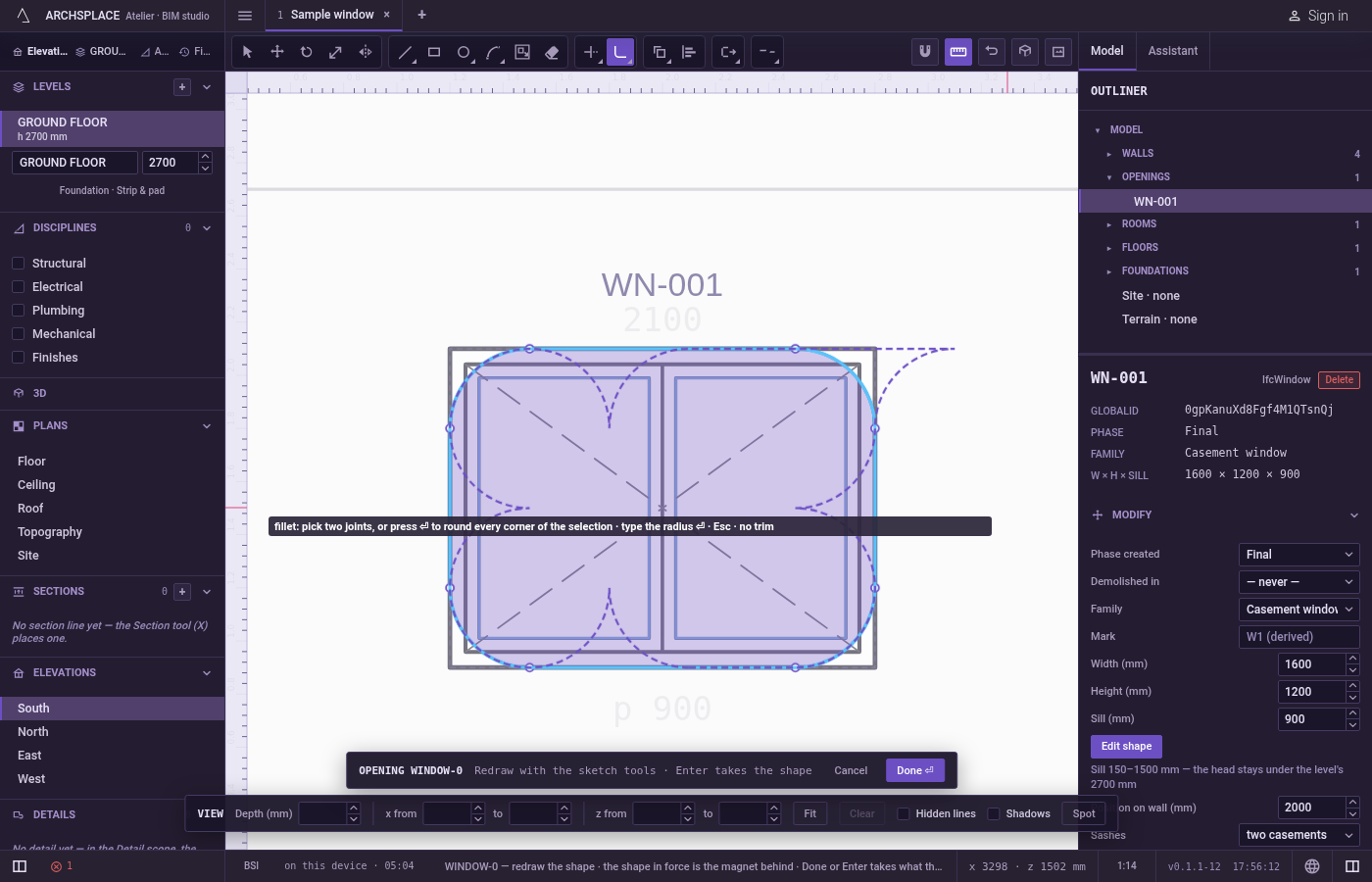
What it refuses
- A pick on nothing. The hint says no line or arc there.
- The same segment twice. The hint says pick a second, different segment.
- Lines that never meet. Two parallel lines are refused: these edges never meet.
- A radius that does not fit. When the arc would need more length than the sides have, the hint says the corner does not fit these edges.
- A cut in the middle of a line. Two sides of one outline that are not neighbours, or a closed outline and another line, would have to be cut in their middle: this would cut a line in its middle. Explode the outline first.
- A negative radius. A negative or unreadable number is ignored and the radius stays as it was.
- Corners the radius does not fit, in a whole selection. They are left as they are and counted; when none fits, the hint says no corner of the selection takes it.
What it writes to the contract
Nothing until you press Done. Each corner is one step inside the editor, and Ctrl+Z steps back through them. The contract changes when you press Done, or Enter with nothing in progress, as one step you can undo: what the lines enclose becomes the window's or door's profile, points [u, v] in metres across the wall and up from the floor, or the pattern area's outline in the room's floorAreas or ceilingAreas, points [x, y] in plan metres.
The fillet arc becomes a bulge on the point where it starts: 0.414214 for a quarter turn. A window 1.2 by 1.2 metres with its top right corner rounded at 10 centimetres:
Common questions
How do I round all four corners of a rectangle at once?
Select the rectangle with Select, press F, type the radius and press Enter, then press Enter again. Every corner the radius fits is rounded, and the hint counts the corners treated and those left.
Why does my fillet make a sharp corner?
The radius starts at zero each time you arm Fillet. Type the radius and press Enter before you pick the lines.
Can I add the arc without cutting the lines?
Yes. Press T to switch to no trim: the arc is added and both lines stay whole. Press T again to trim.