SketchPLin the studio
Polyline in the tile editor
Polyline draws a chain of straight segments and tangent arcs inside a pattern's tile as one joint, point after point. A switches to arcs, C closes the chain back to its start, and Enter ends it as it stands.
What it is
Polyline draws several segments in a row as one joint: each click adds a point, and the segment from the last point follows the pointer. Segments can be straight, or arcs that leave tangent to the segment before, so the chain flows without a kink. The chain can stay open or close back to its start. The whole polyline is one joint: it is selected, moved and erased whole, and Fillet or Chamfer can treat all its corners at once.
It is the same Polyline as in the other editors of the studio, acting here on the joints of the tile.
When to use it
- To draw a zigzag, a stepped line or an outline in one go.
- To draw a shape that mixes straight stretches and smooth curves.
- To draw a closed outline you will later round or offset as one.
The steps
Take the tool. Type
PthenLone after the other, or click Polyline on the bar. It shares its button with Joint. The hint asks for the first point.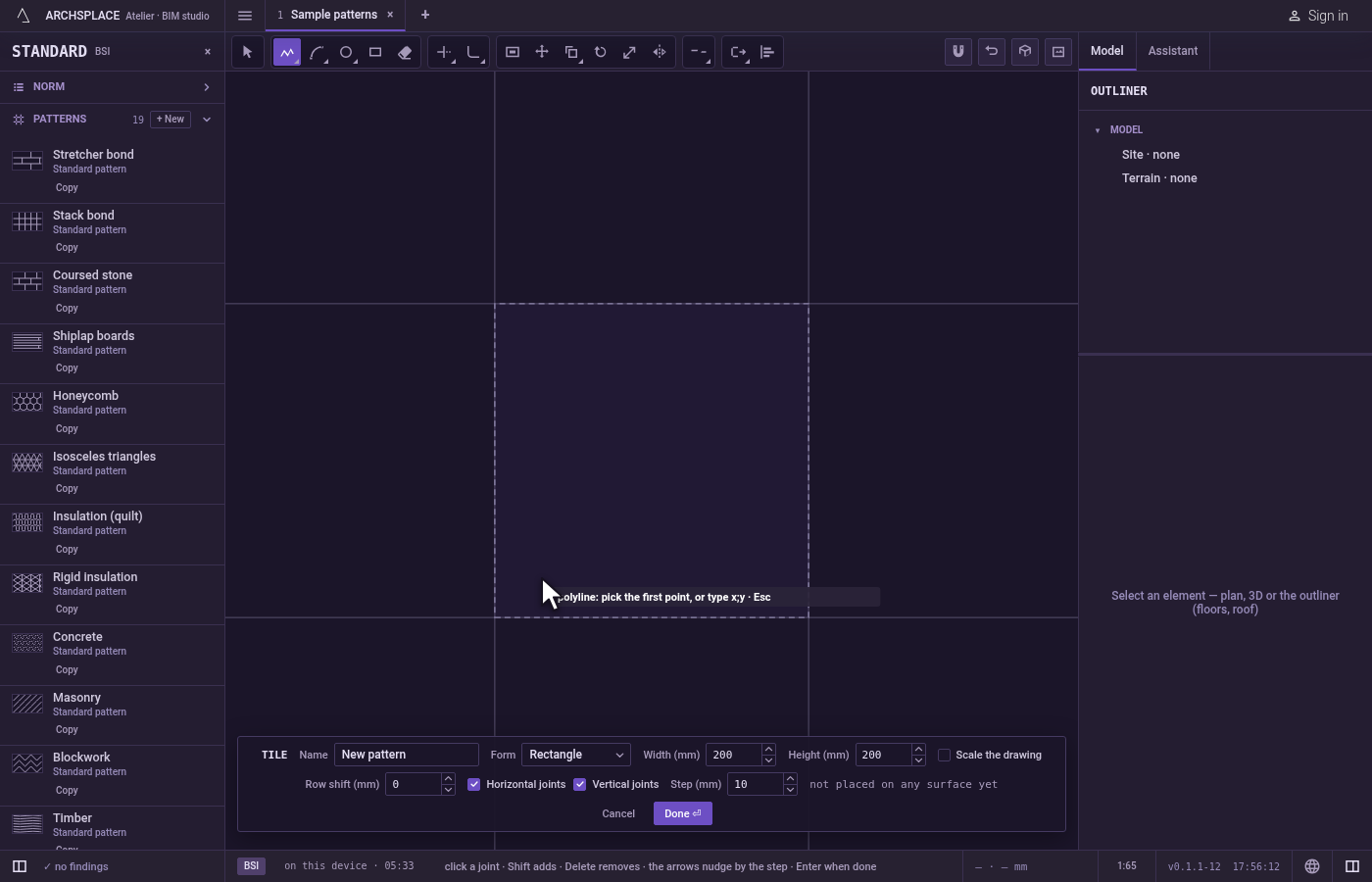
Place the first point. Click inside the tile, or type
x;yand pressEnter, measured from the tile's lower-left corner. A click outside the tile lands on its nearest edge.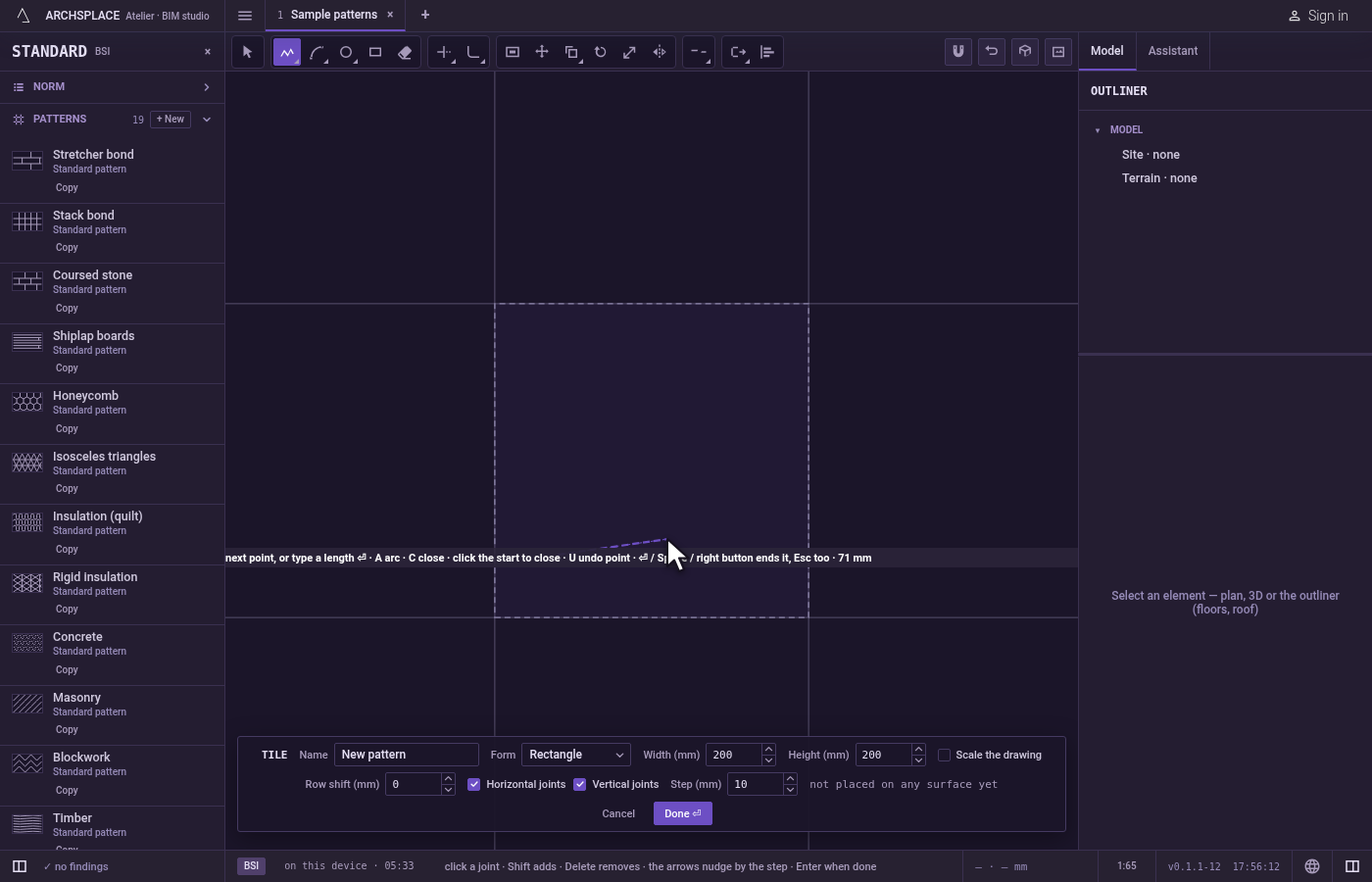
Add points. Click each next point. The segment follows the pointer and the hint shows its length. To be exact, type a length and press
Enter: the segment runs that far in the direction the pointer shows. A point typed as@dx;dyor@d<angle, measured from the last point, lands as a click would.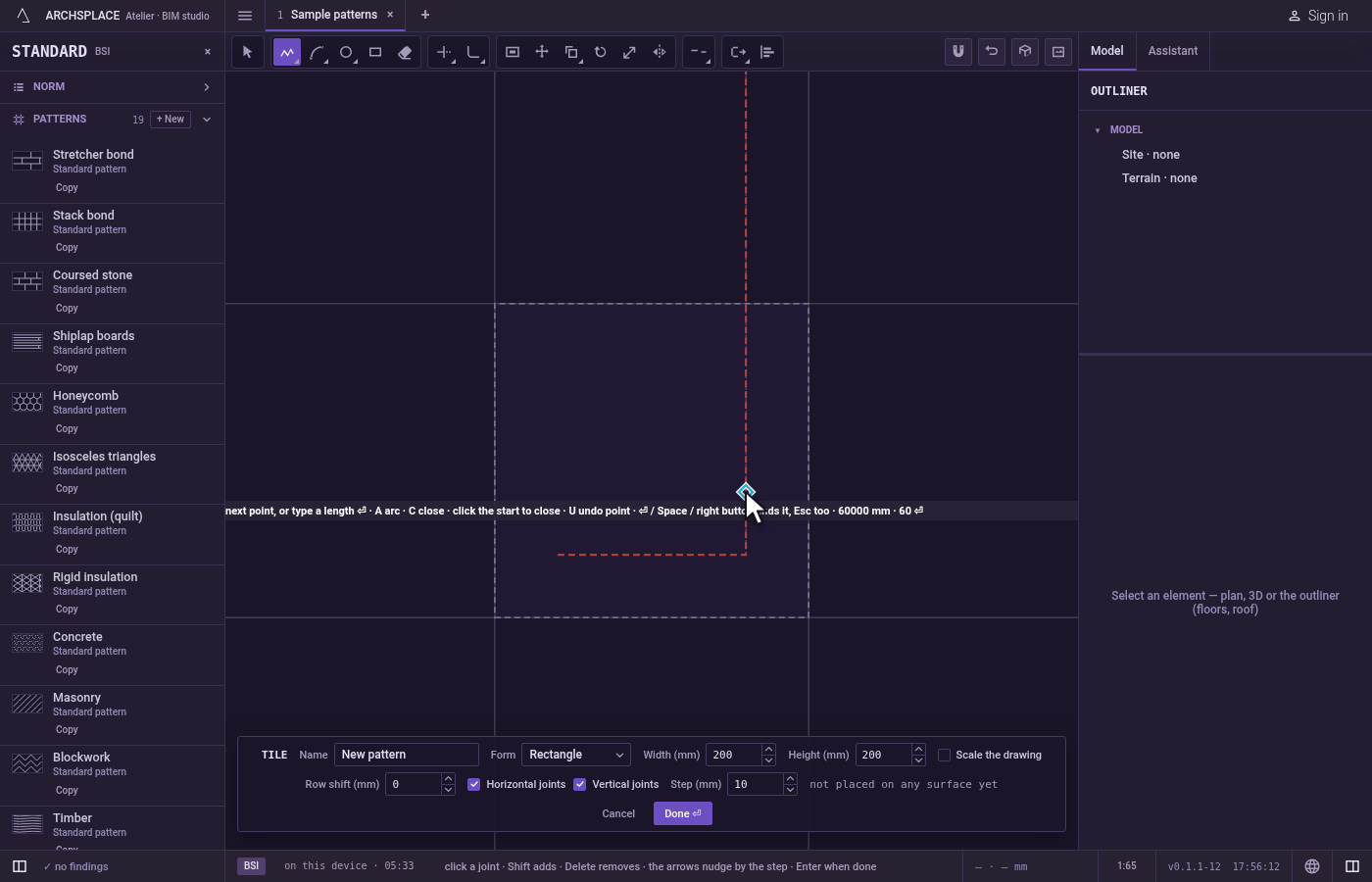
Switch between lines and arcs. Press
A: the next segments are arcs leaving tangent to the last one, and the hint shows arc. PressLto go back to straight segments.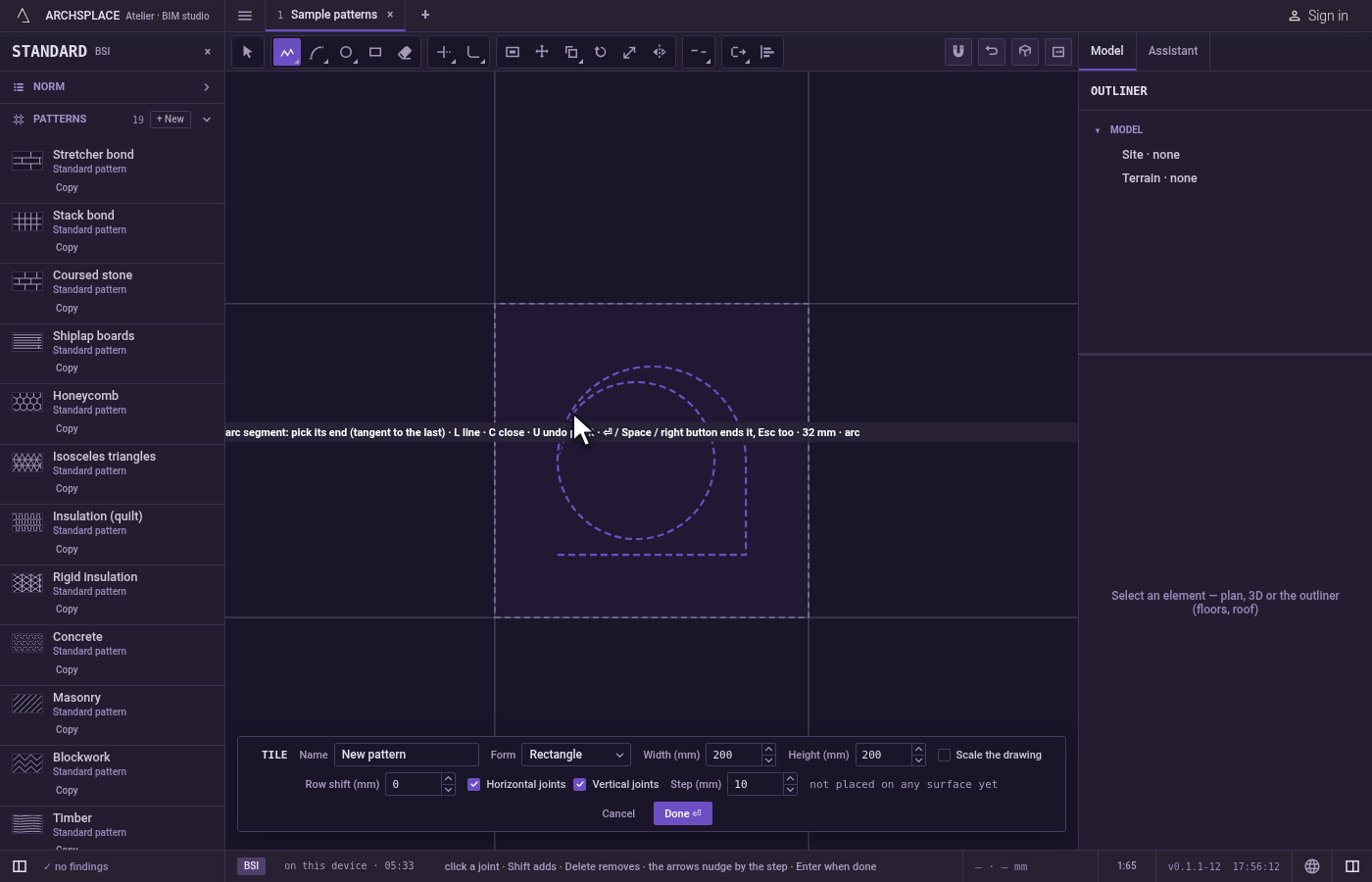
Take back a point, if you need. Press
UorBackspaceto remove the last point, as many times as you need.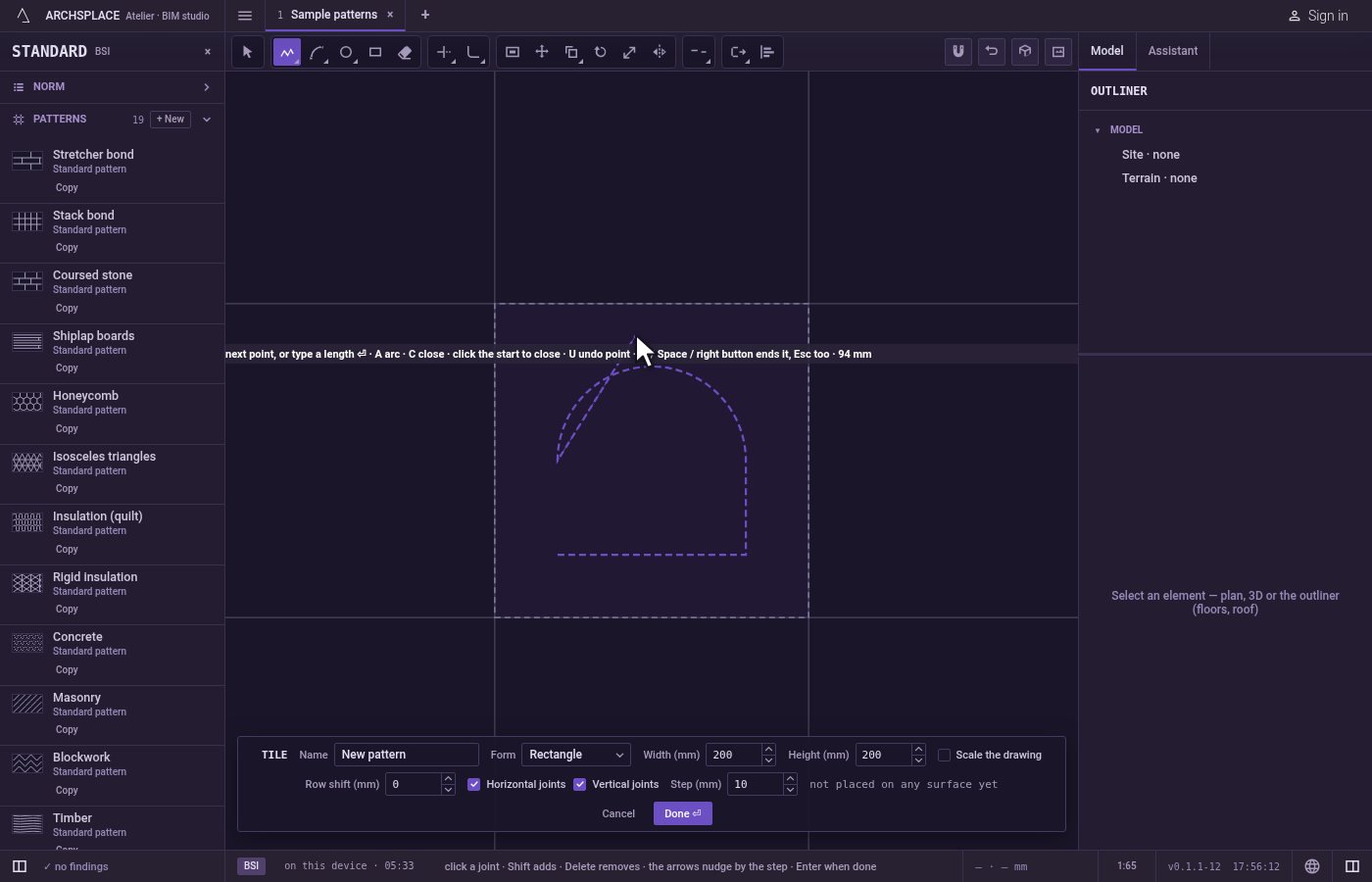
End it. Press
C(with three points or more) to close it back to its start, or click its first point again: near it, the pointer lands exactly on it and the hint says click to close. Either way the tool stays in hand for the next polyline. To leave it open, pressEnter,Space, the right button orEscapeonce you have two points or more: the polyline is kept as it stands and Select takes over. The new polyline is selected.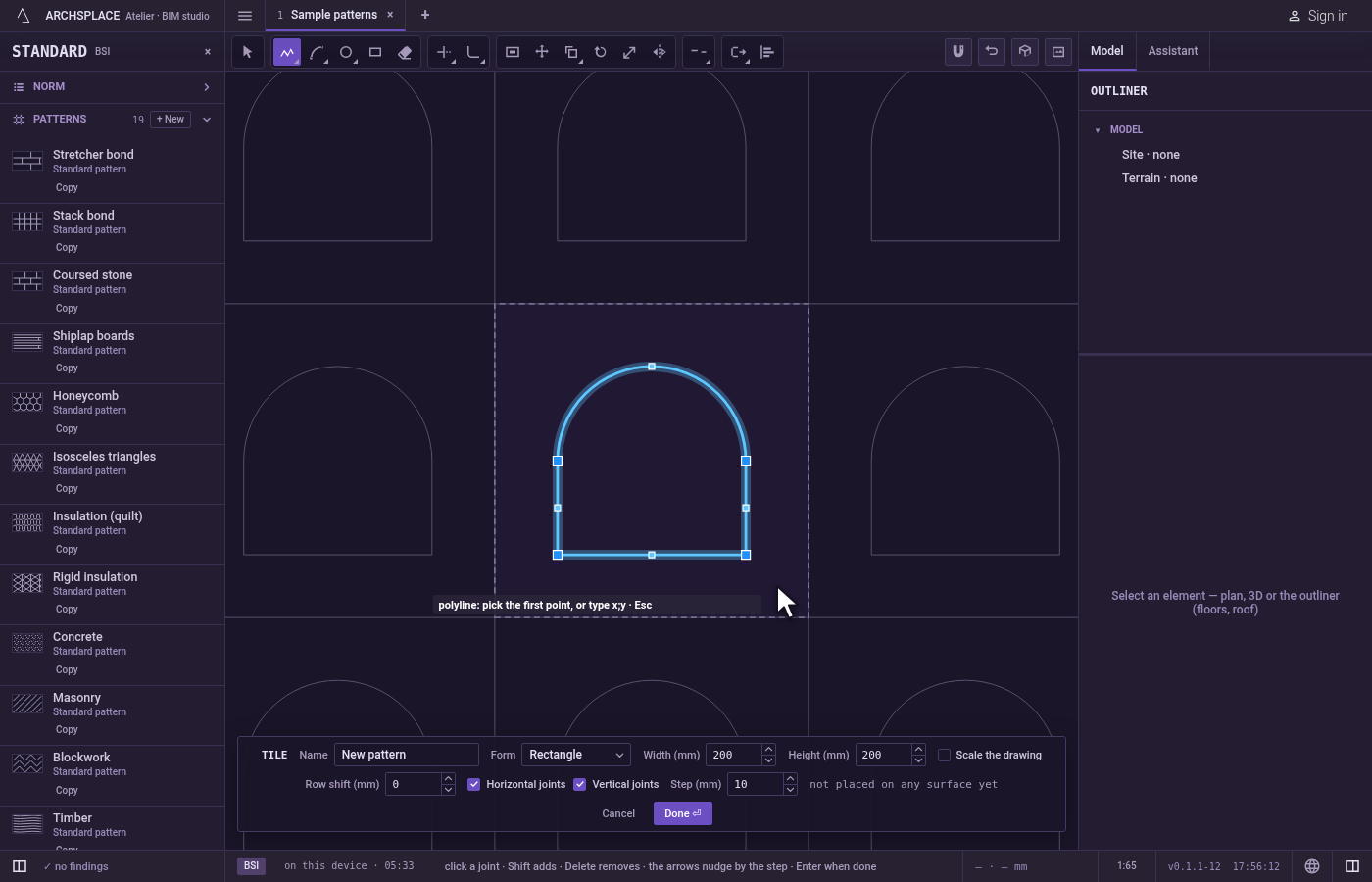
Finish.
Ctrl+Zundoes the last polyline. Press Done on the bar at the foot to hand the tile back.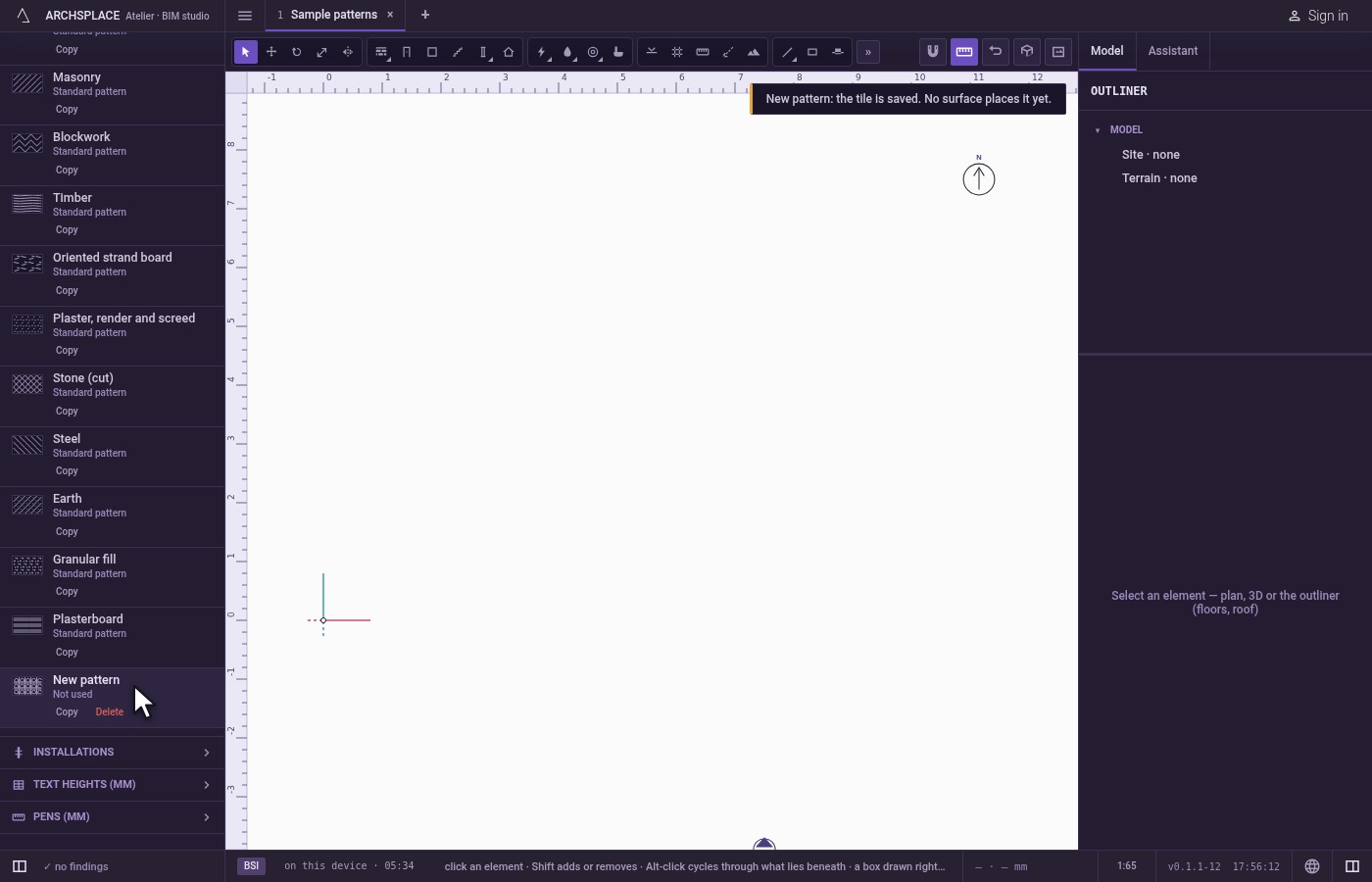
What it refuses
- The same point twice. A click on the last point again is refused with that is the same point.
- Too few points. A polyline needs two points to end and three to close, and the hint says so.
- A polyline that leaves the tile. If any part of it, an arc's bulge included, would stand outside the tile, it is not drawn, the points you placed are dropped, and the editor says a shape must stay inside the module. A polyline of only two points and no arc is a plain straight joint, and is cut at the edge instead.
- The editor's other keys. While Polyline is in hand,
A,LandCbelong to it (andUonce a point is placed), so they do not open Arc, Joint or Circle. Click those tools on the bar, or pressVfirst.
What it writes to the contract
Nothing while you work: the change stays in the tile editor, where Ctrl+Z steps back through it. When you press Done, the whole tile is written to the project's patterns in one step you can undo, every joint as its points in metres from the tile's lower-left corner. A polyline is stored as one run of points, open or closed, each arc kept as the curve between its two points. A standard pattern is never changed: Done saves the project's own version of it under the same name, and every surface that lays it follows. Save as new writes a new pattern instead. Cancel writes nothing.
Related
Common questions
How do I close a polyline?
Press C once you have three points or more, or click its first point again: the pointer lands exactly on it when it comes near.
How do I add a curve in the middle of a polyline?
Press A: the next segments are arcs that leave tangent to the one before. Press L to go back to straight segments.
I clicked a wrong point. Do I have to start again?
No. Press U or Backspace to take back the last point, as many times as you need.