3DCin the studio
Circle
The Circle tool draws a full circle in the 3D view from its centre and its radius, on the plane under the pointer. The circle closes flat, so it is a round face at once, and it stays one true curve however it is used.
What it is
The Circle tool draws a circle from two clicks: its centre, then a point at the radius. The circle lies on a plane. Before the first click the studio shows that plane under the pointer as a light grid: the face under the pointer, or the ground when there is none. The arrow keys turn it.
The circle is kept as four quarter arcs, so it is a true circle in the project. It is drawn as fine segments, never coarser than five degrees, so its face can be found and pulled, but erasing, picking or offsetting any part of it takes the whole circle. Pulled into a volume, its sides read as one smooth surface.
When to use it
- To draw a round footprint and pull it into a column or a cylinder with Push/Pull.
- To draw a round opening on a face and push it through.
- To draw a round profile for Follow Me.
The steps
Take the tool. Press
C, or click Circle among the drawing tools.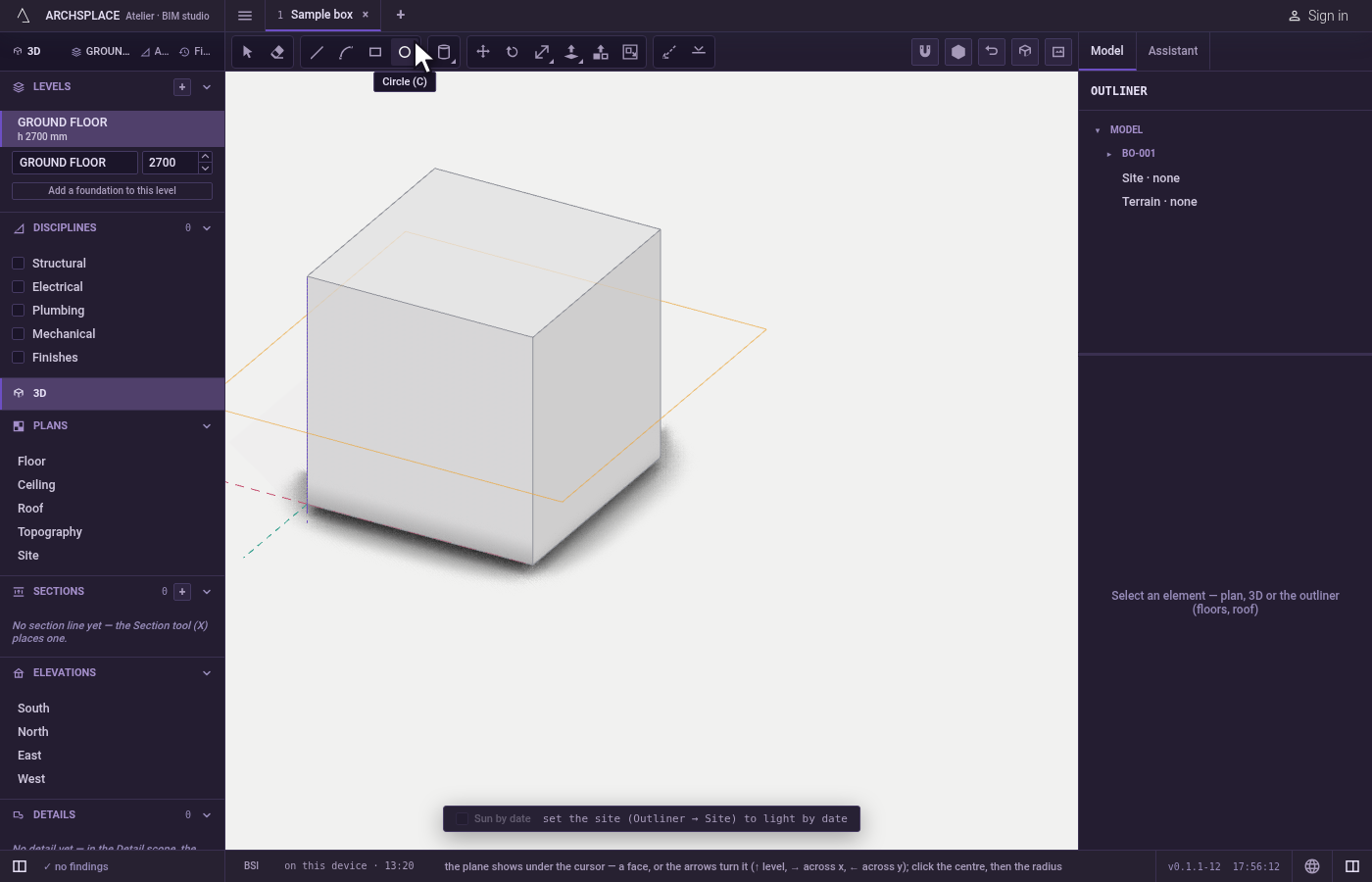
Choose the plane. Move over a face to draw on it, or over empty space for the ground. Before the first click,
↑turns the plane level,→stands it across x,←stands it across y, and↓goes back to the face under the pointer.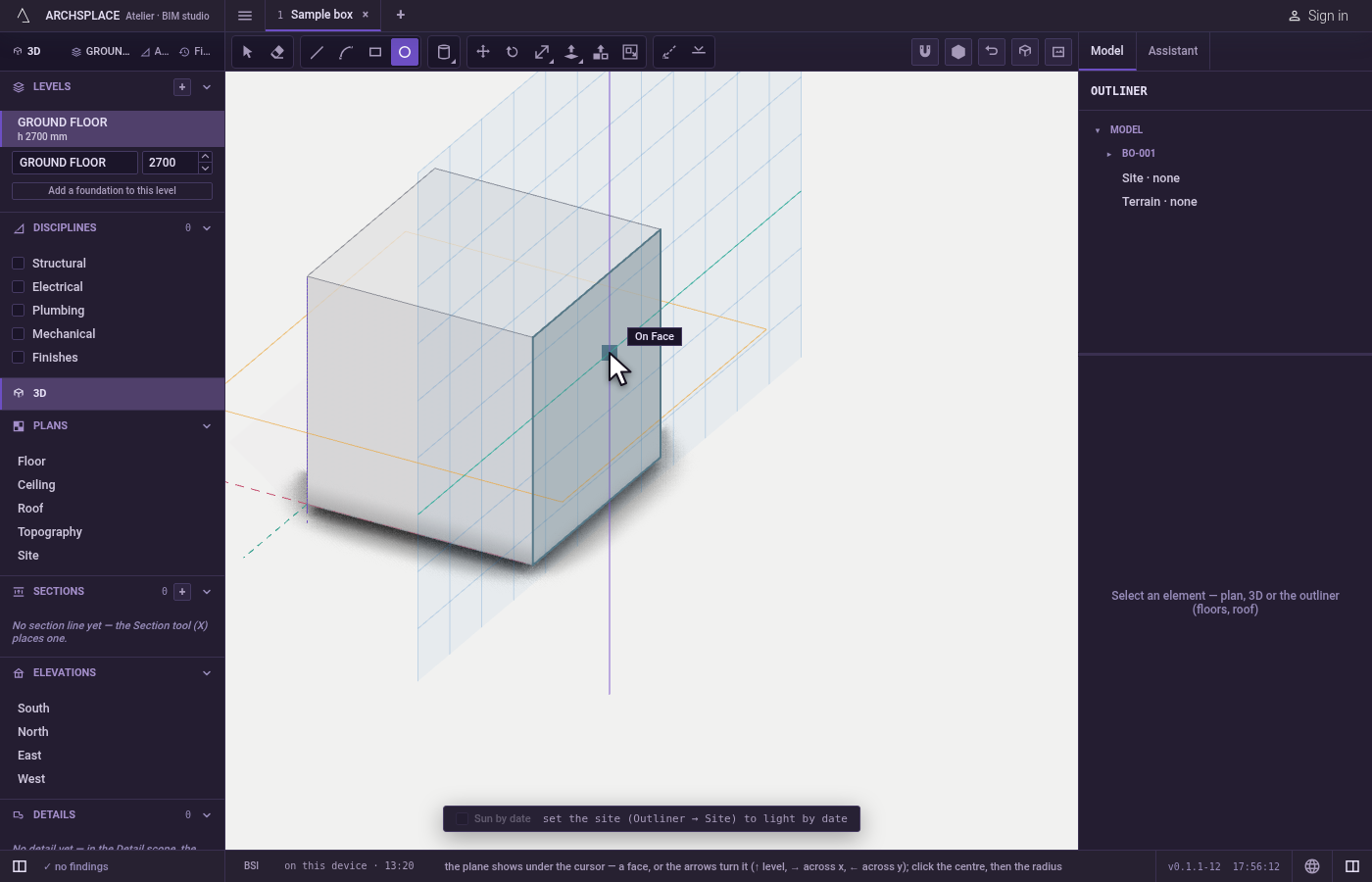
Click the centre. The plane is fixed through that point; the marker shows what the click takes.
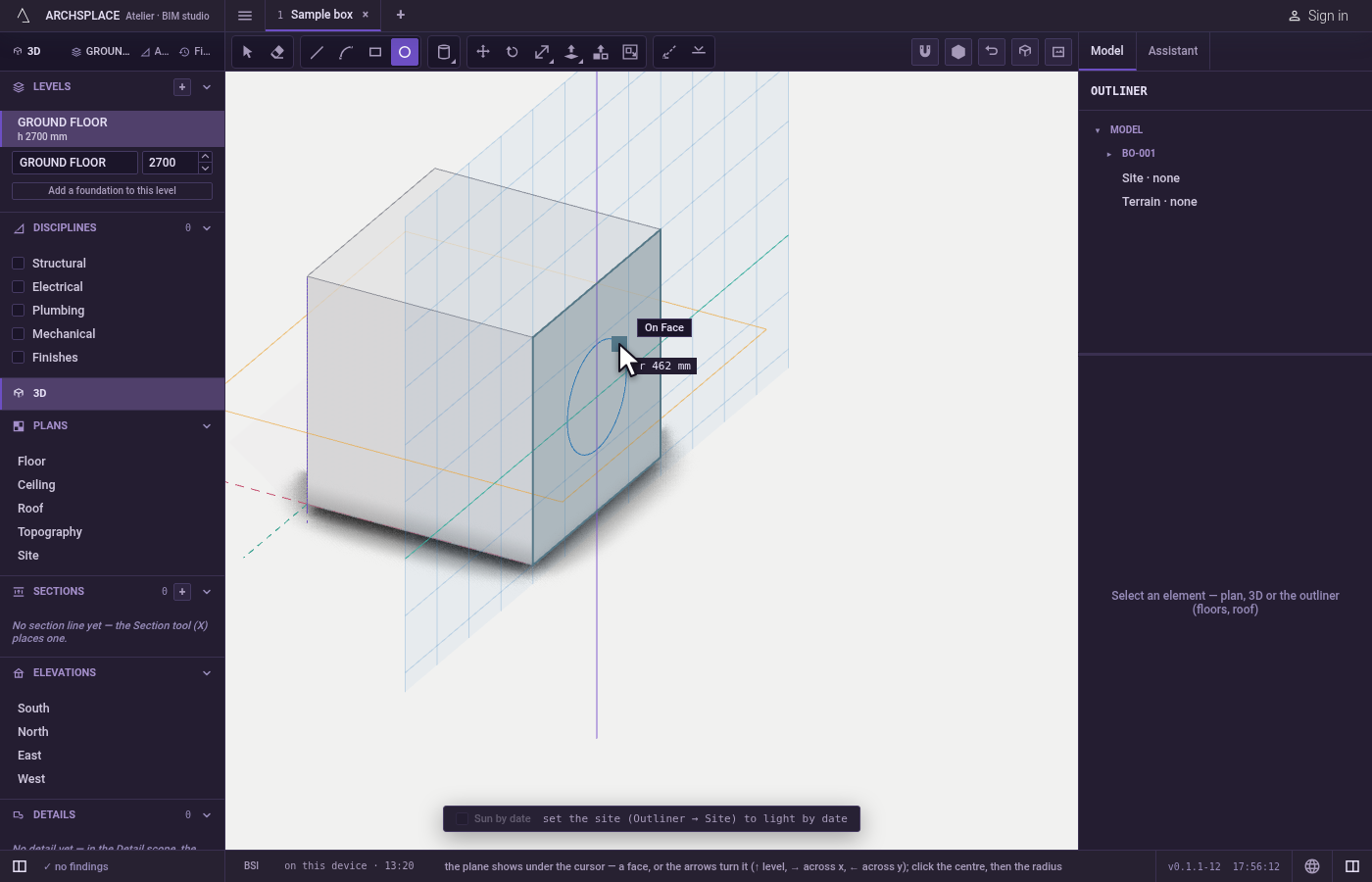
Set the radius. Move away from the centre: the circle follows and the readout gives its radius. Click, or type the radius and press
Enter.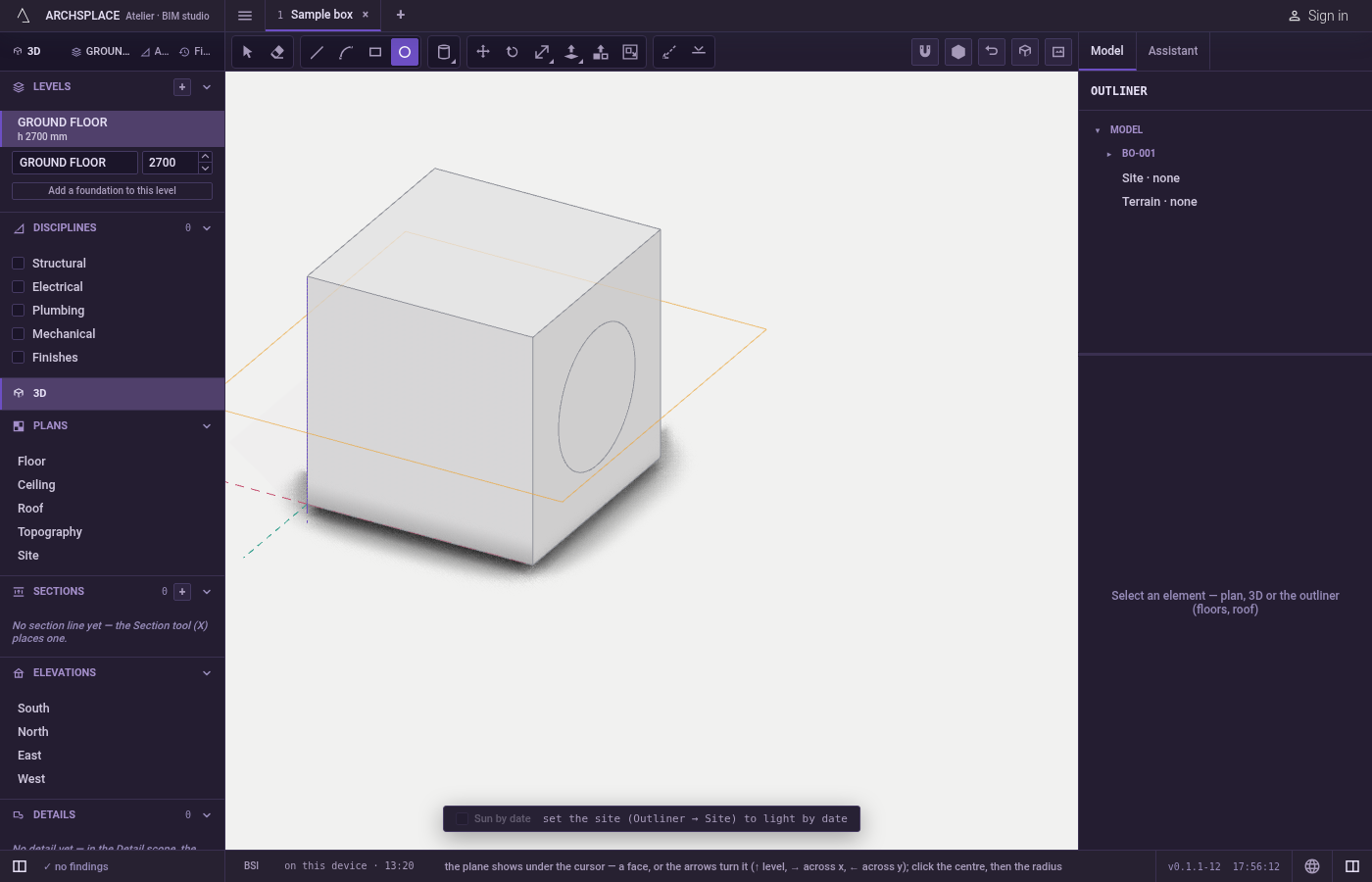
Draw the next one. The tool stays in hand.
Escapedrops a circle under way; the space bar goes back to Select.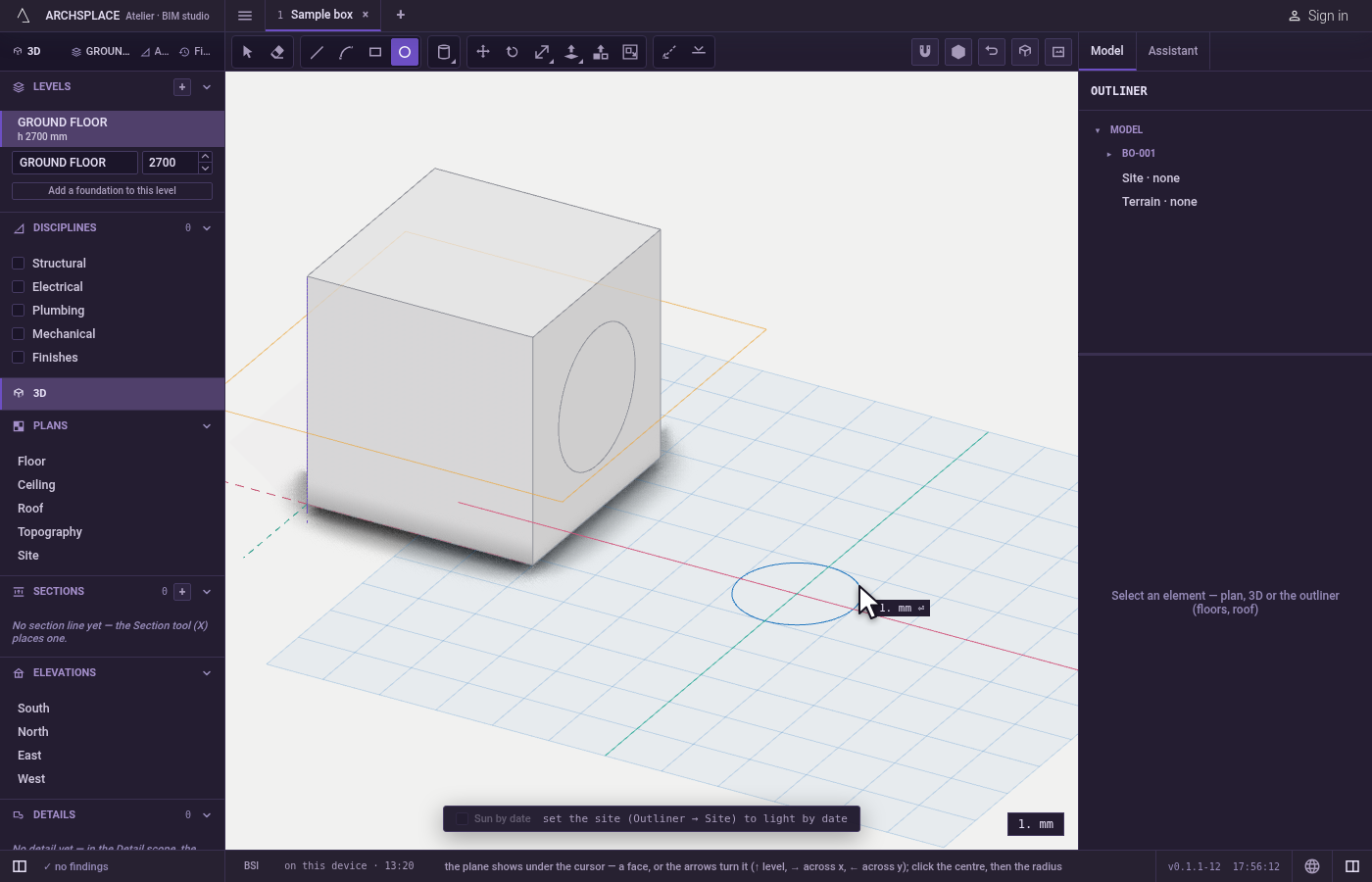
What it refuses
- A point off its plane. Once the centre is clicked, the radius is read on the plane it fixed.
- A typed radius of zero. Nothing is drawn; type a length and press
Enter.
What it writes to the contract
The circle is added to the drawn geometry of the model, or of the component you have open, as four quarter arcs made of fine segments, in one undoable step. Where it crosses other lines they split each other, the closed circle is found as a face, and a circle drawn on a body's face is taken by that body, cutting a round face of its own there.
Common questions
How do I give a circle an exact radius?
Click the centre, then type the radius and press Enter. A comma or a point works as the decimal mark, so 1,5 and 1.5 are both a radius of 1.5.
Is the circle a real circle or a polygon?
A real circle: it is stored as four quarter arcs. It is drawn as fine segments so its face can be found and pulled, but a click on any part of it takes the whole circle, and pulled into a volume its sides read as one smooth surface.
How do I draw a circle on a wall?
Move over the wall's face: the plane under the pointer lies on it. Then click the centre and the radius. You can also stand the plane upright with the right or left arrow before the first click.