SketchOin the studio
Offset in the tile editor
Offset draws a parallel copy of a joint at a distance you type, or passing through a point you click, on the side you choose. It repeats until you press Escape, and with joints selected it offsets them all at once.
What it is
Offset makes a parallel copy of a joint: a line beside a line, a smaller or larger arc about the same centre, a rectangle inside or outside a rectangle. You choose the joint, then the side, and the copy is laid at the distance you typed or through the point you clicked. Then the tool waits for the next joint, keeping the distance, until you press Escape.
It is the same Offset as in the other editors of the studio, acting here on the joints of the tile.
When to use it
- To draw a double joint, or the second line of a border, at an exact distance.
- To draw an inset inside a rectangle or a ring inside a circle.
- To repeat the same parallel copy on several joints, one after the other or all at once.
The steps
Take the tool. Press
O, or click Offset on the bar. The hint asks you to click a line or type a distance.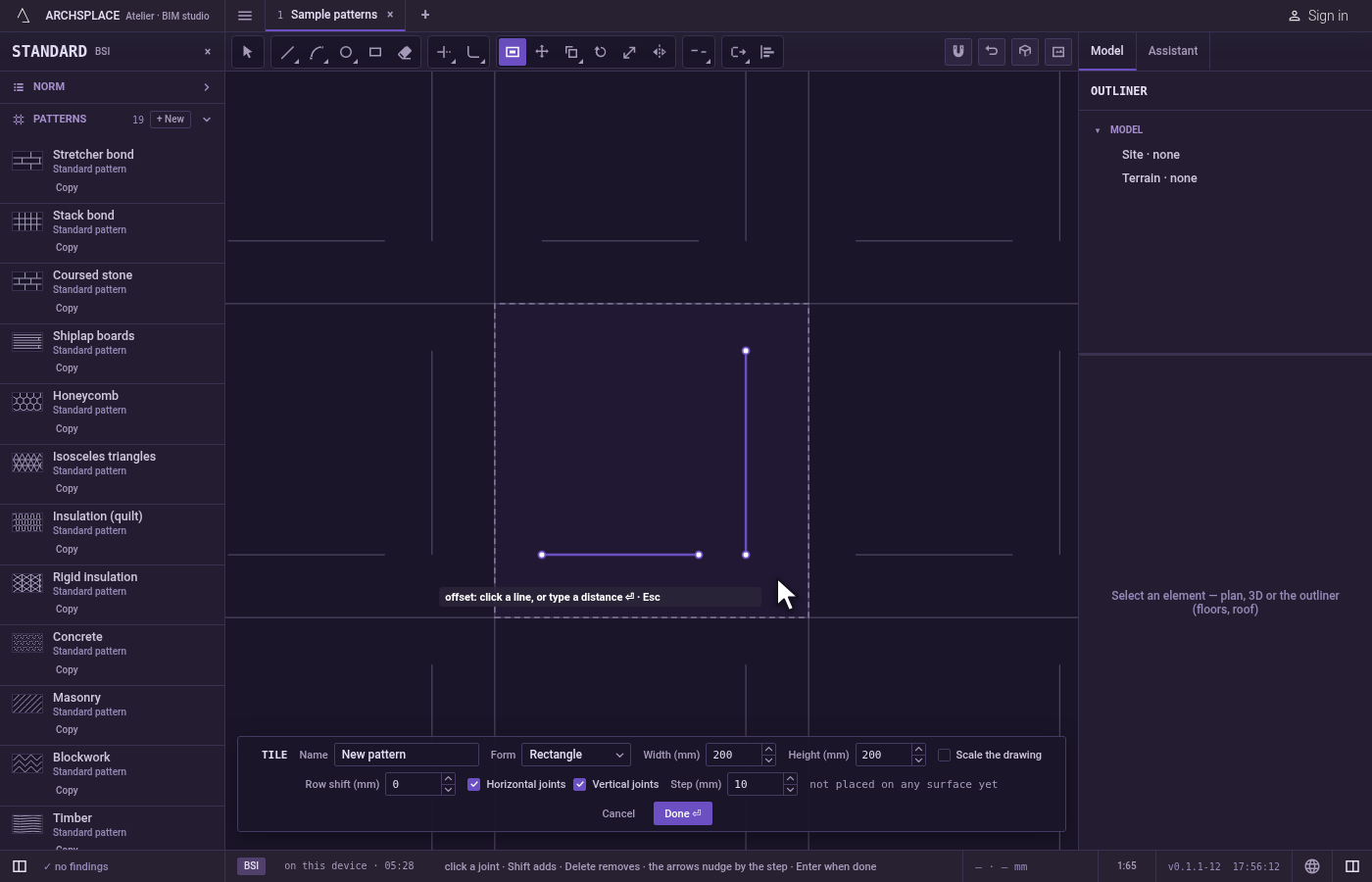
Type the distance, if you know it. Type it and press
Enter. It stays for every copy until you type another, and you can type it at any time while the tool is in hand. Without a distance, each copy passes through the point you click.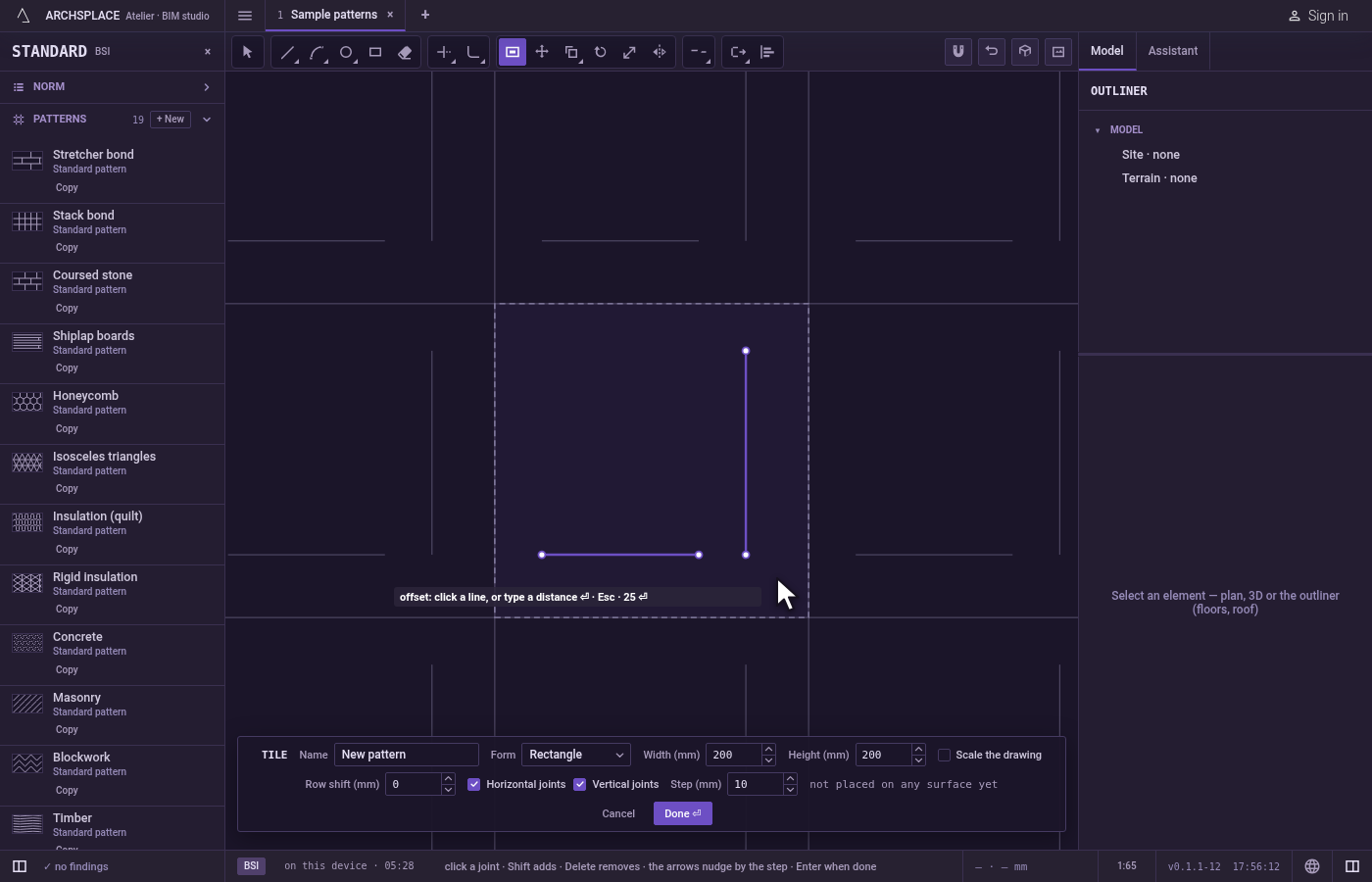
Pick the joint. Click it. The pick reads the pointer itself, not a snap, so at a crossing it takes the joint you point at. The joint stays lit.
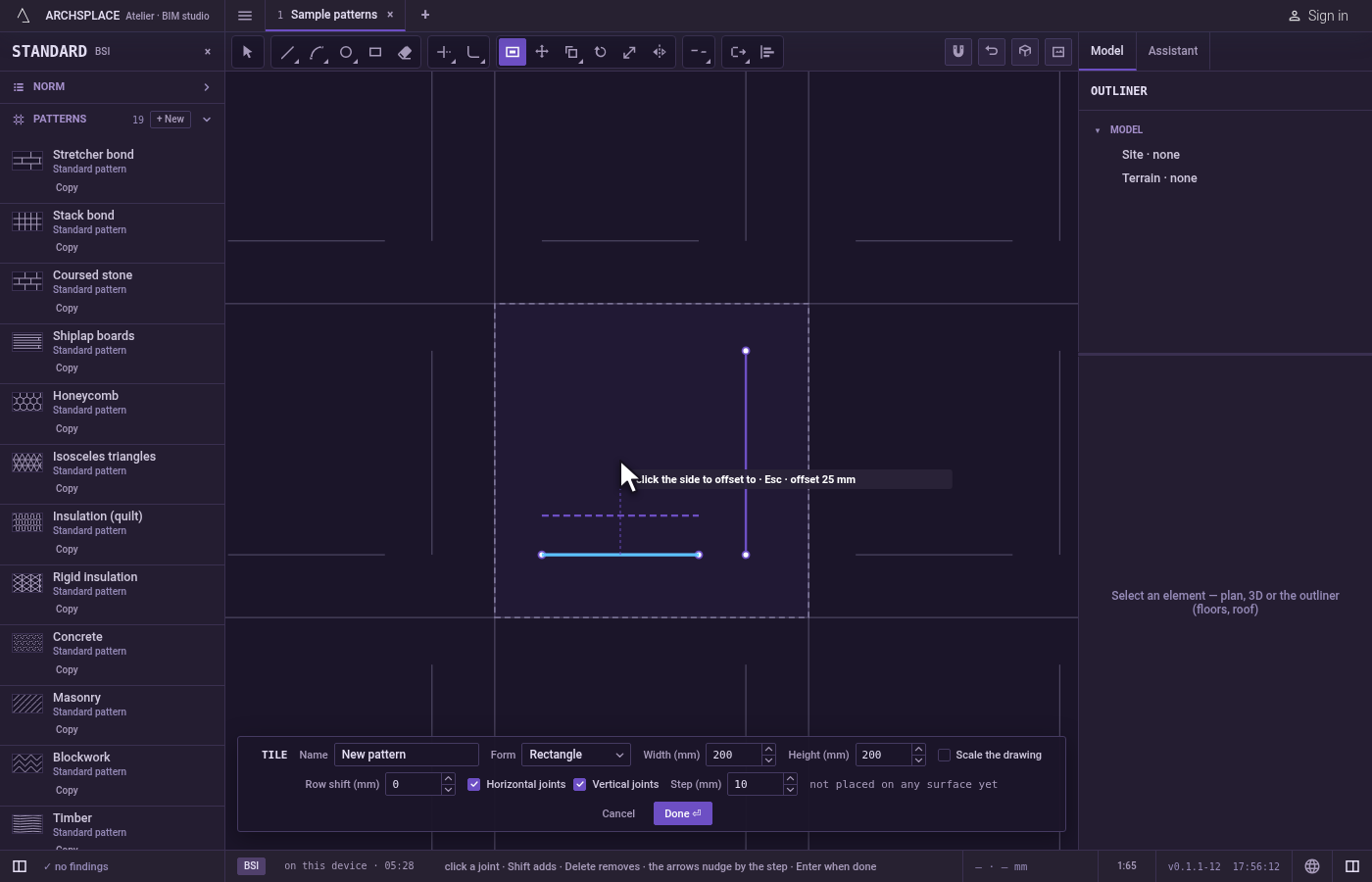
Click the side. A ghost of the copy follows the pointer on its side of the joint, and the hint shows its distance. With a typed distance, click anywhere on the side where the copy should go. Without one, click the point the copy should pass through. The copy is laid, and the tool waits for the next joint.
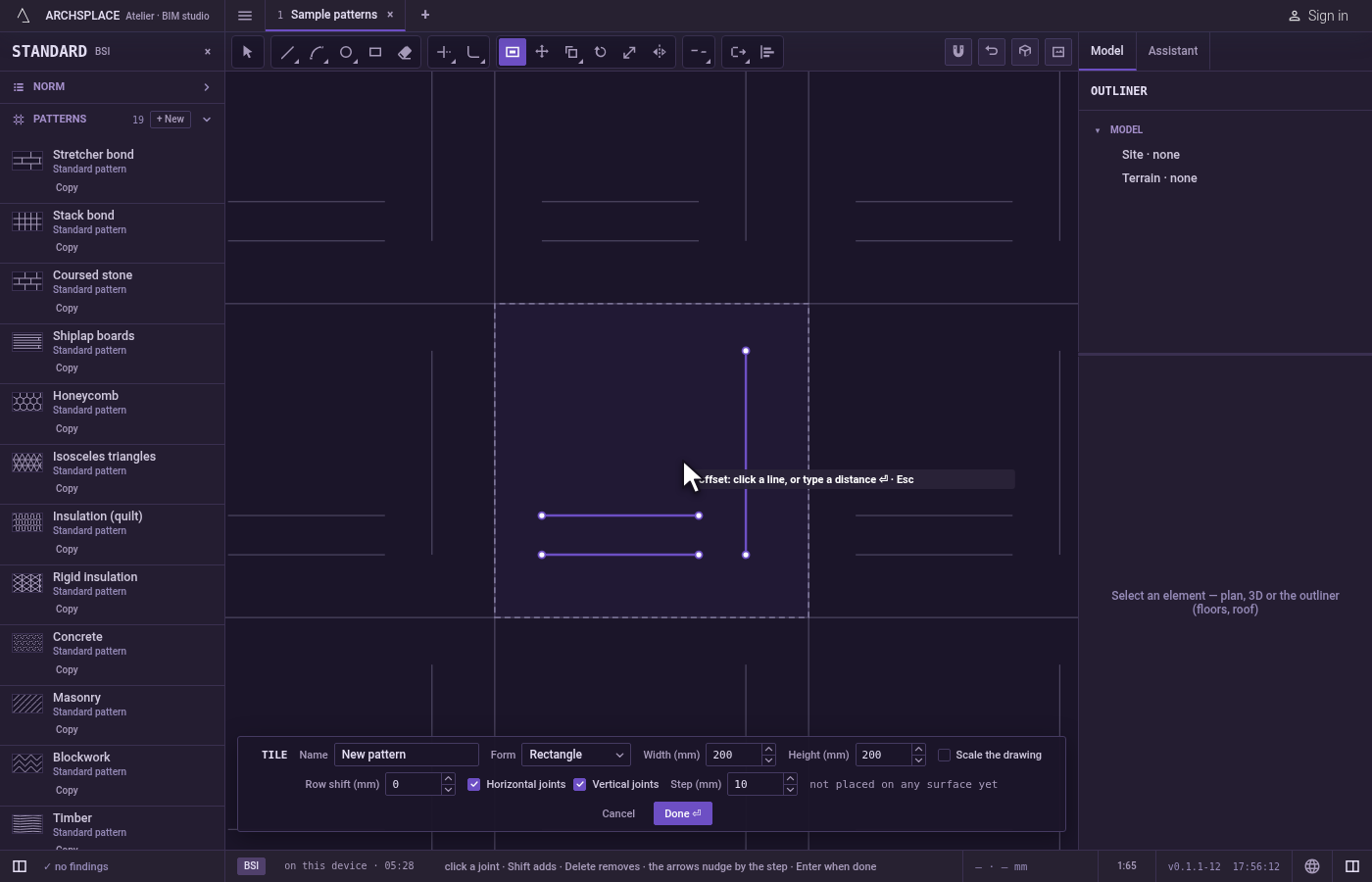
Erase the source, if you want. Press
Eto switch on erasing the source: each copy then replaces the joint it came from. The hint shows erasing the source while it is on. PressEagain to switch it off.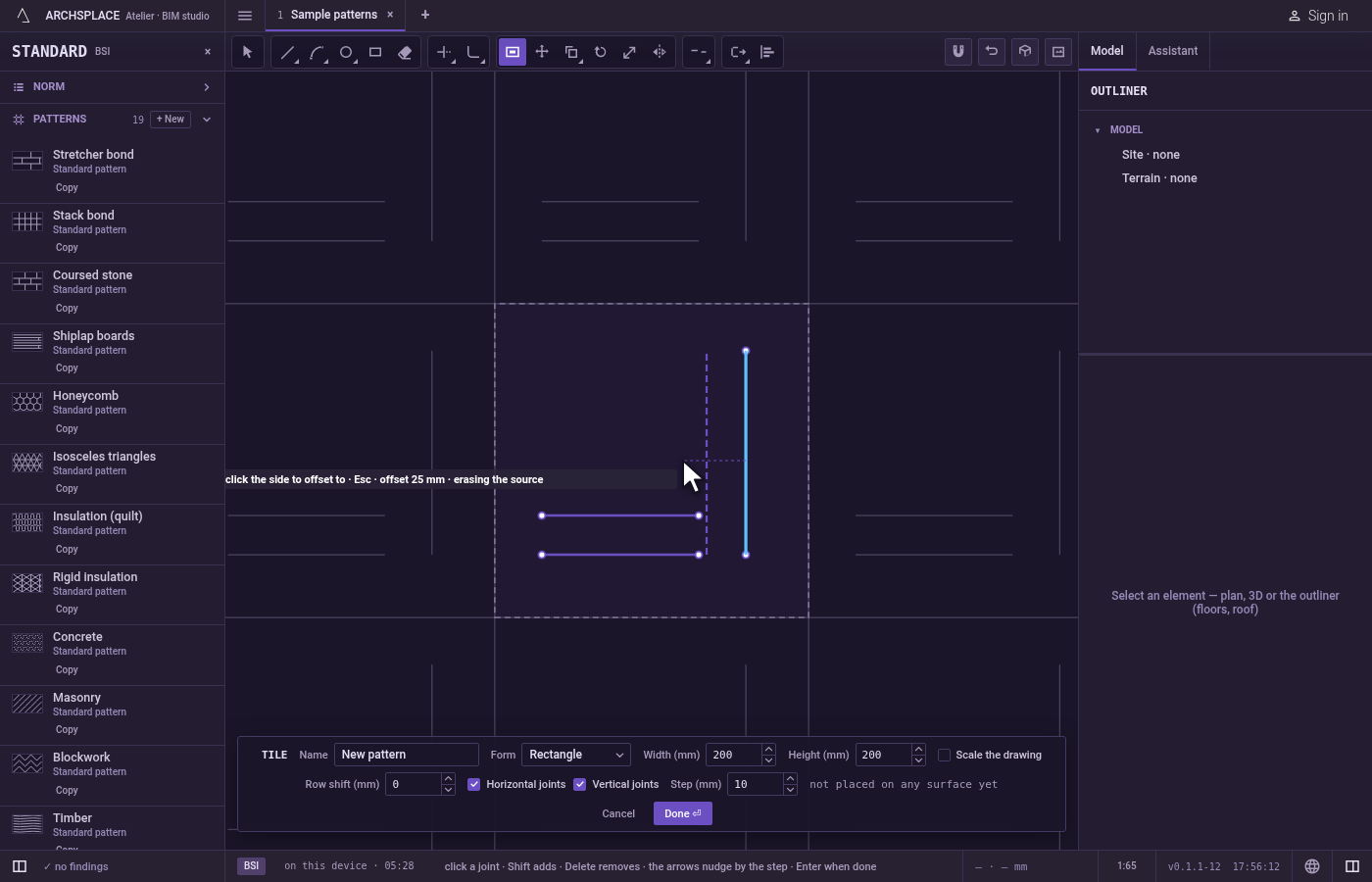
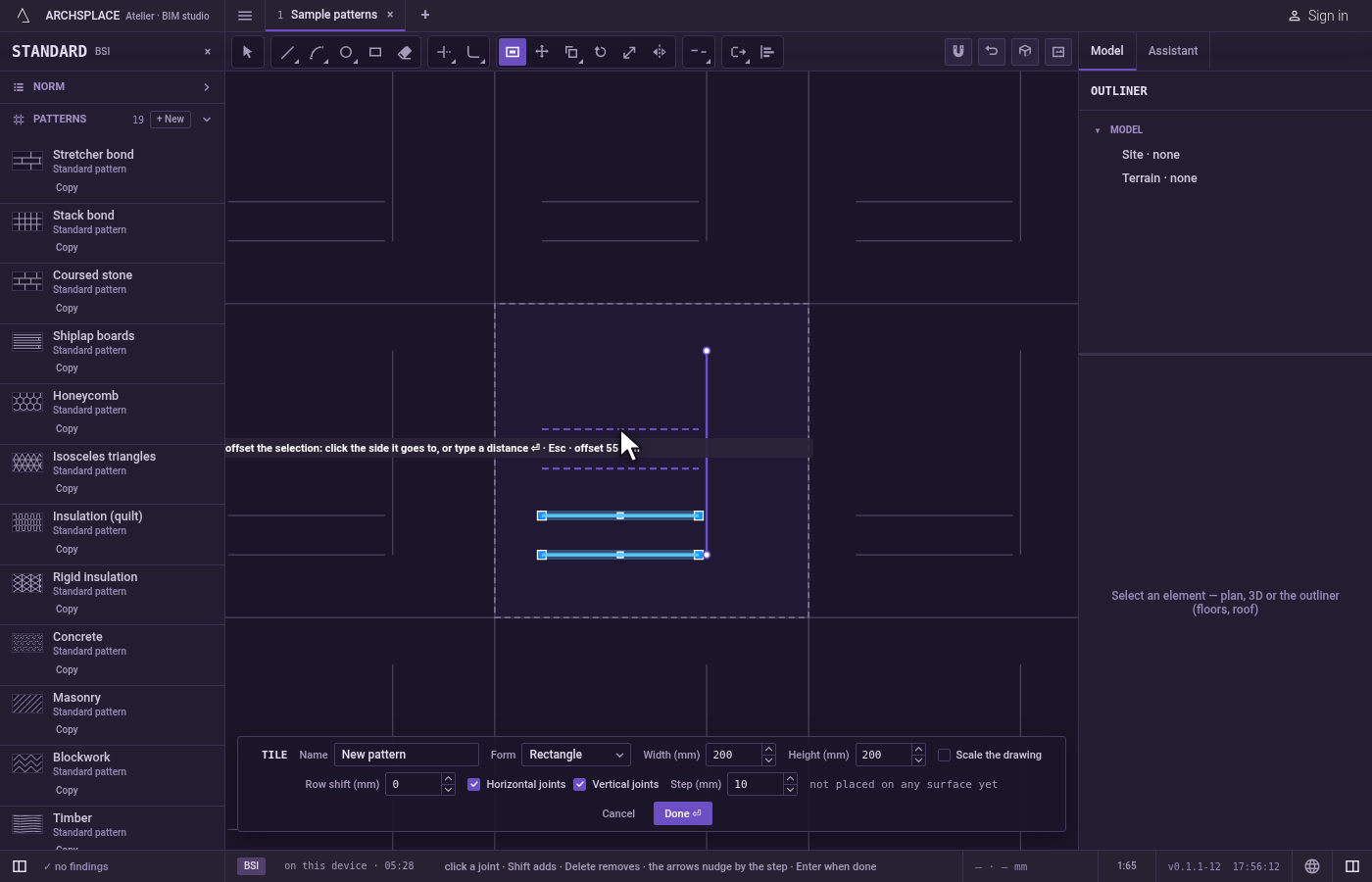
Or offset a whole selection. Select joints before taking the tool. Then, without picking a joint, click the side: every selected joint gets its copy on the pointer's side of it, all at one distance, the typed one or the pointer's distance from the nearest selected joint.
Finish.
Escapedrops the joint you picked, then leaves Offset for Select.Ctrl+Zundoes the last copy. Press Done on the bar at the foot to hand the tile back.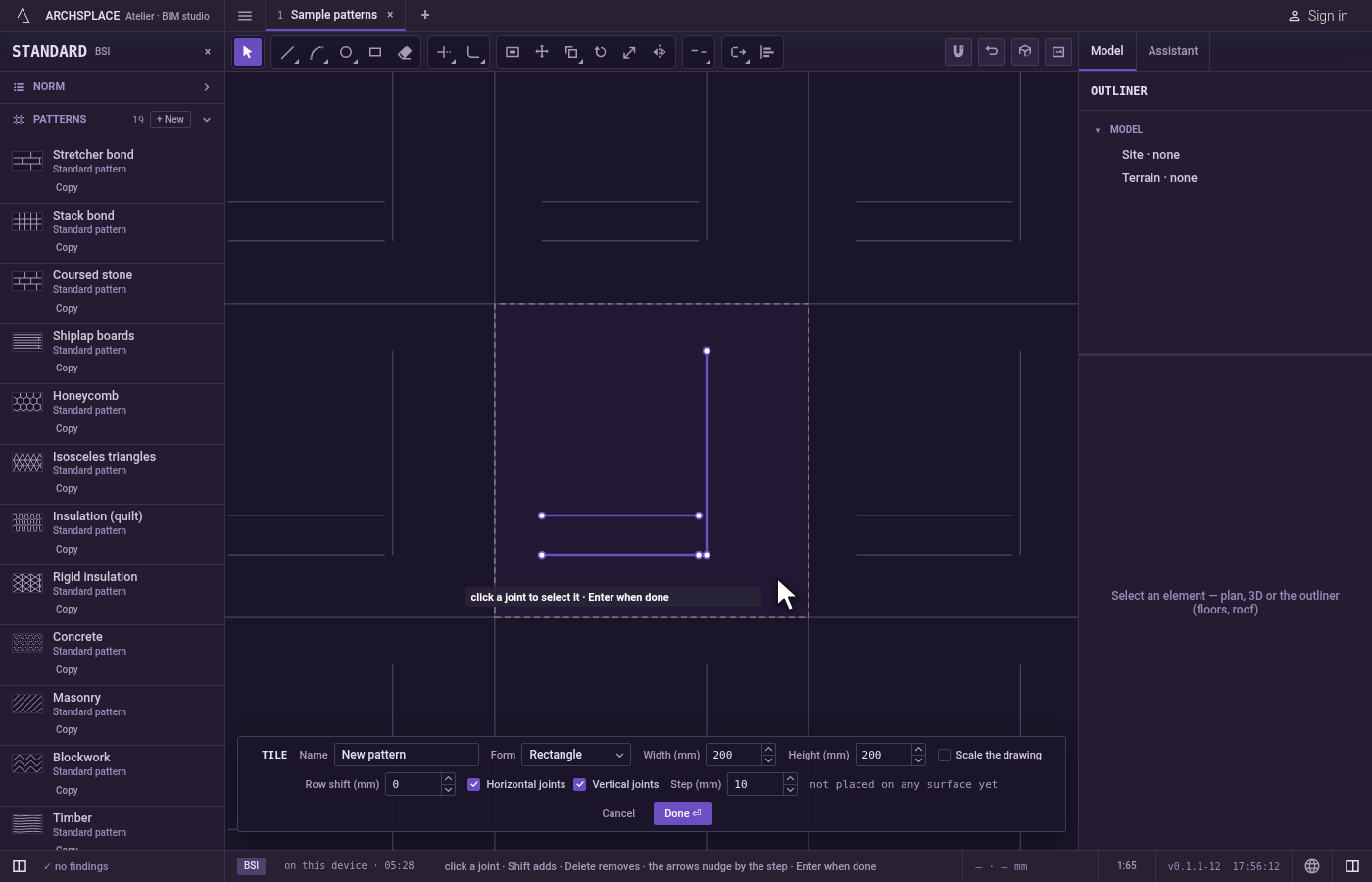
What it refuses
- A click on nothing. It picks nothing, and the hint says nothing to offset there.
- A side with no distance. A click on the joint itself, with no distance typed, makes no copy.
- An arc that would vanish. Offsetting an arc or a circle so far inward that it would shrink to nothing is refused with this arc would shrink to nothing.
- A copy that leaves the tile. A straight copy that runs past the tile is cut at its edge. A curved or closed copy that would stand outside the tile is refused whole, and the editor says a shape must stay inside the module.
- A distance of zero or less. It is not taken, and the hint asks again for a line or a distance.
What it writes to the contract
Nothing while you work: the change stays in the tile editor, where Ctrl+Z steps back through it. When you press Done, the whole tile is written to the project's patterns in one step you can undo, every joint as its points in metres from the tile's lower-left corner, each copy a joint of its own. A standard pattern is never changed: Done saves the project's own version of it under the same name, and every surface that lays it follows. Save as new writes a new pattern instead. Cancel writes nothing.
Related
Common questions
How do I make a parallel copy at an exact distance?
Type the distance and press Enter, click the joint, then click on the side where the copy should go. The distance stays for the next copies until you change it.
How do I offset without typing a distance?
Click the joint, then click where the copy should pass. The copy goes through that point, and the hint shows the distance as you move.
Can I move a joint to the side instead of copying it?
Yes. Press E to switch on erasing the source: the copy is made and the joint it came from is removed. Press E again to keep the sources.