Disciplines
Overlays
An overlay lays one discipline over the plan you are on: Structural, Electrical, Plumbing, Mechanical or Finishes, any of them at once. They are switched in the navigator's Disciplines list, and the plan under them never changes.
What it is
A drawing has one base, the cut of its plan, and any set of overlays laid over it. An overlay is a discipline: it adds what that discipline draws without changing the cut under it. Five exist:
- Structural: the grids with their dimensions, the columns, the beams overhead, the roofs' carpentry, and on the lowest level the foundations.
- Electrical: the devices, and once a consumer unit stands, the runs of its circuits.
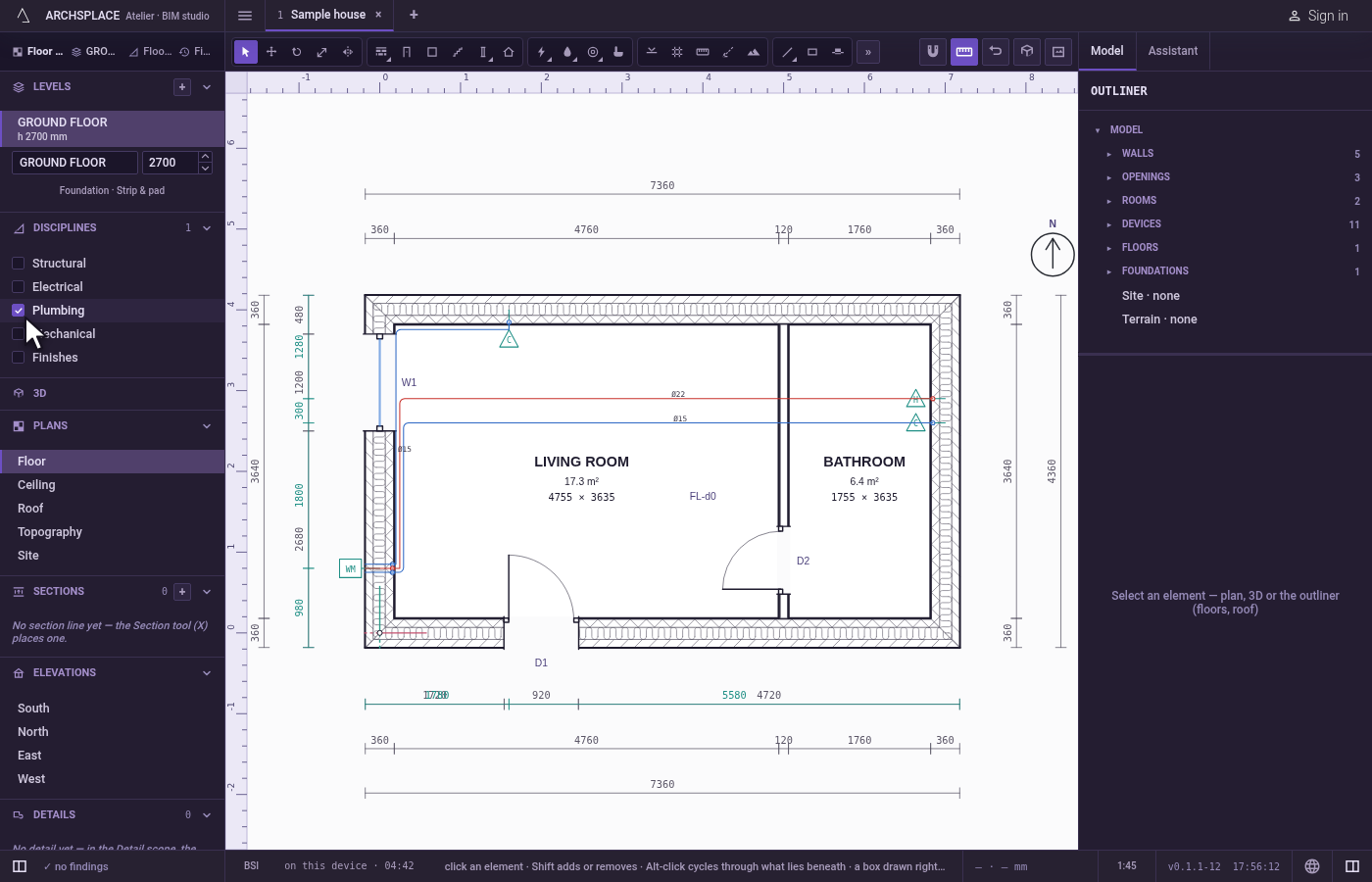
- Plumbing: the sanitary appliances, the plumbing points, the pipes and the risers.
- Mechanical: the ventilation and the air conditioning, their terminals, units, ducts and refrigerant pipework.
- Finishes: the rooms' tints and every pattern laid on a floor or a ceiling, at its real size.
Overlays work on every plan of a level (see Plans of a level), and on sections and elevations too. The paper's caption names them after the plan, such as "GROUND FLOOR · Floor plan + Structural".
When to use it
- Checking the structure against the architecture on the floor plan.
- Coordinating two installations by showing them together.
- Laying out the tiles of a floor with the Finishes overlay.
The steps
Open the plan. Open the level and the plan you want to look at.
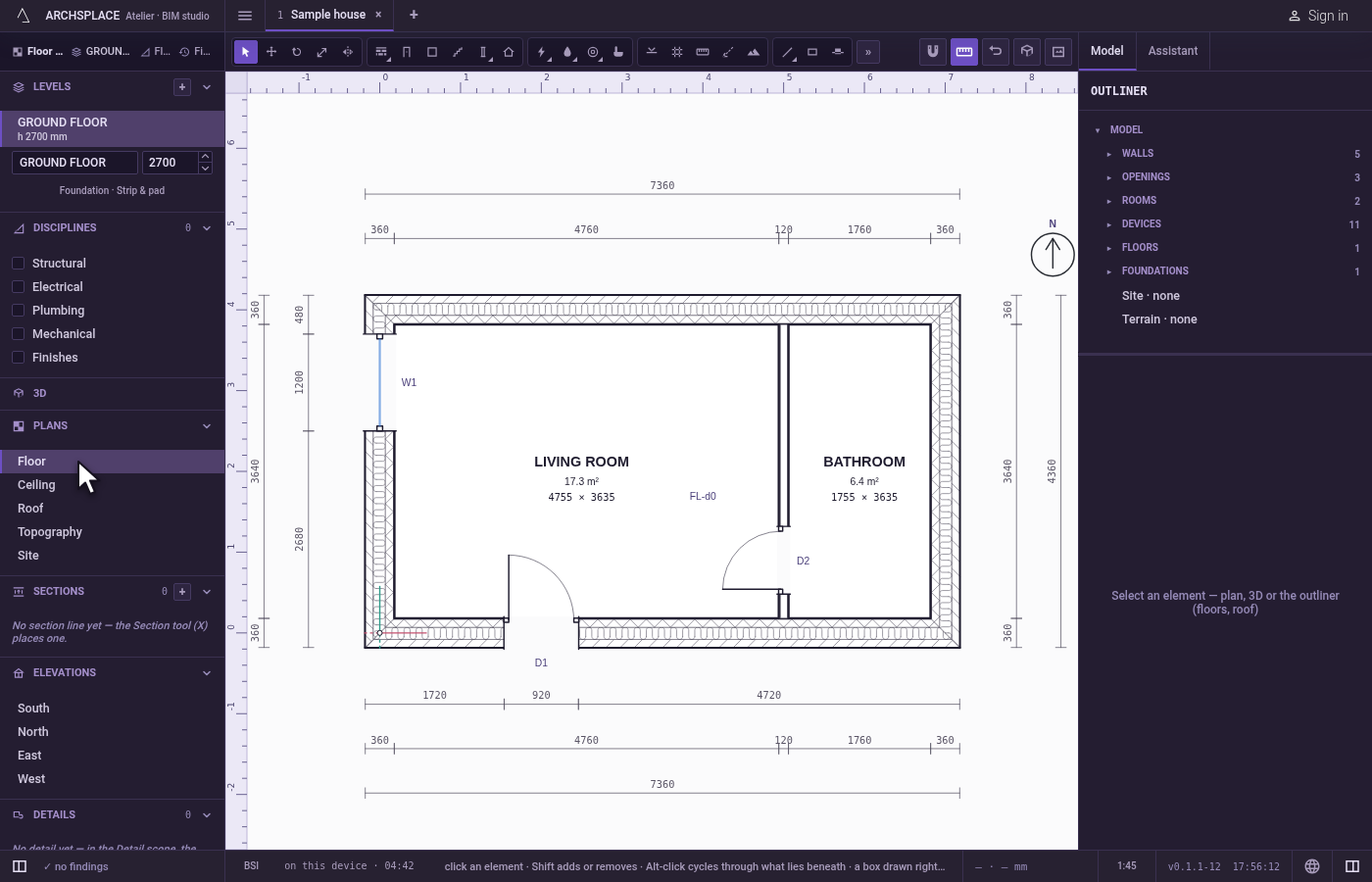
Tick the overlays. In the navigator, the Disciplines list has one tick box per overlay: Structural, Electrical, Plumbing, Mechanical and Finishes. Tick the ones you need; the View menu has the same ticked items.
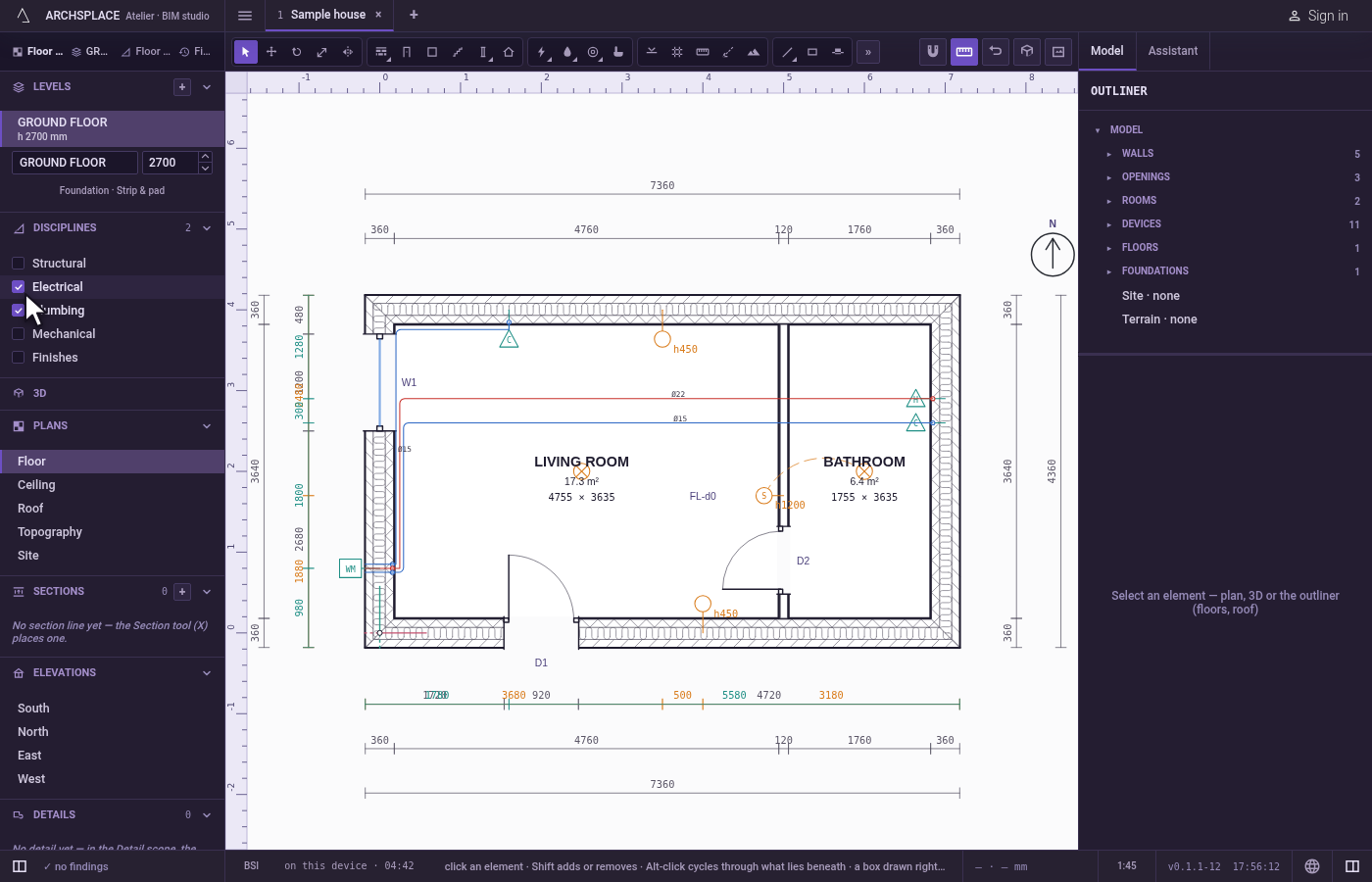
Look, and turn them off again. What an overlay draws comes from the model, like the rest of the plan. Untick it and it is simply not drawn; nothing is removed from the project.
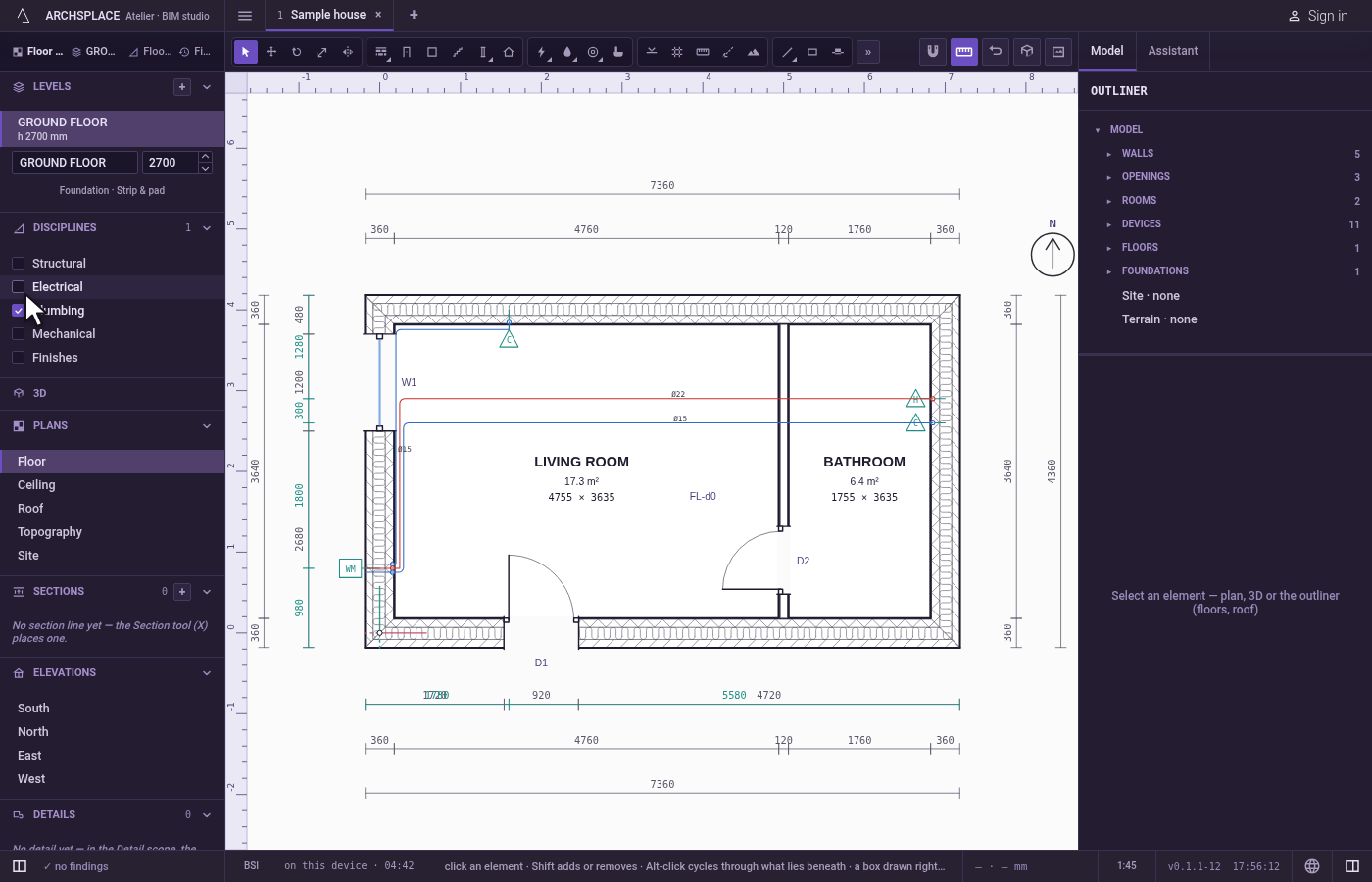
Leave them as they are. The overlays you ticked are remembered for that view of the project, on this computer, and come back the next time you open it.
What it refuses
- A discipline plan of its own. No overlay changes the cut: there is no structural plan apart from the floor plan with Structural on.
- Nothing to show. An overlay with nothing of its discipline in the project lays nothing over the plan.
What it writes to the contract
Nothing. The overlays you tick change what the screen shows, and are remembered on this computer. A sheet's viewport writes its own overlays to the project when you choose them on the sheet.
Common questions
How do I see the electrical and the plumbing together?
Tick both Electrical and Plumbing in the Disciplines list. Overlays combine: any set of them can lie over the same plan.
Can a sheet show other overlays than my screen?
Yes. Each viewport of a sheet carries its own overlays, so one sheet can show the plumbing and the electrical and another the structure alone.