SketchARin the studio
Array in the tile editor
Array repeats the joints you choose inside a pattern's tile in columns and rows, or around a centre you click, from a count you type. Without spacings, the copies sit side by side at the size of what you chose.
What it is
Array repeats joints in a regular arrangement. In columns and rows, each copy is shifted by a column spacing across and a row spacing up, from item to item. Around a centre, the copies are spread evenly over a full circle, or over the angle you give, and turn with their place unless you ask them to keep their bearing. The original is one of the items, and the copies are added beside it.
It is the same Array as in the other editors of the studio, acting here on the joints of the tile.
When to use it
- To repeat a joint or a motif at a regular spacing inside the tile.
- To arrange motifs in a ring, as in a rosette or a fan.
- When you know how many items you want and their spacing. For copies at chosen places, use Copy.
The steps
Choose the joints. Select them before taking the tool, and Array uses them at once. Otherwise Array asks select objects: click joints to add them, or drag a box (to the right it takes what lies wholly inside, to the left what it touches),
Shifttakes a joint out,Fdraws a fence that takes every joint it crosses, andEnterends the choice.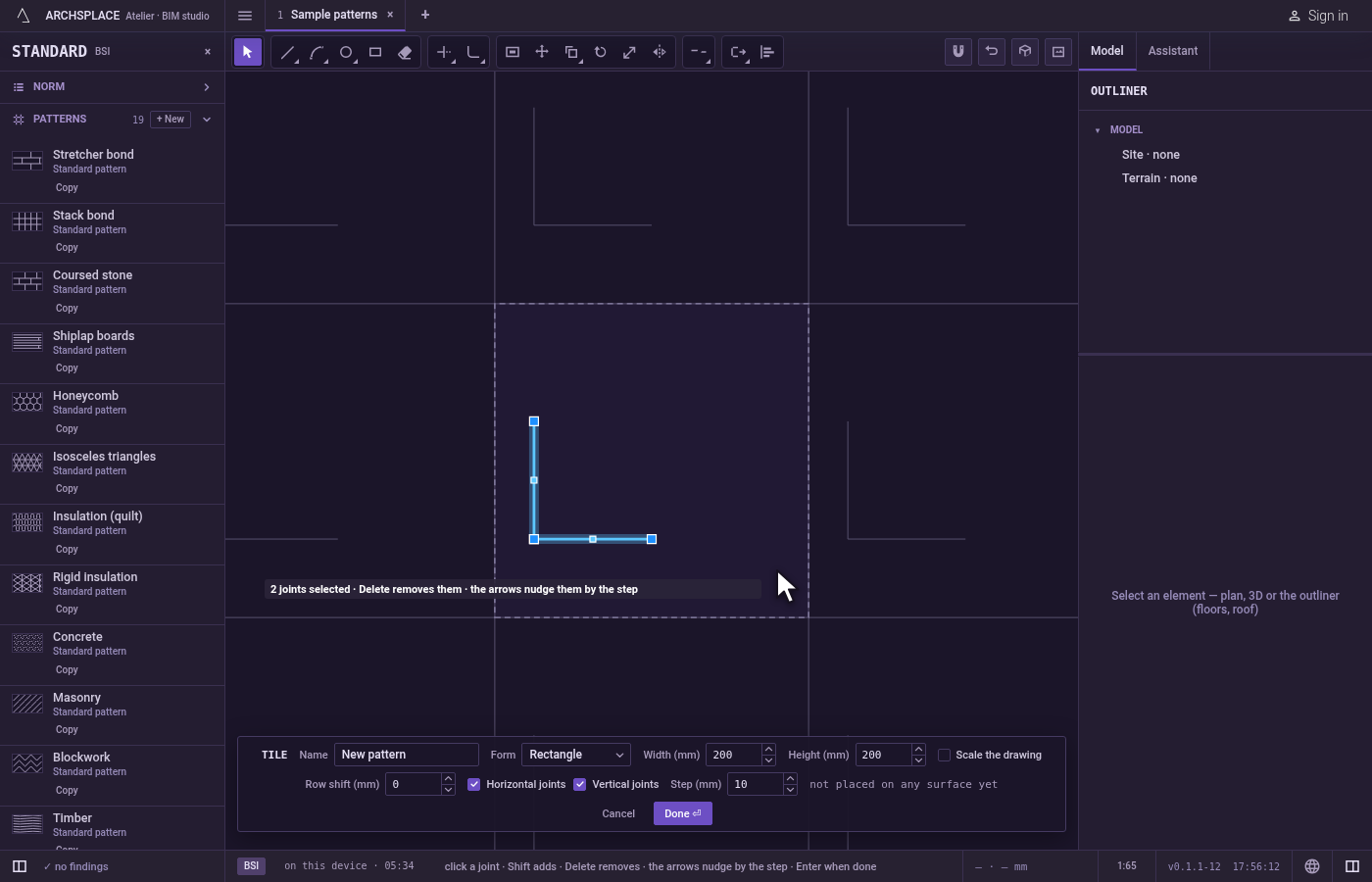
Take the tool. Type
AthenRone after the other, or click Array on the bar. It shares its button with Copy. TheAopens Arc for a moment, and theRcompletes Array.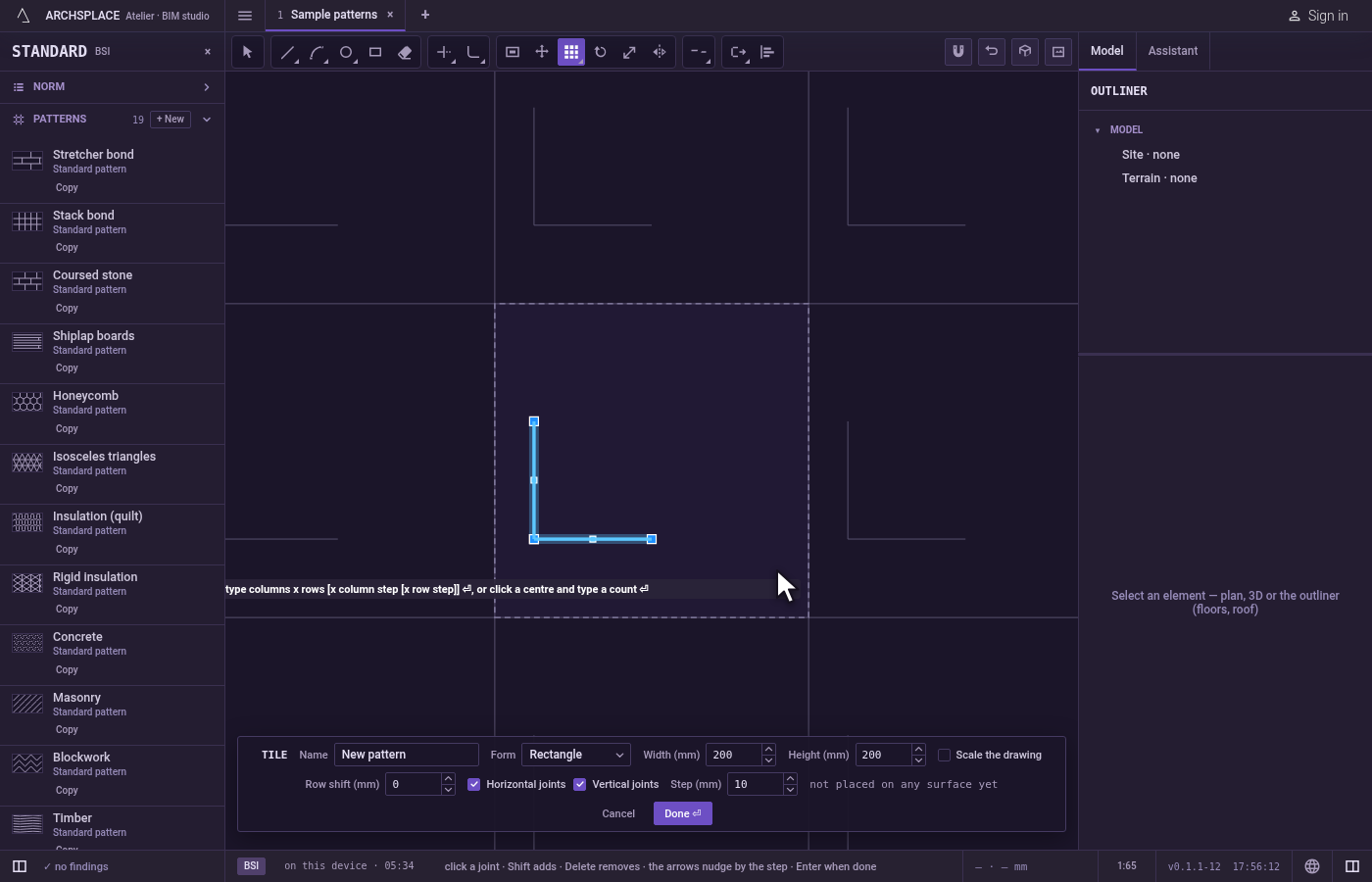
For columns and rows, type the counts. Type
columns x rowsand pressEnter, for example4x2. One number alone makes one row. Without spacings, each item sits right next to the last, at the width and height of what you chose. To give the spacings, add them after the counts, measured from one item to the next: with the project in metres,4x2x0.05x0.1shifts each column 5 cm from the last and each row 10 cm. A column spacing given alone serves the rows too, and a negative spacing goes the other way. The ghost of the copies shows as you type, with the total number of items.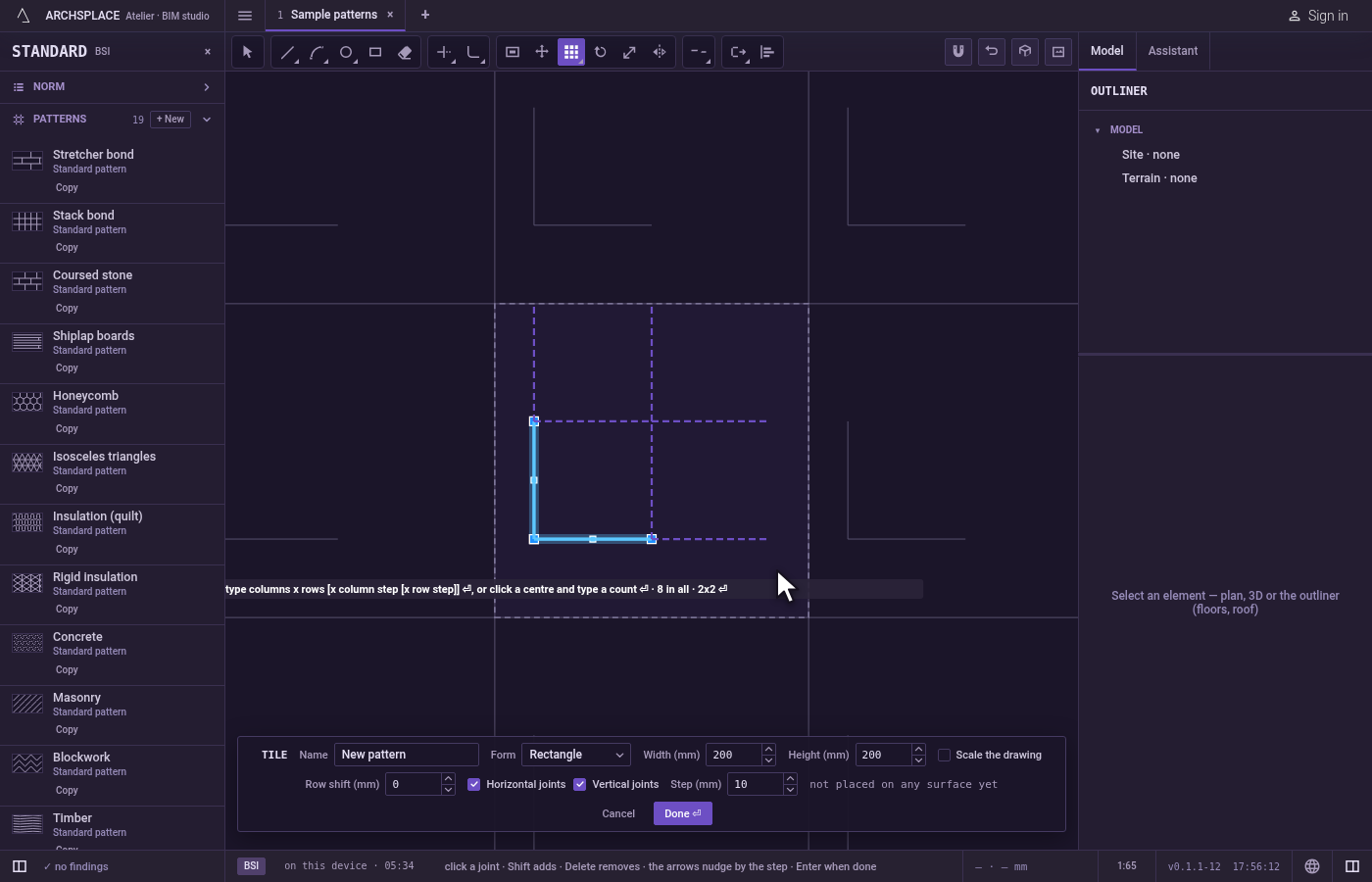
Or, for a ring, click the centre. Click the point to arrange about, then type the number of items and press
Enter. They are spread over a full circle. Addxand an angle in degrees to fill only part of one, for example6x180; a negative angle goes clockwise. PressRbeforeEnterto switch on items keep their bearing: the copies then keep the original's orientation instead of turning.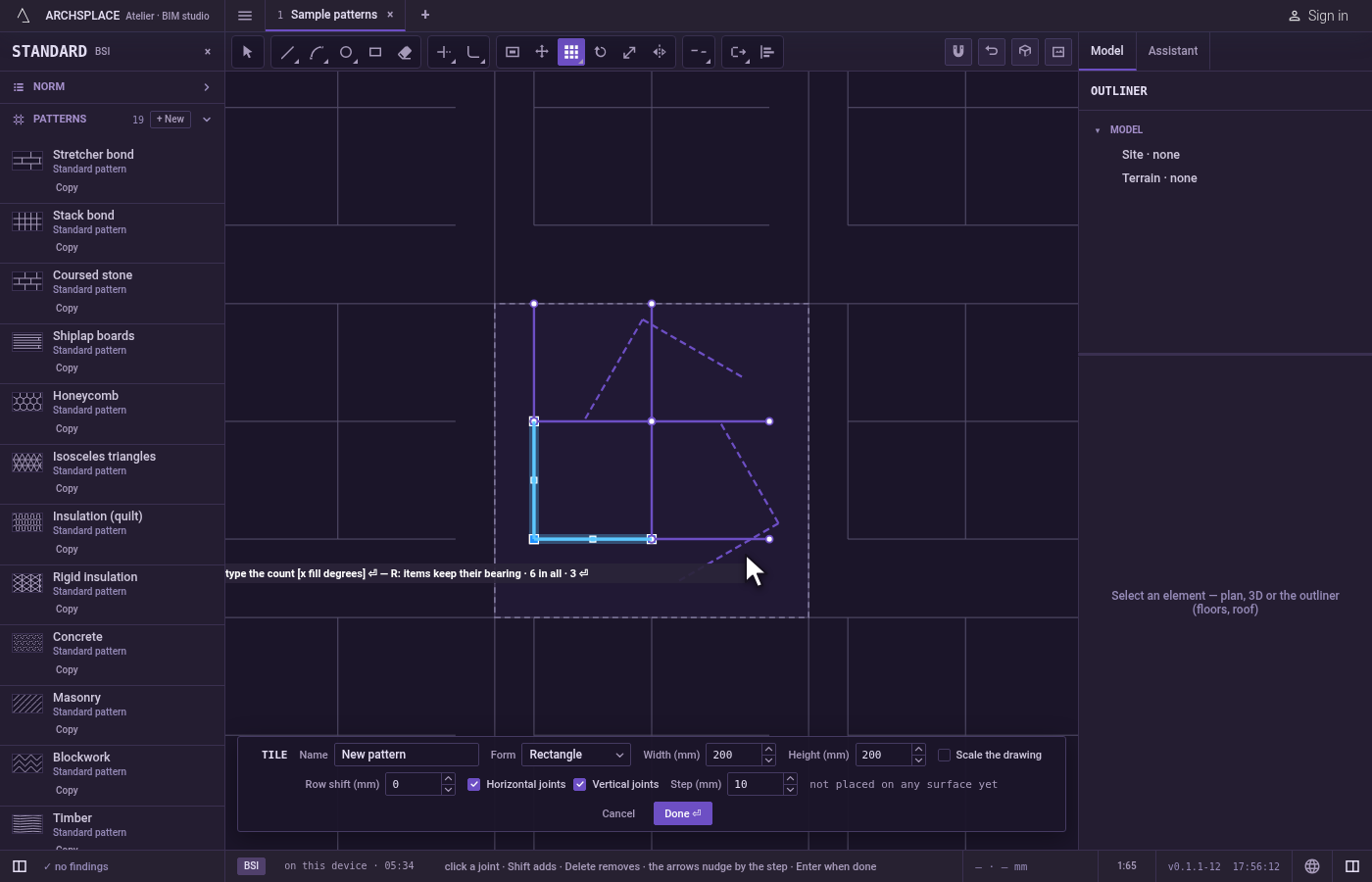
Repeat or finish. After an array, the same joints stay selected and the tool waits for new counts.
Escapedrops the centre, then leaves Array for Select.Ctrl+Zundoes the last array. Press Done on the bar at the foot to hand the tile back.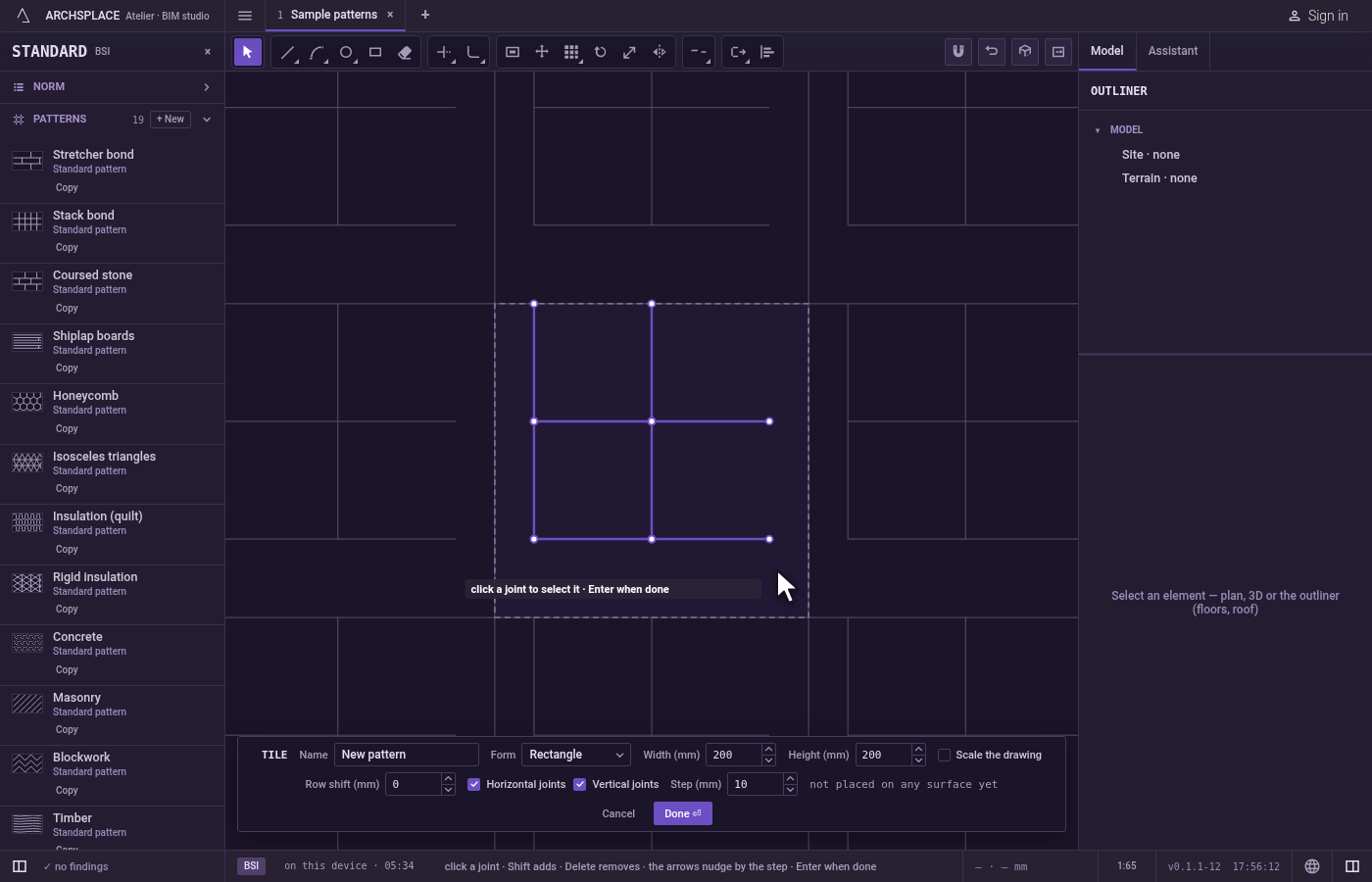
What it refuses
- A count that makes no array. A count under one, or more than 2,500 items in all, is refused with that array is empty or too large.
- Copies that leave the tile. If a curved or closed copy would stand outside the tile, no copy is laid, and the editor says a shape must stay inside the module. A straight copy that runs past the edge is cut there, and one that falls wholly outside refuses the array the same way.
- Counts with nothing chosen. With no joint selected, Array keeps asking select objects.
What it writes to the contract
Nothing while you work: the change stays in the tile editor, where Ctrl+Z steps back through it. When you press Done, the whole tile is written to the project's patterns in one step you can undo, every joint as its points in metres from the tile's lower-left corner, each copy a joint of its own. A standard pattern is never changed: Done saves the project's own version of it under the same name, and every surface that lays it follows. Save as new writes a new pattern instead. Cancel writes nothing.
Related
Common questions
How do I repeat a joint four times across and twice up?
Select it, take Array, type 4x2 and press Enter. Without spacings, each copy sits right next to the last, at the size of what you selected. Add the spacings after, as 4x2x0.05x0.1, to set the distance from one item to the next.
How do I arrange joints in a circle?
Select them, take Array, click the centre, type the number of items (the original counts as one) and press Enter. Add x and an angle, as 6x180, to fill only part of a circle.
Why was my array refused?
A count under one, or more than 2,500 items in all, is refused. So is an array whose curved or closed copies would leave the tile.