PlanXin the studio
Section
Section places a cut line on the plan with one click, vertical or horizontal and looking the way chosen beside the tools. Each cut line opens its own section view, and its label, position and direction are edited in its panel.
What it is
Section places a cut line across the whole plan, at the point you click. The list beside the tools sets its axis and the way it looks: vertical looking east or west, horizontal looking north or south. Each line is lettered in the order placed, A, B, C, and opens a section view of its own, drawn from the model: the cut, what is seen beyond, and the dimensions.
The line is a reference of the plan. A click with Select takes it; a box never does.
When to use it
- Cutting through a stair, a roof or a change of level to draw it.
- Placing the sections a set of drawings needs before composing the sheets.
The steps
Take the tool. Press
X, or click the Section button. The status bar says to click to place the cut line, its axis and look from the list.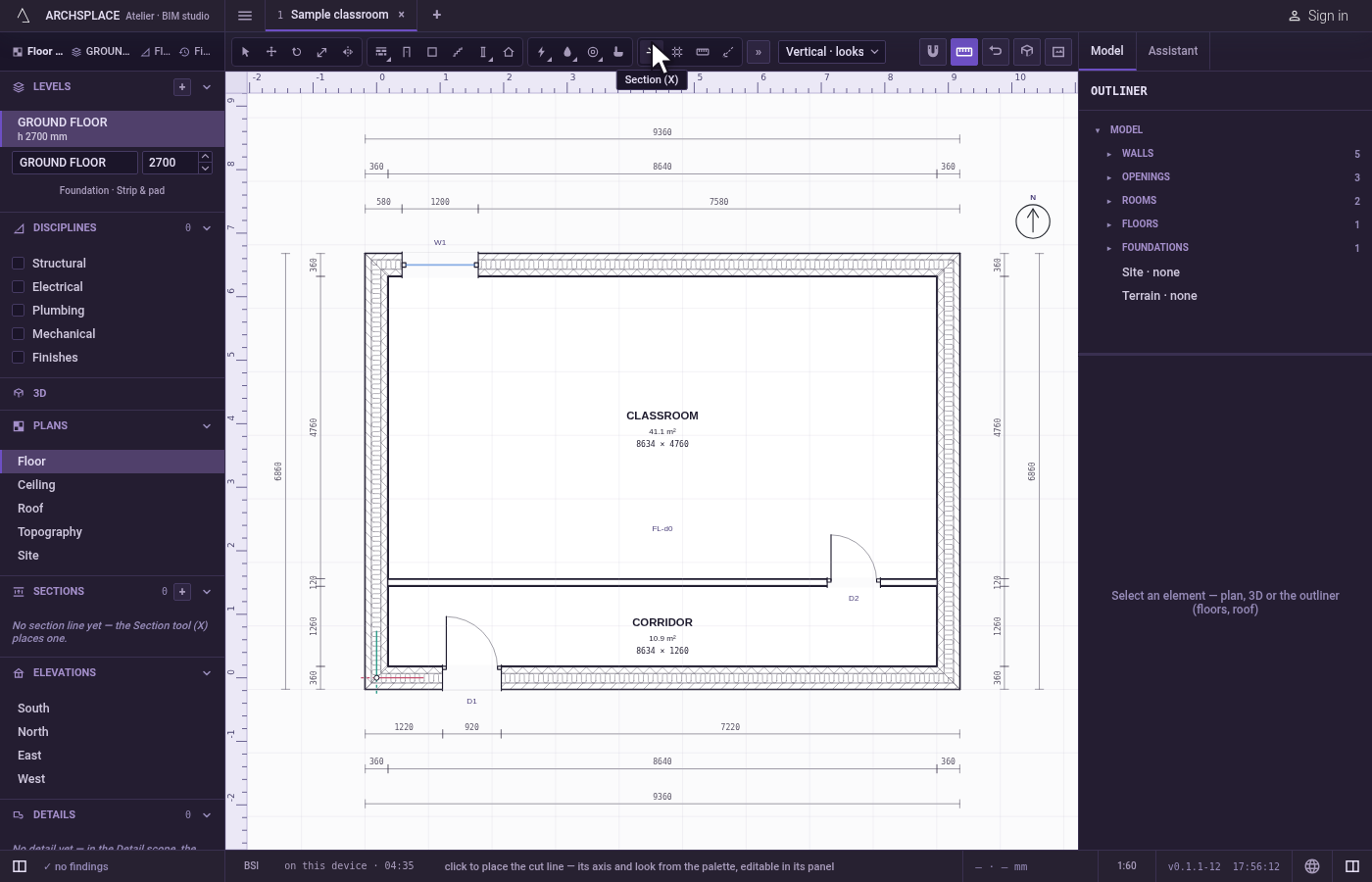
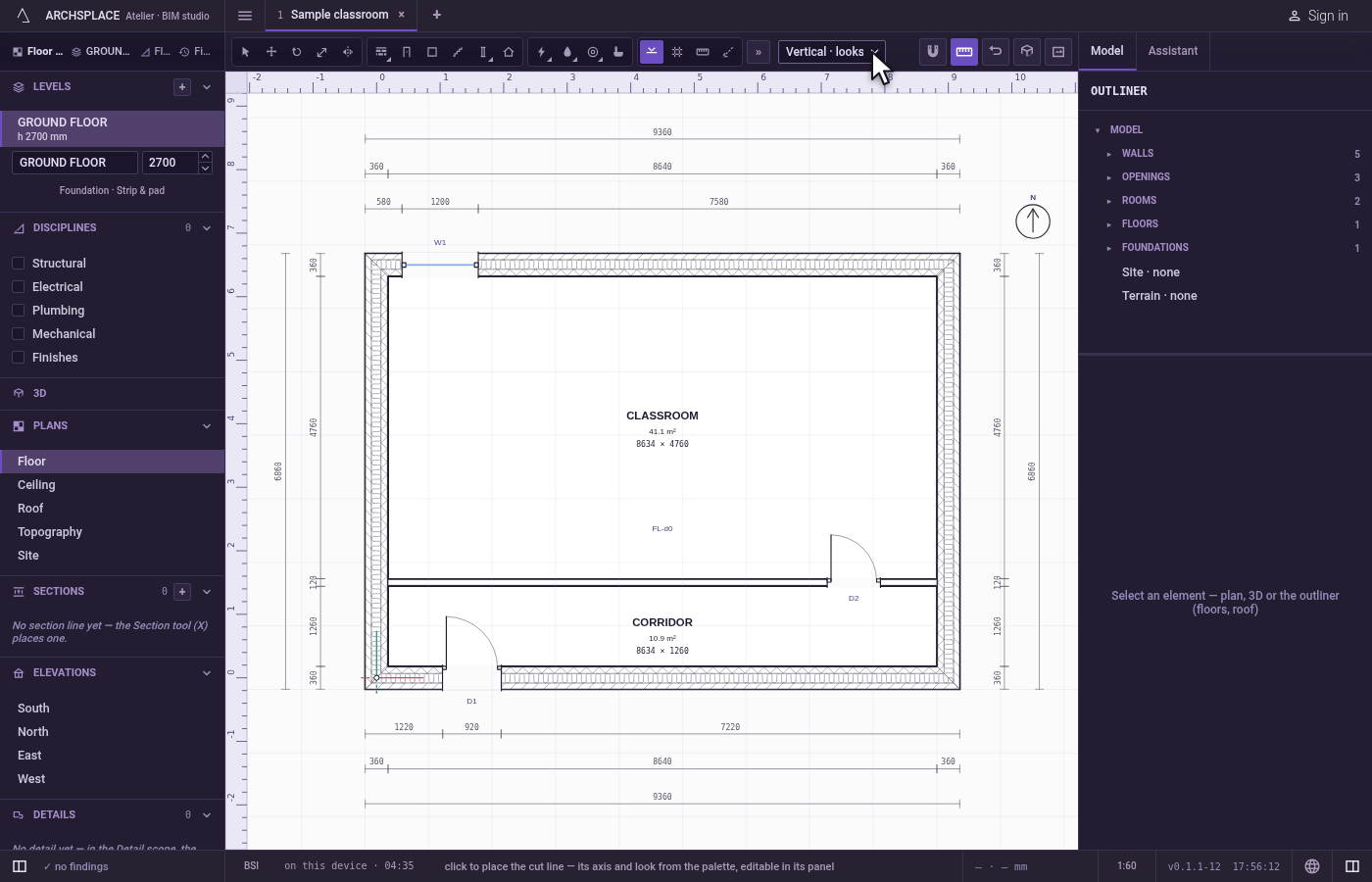
Choose the axis and the look. Pick it in the list beside the tools: Vertical looking west, Vertical looking east, Horizontal looking south or Horizontal looking north. Each choice says where the viewer stands.
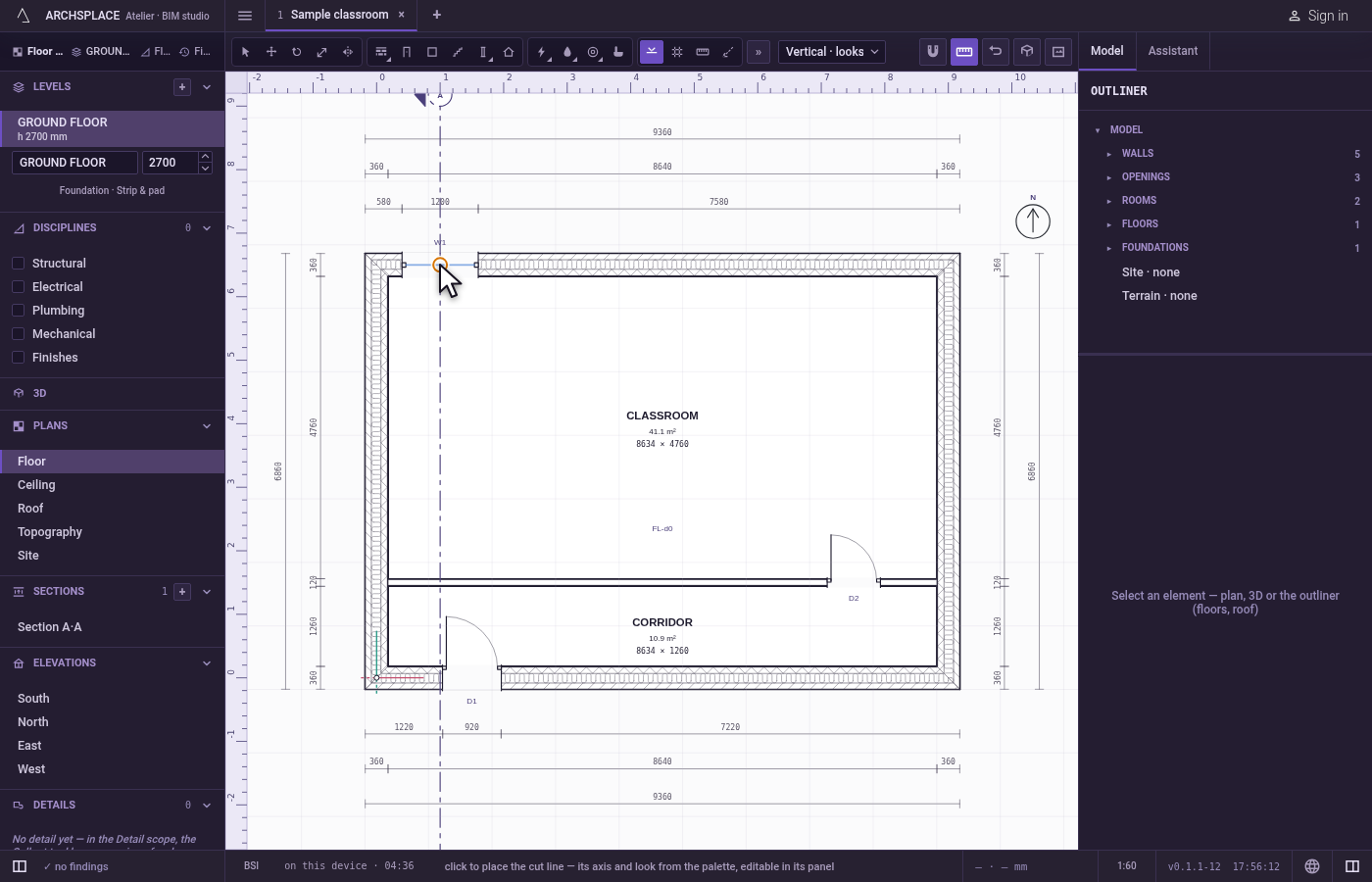
Click where it cuts. A vertical line passes through the point's position across, a horizontal one through its position up the plan. The magnet holds the click on the nearest point within reach, so a cut can pass exactly through a wall's corner or an opening's centre. Each click places another line.
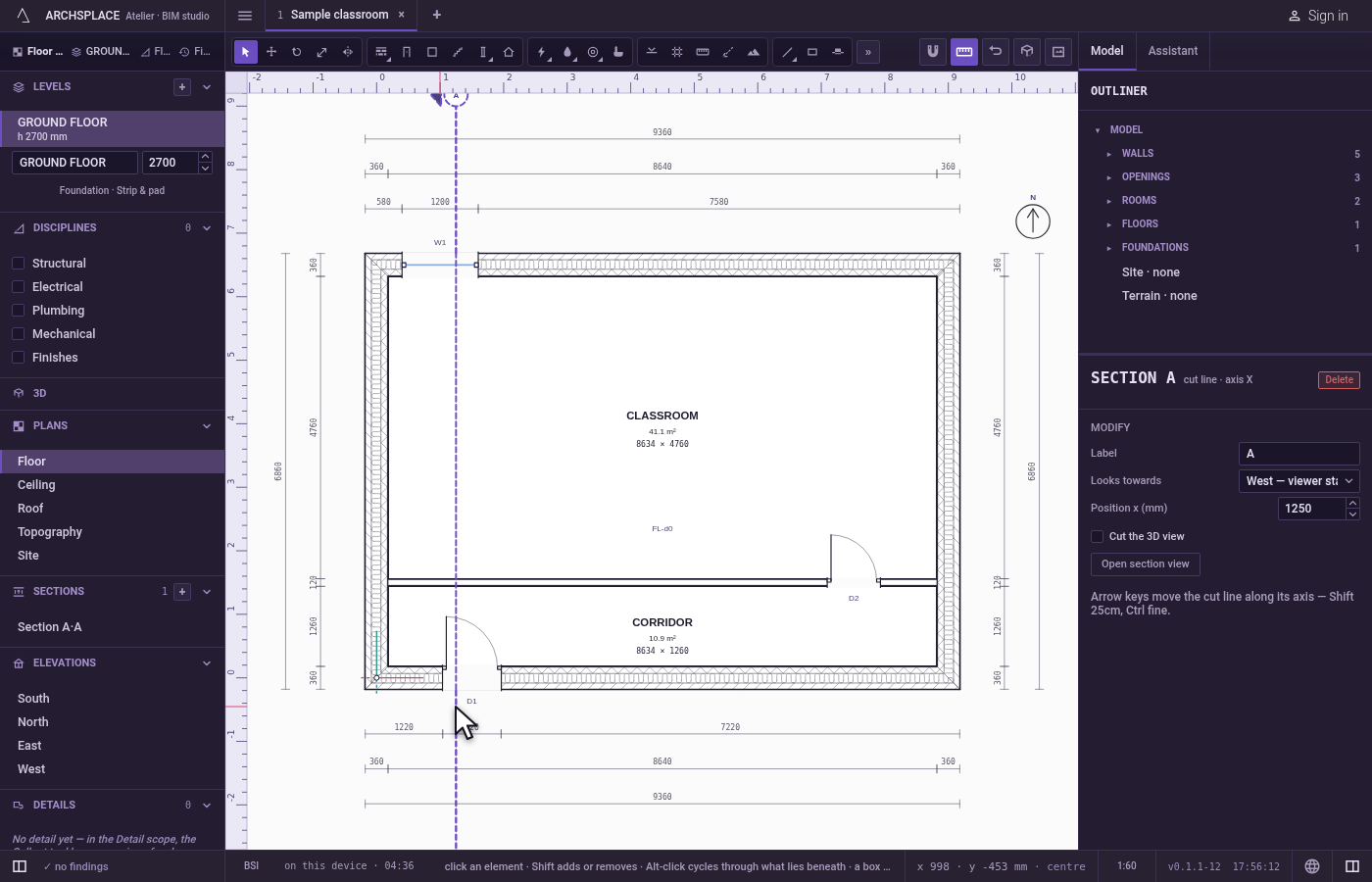
Edit it in its panel. Select the line with Select. Its panel sets its label, its position along its axis and the way it looks, and opens its section view. With Select, drag the line along its axis, or nudge it with the arrow keys (a step that follows the zoom; Shift moves five steps at once, Ctrl a tenth of one).
What it refuses
- A section at an angle. A cut line runs on the plan's horizontal or vertical only.
- Moving it across its axis. A section line slides along its own axis only; Move and Copy say so, and its panel or the arrow keys move it.
What it writes to the contract
One new entry at the end of the project's list of sections, as one step that one undo takes back: its axis, its position to the centimetre, its letter, and the way it looks. The section view itself is never written: it is drawn from the model each time it opens.
Concepts
Related
Common questions
How do I open the section once it is placed?
Select the cut line and use Open section view in its panel, or open it from the Sections list in the navigator.
Can a section run at an angle?
No. A section line runs along the plan's horizontal or its vertical, and looks one way across it.
How do I move a section line?
With Select, drag the line along its axis, or select it and use the arrow keys or the Position field of its panel.