Sections and elevationsMin the studio
Move in sections and elevations
Move, in a section or an elevation, takes what you selected, or the element you click, from a base point to a second point of the view, across the drawing and up. Each element takes the part of that travel it can: a window slides along its wall and its sill rises, a floor moves its level up or down, a wall slides along the view, and the marks drawn on the view move whole.
What it is
Move is the second tool of a section's or an elevation's toolbar. It works the way the plan's Move does: the first click fixes a base point, the pointer drags what you hold, and the second click drops it. The travel is the view's own: across the drawing and up.
What moves is what you selected before pressing M. With nothing selected, the first click takes the element under the pointer. Each element then takes the part of the travel it can:
- the lines, masks and annotations drawn on the view move whole, across and up;
- an opening slides along its own wall, and its sill follows the height of the travel;
- a body, a sketch or a placed component moves in space;
- a floor the section cuts moves its level's datum up or down: the storey under it takes the travel, the storey above it gives it back, and the levels higher up stay where they were;
- a wall, a column, a beam, a stair and everything else of the plan slides along the view's direction, the walls carried as a network so the walls that meet them follow.
The whole move is one step that one Ctrl+Z takes back. Whatever cannot take part of the travel is said in one message, and the rest still moves.
When to use it
- Raising or lowering a window's sill while looking at the facade.
- Changing the height of a storey by moving a floor in a section.
- Sliding an opening, a column or a wall along a facade to line it up with another.
- Moving or copying a note or a line drawn on the elevation.
The steps
Open a section or an elevation and select what to move. With Select, click a window on the facade. You may also skip this and let the first click of Move take the element under the pointer.
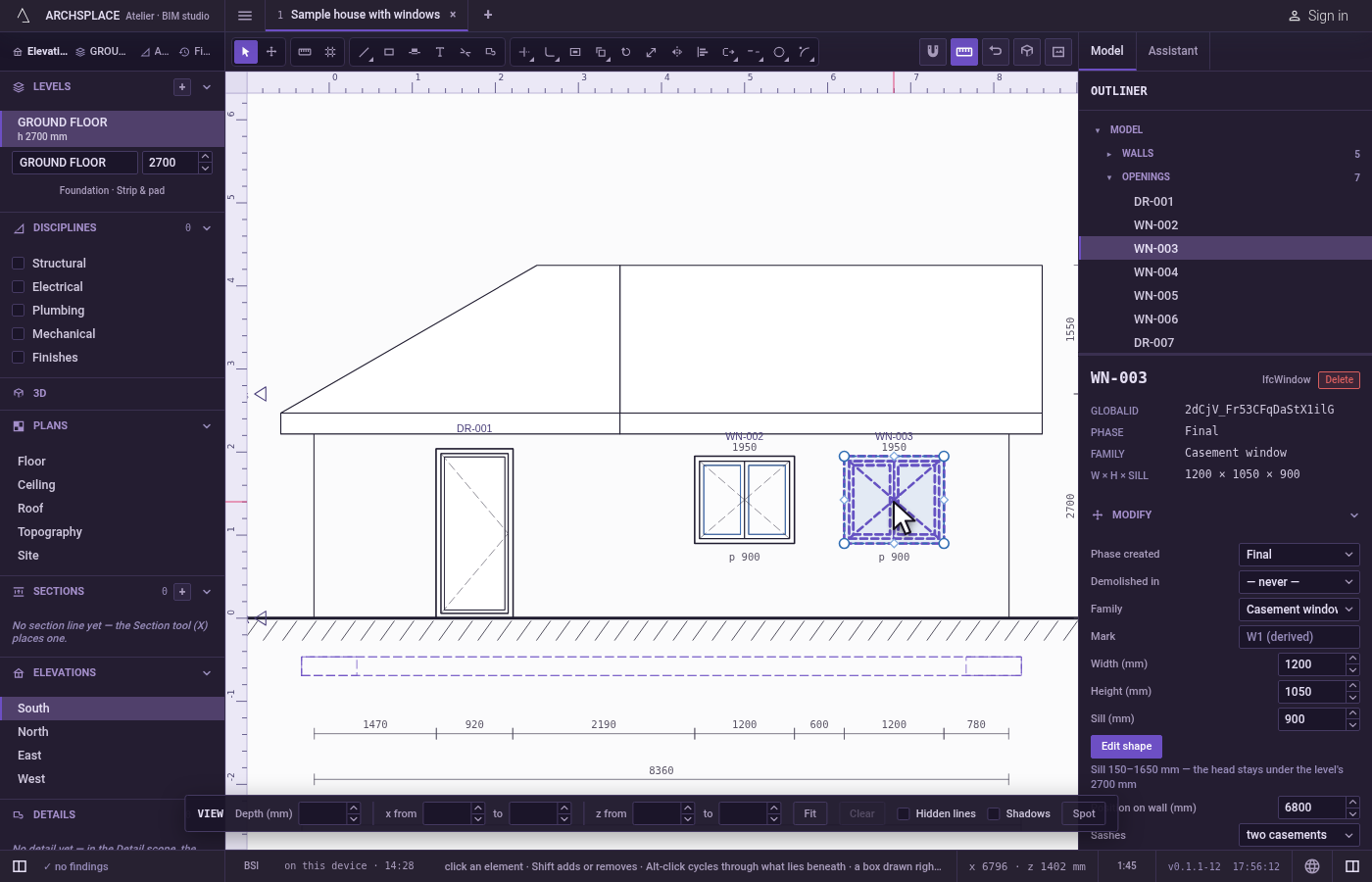
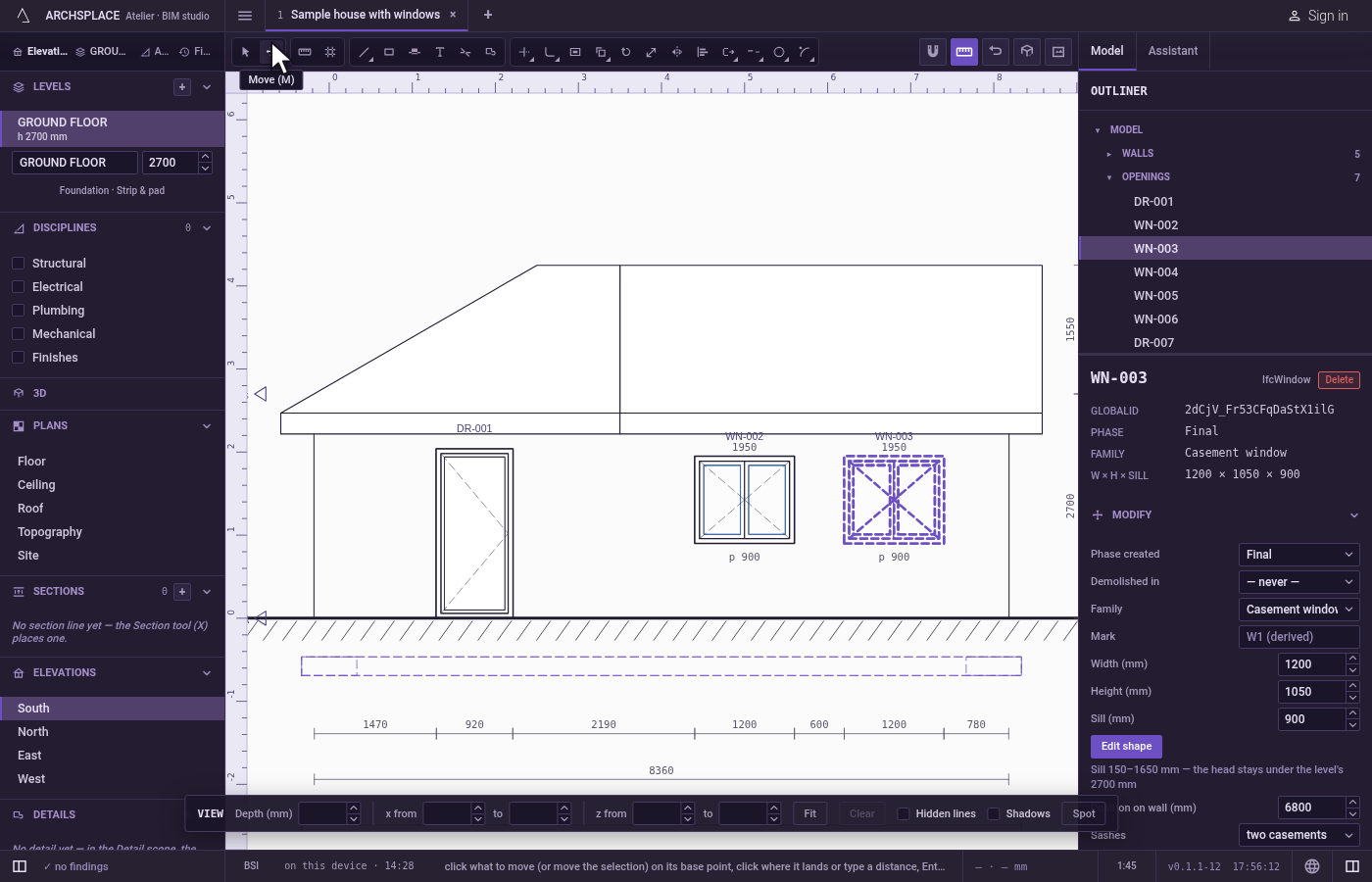
Press M. Or click Move, the second tool of the toolbar. The status bar says to click what to move on its base point, then where it lands, or to type a distance.
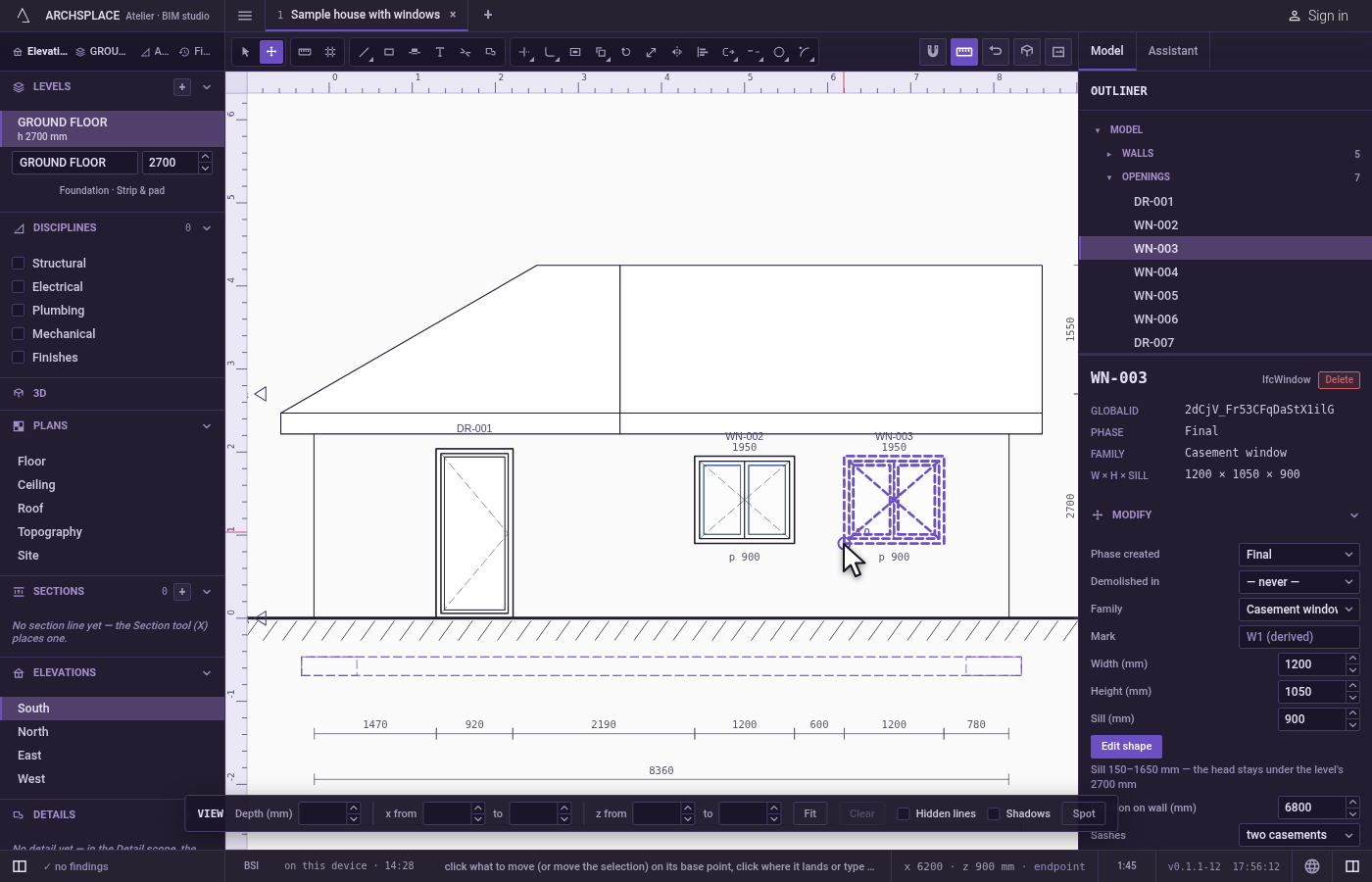
Click the base point. Click a corner of the window. Every line of the drawing pulls the pointer onto its corners, middles and edges, so the base point lands on the window itself.
Move the pointer. A line runs from the base point to the pointer, with a ring at its end and the distance beside it, and the window is drawn where it would land. With Ortho on (
F8turns it on and off), the travel holds to the horizontal or the vertical, whichever the pointer leans to.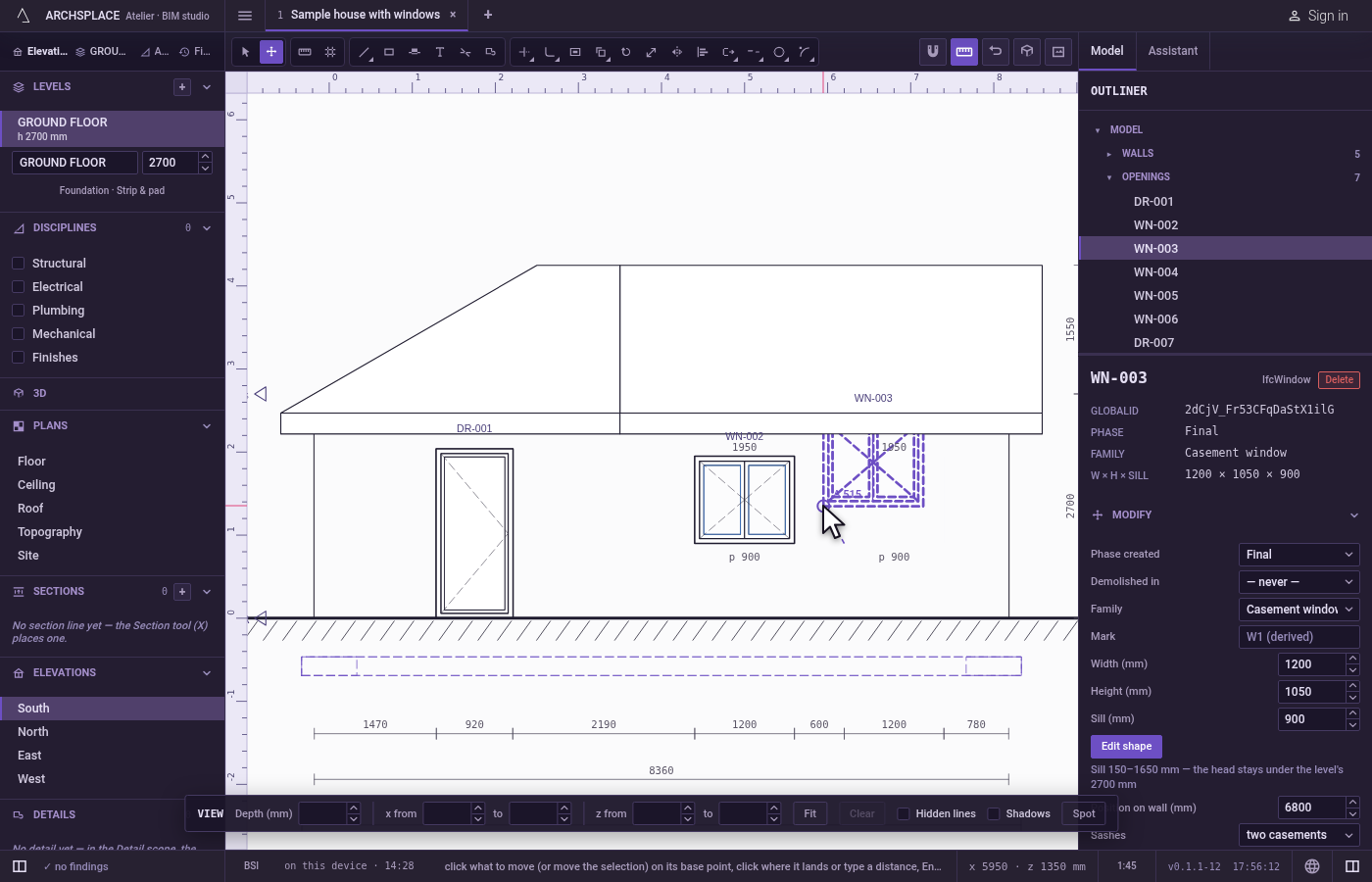
Drop it. Click where it lands. Or type a distance in the project's units and press
Enter: the window moves that far along the axis the pointer leans to, here straight up, and its sill rises by the same distance. HoldCtrlas you click or pressEnterto leave the original in place and drop a copy.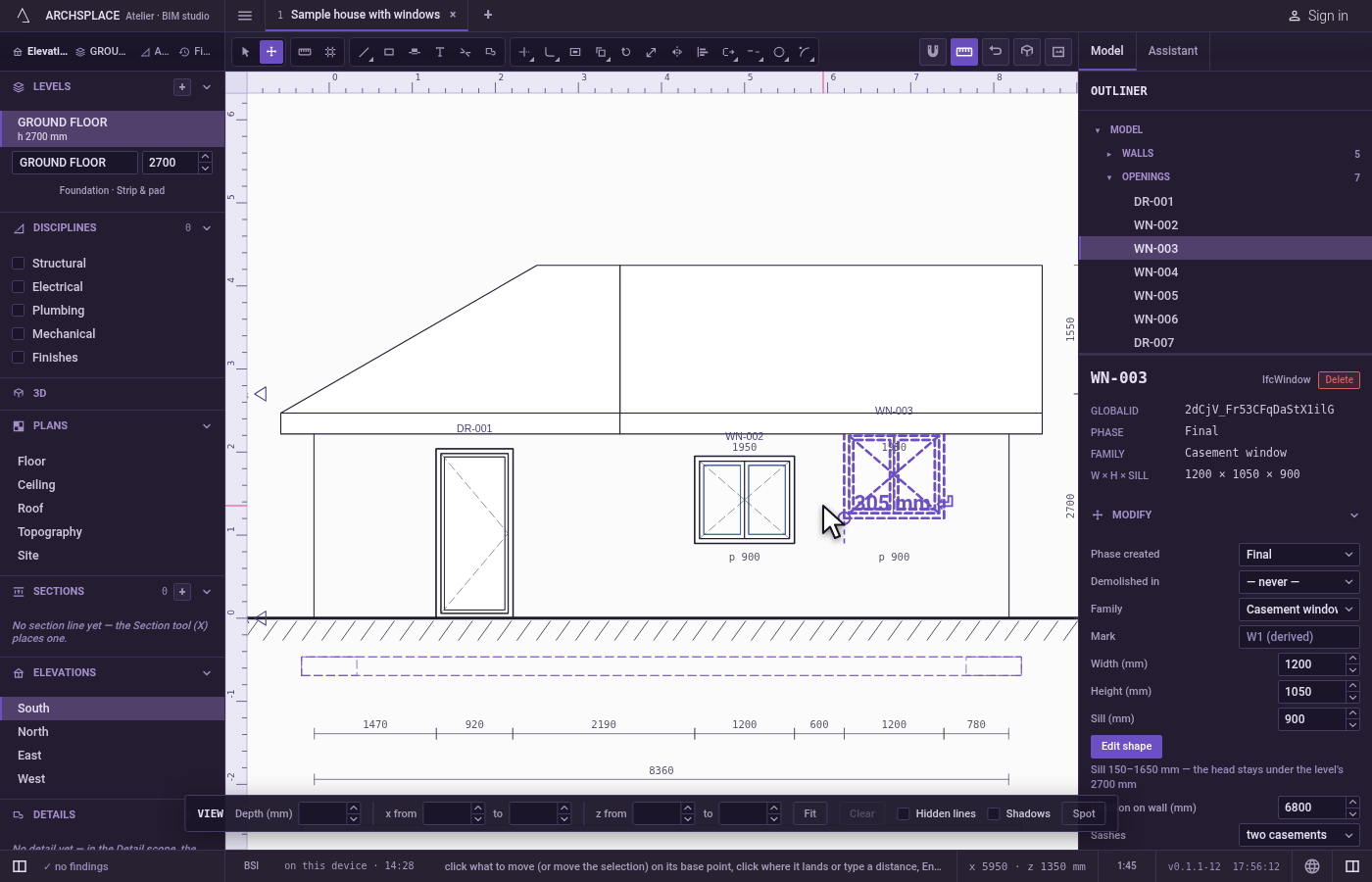
Change your mind with Esc. Before the second click,
Escputs everything back where it was and writes nothing.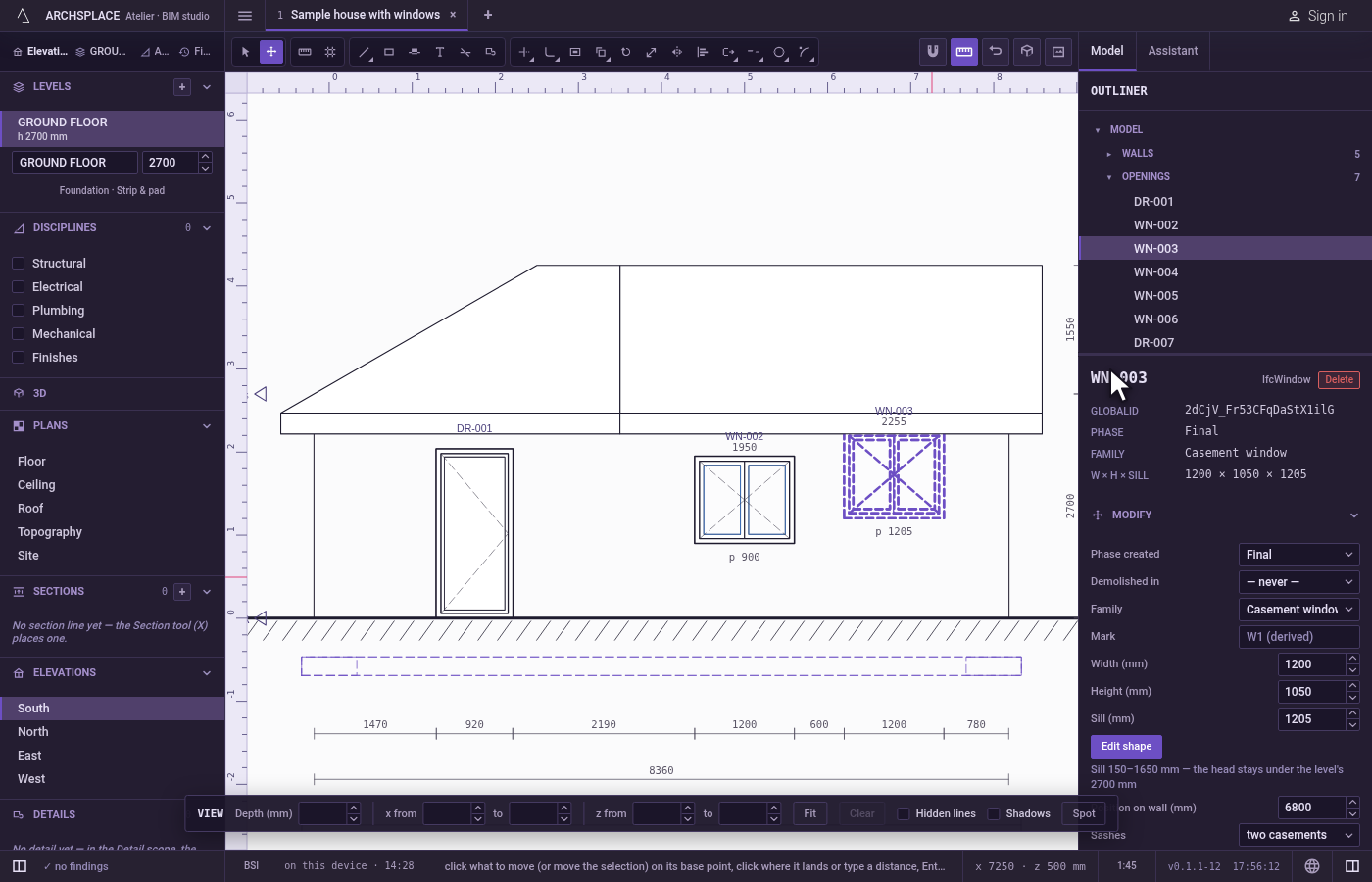
What it refuses
- Nothing to move. A first click on empty paper with nothing selected moves nothing, and the studio says Nothing to move here, asking you to select something or click on what to move.
- A height for what the plan places. Walls, columns, beams and stairs take their height from their level: an upward travel moves them only along the view, and the studio says to change the level's height in the Levels list.
- The lowest floor. It is the datum and does not move.
- A floor moved across. A floor moves up and down here; across, it follows its walls in plan.
- A storey under 50 cm. A floor move that would leave a storey lower than 0.50 m is refused, and the floors stay.
- An opening that does not fit. An opening that would slide past the end of its wall, come within 10 cm of another opening on the same wall, or take a sill outside its family's range stays where it was, with the reason given.
- Hidden lines. A line taken off the view with Hide is the model's own line: Move leaves it where it is.
- A move that takes nothing. When nothing could take any part of the travel, nothing is written.
What it writes to the contract
Move writes the moved elements' own fields, all in one step:
- an opening's place along its wall,
at, and its sill,params.sill, in metres; - the points of the view's marks in
details, theirpoints,atandtarget, shifted by the travel in the view's own coordinates; - for a floor, the
heightof the storey under it and of its own, and theelevationof every level, worked out again from the heights; - for walls,
fromandtoof every end the move carries, and the position of every other element of the plan that slides.
With Ctrl, the copies are appended at the end of their lists and the originals stay. Raising a window whose sill stood at 0.4 m by 30 cm writes, for that opening:
Related
Common questions
How do I raise a window's sill from an elevation?
Press M, click the window at a point of it, then move the pointer straight up and click, or type the distance and press Enter. The window keeps its place along the wall and its sill rises by that much, within the range its family allows.
Can I change the height of a storey from a section?
Yes. Move a floor the section cuts up or down: the storey under it grows or shrinks by the travel, the storey above gives the height back, and the levels higher up stay where they were. The lowest floor does not move.
Why does a wall not move up when I move it in an elevation?
Walls, columns, beams and stairs take their height from their level. In an elevation they only slide along the view, and the studio says so. Change the level's height in the Levels list instead.