PlanDin the studio
Dimension
Dimension places a measured line on the plan in three clicks: the two points it measures, then where the line sits. Its value is always measured from the points, never typed.
What it is
Dimension adds a dimension of your own to the plan, on top of the ones the plan draws by itself. It measures the straight distance between two points, along the line between them, and its line sits at the distance from them you show with the third click. The value is measured, never typed: it reads the points as they are, in the project's units.
The plan already dimensions the facades and the openings by itself. Use this tool for what you want to show beside them.
When to use it
- Showing a clearance, a room's width or the distance between two elements that the automatic dimensions do not show.
- Dimensioning something at an angle, along the line it measures.
The steps
Take the tool. Press
D, or click the Dimension button. The status bar says to click the first point, the second, then where the line sits, and that Esc cancels.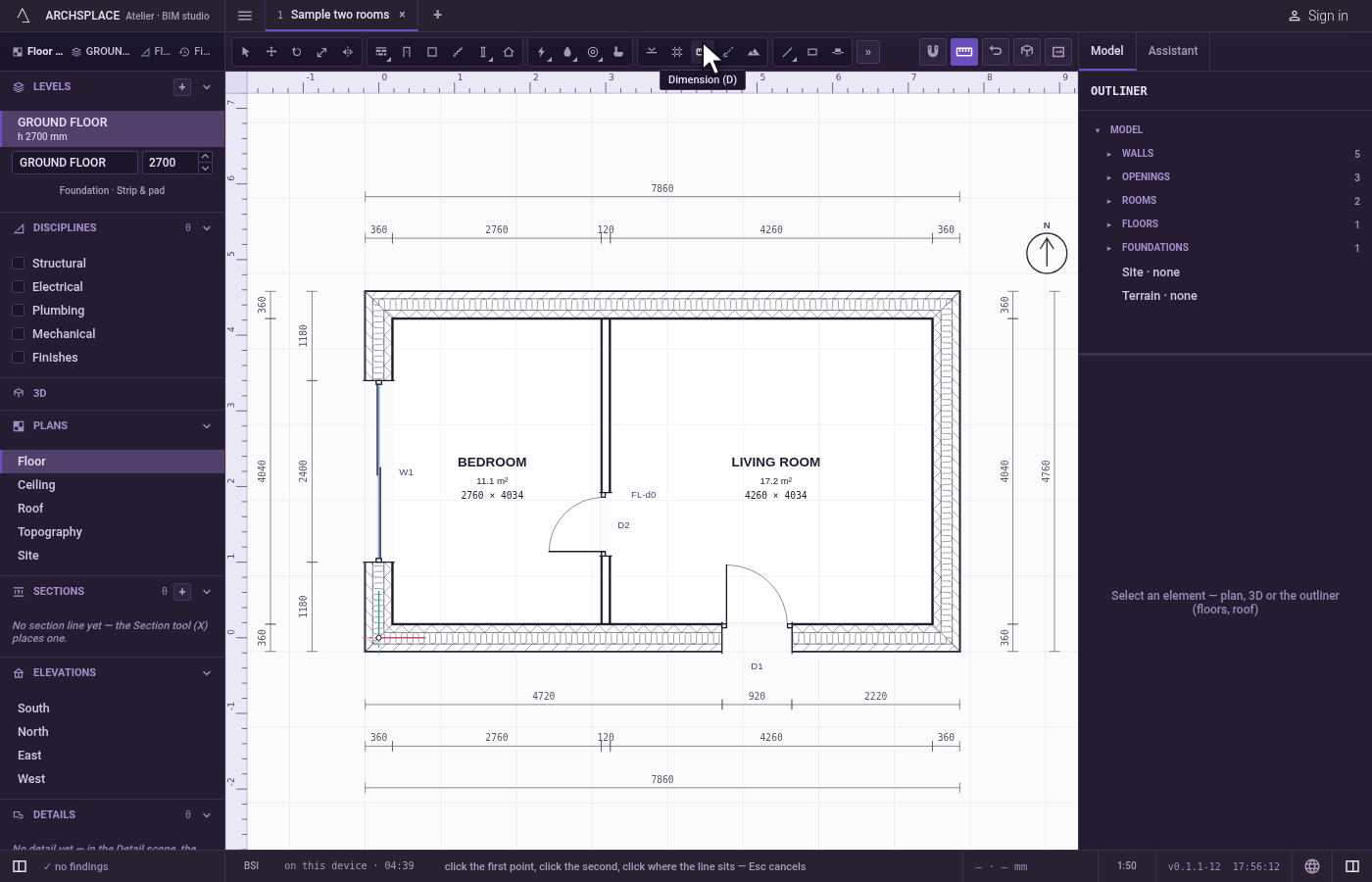
Click the first point. The magnet holds the click on a wall's corner, a middle, an opening's jamb or another point within reach, so the dimension measures exactly that point.
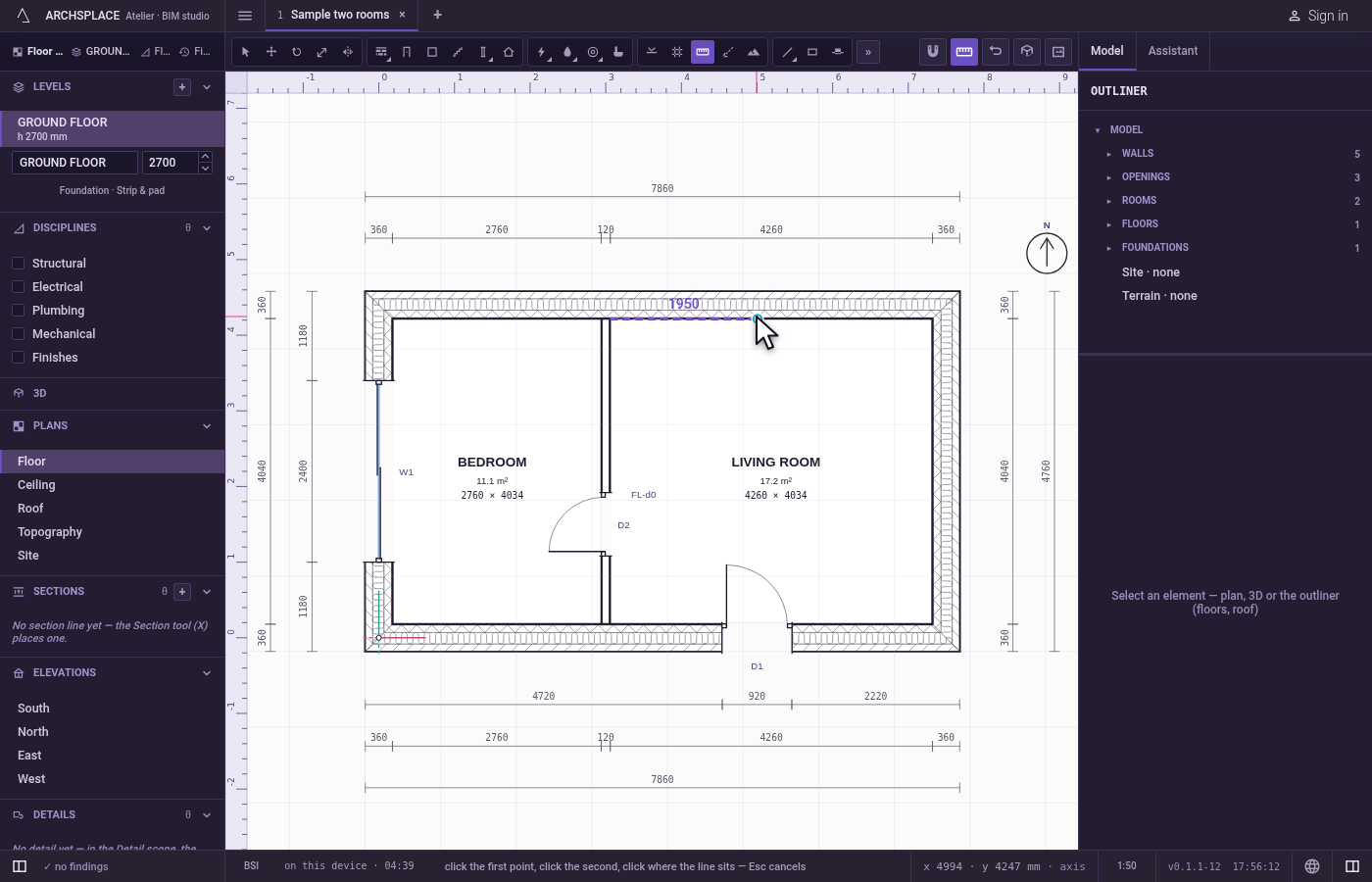
Click the second point. The two points must be apart by more than the magnet's reach.
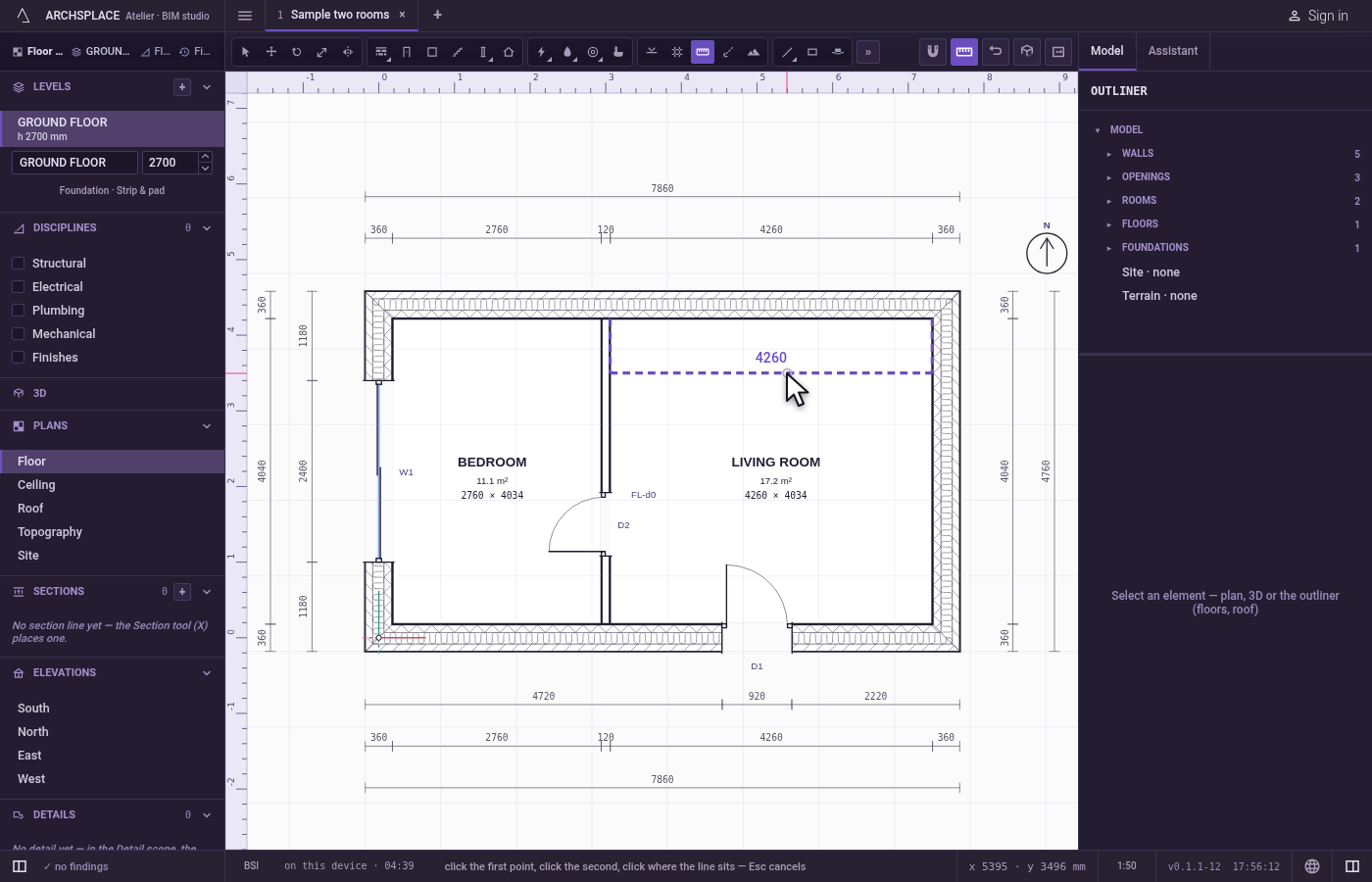
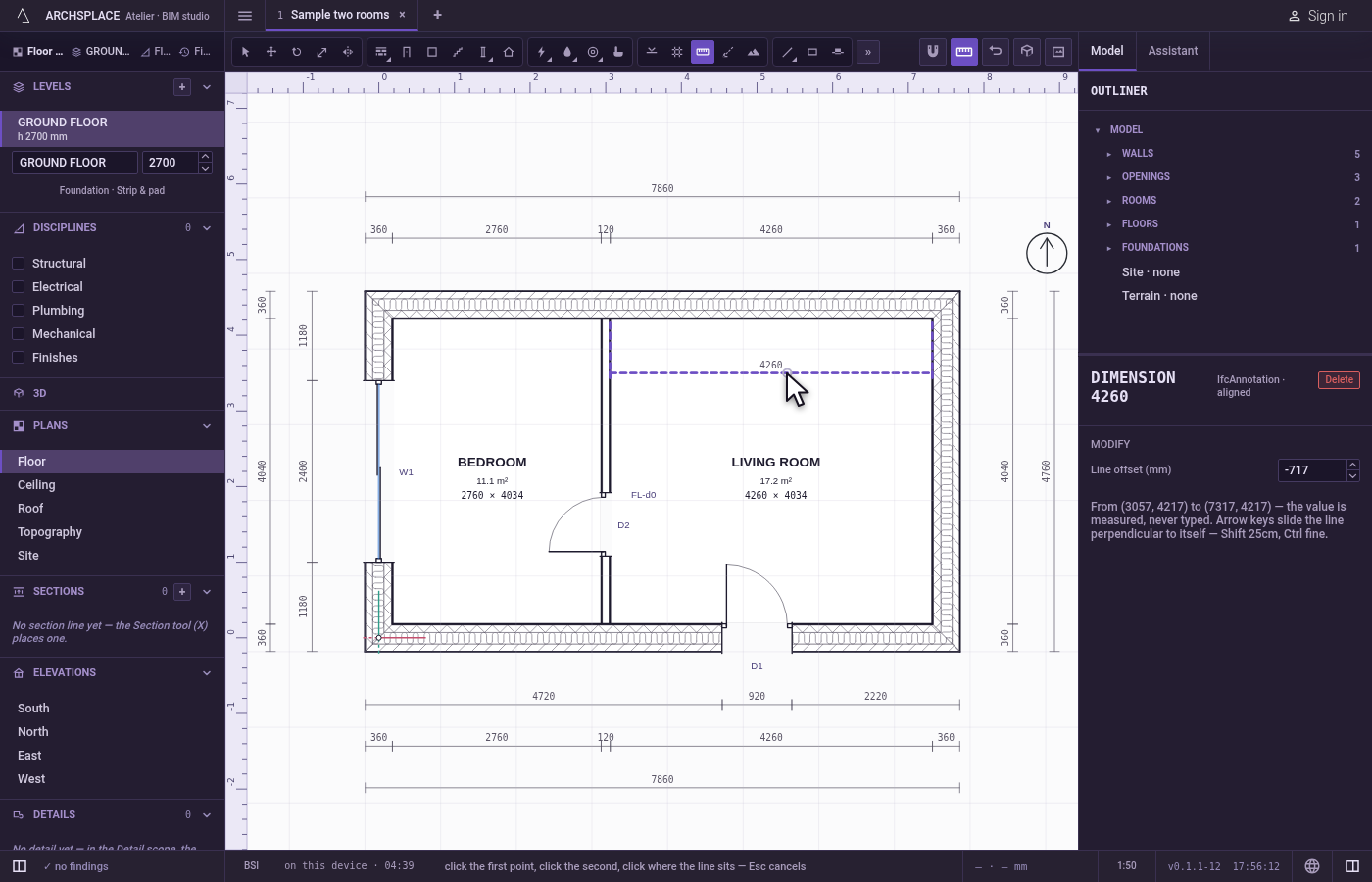
Click where the line sits. The dimension follows the cursor, its witness lines and its value shown, at the distance from the two points the cursor stands. Click to place it. The dimension is selected and its panel opens on its offset; the tool stays in hand for the next one.
What it refuses
- A typed value. A dimension has no value of its own to type.
- Two points on one. A second click within the magnet's reach of the first is ignored.
- Moving its points. Move and Copy refuse a dimension: it measures two points. Slide its line with the arrow keys or its panel, or delete it and place another.
What it writes to the contract
One new entry at the end of the project's list of dimensions, as one step that one undo takes back: the level, the two points to the millimetre, and the signed offset of the line from them. The value is never written: it is measured each time the plan is drawn.
Concepts
Common questions
Can I type the value of a dimension?
No. A dimension measures the two points it was placed on, so it always tells the truth. To change the number, move what it measures.
How do I move a dimension line farther from the wall?
Select the dimension: type its Line offset in its panel, or slide the line with the arrow keys (Shift for 25 cm steps, Ctrl for finer ones).