SketchVin the studio
Select in the tile editor
Select takes hold of the joints of a pattern's tile, so the next key or tool acts on them: a click takes one joint, Shift adds or removes, and a box takes several at once. Delete removes what you hold, the arrow keys nudge it by the editor's step, and Enter hands the tile back when you are done.
What it is
The tile editor is where you draw a pattern's tile: the rectangle (the module) that a surface repeats, row after row, and the joints drawn inside it. It opens over the view you were in, with its own tools on the bar and its own bar at the foot, where you find the tile's name, width, height, row shift, the two switches for the joints along its edges, the Step, Cancel and Done. Around the module the editor draws the tile repeated a few times each way, so you see the pattern as a surface would lay it.
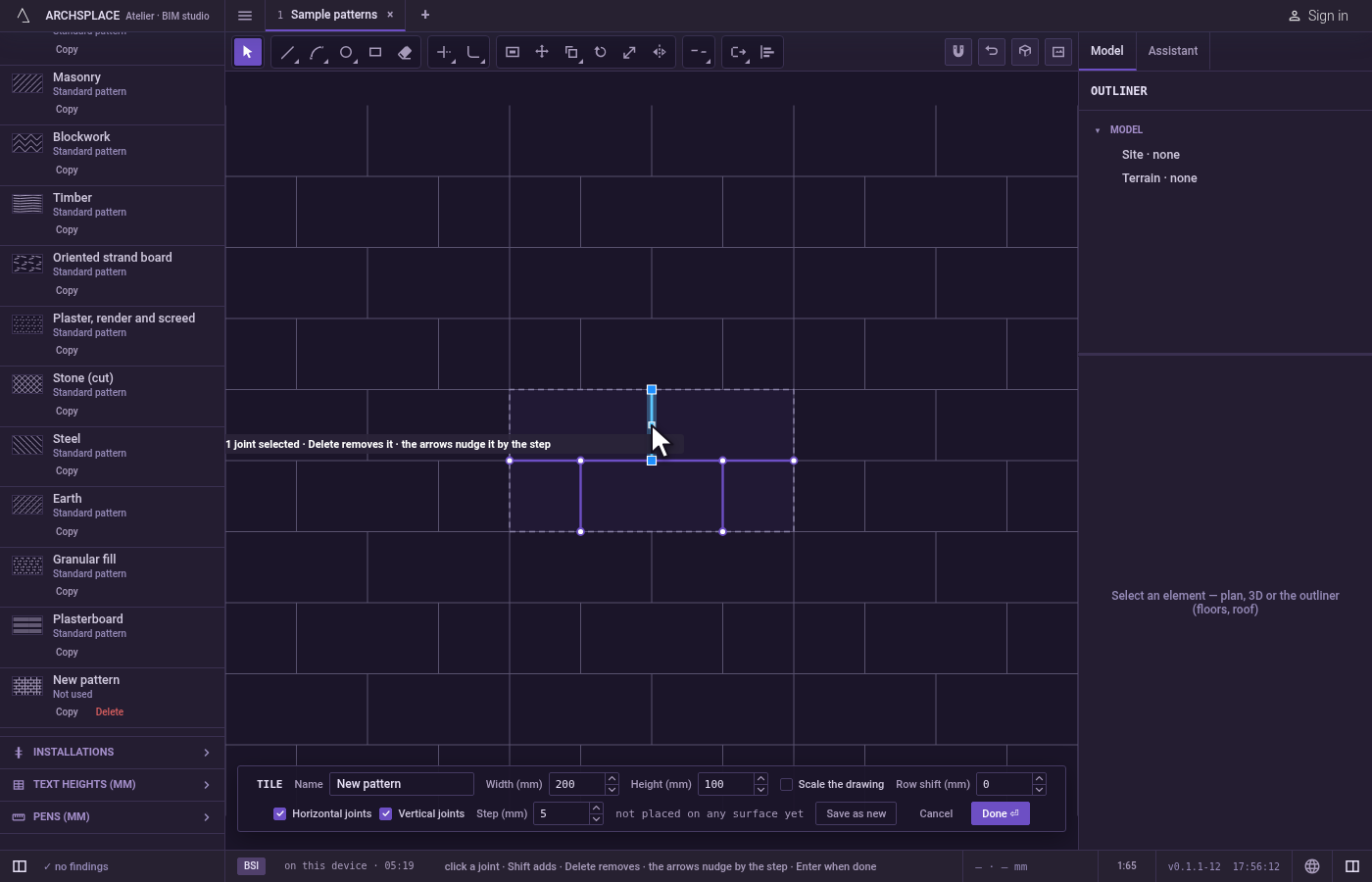
Select is the first tool of that bar and the one the editor opens with the first time. It takes hold of joints. A circle, a rectangle or a polyline is one joint, taken, nudged and removed whole. What you hold is lit, and the joint a click would take lights as the pointer passes over it. Holding joints changes nothing in the tile on its own.
When to use it
- To remove joints with the
Deletekey. - To nudge joints by a small, exact distance with the arrow keys.
- Before Move, Copy, Rotate, Scale, Mirror, Array, Align, Join or Explode: what you hold when you switch to them is what they act on, so they skip their own "select objects" step.
- Before Trim or Extend, to choose which joints cut or bound, and before Fillet or Chamfer, to treat every corner of the joints you hold.
The steps
Open the tile editor. Click Edit tile in the Patterns panel, or in the panel of a surface that lays the pattern, or double-click a pattern laid on a surface in a view. A new pattern opens the same editor on an empty tile.
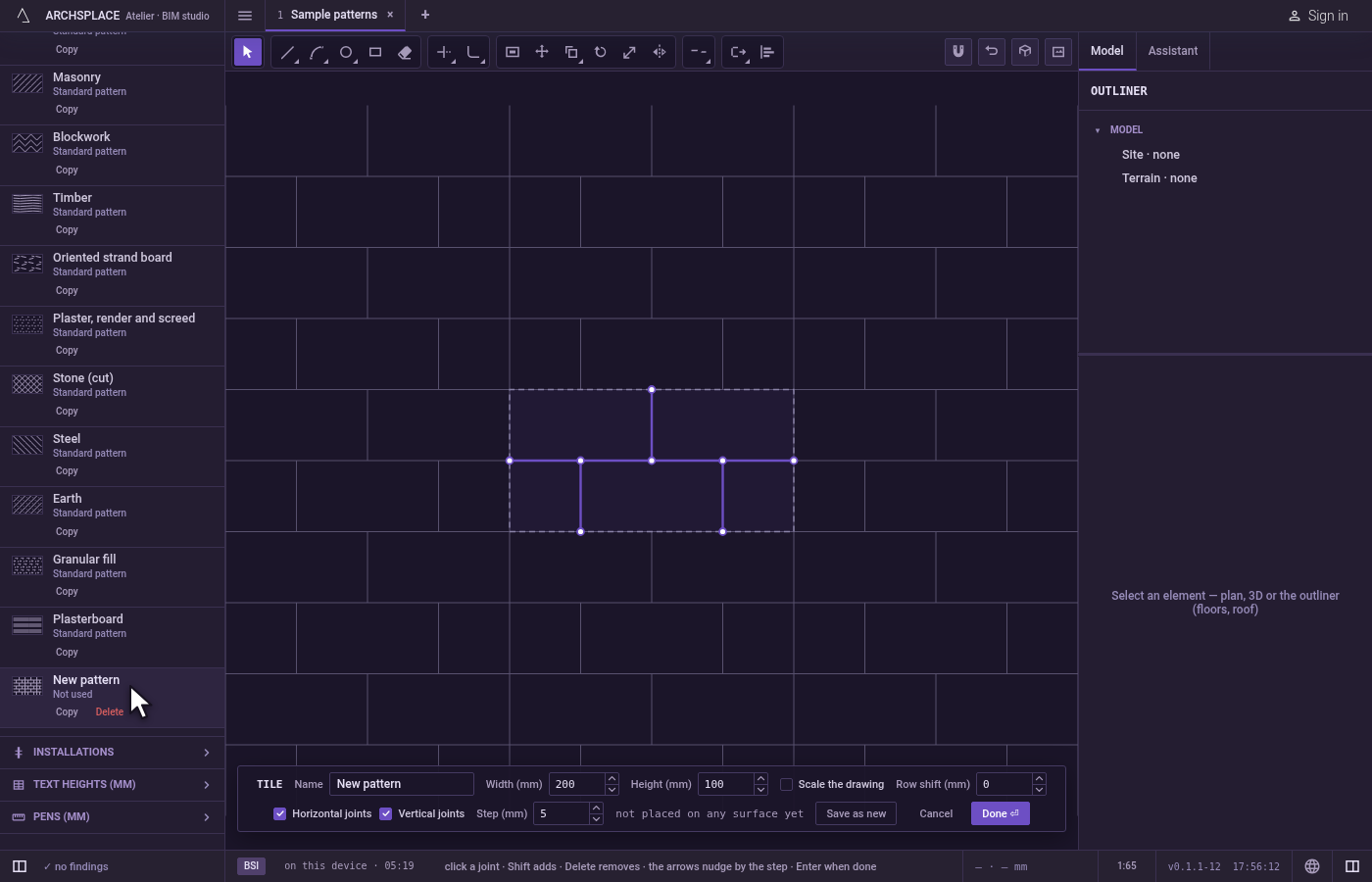
Take the tool. Press
V, or click Select on the bar.Spacealso brings Select back from any other tool of the editor. With no joint yet, the hint at the pointer says no joint yet, and invites you to draw one with the Joint tool.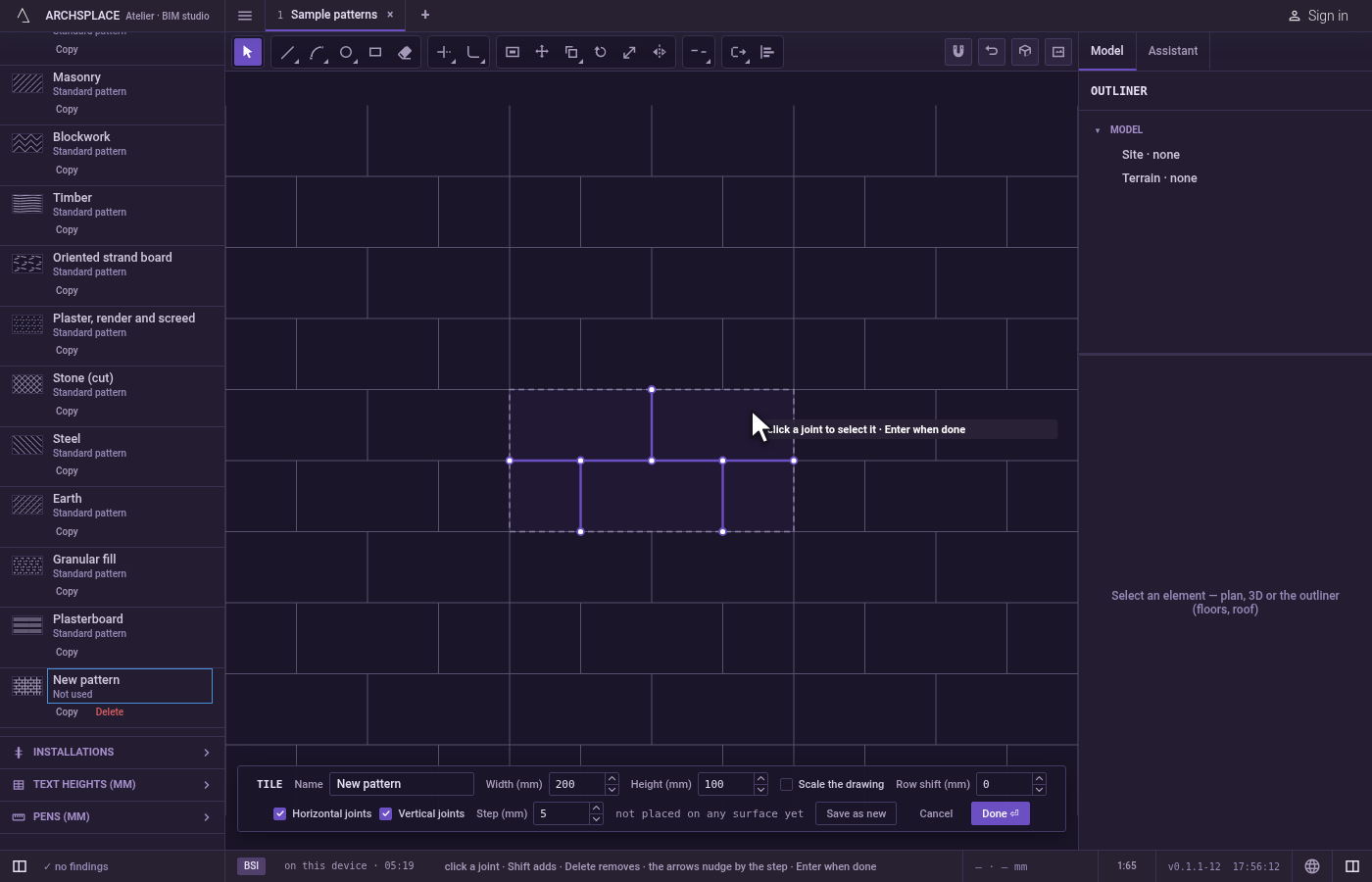
Click a joint. A click takes the joint nearest the pointer, within a few pixels, and lets go of what you held before. A click on empty space lets go of everything and says no joint here. The hint then counts what you hold, for example 2 joints selected.
Add or take out with Shift.
Shift-click adds a joint to what you hold, or takes it out if it is already held.Ctrl+Atakes every joint of the tile.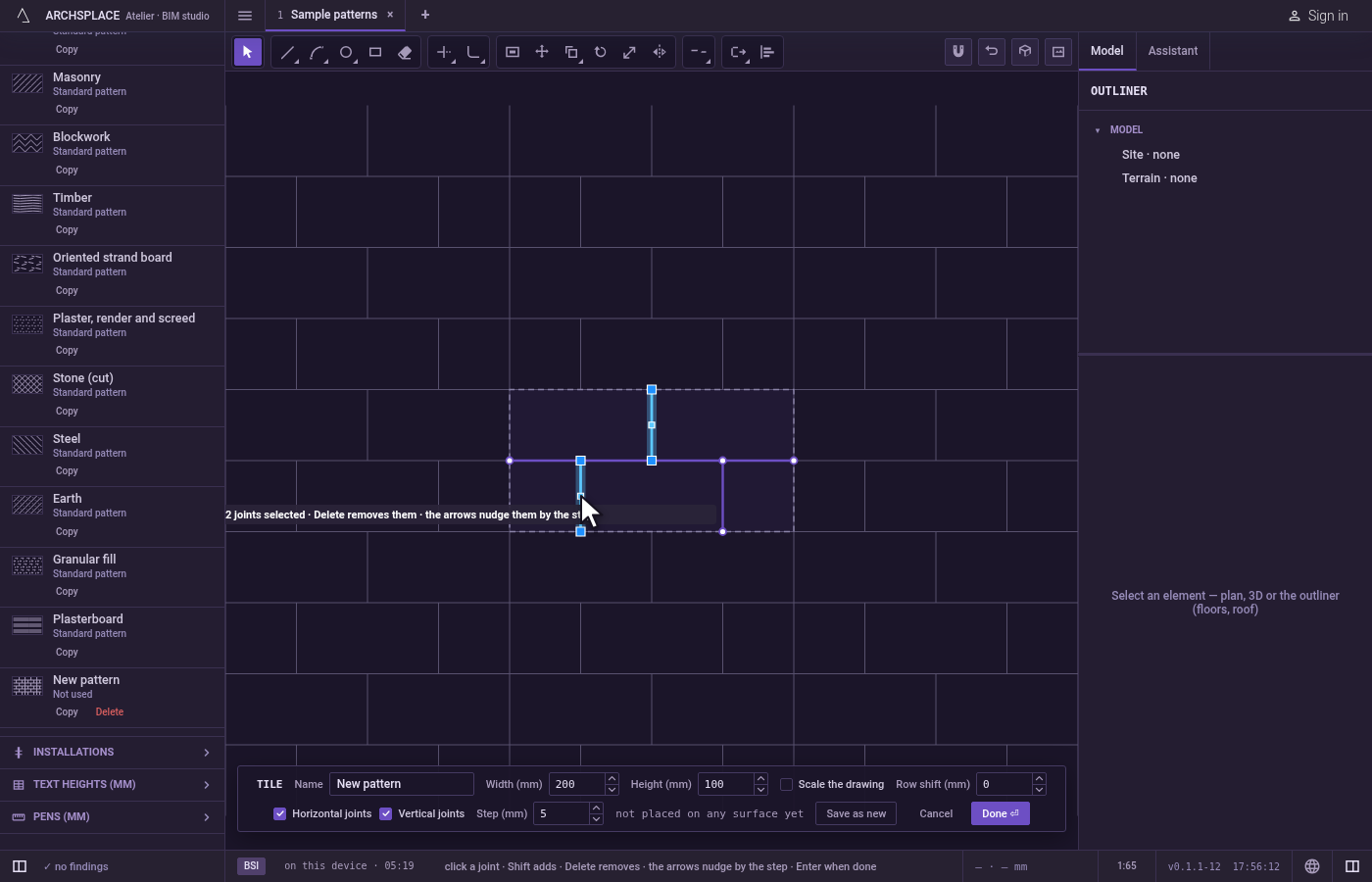
Drag a box. Press on empty space and drag. Dragged to the right, the box takes the joints that lie wholly inside it. Dragged to the left, it takes every joint it touches or crosses. A new box replaces what you held; with
Shiftit adds the joints it takes, or takes them out if they were held.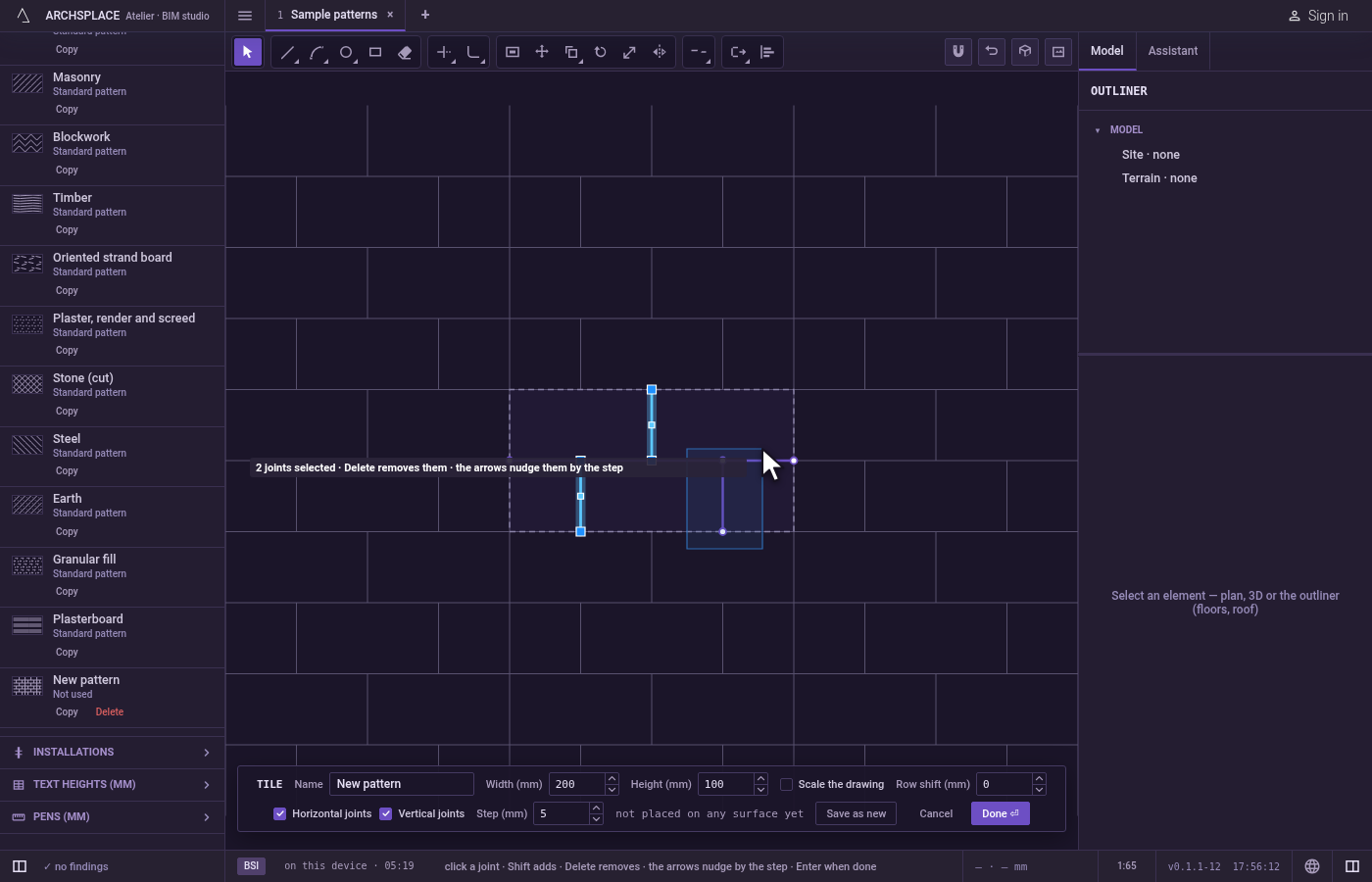
Act on what you hold.
Deleteremoves the joints you hold in one step. An arrow key moves them by the Step shown on the bar at the foot (a twentieth of the tile's shorter side when it opens, never under a millimetre, until you type another), andShiftwith an arrow moves them ten steps. Each nudge is one step you can undo.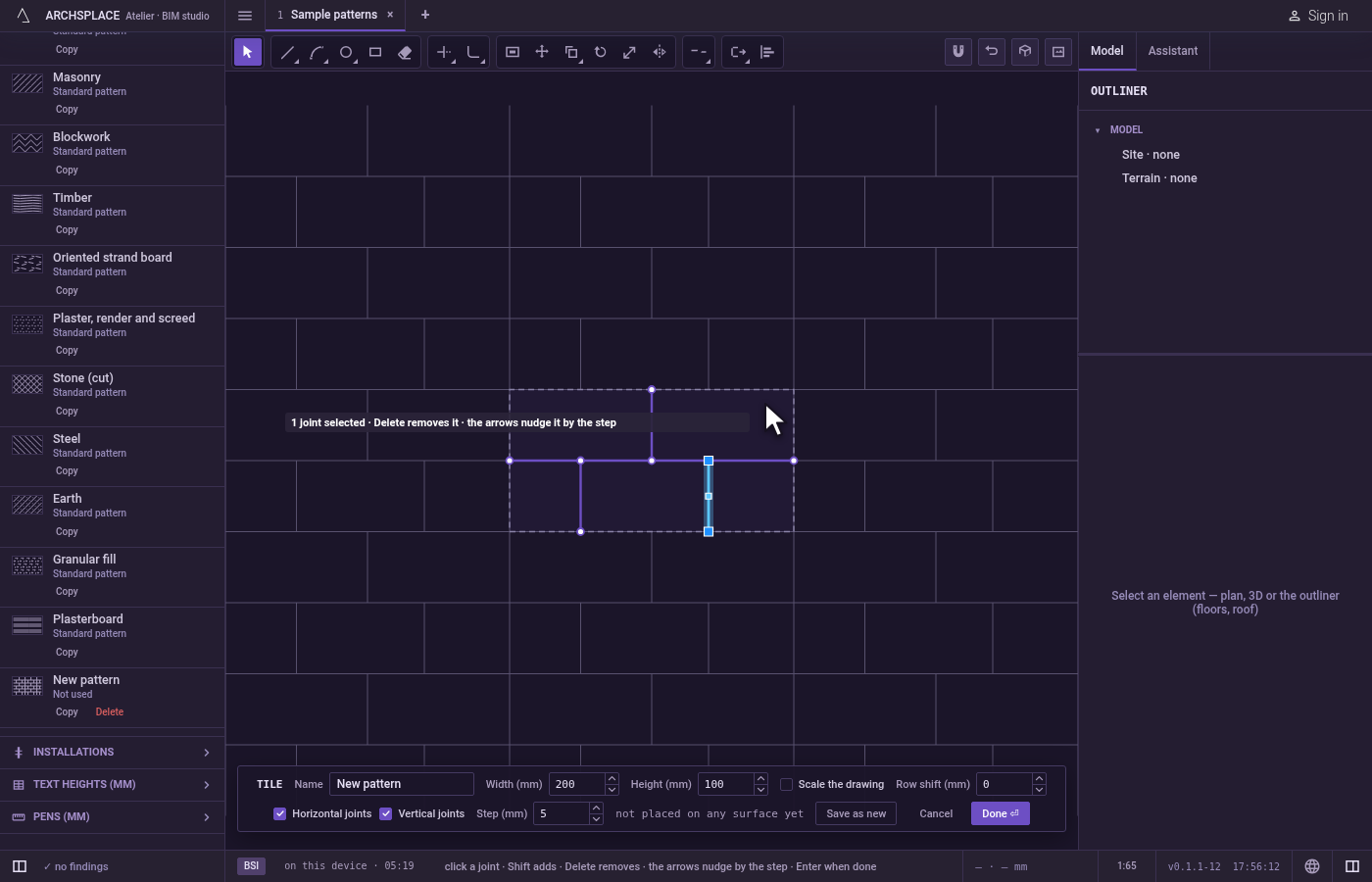
Hand the tile back. Press Done on the bar at the foot, or
Enterwith nothing in hand. If nothing changed, the editor simply closes.Escapelets go of the selection first; pressed again, it closes the editor without writing anything.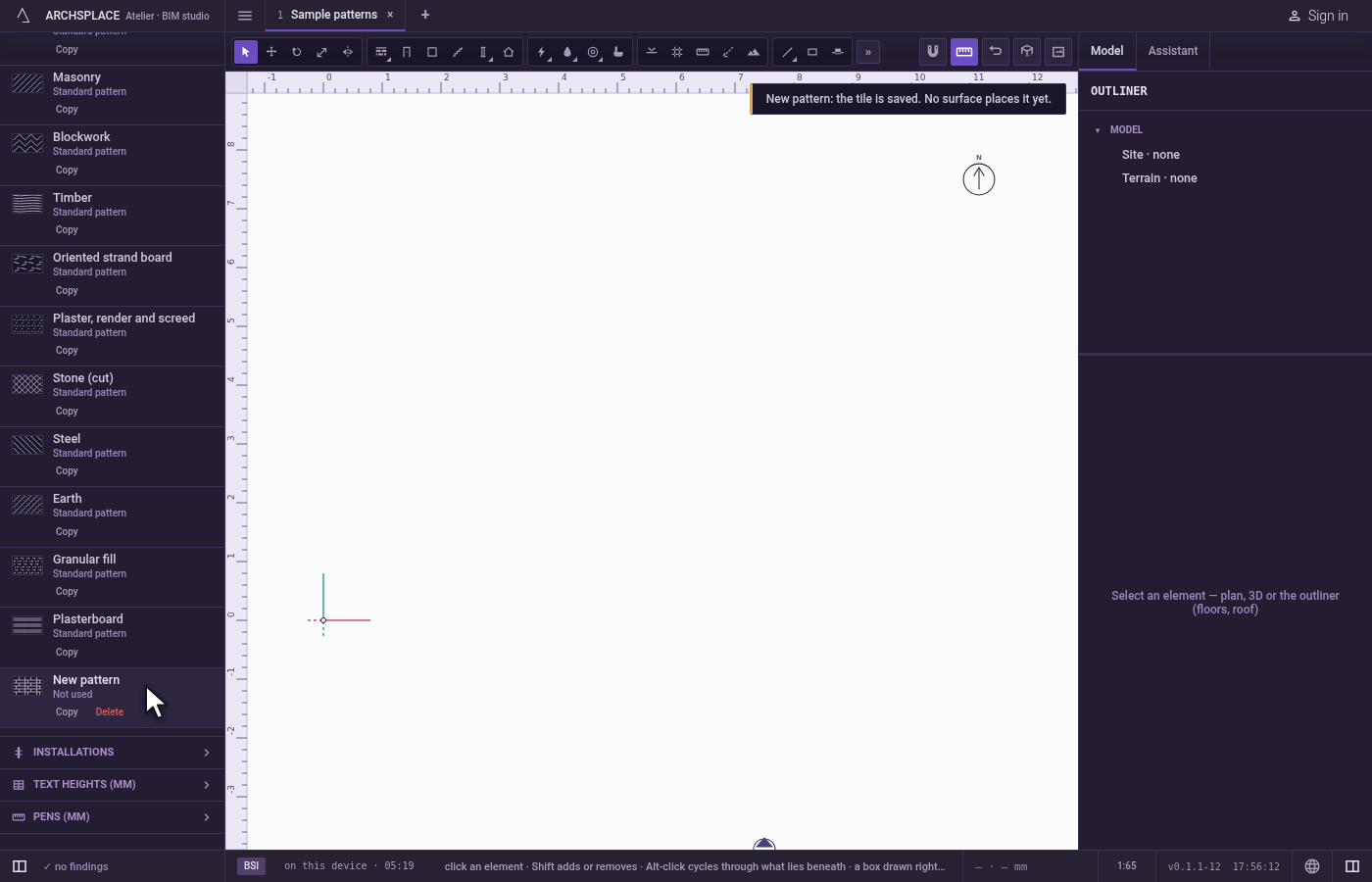
What it refuses
- A nudge past the edge. If any joint you hold would leave the tile, none of them moves, and the editor says a joint cannot be nudged past the module's edge.
- Delete with nothing held. Delete, and Undo or Redo with nothing to step, are refused in words: the editor says there is nothing selected in it, or nothing to undo yet.
- Picking a part of a shape. A circle, a rectangle or a polyline is one joint. To work on one side of it, break it into separate joints with Explode first.
- The project behind the editor. While the editor is open, every key is the editor's.
Ctrl+ZandCtrl+Ystep back and forward through your edits of the tile, and nothing you press reaches the model underneath.
What it writes to the contract
Selecting writes nothing: the selection lives in the editor while it is open. Delete and the arrow keys change the tile in the editor, where Ctrl+Z undoes them one by one. Nothing reaches the project until you press Done. Then the whole tile is written to the project's patterns in one step you can undo: its width and height, its row shift, and every joint as its points in metres from the tile's lower-left corner (a drafting hatch is measured in paper millimetres instead). A standard pattern is never changed: Done saves the project's own version of it under the same name, and every surface that lays it follows. Save as new writes a new pattern instead and leaves the one you opened as it was. A notice says how many surfaces the tile changed on. Cancel, or Escape with nothing left to let go of, writes nothing.
Related
Common questions
How do I move a joint a little in the tile editor?
Select it, then press an arrow key. Each press moves it by the Step shown on the bar at the foot of the editor, and Shift with an arrow moves it ten steps. A joint that would leave the tile does not move, and the editor says so.
What is the difference between dragging the box to the right and to the left?
Dragged to the right, the box takes the joints that lie wholly inside it. Dragged to the left, it also takes every joint it touches or crosses.
Does selecting a joint change the pattern?
No. Selecting only chooses what the next action works on. Nothing reaches the project until you press Done.