3DPin the studio
Push/Pull
Push/Pull takes a face in the 3D view and moves it straight out of its plane: a drawn face becomes a volume, the face of a body makes the body grow or shrink. Pushed into a body, a face drawn on it carves a hole, and pushed through to the far side it cuts right through.
What it is
Push/Pull moves a face along its own direction, square to it. It works on two kinds of face.
A face of drawn lines, such as a rectangle on the ground, is pulled into a new body. When that face lies on a body's face, it belongs to the body: pulled out, it grows the body; pushed in, it carves a hole into it.
A face of a body is moved and the body follows: the body grows when you pull the face out and shrinks when you push it in. The faces around it stretch to stay joined, two parts pulled until they meet lose the face between them, and a part pushed all the way to the far face cuts through. A closed box of drawn lines is a solid too: pulling one of its faces turns it into a body.
Before you click, the face under the pointer lights in orange. During the pull a ghost shows the result: for a body's face, the whole body as it will be, the original hidden meanwhile. The readout and the marker say what the depth clings to.
When to use it
- To turn a rectangle, a circle or any closed outline into a volume.
- To make a body taller, deeper or thinner by one of its faces.
- To carve a recess or a window opening into a body, or to cut right through it.
- To bring a face level with another part of the model.
The steps
Draw or find the face. Draw a closed outline with the Line, Rectangle or Circle tools, or use a face of a body.
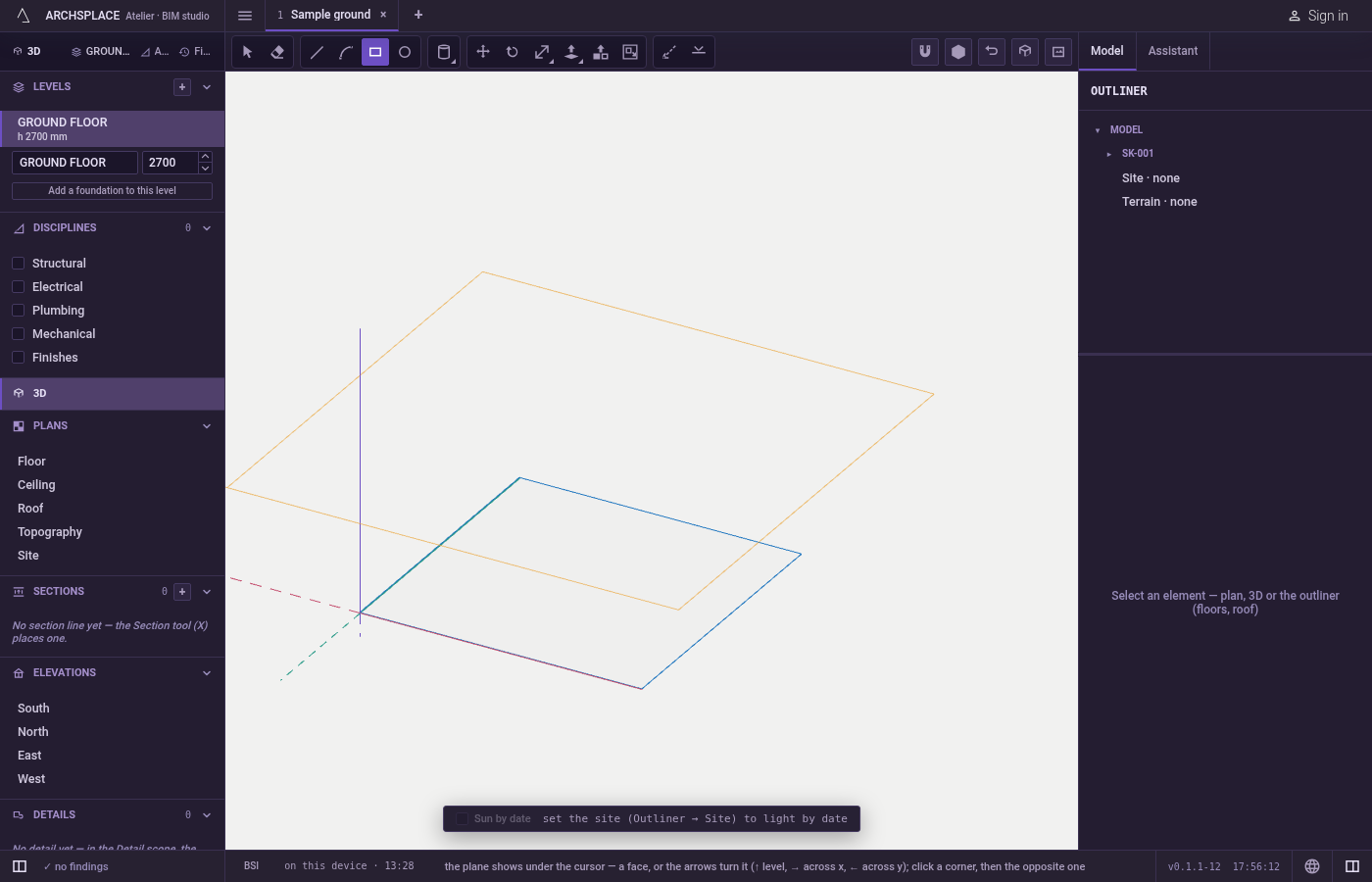
Take the tool. Press
P, or click Push/Pull.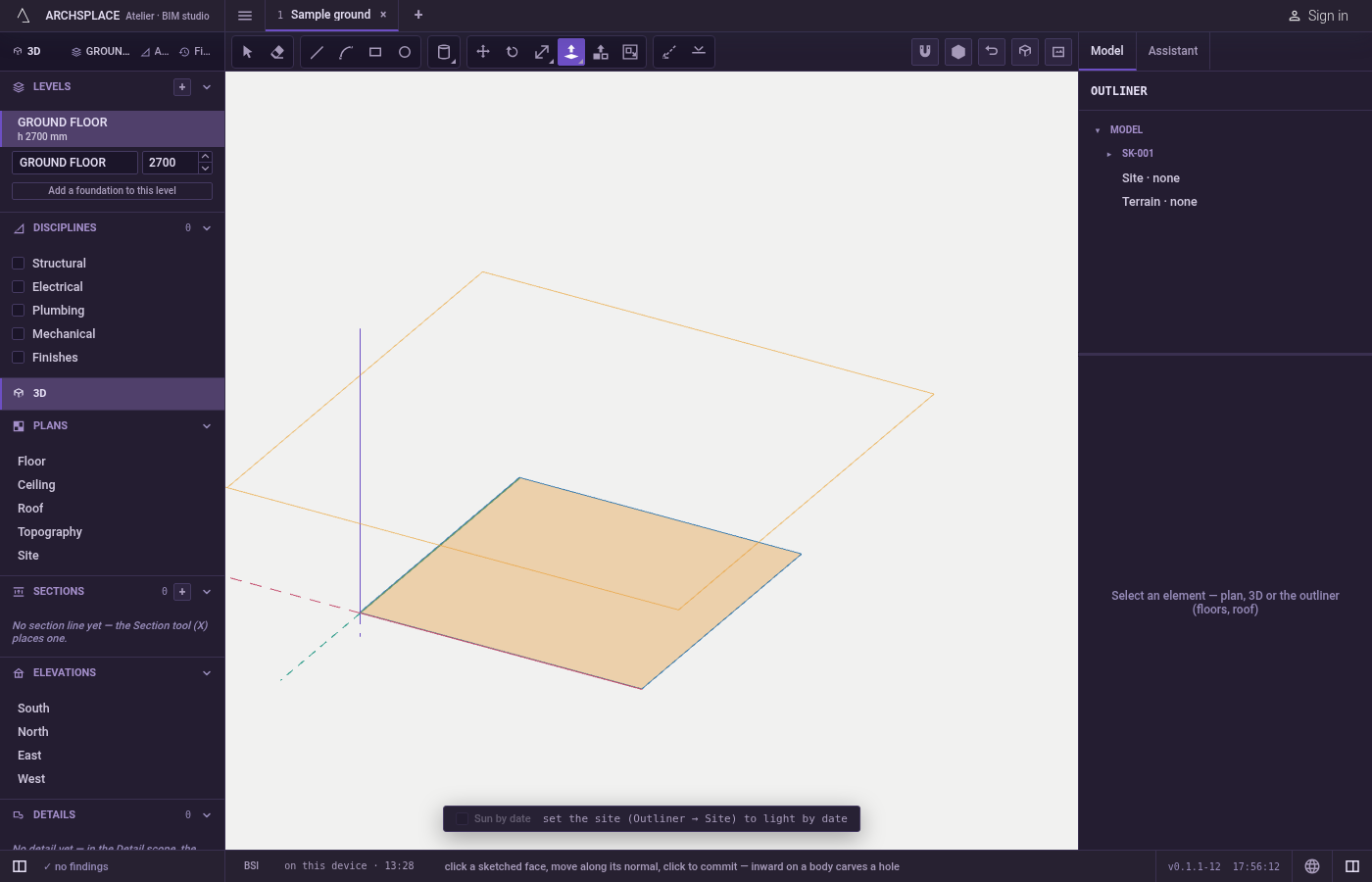
Click the face. It lights in orange before the click and stays lit once taken.
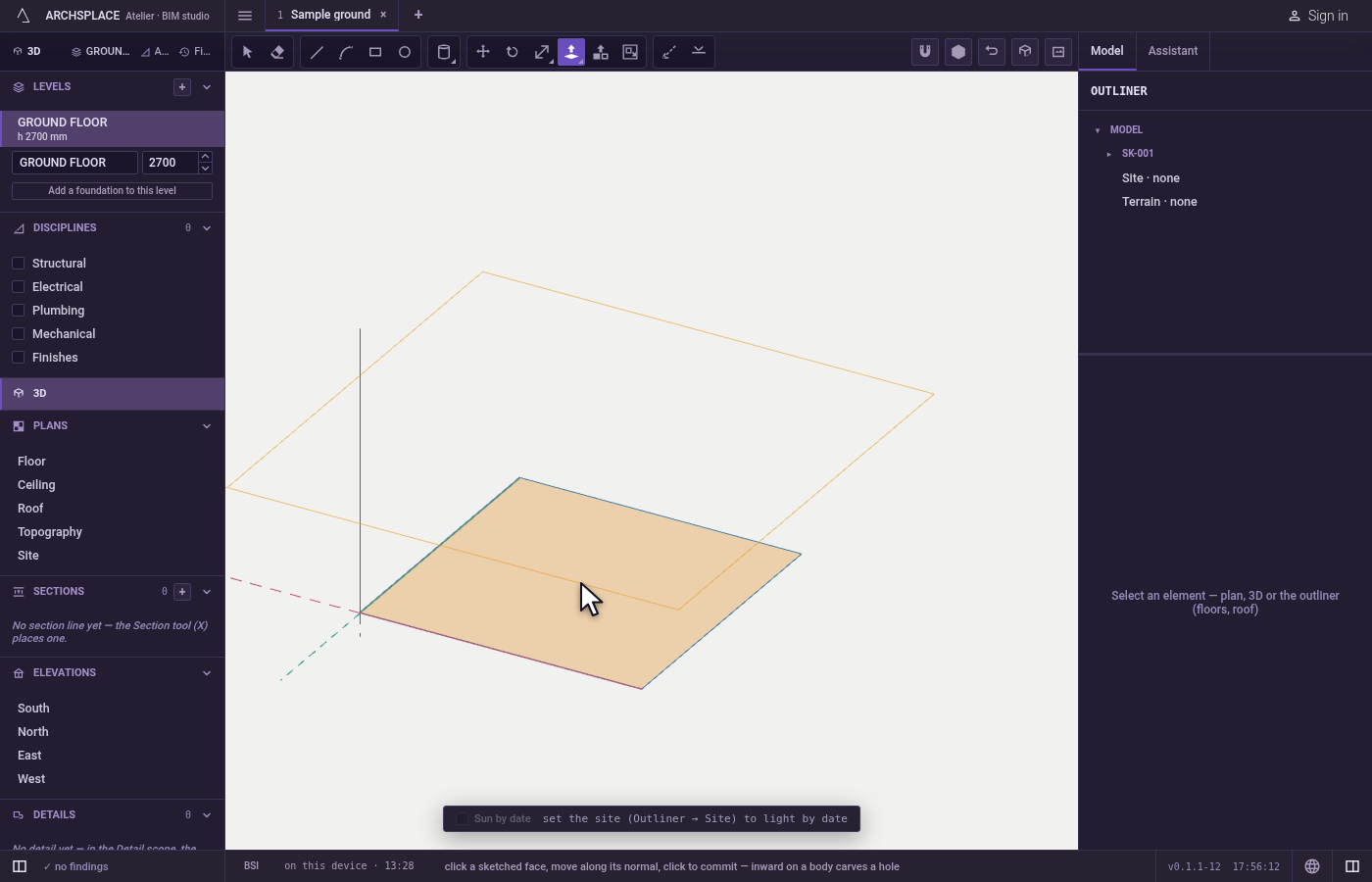
Move along its direction. The face follows the pointer square to its plane. Point at a corner, an edge or a face of anything, this body included, and the depth clings to its level, the marker naming it. Near the body's own planes the depth stops there too, so a hole stops at the bottom of the body.
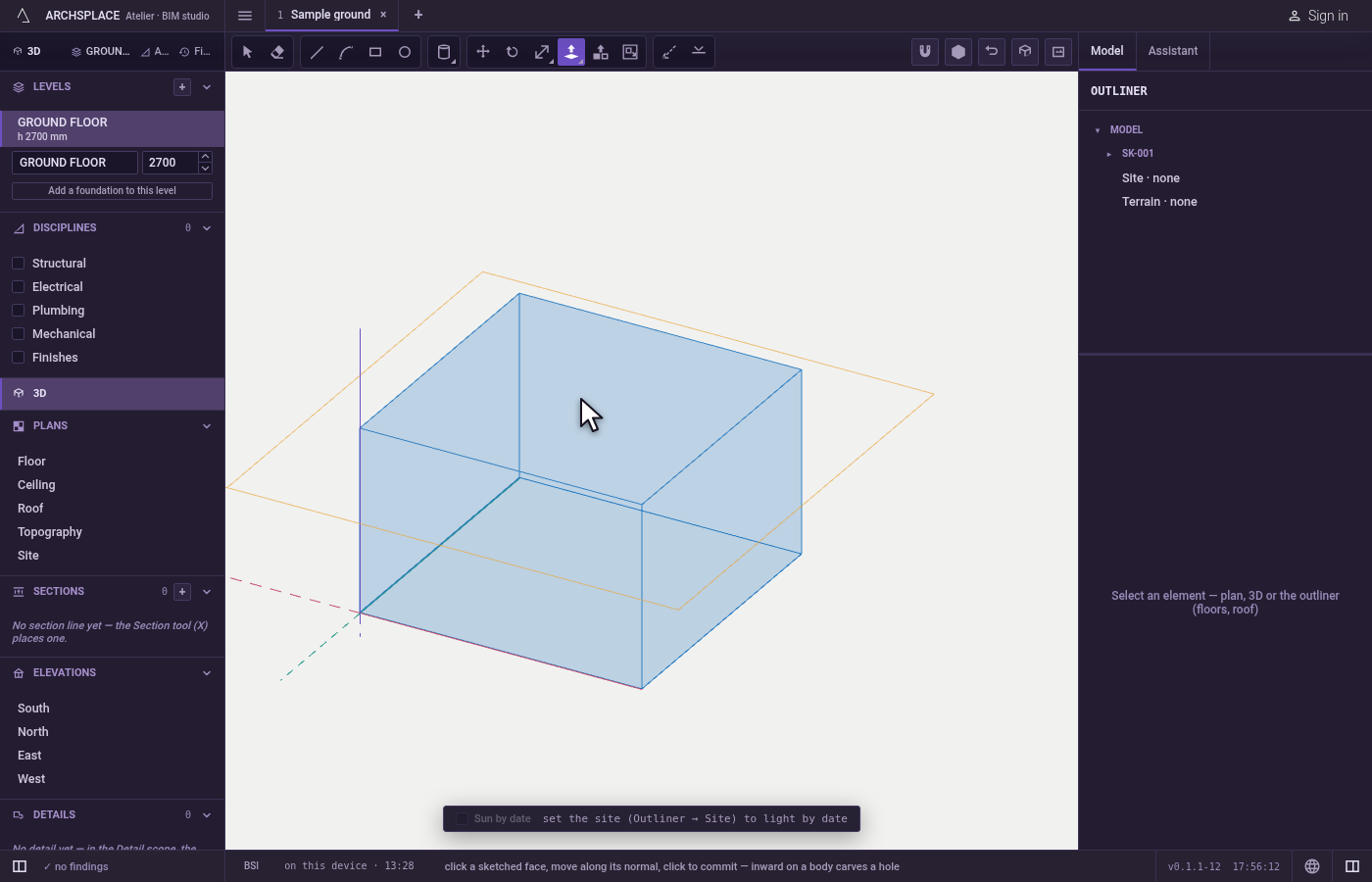
Commit. Click, or type a distance and press
Enter; a typed distance goes the way the pointer leans. TapCtrl(⌘on a Mac) during the pull to keep the starting face where it is; tap it again to let it move.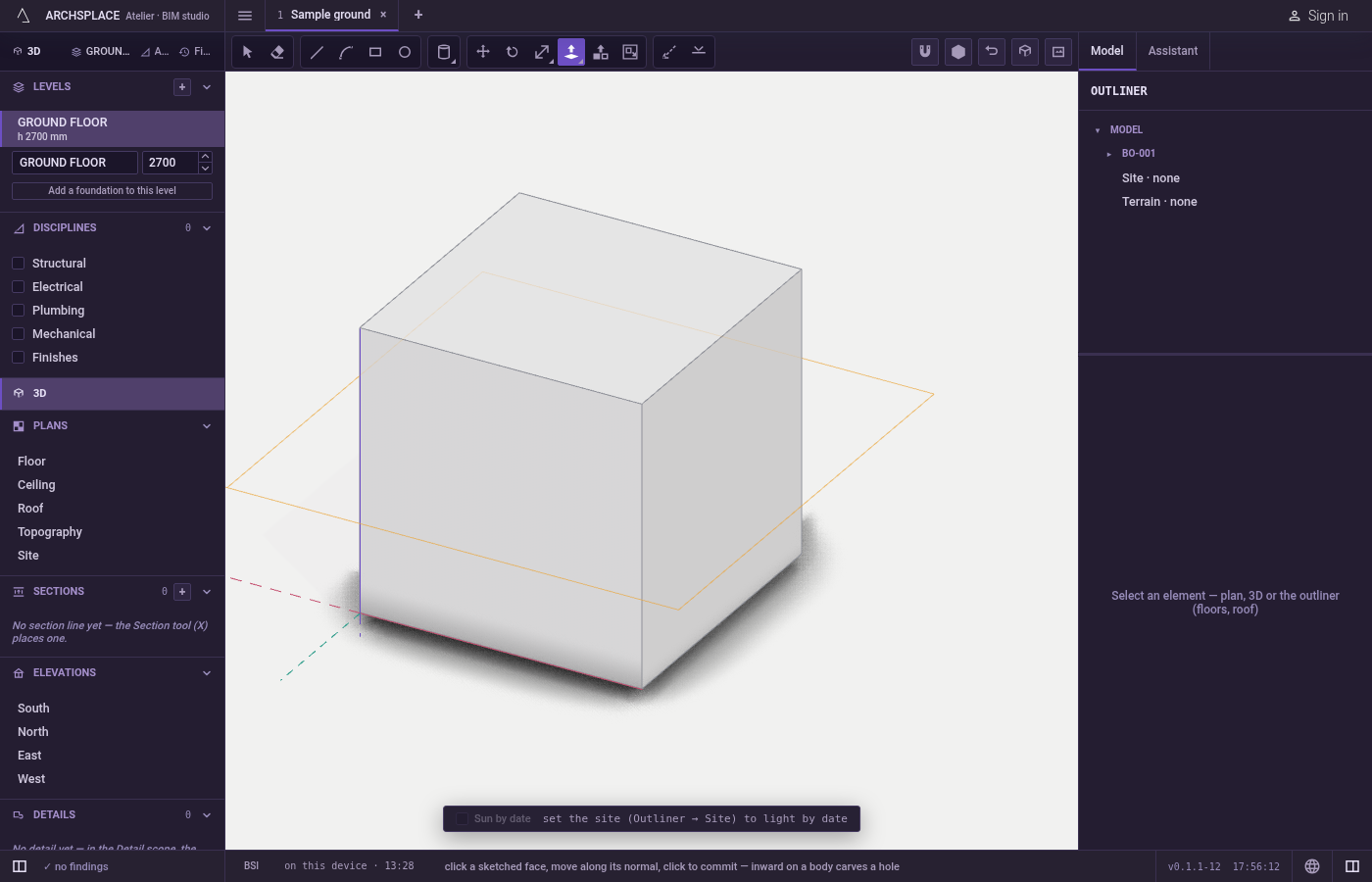
Repeat on other faces. A double click on a face pulls it by the last distance.
Escapedrops a pull under way.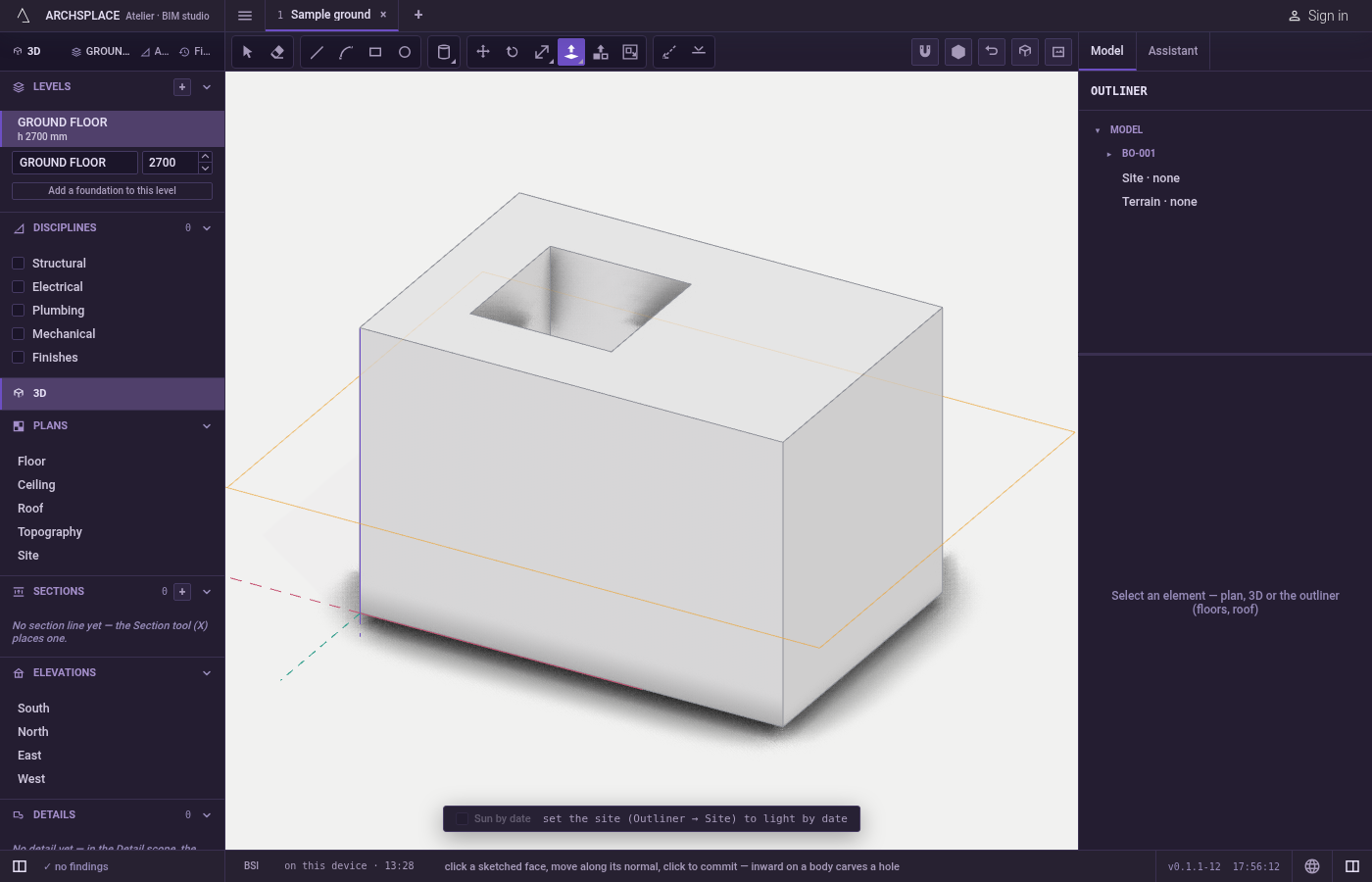
What it refuses
- A pull that cannot join its body. The project stays as it was, and a notice says: Pull refused, the pull could not join its body; adjust the drawing and try again.
- A carve that would break the shell. A push that would leave the body open is refused the same way: Carve refused, nothing was changed.
- A move the face cannot make. A body's face that cannot go where you asked is refused with a short reason.
- Walls, slabs and roofs. Their faces are not pulled: they follow their own panels and tools. A click on them does nothing.
What it writes to the contract
One pull is one undoable step. A drawn face becomes a new body, its lines used up, unless Ctrl kept them. A pull on a body changes that body's points and faces; a carve or a cut through changes its shape, holes included. Nothing records how it was made: the project keeps the body as it now stands.
Common questions
How do I make a hole through a wall-like body?
Draw a rectangle or a circle on its face, take Push/Pull, click the new face and push it in until it reaches the far face. A push that reaches the far face cuts right through.
How do I pull several faces by the same distance?
Pull the first one, then double-click each of the others: a double click repeats the distance of the last pull.
How do I pull a face level with another part of the model?
While pulling, point at a corner, an edge or a face of the part you want to reach. The marker names it and the face stops exactly at its level.
Can I keep the starting face where it is?
Yes. Tap Ctrl during the pull. The hint says the starting face stays, and its edges stay as lines; tap Ctrl again to let it move.