Panels
Underlay
An underlay is a picture, a PNG, a JPEG or a WebP, laid under a level's plan to draw over it, one per level. Its width, its opacity and its position are set in its panel, and it never prints.
What it is
An underlay is a picture laid under the plan of one level: a scanned drawing, a photo of a sketch, a screenshot of a map. You draw the walls over it, and it stays under everything the plan draws. Each level holds one underlay, and importing a picture on a level replaces the one it had.
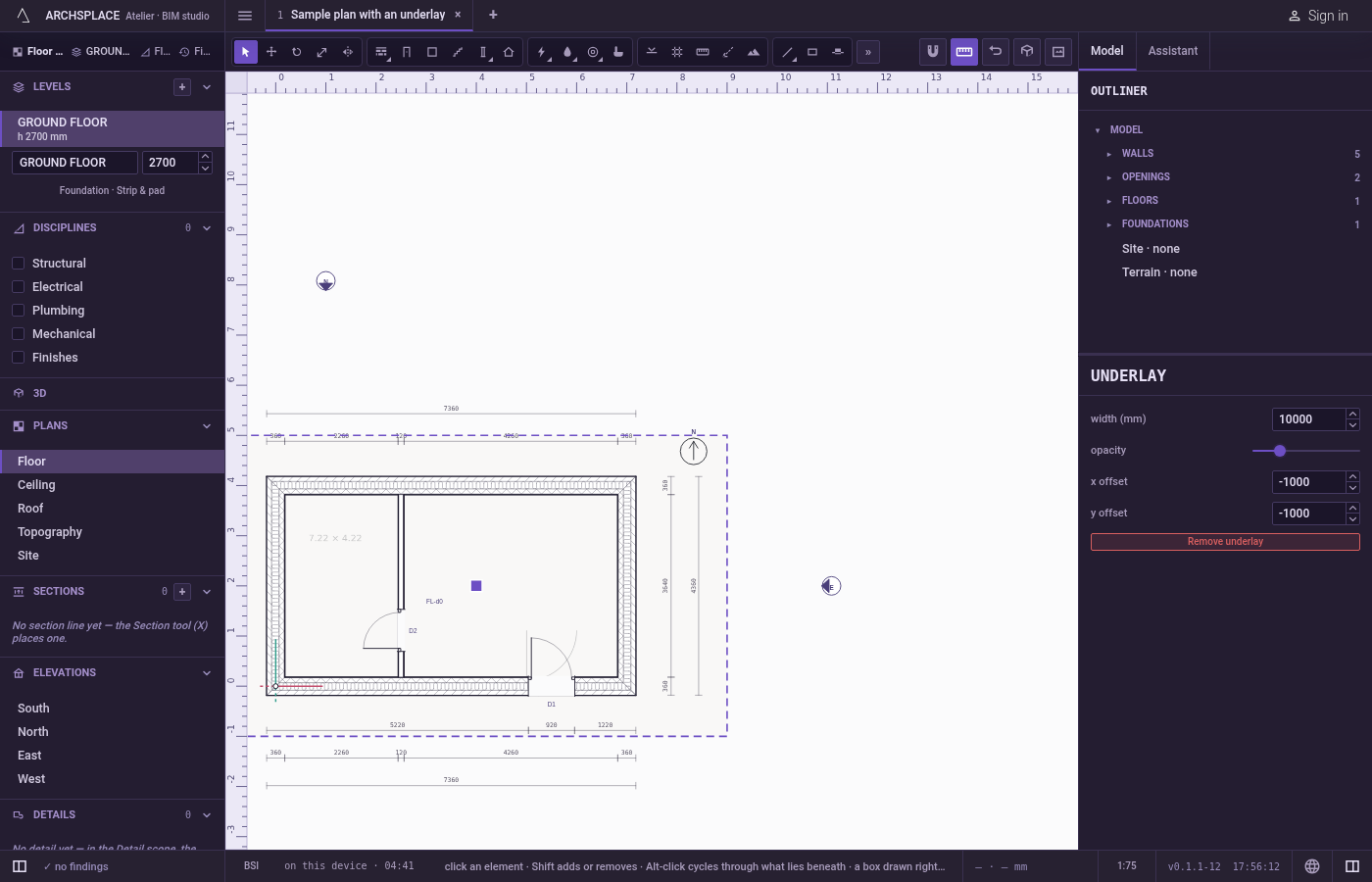
The picture is kept inside the project, so it travels with it. It arrives 15 m wide, half transparent, with its lower left corner at the plan's origin. Its panel sets its width, which scales it while keeping its proportions, its opacity, its x and y offsets, and removes it.
When to use it
- Redrawing an old plan from a scan.
- Drawing over a survey sketch or a site photo taken from above.
- Checking a new plan against the existing one.
The steps
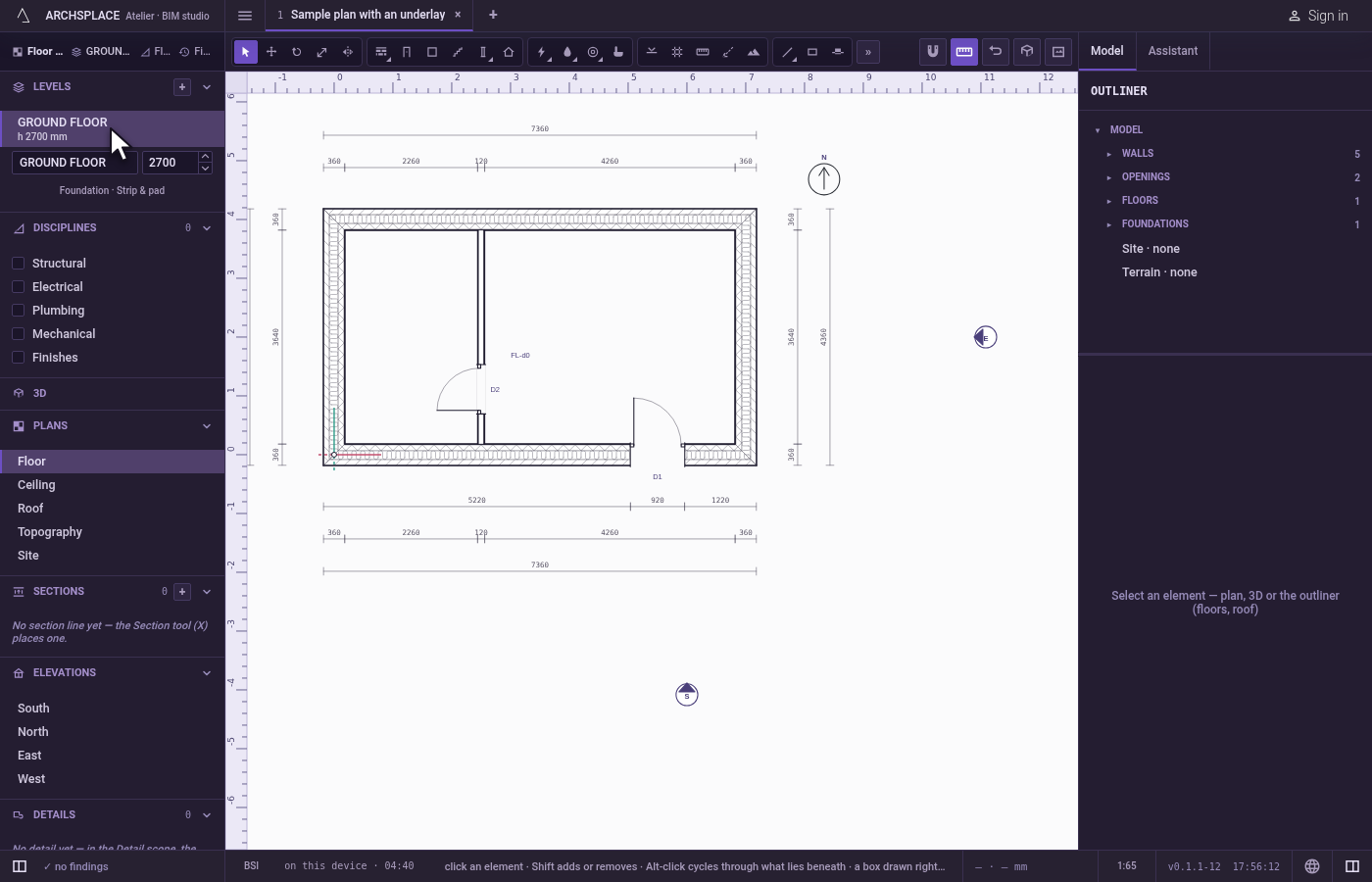
Open the level. In the Levels list, open the level the picture belongs to.
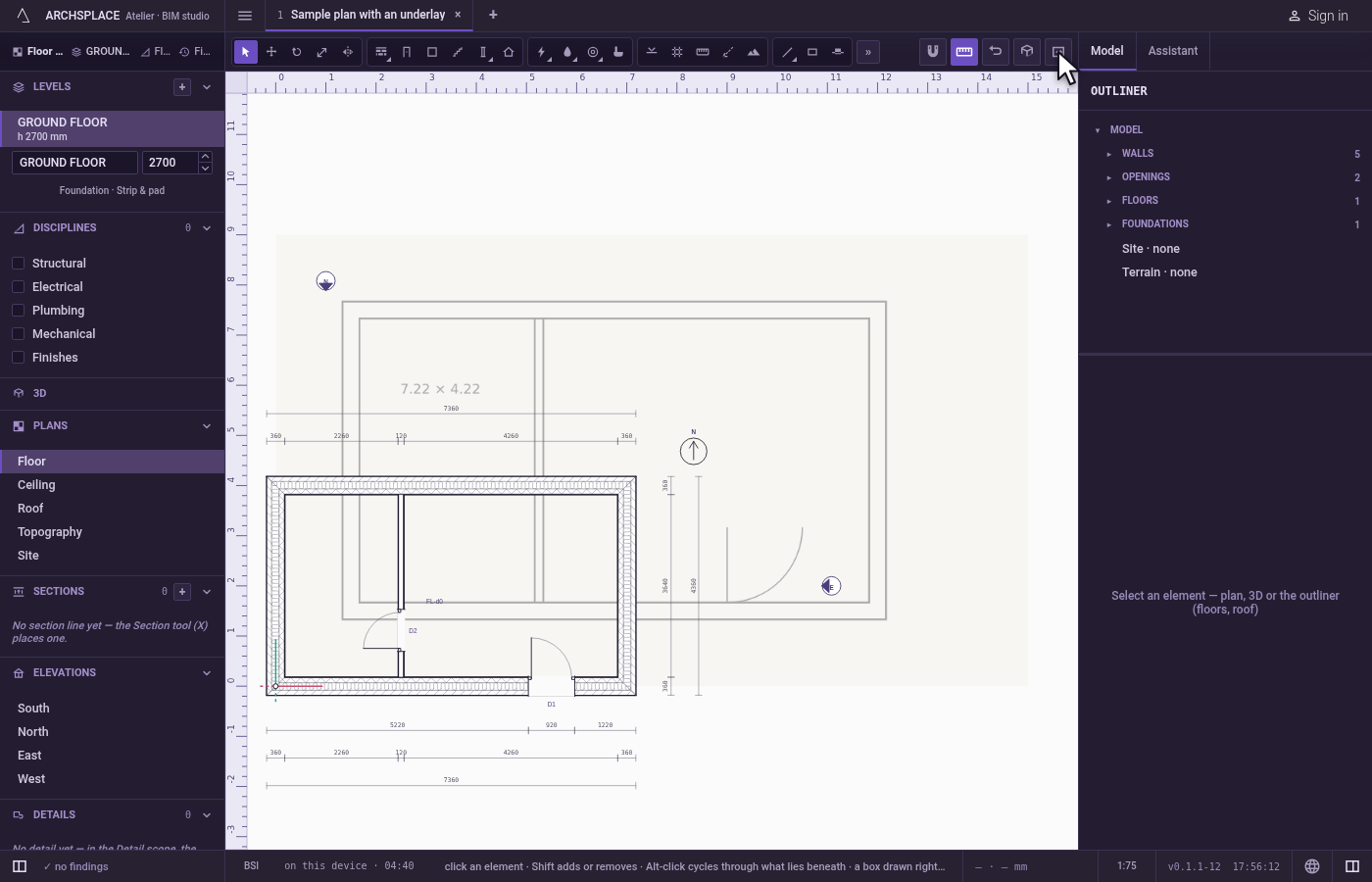
Import the picture. Click the Underlay image button on the toolbar, or choose File, Import, Import underlay image. Pick a PNG, a JPEG or a WebP file. The picture appears under the plan, 15 m wide and half transparent.
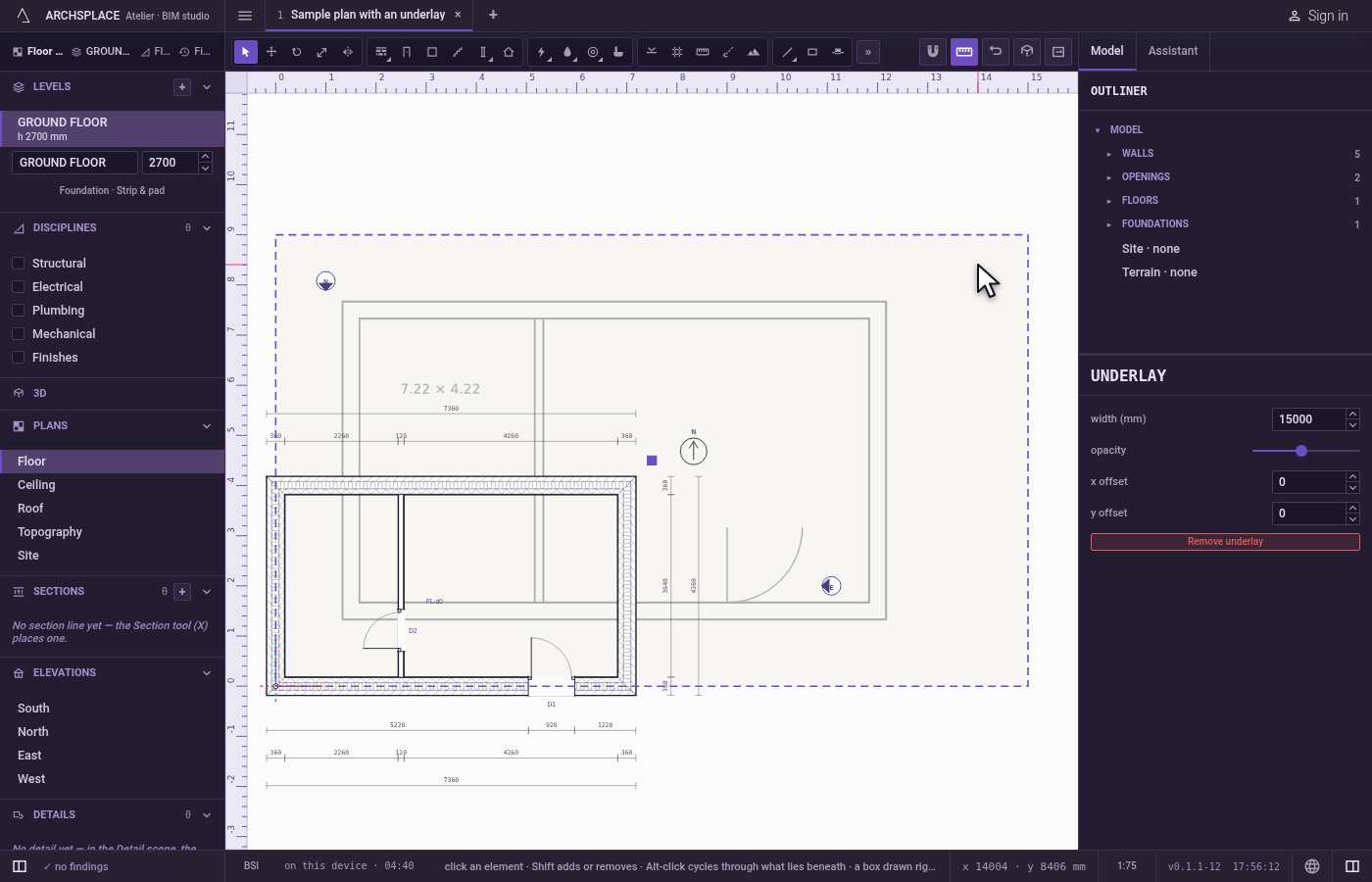
Select it. With Select, click on the picture where no element stands. Its panel opens on the right.
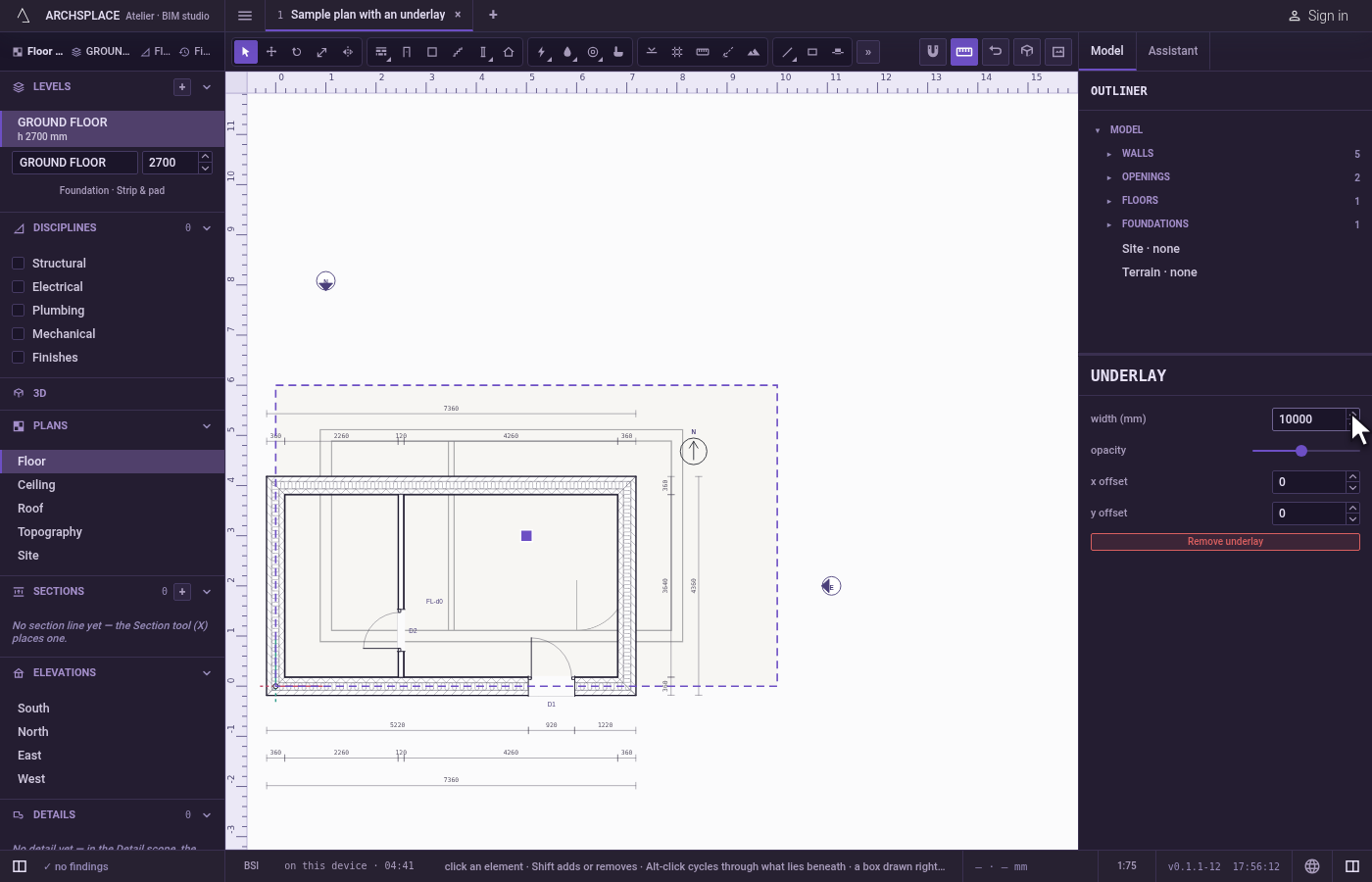
Bring it to scale. Type its width in the project's units. Compare a length you know on the picture with a wall or a guide drawn at that length, and correct the width until they match.
Put it in place. Drag the square handle, nudge it with the arrow keys, or type its x and y offsets, until it lies where the building stands. Lower its opacity if it hides your drawing.
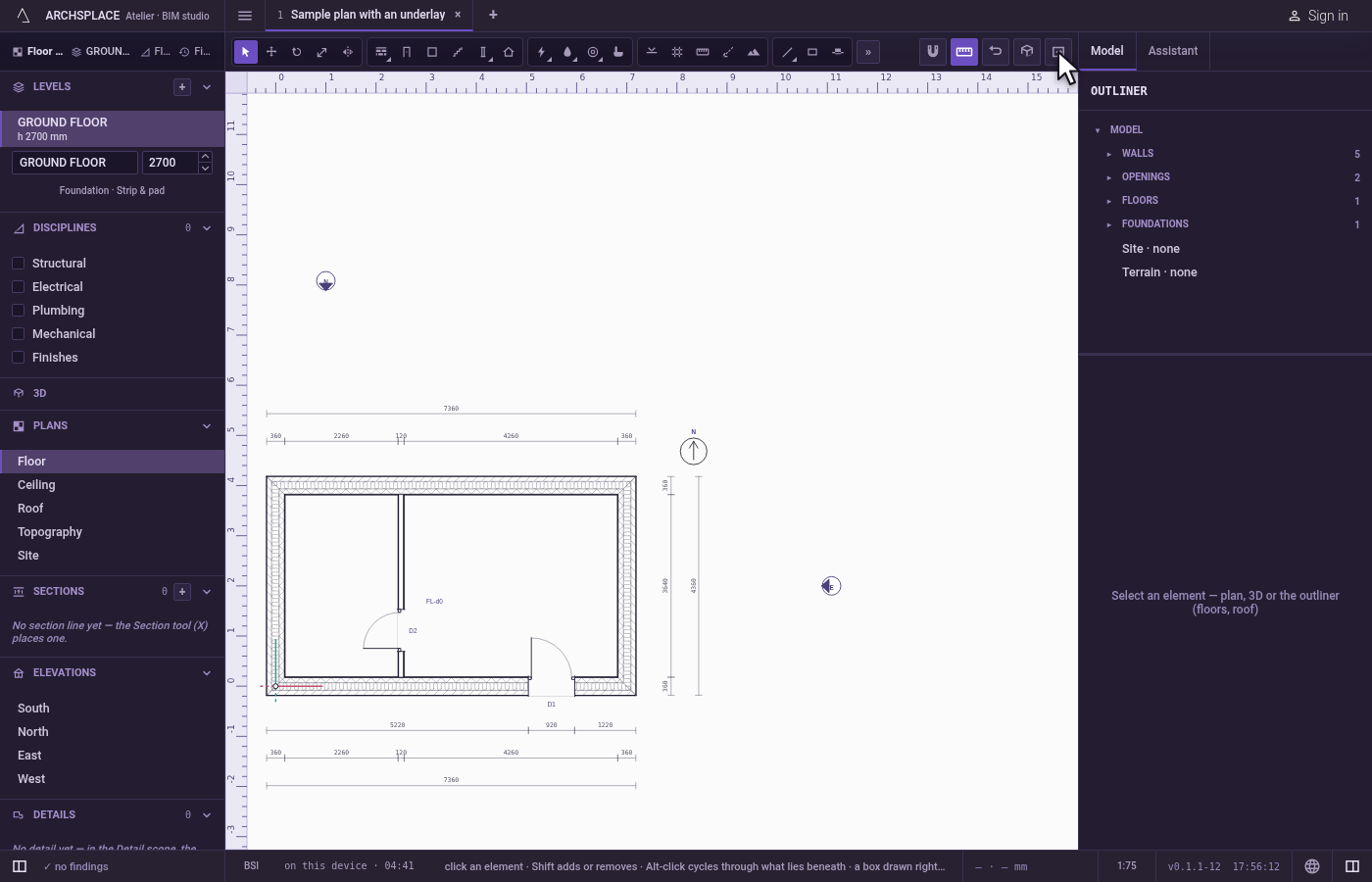
Remove it when you are done. Remove underlay, in its panel, takes it off the level.
What it refuses
- A second picture on the same level. A level holds one underlay; a new import replaces it.
- Other kinds of files. Only PNG, JPEG and WebP pictures are offered.
- A box, Delete or Move. A box and Select all never take the underlay, Delete refuses and sends you to Remove underlay in its panel, and Move says it moves with the arrow keys.
- A width of zero. The width must be more than zero.
What it writes to the contract
Importing adds one underlay entry for the level, as one step that one undo takes back: the level, the picture itself, its size in pixels, its width in metres, its opacity and its offset. Each change in the panel is one more step. Remove underlay takes the entry off the project. A large picture makes a large project file.
Common questions
How do I bring a scanned plan to the right scale?
Select the underlay and type its width in the project's units: the picture is stretched to that width and keeps its proportions. Measure a known length on it with a guide or a wall and adjust the width until it matches.
Can a level have two underlays?
No. A level holds one underlay. Importing another picture on the same level replaces the first.
Will the underlay show on my sheets?
No. The underlay stays on screen, under the plan, to draw over. It is not part of the drawings.