SketchCDin the studio
Circle by 2 points
Circle by 2 points draws a full circle in the sketch editor whose diameter runs between the two points you click. It fits a circle exactly between two existing points, such as the two sides of an opening.
What it is
Circle by 2 points draws a full circle from the two ends of one of its diameters. Its centre is halfway between them and its radius half their distance. It is the quickest way to fit a circle exactly between two points that already exist, such as two snapped corners.
The circle is kept as two half circles meeting at its leftmost and rightmost points, whichever direction the diameter you clicked runs in.
When to use it
- Fitting a round window or an oculus exactly between two points of the shape in force.
- Drawing a circle whose diameter you know from two corners rather than from its centre.
The steps
Arm Circle by 2 points. In the sketch editor (see Select for the ways in), type
CthenDquickly, or click Circle by 2 points on the editor's toolbar. The hint at the cursor says circle by two points: pick one end of the diameter.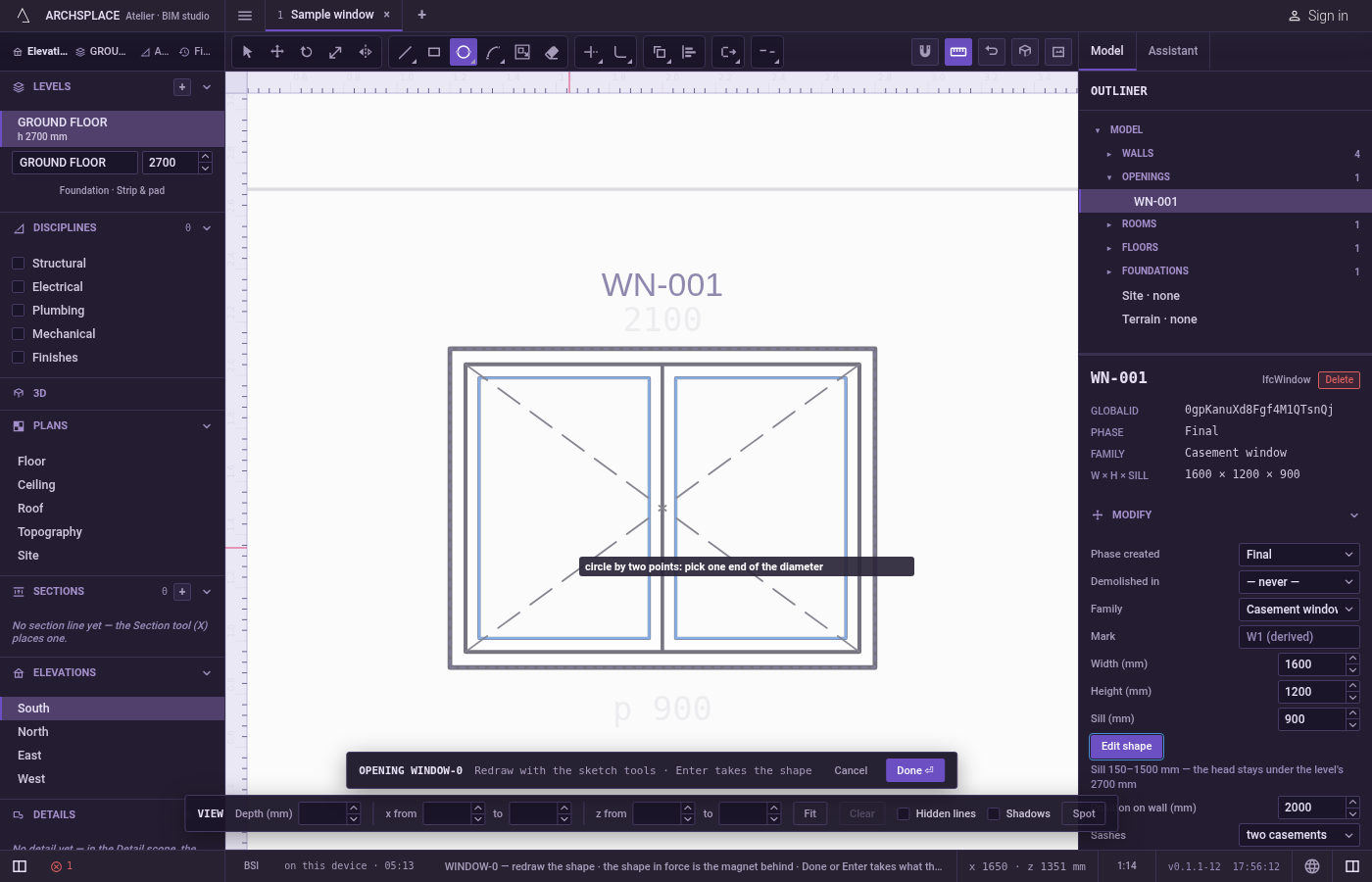
Click one end of the diameter. It snaps to corners, middles, crossings, the dimmed shape in force and the lines of the view. You can also type it as
x;yfrom the editor's origin, the opening's centre at floor level or the plan's origin.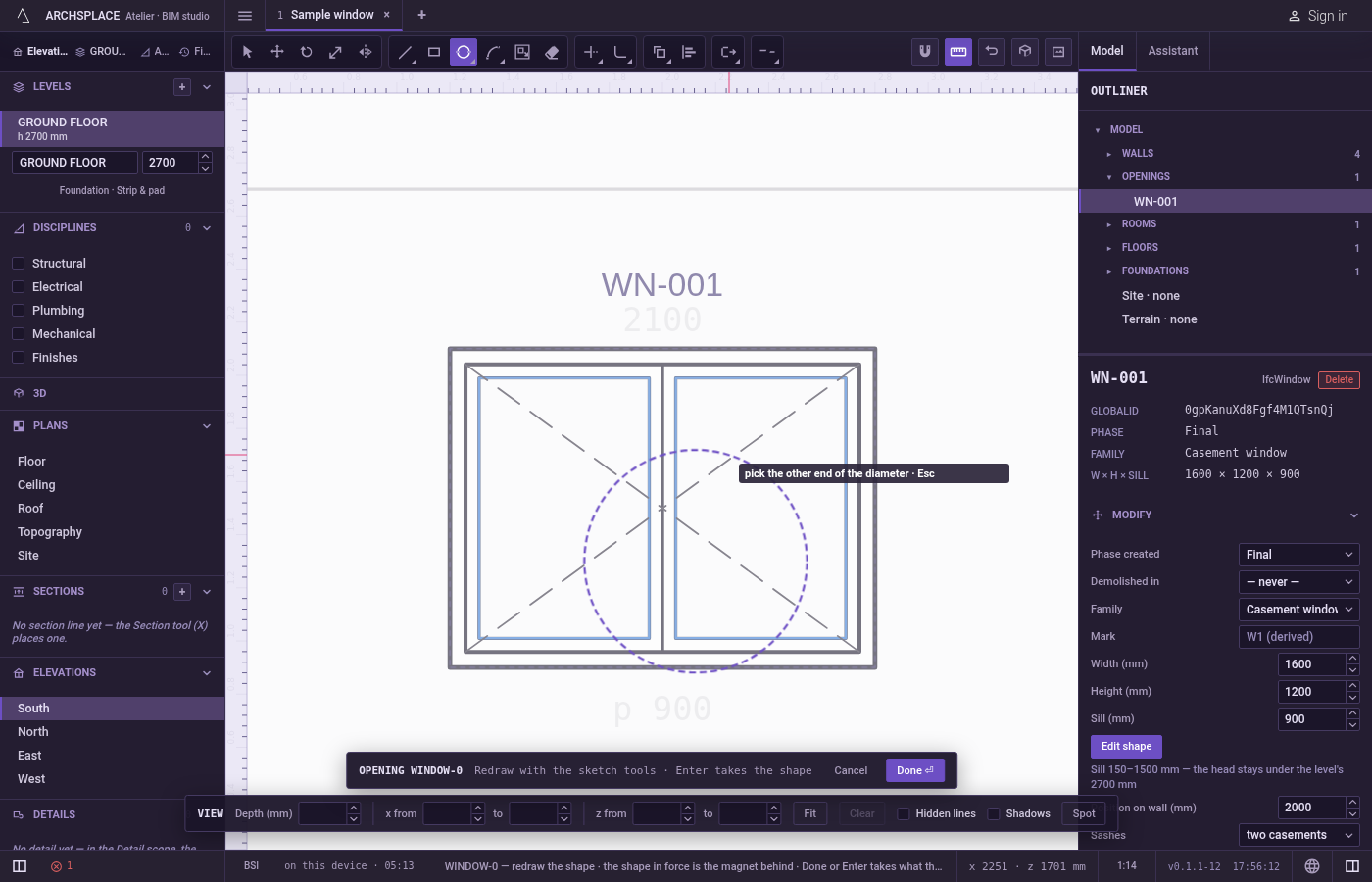
Click the other end. The circle follows the pointer. Click to draw it, or type the other end as a point and press
Enter:@0.8;0from the first end, or@0.8<90for a distance at an angle in degrees. Coordinates are in the project's units.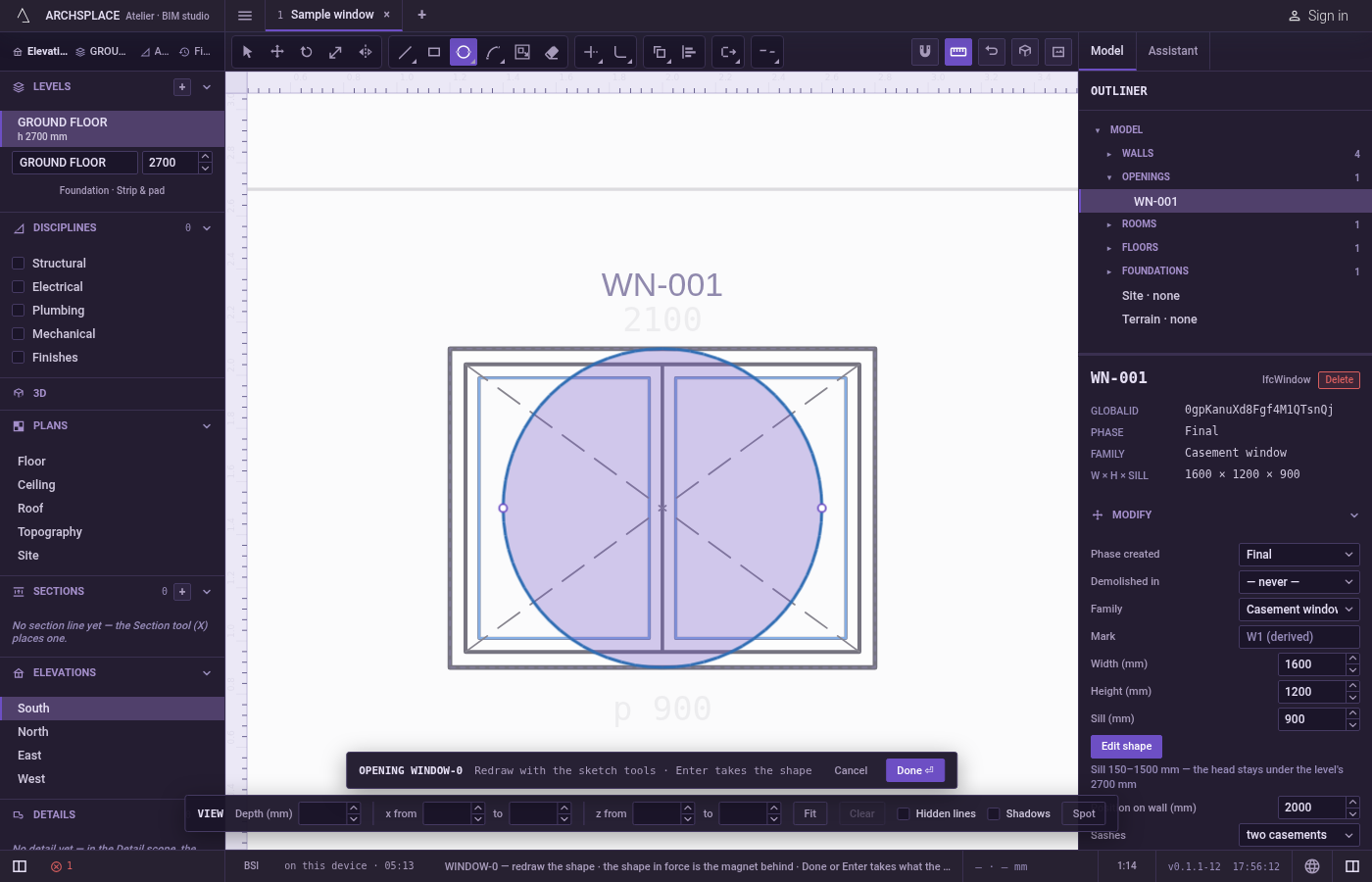
Carry on. The circle is drawn and left selected, and the tool waits for the next one.
Escapedrops the first end, then goes back to Select.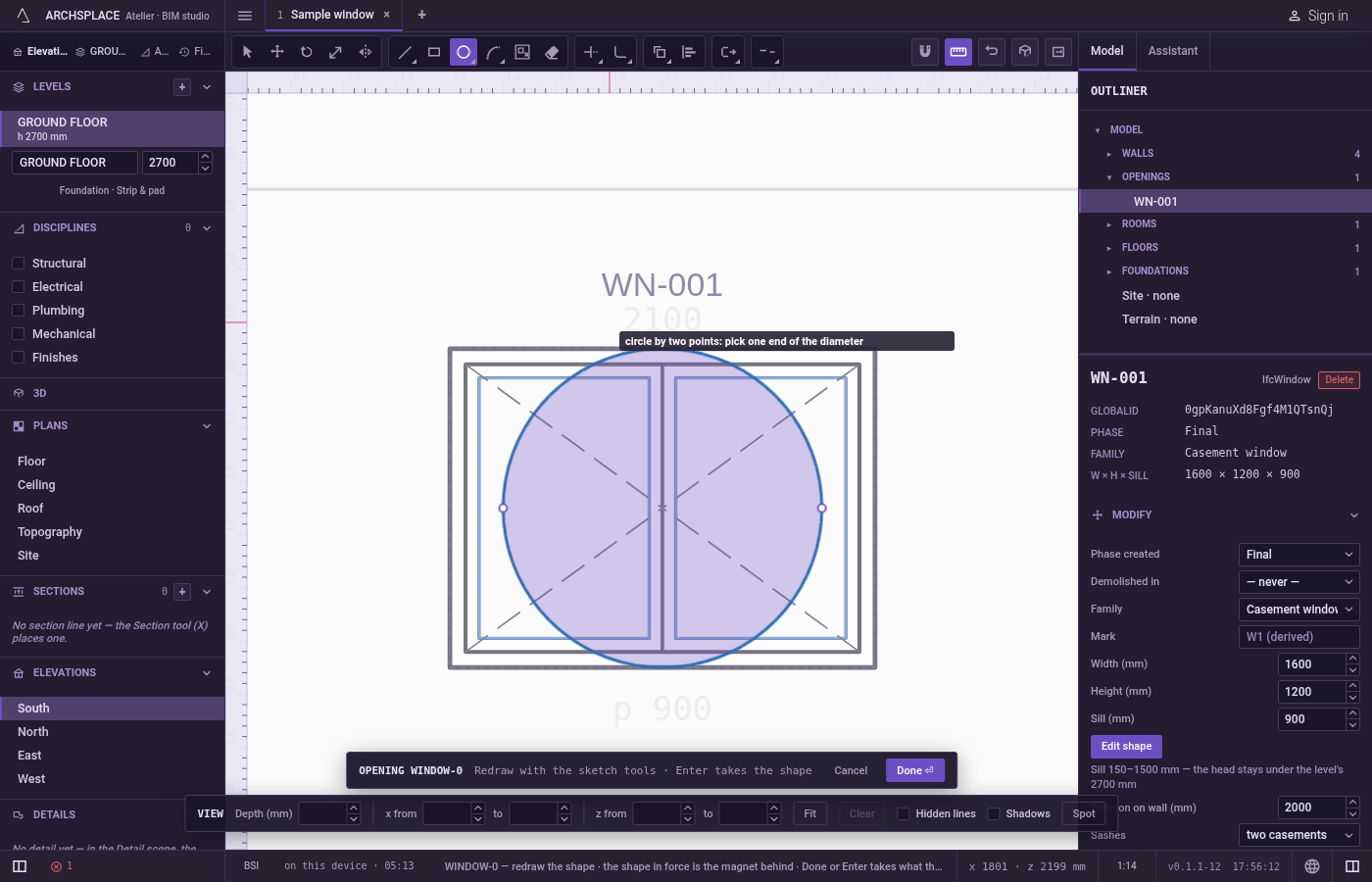
What it refuses
- Two ends on the same point. A circle of no size is refused: that point makes no shape.
- A bare number. A length typed alone is not taken; type the second end as a point.
- Snapping its corners to your ends. The circle's two stored points are always its leftmost and rightmost points, not necessarily the two points you clicked. Your points still lie exactly on the circle.
What it writes to the contract
Nothing until you press Done. Each circle is one step inside the editor, and Ctrl+Z steps back through them. The contract changes when you press Done, or Enter with nothing in progress, as one step you can undo: what the lines enclose becomes the window's or door's profile, points [u, v] in metres across the wall and up from the floor, or the pattern area's outline in the room's floorAreas or ceilingAreas, points [x, y] in plan metres.
A circle alone becomes two points, each with a bulge of 1, the third number that makes the side to the next point a half circle. A round window 80 centimetres across, centred 1.5 metres up:
Common questions
How do I fit a round window exactly between the two jambs of an opening?
Press C then D quickly, click the point on one jamb, then the point on the other. The circle's diameter runs between them.
Can I type the diameter?
Not as a bare number. Type the second end as a point instead: @0.8;0 for a diameter of 0.8 running across, or @0.8<90 for one running up, then press Enter.
How is it stored compared with a circle drawn with Circle?
As two half circles meeting at its left and right points, where Circle stores four quarter arcs. Both are true circles.