PlanAin the studio
Grid
Grid places a structural axis: parallel to a line you click, at a distance you show or type, or through a point towards a second point or a typed angle. Walls, columns and every other tool snap to it, and the sections and elevations carry it.
What it is
Grid places the structural axes of the project. It works the way Guide does, with two ways of placing a line. Click a line the magnet follows (a wall's face, an edge, another axis or a guide) and the new axis runs parallel to it, at the distance you show or type. Click a point or empty ground and the new axis runs through it, towards a second point or at an angle you type.
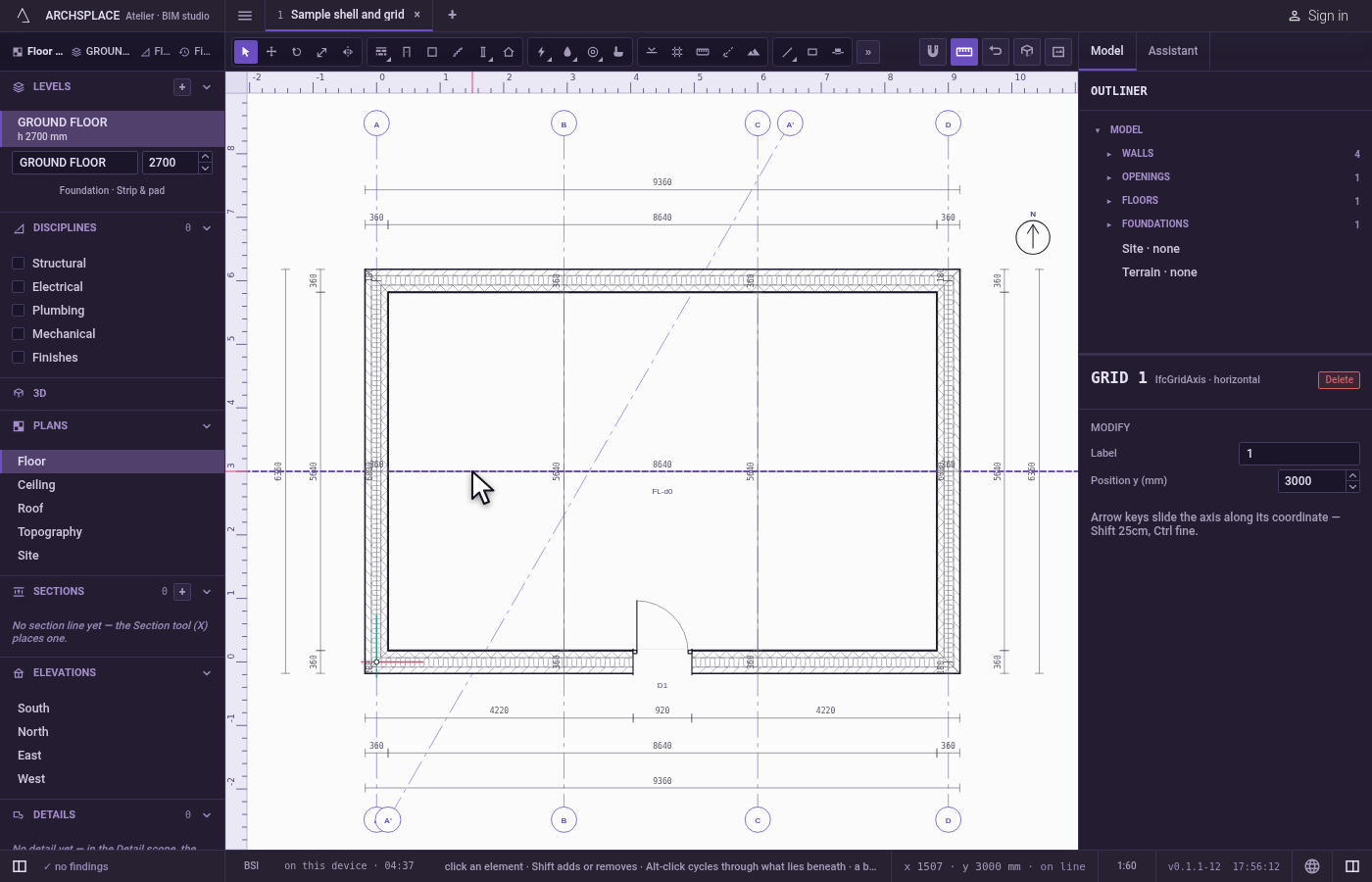
An axis that runs exactly vertical takes a letter, A, B, C; one that runs exactly horizontal takes a number, 1, 2, 3; one at an angle takes a letter with a prime, A', B'. Every tool's magnet follows the axes and catches where two of them cross, the Structural overlay dimensions them, and the sections and elevations draw them.
When to use it
- Setting out a structural grid before placing columns and walls.
- Adding an axis parallel to an existing wall at a given distance.
- Placing an axis at an angle for a wing that does not follow the main grid.
The steps
Take the tool. Press
A, or click the Grid button. The status bar describes both ways: a line, or a point.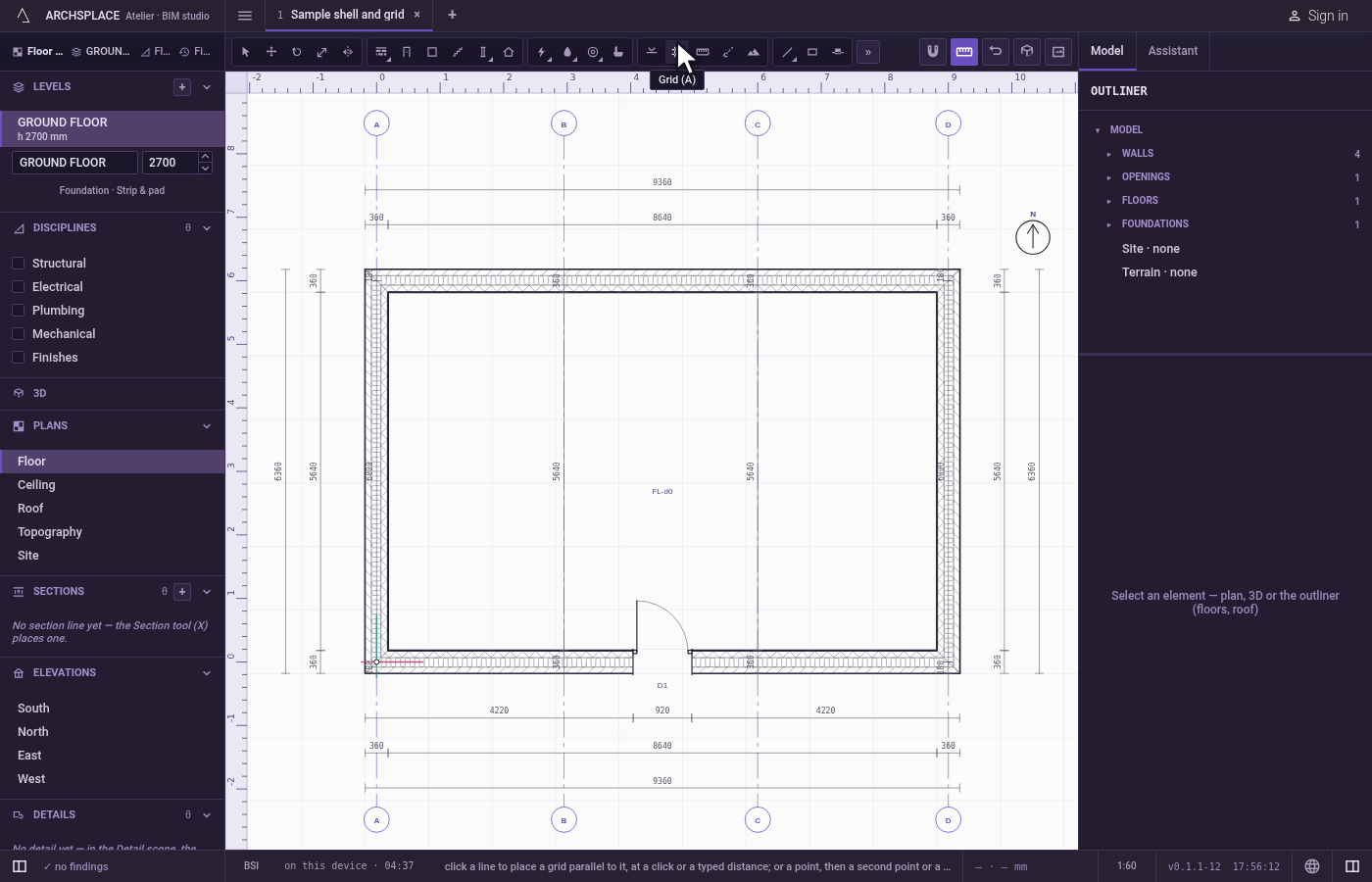
Click the reference. Click on a line the magnet follows to place an axis parallel to it. Or click a point, or empty ground, to place one through that point.
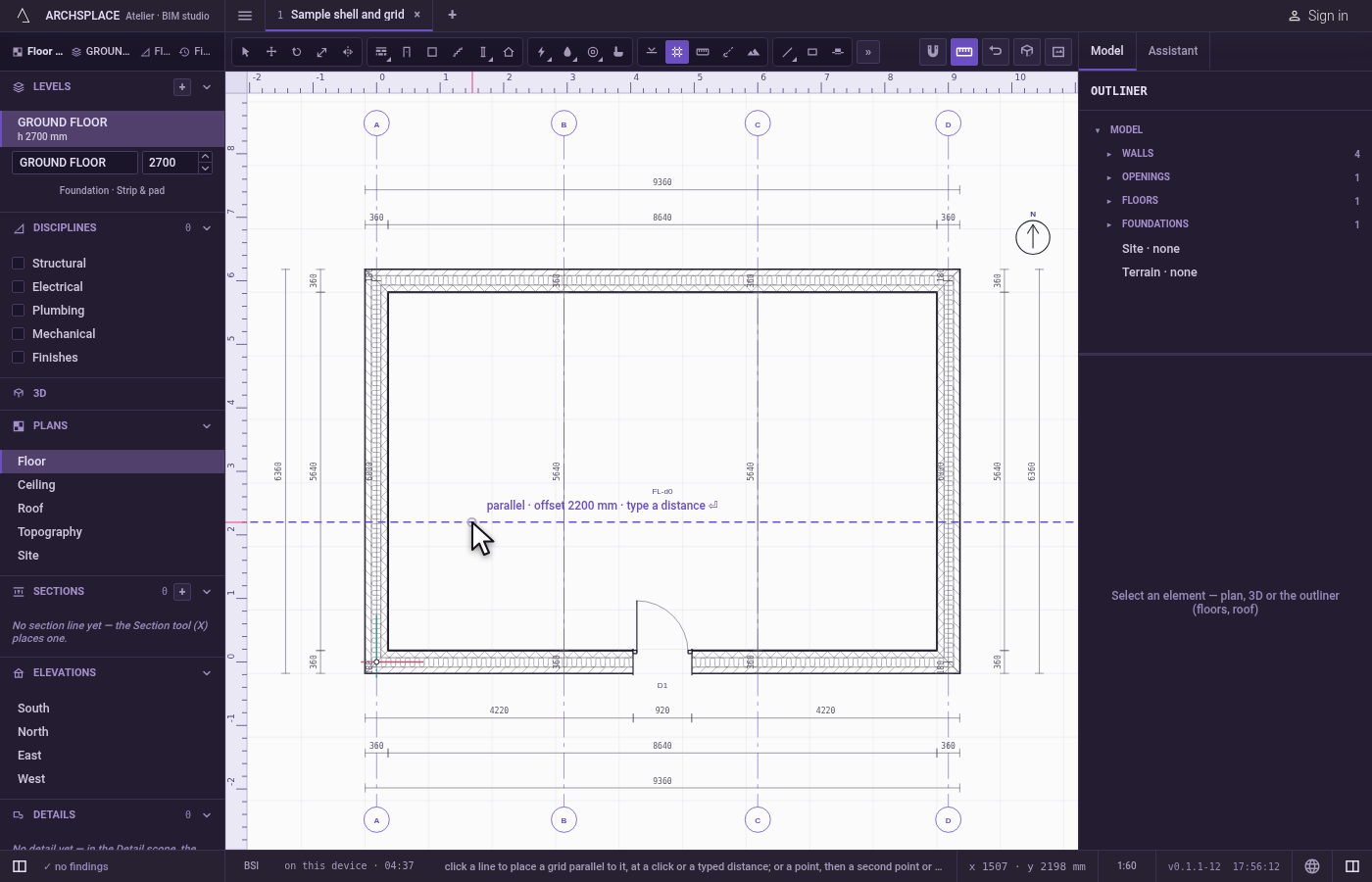
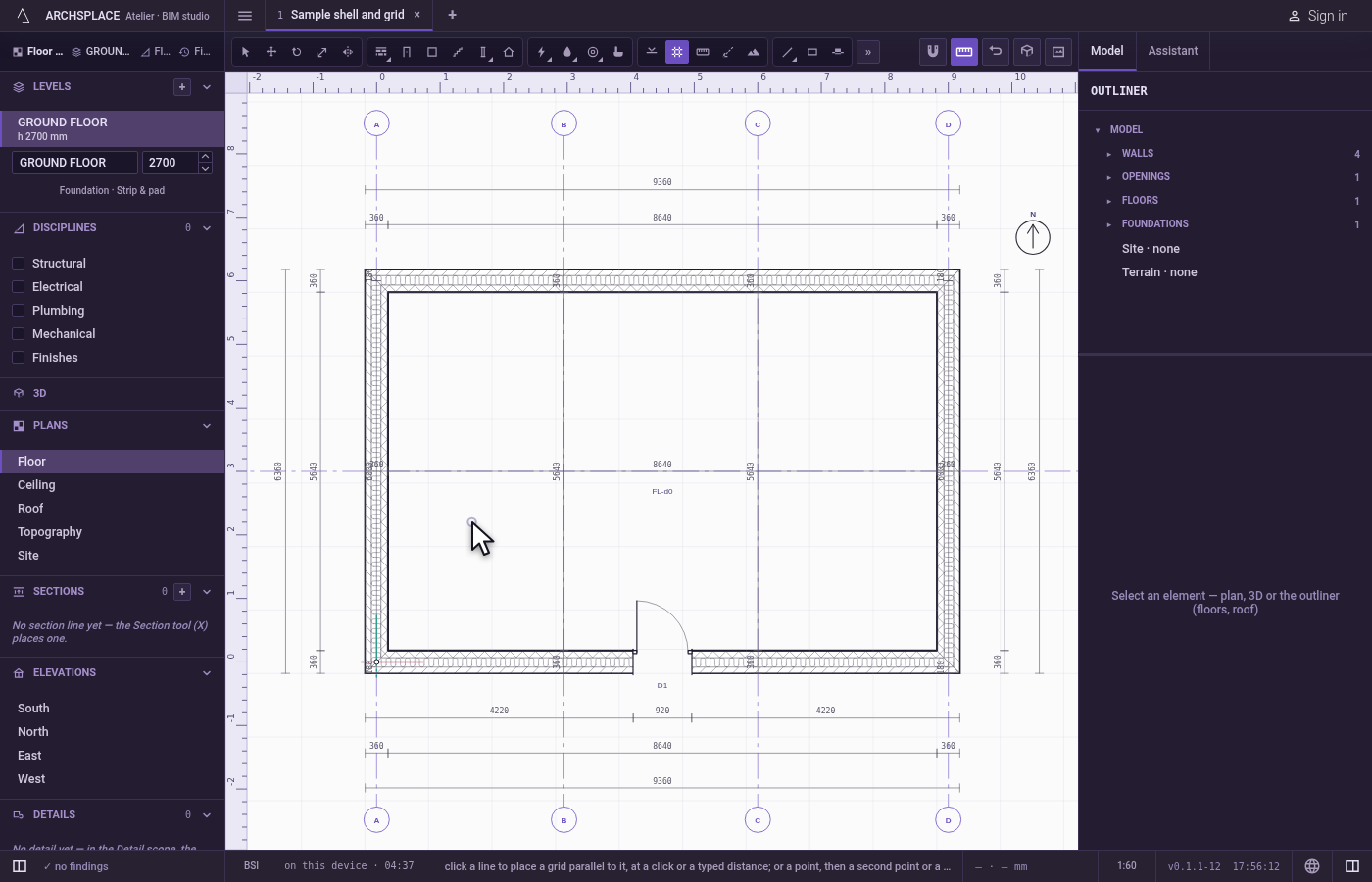
Parallel: show or type the distance. A dashed line follows the cursor, parallel to the reference, and the label beside it reads its distance. Click to place it there, or type the distance in the project's units and press Enter: the axis is placed that far on the side of the cursor.
Or, through a point: show or type the direction. The line turns about the point towards the cursor, and the label reads its angle. Click a second point to place it; Shift, or F8 while it is on, keeps it exactly vertical or horizontal. Or type
<followed by an angle in degrees, anticlockwise from the plan's horizontal, and press Enter.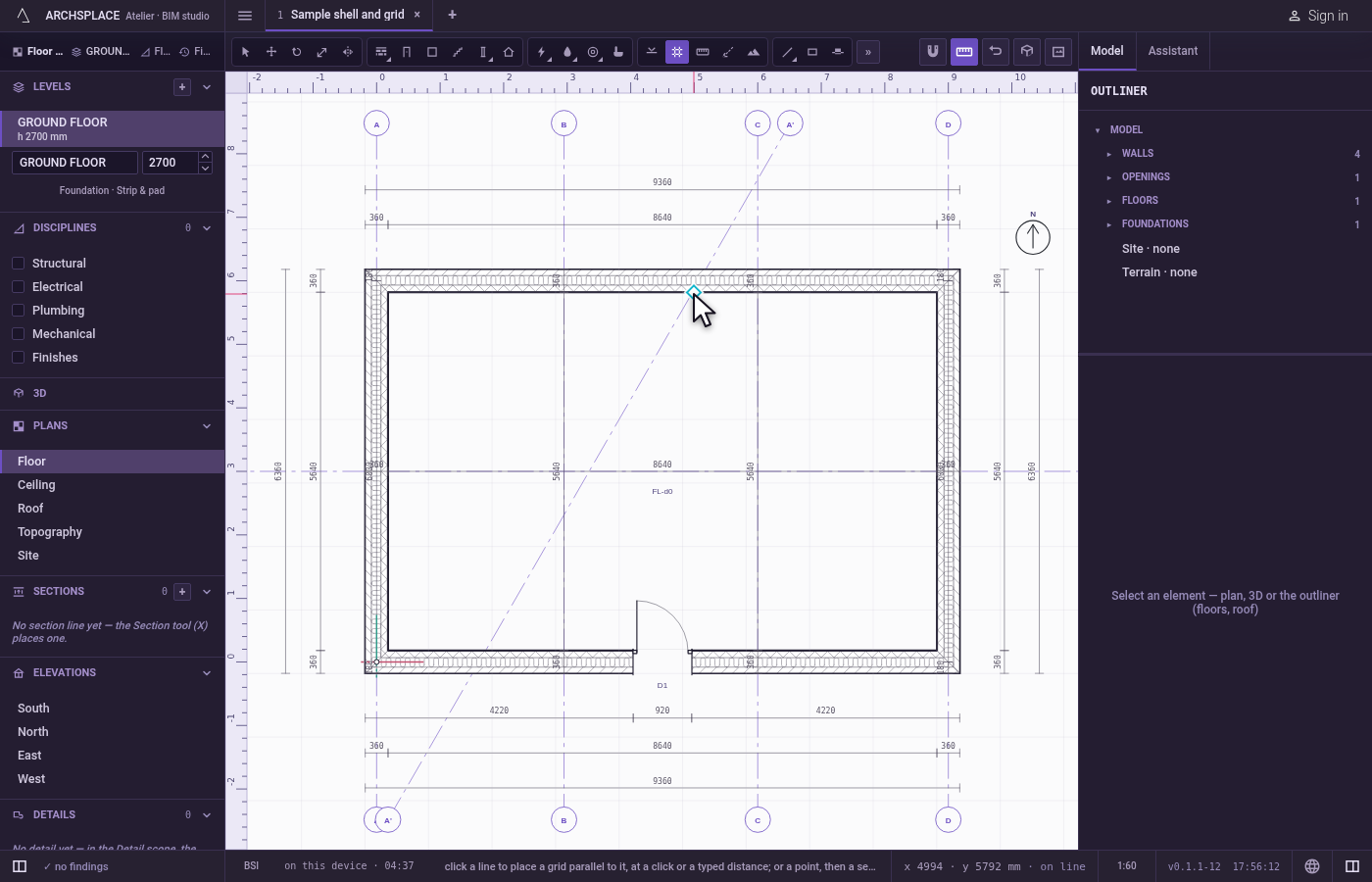
Edit it in its panel. Select the axis with Select: its panel sets its label and its position, or its line through two points and its angle for an axis at an angle. With Select, drag an axis along itself, or nudge it with the arrow keys.
What it refuses
- An axis on its reference. A parallel axis at zero distance from its reference is refused, with a message to move the cursor or type a distance.
- A second point on the first. A direction needs a second point away from the first; the studio says so.
- A typed value that is not one. A distance must be a positive length, and an angle reads like
<45; anything else is refused with a reminder of the form. - A box over axes. A box and Select all never take a grid axis: click it.
What it writes to the contract
One new entry at the end of the project's list of grids, as one step that one undo takes back. A vertical or horizontal axis is written as its axis, its position to the millimetre and its label. An axis at an angle is written as two points it passes through and its label. Esc puts Select back in your hand without placing anything.
Concepts
Common questions
How are grid axes labelled?
A vertical axis takes a letter (A, B, C) and a horizontal one a number (1, 2, 3), in the order you place them. An axis at an angle takes a letter with a prime (A', B'). You can rename any of them in its panel.
How do I place an axis 6 m from another?
Take the Grid tool, click the existing axis, put the cursor on the side the new one goes, type 6 and press Enter.