Workflows
Undo history
The undo history is the list of the changes made to the project in hand since it was opened, each one named, newest first, with the changes undone above them. A click on a row goes back to before that change, or forward to it, in one step, and Ctrl+Z and Ctrl+Shift+Z walk the same list one change at a time.
What it is
Every change to the project in hand, a wall drawn, a field typed, a pattern placed, a template switched, is one step of its history, named after what it did. The history is walked:
- one step at a time with Edit, Undo and Redo, or
Ctrl+ZandCtrl+Shift+Z(Ctrl+Ytoo on Windows and Linux;⌘Zand⇧⌘Zon a Mac); - several steps at once in the History list, opened from Edit, Undo history…, or by clicking the place and time in the status bar, such as on this device · 14:32.
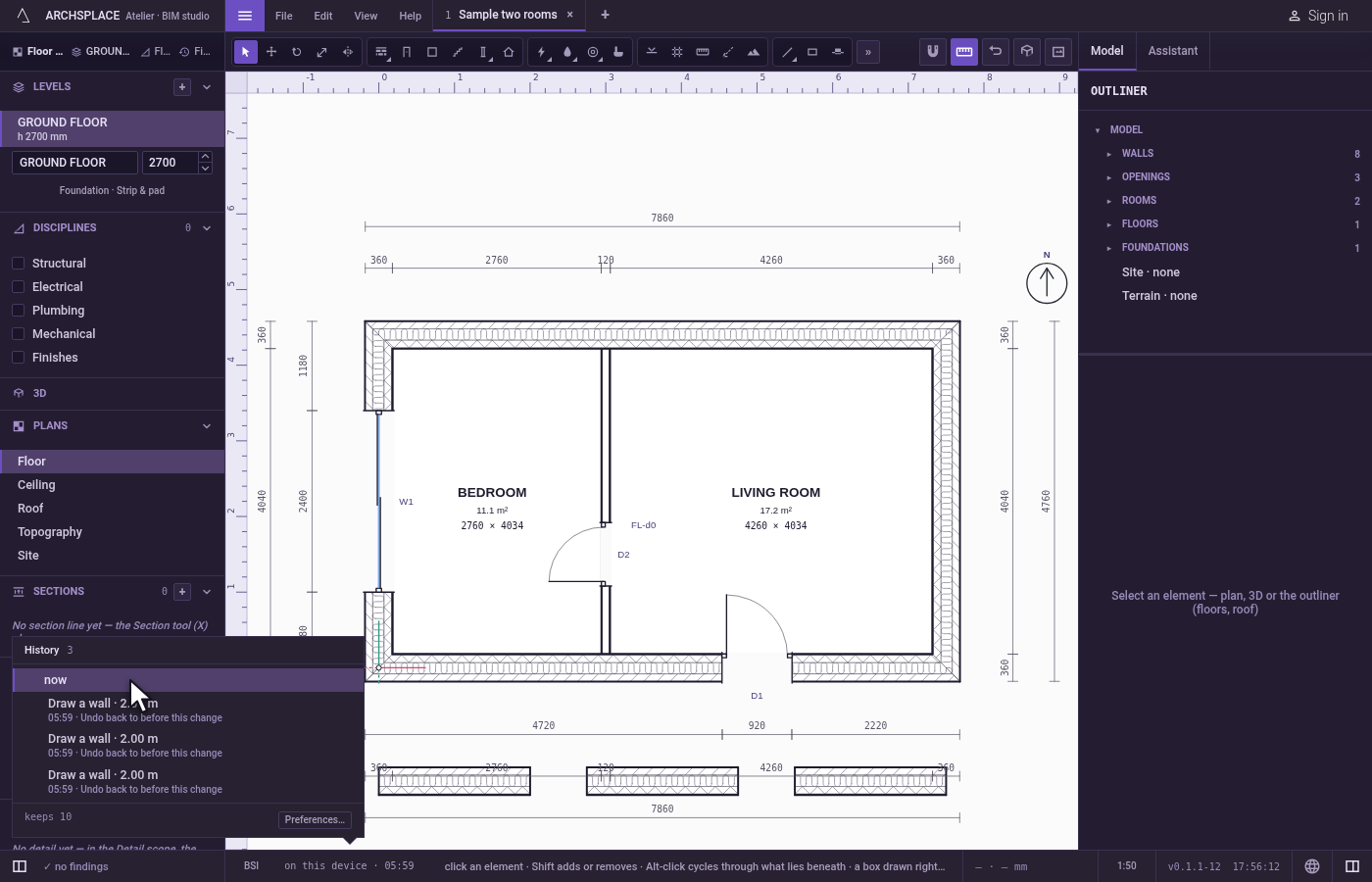
The History list reads top to bottom in time: the changes you undid, greyed, each offering Redo up to this change; then now; then the changes behind you, newest first, each with its time and Undo back to before this change. A row adds what it touched after its name, such as the length of a wall drawn, Draw a wall · 4.20 m, or the element and the fields an edit wrote. At its foot, the list says how many changes it keeps, with Preferences… to change that number. With no change yet, it says so.
A new change after an undo starts a new line of time: what was undone can no longer be redone. The history keeps 10 changes unless Preferences says otherwise, from 1 to 50, and forgets the oldest past that. The guides drawn over a view follow undo and redo too, though they are never part of the project.
While an editor of its own is open, such as the tile editor or the sketch editor, Undo and Redo work inside that editor and never reach the project behind it.
When to use it
- Taking back a change that went wrong.
- Going back to how the project stood a few minutes ago, in one click.
- Comparing two versions, by undoing and redoing.
The steps
Undo one change. Draw a wall, then press
Ctrl+Z. The wall goes.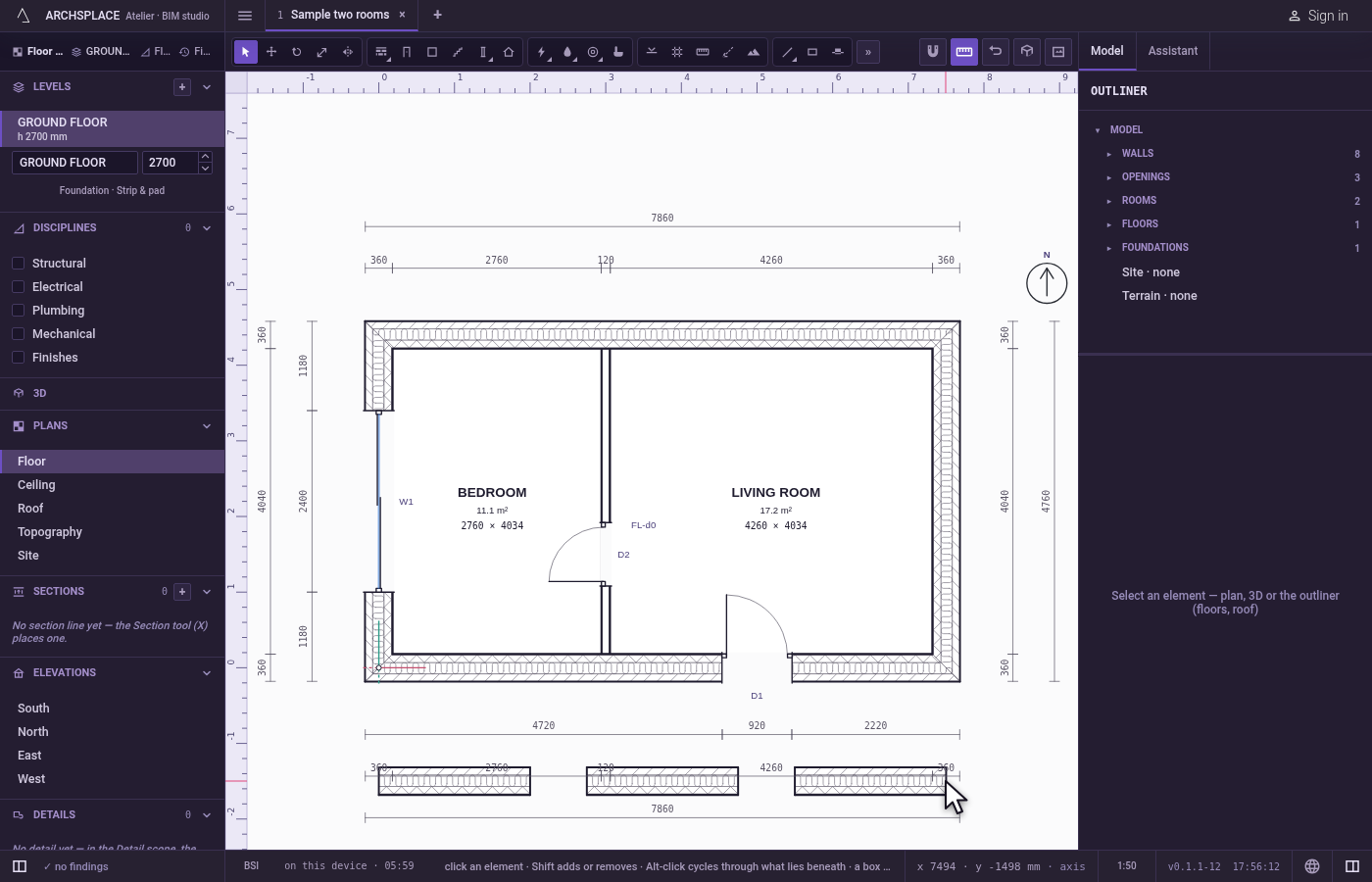
Redo it. Press
Ctrl+Shift+Z. The wall comes back.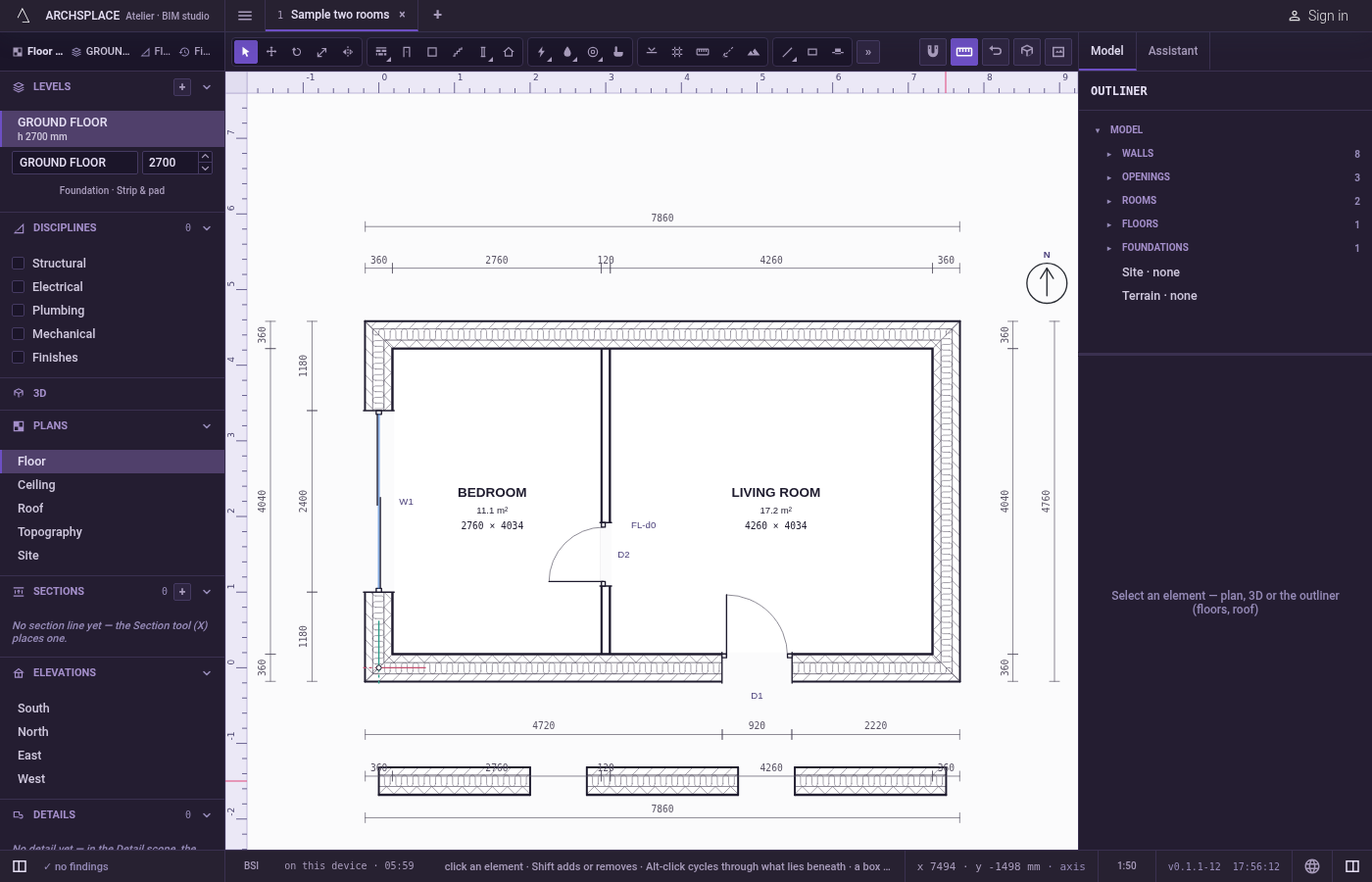
Open the history. Open Edit and click Undo history…. The History list opens over the status bar, now on top of the changes behind you.
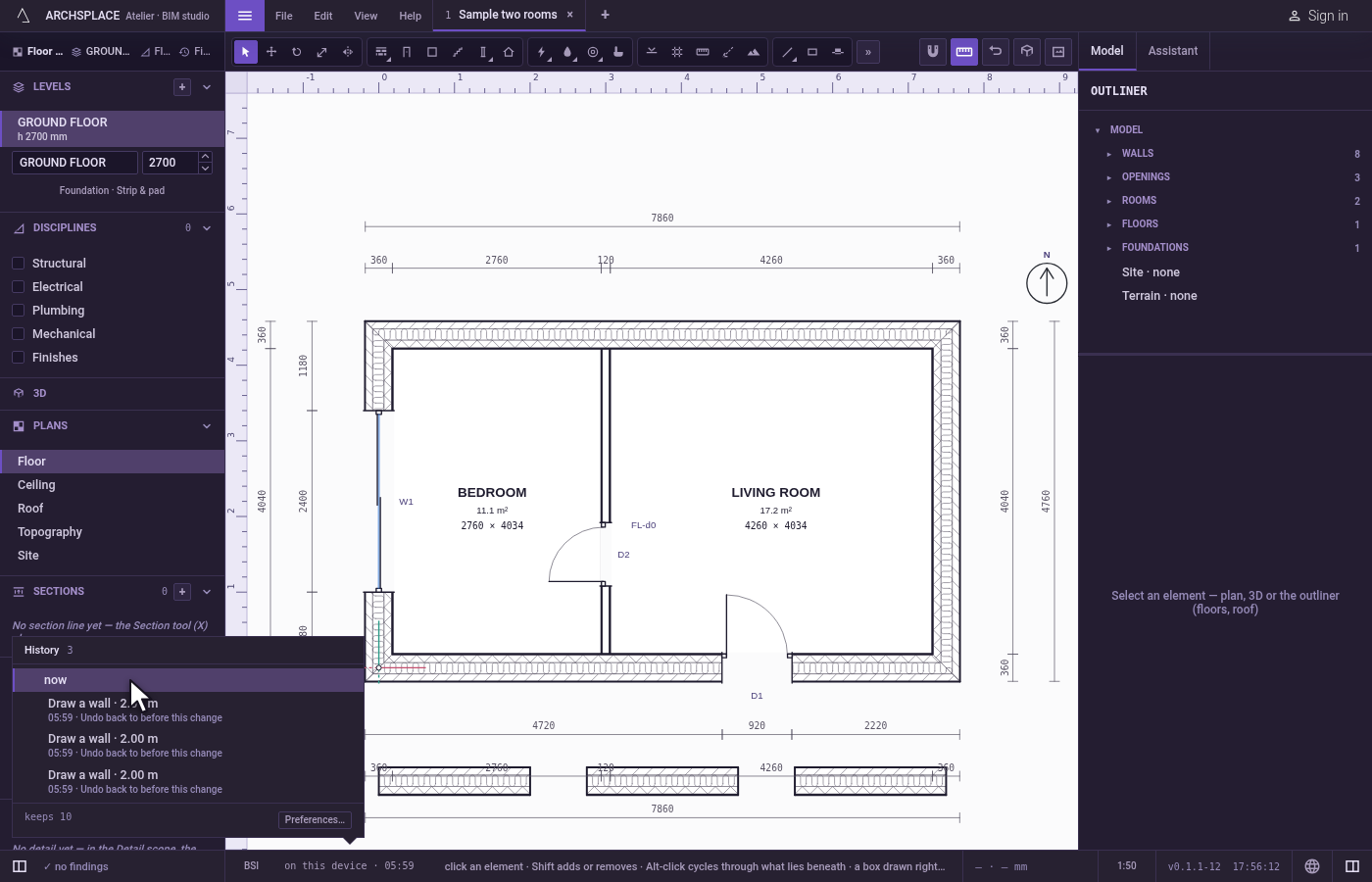
Go back several changes. Click the row of the third change below now. The project goes back to before it, in one step; the three changes now stand above now, greyed, ready to redo.
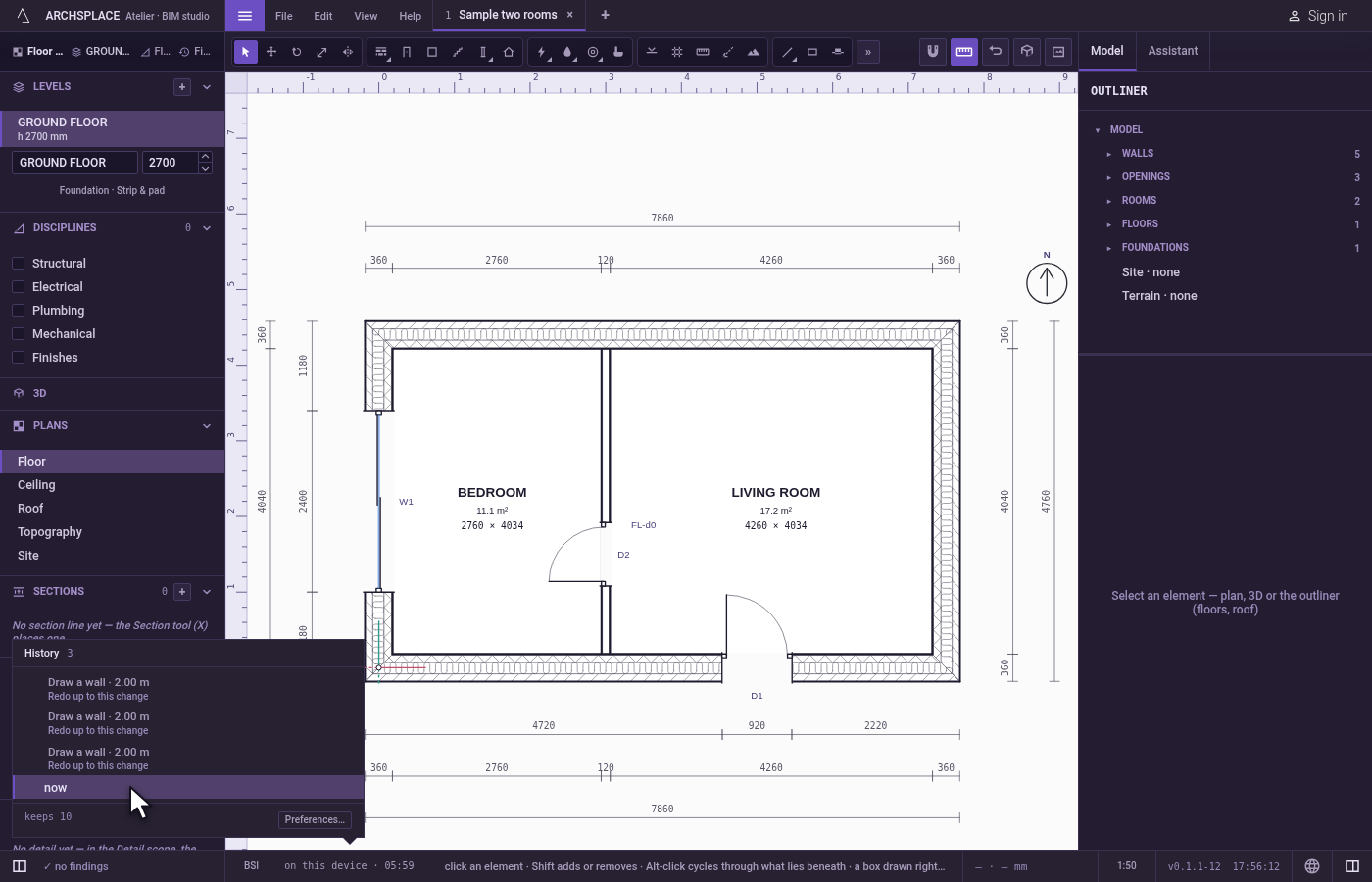
Come forward again. Click the topmost greyed row. Every change undone is redone, and the list is as it was.
What it refuses
- Undo with nothing to undo, or Redo with nothing to redo: the menu item stays greyed and says so.
- Redo after a new change. A change made after an undo forgets what was undone.
- Undo past the history's length. The oldest changes beyond the number kept are forgotten.
What it writes to the contract
An undo or a redo writes the project back exactly as it stood before or after that change, as one step. The history itself is never written to the contract: it lives in this session only, and a project opened again starts with an empty one.
Common questions
How many changes can I undo?
10 by default. Set Changes kept for undo in Settings, Preferences, to any number from 1 to 50; past it, the history forgets the oldest change.
How do I go back several changes at once?
Open Edit, Undo history…, or click the place and time in the status bar. Click the row of the oldest change you want gone: the project goes back to before it in one step, and the changes undone stay listed above, ready to redo.
Does the history survive closing the project?
No. It holds the changes made since the project was opened in this session. Taking another project in hand, or closing the atelier, starts a new history; the project itself keeps every change.