SketchSin the studio
Stretch in the tile editor
Stretch moves only the points of joints that lie inside a window you drag, so the joints crossing the window's edge lengthen or shorten to follow, while the rest stays where it is. A joint wholly inside the window moves whole.
What it is
Stretch changes the shape of joints by moving some of their points and not others. You drag a window across the ends you want to move: every point of a joint inside the window will move, every point outside stays. Then you give a base point and a destination. The segments that cross the window's edge lengthen, shorten or turn to follow their moved ends, and a joint lying wholly inside the window simply moves. An arc keeps its curve between its new ends.
It is the same Stretch as in the other editors of the studio, acting here on the joints of the tile.
When to use it
- To make a rectangle, a polygon or a polyline wider, taller or longer by moving one side.
- To move a corner shared by several joints and keep them meeting there.
- To adjust a layout without redrawing it.
The steps
Take the tool. Press
S, or click Stretch on the bar. It shares its button with Lengthen. The hint asks you to drag a window over the ends to move.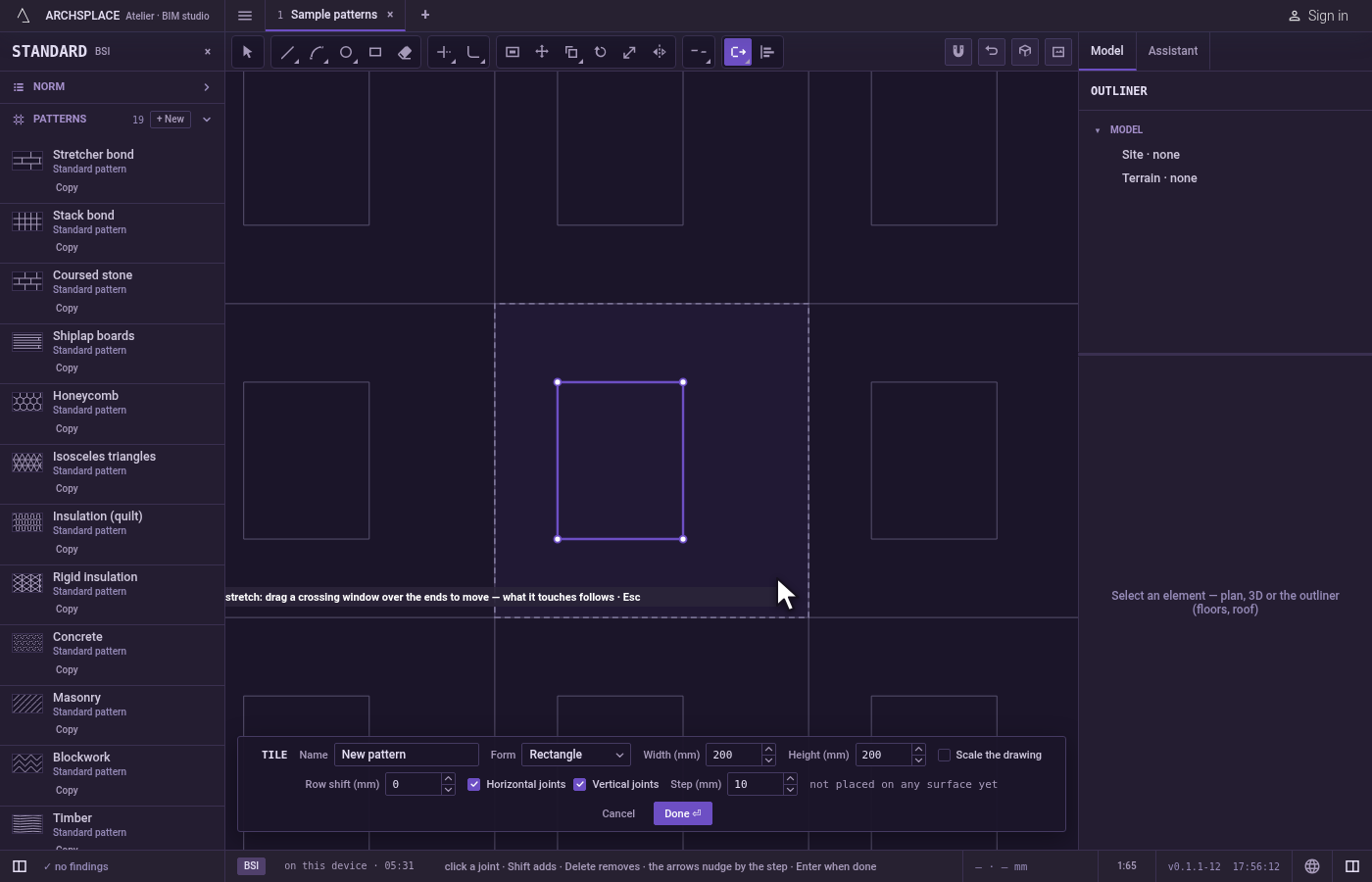
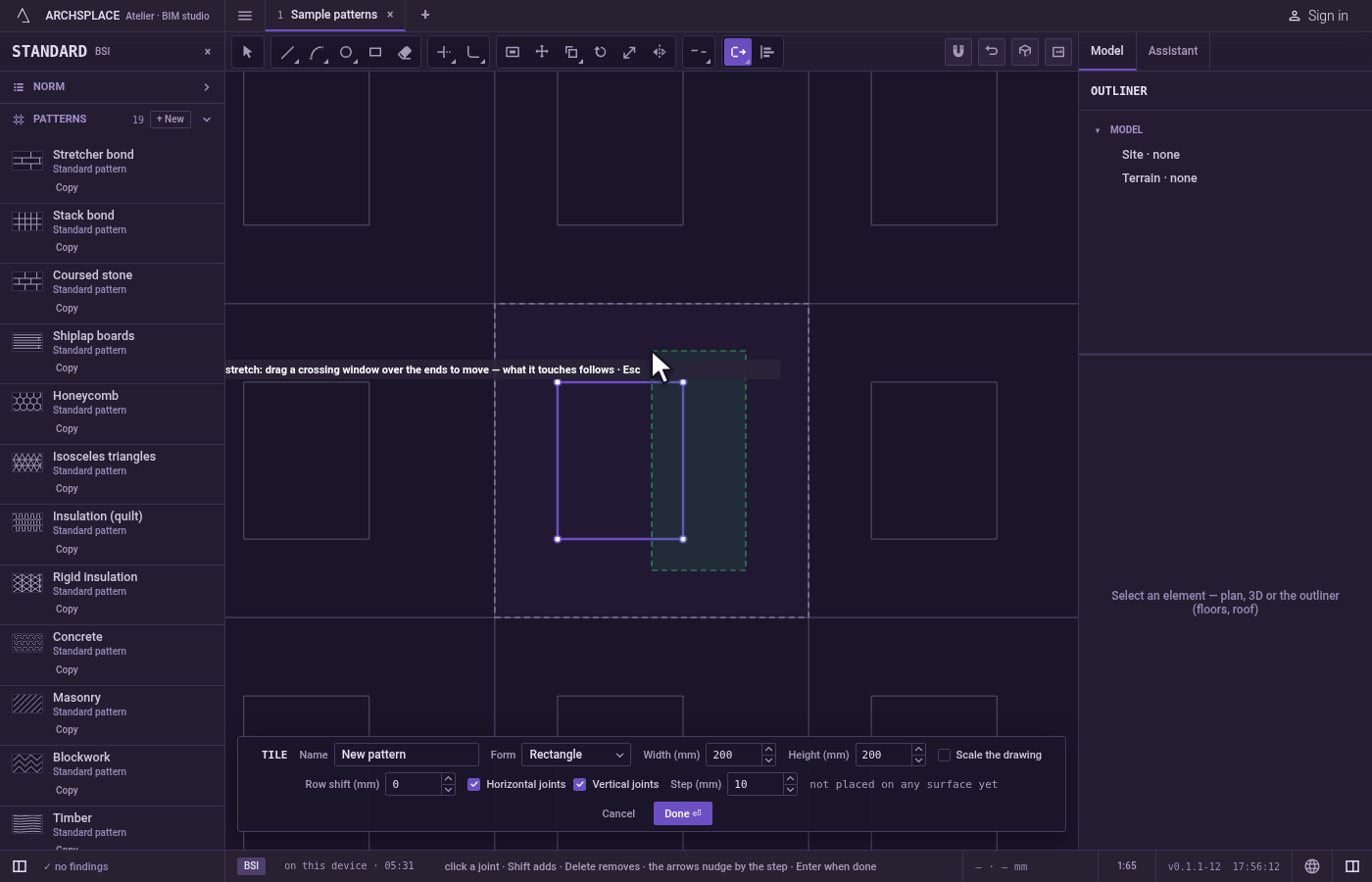
Drag the window. Press and drag across the ends you want to move, in either direction, and release. The joints the window reaches are lit. A window holding no point of any joint is refused, and you can drag again.
Pick the base point. Click the point you will move by, such as a corner inside the window.
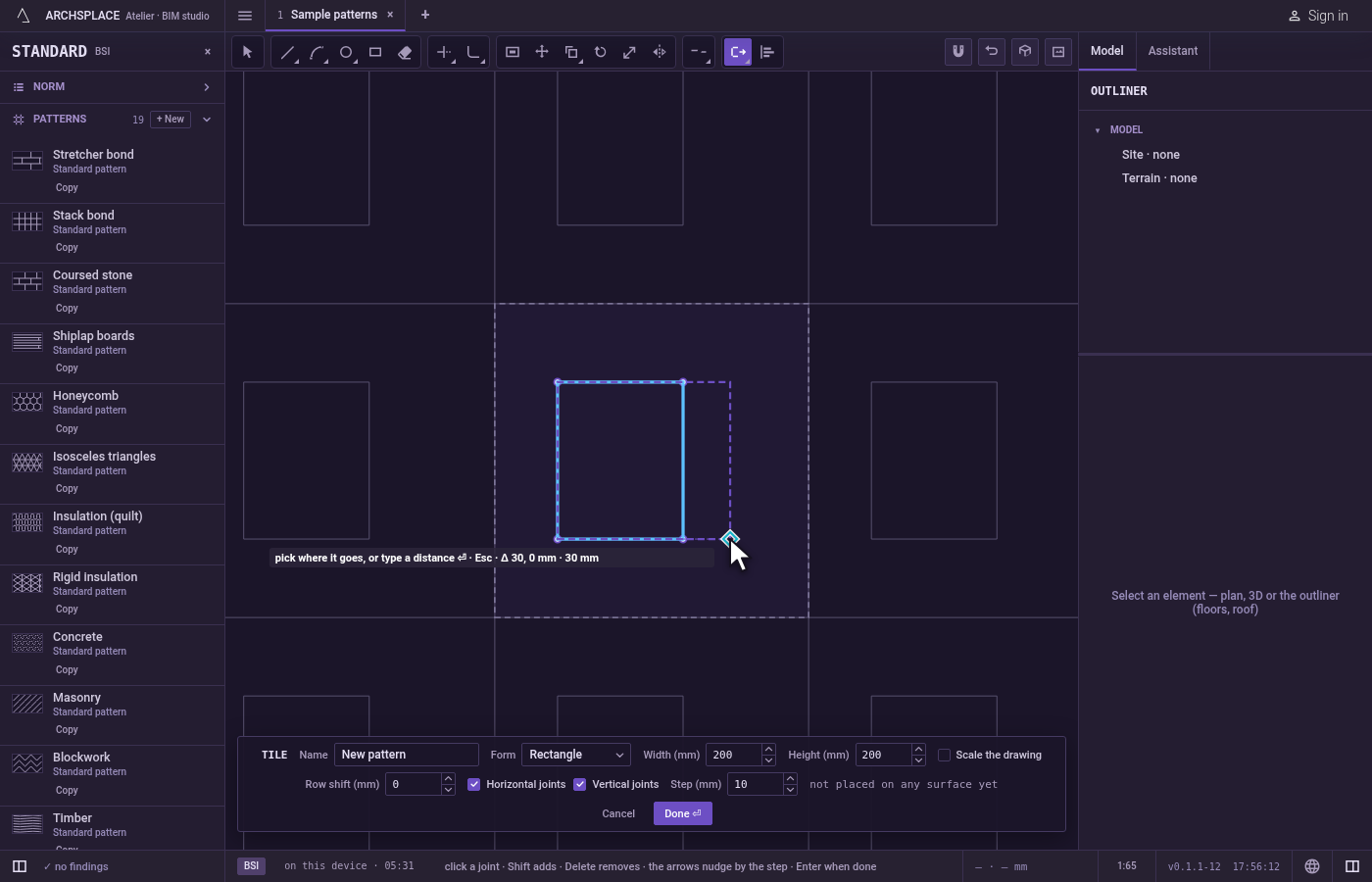
Give the destination. A ghost of the stretched joints follows the pointer, and the hint shows how far it goes across, up and in all. Click where the base point goes. To be exact, type a distance and press
Enter: the points move that far in the direction the pointer shows. A point typed as@dx;dy(across and up) or@d<angle(a distance at an angle), both measured from the last point, lands as a click would.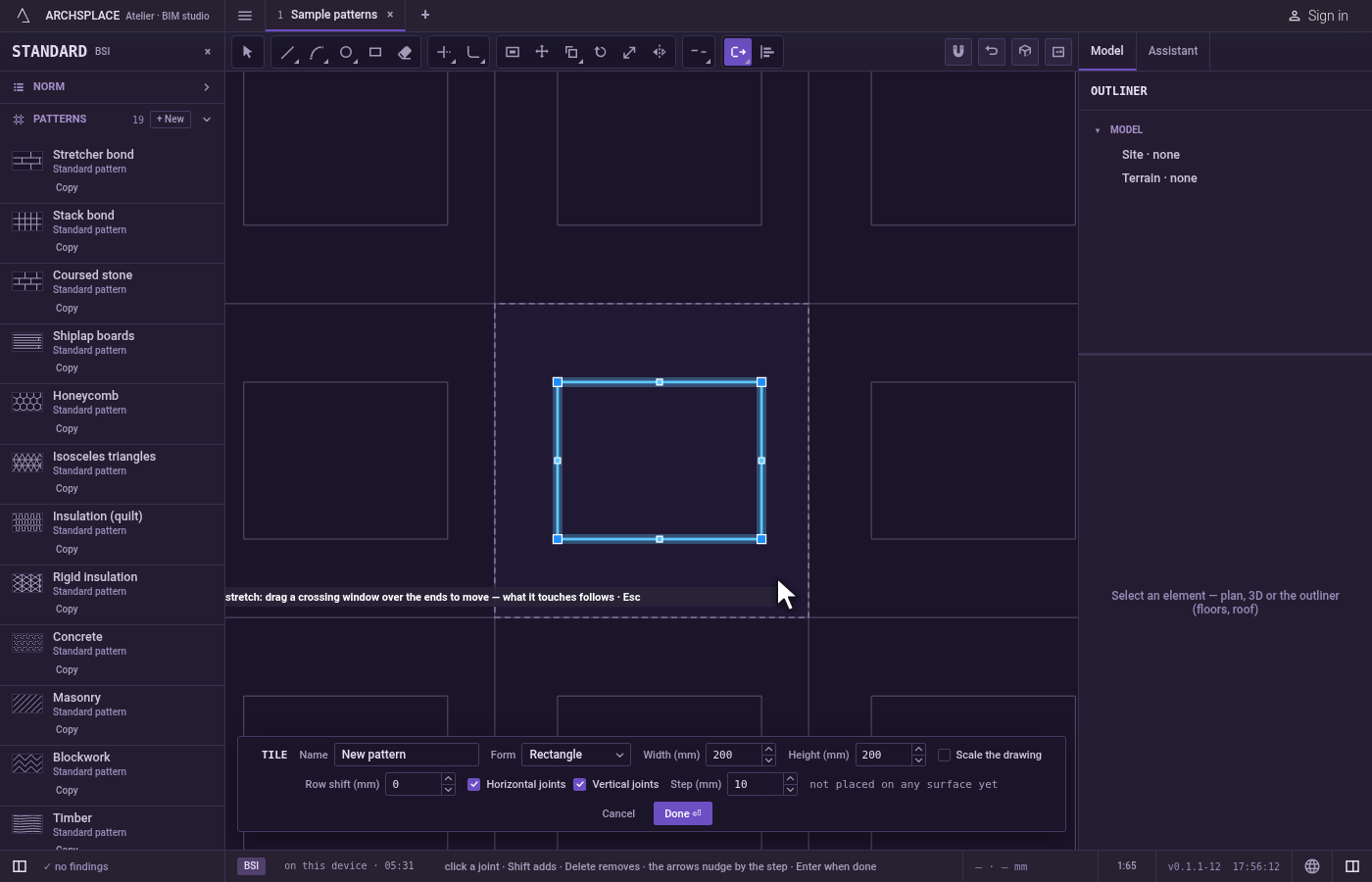
Stretch again or finish. The joints that changed are selected, and Stretch asks for a new window.
Escapesteps back (the base point, then the window), then leaves Stretch for Select.Ctrl+Zundoes the last stretch. Press Done on the bar at the foot to hand the tile back.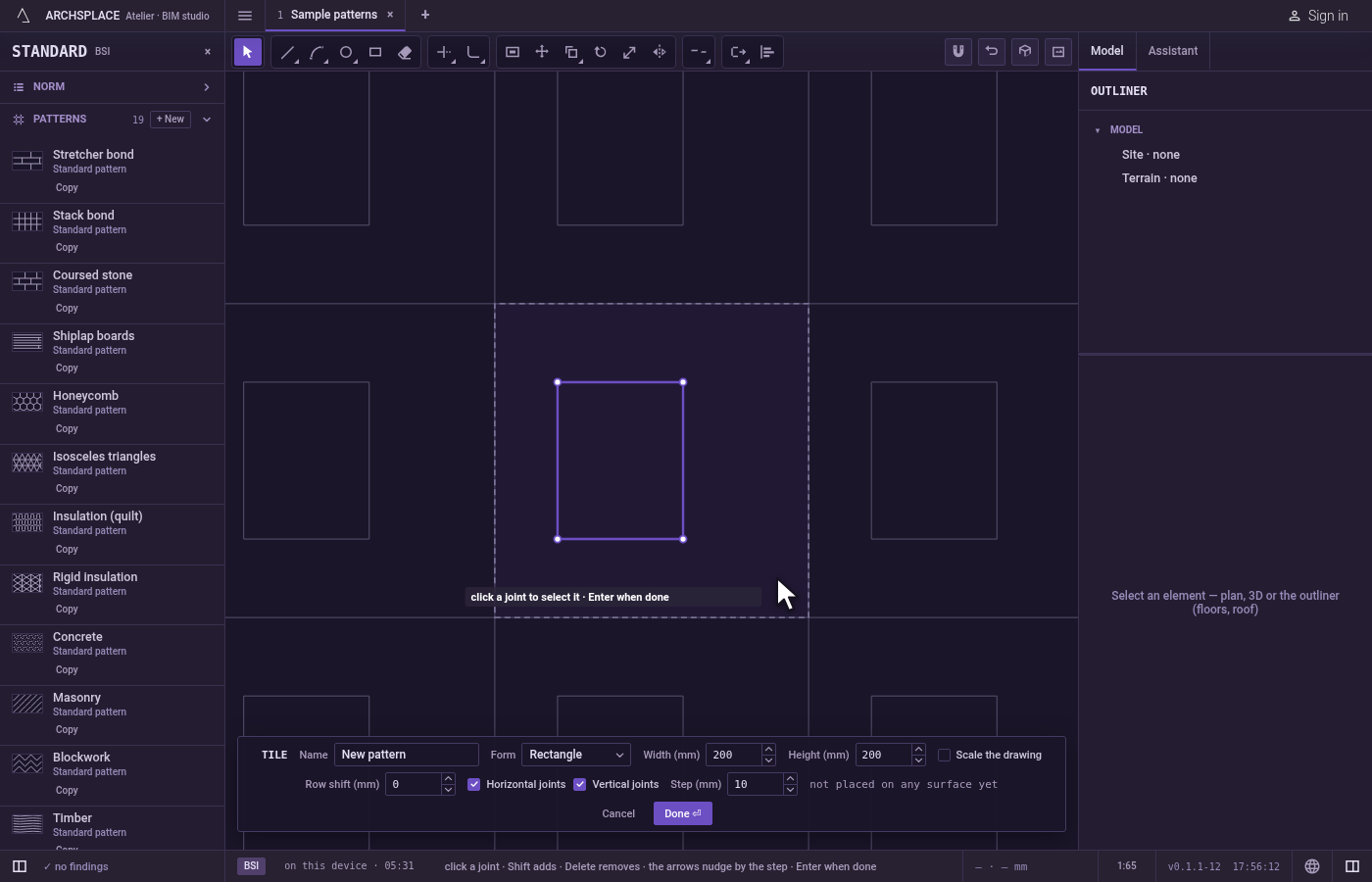
What it refuses
- A window with no ends in it. If no point of any joint lies inside the window, nothing is taken, and the hint says the window holds no end to stretch. A destination on the base point itself changes nothing and is refused the same way.
- A click instead of a window. At the first step a click does nothing but remind you to drag a window.
- A shape that would leave the tile. If a stretched curved or closed joint would stand outside the tile, nothing changes, and the editor says a shape must stay inside the module. A straight joint that would cross the edge is cut there.
What it writes to the contract
Nothing while you work: the change stays in the tile editor, where Ctrl+Z steps back through it. When you press Done, the whole tile is written to the project's patterns in one step you can undo, every joint as its points in metres from the tile's lower-left corner, the stretched joints with their moved points. A standard pattern is never changed: Done saves the project's own version of it under the same name, and every surface that lays it follows. Save as new writes a new pattern instead. Cancel writes nothing.
Related
Common questions
How do I make a rectangle wider without redrawing it?
Take Stretch, drag a window over its right side only, pick a base point, then point to the right and type the extra width. The two corners inside the window move, and the top and bottom follow.
What does the window take?
Every point of a joint that lies inside it, whichever way you drag. Those points move; the points outside stay, and the segments between them follow.
Why did nothing happen when I clicked?
Stretch starts with a window you drag, not a click. Press and drag across the ends you want to move, then release.