Plan
Wall joints
A wall joint is a point where walls meet, and selected walls show a grip on each one. Dragging a grip carries every wall meeting there, Alt held leaves that joint behind, and the joint's panel takes typed coordinates, lengths and angles.
What it is
Walls that meet share a joint: the same point for the ends of every wall that comes together there. When you select walls, the plan shows a grip at the end of each one, and a grip at a corner stands for every wall meeting at that corner. The same grips appear on selected pipes and beams, which are runs of the same kind.
A joint moves as one. Dragging its grip carries the ends of every wall meeting there, and a wall that ends against the face of a moved wall slides to stay on it. Held with Alt, the drag moves only the end you grabbed and leaves the others. A selected joint opens its own panel, where its position, and the length and angle of each wall meeting there, are typed.
When to use it
- Correcting a corner of a survey to its measured position.
- Making a room deeper by dragging the corners of its far wall.
- Giving a wall its exact length while the walls at its corner follow.
- Detaching one wall from a corner before moving it elsewhere.
The steps
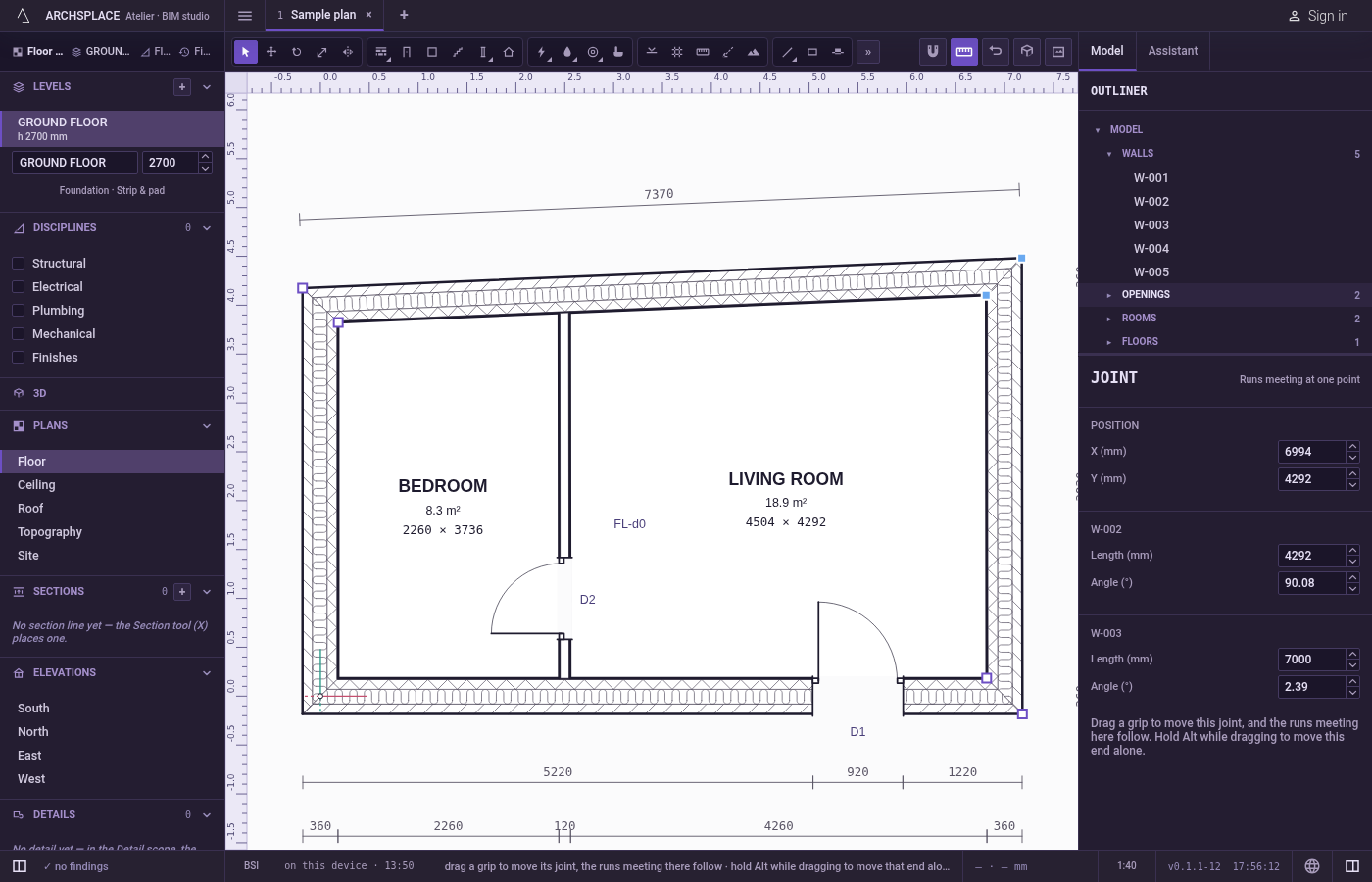
Select the walls. With Select, click a wall or box several. A grip appears at each end; the status bar says that a grip drags its joint, that Alt moves only that end, and that a click selects the joint.
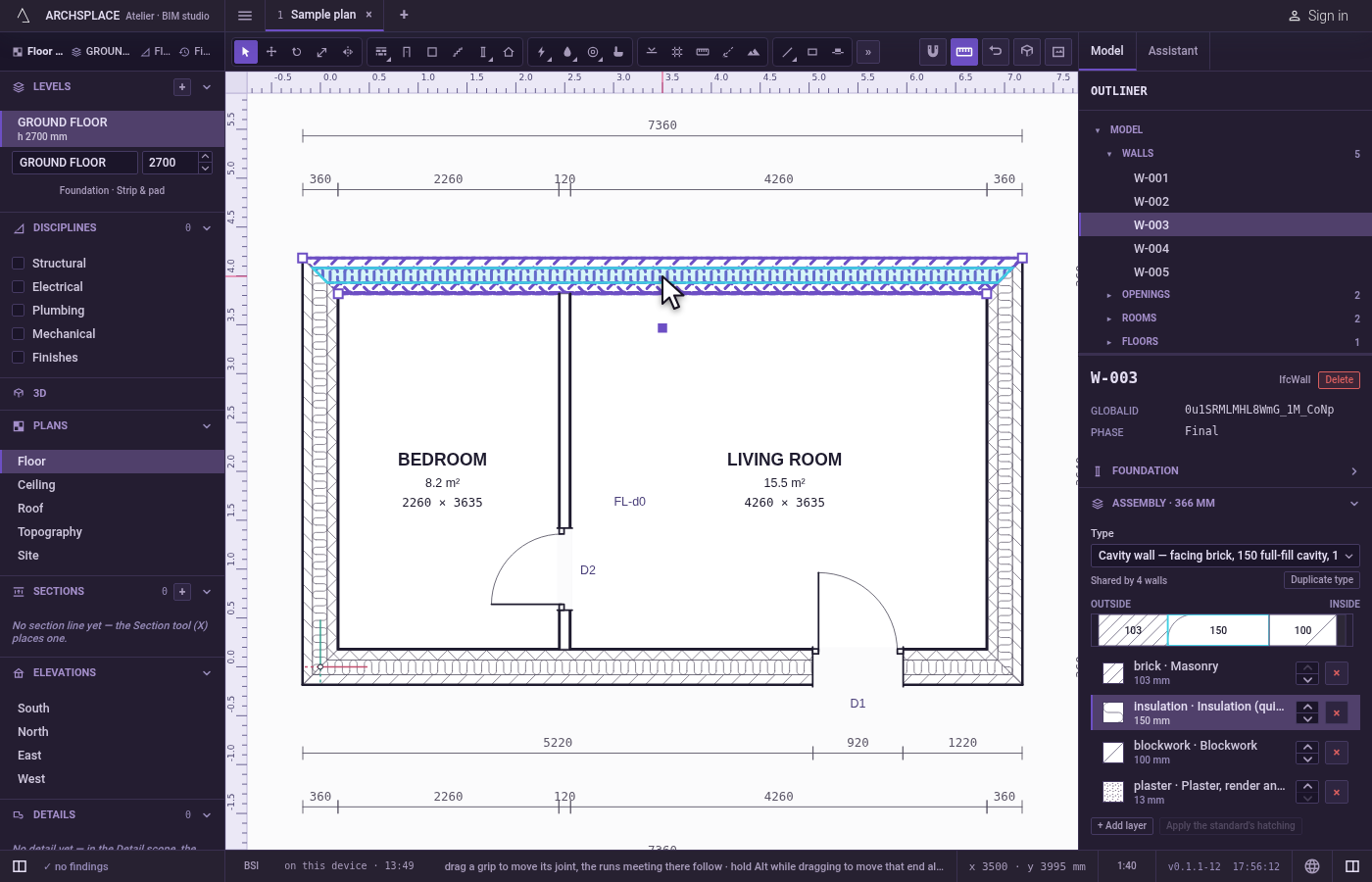
Drag a grip. Press on a grip and drag. A ghost shows every wall the move carries, and the magnet holds the cursor on points and lines nearby, leaving out the walls that move. Shift, or F8 while it is on, keeps the face you grabbed square. Let go: the joint lands where the ghost stood. A distance typed during the drag, then Enter, places it that far along the way you are pulling.
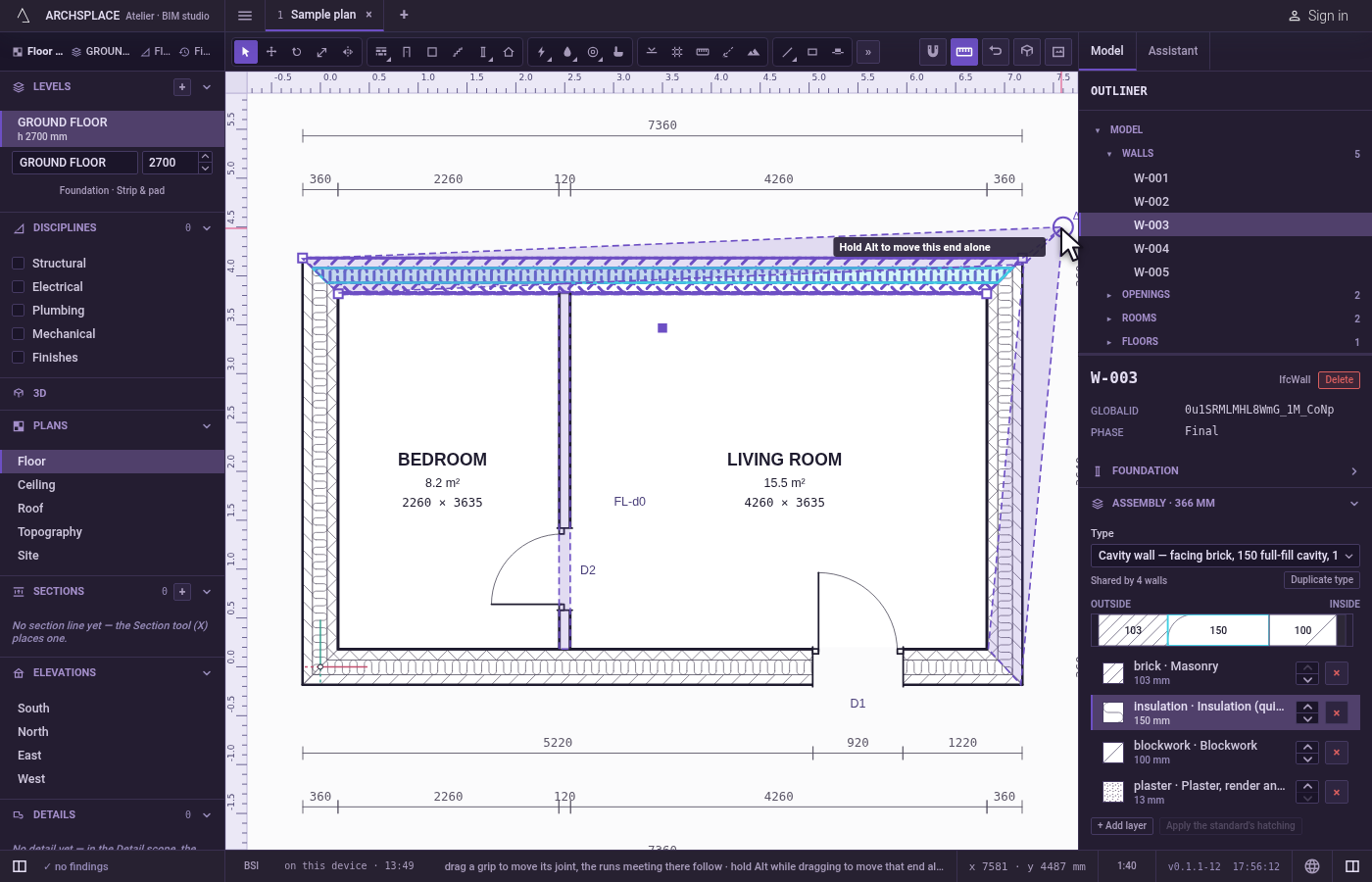
Detach one end with Alt. Hold
Alt(Option on a Mac) as you let go of the button: only the grabbed end moves. The words beside the cursor switch between "Hold Alt to move this end alone" and "Detached: only this end moves" as you press and release the key.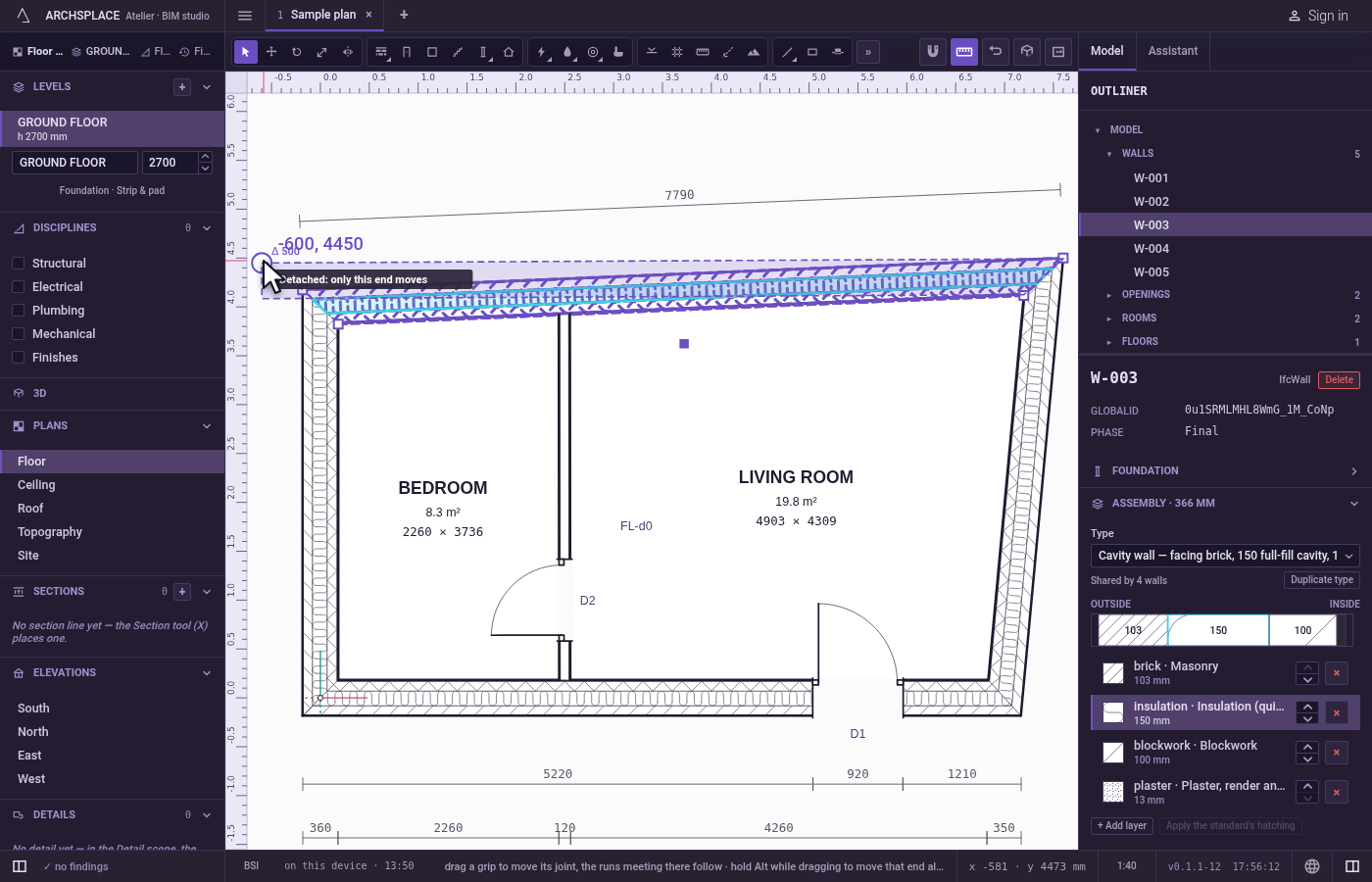
Select the joint. Click a grip without dragging: the joint is selected and its panel opens on the right. Shift and a click adds another joint, or removes it.
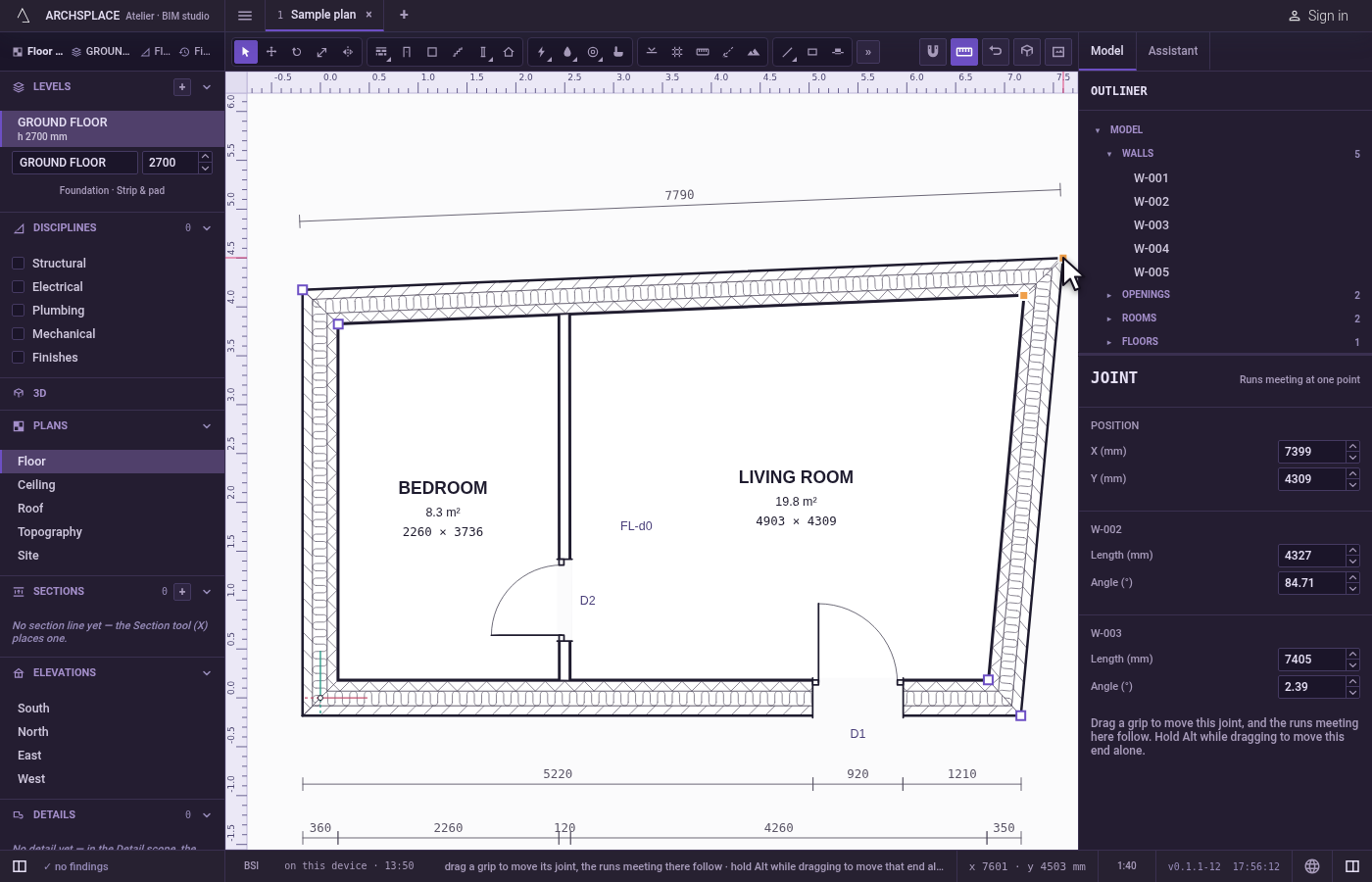
Type in the joint's panel. The panel says what kind of joint it is (runs meeting at one point, an end on a wall's face, or a free end), its X and Y, and for each wall meeting there, its length and its angle. Type a value and press Enter: the joint moves exactly there, and every wall meeting there follows. An end resting on another wall's face names that wall.
What it refuses
- A wall shorter than a centimetre. A move that would leave any wall that short is refused, the ghost turns to the refusal colour and keeps its last good place, and the reason shows beside the cursor.
- An end on a face taken off its face. An end resting on another wall's face only slides along it, so a typed position it cannot reach is refused with that reason, and the panel shows the joint as it stands.
- Copying a joint. A joint has nothing of its own to copy: copy the walls instead.
- Deleting a joint. A joint goes with its walls: delete the walls that meet there.
What it writes to the contract
One step, which one undo takes back. The ends of every wall that meet at the moved joint are written at the new point, and the ends of walls resting on their faces are written where they now rest. With Alt, only the grabbed wall's end changes. The joint itself is never stored: it is simply the point where those ends coincide.
Concepts
Common questions
How do I move a corner without breaking the walls?
Select one of the walls, then drag the grip on the corner. Every wall meeting at that corner follows, and walls that end on their faces stay on them.
How do I pull one wall away from a corner?
Drag its grip with Alt held (Option on a Mac) when you let go. Only the end of the wall you grabbed moves; the other walls stay where they are.
Can I type the exact position of a corner?
Yes. Click the grip to select the joint: its panel shows its X and Y, and for every wall meeting there its length and its angle. Type a value and the corner moves exactly there.