PlanMin the studio
Move
Move carries elements of the plan from a base point to where you drop it, or by a distance you type. Held with Ctrl it leaves a copy instead, and typing x and a number after a copy repeats it as an array.
What it is
Move takes what you hold and carries it from a base point to a drop point, both found by the magnet, or by a distance you type. Walls, pipes and beams move as a network: a corner they share with a wall that is not selected travels with them, so nothing that was joined comes apart, and a wall that ends on the face of a moved wall slides to stay on it. A window, a door or a wall device moved alone lands on the wall under its drop point, or slides along its own wall.
With Ctrl held when you drop, Move leaves a copy and keeps the original. A copied wall brings its windows, doors and wall devices with it. Right after a copy, typing x and a number repeats the same step as an array.
When to use it
- Shifting a partition, a column or a sanitary appliance to its right place.
- Copying a window along a facade, or a column along a grid, at an exact spacing.
- Laying a row of identical elements with one copy and one typed number.
- Placing what you copied with
Ctrl+C: Paste arms Move for you.
The steps
Hold what moves. Select one element or several with Select. You can also skip this step and click the element itself in the next one.
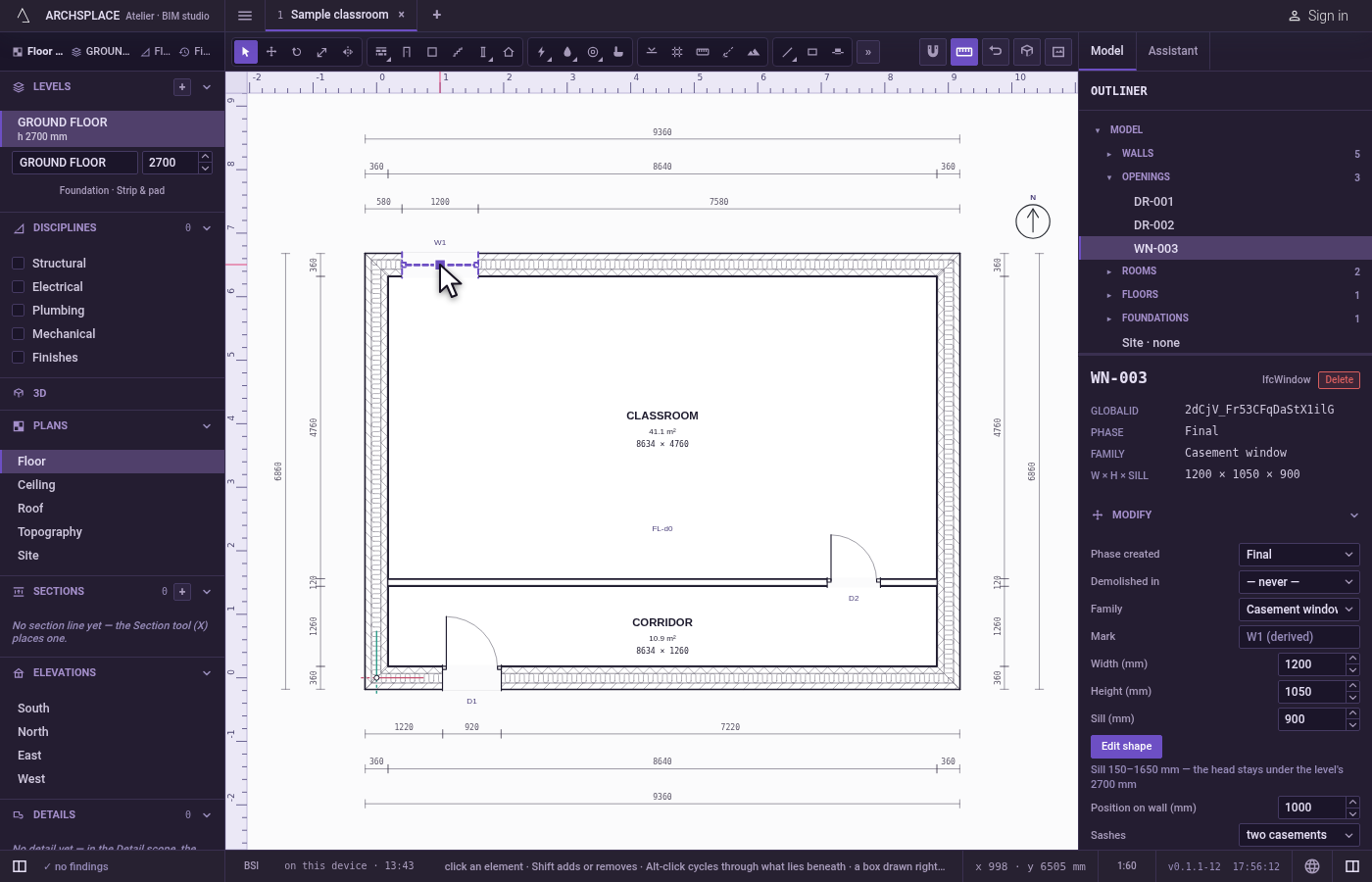
Take the tool. Press
M, or click the Move button. With walls, pipes or beams selected, the grips of their corners stay visible.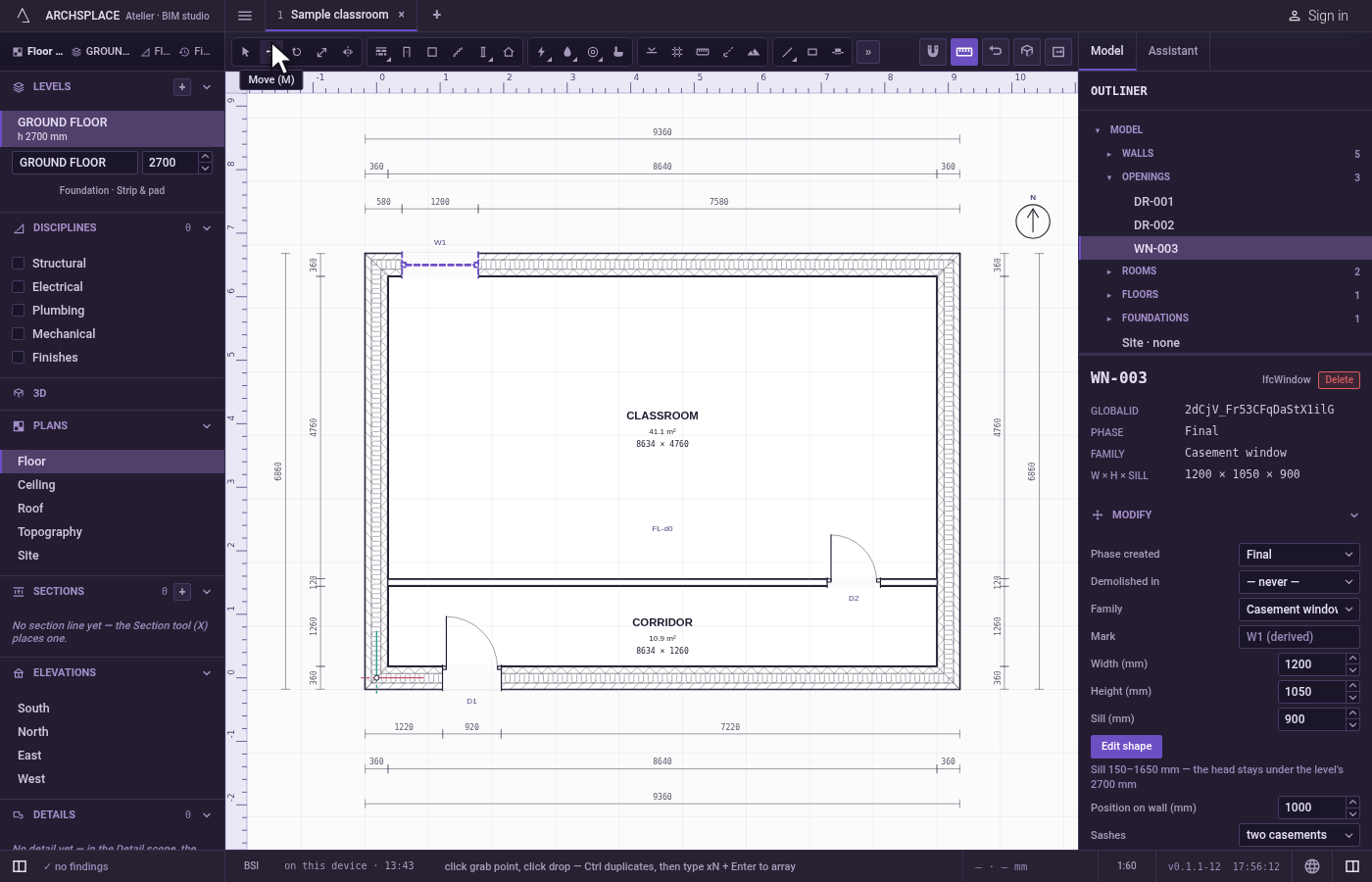
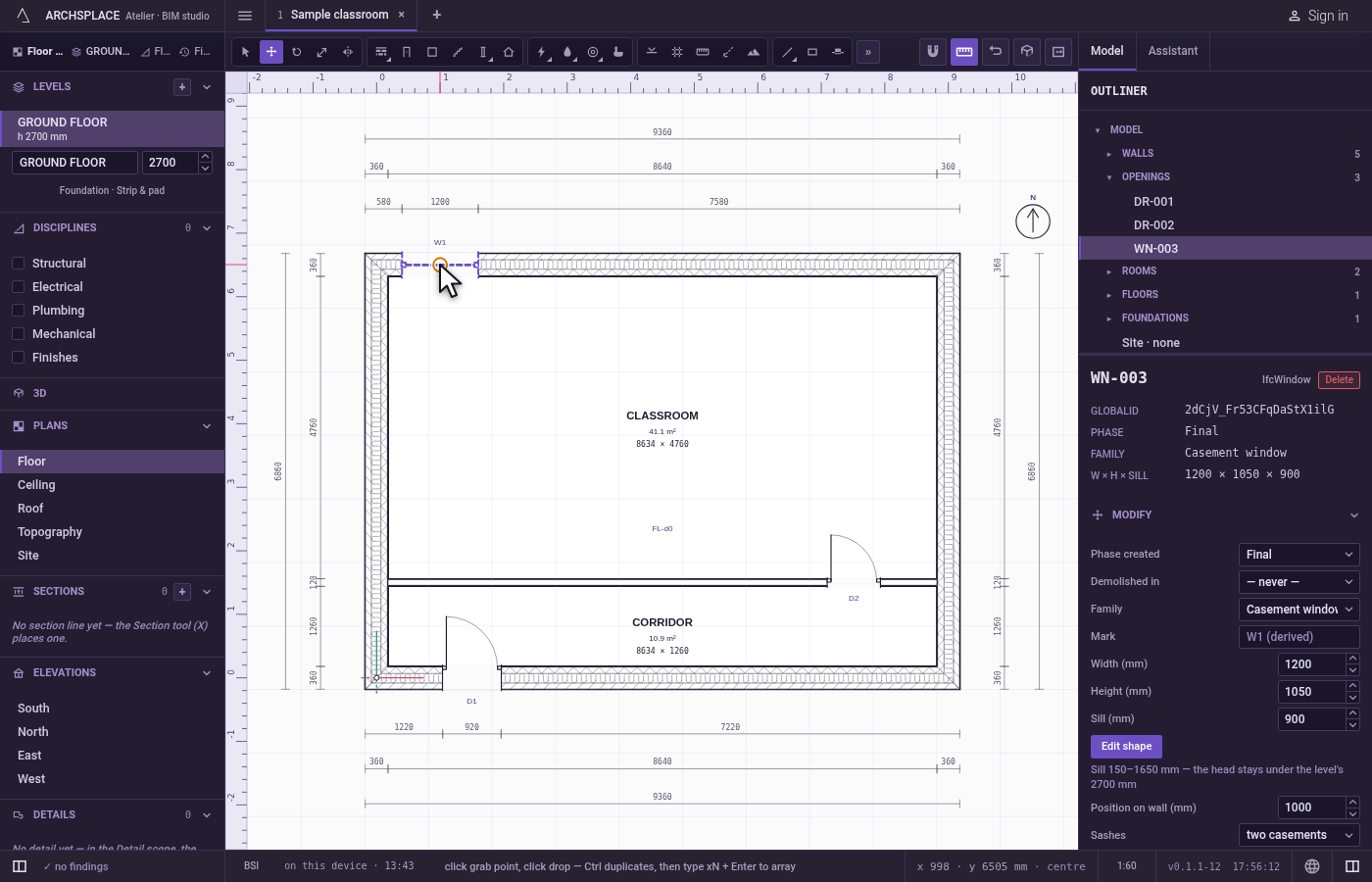
Click the base point. Click the point you will carry, such as a wall's corner or a column's centre: the magnet holds the click on the nearest point within reach (see The magnet). With nothing selected, click the element itself; the point you click on it is the base point.
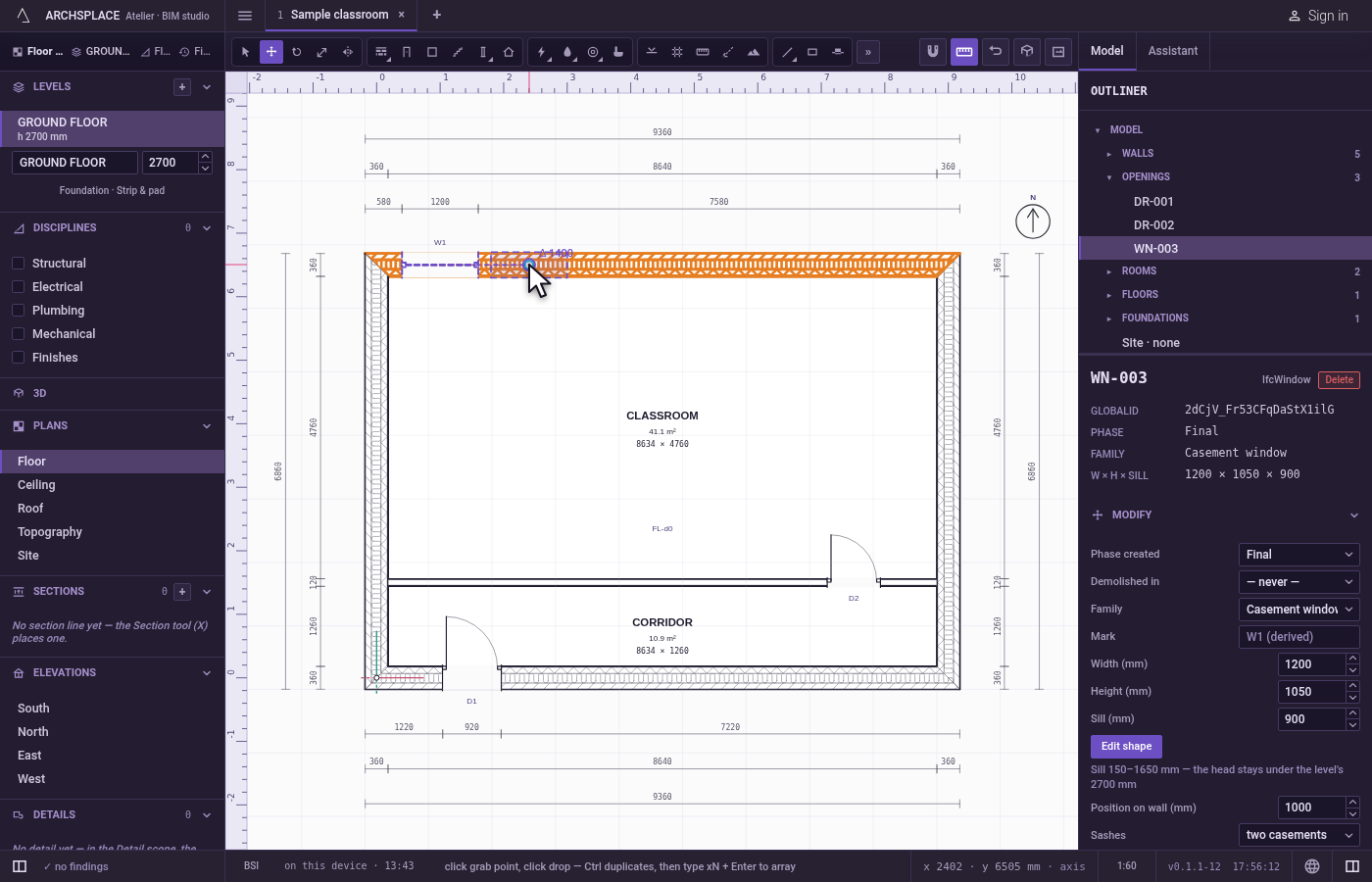
Show the way. A ghost of what moves follows the cursor, and the walls that will follow it show where they will be. Shift, or F8 for as long as it is on, keeps the movement horizontal or vertical.
Drop it, or type the distance. Click where the base point lands, again on the magnet. Or type the distance in the project's units and press Enter: the elements move that far towards the cursor. Hold
Ctrl(⌘on a Mac) as you click or press Enter to leave a copy instead.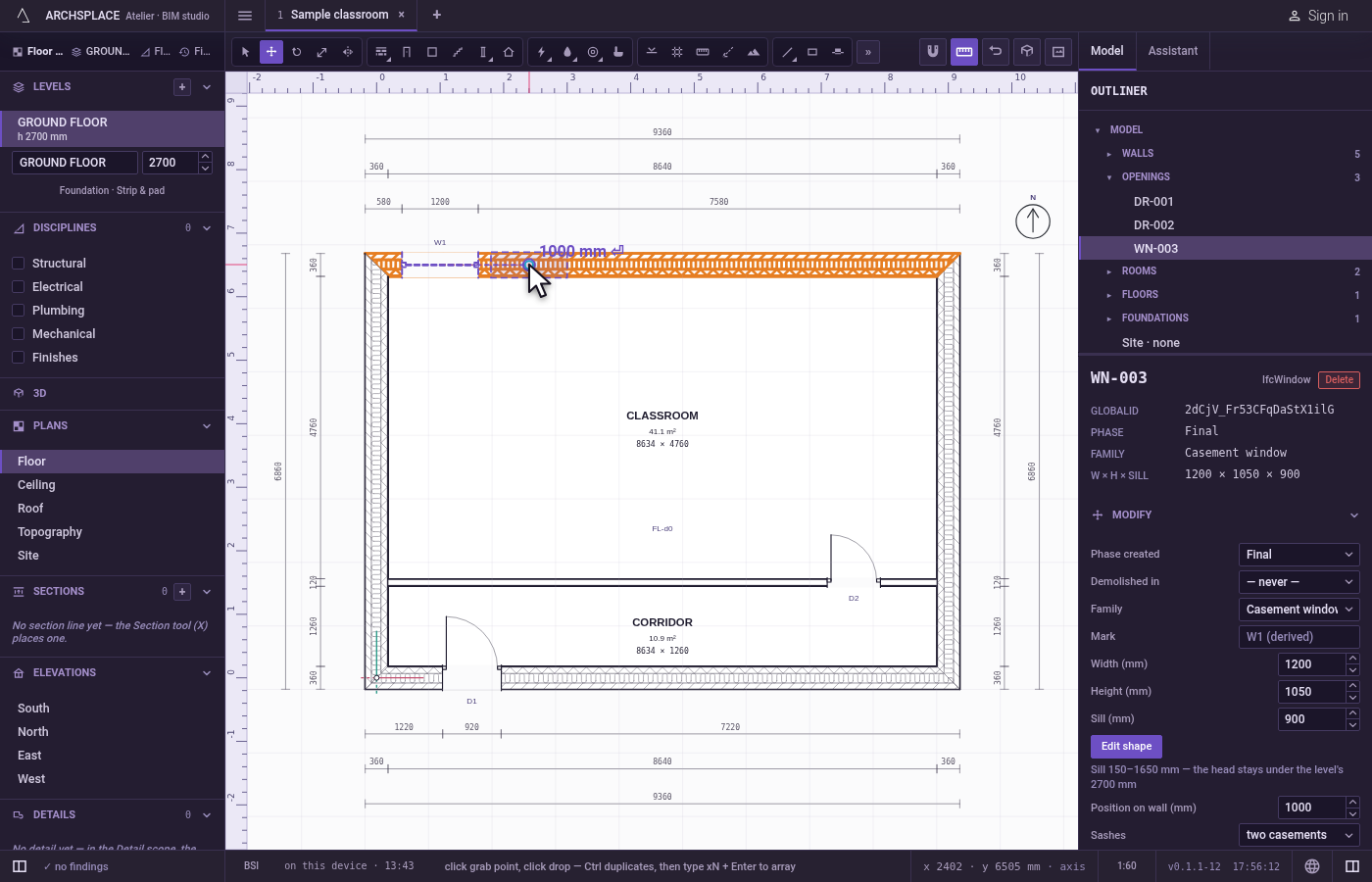
Repeat the copy. Right after a copy, type
xand a number, then Enter:x5lays copies until there are five, each one the same step further. Type/and a number instead to divide the distance between the original and the copy into that many equal parts.*works likex.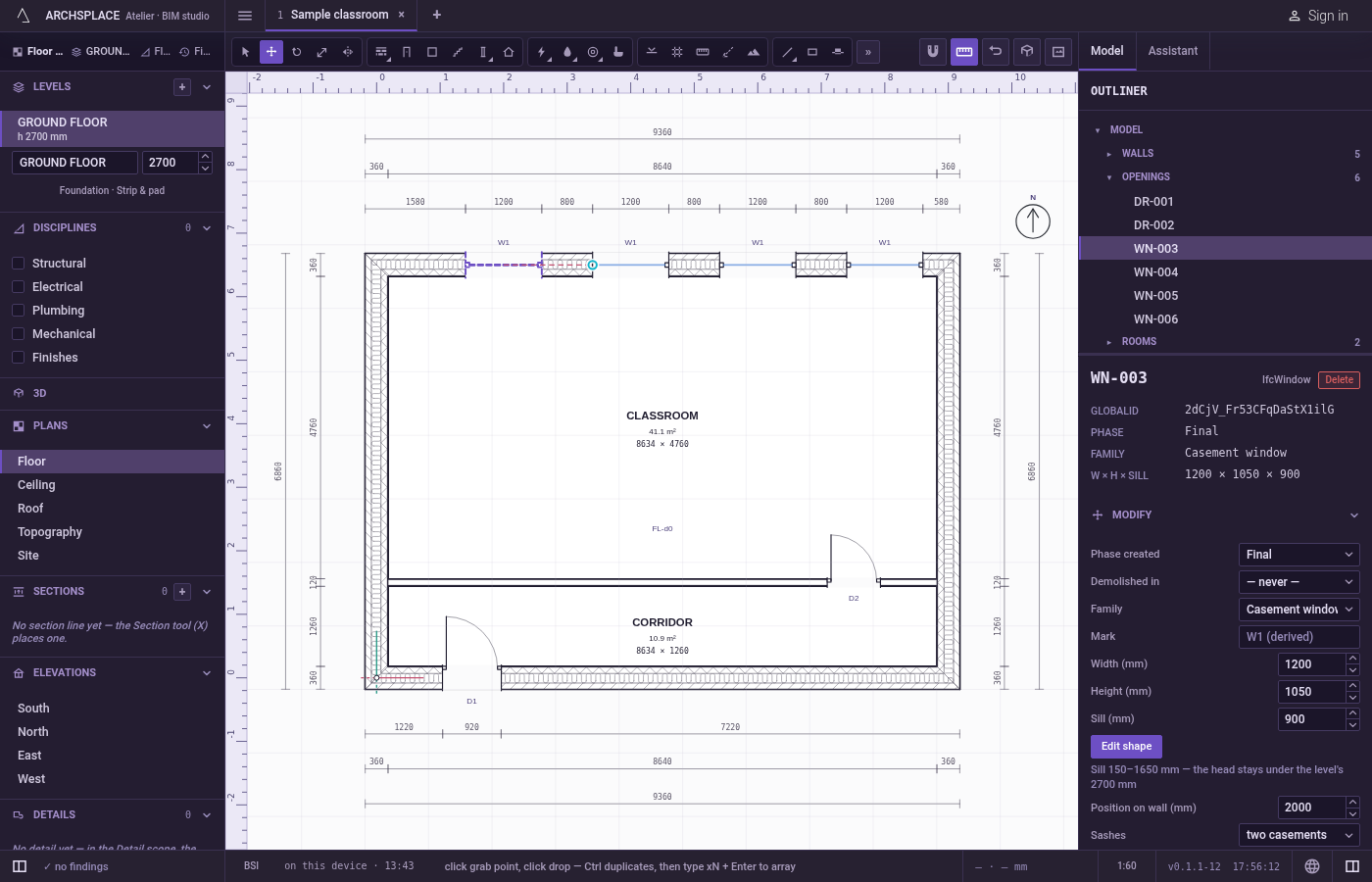
What it refuses
- A drop that would break a joint. If the move would leave a wall, a pipe or a beam shorter than a centimetre, nothing moves and the studio says why in a message at the top right.
- Annotations. A dimension, a detail or a callout frame does not move with Move: each one says it moves with the arrow keys or its own panel.
- Too large an array. An array that would place more than 2000 copies in one act is refused with the count, and so is one that would take the project past 10,000 component instances.
- A click with nothing to move. With nothing selected, a click on empty ground does nothing.
What it writes to the contract
One step, which one undo takes back. Each moved element keeps its entry and gets its new points: a wall's two ends, a column's position, a room's point, a stair's walk line, a roof's corners. The ends of the walls, pipes and beams that met a moved one are written too, so they stay joined. A window or a door keeps its wall and its distance along it, or takes the wall it was dropped on. A copy adds new entries at the end of their lists, the openings and devices of a copied wall included, and an array adds all its copies in one step.
Concepts
Related
Common questions
How do I move a wall by an exact distance?
Select the wall, press M, click a base point, point the cursor the way it should go, type the distance and press Enter. The wall moves that far in the direction you showed.
How do I make a row of evenly spaced copies?
Move one copy with Ctrl held, then type x followed by the total number you want, such as x5, and press Enter. Typing /5 instead places copies that divide the gap between the original and the first copy.
Do walls joined to the one I move stay joined?
Yes. The corners the moved wall shares with other walls travel with it, and walls that end on its face slide to stay on it.