Workflows
Project properties
Project properties is the dialog that shows a project's name, the standard it is designed under, what it holds and when it was last written, beside the project file itself, the JSON the project is saved as. The name can be changed there, and the file can be edited and applied, as one change undo takes back.
What it is
Project properties opens from File, Project properties…, from a double-click on a project's tab in the header, and from Project properties… when you right-click a tab. Its two groups are:
- Identity:
- Name: the project's name, as its tab and its files show it.
- Standard: the key of the standard the project is designed under, such as BSI. For the project in hand it is a button that opens the standard panel.
- Contents: how many levels, phases, walls and openings the project holds.
- Saved: the date and time the project was last written to the atelier's library, or not yet.
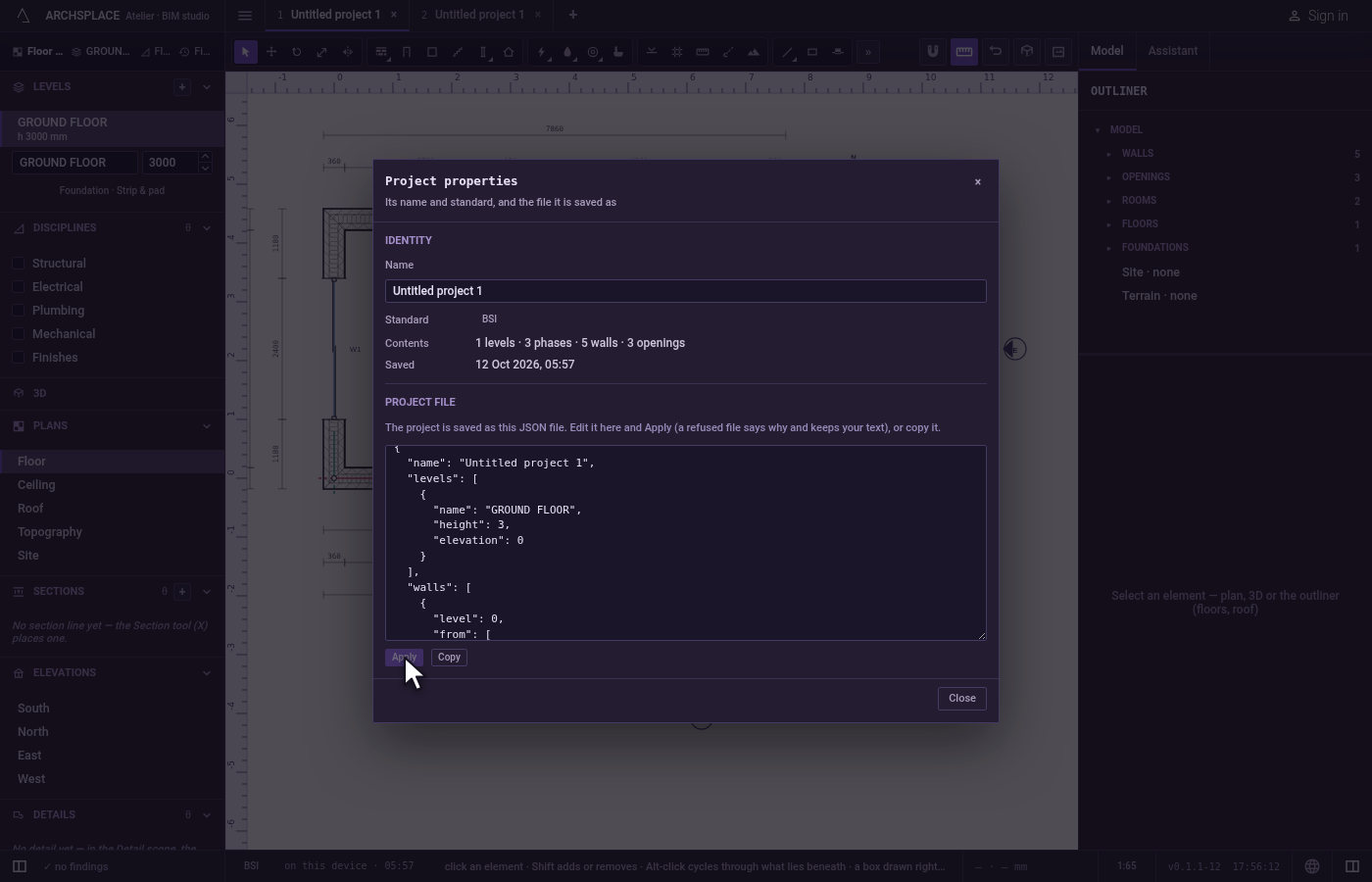
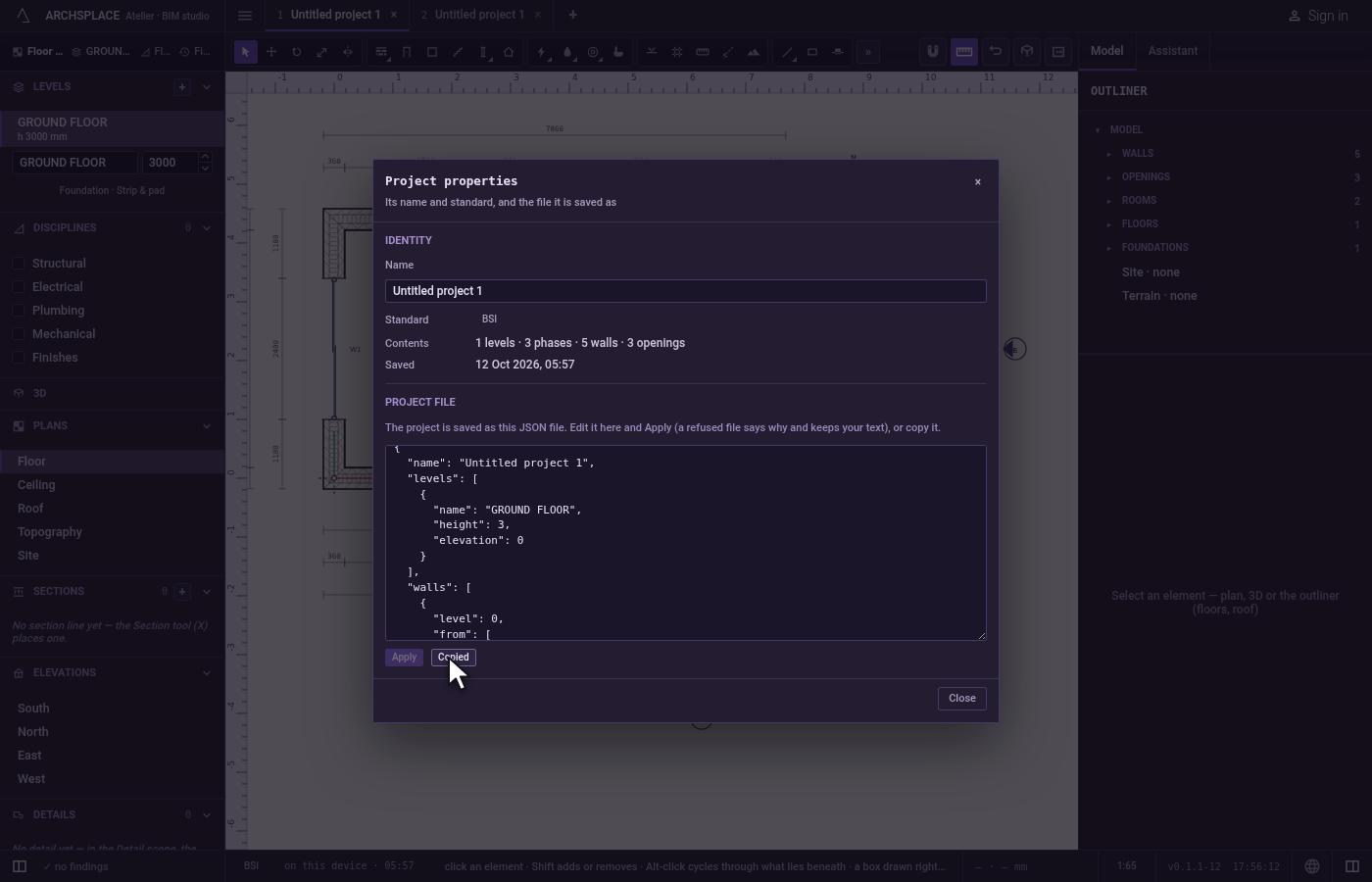
- Project file: the project as the JSON file it is saved as, in a box you can read and edit. Apply rebuilds the project from the box once its text has changed; Copy puts the text on your clipboard.
Close leaves the dialog. The file itself leaves through File, Save a copy to this computer…, and the project closes through File, Close project: neither is in this dialog.
When to use it
- Renaming a project.
- Checking how many levels, walls and openings a project holds.
- Seeing which standard a project is designed under, and opening it.
- Reading the exact data of the project, or pasting it into a message or another tool.
- Repairing an entry by hand, when you know the project's format.
The steps
Open the properties. Double-click the project's tab in the header. Project properties opens.
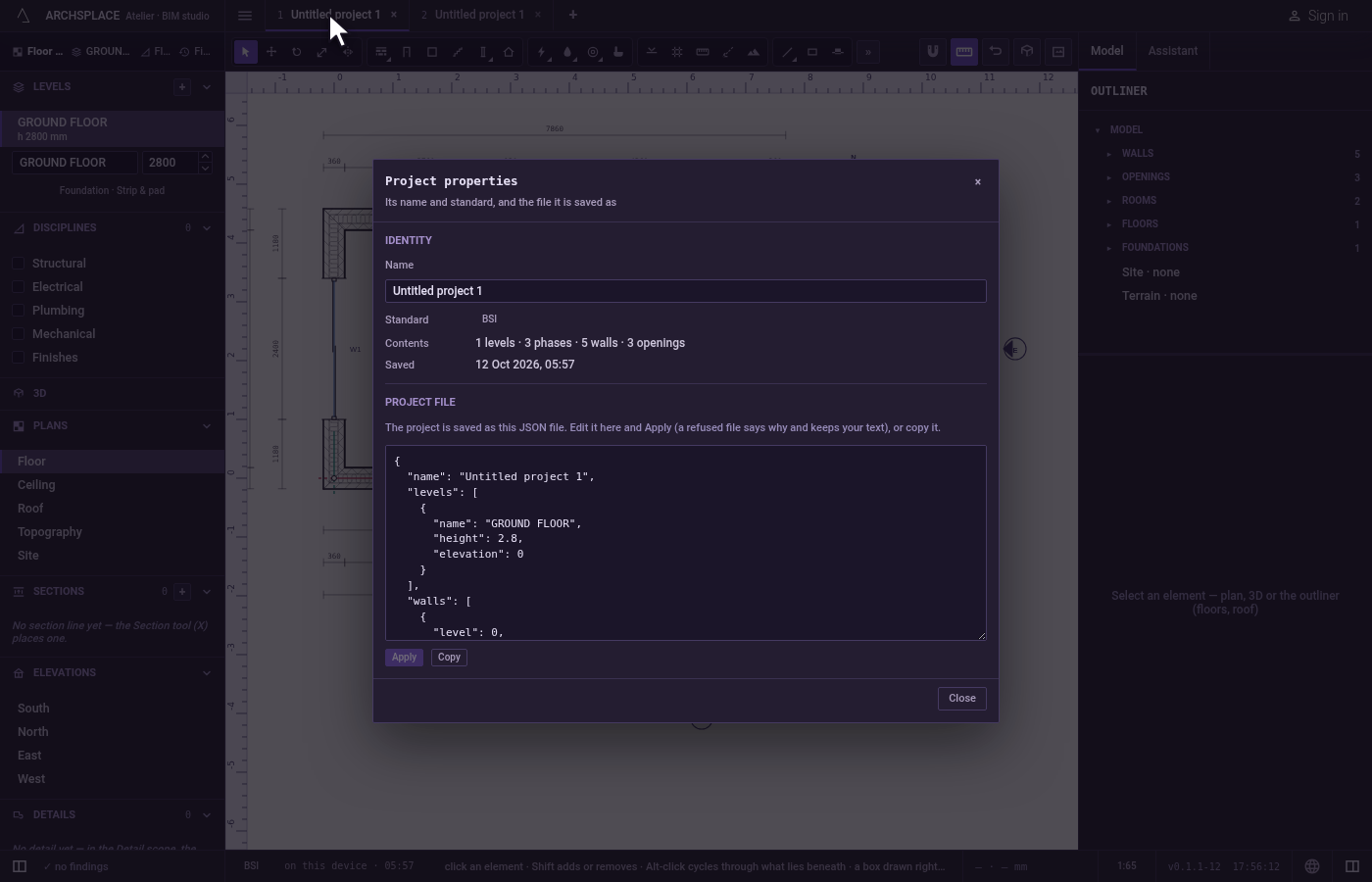
Read the contents. Contents says, for example, 2 levels · 3 phases · 14 walls · 6 openings.
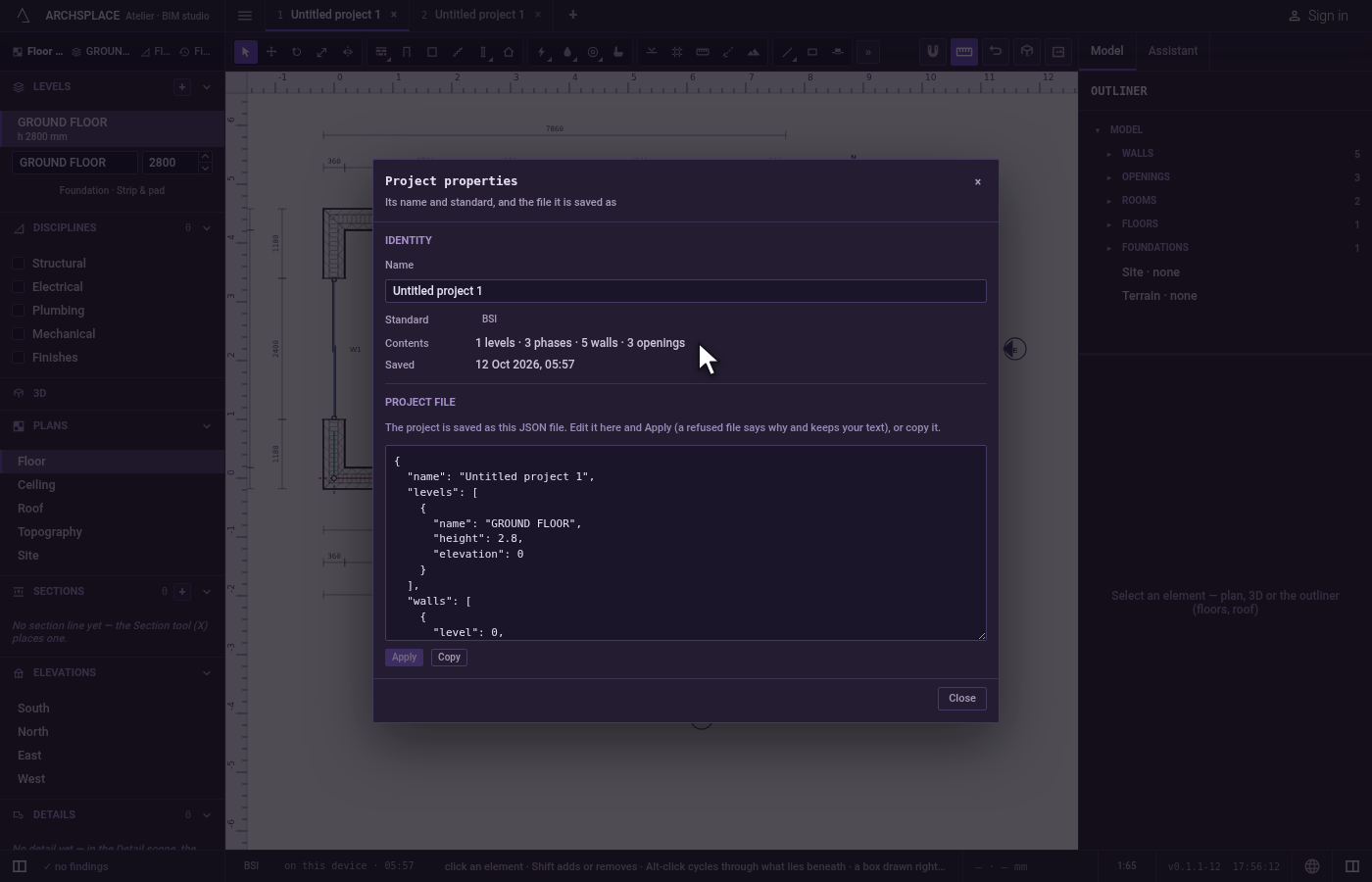
Edit the file. In Project file, change the height of the first level from 2.8 to 3 and click Apply. The project is rebuilt with a 3 m level.
Copy the file. Click Copy. Its label turns to Copied, and the text is on your clipboard.
Rename the project. In Name, type Lime House and press
Enter. The tab takes the new name.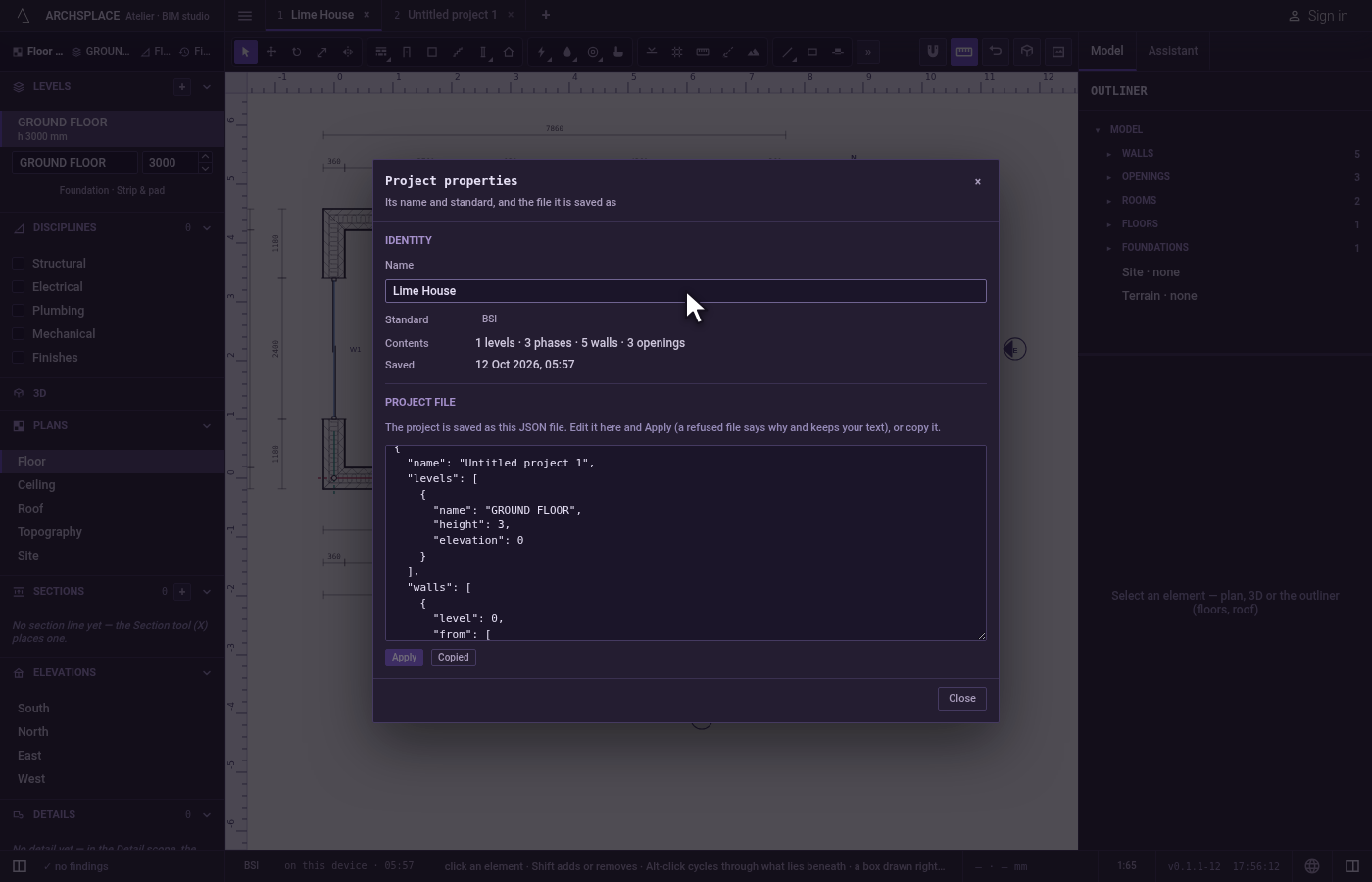
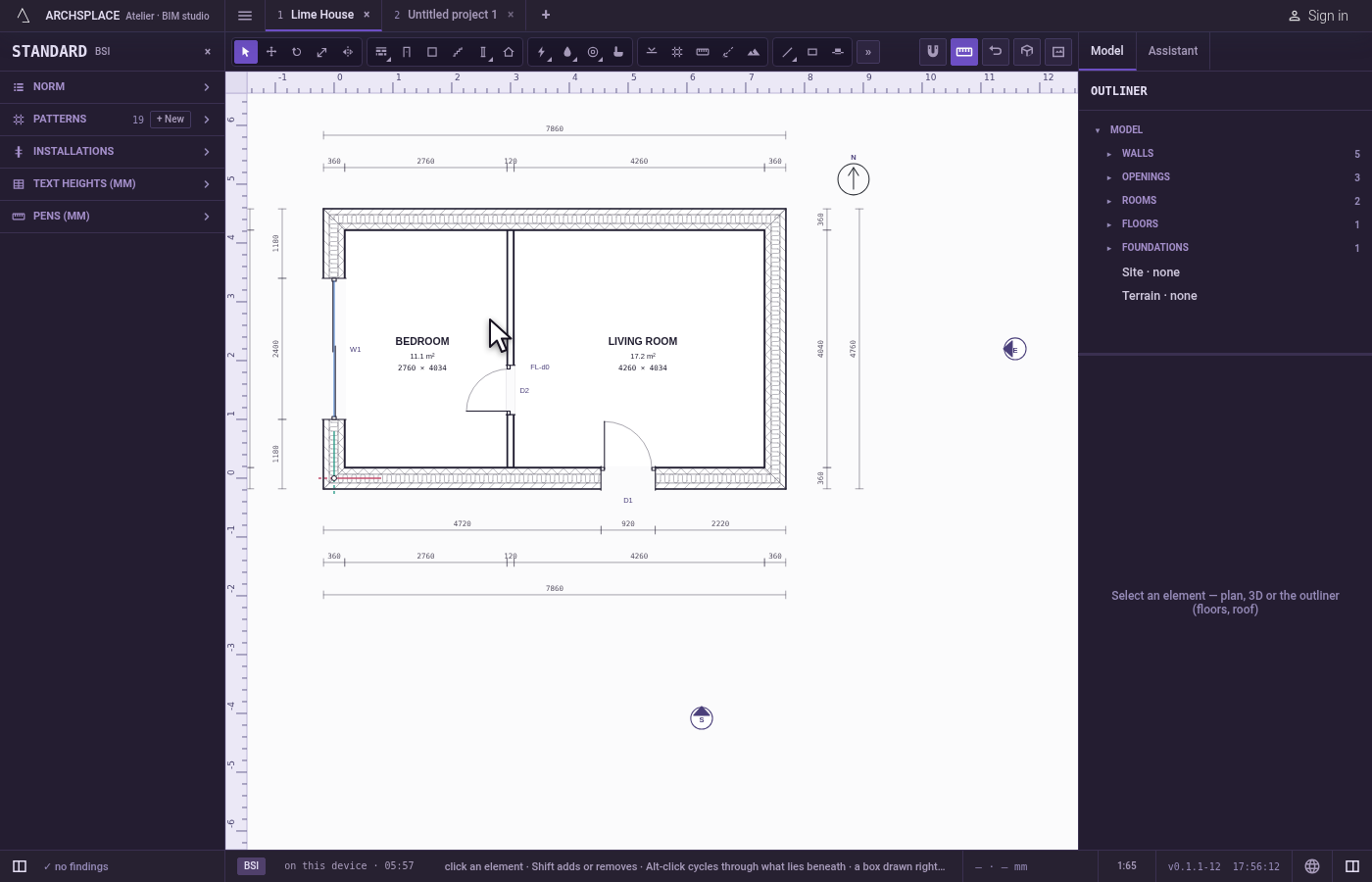
Open the standard. Click the key under Standard. The dialog closes and the standard panel opens on the left.
What it refuses
- An empty name. The name stays as it was.
- A project file that is not valid JSON. Apply shows why under the box, and your text stays as you typed it.
- Entries the build refuses. The project is applied, and what the build refuses is said under the box, with the first element and its reason. Those entries stay in the project as refused entries, so you can repair them.
- Apply with nothing changed. The button stays greyed.
What it writes to the contract
Name writes the project's name. Apply writes the whole contract as the box holds it, one change that one Ctrl+Z takes back when the project is the one in hand. Nothing else in the dialog writes.
Common questions
How do I rename a project?
Double-click its tab in the header, or choose File, Project properties…, and type the new name in Name, then press Enter. Right-clicking the tab and choosing Rename renames it in the tab itself.
Can I edit the project as text?
Yes. The Project file box of Project properties holds the whole project as JSON. Edit it and click Apply: the project is rebuilt from it in one change, which Ctrl+Z takes back. A text that is not valid JSON is refused, its reason shown and your text kept.
Where do I change the project's standard?
Click the standard's key under Standard: the standard panel opens on the left, where Designed under switches it.