3DEin the studio
Eraser
The Eraser takes lines out of the drawn geometry in the 3D view, one by a click or many by sweeping across them. Held with Shift it hides a line instead, with Ctrl it softens it, and with both it gives a hidden or softened line back.
What it is
The Eraser works on the lines you drew in the 3D view: the lines and arcs of the Line, Arc, Rectangle and Circle tools, and every line those lines became part of. A click on a line erases it; a press and a sweep erase every line the pointer passes over, all at once when you let go.
An arc or a circle is one curve to the Eraser: touching any part of it takes the whole curve. Erasing a line opens every face it closed, and two lines left in one straight line heal into one.
The same tool hides and softens. A hidden or softened line is no longer drawn, but it still bounds its faces, so the surface stays whole. This is how you clean the look of a model without changing its shape.
When to use it
- To remove a line drawn by mistake, or one that splits a face you want whole again.
- To open a face so you can draw it again differently.
- To hide the lines that show where flat faces meet, so a surface reads as one.
- To bring back a line you hid or softened earlier.
The steps
Take the tool. Press
E, or click Eraser in the first group of the bar.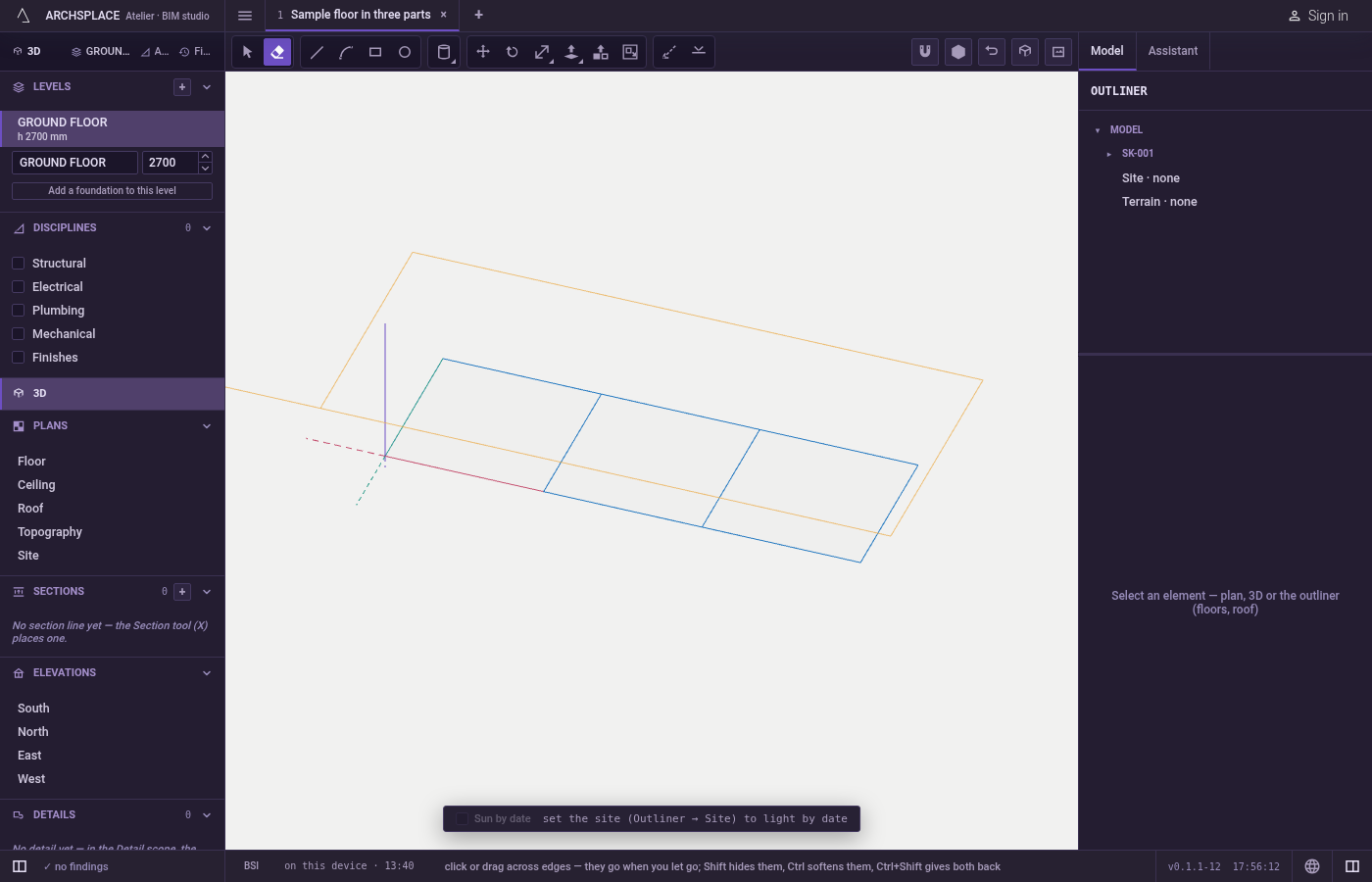
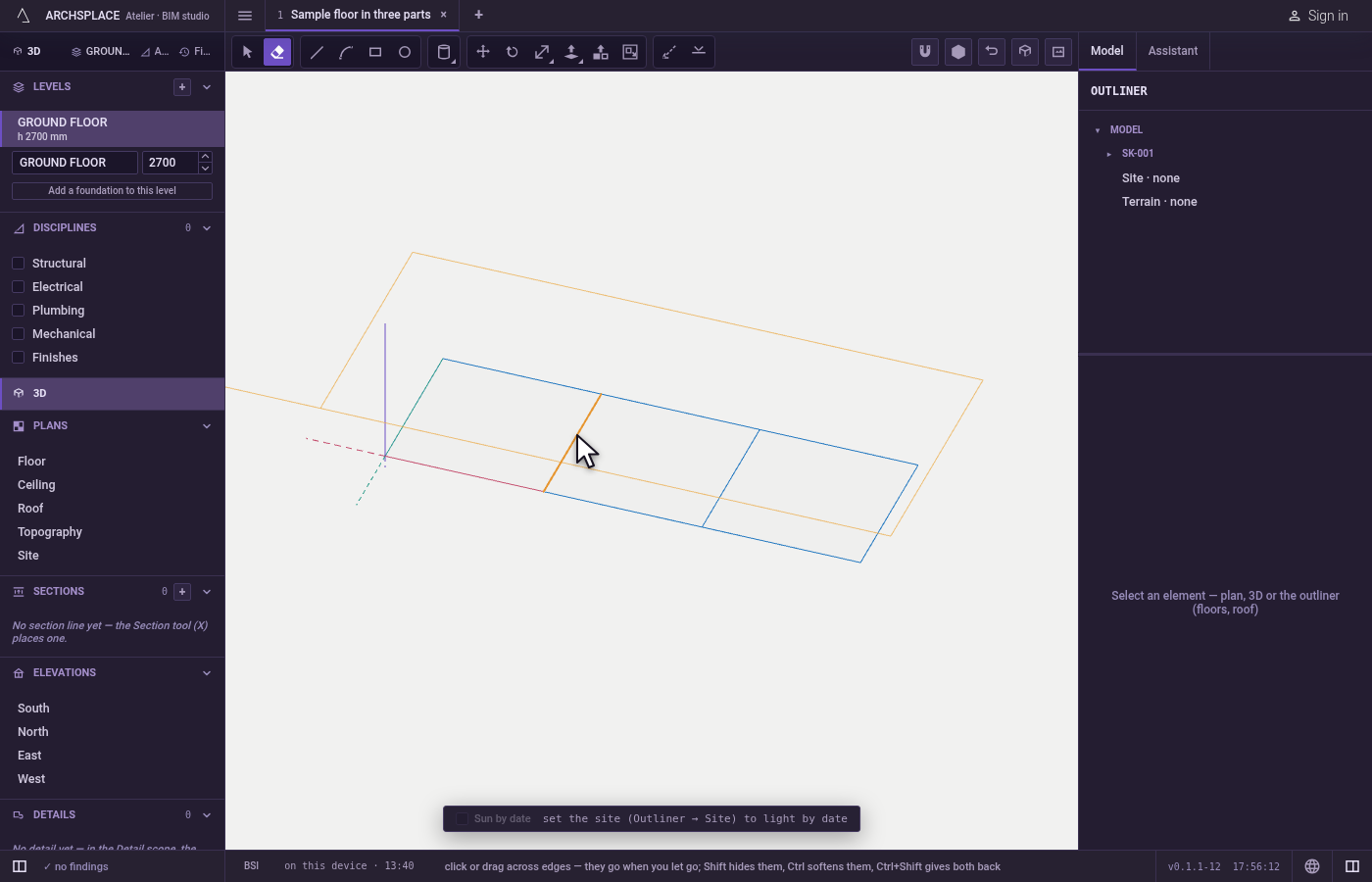
Point at a line. The line under the pointer lights in orange. A hidden or softened line also lights: the Eraser still finds it.
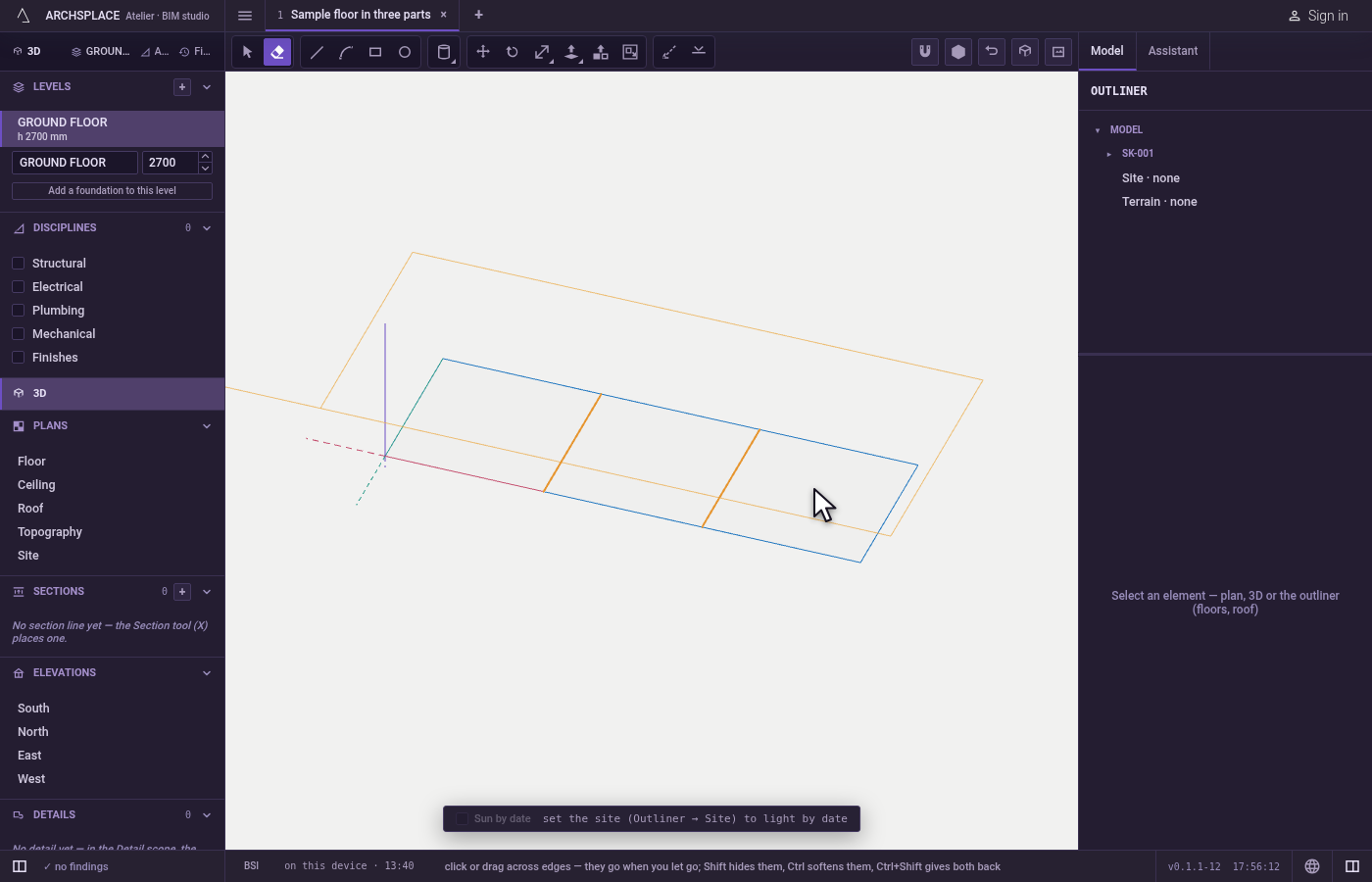
Click or sweep. Click to take one line, or press and drag across several. Every line the pointer passes over stays lit while you sweep.
Let go with the key that says what to do. With no key, the lines are erased. With
Shiftheld as you let go, they are hidden. WithCtrl(⌘on a Mac), they are softened. WithCtrlandShifttogether, hidden and softened lines are given back. Every release is one step thatCtrl+Zundoes.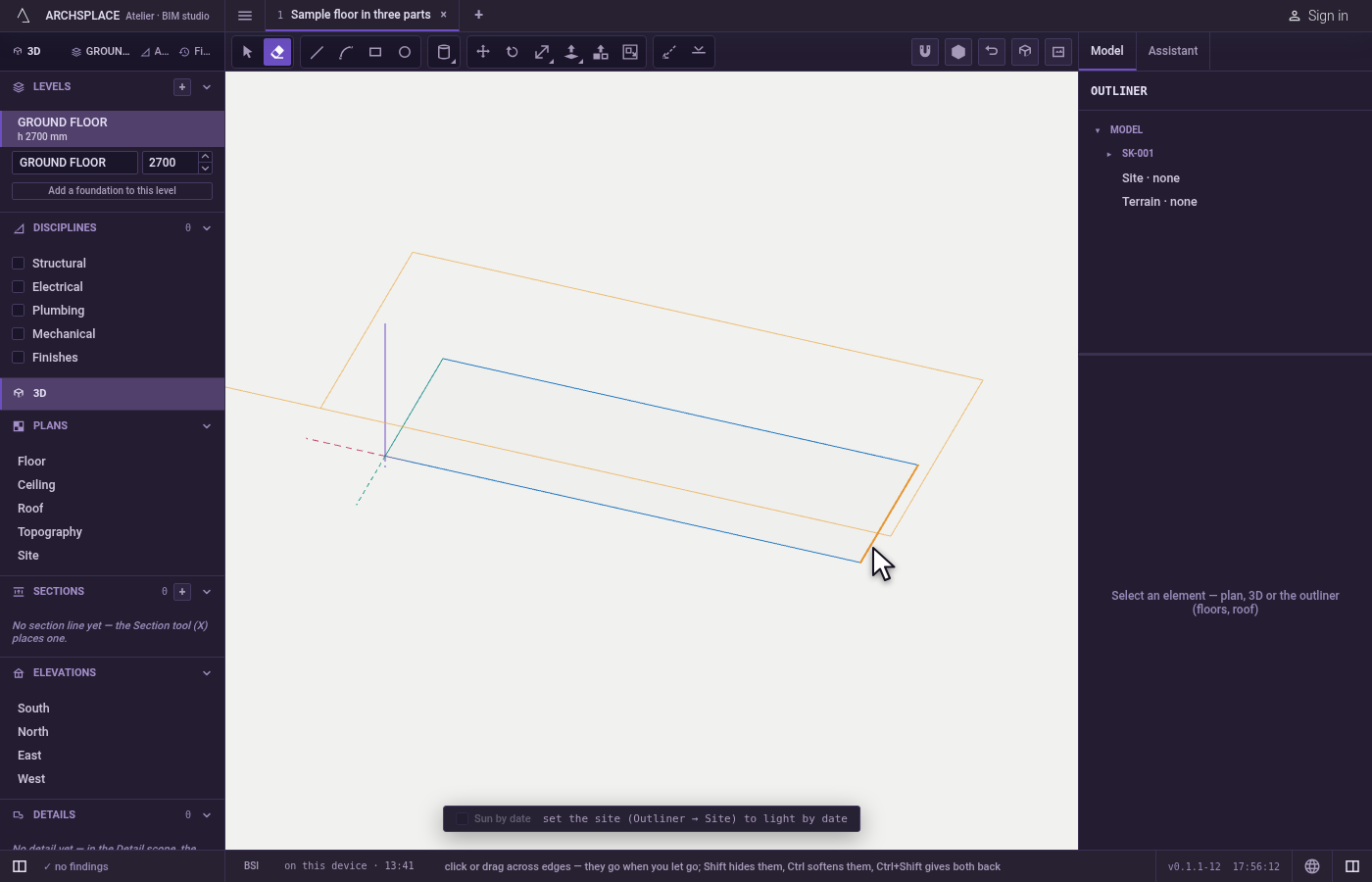
What it refuses
- The edges of a solid body. A body's edges are its shape, so erasing one is refused, and a notice says they cannot be hidden or softened either. Reshape the body with Push/Pull or Move instead.
- What is not a line. A face, a wall, a slab or a component is not taken by the Eraser; select it and press
Delete. - The inside of a closed component. Open the component first, then erase its lines.
What it writes to the contract
An erase takes the lines out of the drawn geometry of the model, or of the component you have open, and the faces they closed are found again from the lines that remain. Hiding and softening keep the lines and mark them, so they are no longer drawn but still bound their faces; giving them back removes the mark. Each release is one undoable step.
Common questions
What happens to a face when I erase one of its lines?
The face opens: without that line its outline is no longer closed, so the face is gone while the other lines stay. Two lines left in one straight line after an erase heal into one.
How do I hide a line without opening the face?
Hold Shift as you let go of the mouse. The line is no longer drawn, but the faces it bounded stay whole. Hold Ctrl instead to soften it, and Ctrl and Shift together to bring hidden or softened lines back.
Can I erase the edge of a solid body?
No. A body's edges are its shape. The Eraser refuses them, and Shift or Ctrl refuse to hide or soften them. Push, pull or delete the body instead.