Panels
About
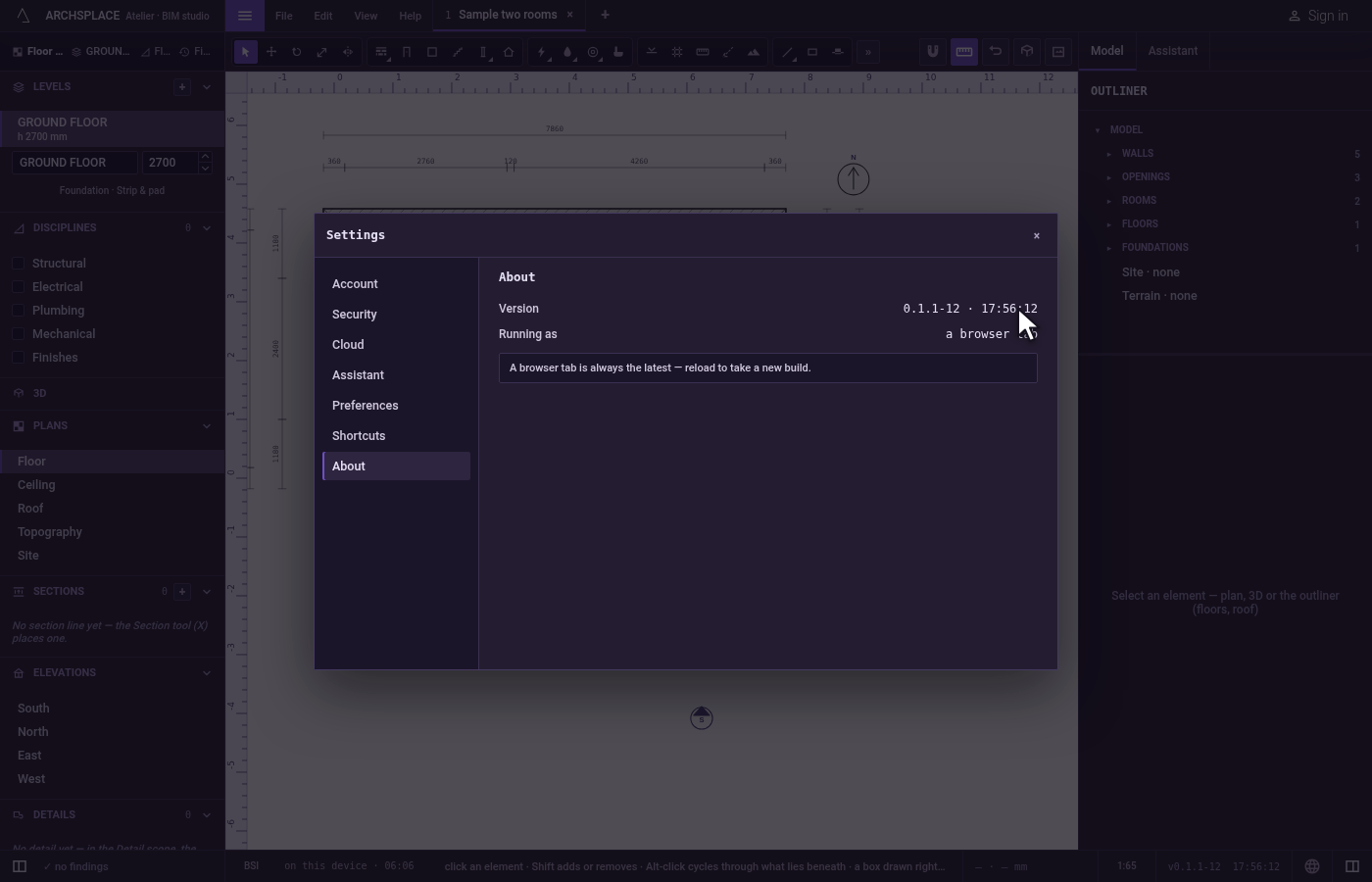
About is the section of the Settings dialog that says which version of the atelier you are running, and whether it runs in a browser tab or as the installed app. In the installed app it also checks for a newer version, which downloads in the background and waits for you to restart.
What it is
About is the last section of the Settings dialog. It opens from Help, About Archsplace Atelier, or from the dialog's rail. It shows:
- Version: the version of the atelier and its build.
- Running as: installed, for the app installed on your computer, or a browser tab.
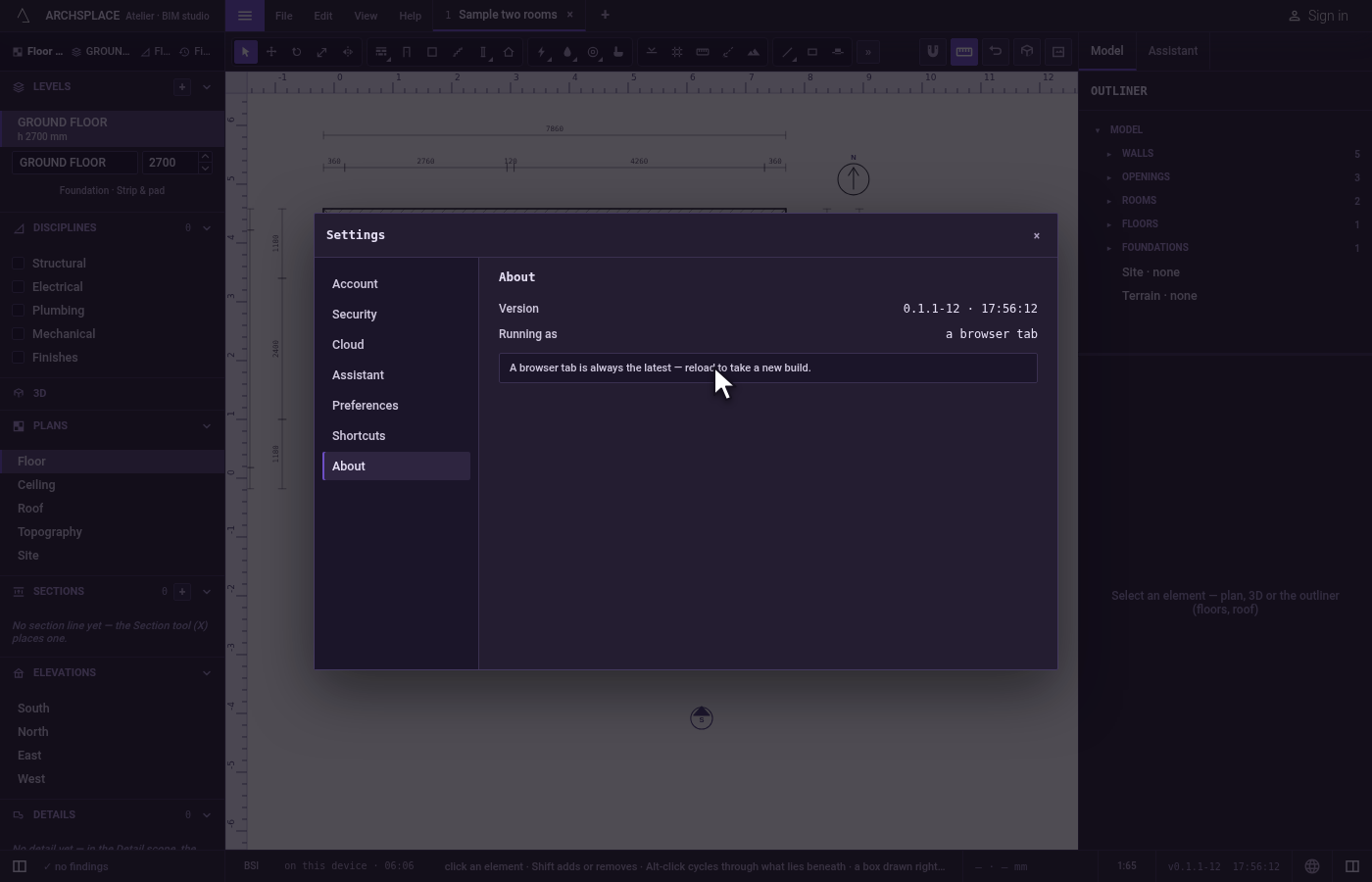
- A line on updates. In a browser tab, it says the tab is always the latest and that a reload takes a new build. In the installed atelier, it says the app checks its channel when it starts and every hour, and that a newer signed build downloads in the background and waits for your restart.
In the installed atelier only, the section carries Check for updates, and Help carries Check for updates…, which asks the same question from the menu. In a browser the menu item stays greyed, its reason saying that a browser tab always runs the latest atelier.
Once a newer version is downloaded, the status bar carries one button at its right, Restart to update to and the version. A click installs it and restarts the atelier. When the version you run is no longer supported, the button says Restart required instead.
When to use it
- Telling someone which version of the atelier you are running.
- Checking at once whether a newer version of the installed atelier is out.
- Knowing whether a window is the installed app or a browser tab.
The steps
Open About. Open Help and click About Archsplace Atelier. The Settings dialog opens on About, with the Version row and the Running as row.
Check for updates. In the installed atelier, click Check for updates. It reads Checking… while the channel answers, then says that you are on the latest build, that the channel could not be reached, or that a new version is downloaded.
Restart to update. When a new version is downloaded, click Restart to update to at the right of the status bar, once your work allows. The atelier installs it and starts again.
What it refuses
- Checking for updates in a browser. There is nothing to check: a browser tab always runs the latest atelier, and a reload takes a new build.
- An update that cannot be verified or downloaded. The installed atelier keeps running as it is and says nothing; the next check tries again.
What it writes to the contract
Nothing. The version and the updates belong to the atelier on your computer, not to a project.
Common questions
How do I know which version I am running?
Open Help, About Archsplace Atelier. The Version row shows the version and its build. The status bar shows the version too, near its right end, beside the language globe.
How do I update the installed atelier?
It checks for a newer version when it starts and every hour, and downloads it in the background. Once it is ready, a button Restart to update to the new version appears at the right of the status bar: click it when your work allows. Help, Check for updates… asks at once.
How do I update the atelier in my browser?
A browser tab always runs the latest version: reload the page to take a new one. Check for updates is only offered in the installed atelier.