PlanQin the studio
Rotate
Rotate turns elements of the plan about a centre you click, by the angle between a reference point and a third point, or by degrees you type. Held with Ctrl it turns a copy and keeps the original.
What it is
Rotate turns what you hold about a centre. It takes four clicks, the same as in the 3D view: the element (or the selection you already hold), the centre, a reference point that says where the turn starts, and the point that says where it ends. The angle between the reference and the last point is the turn. You can also type the angle in degrees once the centre is set.
Walls, pipes and beams turn as a network: the corners they share with walls that are not selected follow them, and a wall that ends on the face of a turned wall stays on it. Columns and sanitary appliances turn their own orientation with them. Held with Ctrl, Rotate turns a copy and leaves the original where it was.
When to use it
- Setting a wing of the plan at an angle to the rest.
- Turning a sanitary appliance or a column to face the right way.
- Laying copies around a centre, such as columns on a circle, with one copy and a typed count.
The steps
Take the tool. Press
Q, or click the Rotate button. If you already hold a selection, it is what turns.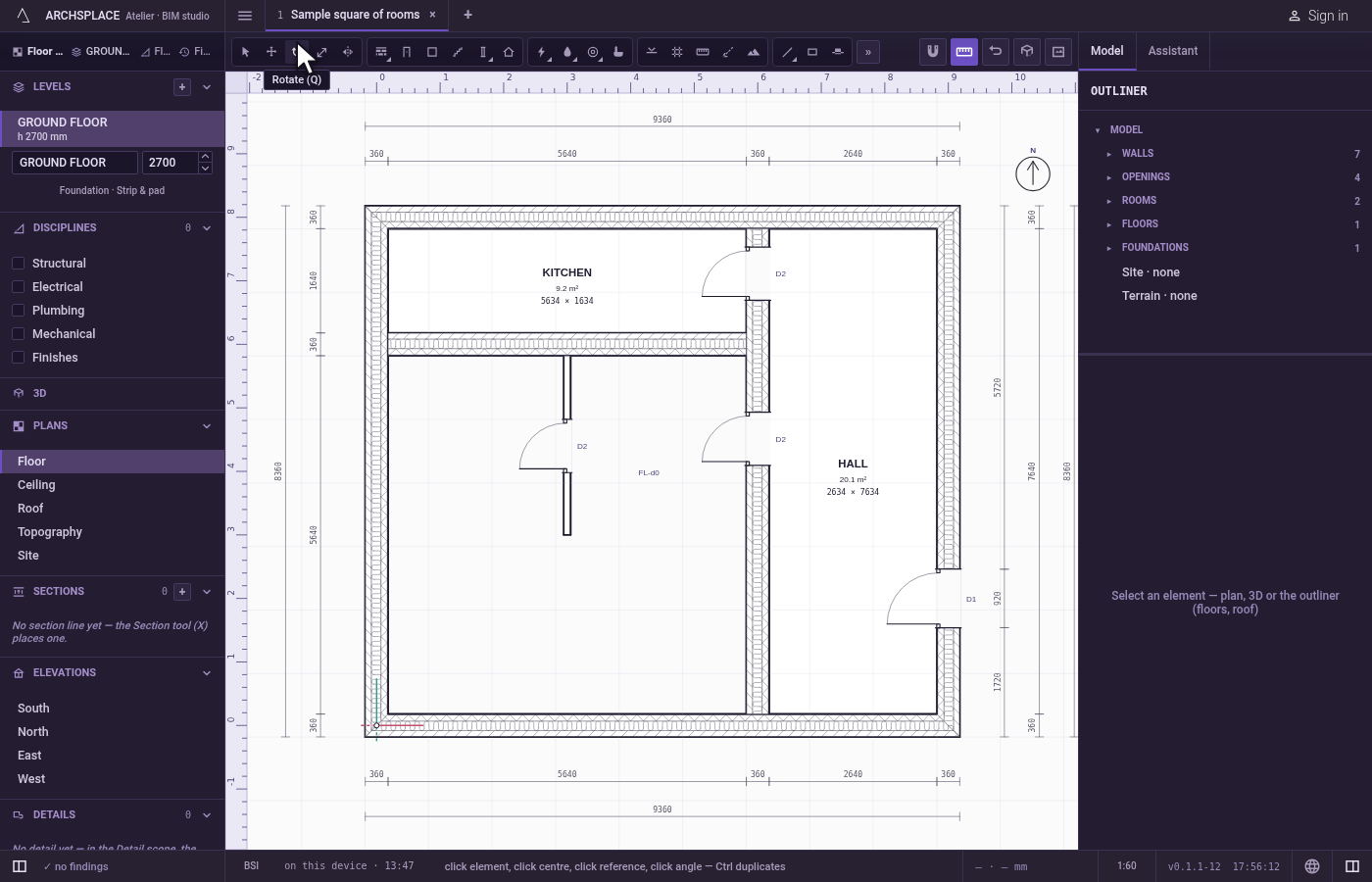
Click the element. Click the element that turns; with several elements selected, a click on any of them turns them all. If you already hold a selection, a first click on empty ground skips this step and is taken as the centre.
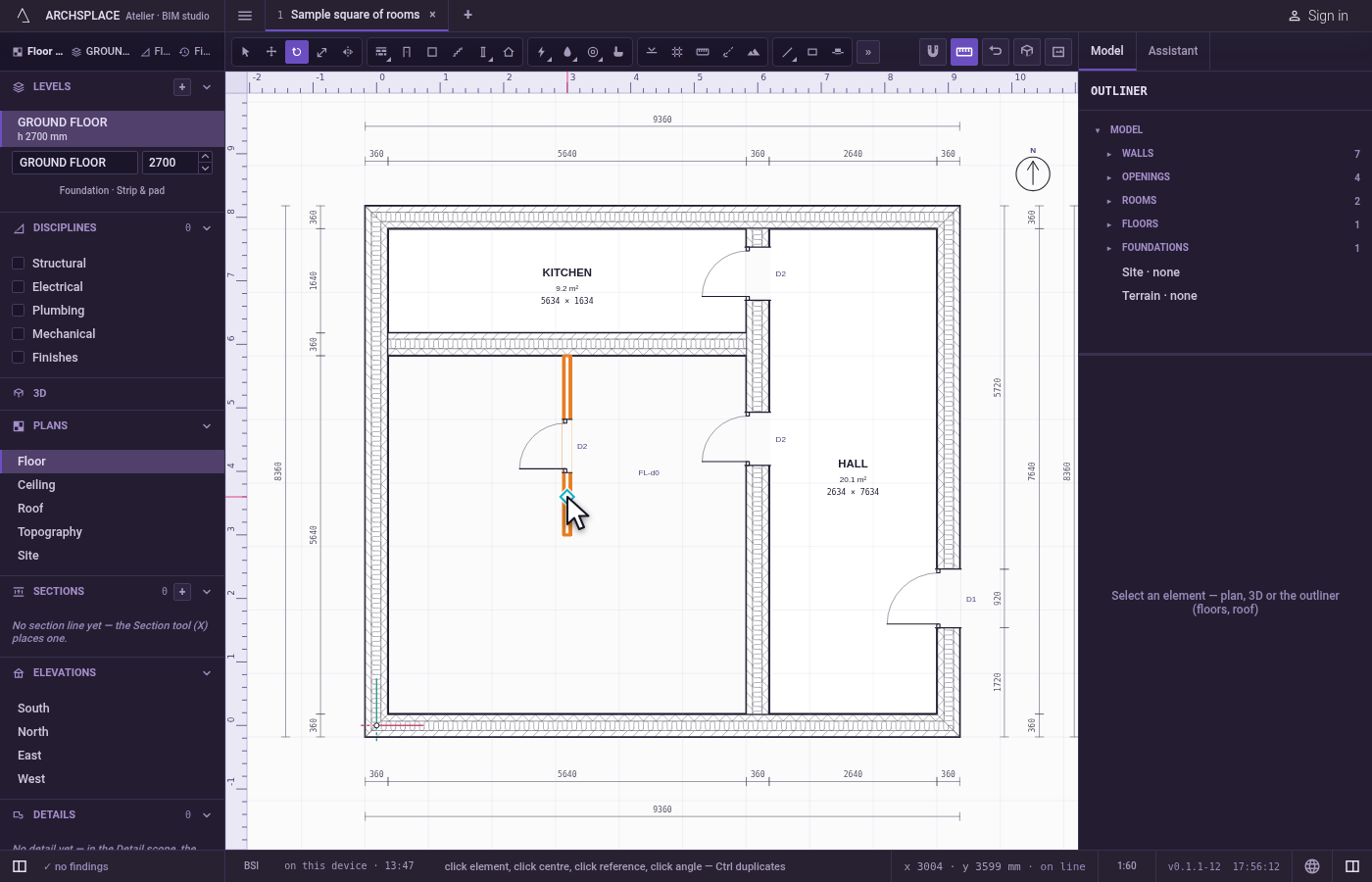
Click the centre. The magnet holds the click on the nearest corner, middle or crossing within reach, so the turn pivots exactly there.
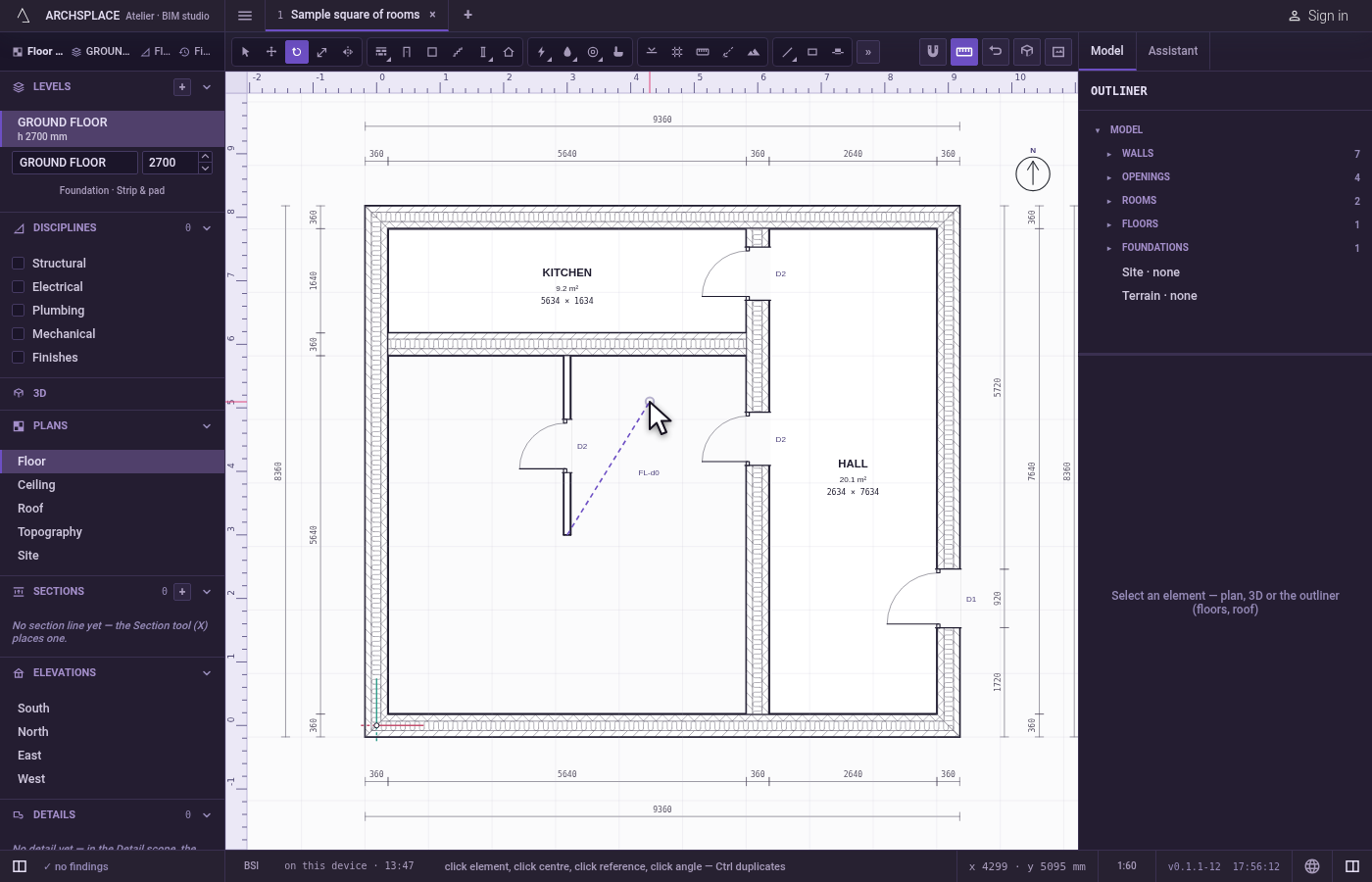
Click the reference. Click a point that names where the turn starts, often an end of the element itself. From there, a ghost of the turned elements follows the cursor.
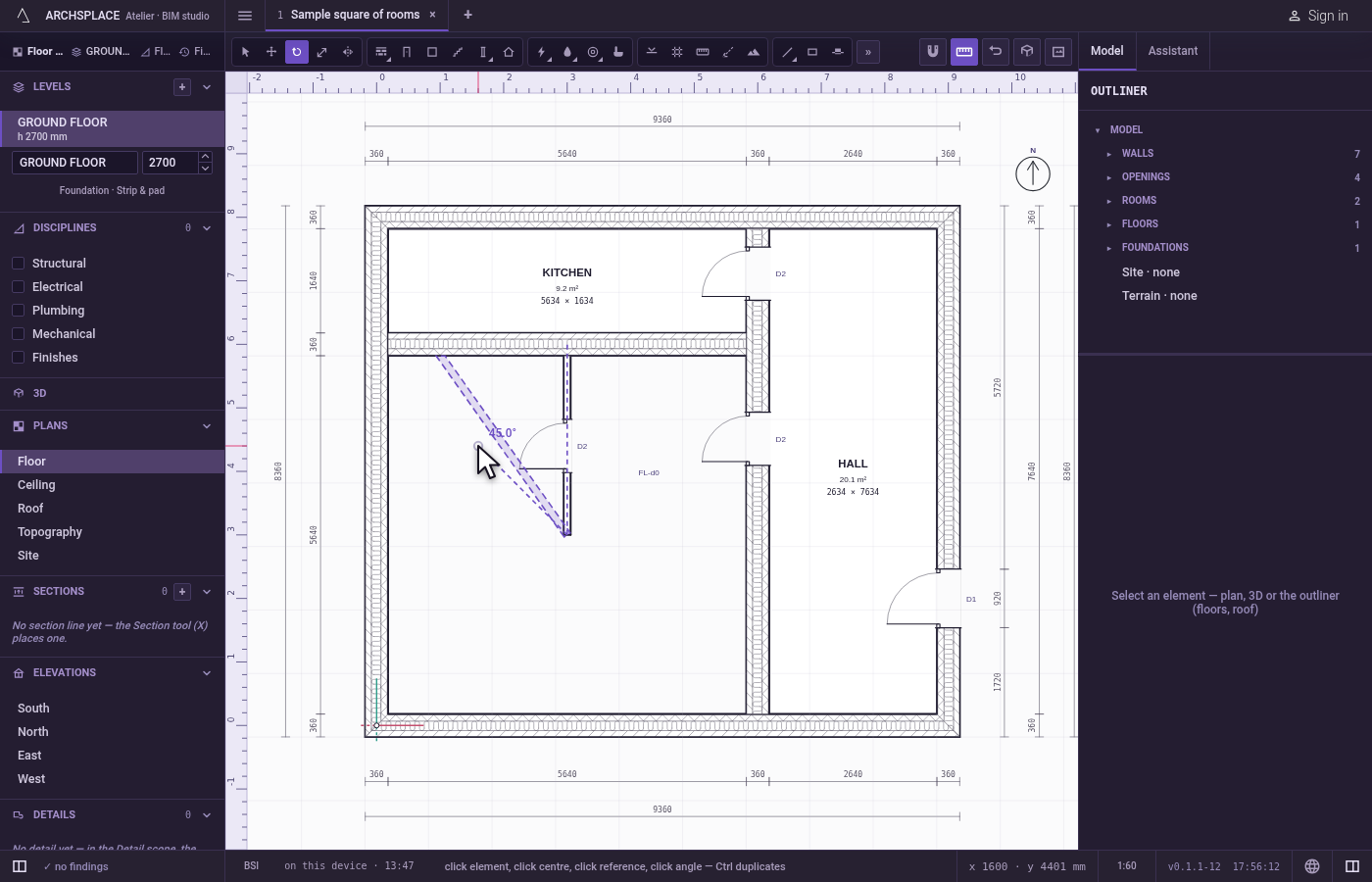
Click the angle, or type it. Move the cursor until the ghost stands where you want and click. Shift holds the angle to steps of 15 degrees, and F8, while it is on, to steps of 90 degrees. Or type the angle in degrees and press Enter: the elements turn by that many degrees, anticlockwise for a positive number. Hold
Ctrl(⌘on a Mac) as you click or press Enter to turn a copy.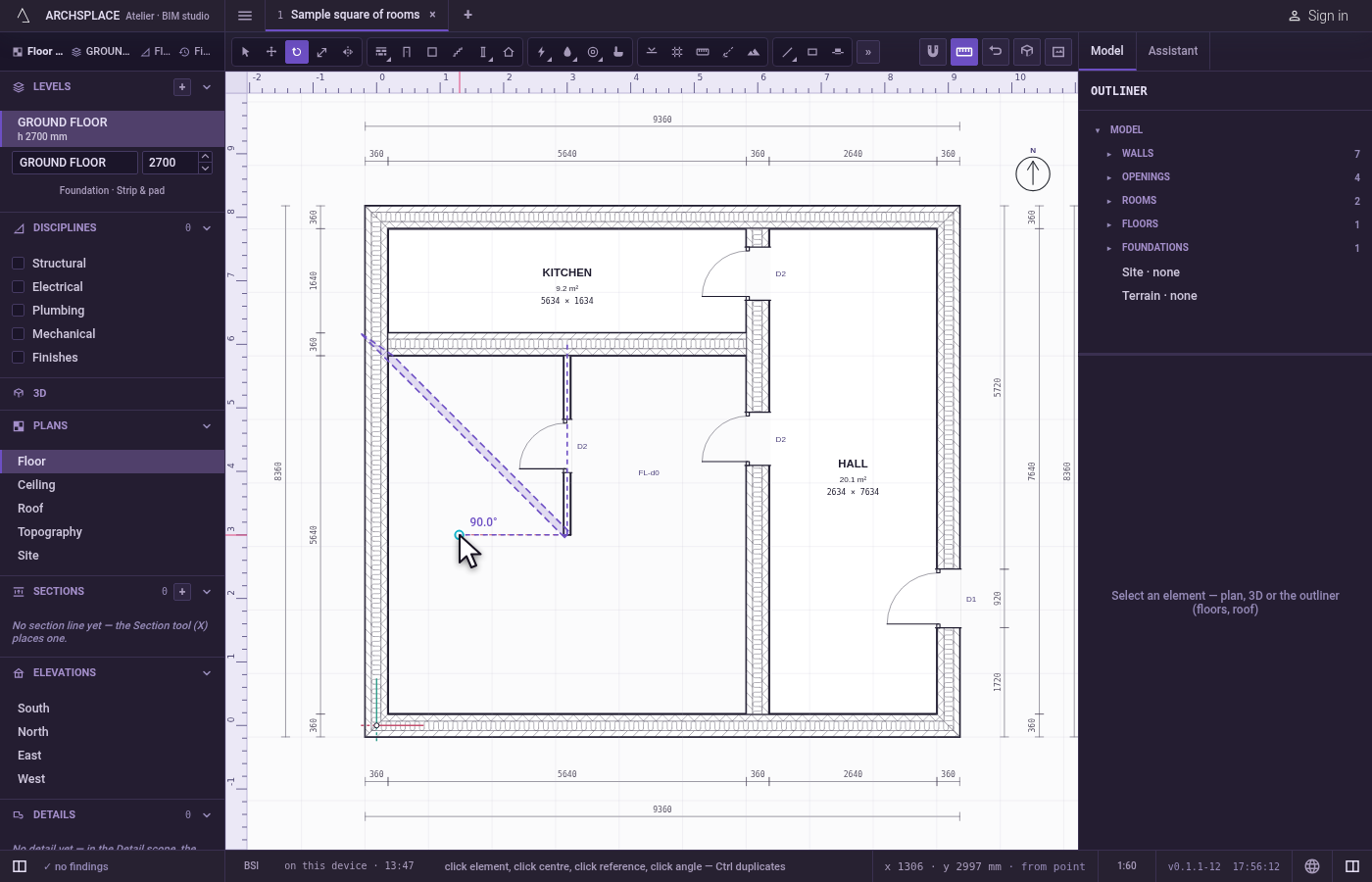
Go on round. Right after a turned copy, type
xand a number, then Enter, to repeat the same turn about the same centre until there are that many copies.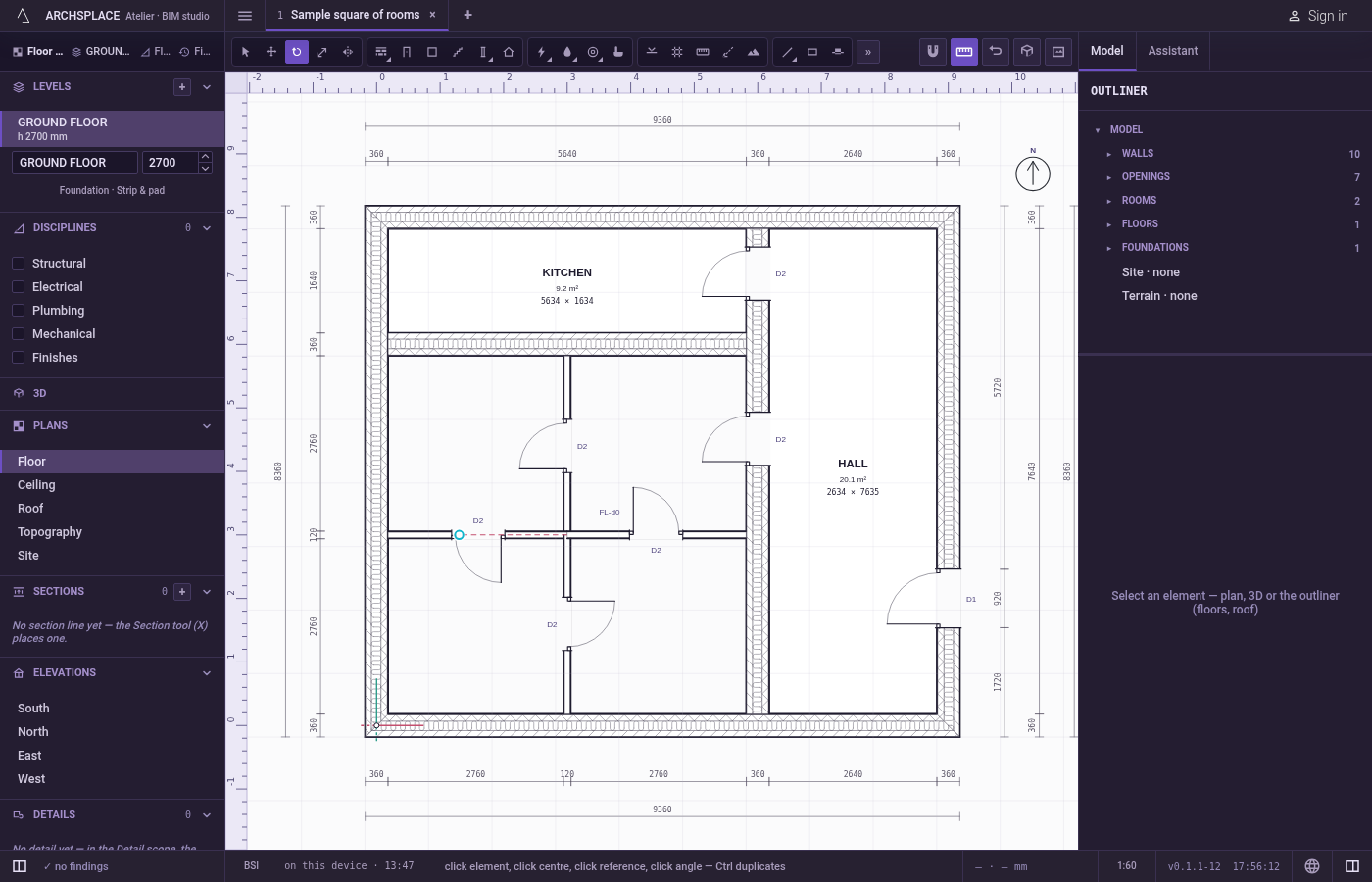
What it refuses
- A hosted element alone. A window, a door or a device on a wall rides its wall. Turned alone, it stays as it was and a message says to rotate the wall instead.
- A component turned inside out. A component instance turns, but never changes its size or its handedness.
- A turn that would break a joint. A turn that would leave a wall, a pipe or a beam shorter than a centimetre writes nothing and says why.
- Annotations. A dimension, a detail or a callout frame does not turn with Rotate.
What it writes to the contract
One step, which one undo takes back. Every turned element gets its new points: a wall's two ends, a column's position and its angle, a sanitary appliance's position and its angle, a stair's walk line, a roof's corners. The ends of walls, pipes and beams joined to them are written too. A copy adds new entries at the end of their lists instead of changing the originals.
Concepts
Common questions
How do I rotate by an exact angle?
Select the elements, press Q, click the centre, then type the angle in degrees and press Enter. A positive angle turns anticlockwise.
Can I rotate a single window or a socket?
No. A window, a door or a wall device rides its wall: the studio says so and leaves it as it is. Rotate the wall instead, and what it hosts turns with it.
How do I copy elements around a centre?
Rotate them once with Ctrl held, then type x and the total count, such as x6, and press Enter: the same turn is repeated around the same centre.