SketchJin the studio
Join in the tile editor
Join makes as few joints as possible out of the ones you select: straight joints on one line become one, arcs of one circle become one arc, and joints whose ends touch become one joint running through them. A chain that comes back to its start is closed.
What it is
Join is the reverse of Explode. From the joints you select, it makes as few as it can: two straight joints on one line become one line covering both, closing any gap between them; two arcs of one circle become one arc; and joints whose ends touch become one joint running through all of them. When such a chain comes back to where it started, it becomes a closed joint. A joined joint is then selected, moved, trimmed or rounded as one.
It is the same Join as in the other editors of the studio, acting here on the joints of the tile.
When to use it
- To turn separate lines drawn end to end into one polyline, so Fillet or Chamfer can treat all its corners at once.
- To mend a joint that Break or Trim left in pieces.
- To close an outline drawn from separate lines into one closed joint.
The steps
Choose the joints. Select them before taking the tool, and Join acts on them at once. Otherwise Join asks select objects: click joints to add them, or drag a box (to the right it takes what lies wholly inside, to the left what it touches),
Shifttakes a joint out, andFdraws a fence that takes every joint it crosses.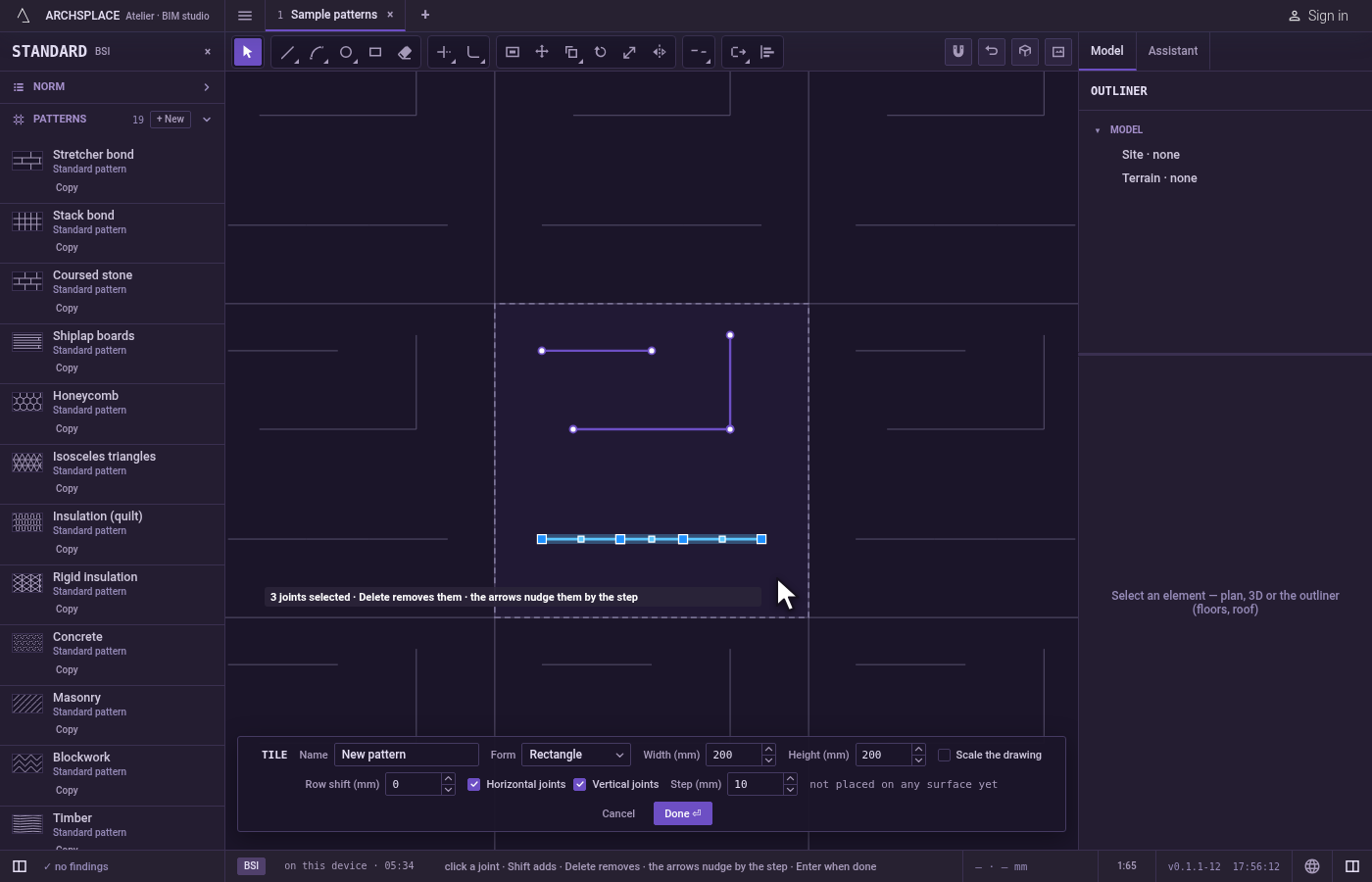
Take the tool. Press
J, or click Join on the bar. It shares its button with Break and Explode.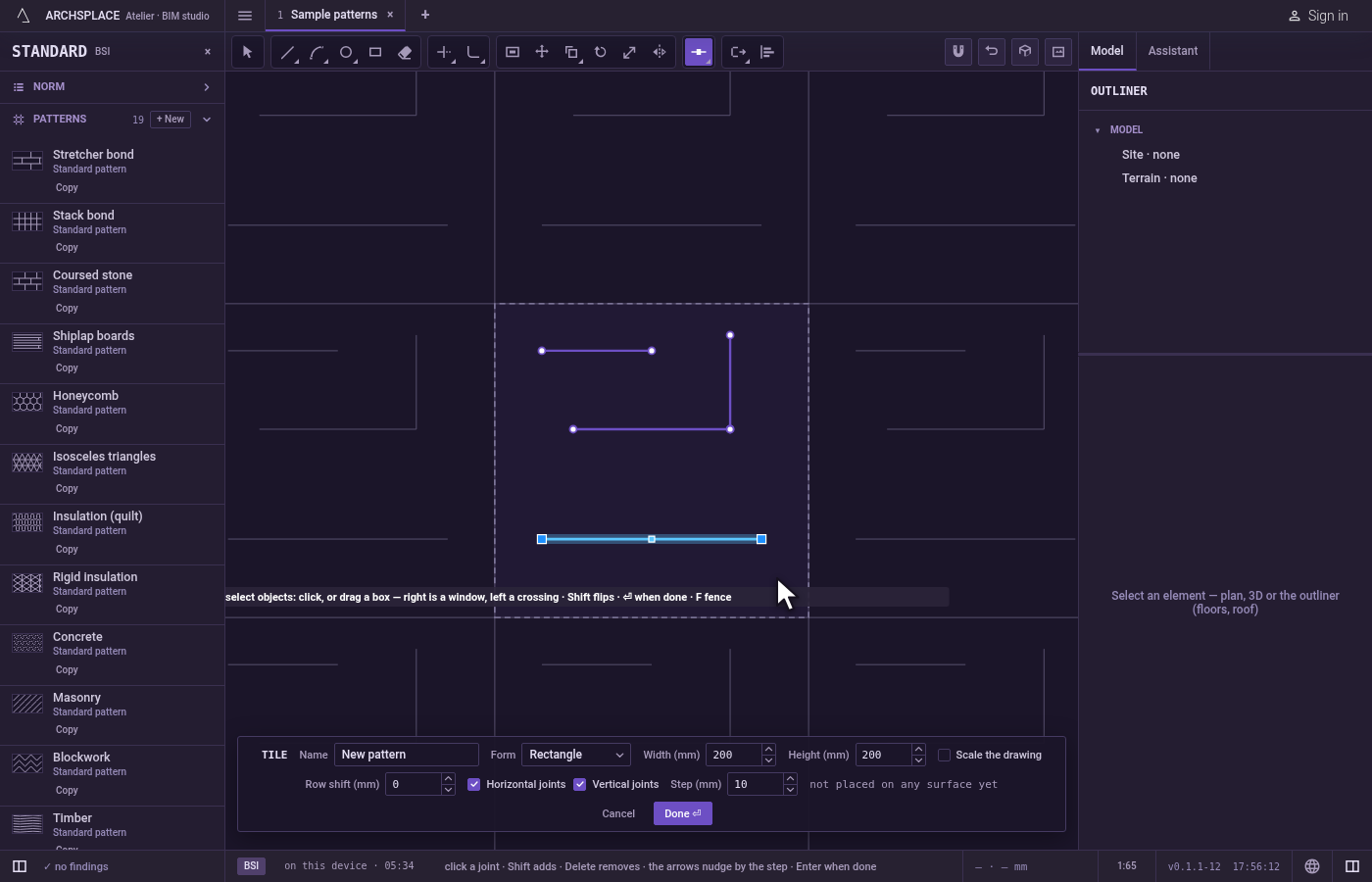
Join. If you chose the joints in the tool, press
Enter(orSpace, or the right button). The editor says how many joints came out and how many were left as they were, and the joined joints are selected.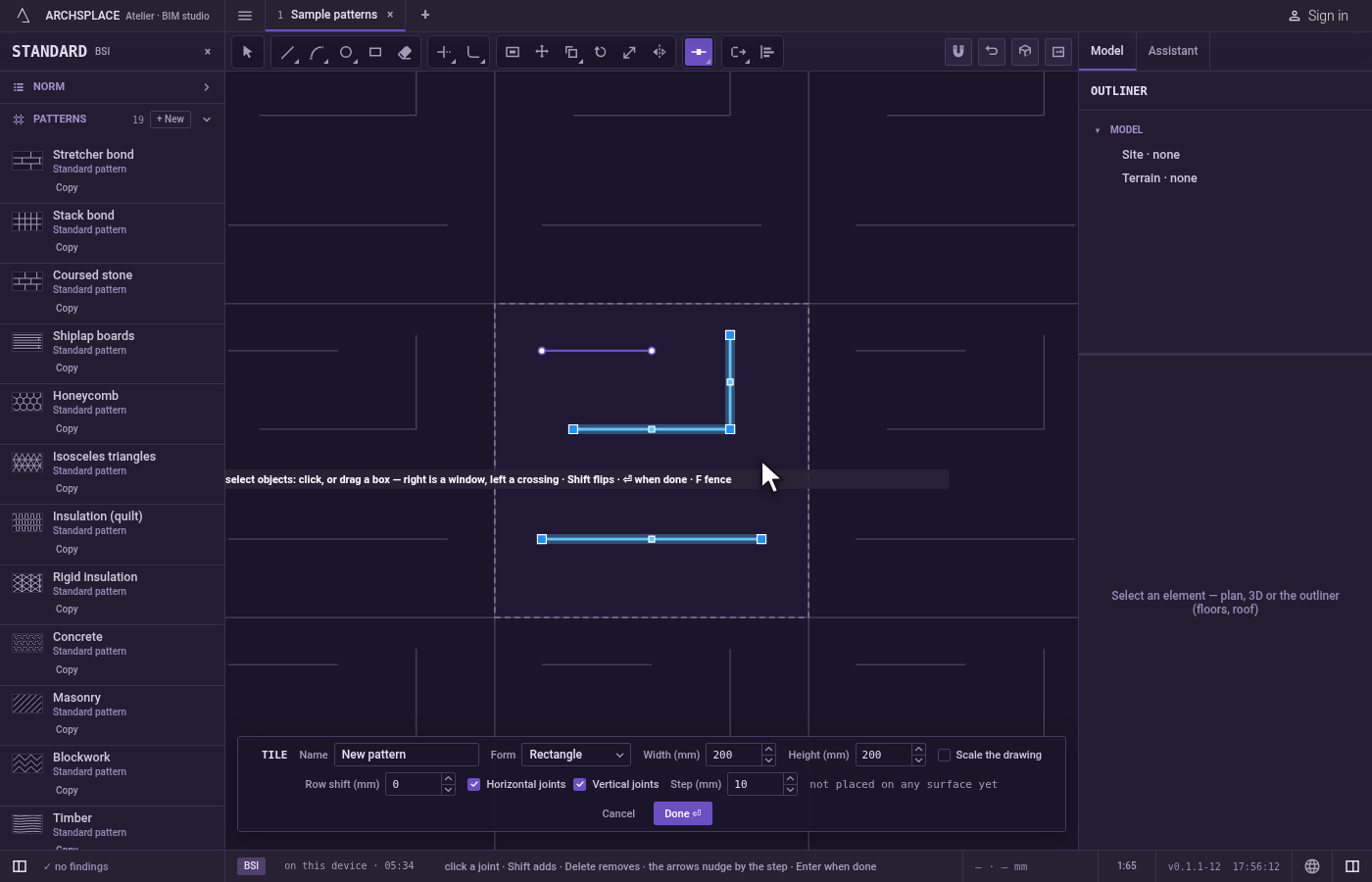
Join more or finish. Join then asks select objects again.
Escapeleaves Join for Select.Ctrl+Zbrings the separate joints back. Press Done on the bar at the foot to hand the tile back.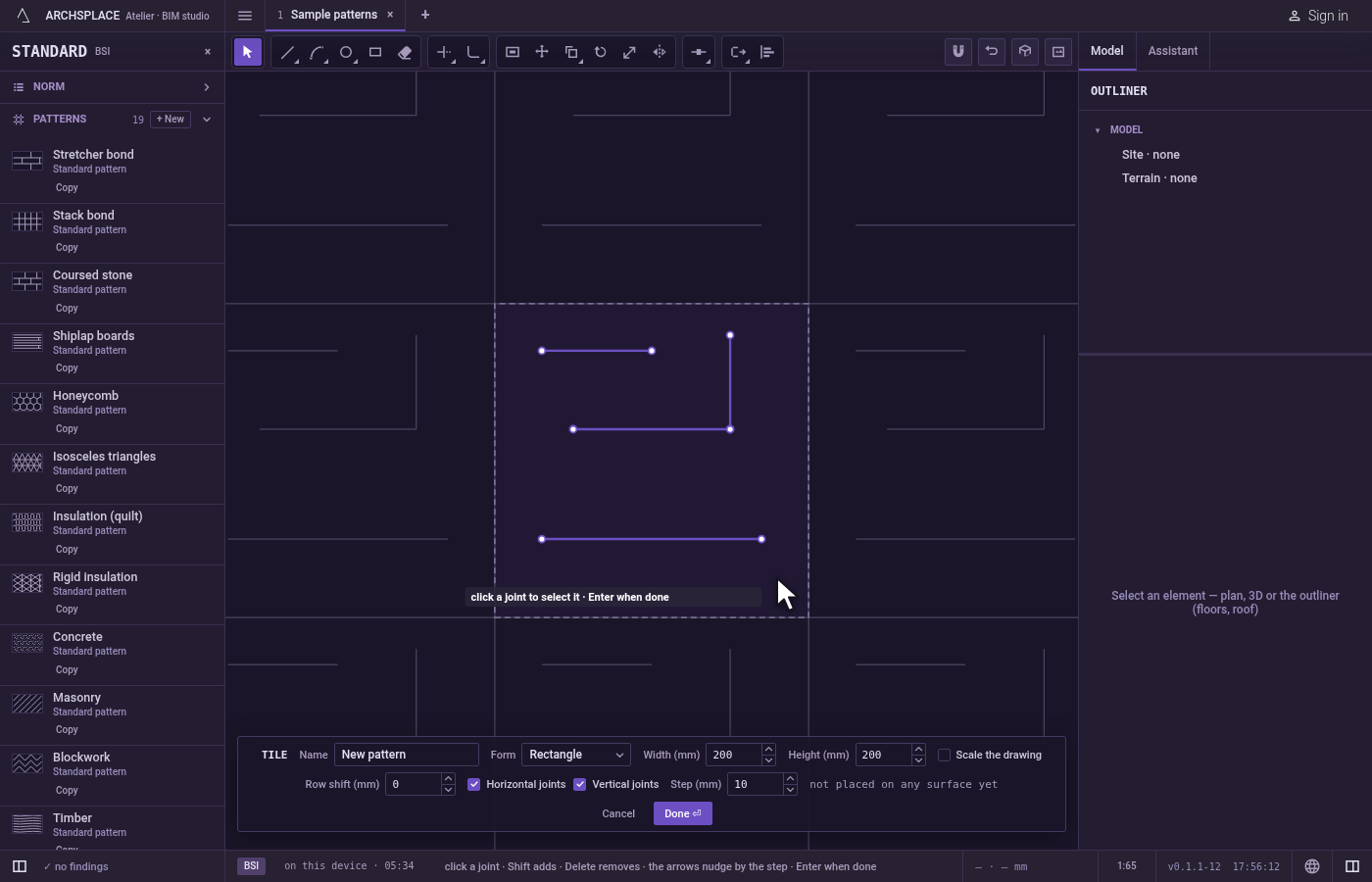
What it refuses
- Joints that do not meet. When nothing in the selection can be joined, the editor says nothing to join, with what it needs: ends that touch, or lines or arcs on one line or circle.
- Closed joints. A circle, a rectangle or a closed polyline is left as it is, and counted among those left.
- Two arcs that would make a whole circle. They are not joined into one, since an arc stays under a full turn.
- Enter with nothing chosen. Join keeps asking select objects.
What it writes to the contract
Nothing while you work: the change stays in the tile editor, where Ctrl+Z steps back through it. When you press Done, the whole tile is written to the project's patterns in one step you can undo, every joint as its points in metres from the tile's lower-left corner, each joined joint as one run of points, open or closed. A standard pattern is never changed: Done saves the project's own version of it under the same name, and every surface that lays it follows. Save as new writes a new pattern instead. Cancel writes nothing.
Related
Common questions
Why did Join leave some joints as they were?
Join only merges straight joints that lie on one line, arcs of one circle, and joints whose ends touch. A joint that meets none of the others, and any closed joint, is left as it is, and the editor counts them.
Do the ends need to touch exactly?
For a chain, yes: the ends must meet, which they do when you draw with the magnets. Two straight joints on one line are joined even with a gap between them, and so are two arcs of one circle.
Can I turn four lines into a closed rectangle?
Yes. If the four lines meet end to end and come back to the start, Join makes one closed joint of them.