SketchJin the studio
Join
Join makes the selected open lines of the sketch editor into as few lines as it can: lines whose ends touch become one, two straight lines on the same line become one across their gap, and two arcs of one circle become one arc. A chain that comes back to its start closes.
What it is
Join takes the open lines you choose and makes as few lines of them as it can. Lines whose ends touch become one line running through all of them. Two straight lines lying on the same straight line become one, and the gap between them closes. Two arcs of the same circle become one arc. A chain that comes back to where it started becomes a closed outline. Closed outlines, and lines that meet nothing, are left as they are.
The tools of this group work on lines as drawn, so joining changes what they take: a fillet between two sides of one joined line replaces the corner in place, and Copy or Lengthen take the joined line whole.
When to use it
- Making the separate strokes of an outline one line, so later tools treat it as one.
- Mending a straight line that was broken or drawn in two parts.
- Closing a chain of lines into an outline.
The steps
Choose the lines. In the sketch editor (see Select for the ways in), select the lines with Select.
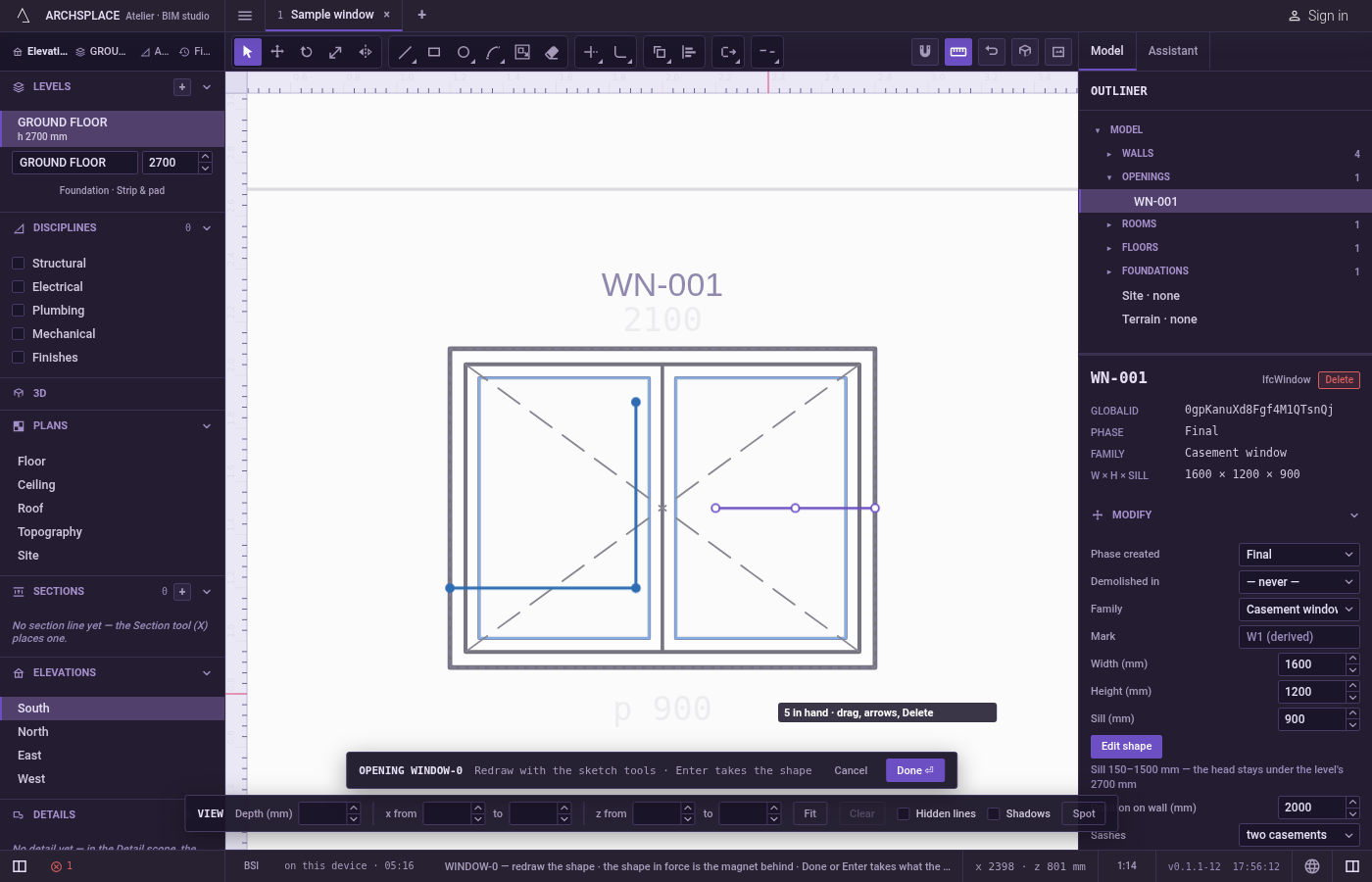
Arm Join. Press
J, or click Join on the editor's toolbar. With lines already selected, Join acts at once: the hint says how many lines they were joined into and how many were left as they were. The joined lines are left selected.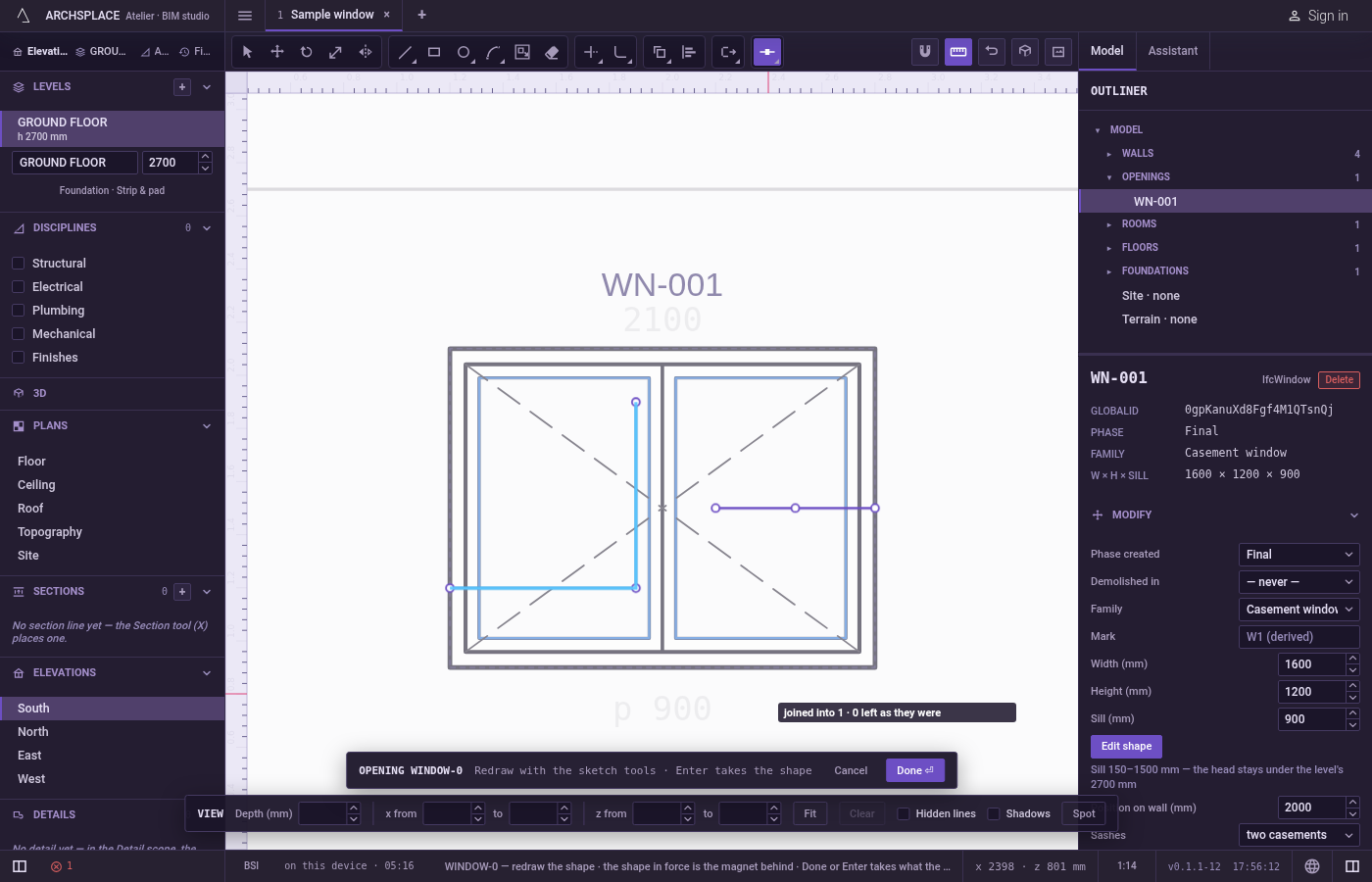
Or pick the lines after arming. With nothing selected, the hint asks you to select objects. Click lines to add them,
Shiftand a click to take one back out, drag a box to the right for the lines wholly inside or to the left for every line it touches, or pressFfor a fence. PressEnterto join them.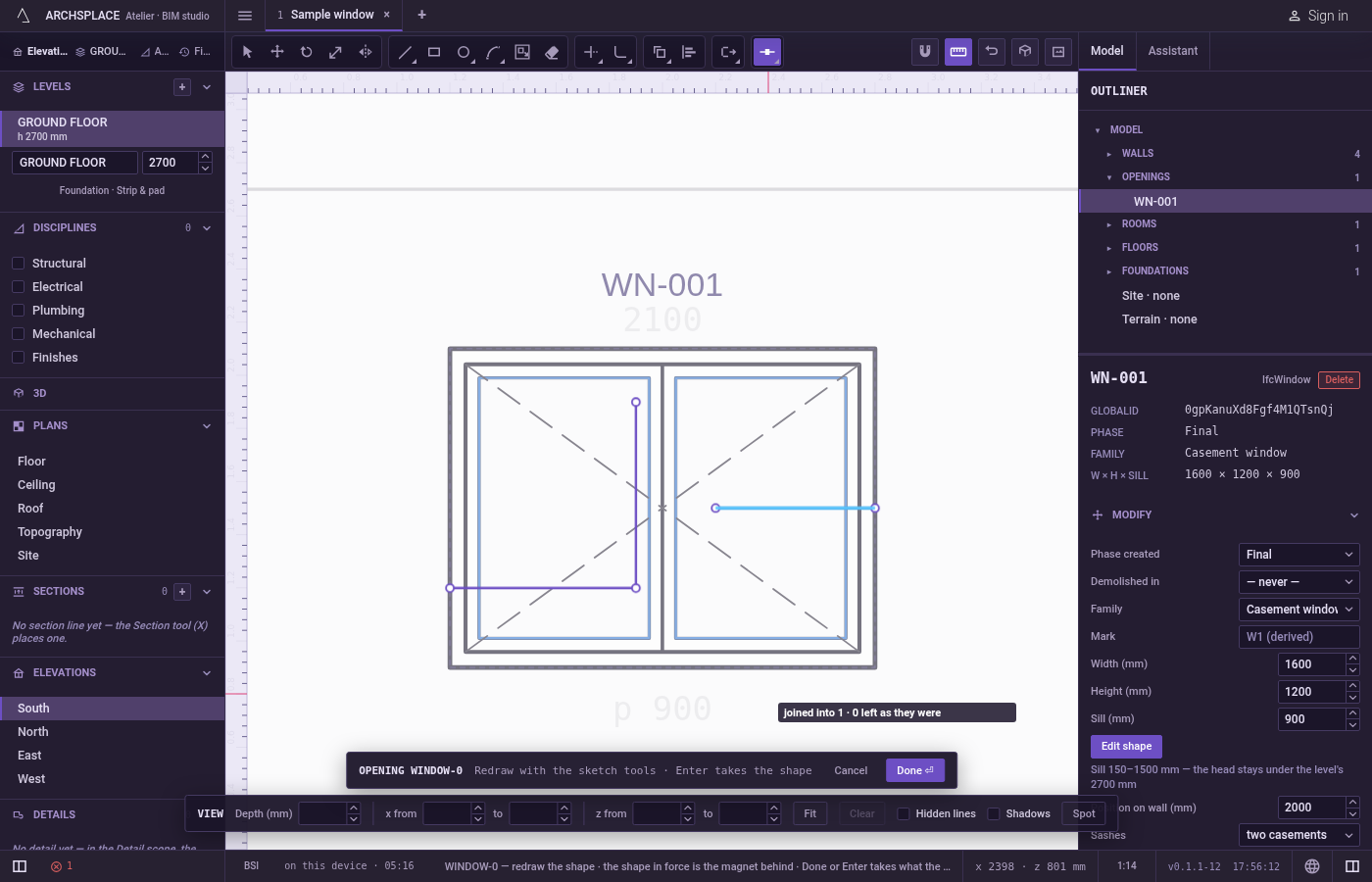
Carry on. Join keeps asking for lines, with the joined lines still selected.
Escapegoes back to Select.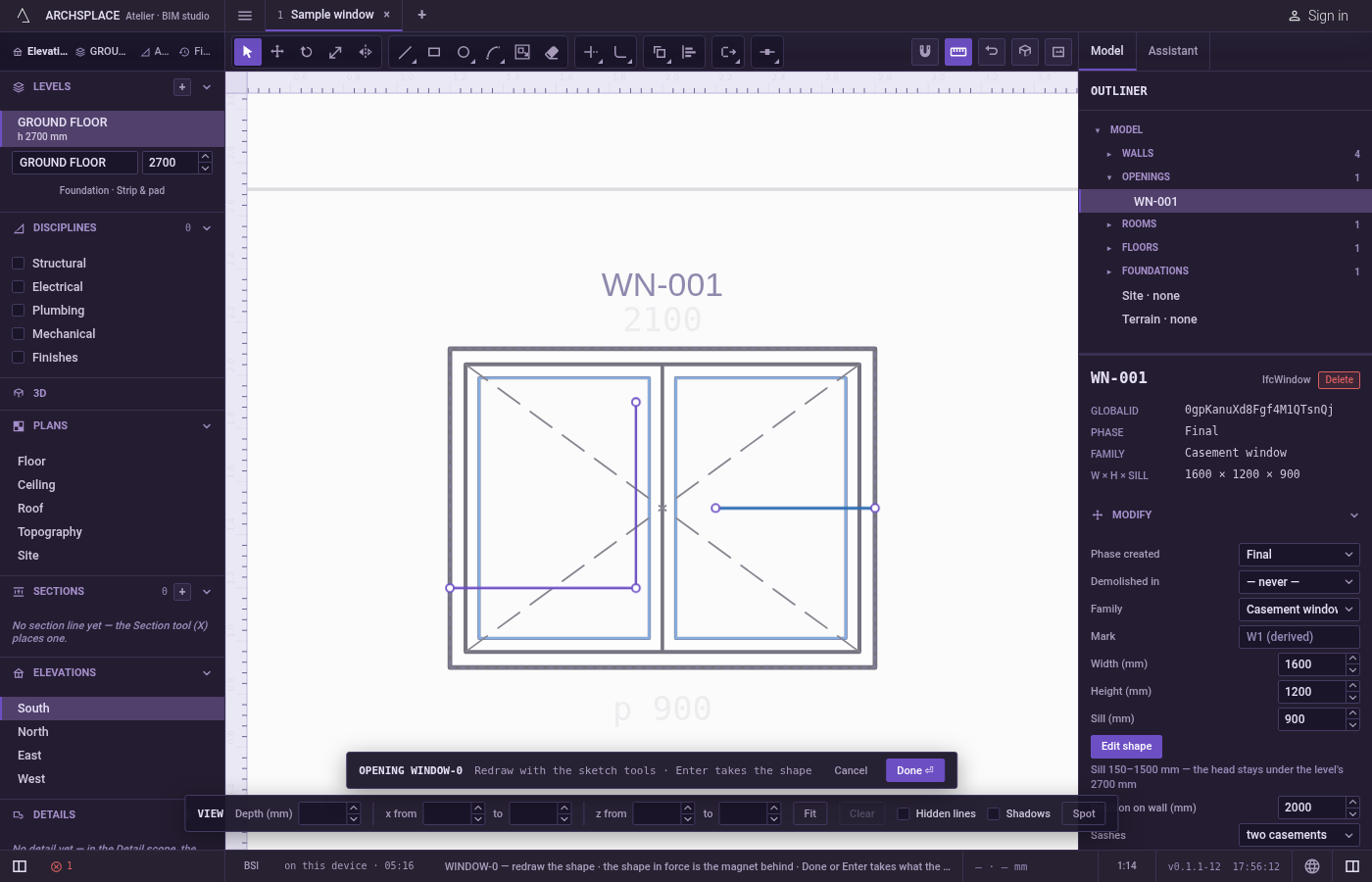
What it refuses
- Nothing to join. When no two of the lines touch at their ends, or lie on one straight line or one circle, the hint says there is nothing to join and nothing changes.
- Closed outlines. A rectangle, a circle or any closed line is left as it is and counted.
- Lines that touch only in their middle. Ends must touch. A line crossing another is not joined to it.
- Joining with nothing picked.
Enterwith no line picked asks again to select objects.
What it writes to the contract
Nothing until you press Done. A join is one step inside the editor, and Ctrl+Z takes it back. The contract changes when you press Done, or Enter with nothing in progress, as one step you can undo: what the lines enclose becomes the window's or door's profile, points [u, v] in metres across the wall and up from the floor, or the pattern area's outline in the room's floorAreas or ceilingAreas, points [x, y] in plan metres.
Joining changes how the lines are kept in the editor, not the area they enclose. The outline handed over at Done is the same whether its sides were joined or not, unless the join closed a gap.
Common questions
Do I need to join my lines before pressing Done?
No. Done reads every area the lines enclose, joined or not. Join matters for the tools that take whole lines, such as Fillet between two sides, Lengthen or Copy.
Can Join close a gap between two lines?
Yes, when both lie on the same straight line: they become one line across the gap. Lines at an angle must touch at their ends to be joined.
Why does Join leave some lines as they were?
Closed outlines cannot be joined, and an open line that touches no other selected line and lies on no common line or circle has nothing to join with. The hint counts them.