Workflows
Phases
Phases are the moments of a project's life, the existing building and the final one at first, and a comparative phase shows what changes from one to another: what is demolished and what is proposed. Every element says the phase it is built in and, when it goes, the phase it is demolished in, and each view draws the phase you choose.
What it is
A project's phases stand in the Phases section of the sidebar, with their count and Add phase. Every project starts with three:
- Existing: the building as it stands, phase 1.
- Final: the building as it will be, phase 2.
- Construction / Demolition: a comparative phase, from Existing to Final.
Each phase is a card: its name, then its rank (phase 1) or, for a comparative phase, the two it compares (⇄ Existing → Final). A click on a card shows that phase in every view; the sidebar's position line names it. Each card carries two arrows to move it up or down, and a × to remove it. The phase in hand is edited under the list: its name in a field, and ⇄ to make it comparative or plain again. A comparative phase shows two lists, Compare from and Compare to.
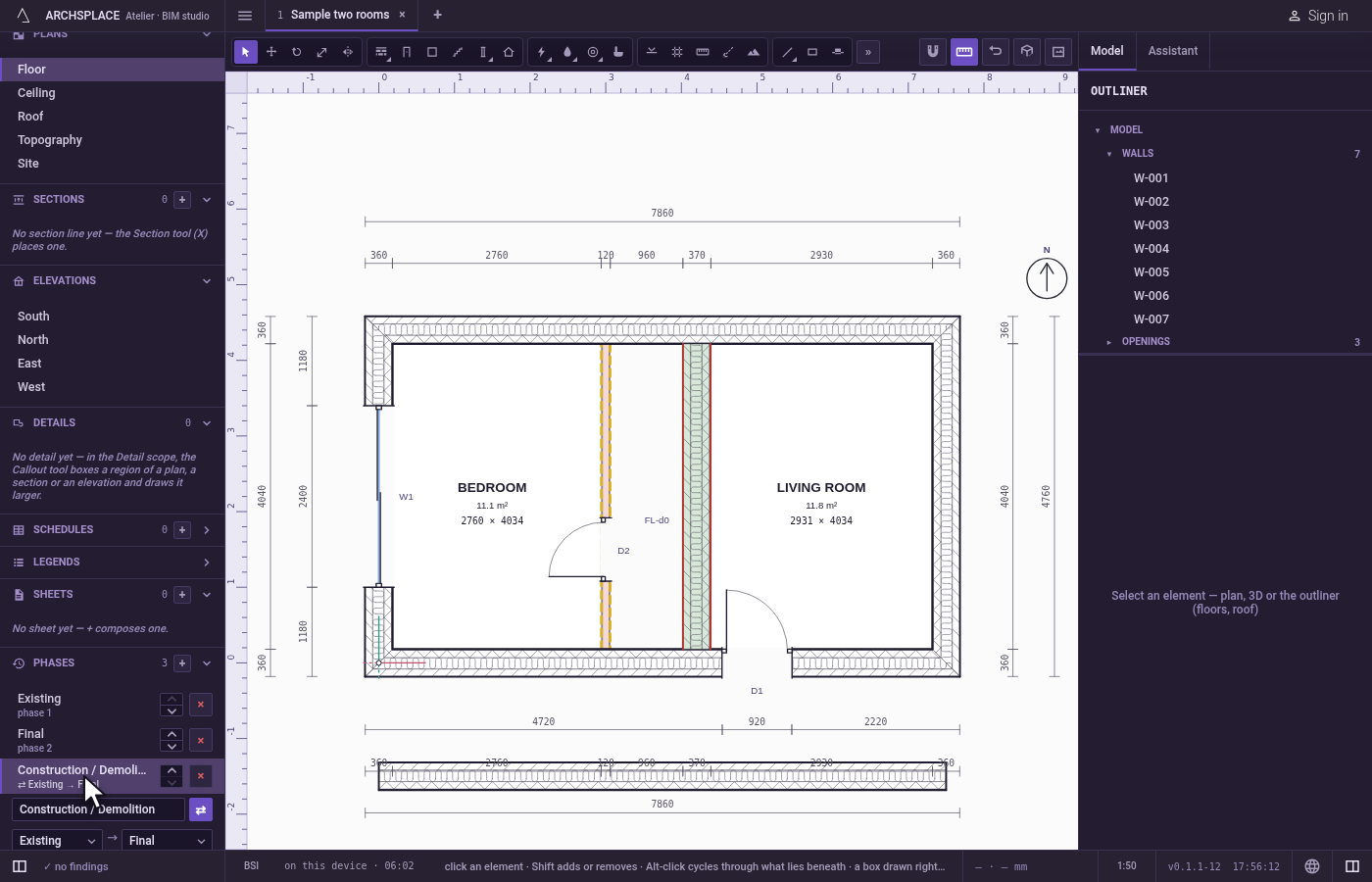
An element is built in one phase and may be demolished in a later one. What you draw is created in the phase in view, or, in a comparative phase, in the phase it compares to. Its panel carries Phase created and Demolished in (Never, or a phase) whenever the project has more than one plain phase. An element is drawn in every phase from the one it is created in up to the one it is demolished in. In a comparative phase, the plan draws a wall that stands in both phases as usual, a wall that is gone in the second as demolished, pale red with a dashed yellow outline, and a wall that is new in the second as proposed, pale green with a red outline.
The IFC export, the schedules and the files taken from a view hold the phase in view.
When to use it
- Drawing a renovation: the existing house, what is demolished and what is built.
- Producing a demolition plan and a proposed plan.
- Splitting a project into stages, each one a phase.
The steps
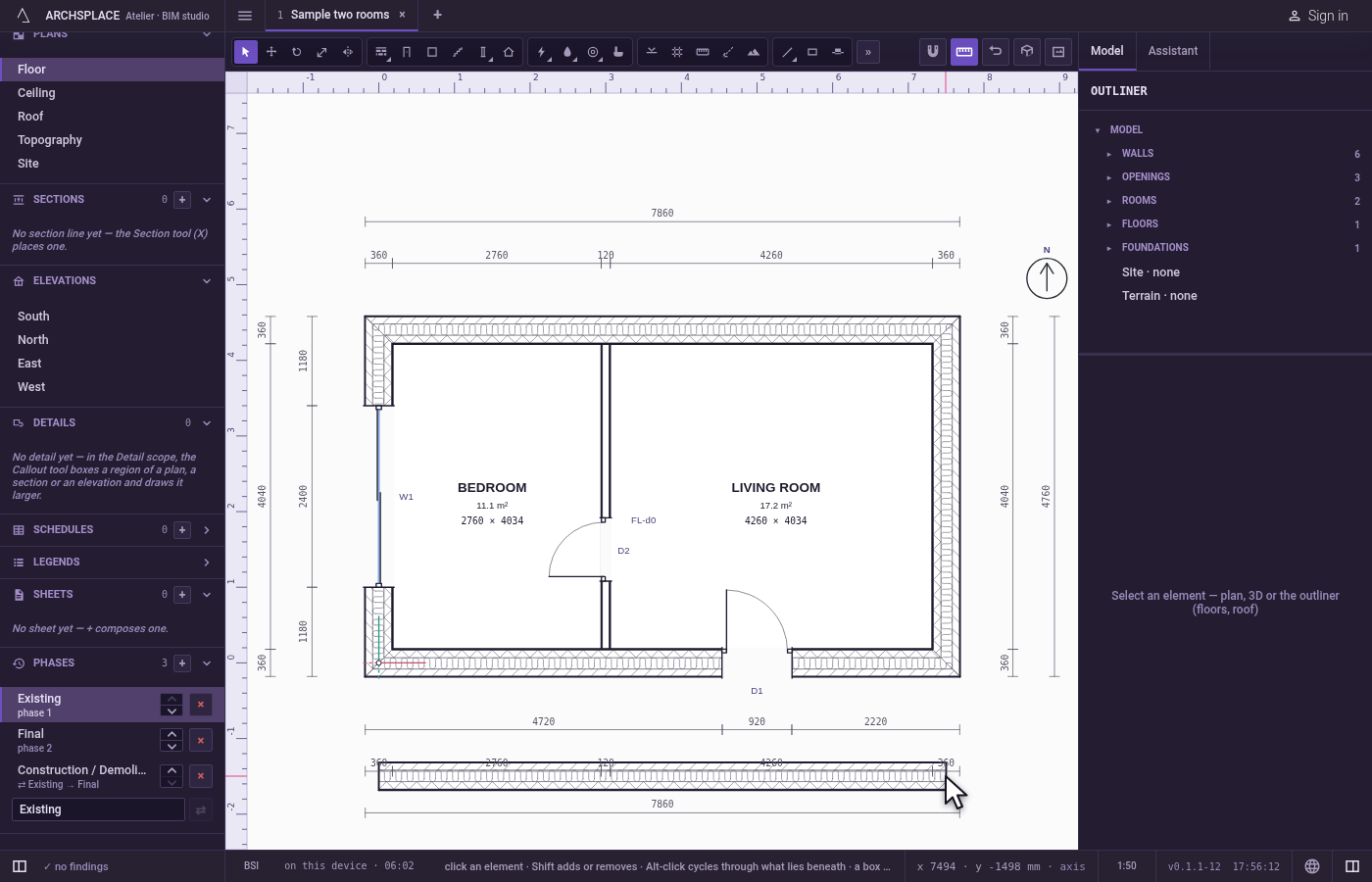
Draw the existing walls. Click Existing in Phases. Draw the walls that stand today: they are created in Existing.
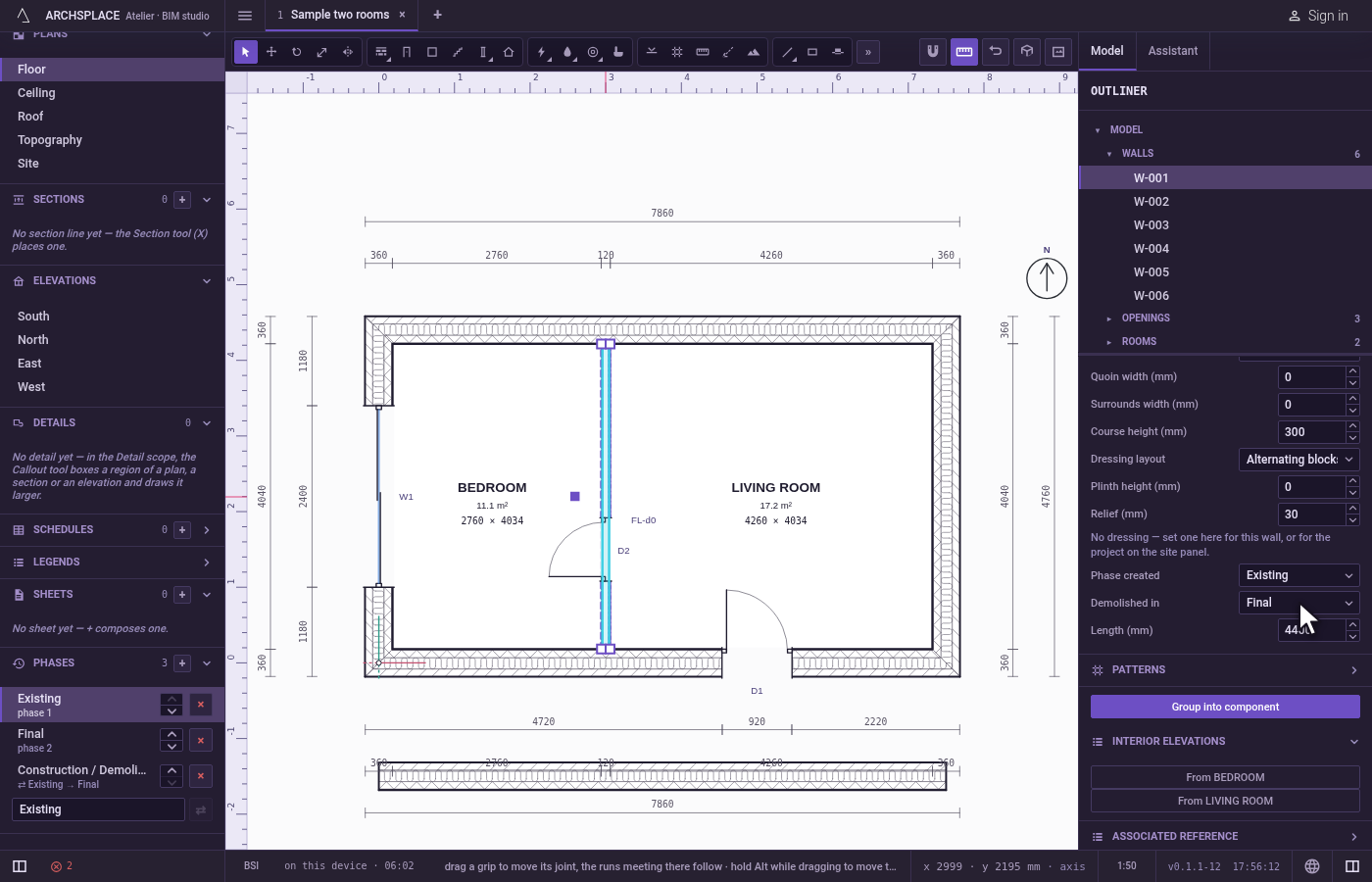
Demolish one wall. Select a wall to take down, and in its panel set Demolished in to Final.
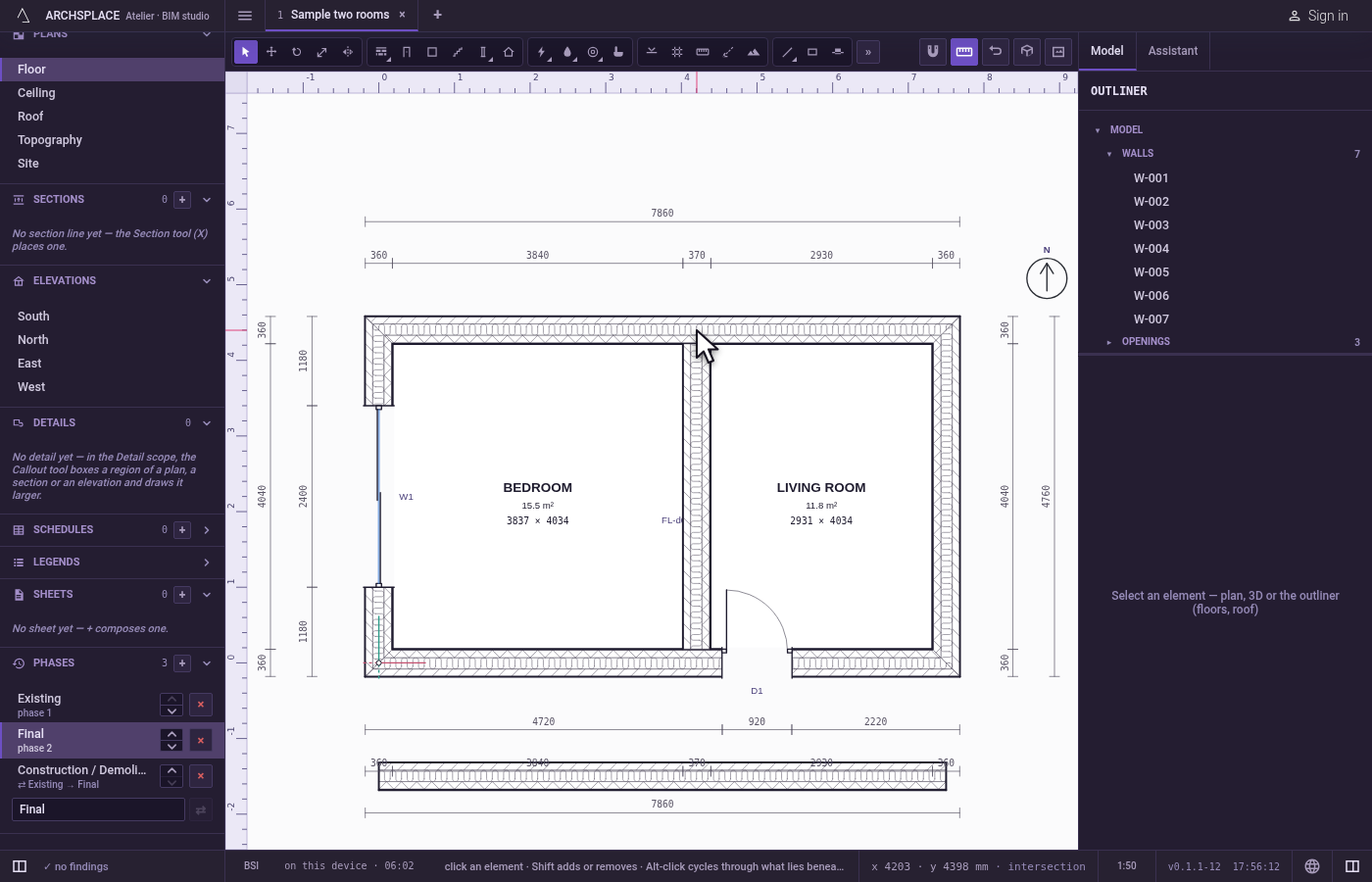
Draw what is proposed. Click Final. The demolished wall is gone. Draw the new walls: they are created in Final.
Compare. Click Construction / Demolition. The plan shows the existing walls as they are, the demolished wall pale red with a dashed outline, and the new walls pale green.
Add a phase. Click Add phase. Phase 4 joins the end of the list. Click its card, type Stage 2 in the name field under the list and press
Enter, then move it up with its arrow.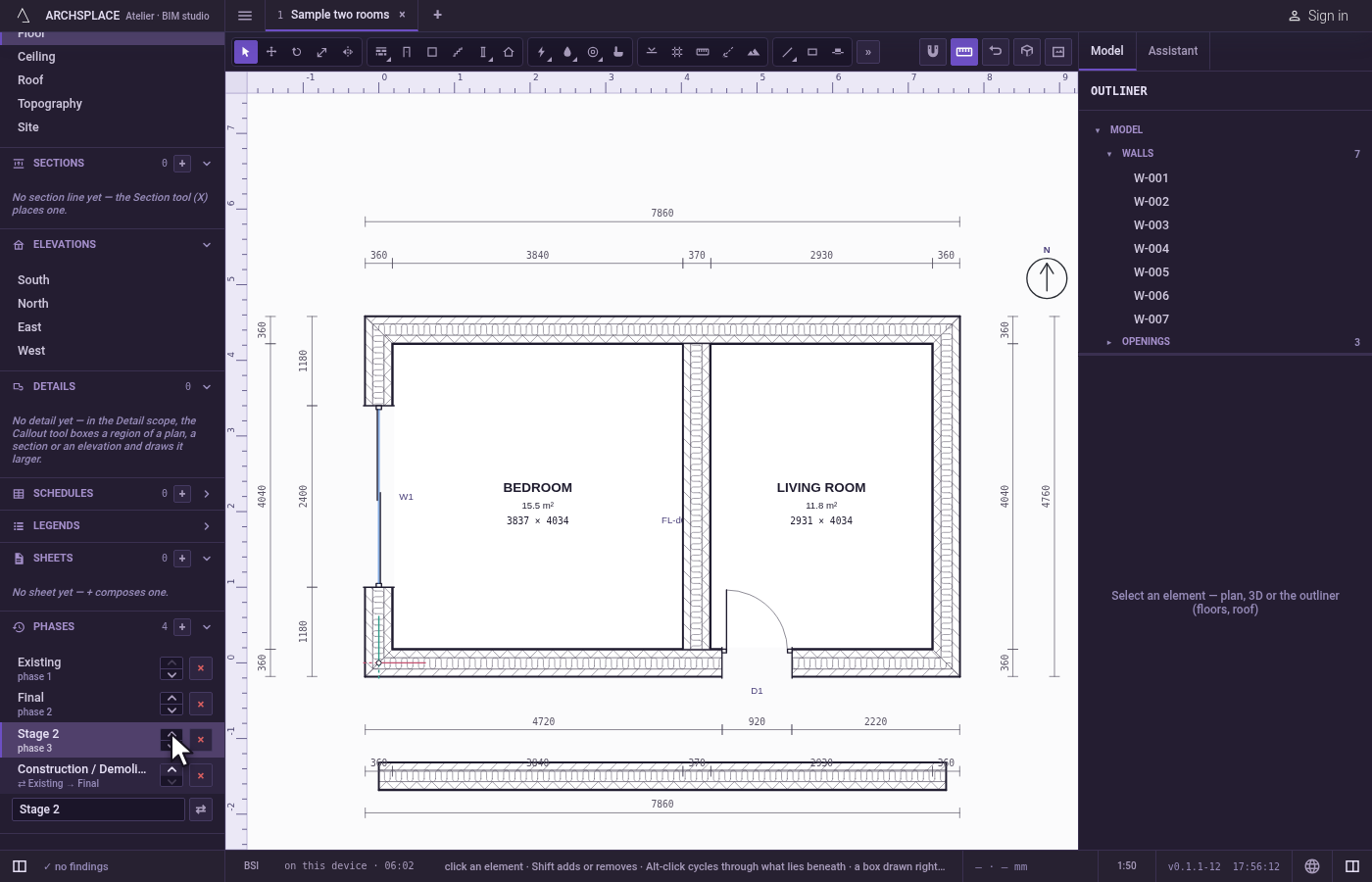
What it refuses
- Removing the last plain phase. A project always has at least one: its card has no ×.
- A comparative phase with fewer than two plain phases to compare. ⇄ stays greyed.
- An empty name. The phase keeps its name.
What it writes to the contract
The phases are the project's phases, in order, each with its id, its label, its kind (NORMAL, or COMPARE with from and to). A project that never touched them carries none, and the three default ones apply. An element writes its phase, the phase it is created in, and its demolished, the phase it goes in. Removing a phase moves its elements to the next plain phase, or to the one before it when it was the last. Every change is one step that one Ctrl+Z takes back.
Common questions
How do I draw a renovation?
Draw what stands today in the Existing phase. Mark what is taken down as Demolished in Final, and draw what is added in Final. The Construction / Demolition phase then shows the two together: demolished walls dashed, new walls in their own colour.
How do I show a wall as demolished?
Select it and set Demolished in, in its panel, to the phase where it goes. It is drawn in the phases before that one, gone from that one on, and drawn as demolished in a comparative phase.
Can I add my own phases?
Yes. Add phase in the Phases section of the sidebar makes a new one; rename it in the field under the list, and move it with its arrows. Any phase can become comparative, showing what changes from one phase to another.