Sections and elevationsDin the studio
Dimension in sections and elevations
Dimension, in a section or an elevation, measures the distance between two points of the view: you click the two points, then where the dimension line sits. The value is always measured from the drawing, never typed, and the dimension belongs to that view alone.
What it is
Dimension measures between two points of a section or an elevation, the way the plan's Dimension does: three clicks, the first point, the second point, and the place of the dimension line. The line runs parallel to the two points, so a dimension between two points one above the other measures a height, and one between two points at different heights and places measures the true distance between them.
While you pick the two points, every line the drawing shows pulls the pointer: each corner, the middle of each line and the line itself, within the same reach as on the plan, along with the guides you pulled from the rulers. The hatches, the dimensions, the annotations and the crop frame never pull it. A click on a wall or a window is a point for the tool, never a pick.
The dimension belongs to that view alone. It is drawn with the view's own chains, goes onto a sheet with the view (a viewport placed before it takes it when you sync the viewport), and hides with them when the dimensions are switched off.
When to use it
- Giving a height the automatic chains do not give, such as a balcony rail or the top of a chimney.
- Measuring between two points of a facade that no chain links, such as two windows on different floors.
- Adding the one figure a builder will ask for on a section.
The steps
Open a section or an elevation and press D. Or click Dimension in the toolbar. The status bar says to click a point of the view, a second one, then where the line sits, and that every drawn line pulls the pointer.
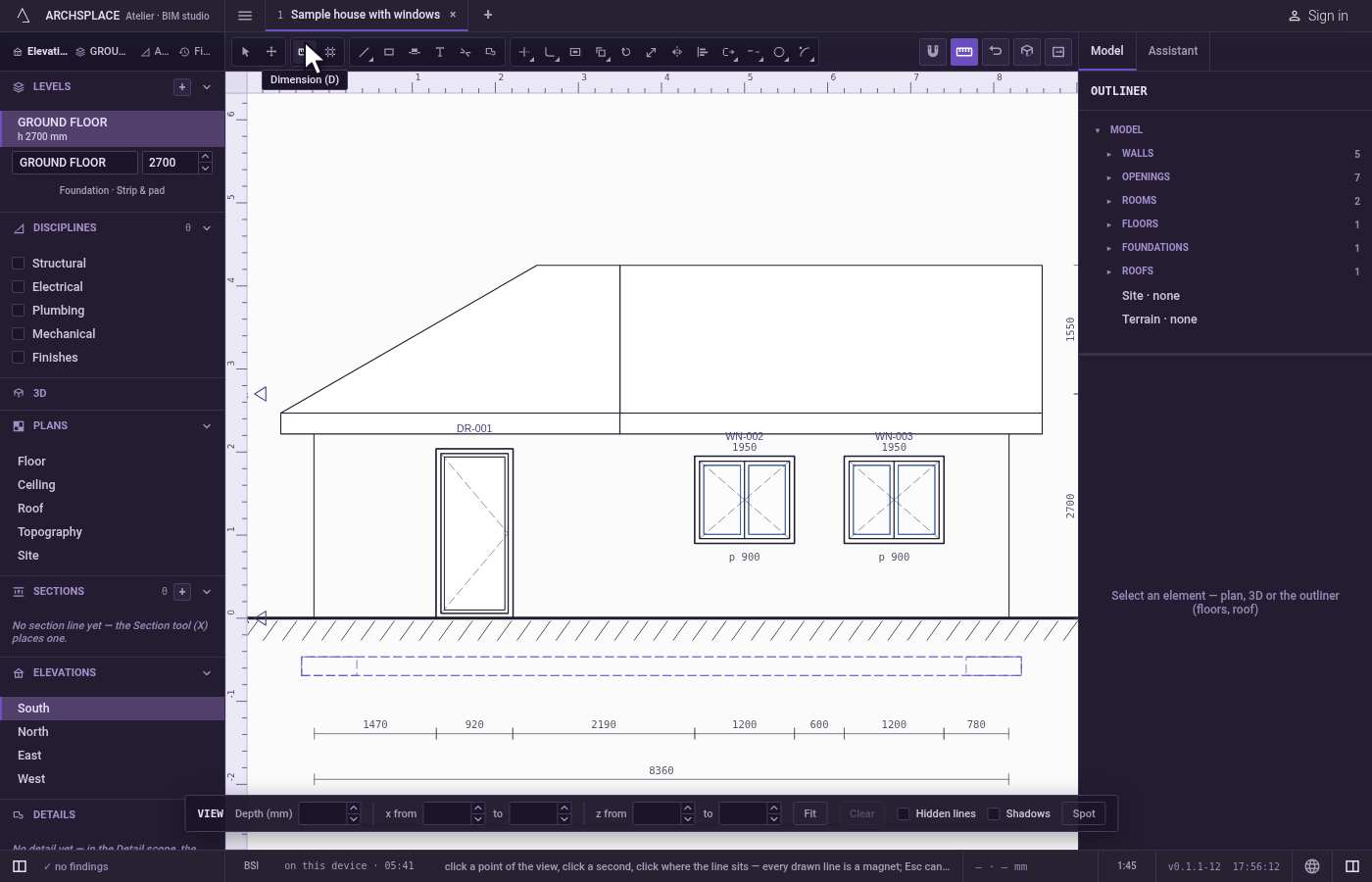
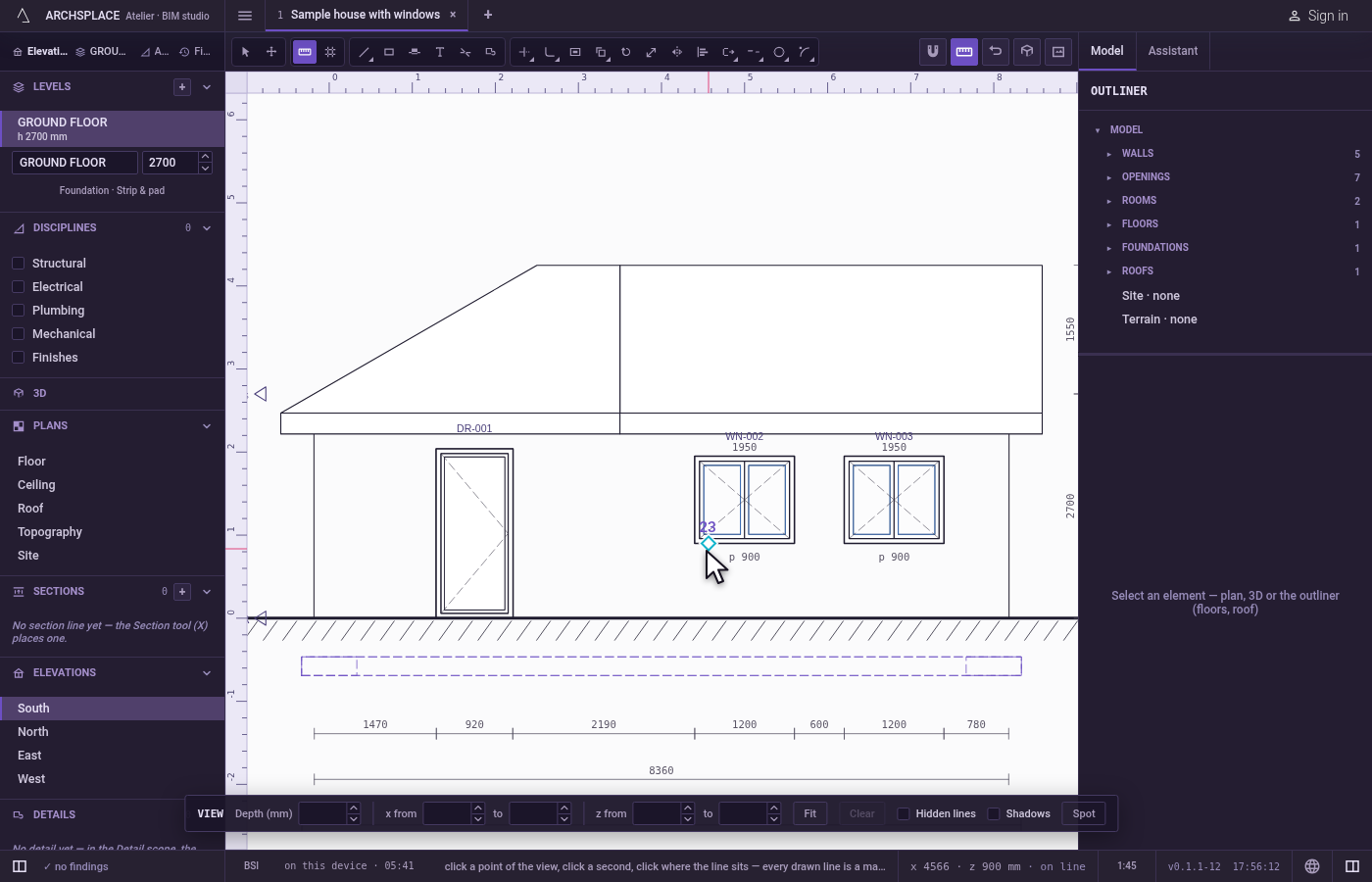
Click the first point. Move the pointer onto the sill of a window: a marker shows when it holds a corner, a middle or a line. Click.
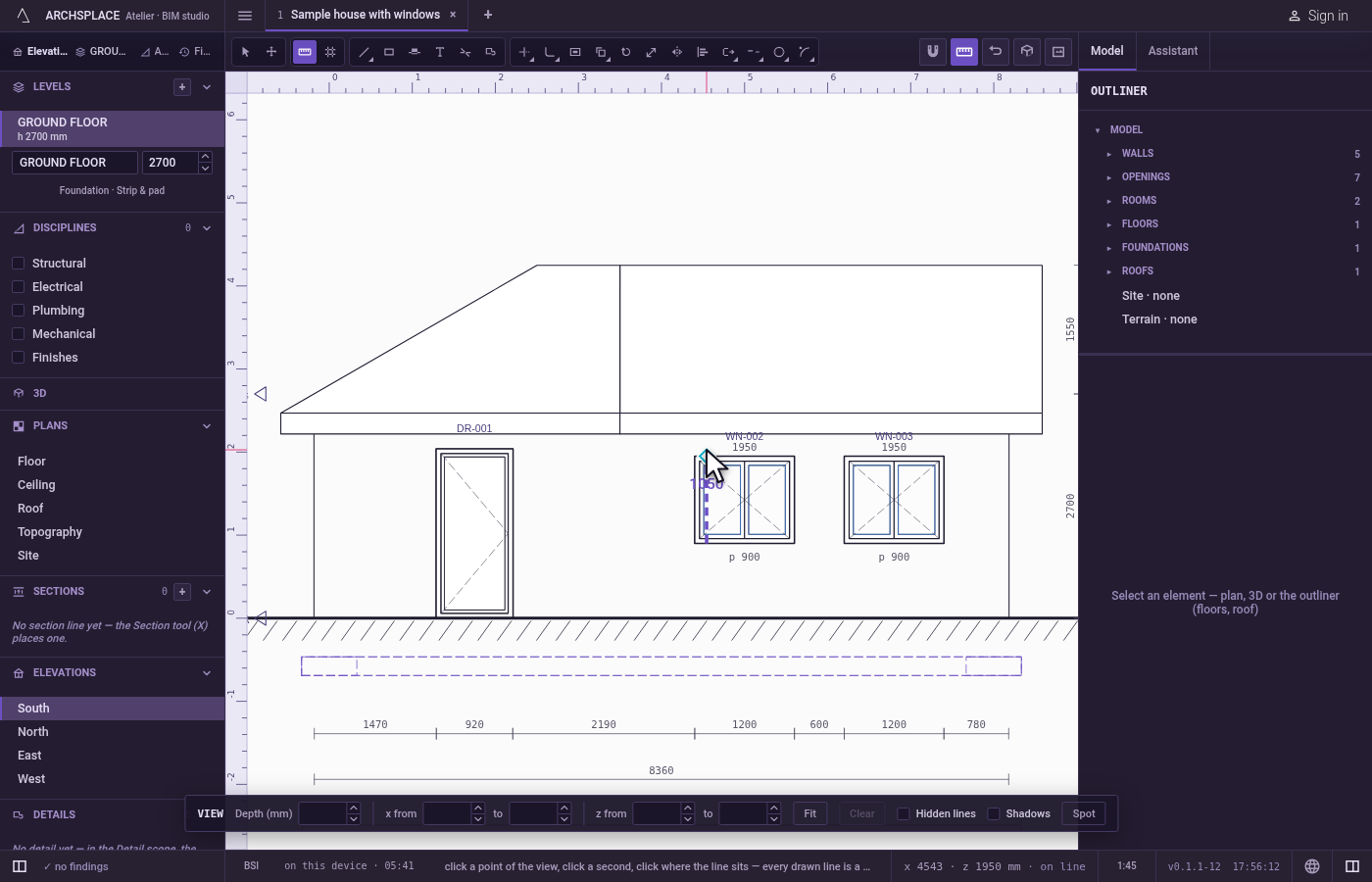
Click the second point. A line runs from the first point to the pointer with its length beside it. Click the top of the window's head.
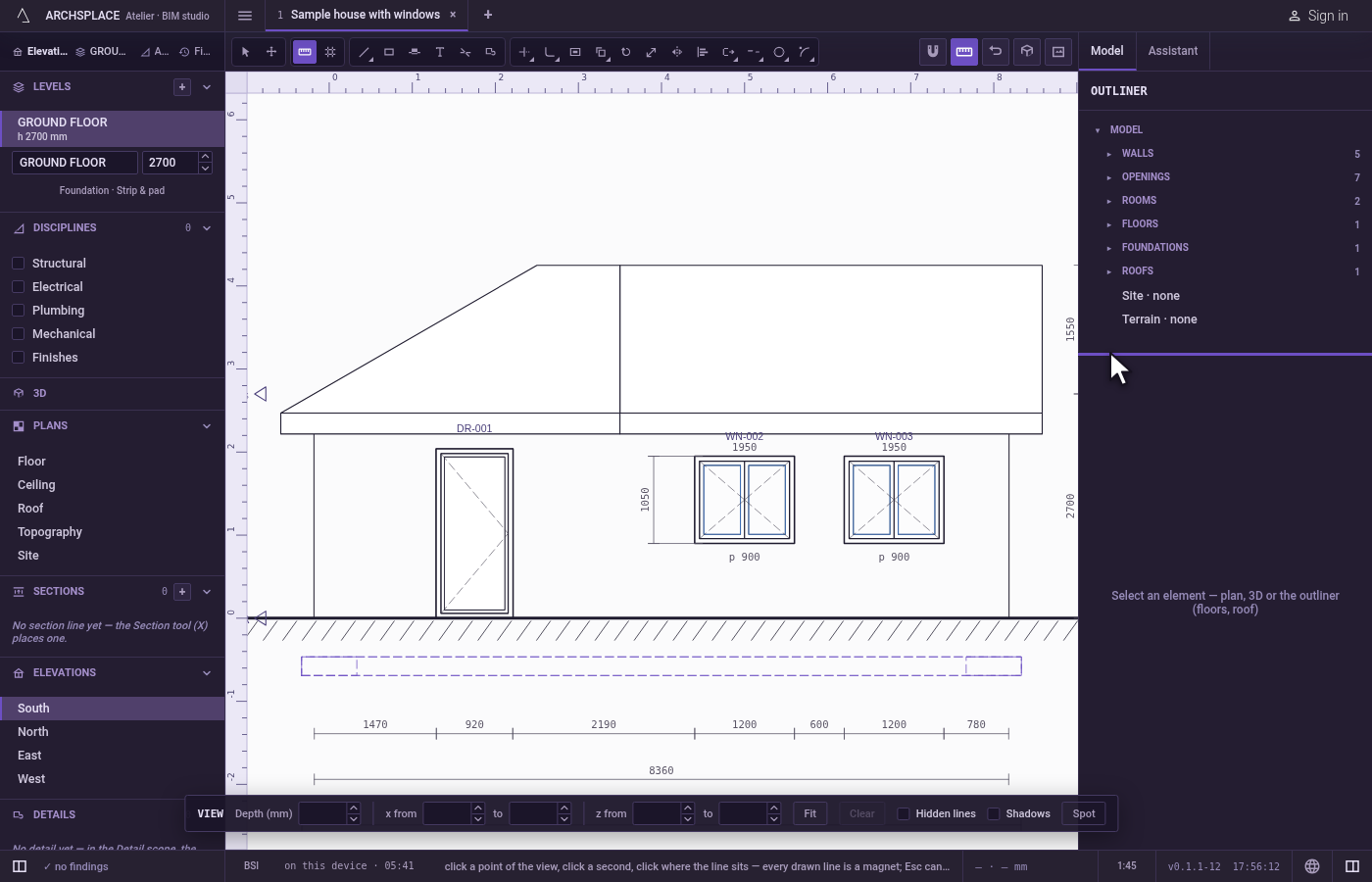
Click where the line sits. The dimension now follows the pointer, square to the two points, with its true value already written. Click to one side of the window: the dimension is placed there, and the tool stays in hand for the next one.
Edit it with Select. Press
Vand click the dimension. Its panel offers Line offset, the distance from the two points to the line, and the arrow keys slide the line square to itself.Deleteremoves it.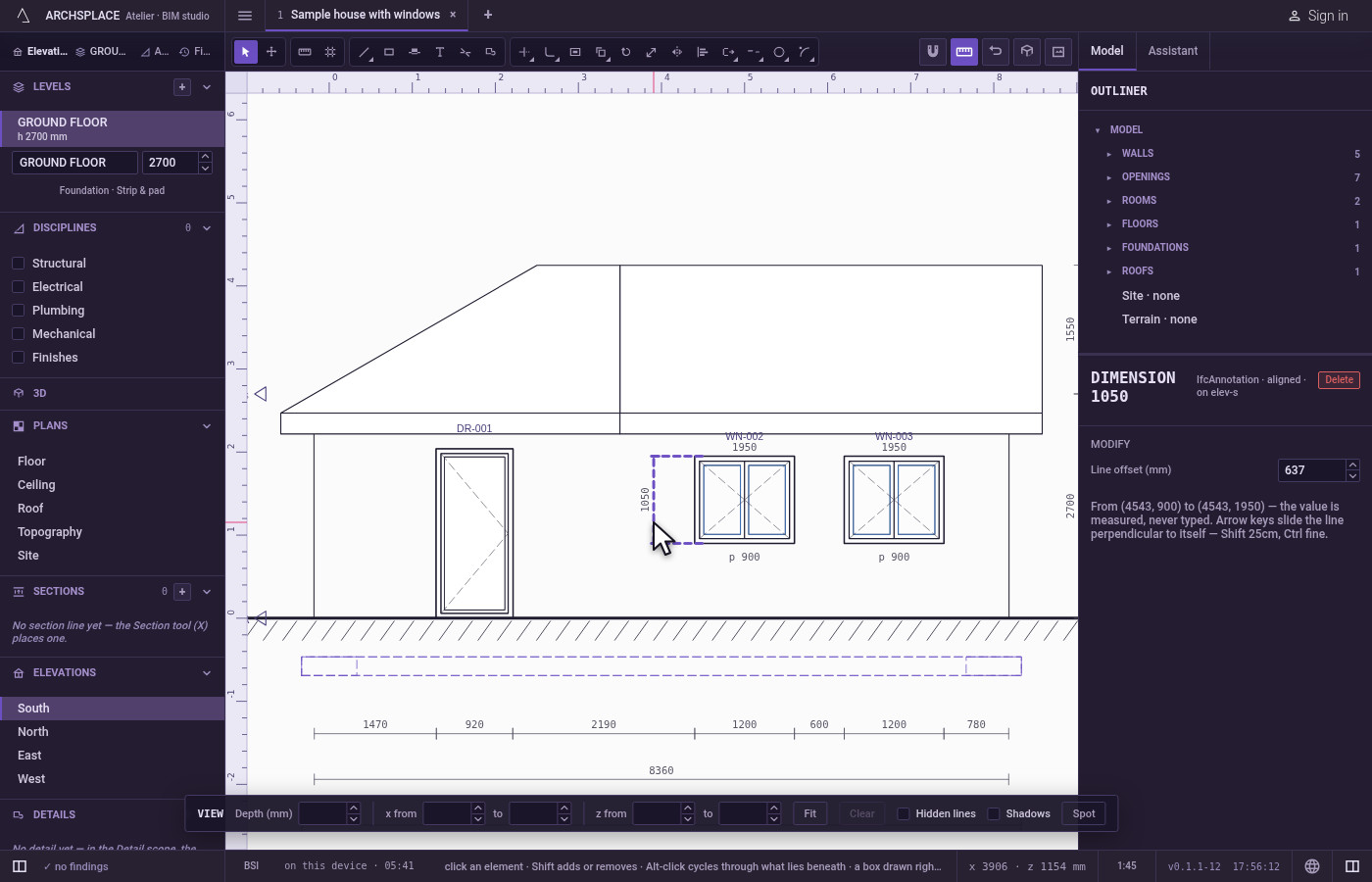
What it refuses
- The same point twice. A second point within a millimetre of the first is not taken: the tool waits for another.
- A typed value. The value is measured from the two points and can never be typed.
- Moving or copying it. Move leaves a dimension where it is and says to slide its line with the arrow keys or its panel, or to delete it and place another. Copy says that a dimension is placed once, and to draw another with the tool.
- The drawing's furniture. Hatches, dimensions, annotations and the crop frame never pull the pointer.
- A dimension in a callout. A callout's own view has no Dimension tool: dimension the section or the elevation it comes from.
- Esc halfway.
Escdrops the points already clicked and writes nothing.
What it writes to the contract
Each dimension is appended to the measures of its view's own entry: in a section, the section's entry in stations; in an elevation, its side under elevations.
a and b are the two points as [u, z]: u along the view in the plan's coordinates, in metres, and z the height from the model's zero. offset is the distance of the line from the two points, positive to the left of the way from a to b, rounded to the millimetre. The value is never written: it is measured from a and b each time the view is drawn.
Common questions
How do I add a dimension to an elevation?
Open the elevation, press D, click the first point, click the second, then click where the dimension line should sit. The pointer snaps to the corners, middles and edges of every line the drawing shows.
Can I type the value of a dimension?
No. A dimension always shows the measured distance between its two points. To change the value, change the model or place the dimension on other points.
Will my dimension show on the sheet?
Yes. A dimension placed on a section or an elevation goes onto the sheet with the view, and follows the viewport's dimensions switch like the chains the studio draws by itself. A viewport placed before the dimension takes it when you sync it.