PlanIin the studio
Mirror
Mirror reflects what you hold across a line you give with two clicks. Held with Ctrl it keeps the original and places the reflected copy beside it; with a single window or door it places a mirrored copy across a point on its own wall.
What it is
Mirror reflects the selection across a mirror line. The line is given by two clicks, and it can run in any direction. Walls, stairs, rooms, columns, beams, sanitary appliances, pipes and the other elements of the plan all reflect the same way, through the same reflection the 3D Mirror applies. Without Ctrl the elements are reflected in place; with Ctrl the originals stay and the reflections are added.
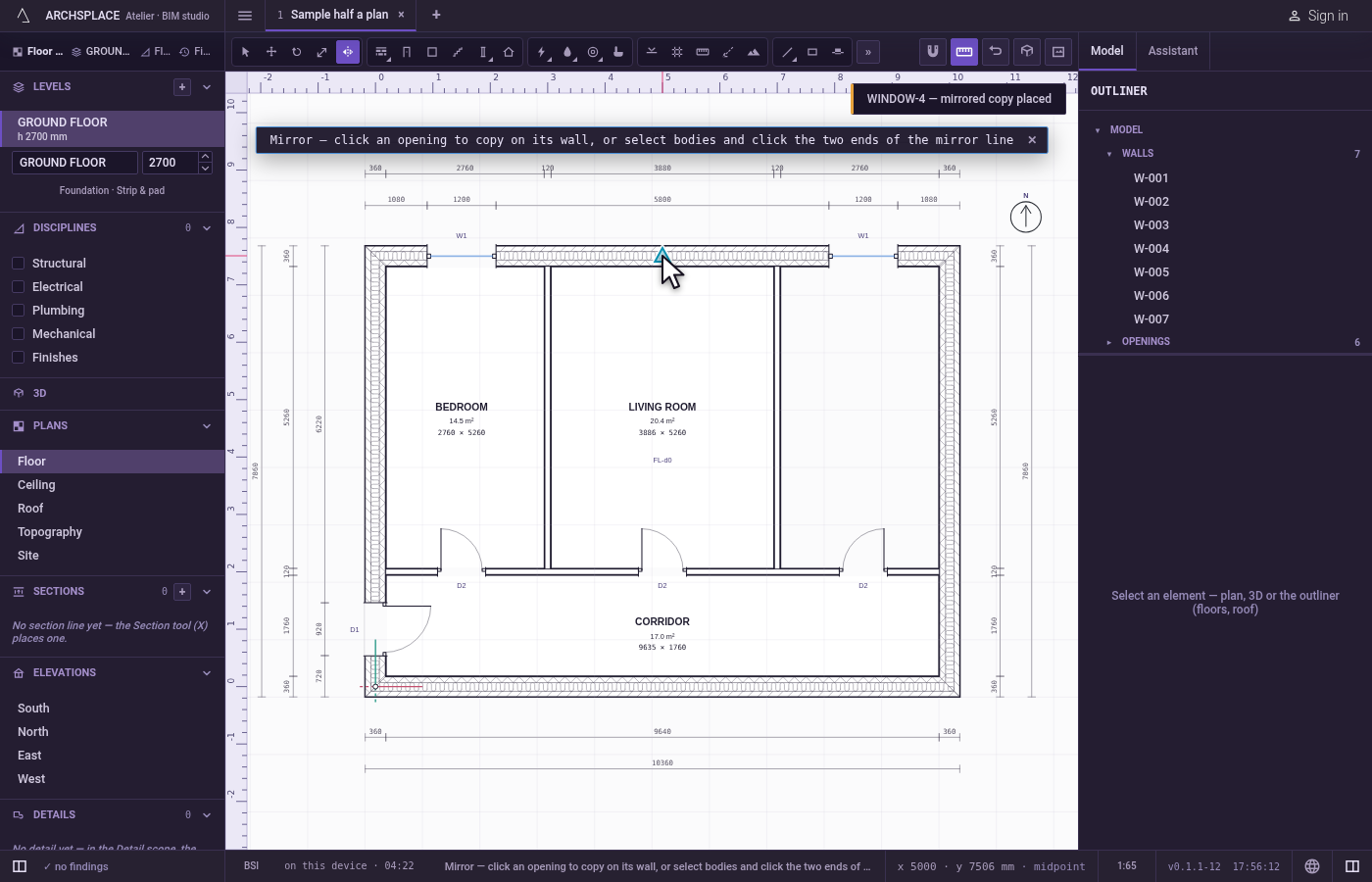
A single window or door has a gesture of its own: you click it, then a point of its wall, and a mirrored copy is placed across that point on the same wall.
When to use it
- Drawing one half of a symmetric plan and mirroring it to get the other.
- Making a mirrored pair of flats or bathrooms on both sides of a party wall.
- Pairing a window or a door on a facade, symmetric about a point of the wall.
The steps
Hold what reflects. Select the elements with Select. To mirror one window or door, select nothing, or only that opening, and go to step 5.
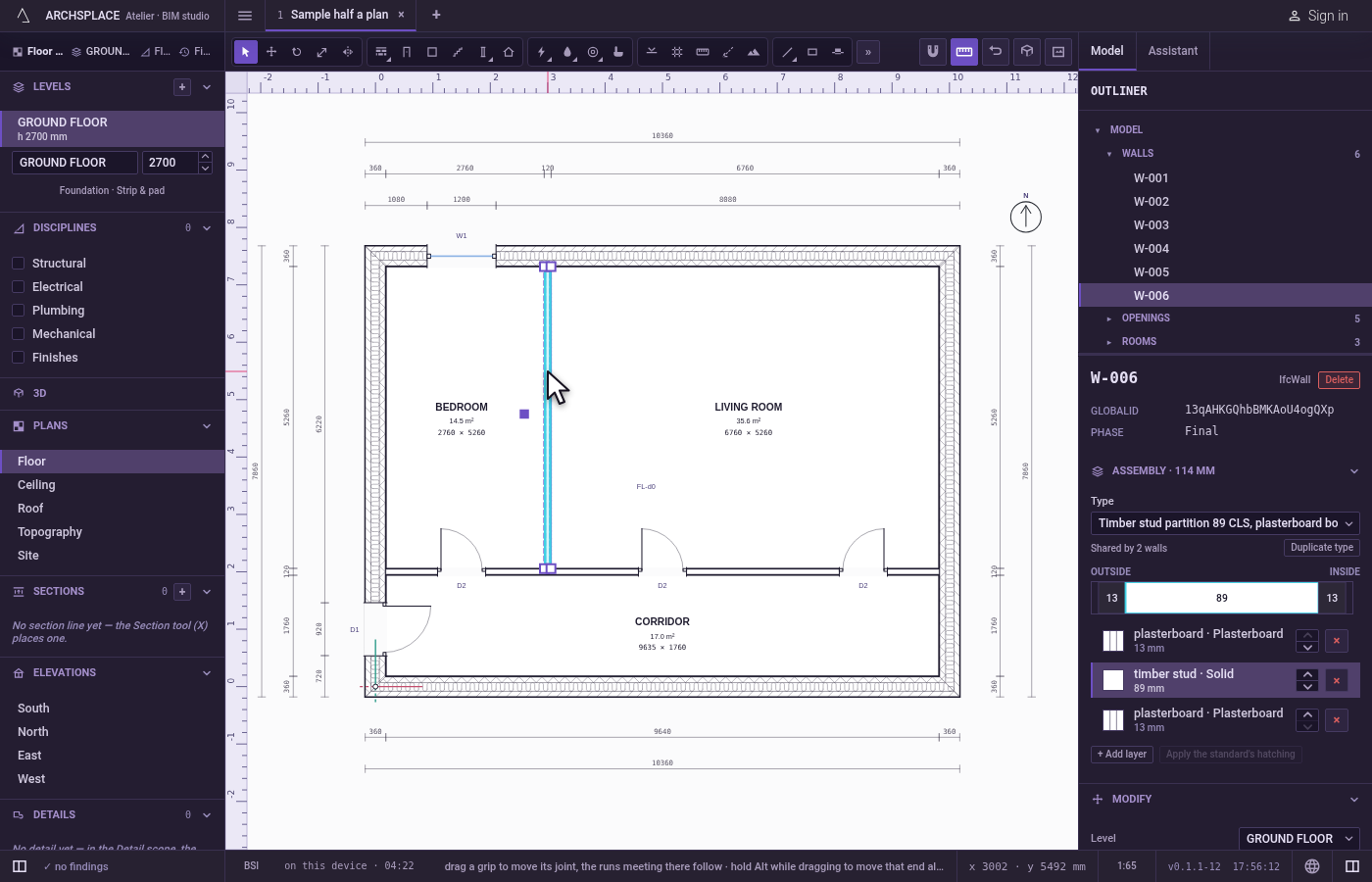
Take the tool. Press
I, or click the Mirror button.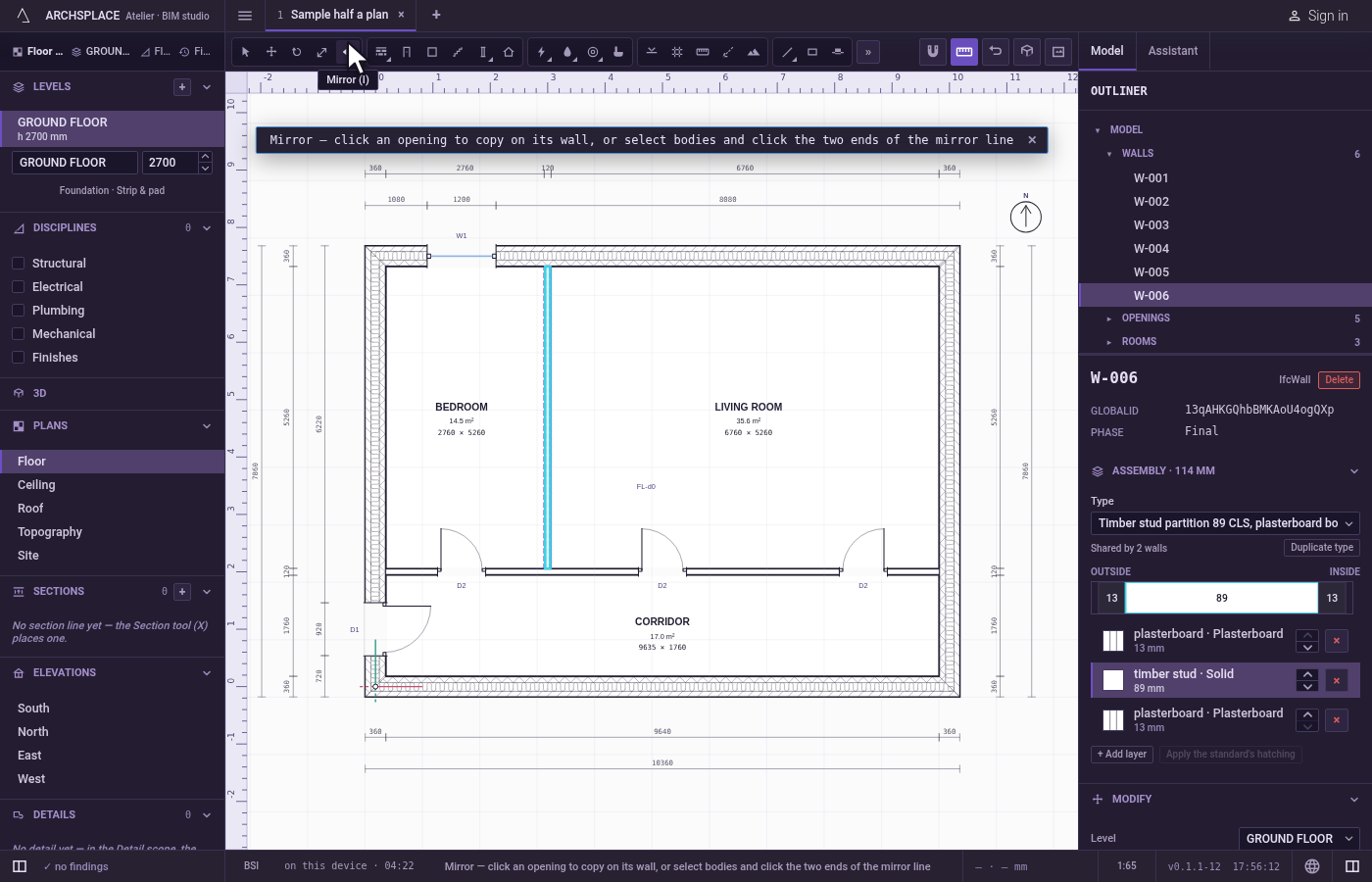
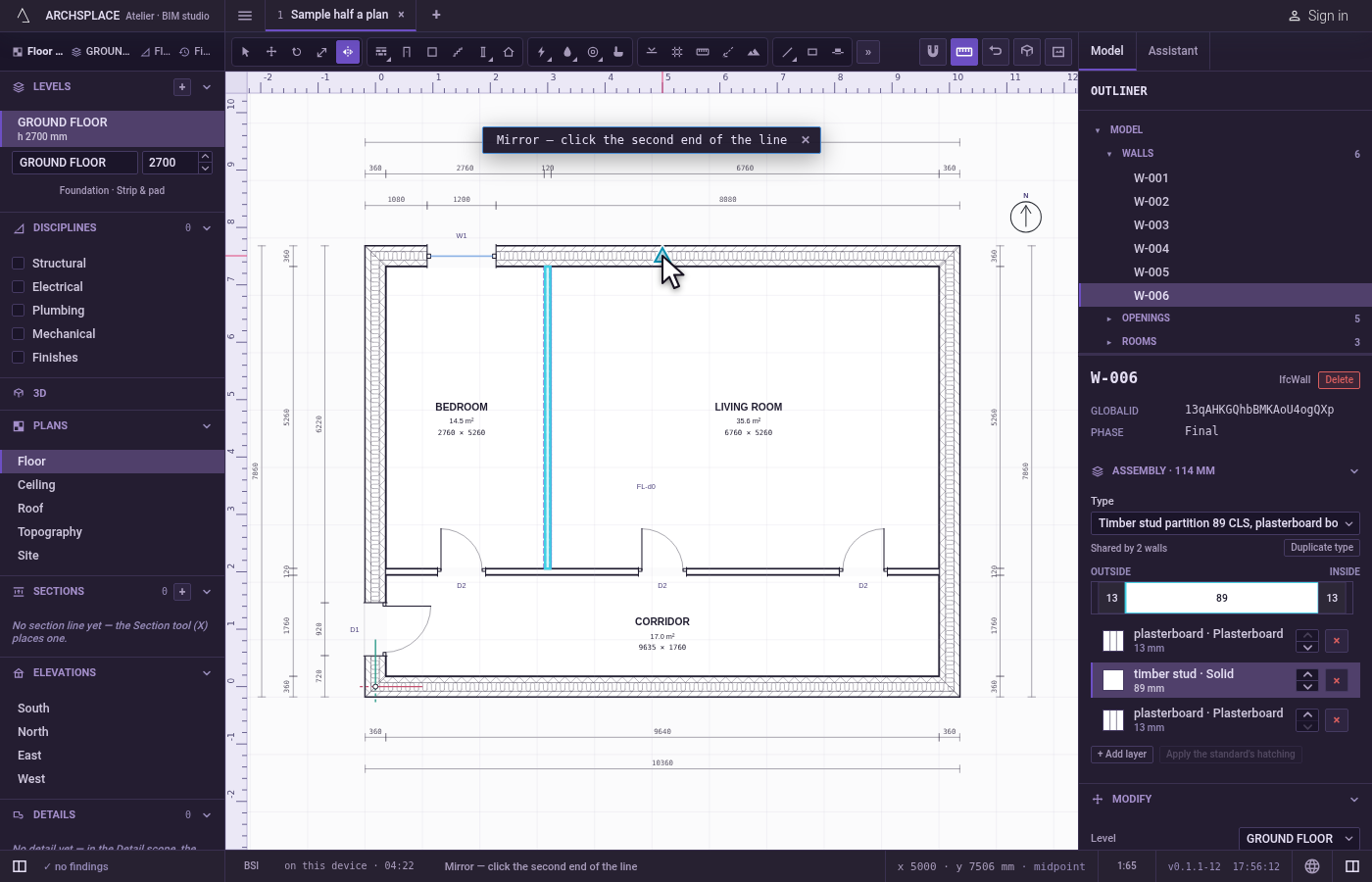
Click the first end of the mirror line. The magnet holds the click on the nearest point within reach. From then on, the mirror line runs from that point to the cursor.
Click the second end. The selection is reflected across the line. Hold
Ctrl(⌘on a Mac) as you click to keep the original and add the reflection as a copy.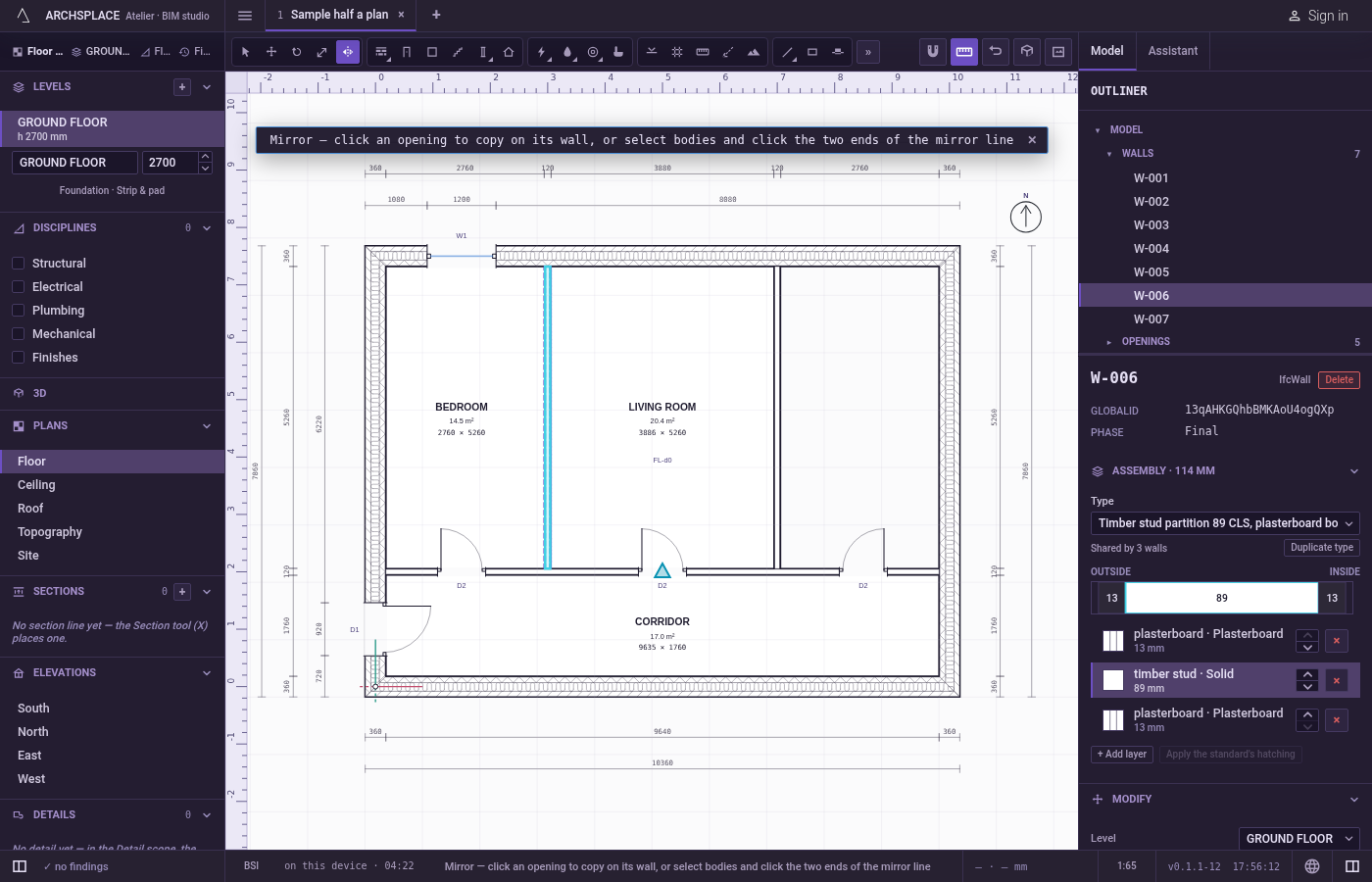
For one opening, click it, then a point of its wall. Click on or near the window or door. Then click the point of its wall the copy should be symmetric about. A mirrored copy is placed on the other side of that point, and a message at the top right confirms it.
What it refuses
- A mirror line with no length. Two clicks on the same point reflect nothing, and a message says the two ends must differ.
- A click on nothing when an opening is expected. With nothing selected, a click that finds no window or door nearby places nothing, and a message asks you to click a window or a door.
- A mirrored opening that does not fit. The copy is tried on the project first. If it would not fit on its wall, for example over another opening, it is refused with the reason and nothing is added.
- A component turned inside out. A component instance keeps its handedness: a message says to enter the component to mirror its geometry.
- A hosted element alone. A window, a door or a device on a wall that is part of a mirrored selection without its wall stays where it is, and a message says it rides its wall.
What it writes to the contract
One step, which one undo takes back. Without Ctrl, every reflected element gets its new points, and the walls, pipes and beams joined to them keep their joints. With Ctrl, the reflections are added at the end of their lists. The opening gesture adds one new opening on the same wall, at the mirrored distance along it.
Concepts
Common questions
How do I keep the original when I mirror?
Hold Ctrl (Command on a Mac) when you click the second end of the mirror line. The original stays and the reflection is added as a copy.
How do I make a pair of symmetric windows on one wall?
With nothing selected, press I, click the window, then click the point of its wall the pair should be symmetric about. A mirrored copy is placed on the other side of that point.