Panels
Sheets
A sheet is a page of the drawing set: a paper of a size and an orientation, the views and schedules laid on it as viewports, each at its scale, and the title block of the project's standard, with its revisions and their clouds. The sheet panel sets all of it, and the sheet exports as a vector PDF drawn from the same objects as the screen.
What it is
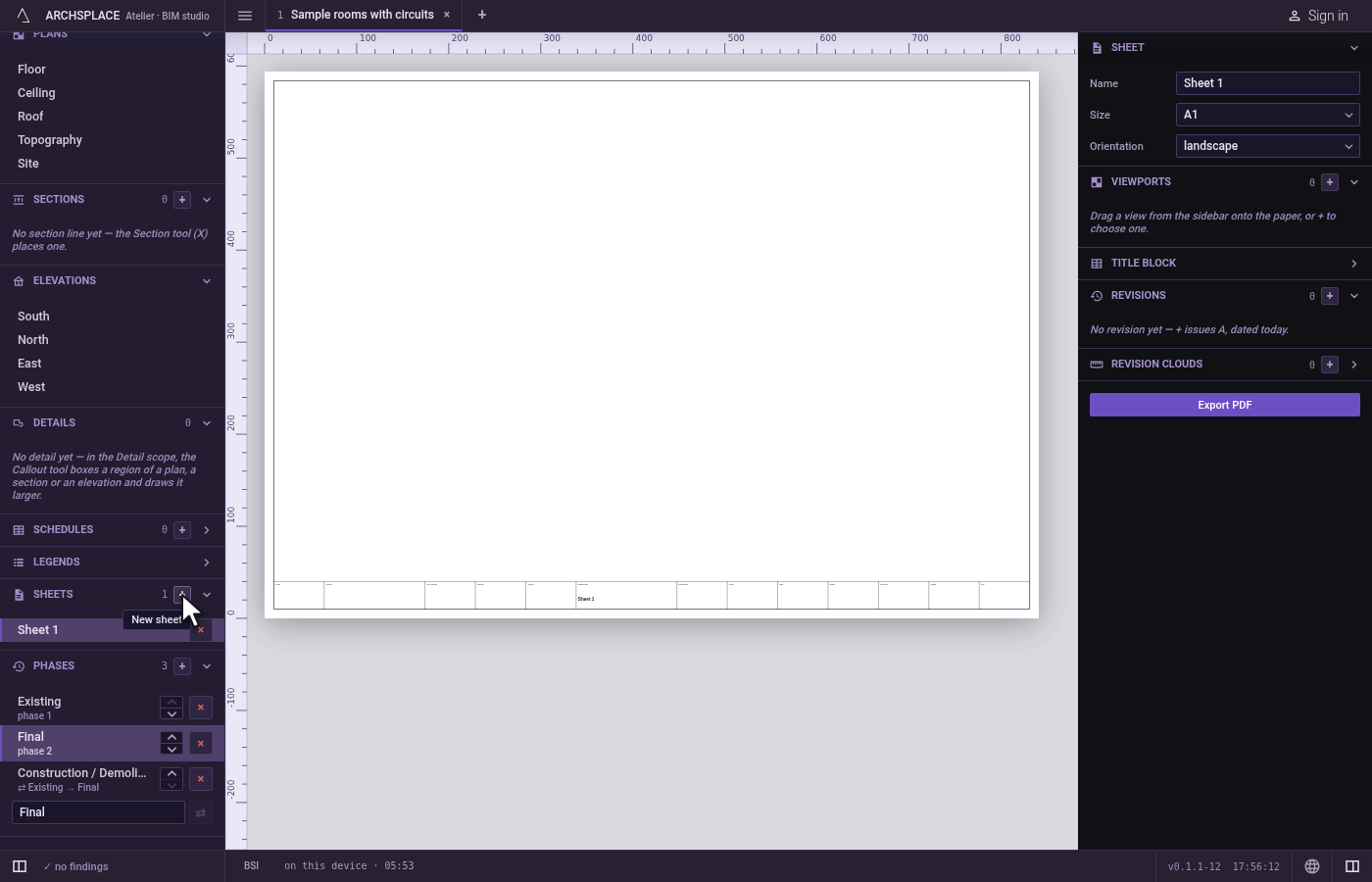
The sheets are listed in the sidebar under Sheets, with their count and New sheet. A click on a sheet's row opens it: the view becomes its paper, with its viewports and its title block, and the column on the right becomes the sheet panel alone. A new sheet is Sheet and a number, A1, landscape, with no viewport. The panel's sections each fold under their title:
- Sheet: its Name, its paper Size, from A0 to A4, and its Orientation, landscape or portrait.
- Viewports: one row per viewport, with its name, its scale and its frame, such as 1:50 · fit to content, a lock that holds its frame in place, and × to remove it. The title carries the count, Lock all and Add a viewport, which opens a chooser: the Kind, Plan, Elevation, Section, Site, Detail, Legend or Schedule, then what that kind needs, such as a plan's Level and Discipline or a schedule's Subject, and Place on the sheet: the viewport follows the pointer until a click on the paper lands it. A view's row dragged from the sidebar onto the paper lands where it is dropped. A click on a row selects the viewport and opens its card: a plan's Level and its Discipline, Floor, Ceiling or Roof; an elevation's Direction; a section's Station; the Phase it shows; its Scale; its Frame in millimetres, empty while it fits its content, with Fit; a plan, a section or an elevation's Overlays, Structural, Electrical, Plumbing, Ventilation & AC and Finishes, and Dimensions; a section or an elevation's Annotations from the view, which copies the view's spot levels and hidden lines onto the viewport.
- Title block, folded at first: the fields of the standard's title block. A field the studio can work out shows it greyed, and the paper prints it until you type your own, such as the sheet's name, the viewports' scales and the last revision.
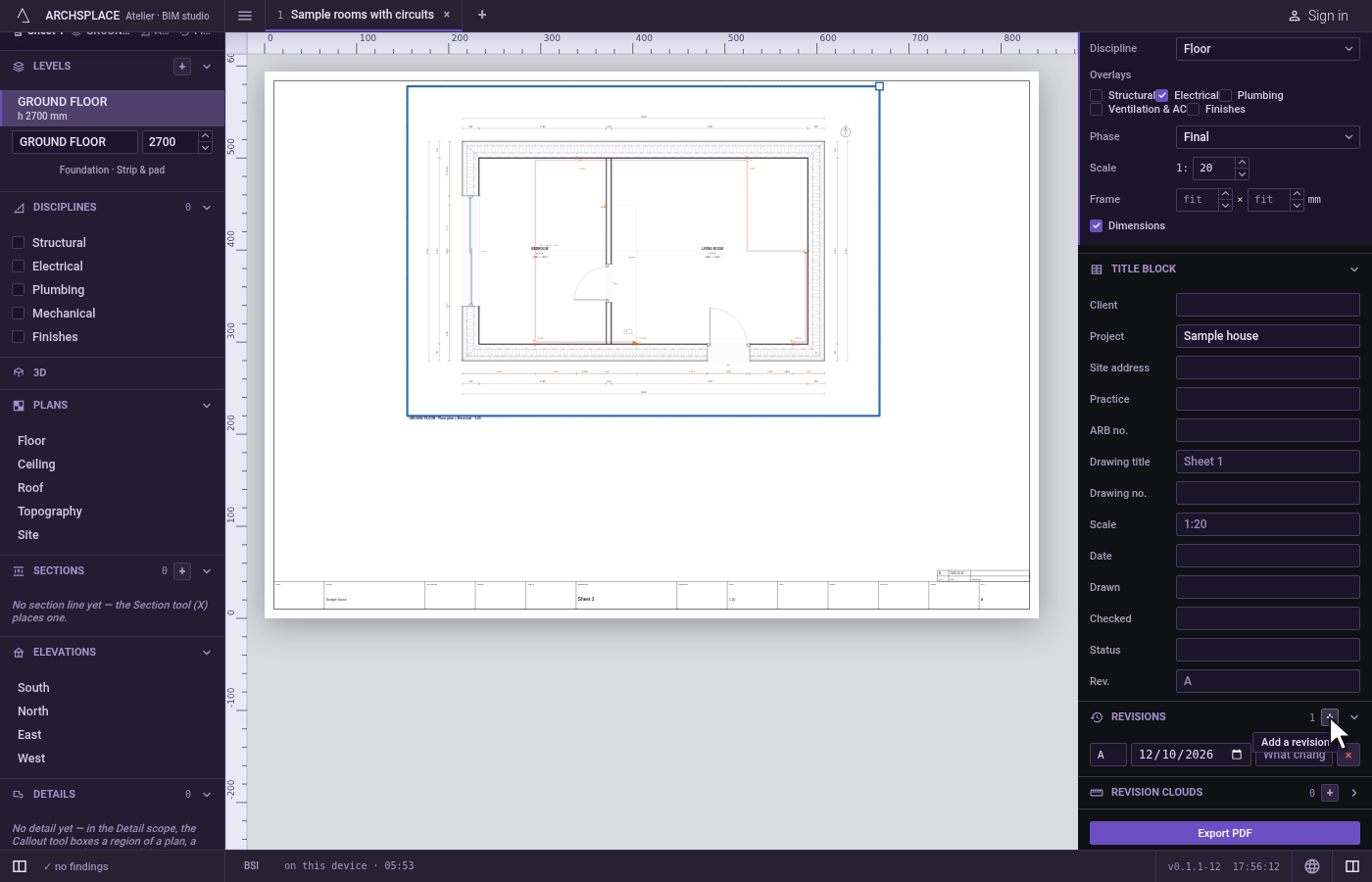
- Revisions: one row per revision, its letter, its Revision date, What changed and ×. Add a revision issues the next one, A for the first, dated today.
- Revision clouds, folded at first: one row per cloud, its size and its place on the paper in millimetres, the revision it is tagged with, and ×. Add a cloud hangs a 60 × 40 mm cloud from the pointer, tagged with the last revision, and a click on the paper lands it.
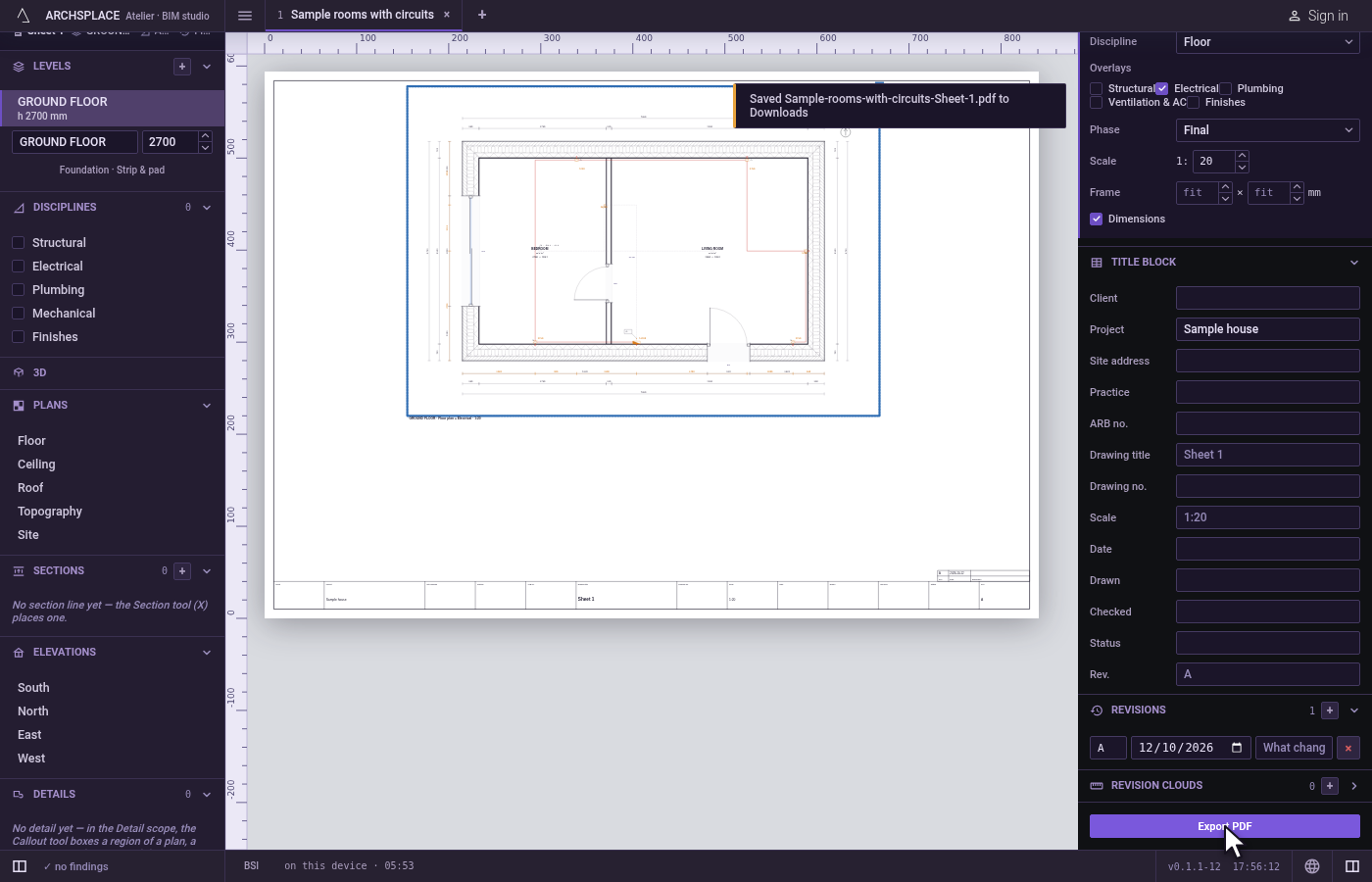
Export PDF, at the foot, writes the sheet as a vector PDF. On the paper, a viewport moves when dragged by its middle, crops when dragged by an edge and resizes by its corner handle.
When to use it
- Composing the drawing set: plans, sections, elevations, details and schedules at their scales.
- Showing the structure, the electrical or the finishes in one viewport only.
- Filling in the title block, and issuing a revision with its clouds.
- Printing a sheet, or sending it as a PDF.
The steps
Make a sheet. In the sidebar, click New sheet under Sheets. The paper of Sheet 1 opens, A1 landscape, and the sheet panel stands on the right.
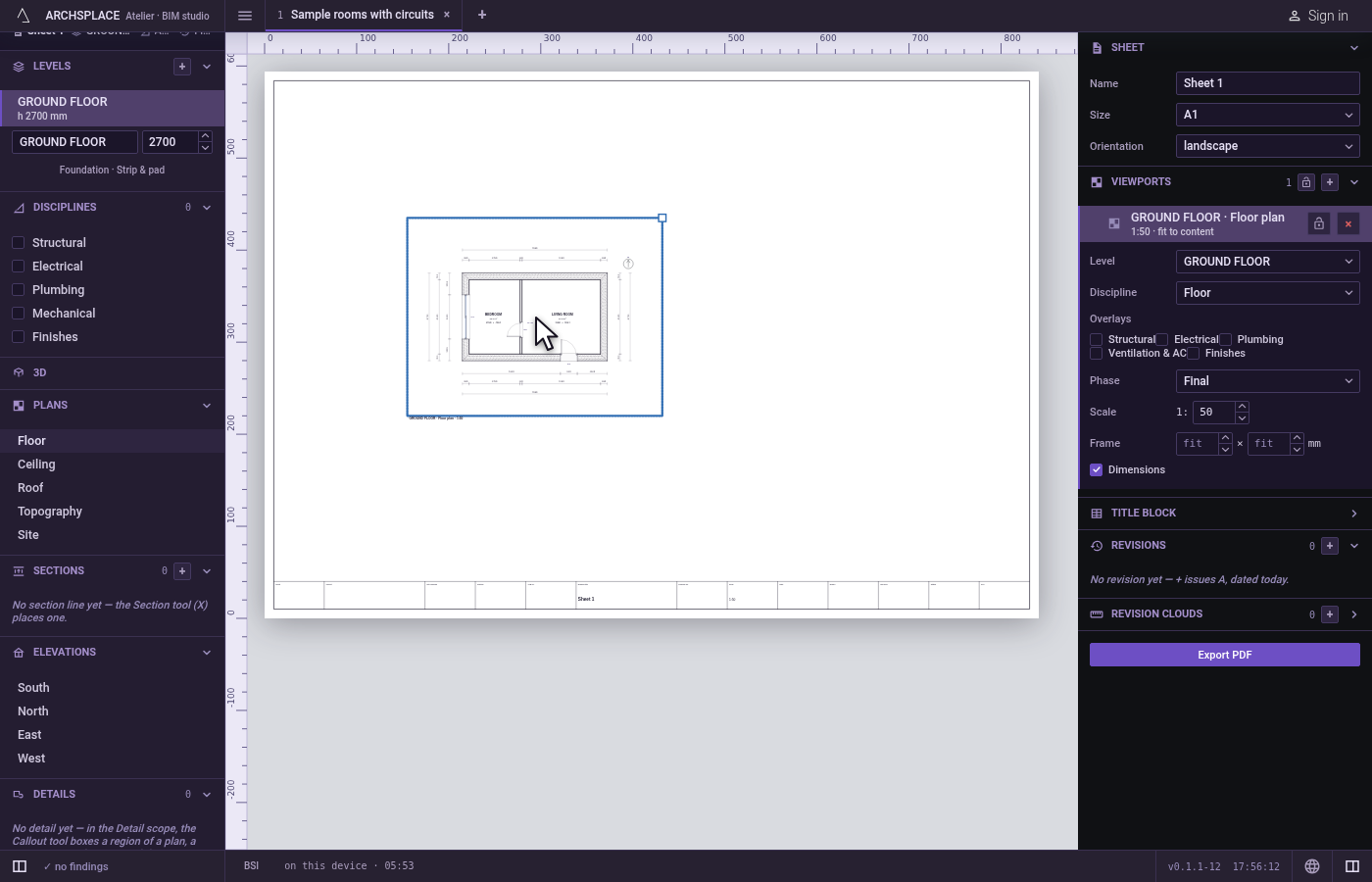
Lay the floor plan. Drag the floor plan's row from the sidebar onto the paper. A viewport lands where you drop it, and its row joins Viewports.
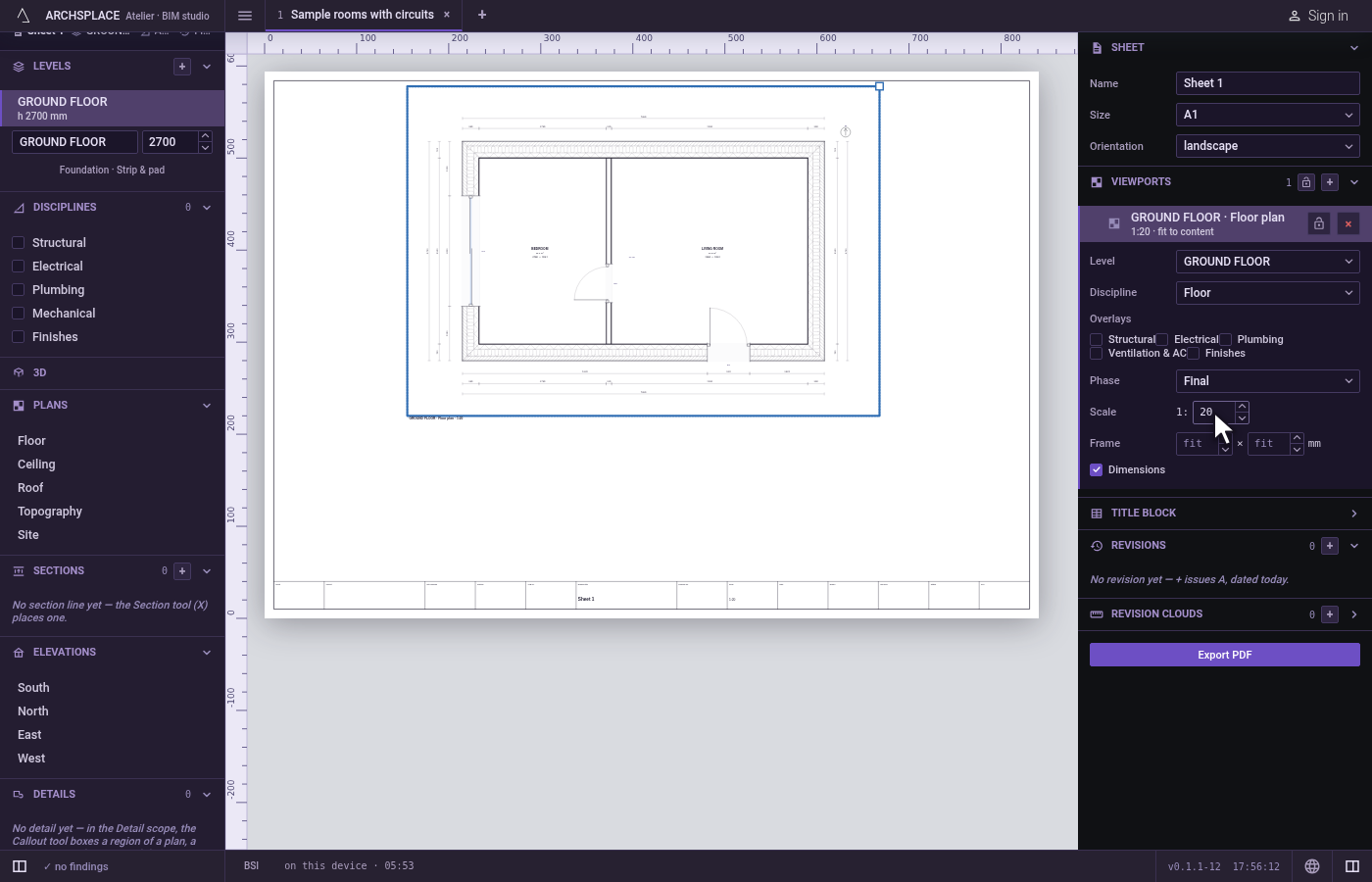
Set its scale. Click the viewport's row, and in its card type 20 in Scale. The plan is drawn at 1:20.
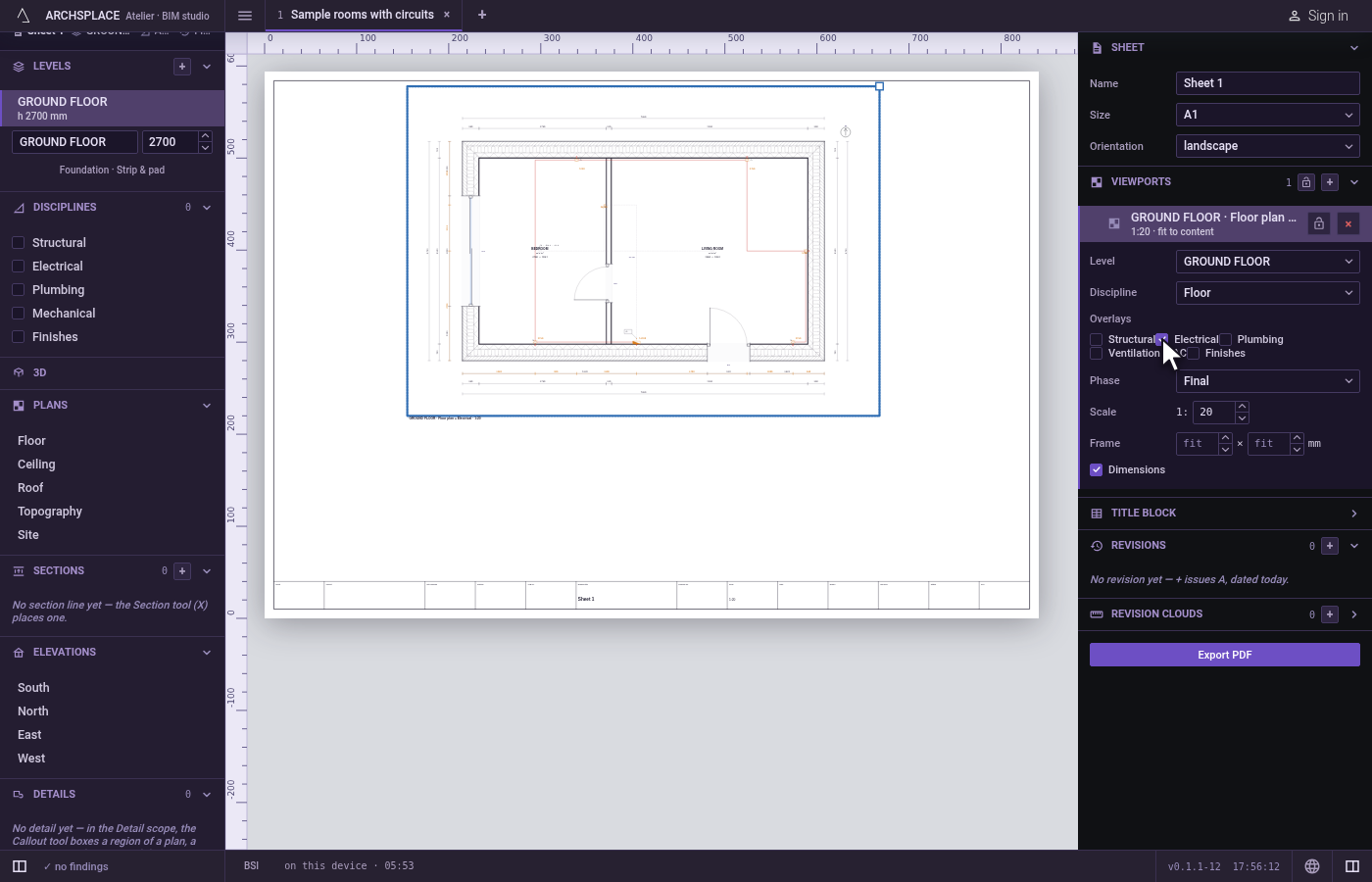
Show the electrical in it. Under Overlays, tick Electrical. That viewport alone draws the devices and circuits.
Fill in the title block. Open Title block, type the project's name in Project and press
Enter. The paper prints it.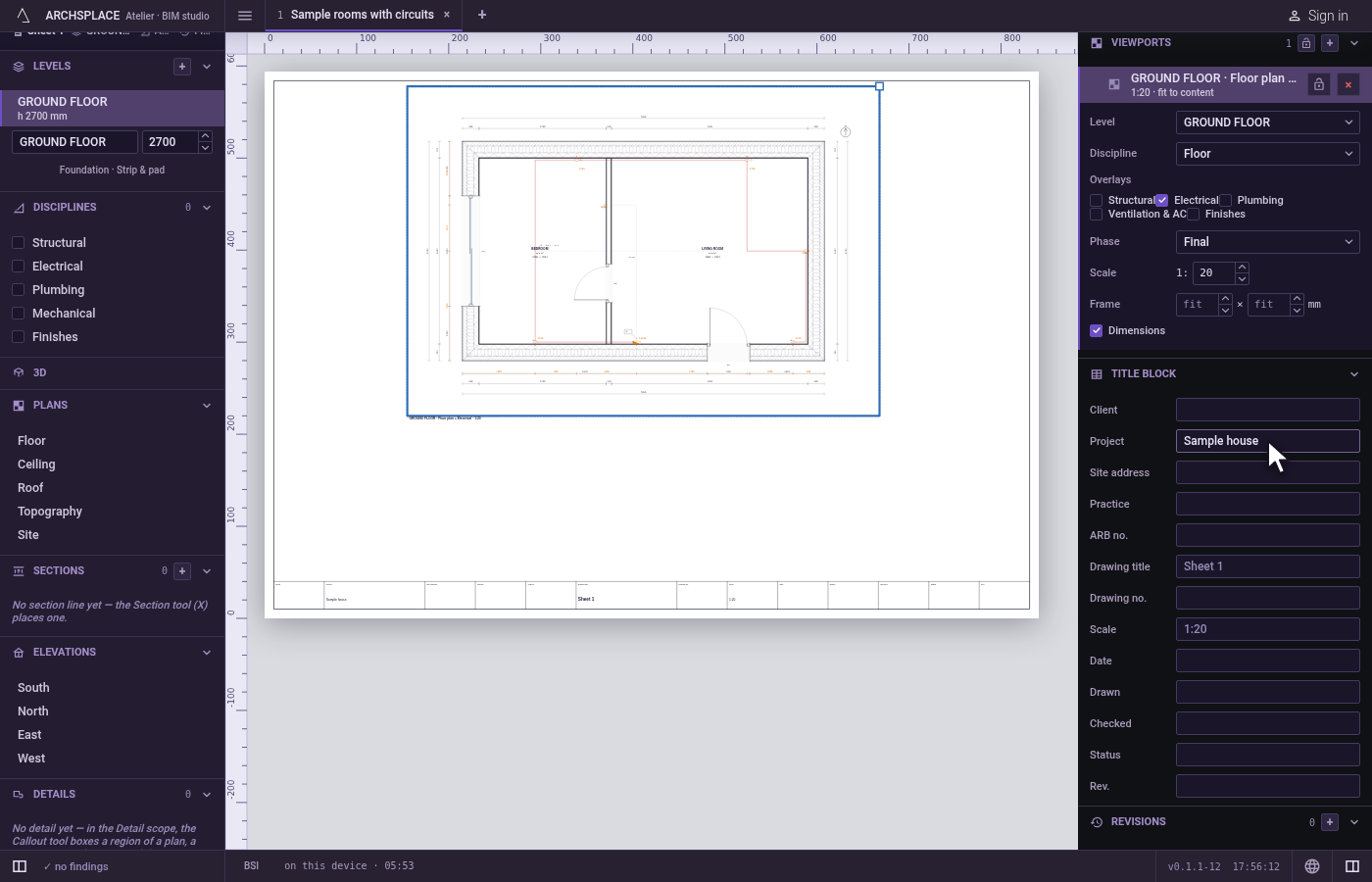
Issue revision A. Click Add a revision. Revision A joins the list, dated today, and the title block's revision cell reads A.
Export it. Click Export PDF. A toast says where the PDF went.
What it refuses
- A section viewport with no section line. The chooser says there is none yet, the Section tool places one, and Place on the sheet stays greyed.
- A frame under 40 mm or a scale of 0: they are not written.
- An empty sheet name. The sheet keeps its name.
- Moving a locked viewport. No drag, crop, resize or arrow key moves it, and a toast says to unlock it in the sheet panel; its card still changes what it shows.
What it writes to the contract
Each change rewrites the open sheet's entry in the project's sheets list, one step that one Ctrl+Z takes back:
Sheet writes name, size and orientation. Each viewport writes its kind, what that kind shows, its overlays, its phase, its scale, its origin on the paper in millimetres, its size when given a frame, locked, and the crop and annotations it carries. Title block writes only the fields you typed, in titleBlock. Revisions writes revisions, each with its id, its date and its description; Revision clouds writes clouds, each with its at, its size and its revision. The drawings inside the viewports are drawn again from the model each time, never written.
Common questions
How do I put a plan on a sheet?
Open the sheet, then drag the plan's row from the sidebar onto the paper. Or click the + beside Viewports, choose Plan, its level and its discipline, click Place on the sheet and click the paper where it lands.
How do I put a schedule on a sheet?
Click the + beside Viewports, choose Schedule as the Kind and the schedule as its Subject, then Place on the sheet. A schedule's own panel can also place it on a sheet.
How do I print a sheet?
Click Export PDF at the foot of the sheet panel, or press Ctrl+P (⌘P on a Mac). The PDF is vector, the same drawing the screen shows, ready for any printer or plotter.