SketchCHAin the studio
Chamfer in the tile editor
Chamfer cuts the corner where two straight joints meet with a straight joint, at the distances you type from that corner along each of them. With distances of zero it joins the two into a sharp corner, and with joints selected, Enter cuts every corner they have at once.
What it is
Chamfer cuts a corner off with a short straight joint. You pick two straight joints near the corner they make, and Chamfer measures your distances back from that corner along each of them, joins the two points with a straight joint, and cuts the joints back to it. The side of each joint that is kept is the side you clicked on. When the picks are two sides of one polyline or rectangle meeting at a corner, the corner is replaced in place and the shape stays one joint. When they are two separate joints, they stay two, and the cut becomes a joint of its own.
With both distances at zero, Chamfer does not cut: it trims or grows the two joints until they meet in a sharp corner.
When to use it
- To cut the corners of a square into an octagon, for an octagon and dot floor.
- To bevel the meeting of two joints by exact distances.
- To cut every corner of a polyline or a rectangle at once.
The steps
Take the tool. Type
C,H,Aone after the other, or click Chamfer on the bar. It shares its button with Fillet. TheCopens Circle for a moment, and the letters that follow complete Chamfer. The distances start at zero each time you take the tool.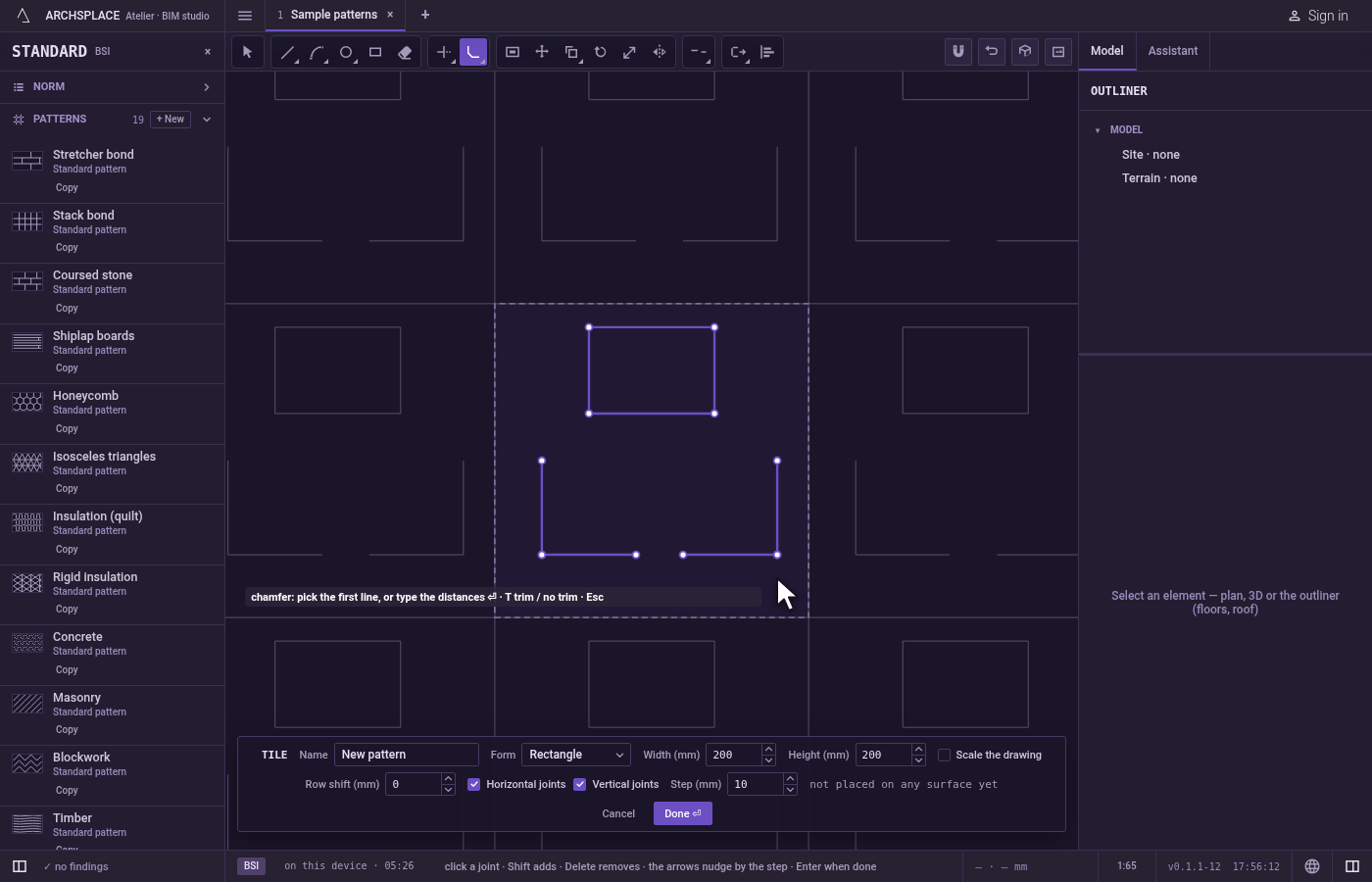
Type the distances. Type one distance for both sides, or two separated by
x(for example0.02x0.04), and pressEnter. You can type new ones at any time while the tool is in hand.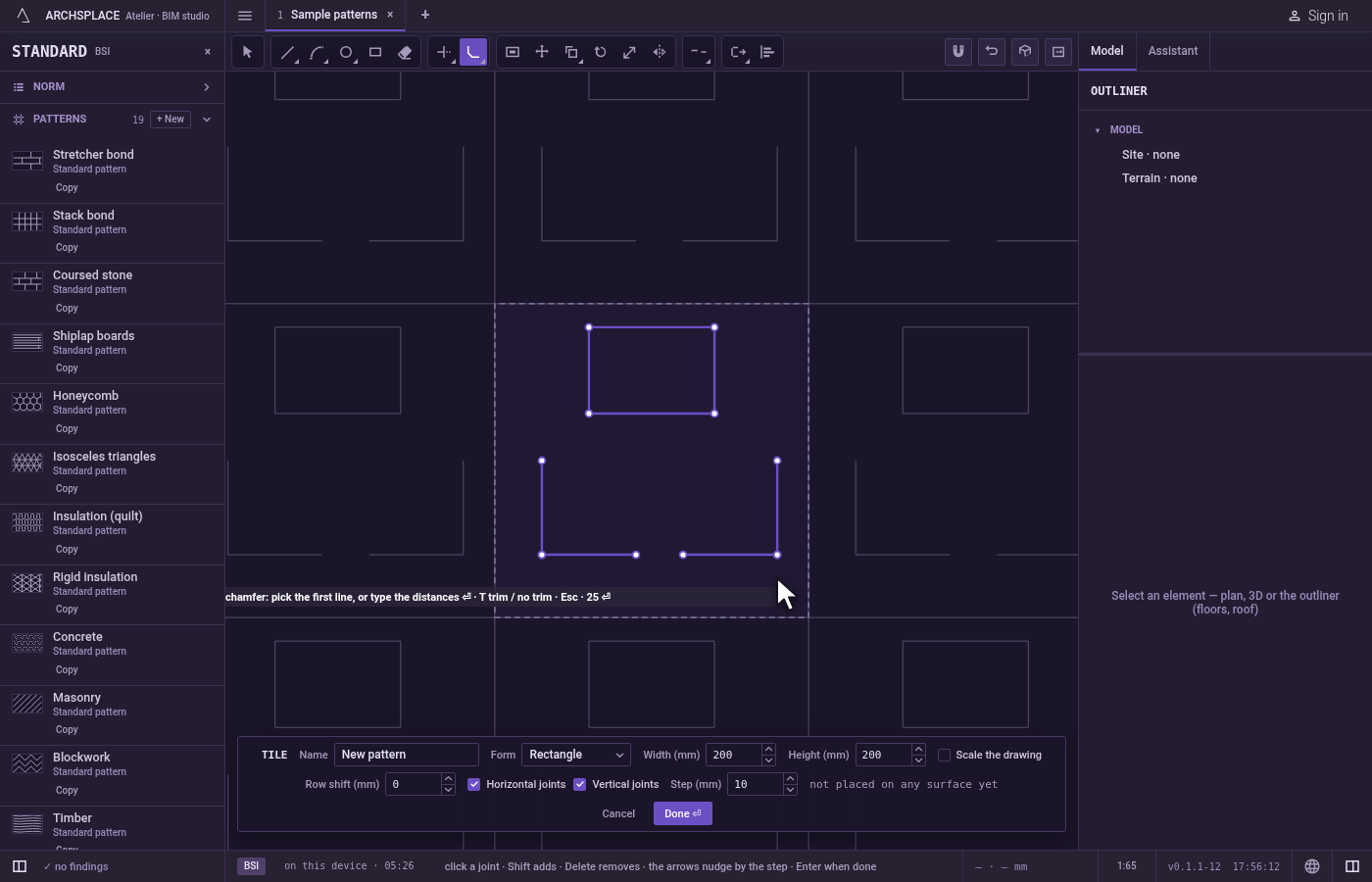
Pick the first joint. Click a straight joint near the corner, on the side you want to keep. It stays lit while you look for the second. The pick reads the pointer itself, not a snap, so at a crossing it takes the joint you point at.
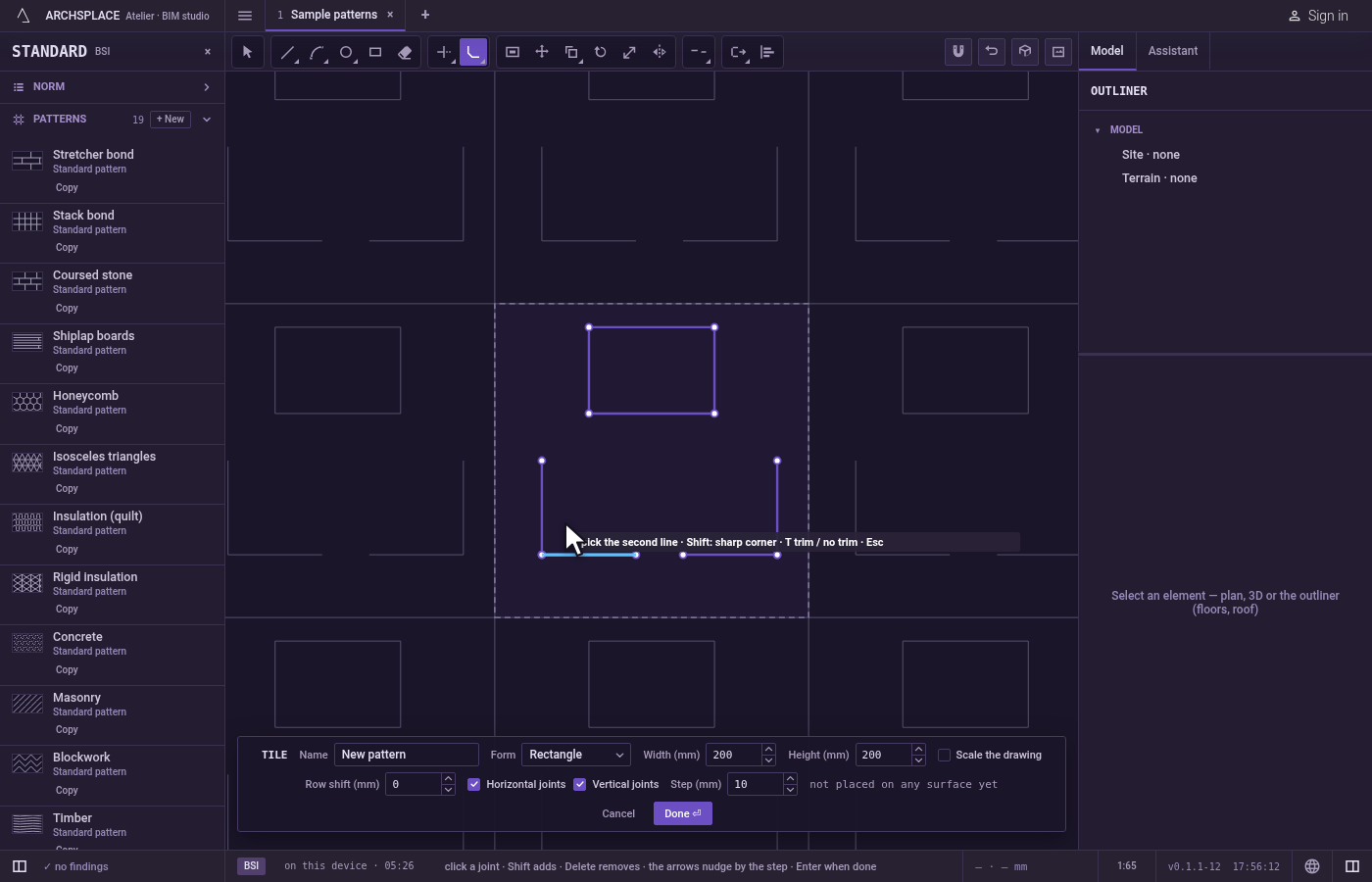
Pick the second joint. As the pointer passes over it, the cut that would be made is shown. Click it, on the side you want to keep. Hold
Shifton this click for a sharp corner, whatever the distances. The tool then waits for the next corner, keeping the same distances.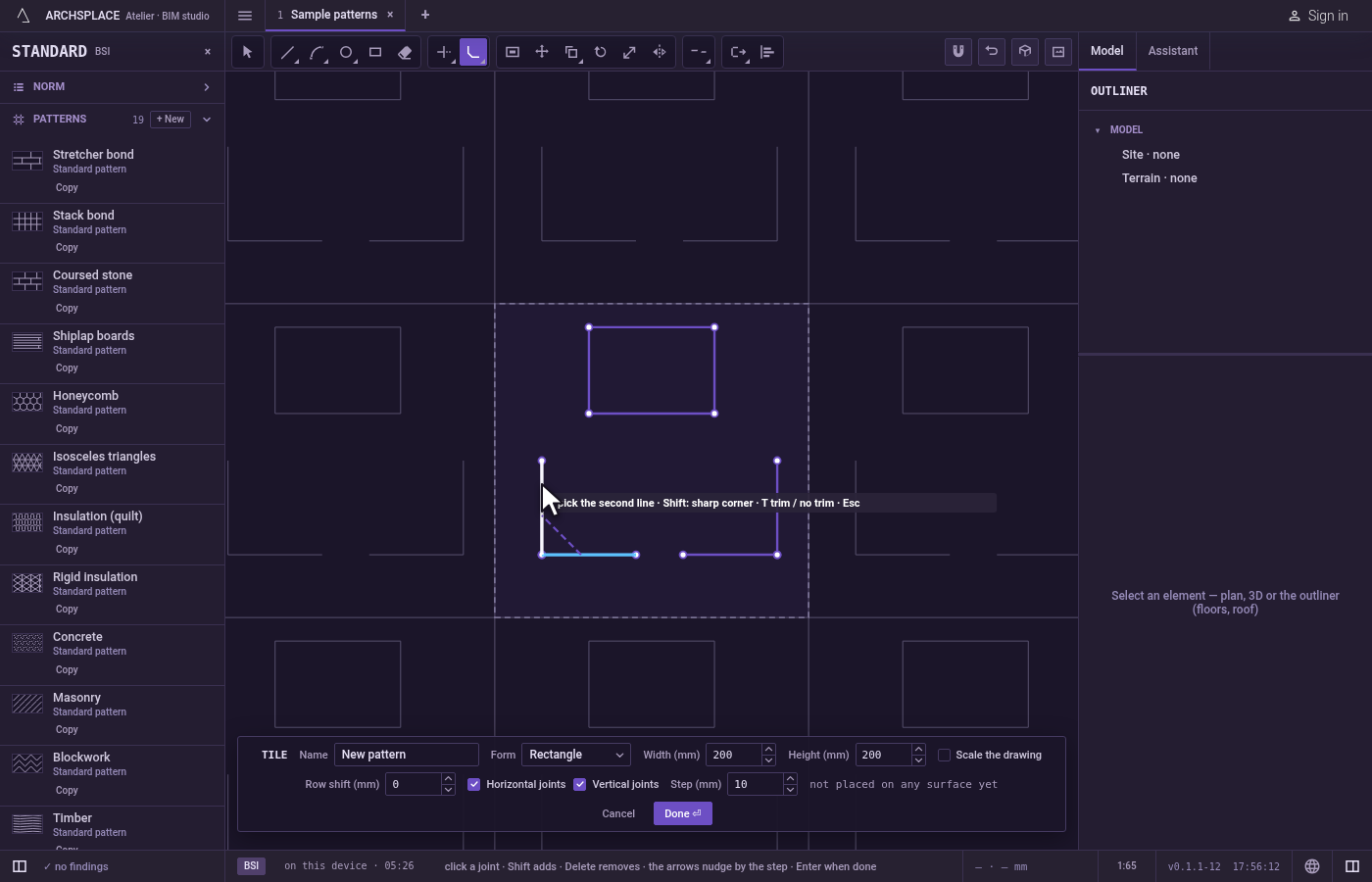
Keep the joints whole, if you want. Press
Tbefore the second pick to switch to no trim: the cutting joint is added and the two joints are left as they were. The hint shows no trim while it is on.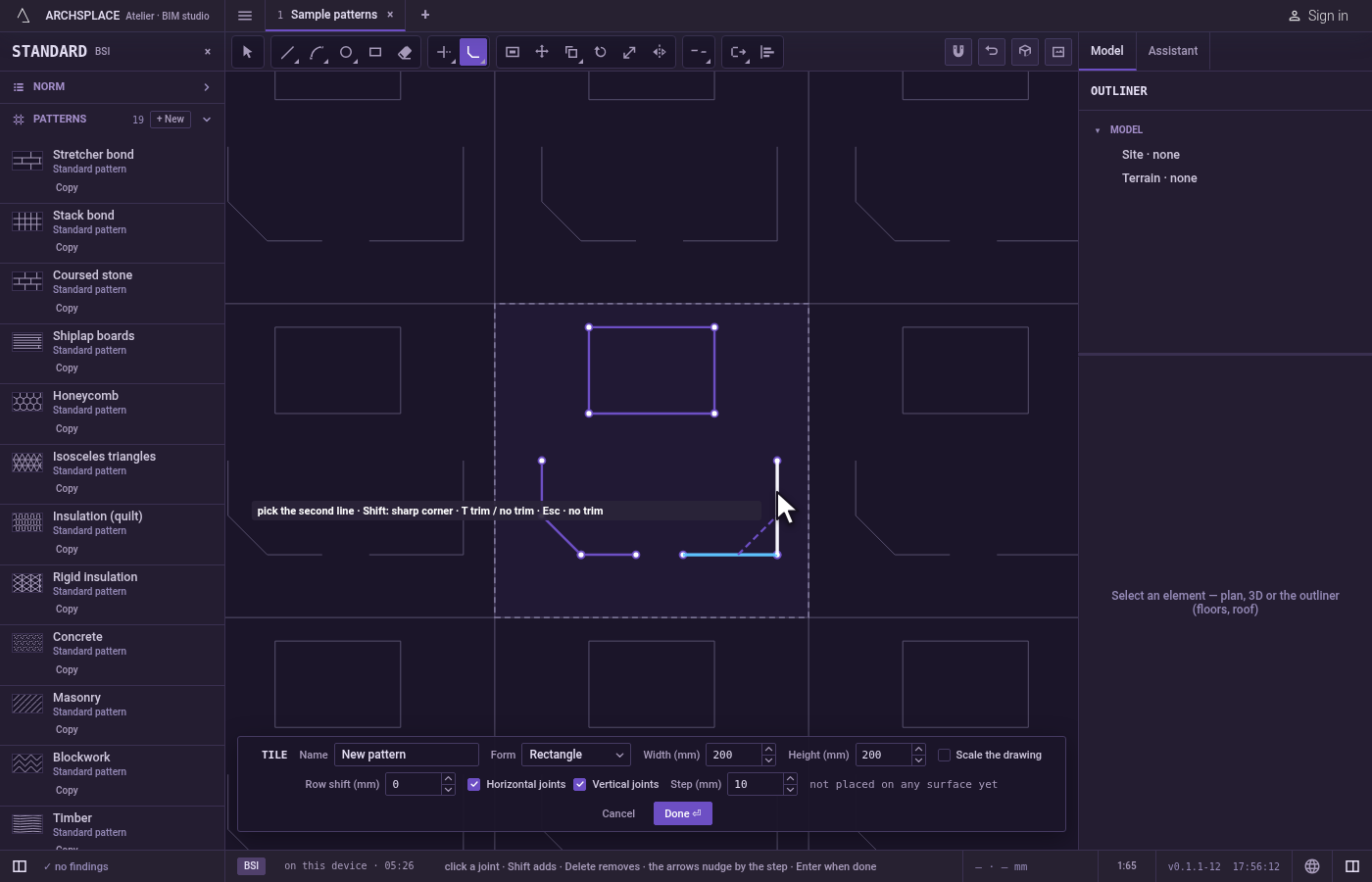
Or cut every corner of a selection. Select joints before taking the tool. Type the distances and press
Enter, then pressEnteragain: every corner of the selected joints that can take the cut is cut, and the editor says how many corners were treated and how many were left as they were.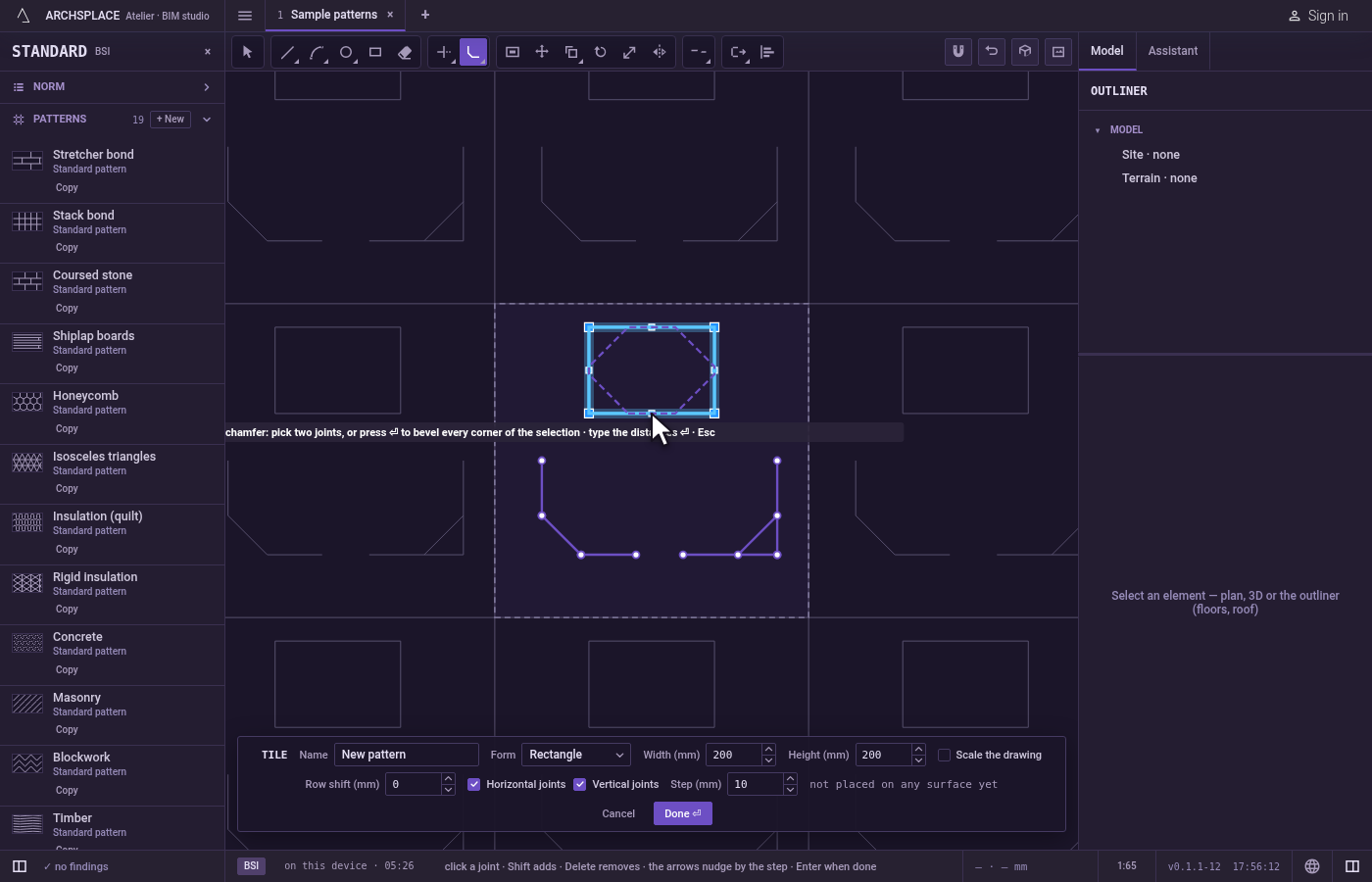
Finish.
Escapedrops the first pick, then leaves Chamfer for Select.Ctrl+Zundoes the last corner. Press Done on the bar at the foot to hand the tile back.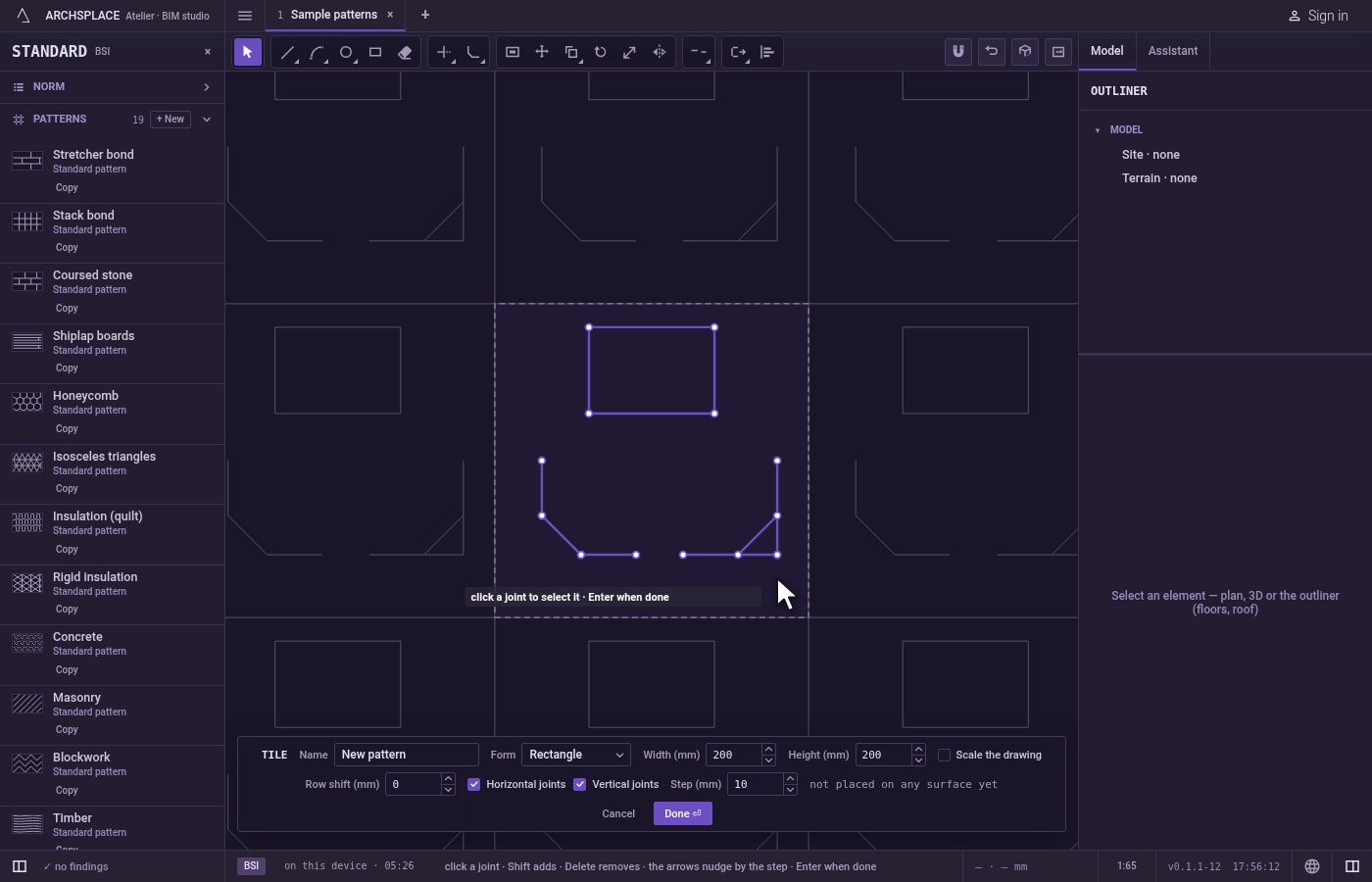
What it refuses
- An arc. A chamfer joins straight lines only, and the hint says so. Use Fillet for a corner with an arc.
- A click on nothing. The hint says no line or arc there.
- The same joint twice. The second pick must be another segment: pick a second, different segment.
- Joints that never meet. Two parallel lines are refused with these edges never meet.
- Distances too long. If a distance runs past the end of its joint, the hint says the corner does not fit these edges.
- A cut in the middle of a shape. Picking two sides of one polyline that do not meet at a corner is refused with this would cut a line in its middle.
- A negative distance. It is ignored, and the distances stay as they were.
What it writes to the contract
Nothing while you work: the change stays in the tile editor, where Ctrl+Z steps back through it. When you press Done, the whole tile is written to the project's patterns in one step you can undo, every joint as its points in metres from the tile's lower-left corner. A standard pattern is never changed: Done saves the project's own version of it under the same name, and every surface that lays it follows. Save as new writes a new pattern instead. Cancel writes nothing.
Related
Common questions
How do I give different distances on each side?
Type the two distances separated by x, for example 0.02x0.04, and press Enter. The first is measured along the first joint you pick, the second along the second.
Why does Chamfer refuse my arc?
A chamfer joins straight lines only. To soften a corner between an arc and a line, use Fillet.
Why did Chamfer only make a sharp corner?
The distances start at zero each time you take the tool, and zero joins the two joints in a sharp corner. Type the distances and press Enter before you pick.