SketchEXin the studio
Extend in the tile editor
Extend grows the end of a joint, along its own line or arc, until it meets the next joint or the edge of the tile ahead of it. The stretch it would add is shown before you click, a box or a fence extends many ends at once, and Shift turns it into Trim.
What it is
Extend closes the gaps between joints. Point near the end of a joint: Extend looks ahead of that end, along the joint's own line (or around its own circle, for an arc), for the first joint or tile edge it would meet, and shows the stretch it would add. A click adds it. An arc keeps growing as the same arc.
It is the same Extend as in the other editors of the studio, acting here on the joints of the tile.
When to use it
- To bring joints drawn short up to the joint or the tile edge they should meet.
- To close the corners of a layout after trimming.
- To make a joint run right to the edge of the tile, so it continues into the next tile when the pattern repeats.
The steps
Choose the boundary, if you want only some joints to count. Select them first. With none selected, every other joint and the tile's edges are boundaries. With some selected, only those are, and the tile's edges are not.
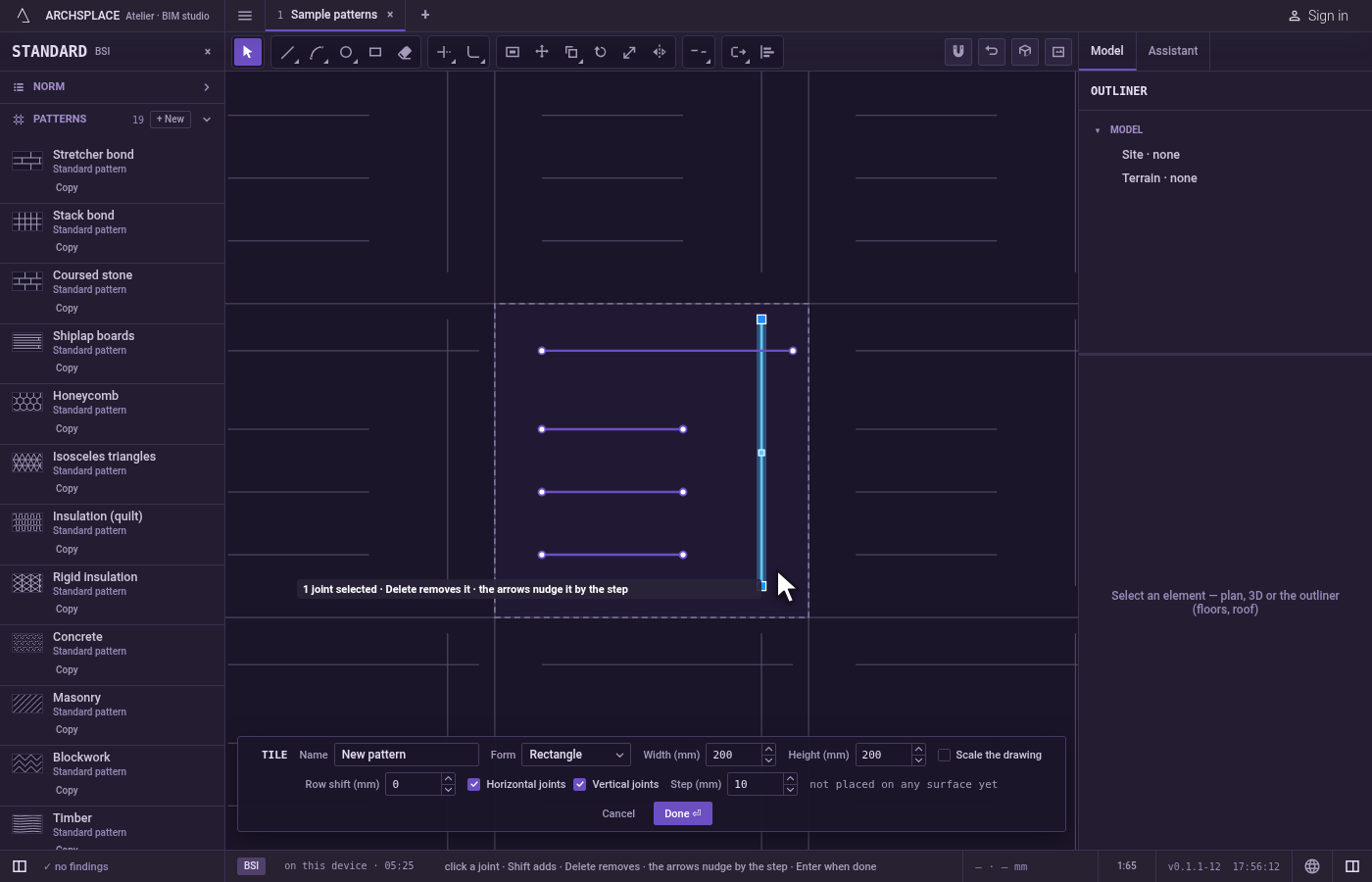
Take the tool. Press
EthenXone after the other, or click Extend on the bar. It shares its button with Trim. TheEalone opens Erase for a moment, and theXthat follows completes Extend.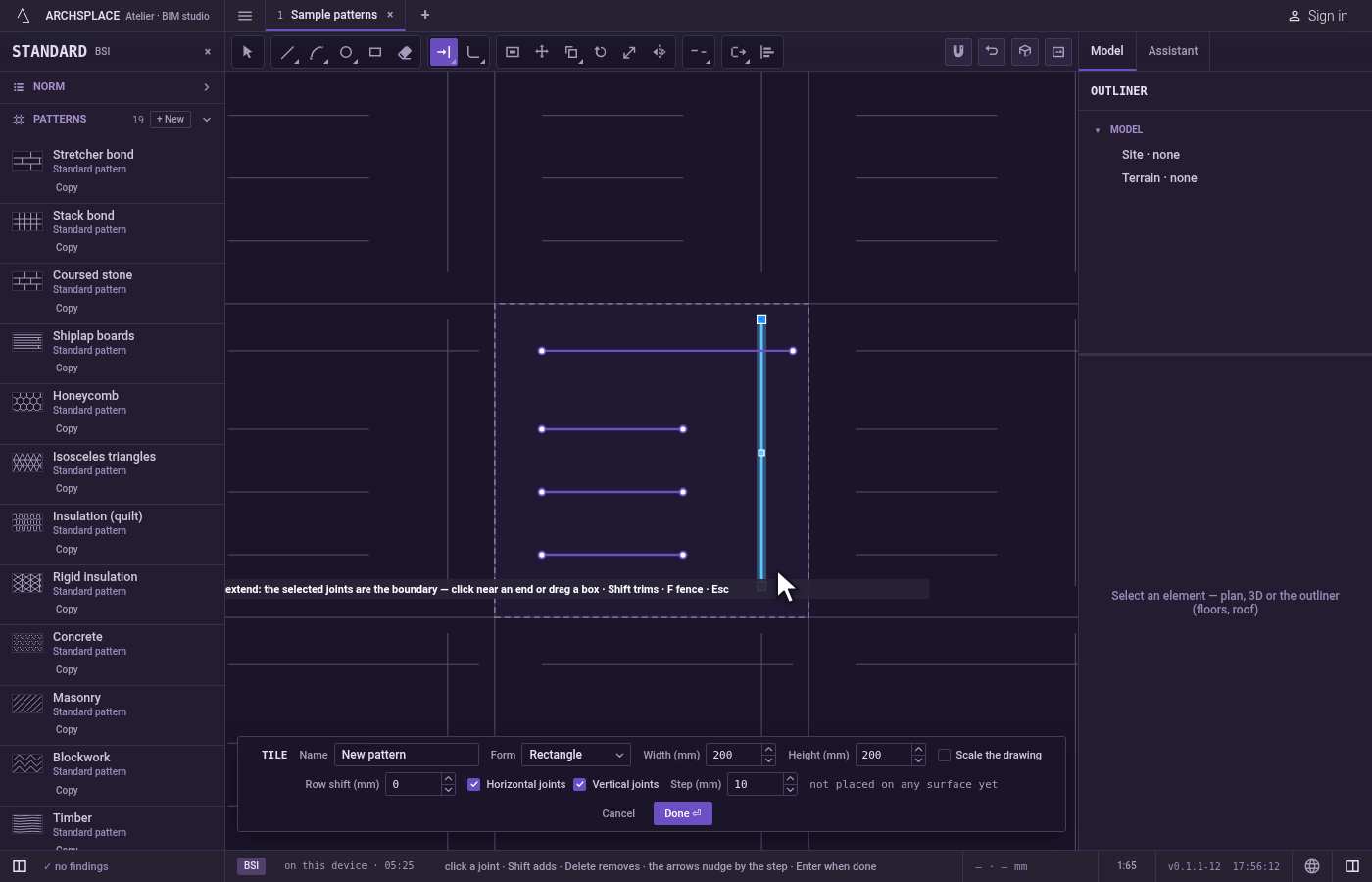
Point near the end to grow. The end nearest the pointer is the one that grows. The stretch a click would add is shown, and the hint says click to extend to the edge. If nothing can be added, the hint says why.
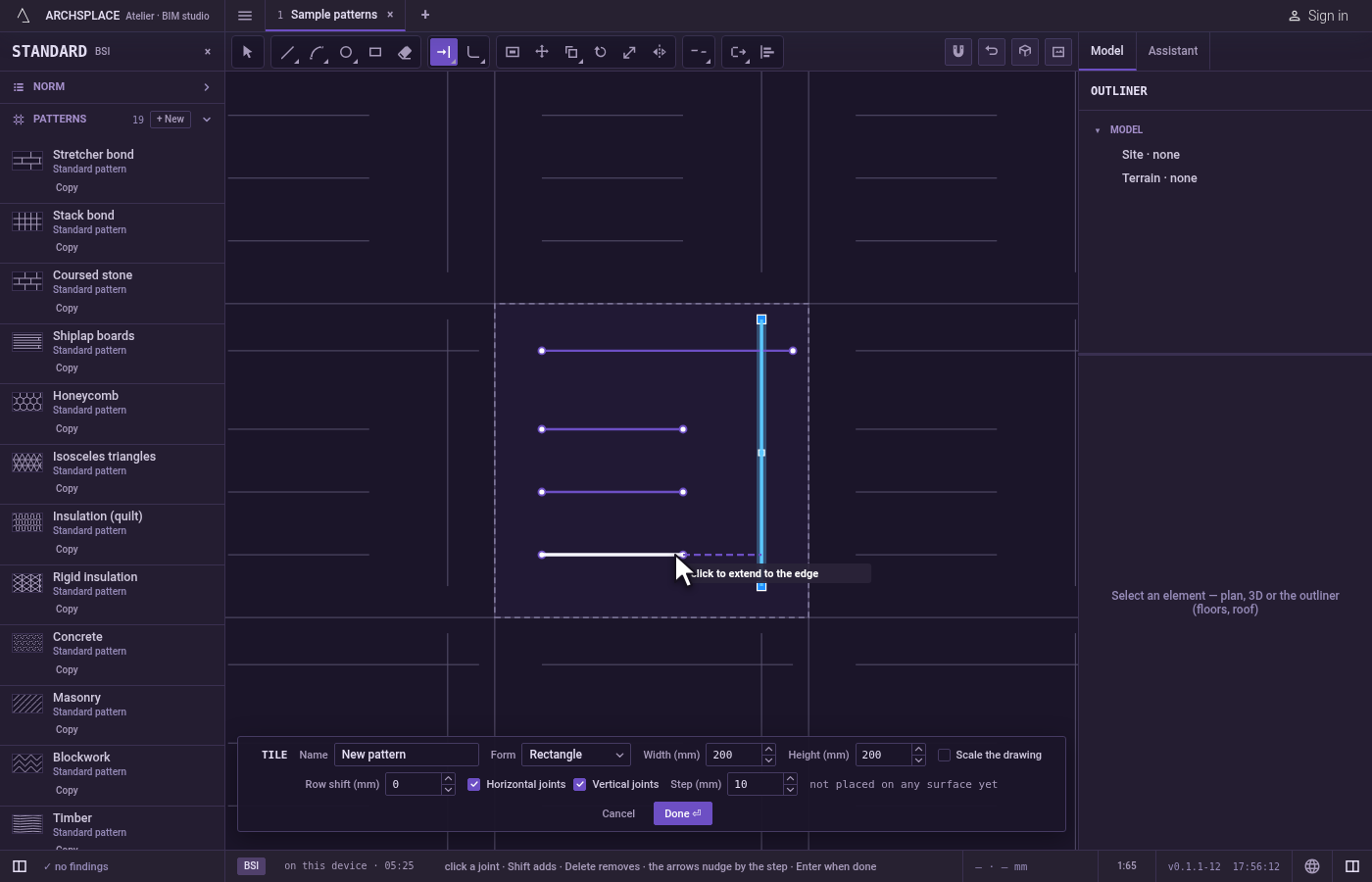
Click. The joint grows. The click acts when you release the button.
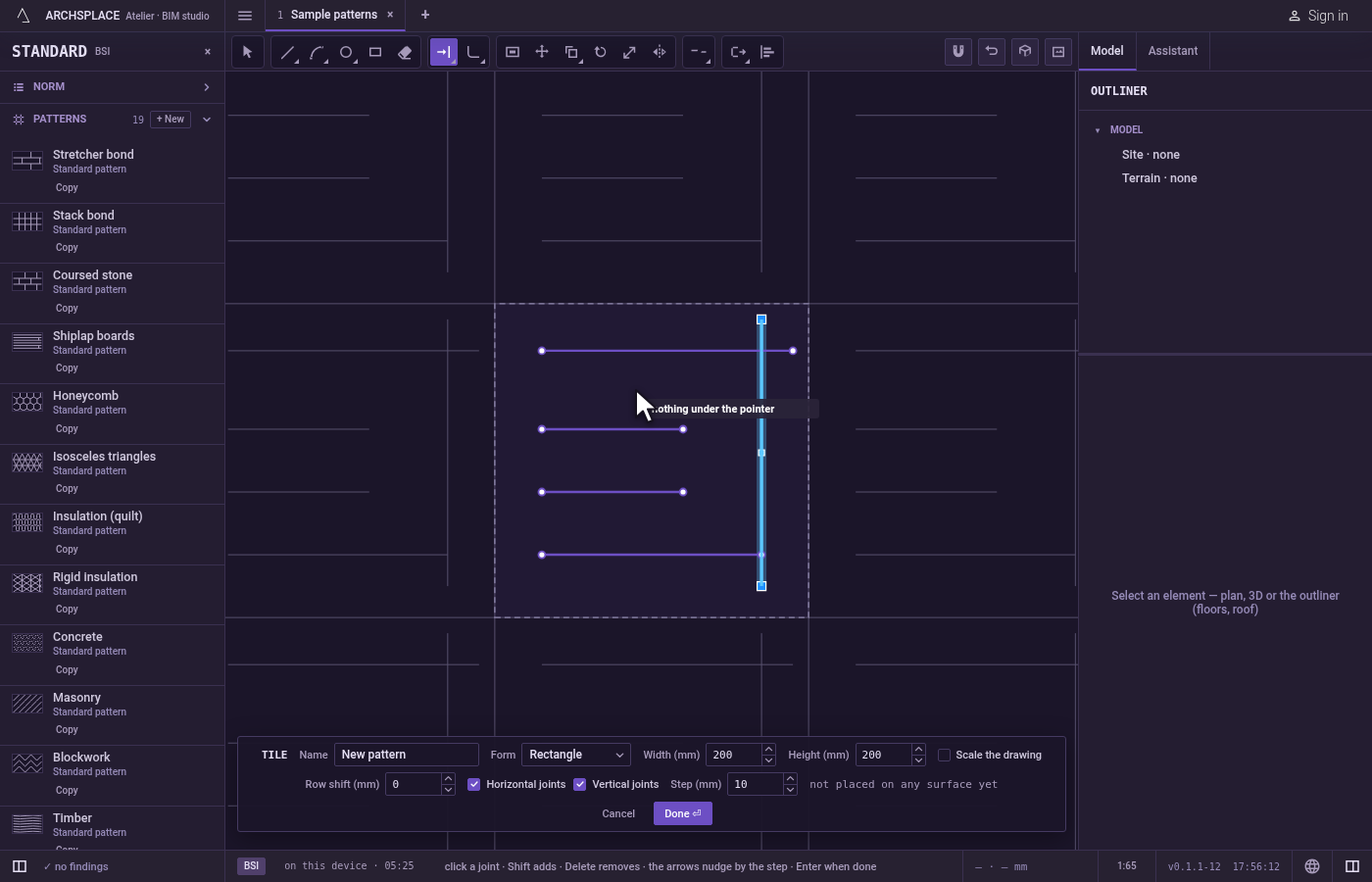
Or extend many ends at once. Drag a box across the ends to grow, in either direction: each joint the box touches grows once, at its end nearest the box. Or press
F, click the points of a fence across the joints, and pressEnter.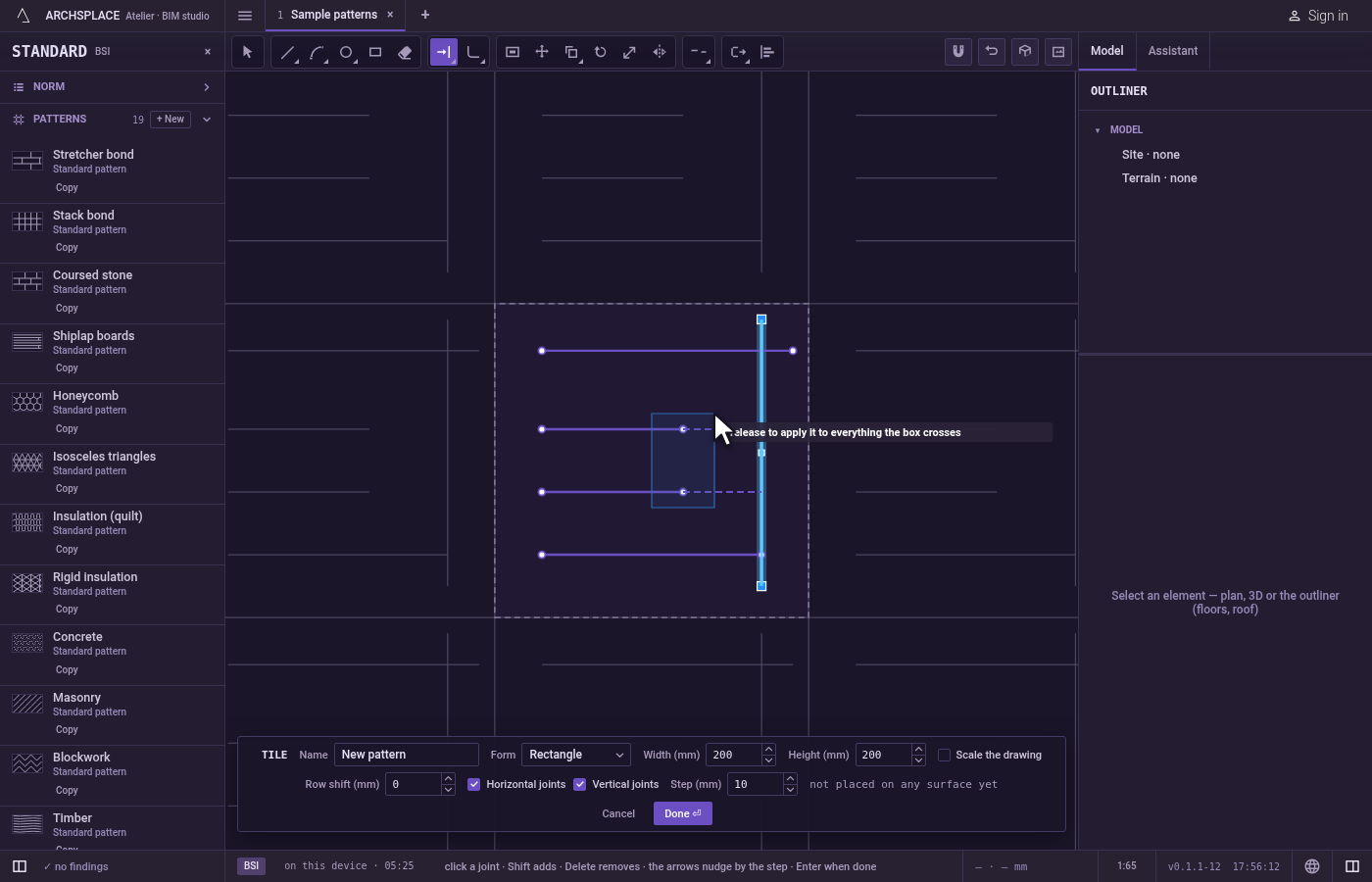
Trim instead. Hold
Shiftwhile you click, drag or fence: Extend then takes away the part between crossings, as Trim does.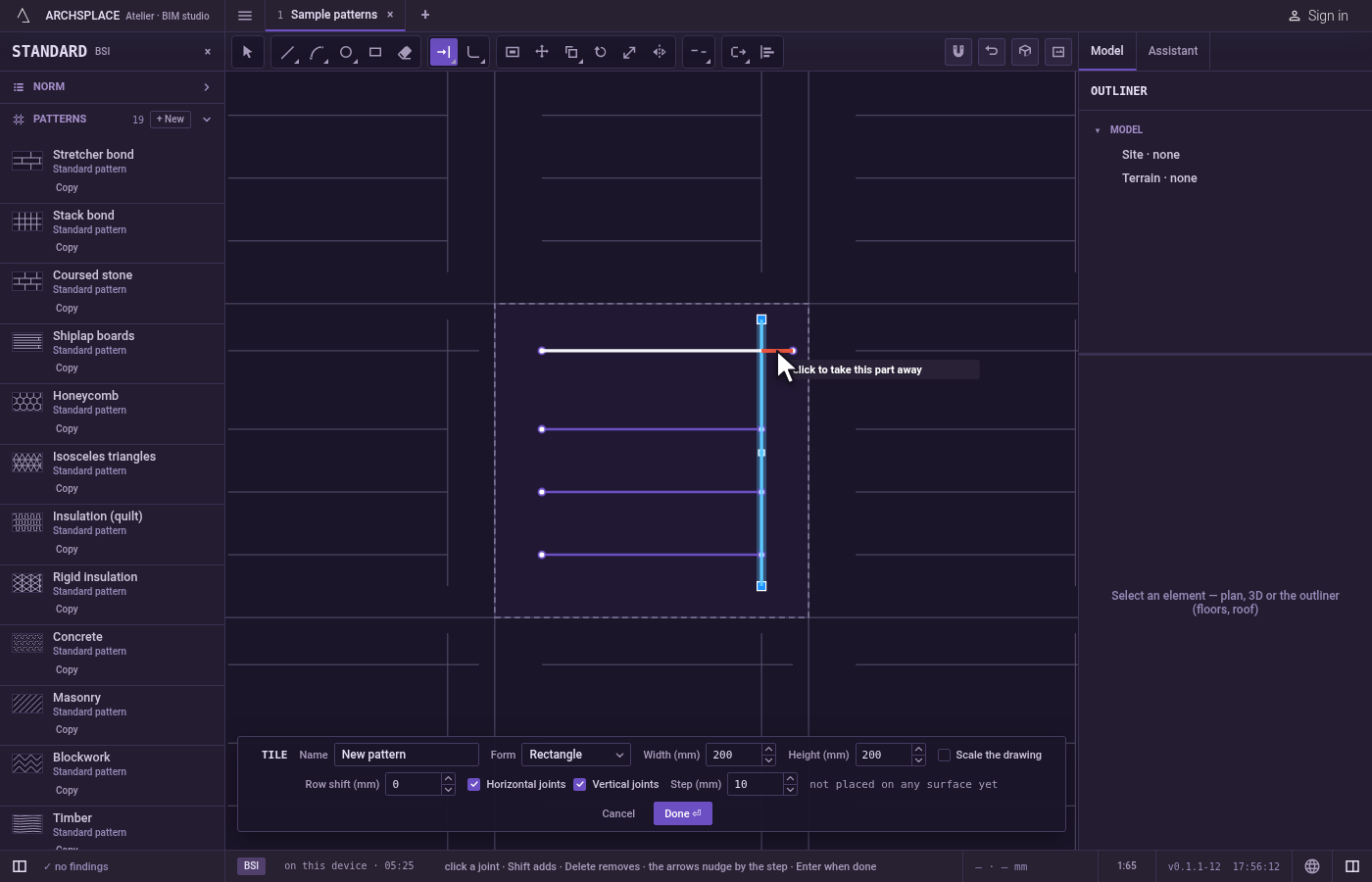
Finish.
Escapeleaves Extend for Select.Ctrl+Zundoes the last change. Press Done on the bar at the foot, orEnter, to hand the tile back.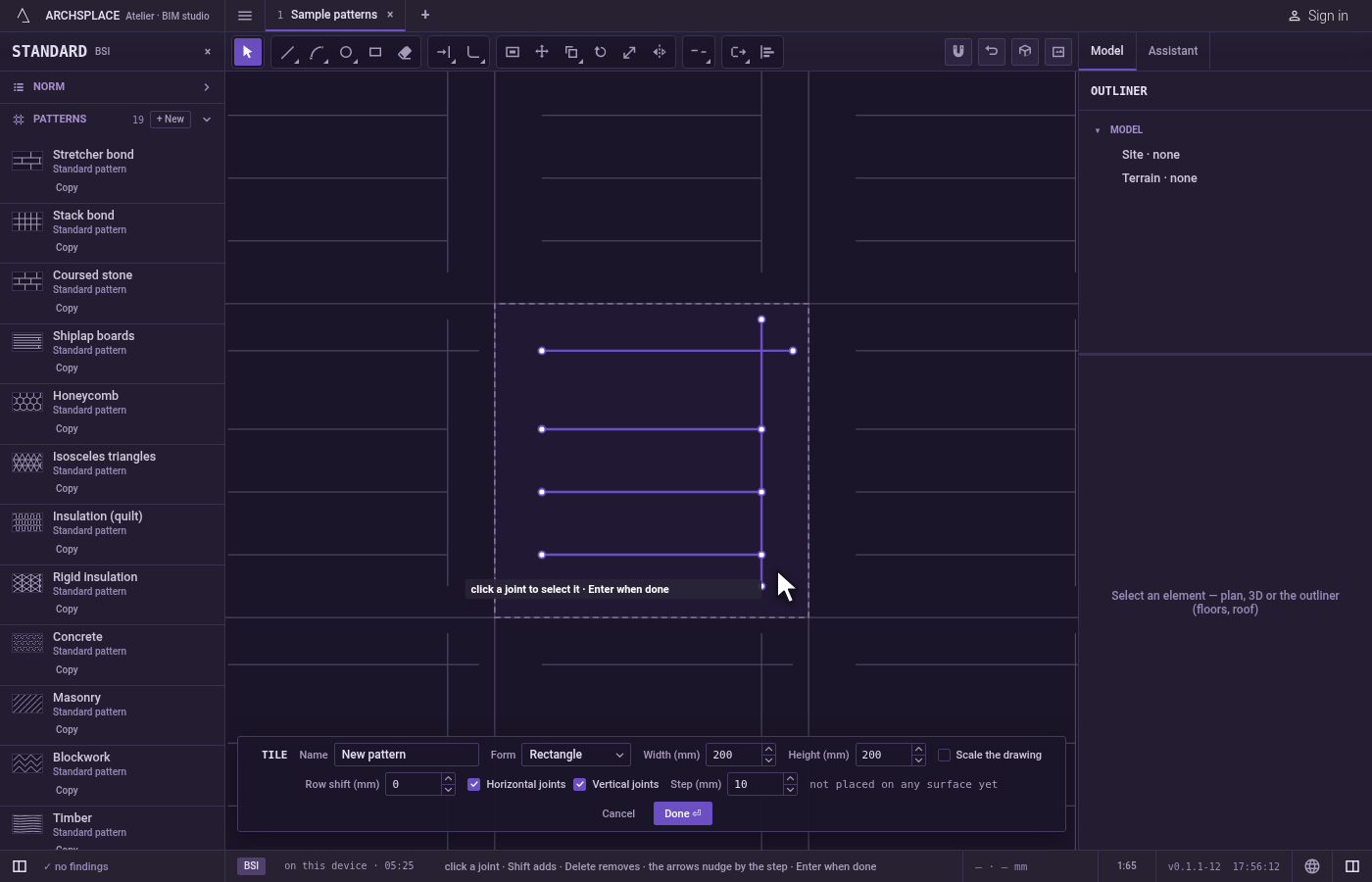
What it refuses
- A closed joint. A circle, a rectangle or a closed polyline has no end, and the hint says a closed outline has no end to extend.
- An end with nothing ahead. If no joint or edge lies ahead of the end, nothing is added, and the hint says no edge ahead to reach. When you have selected the boundary joints, the tile's edges do not count, so an end that points only at an edge has nothing to reach.
- A click on nothing. It changes nothing, and the hint says nothing under the pointer.
- A result that leaves the tile. If the grown joint would no longer stand inside the tile, the stretch is shown in the refusal colour, a click changes nothing, and the editor says a shape must stay inside the module.
What it writes to the contract
Nothing while you work: the change stays in the tile editor, where Ctrl+Z steps back through it. When you press Done, the whole tile is written to the project's patterns in one step you can undo, every joint as its points in metres from the tile's lower-left corner, the grown joint with its new end. A standard pattern is never changed: Done saves the project's own version of it under the same name, and every surface that lays it follows. Save as new writes a new pattern instead. Cancel writes nothing.
Related
Common questions
Which end of the joint grows?
The end nearest the place you click. Click near the end you want to grow.
Can I choose what the joint grows to?
Yes. Select the joints that should act as the boundary before taking Extend. Then only those count, and the tile's edges no longer do.
Why does Extend not work on my rectangle?
A rectangle, a circle or any closed joint has no end to grow. Explode it first to get separate joints with ends.