SketchPLin the studio
Polyline
Polyline draws one chained line in the sketch editor, straight segments and arcs that leave the last segment tangentially, point by point, by clicks or typed coordinates. C or a click on the start closes it, and Enter ends it open.
What it is
Polyline draws a chain of segments that stays one line: straight segments, and arcs that leave the last segment without a kink, tangent to it. You place each point by a click, a typed length, or typed coordinates. The chain is closed by a click on its first point or by C, or ended open with Enter.
Because it is one line, the tools of this group take a polyline whole: Copy copies all of it, and Fillet rounds the corners between its segments in place.
When to use it
- Drawing an outline that mixes straight sides and smooth curves, such as a window with a curved head that flows out of its sides.
- Drawing points from typed coordinates or relative steps.
The steps
Arm Polyline. In the sketch editor (see Select for the ways in), type
PthenLquickly, or click Polyline on the editor's toolbar. The hint at the cursor says to chain lines and tangent arcs, withAfor an arc,Lfor a line,Cto close andEnterto end.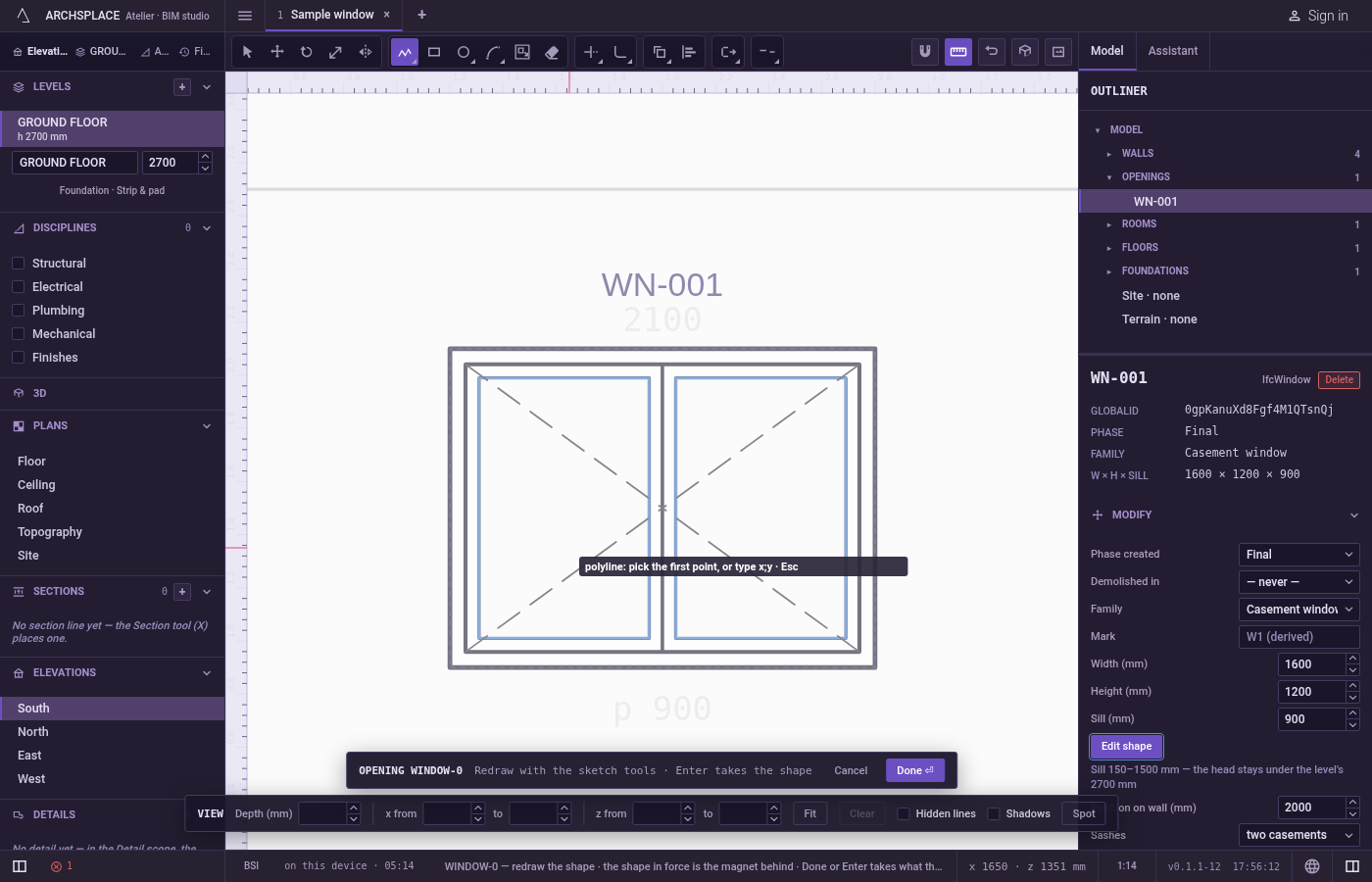
Place the first point. Click it; it snaps to corners, middles, crossings, the dimmed shape in force and the lines of the view. Or type it as
x;yfrom the editor's origin, the opening's centre at floor level or the plan's origin, and pressEnter.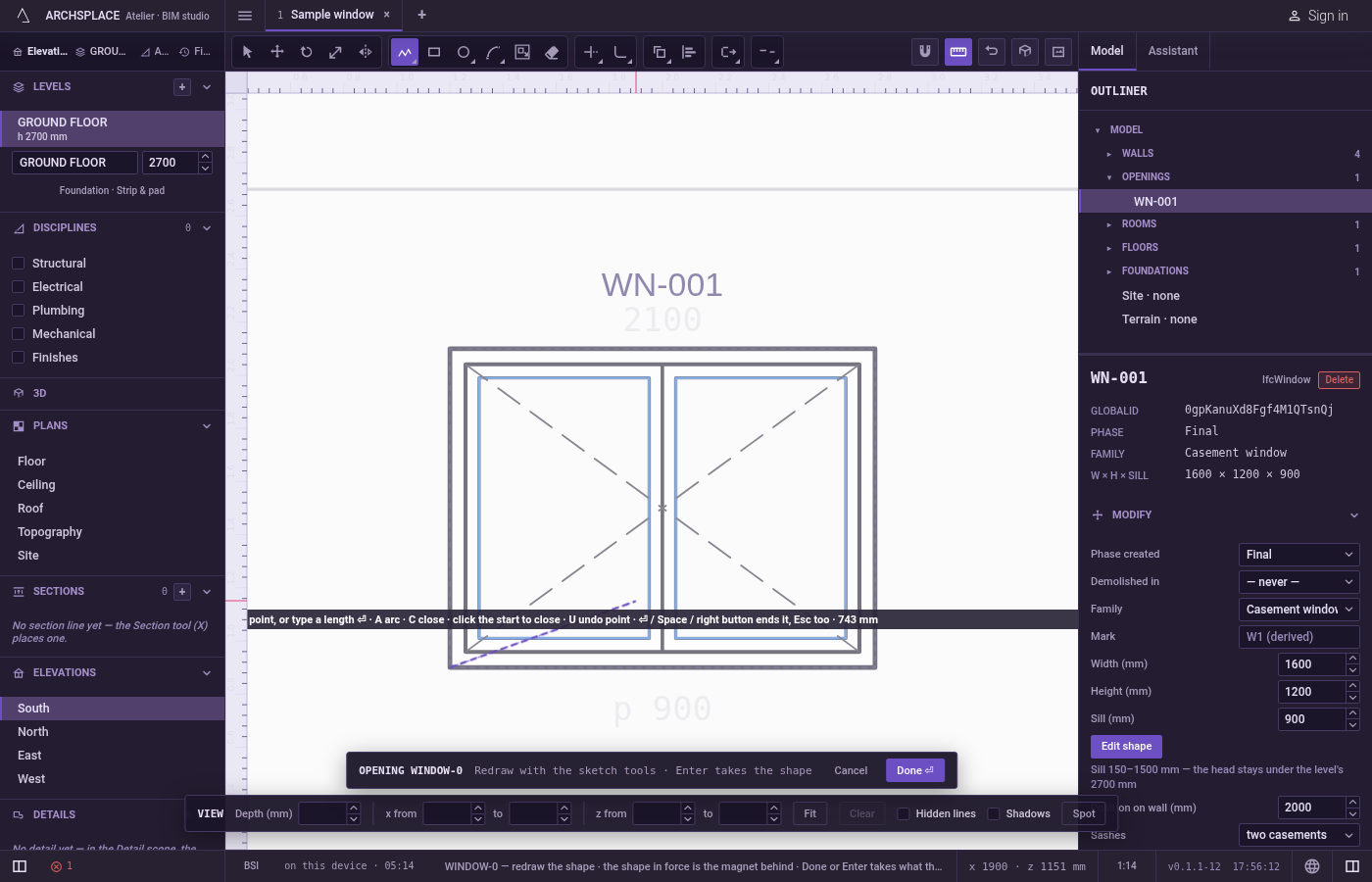
Place the next points. A segment follows the pointer and the hint shows its length. Click, or type: a bare number is a length along the pointer's direction,
@dx;dyis a step from the last point,d<aand@d<aare a distance at an angle in degrees, from the origin or from the last point. PressEnterafter typing. Lengths and coordinates are in the project's units.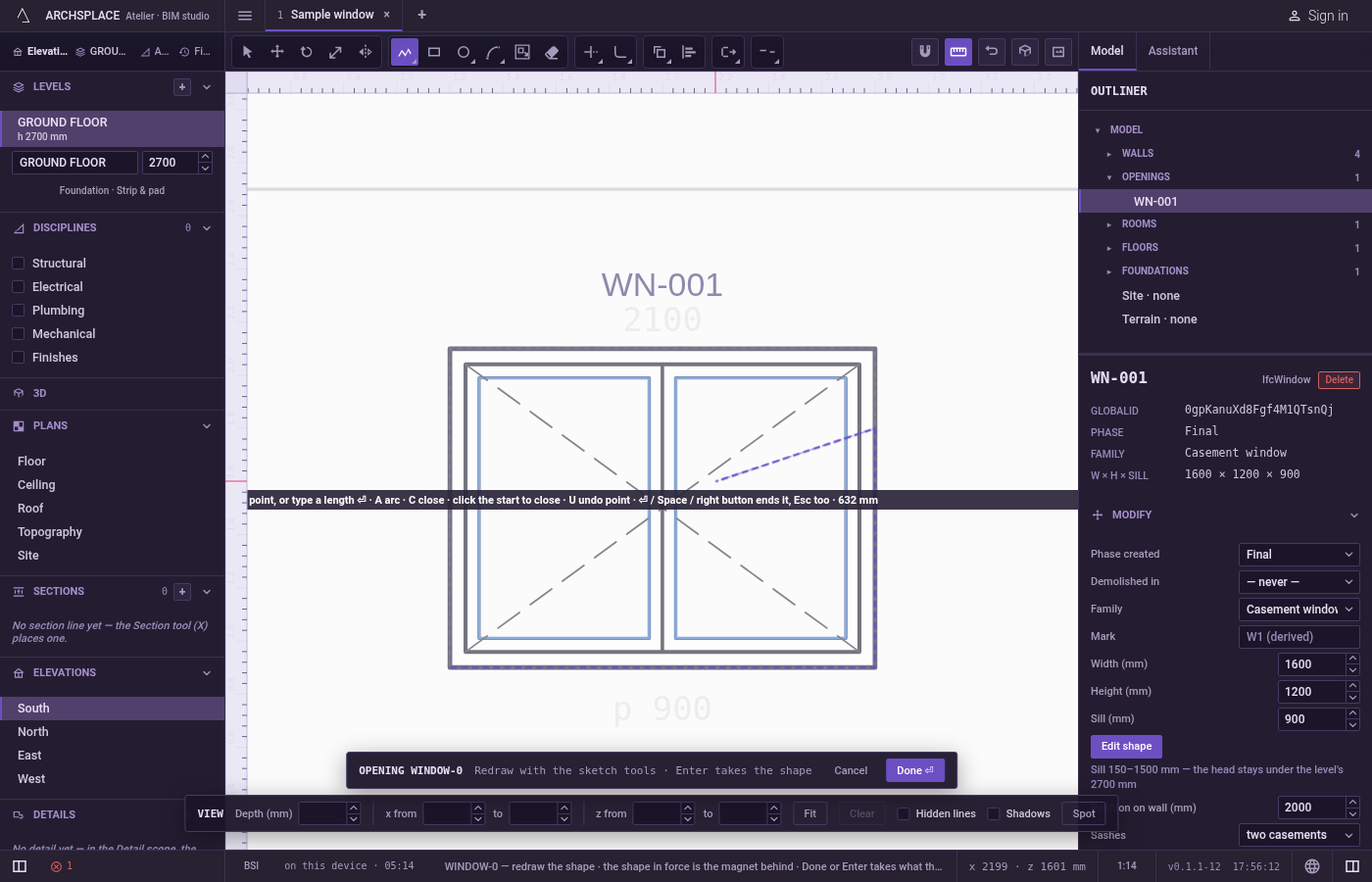
Switch to arcs and back. From the second point on, press
A: the next segment is an arc tangent to the last one, ending where you click, and the hint shows arc. PressLto go back to straight segments.UorBackspacetakes back the last point.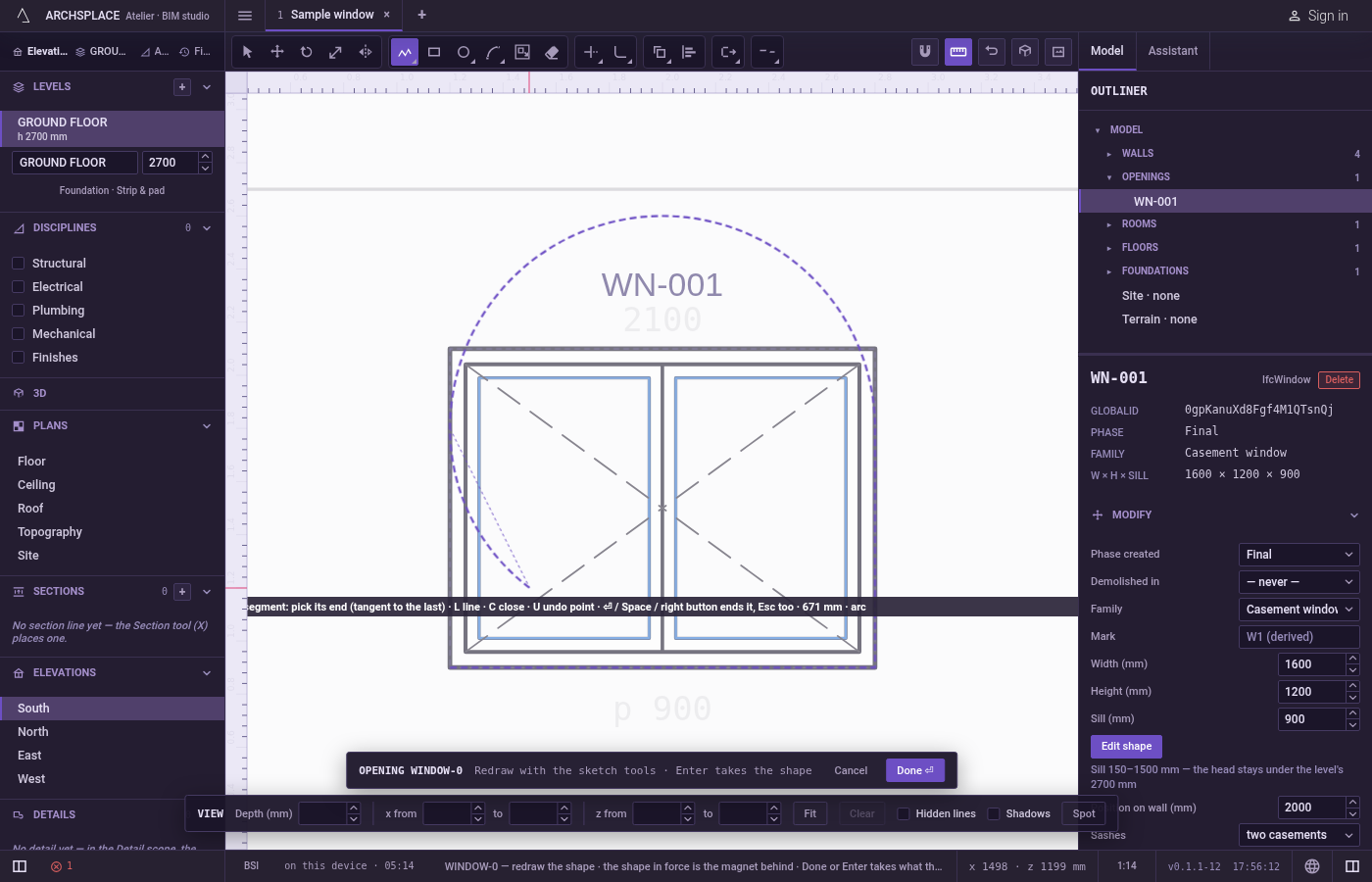
Close or end. With three points or more, click the first point again, or press
C: the polyline closes and the tool is ready for a new one. To end it open, pressEnter: the polyline stays as drawn and the tool is ready for a new one.Space,Escapeor the right mouse button also end it open, then go back to Select. A finished polyline is left selected.
What it refuses
- The same point twice in a row. The hint says that is the same point.
- Closing or ending too soon. A polyline needs two points to end and three to close; the hint says so, and the points stay.
- A tangent arc for the first segment. An arc needs a direction to follow, so the first segment is always straight, even with
Apressed. - The shape in force. It is a magnet for your points but never part of your polyline.
With a single point placed, Escape drops it.
What it writes to the contract
Nothing until you press Done. Each finished polyline is one step inside the editor, and Ctrl+Z steps back through them. The contract changes when you press Done, or Enter with nothing in progress, as one step you can undo: what the lines enclose becomes the window's or door's profile, points [u, v] in metres across the wall and up from the floor, or the pattern area's outline in the room's floorAreas or ceilingAreas, points [x, y] in plan metres.
Each arc segment becomes a bulge, the third number on the point where it starts. A door 1 meter wide whose sides flow into a half round head, drawn as two straight sides and one tangent arc:
Common questions
How do I add a curve that continues smoothly from a straight side?
After at least two points, press A: the next segment is an arc tangent to the last one, ending where you click. Press L to go back to straight segments.
How do I type exact points?
Type x;y for a point measured from the editor's origin, @dx;dy for one measured from the last point, or a distance and an angle such as @1.2<90, then press Enter. A bare number is a length along the pointer's direction.
How is Polyline different from Line?
Polyline takes typed coordinates and tangent arcs, and leaves one chained line selected when you finish. Line takes only lengths and draws straight sides.