Sections and elevations
Joint grips in sections and elevations
When walls, pipes or beams are selected in a section or an elevation, each place where their ends meet shows as a vertical tick from the level's floor to its top. Dragging a tick moves that joint along the view, and every run meeting there follows, the way it does on the plan.
What it is
A joint is the place where runs meet: two walls at a corner, a wall dying on another's face, the end of a pipe or a beam. When you select a wall, a pipe or a beam with Select, every view shows the joints of what you hold so that you can move them. In a section or an elevation, each joint shows as a vertical tick, from the floor of its level to its top, standing where the joint stands along the view.
One tick stands at each place along the view, and it carries every joint standing there. A wall seen end on has both of its ends at one place, so its tick carries both, and dragging it moves the whole face the view shows.
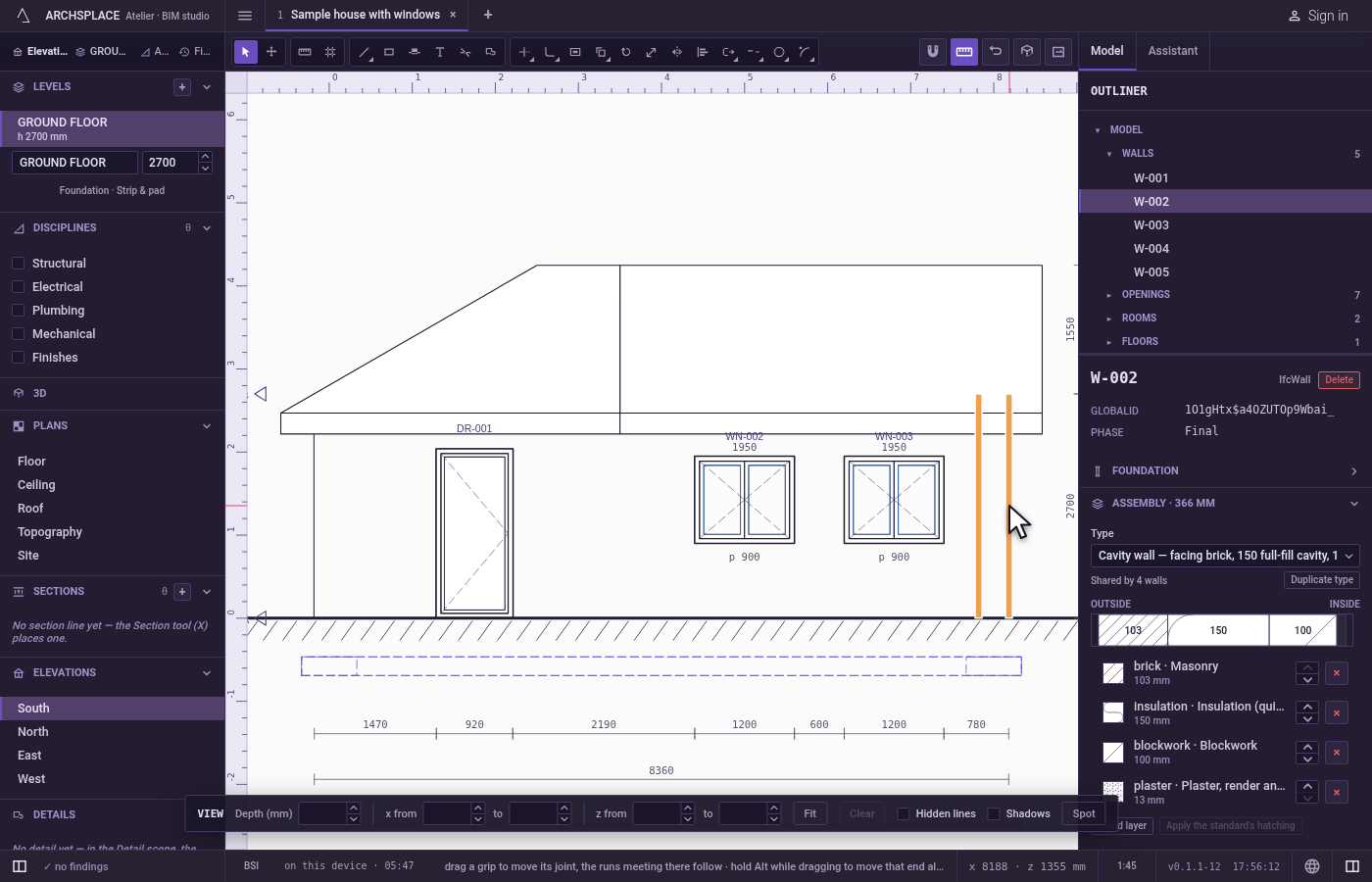
Under the pointer, a tick lights its whole joint in orange. A tick whose joint you hold is drawn in the selection blue. While runs or joints are held, the status bar explains the grips: drag one to move its joint, hold Alt to move only that end, click one to select its joint, Shift to add or remove.
Dragging a tick is the same carry as dragging a corner on the plan. The joint moves, and every run meeting there follows: the corner stays closed, a wall dying on a moved wall's face slides with it. While you drag, the studio draws every run the move would change, and if the move cannot be made it draws them in red with the reason beside the pointer.
When to use it
- Widening or narrowing a facade from the elevation, by moving its corner.
- Lining up a corner of the building with a grid axis or an opening seen in the elevation.
- Moving one wall's end alone, off the corner it shares with another.
The steps
Open an elevation and select a wall. Under Elevations in the sidebar, click South. Press
V, then click the row of the east wall in the outliner. The south elevation sees that wall end on, at the right of the facade, behind the south wall that a click there would take. A tick stands where it stands along the view, from the level's floor to its top, and it carries both of the wall's ends.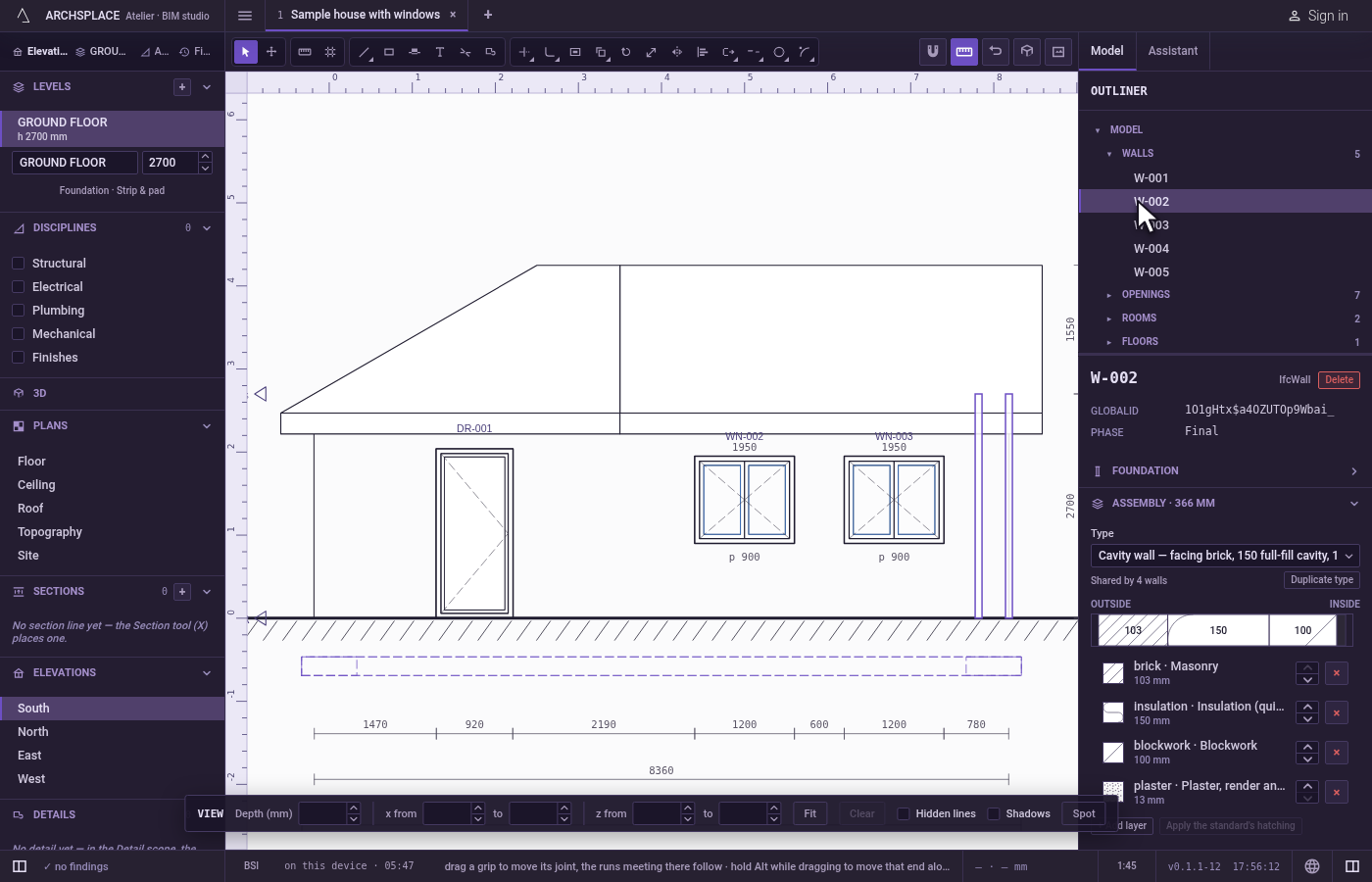
Point at the tick. Hold the pointer over it. It turns orange, with every joint it carries.
Drag it along the view. Press the left button on the tick and drag 50 cm to the right. The tick moves along the view only, and its corner lands exactly where the pointer is, pulled onto the corners, middles and edges of the drawing's lines, the runs that move left out. Every wall the move changes is drawn in its band as it would stand. Beside the pointer, the studio says to hold
Altto move this end alone.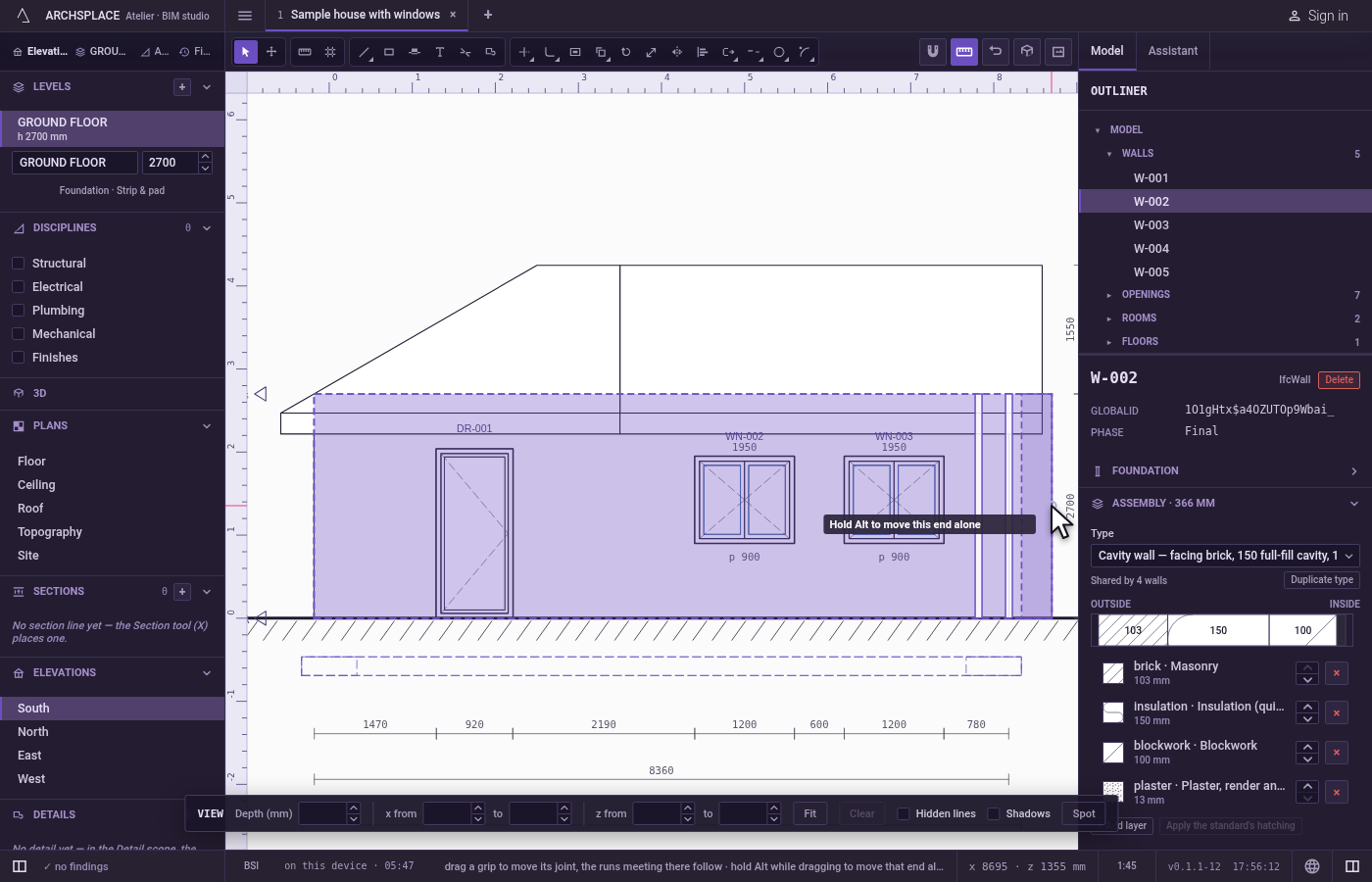
Release. The east wall lands where it was drawn, whole, and the south and north walls meeting it grow to follow. The plan, the 3D and every other view show them moved. The whole move is one step that one
Ctrl+Ztakes back.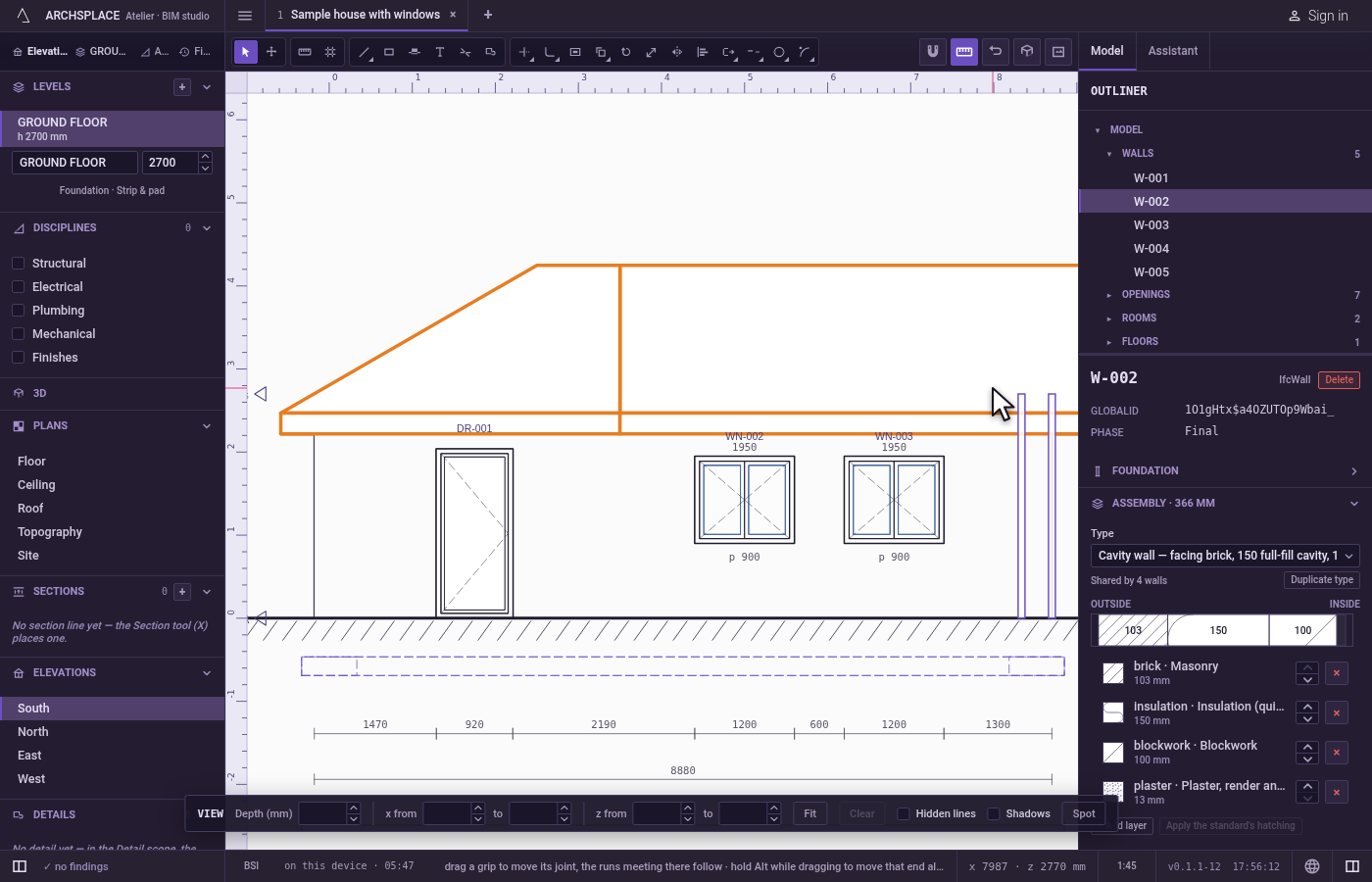
Move one end alone with Alt. Select a facade wall seen face on, drag the tick at one of its ends, and hold
Altas you release the button. The words beside the pointer say Detached: only this end moves: this wall's end moves, and the other walls of that joint stay where they were.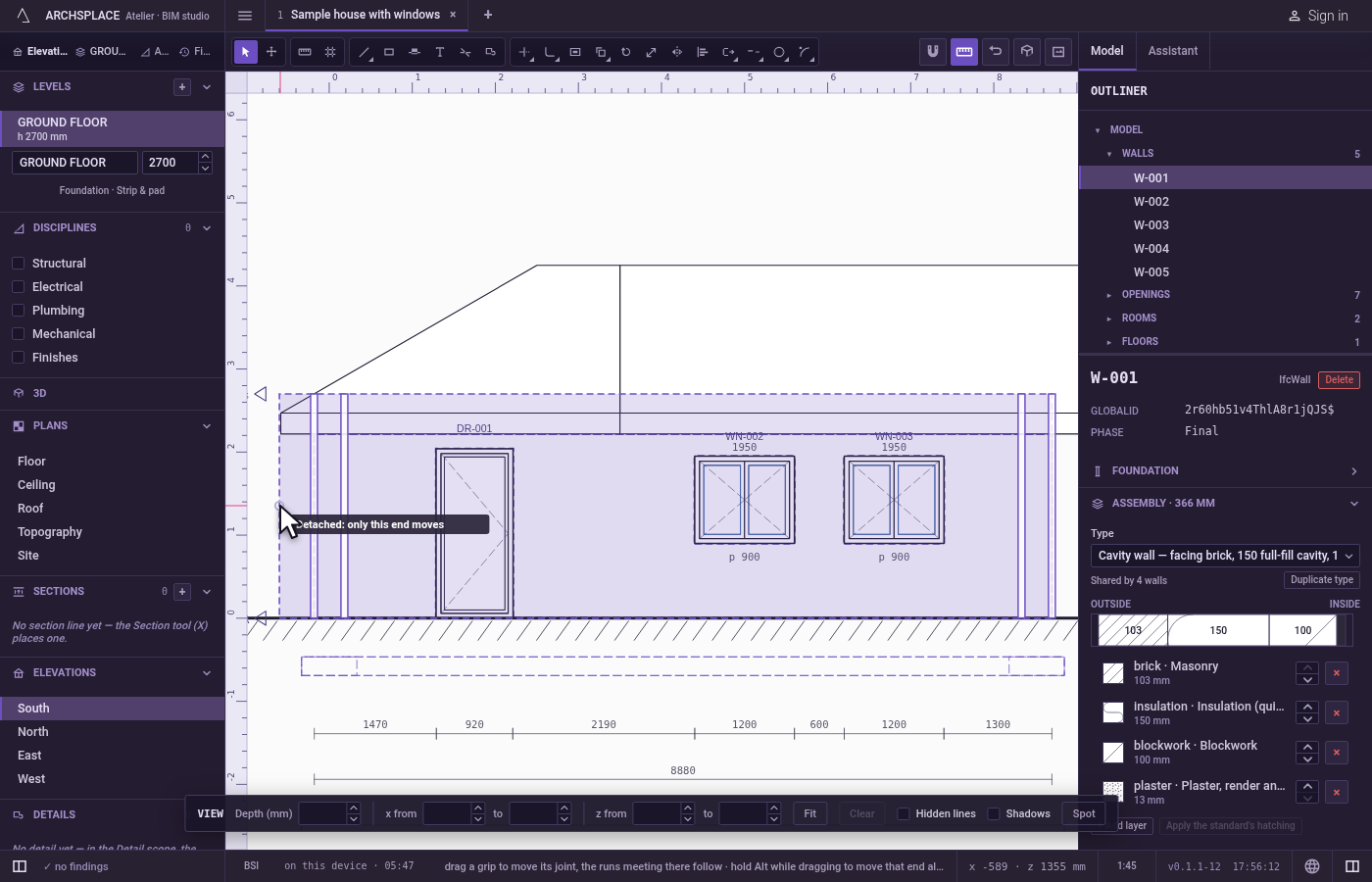
Select the joint. Click a tick without dragging. Its joint is selected, and
Shiftwith a click adds or removes another. With one joint held, the panel on the right reads JOINT, with its position, X and Y, and, for each run meeting there, its Length and its Angle (°). A value typed there moves the joint exactly.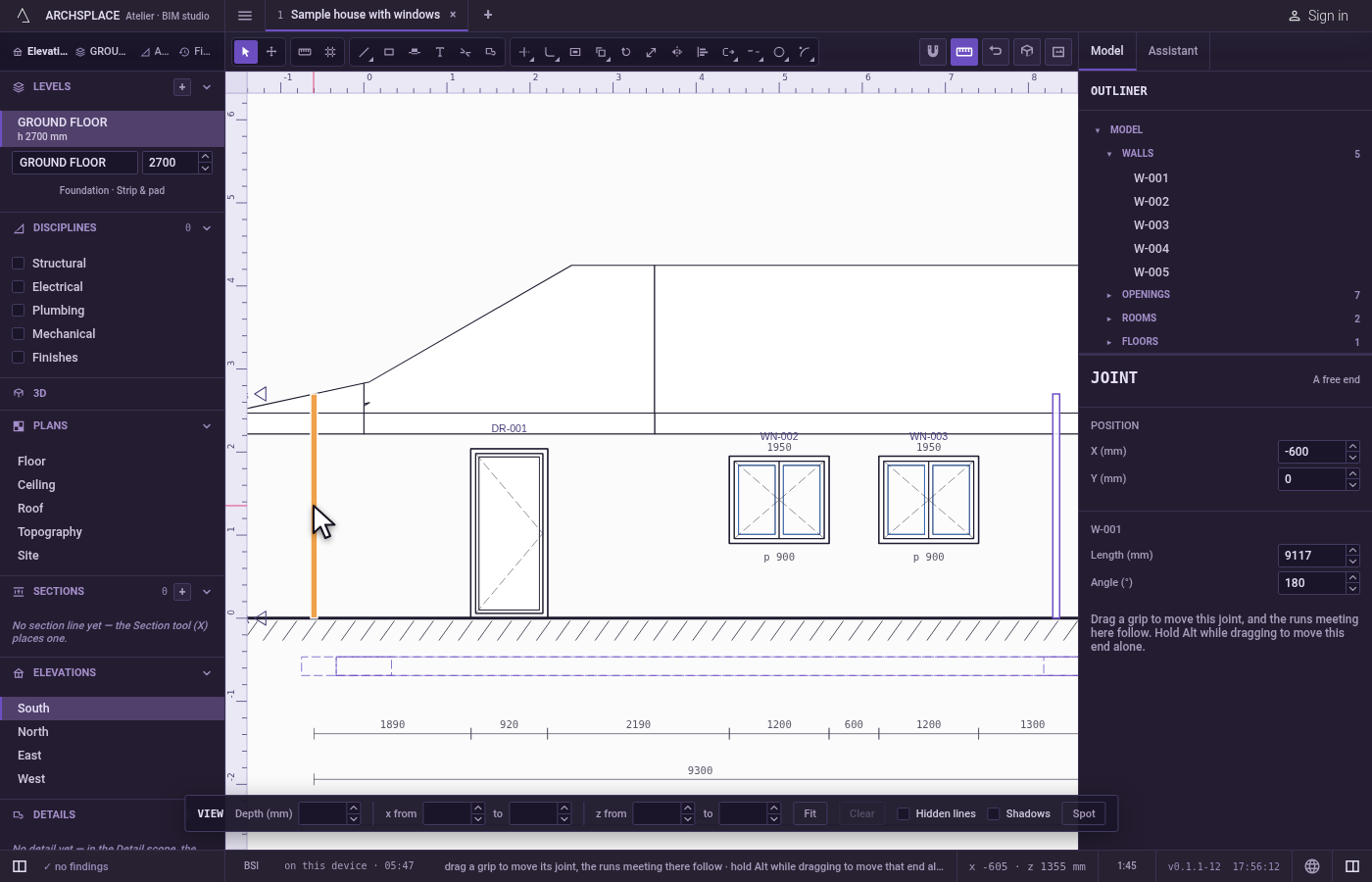
What it refuses
- Up and down. A tick moves along the view only. The joint keeps its height, which is its level's, and its depth.
- A drag shorter than a centimetre. It counts as a click and selects the joint instead.
- A move the network cannot make. A move the carry refuses draws the runs in red with the reason beside the pointer, and the release writes nothing. An end resting on another wall's face, for instance, can only slide along that face.
- Copying, arraying or deleting a joint. A joint is where runs meet and has nothing of its own: copy, array or delete the runs themselves.
- Grips under another tool. The ticks stand under Select and Move only. Under Move they are shown but not taken, and with a detail tool in hand they are not shown.
What it writes to the contract
A joint is never written: it is where the runs' ends meet, read again from the model each time. Dragging a tick writes the ends of the runs it carries: from or to of each wall in walls, and the ends of each pipe or beam, in plan metres. A run whose end dies on a moved wall's face has that end set again on the face. With Alt, only the end of the run you grabbed changes.
Moving the east wall of a 10 by 8 m house 50 cm to the east, as in the steps above, writes the ends of the three walls it changes, the south, east and north walls:
Common questions
How do I make a facade wider from an elevation?
Select the wall at the end of the facade, which the elevation sees end on, and drag its tick sideways along the view. That wall moves whole, and the walls meeting it follow, so the facade grows and the outline stays closed.
How do I move only one wall's end, not the corner?
Hold Alt while you drag the tick, and keep it held as you release the button. Only that end moves; the other walls of the joint stay where they were.
Why can I not drag a tick up or down?
In a section or an elevation a joint moves along the view only. Its height is its level's, and the depth of the view is kept.