3DTin the studio
Transform
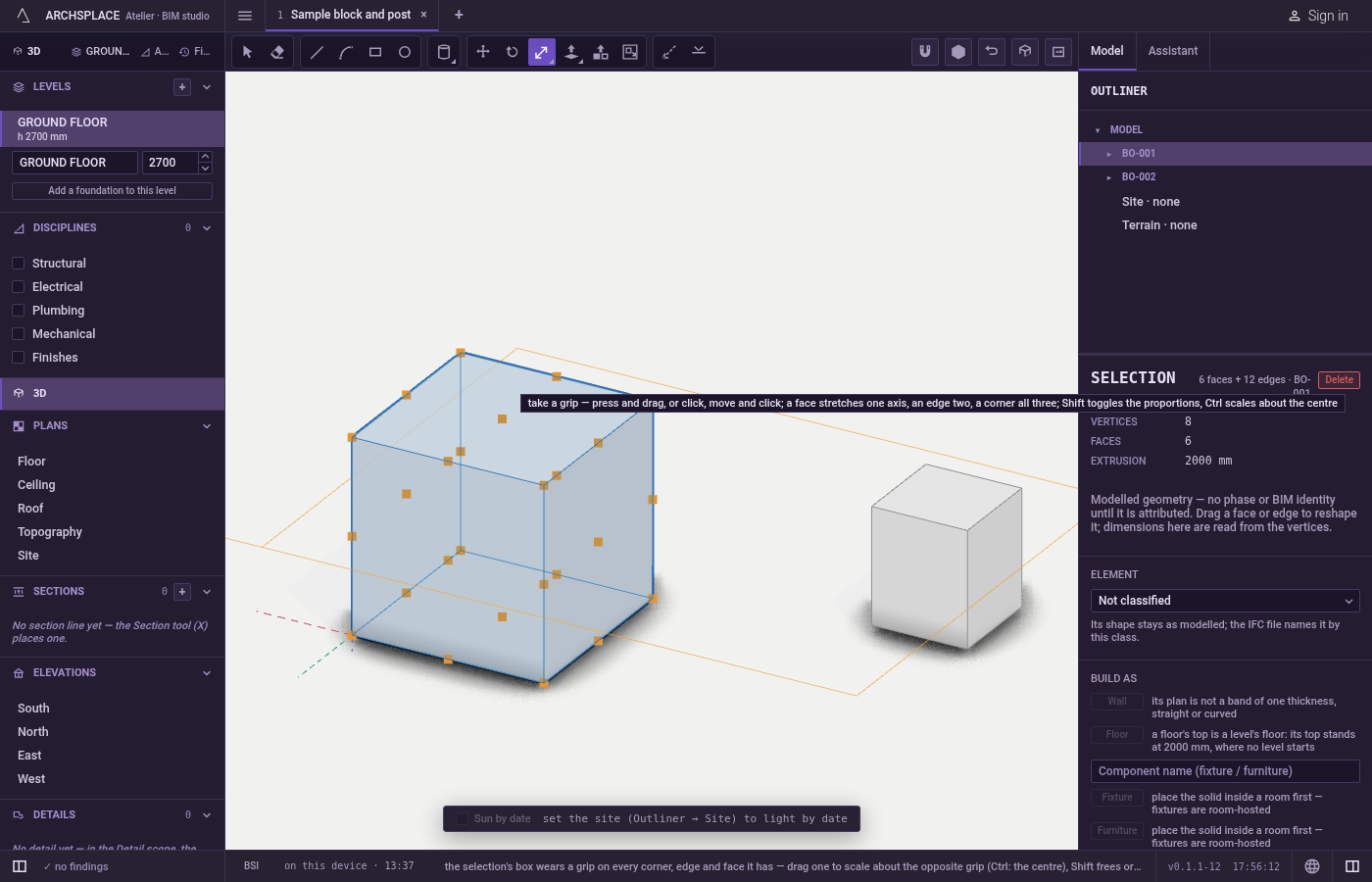
Transform puts a box around what you hold in the 3D view and a grip on each of its corners, edges and faces: drag a grip and the selection scales about the opposite grip. One gesture scales, stretches, squashes or mirrors, and a value typed instead sets it exactly.
What it is
Transform reads what you hold and draws its box: the smallest box, square to the axes, that holds all of it. A grip stands on every corner, every edge middle and every face centre the box has: 26 on a volume, 8 on a flat face, 2 on a straight edge. The grip under the pointer turns orange and the pointer becomes a double arrow along the grip's direction.
Dragging a grip scales the selection about the grip on the other side of the box. A face grip stretches one direction, an edge grip two, a corner grip all three. A factor of 2 doubles, 0.5 halves, and past the opposite grip the selection turns inside out: a factor of -1 is a mirror. While a grip is in hand the selection steps aside and only its ghost stands where it will land.
It works on bodies, loose lines and components, and on the faces, edges and corners of a body, whose neighbours follow. Walls and the other elements of the plan take the share of the change that lies in plan.
When to use it
- To make a body bigger or smaller, by eye or by an exact factor.
- To stretch a body in one direction, such as making a box longer.
- To mirror a body or a component, or to make a mirrored copy.
- To resize something to an exact length along one direction.
The steps
Choose what changes. Select it, or take the tool and click a body, a wall or a component: the click selects it and its box appears.
Take the tool. Press
T, or click Transform. The box and its grips stand on the selection; the hint says what each grip does.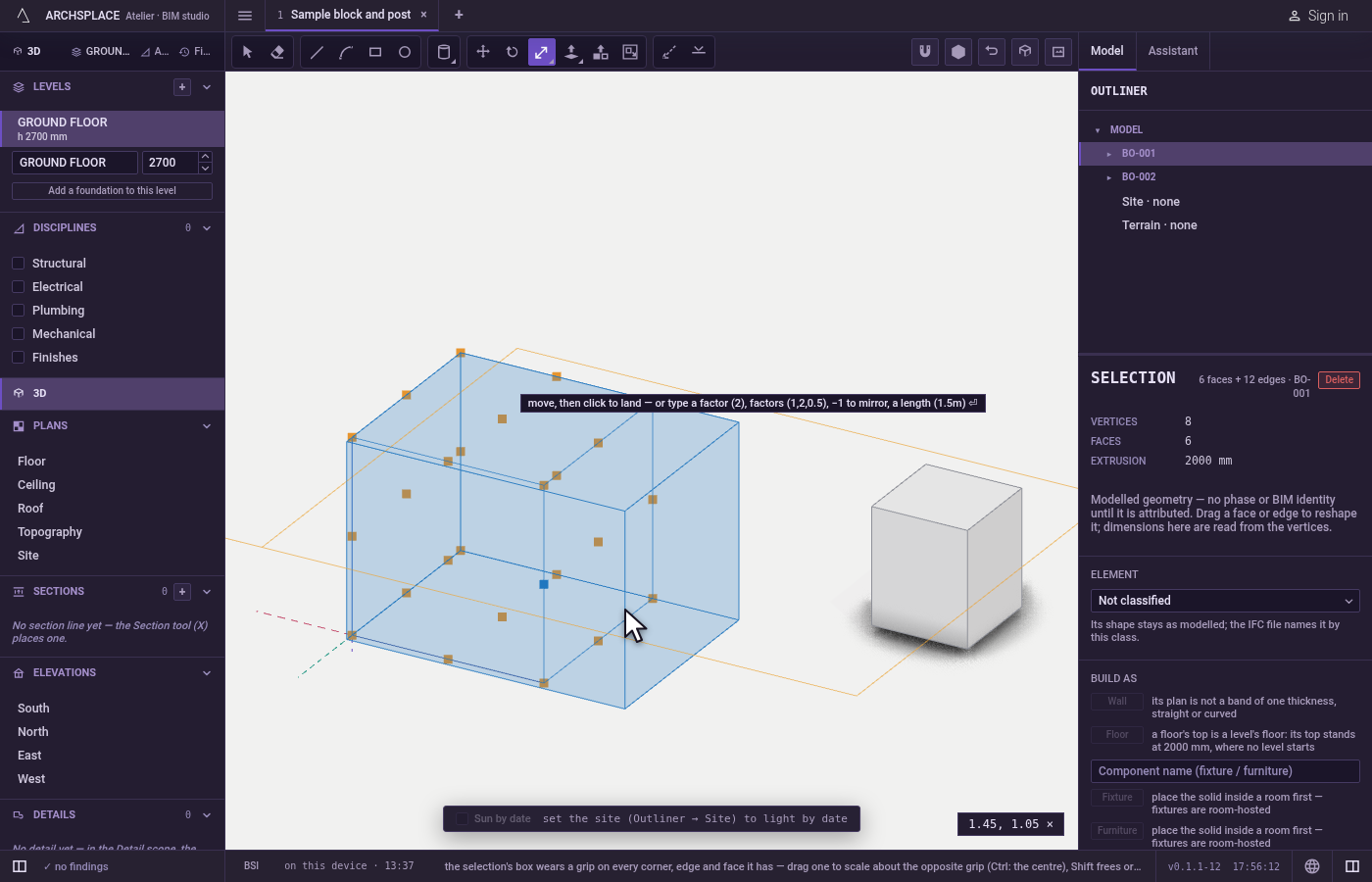
Take a grip. Press it and drag, or click it, move, and click again to land.
Ctrl(⌘on a Mac) scales about the centre instead of the opposite grip.Shiftswitches between free and proportional: corners are proportional unlessShiftis held, edges free unless it is held.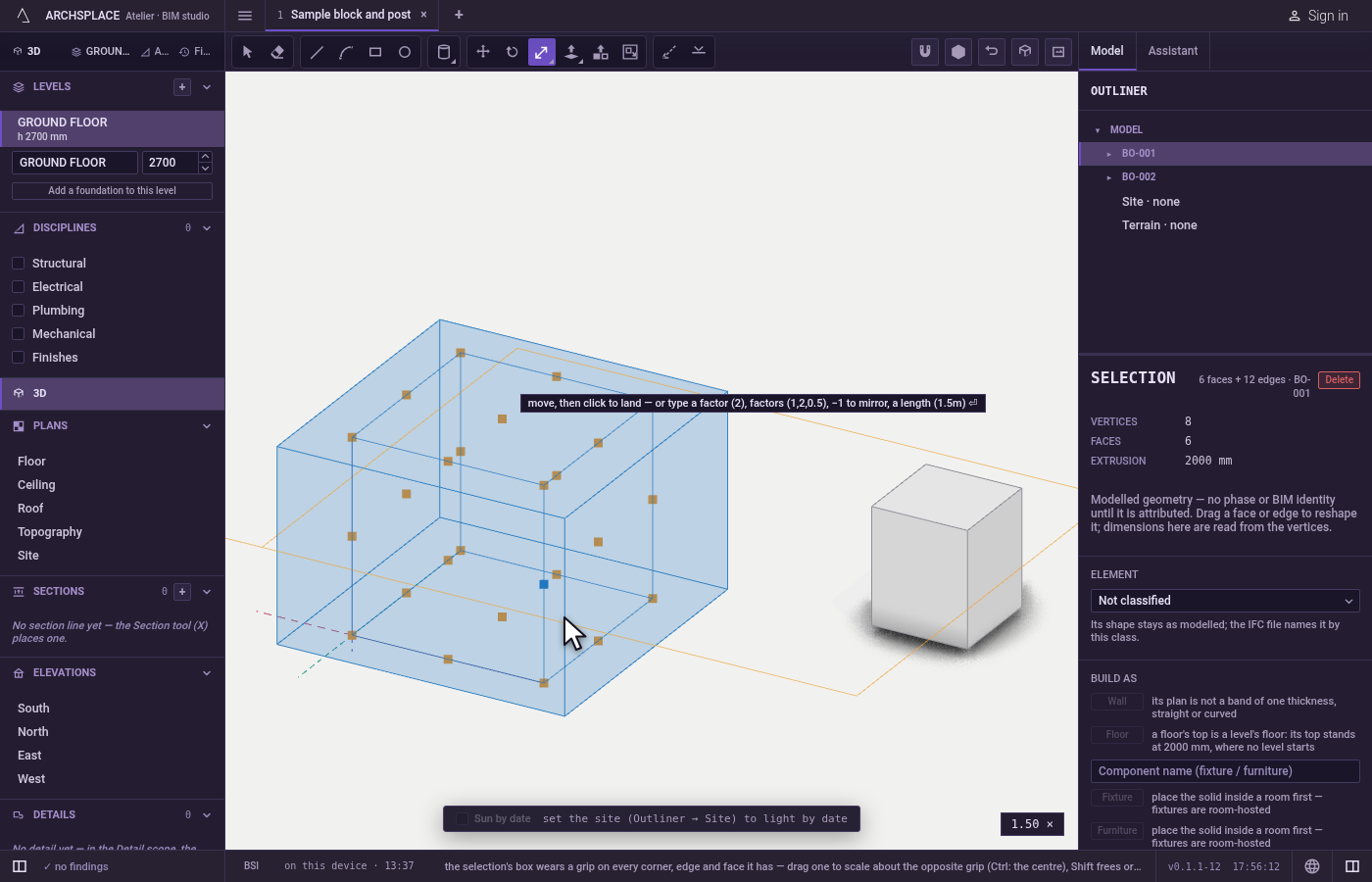
Land it where you want. The other elements' corners and edges attract the grip, and a dashed line shows when it lines up with a point. Click to land it, or type and press
Enter: a factor (2), one factor per direction separated by commas (1,2,0.5),-1to mirror, or a length with its unit (1.5m) for the new size.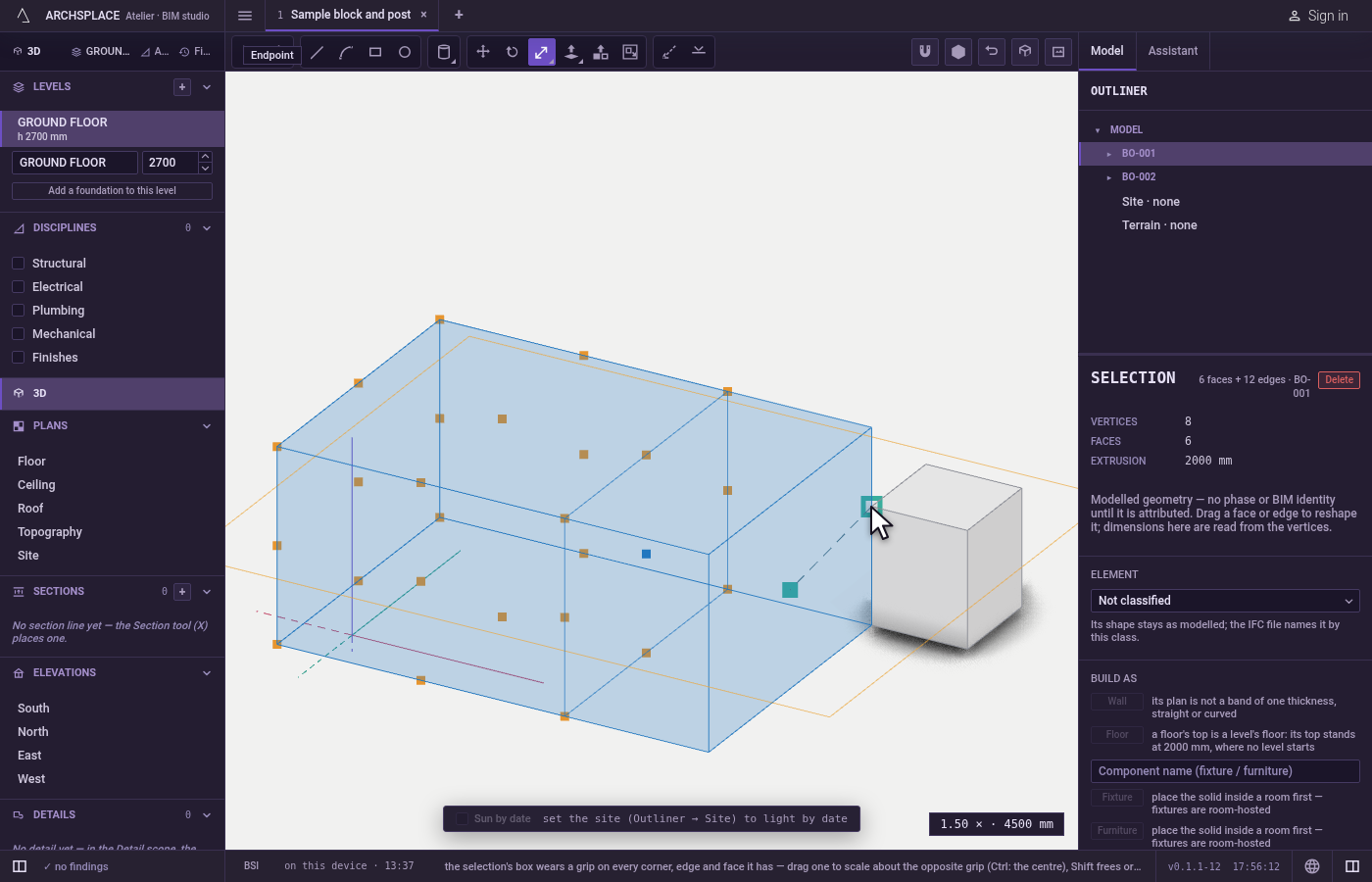
Keep the original if you want a copy. Hold
Alt(⌥on a Mac) as the grip lands, or as you pressEnter: the original stays and the transformed copy is added.-1withAltis a mirrored copy.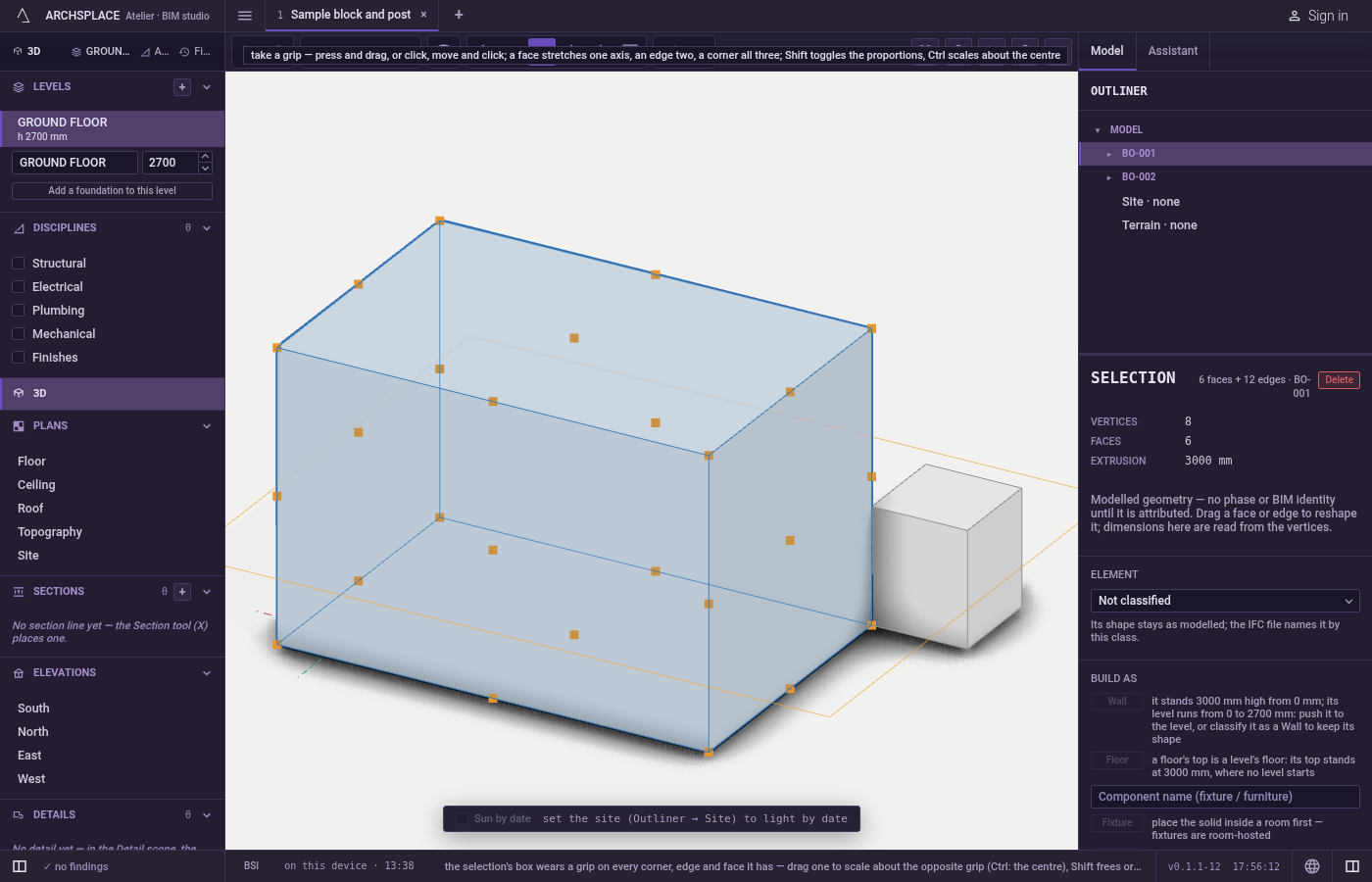
Let go of a grip.
Escapeputs a grip in hand back; the box stays with the selection. The space bar returns to Select.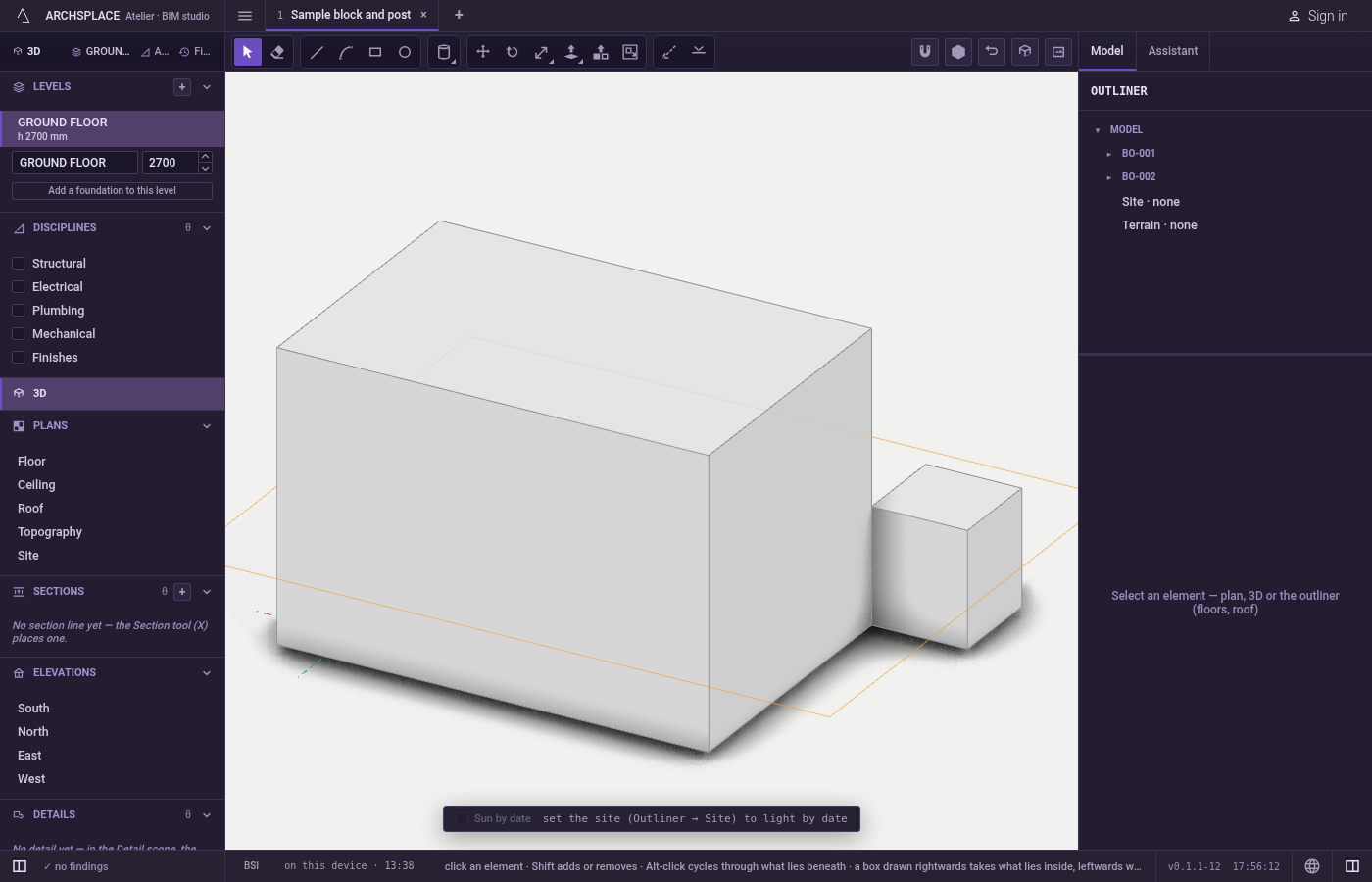
What it refuses
- A component turned at an odd angle, stretched unevenly. A component turned off the quarter turns takes only a scale that keeps its proportions in plan; open it to stretch its geometry.
- A height for elements that sit on a level. A wall takes its height from its level, so a change that would only alter the height of plan elements is refused.
- What has nothing to scale. A selection with no body, lines, component, face, edge, corner or plan element is answered with a notice listing what the tool takes.
- The ground. The terrain is measured, never stretched; edit its spot heights.
What it writes to the contract
One landing is one undoable step. Bodies and loose lines take their new points; a mirrored body keeps its faces turned the right way out. A component's placement keeps a scale per direction, a negative one mirroring it. Walls and the runs joined to them change in plan as the plan's own Scale would change them. With Alt, the original stays and a copy is added.
Common questions
How do I scale without changing the proportions?
Drag a corner grip: corners keep the proportions. An edge grip stretches two directions and a face grip one; hold Shift on any grip to switch between free and proportional.
How do I mirror a body?
Drag a grip past the opposite grip, or take a grip and type -1, then press Enter. Hold Alt as it lands to keep the original and make a mirrored copy.
Can I type a size instead of a factor?
Yes. With a grip in hand, type a length with its unit, for example 1.5m, and press Enter: the selection takes that size along the grip's direction. A plain number is a factor.