SketchBRin the studio
Break
Break takes the stretch between two points out of a line or a curve in the sketch editor, leaving a gap. Press Enter after the first point instead, and the line is split there into two lines with nothing removed.
What it is
Break cuts a gap into a line. The point where you first click the line is the first break point; the stretch between it and a second point is taken out. An open line becomes two lines, one on each side of the gap; a break past an end simply shortens it. A closed outline becomes one open line, the gap removed from the first point to the second in the direction the outline was drawn. Curves stay true curves on both sides of the gap.
Pressing Enter after the first point breaks at that point alone: an open line is split in two, a closed outline is opened there, and nothing is removed.
When to use it
- Opening an outline where it should join another shape.
- Splitting a line so its two parts can be handled separately.
- Removing a stretch of a line between two points that no other line marks.
The steps
Arm Break. In the sketch editor (see Select for the ways in), type
BthenRquickly, or click Break on the editor's toolbar. The hint asks you to pick the line; the point you click is the first break point.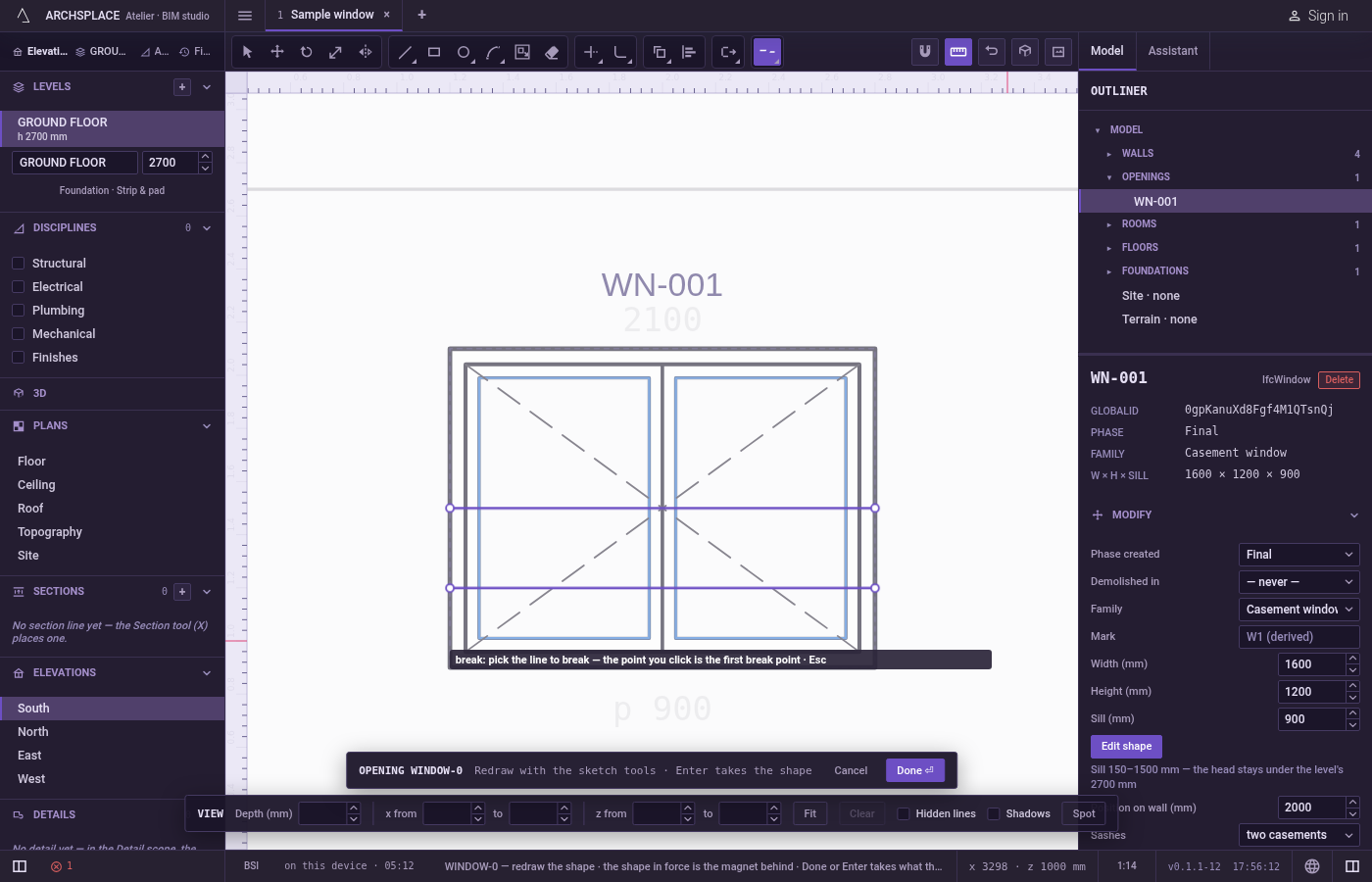
Click the line at the first break point. Break reads the pointer exactly for this pick, with no magnet, so the first point is exactly where you click on the line.
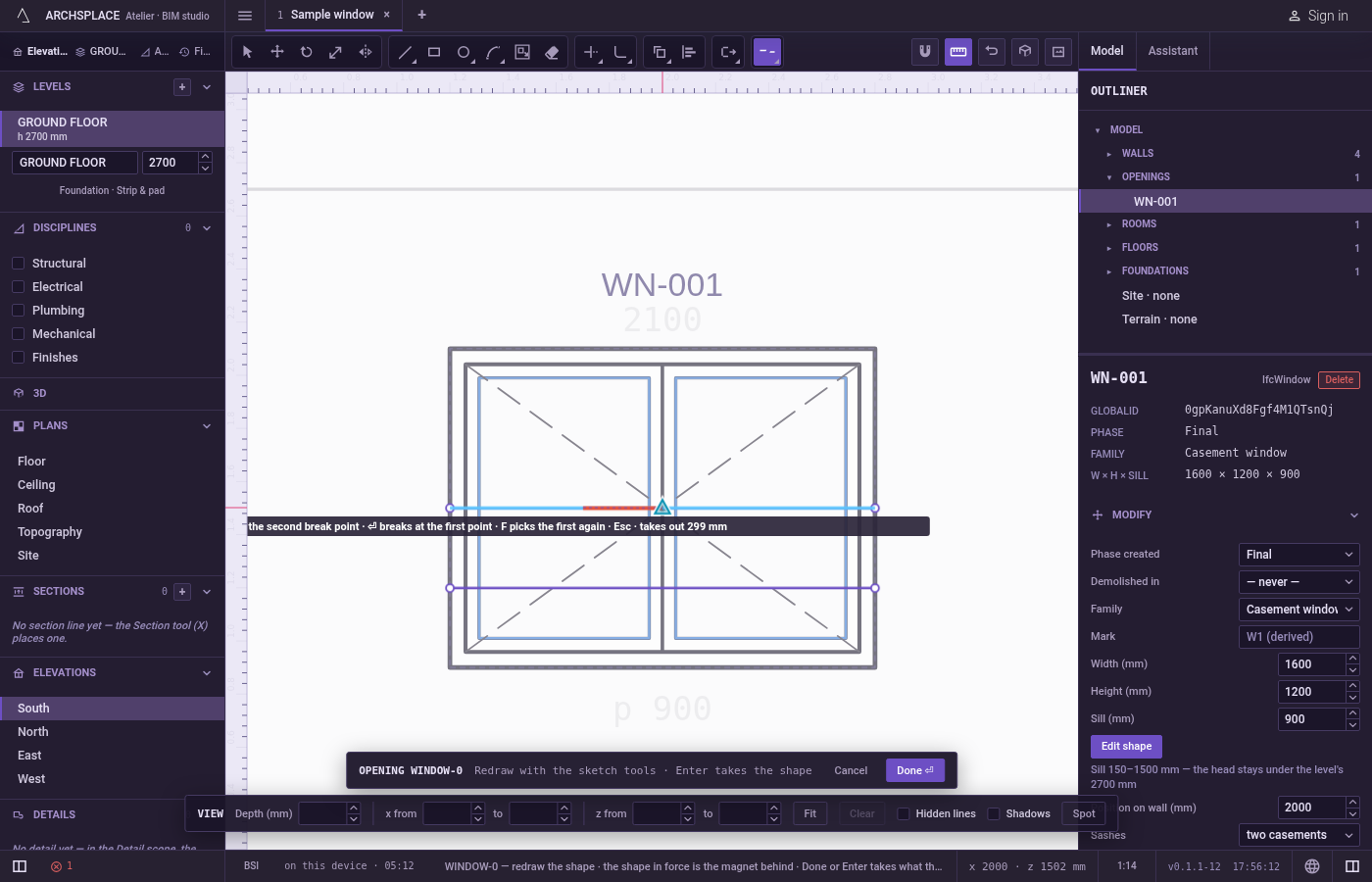
Click the second break point. It snaps like every point of the editor, and you can type it:
x;y,@dx;dyfrom the first point, or@d<afor a distance at an angle. The stretch that would go is shown in red and the hint says how long it is. PressFto pick the first point again, this time with the magnet.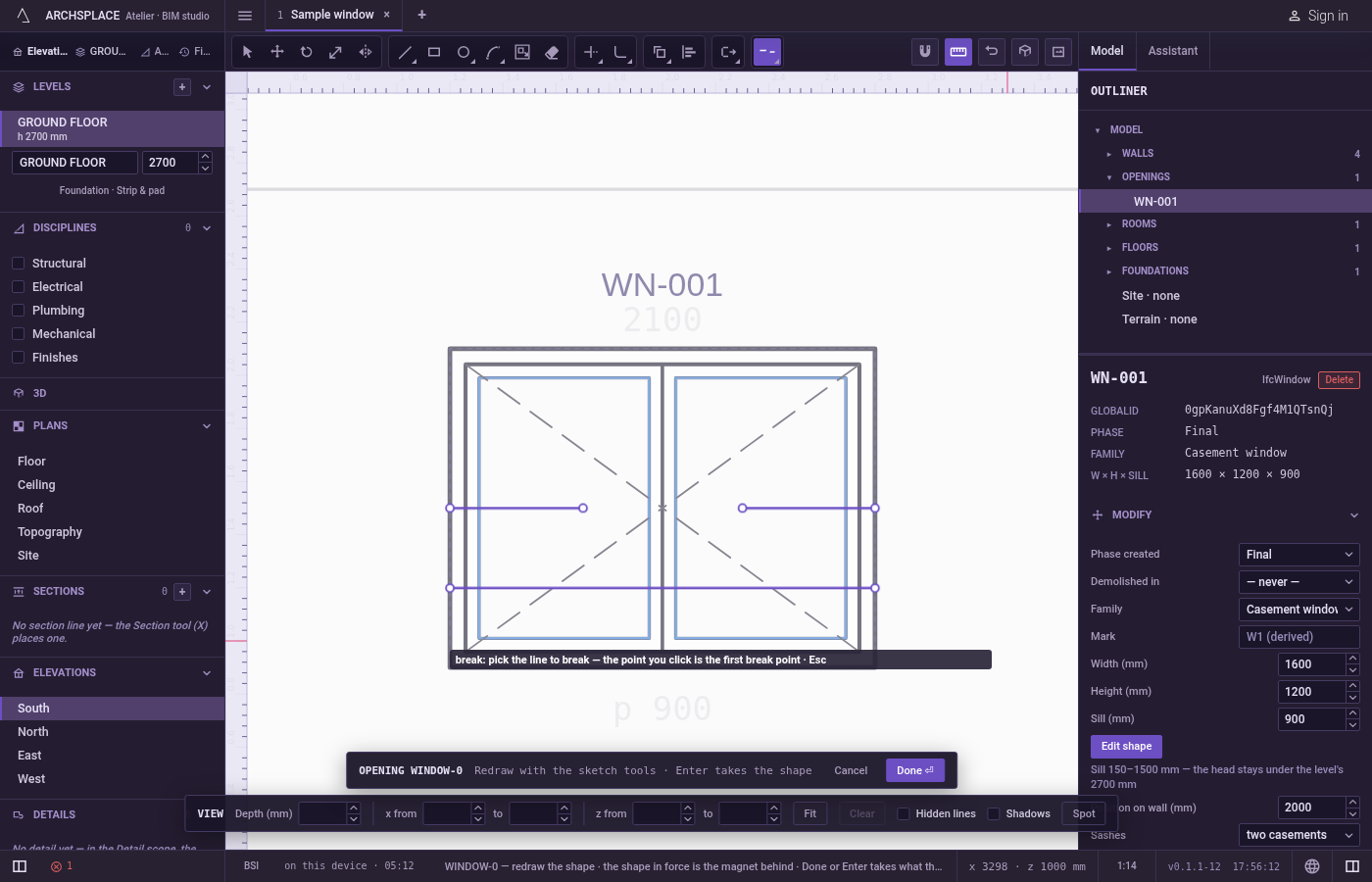
Or press Enter. With only the first point given,
Entersplits the line there and removes nothing.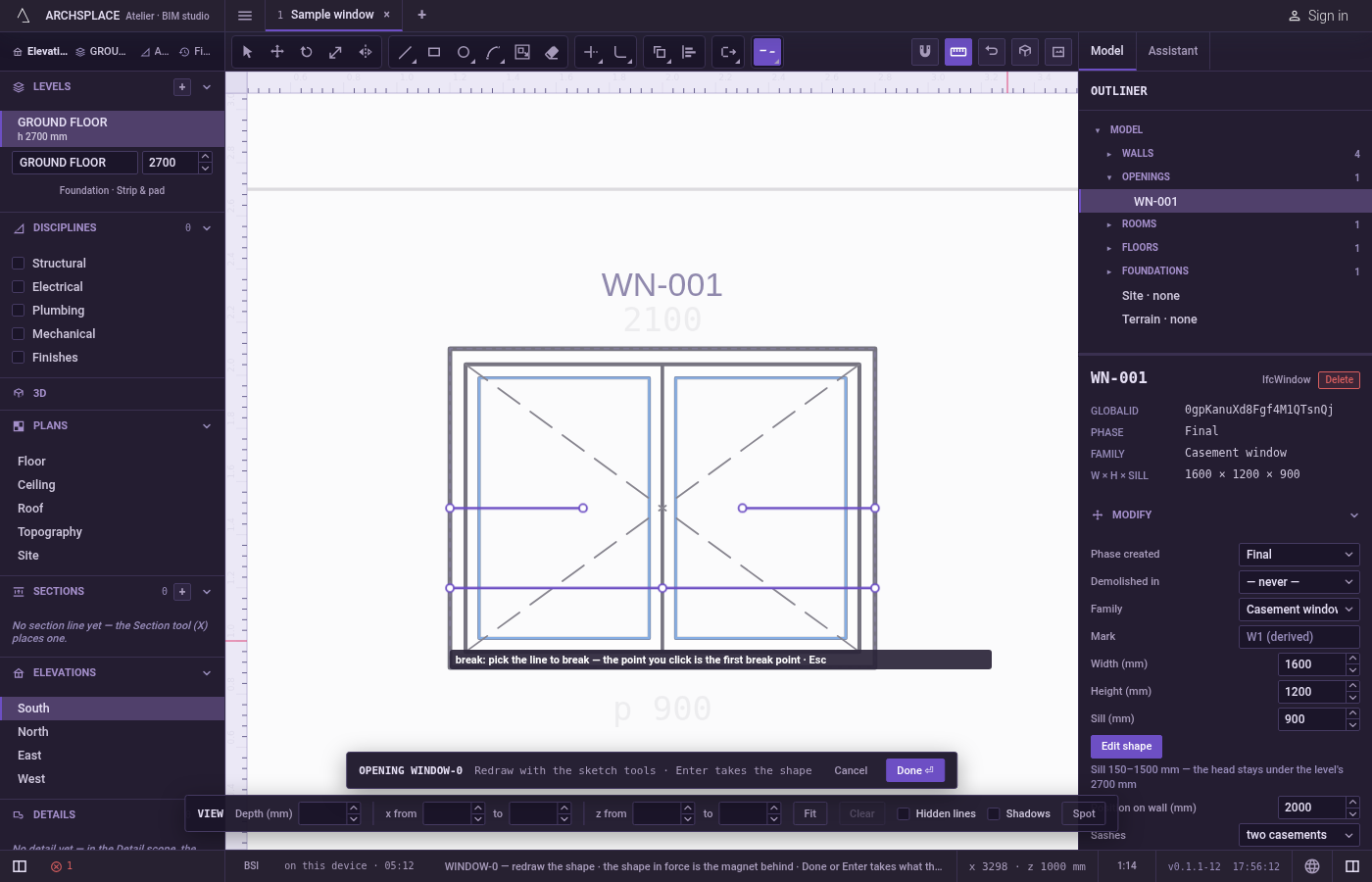
Carry on. Break waits for the next line.
Escapedrops the line picked, then goes back to Select.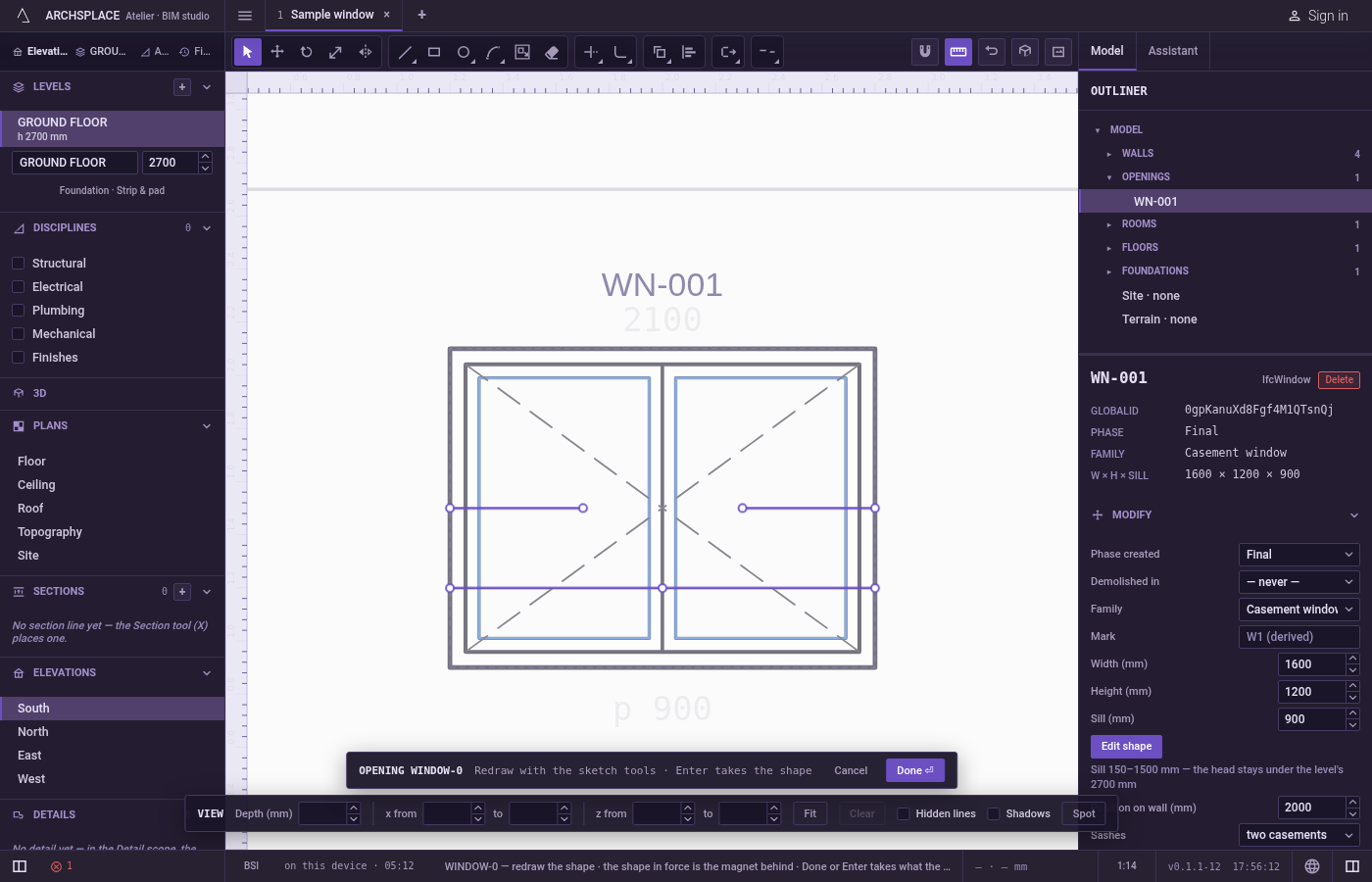
What it refuses
- A click on nothing. The hint says nothing under the pointer.
- A break that leaves nothing. When the two points would leave no line at all, the hint says nothing to break there.
- Choosing the side on a closed outline. The stretch removed always runs from the first point to the second in the outline's own direction. Undo and swap the points if the other side goes.
- The shape in force. The dimmed shape behind your drawing cannot be broken.
What it writes to the contract
Nothing until you press Done. Each break is one step inside the editor, and Ctrl+Z steps back through them. The contract changes when you press Done, or Enter with nothing in progress, as one step you can undo: what the lines enclose becomes the window's or door's profile, points [u, v] in metres across the wall and up from the floor, or the pattern area's outline in the room's floorAreas or ceilingAreas, points [x, y] in plan metres.
A gap means the outline is no longer closed there, so Done finds an outline only if other lines close it again. A split with nothing removed changes nothing in the outline handed over.
Common questions
How do I split a line in two without removing anything?
Press B then R quickly, click the line where it should split, and press Enter. The line becomes two lines meeting at that point.
How do I open a gap of an exact width in an outline?
Click the outline at one side of the gap, then type the second point, for example @0.9;0 for 90 centimetres across, and press Enter.
Which part goes when I break a closed outline?
The stretch from the first point to the second, in the direction the outline was drawn. If the other side goes, undo with Ctrl+Z and give the two points the other way round.