PlanEin the studio
Electrical device
Electrical device places a socket outlet, a switch, a light, a data point or another device of your template with one click, on a wall or inside a room. The circuits are not drawn by hand: the studio groups the devices into circuits and lays their runs from the consumer unit by itself.
What it is
Electrical device places the points of the electrical installation. The list beside the tools offers the devices of your project's template; in a project under the UK template, for example, a single or a double 13 A socket outlet, a socket outlet at worktop height, a weatherproof socket outlet, a cooker connection unit, a switched fused connection unit, an EV charge point, one-way, two-way and dimmer switches, a ceiling light point, a downlight, a wall light point, an external light point, a data outlet, a TV aerial outlet, a doorbell push, a room thermostat, an electric shower, mains smoke and heat alarms and a carbon monoxide alarm. Each device kind says where it stands: most on a wall, on the face you click, and a few in the room, on its ceiling.
You place the points; the studio does the wiring. Once a consumer unit stands in the project (see Consumer unit), the devices are grouped into circuits by your template's rules and each circuit's run is laid from the consumer unit, up the walls and through the ceiling, by itself, and sized. Nothing of that is stored: move a device and the circuits are laid again. They show with the Electrical overlay.
When to use it
- Placing the socket outlets, switches and lights of a plan.
- Adding a dedicated point, such as a cooker connection unit or an EV charge point, which takes a circuit of its own.
- Checking the circuits the studio lays as you add devices.
The steps
Take the tool. Press
E, or click the Electrical button. The status bar says to click a wall or inside a room.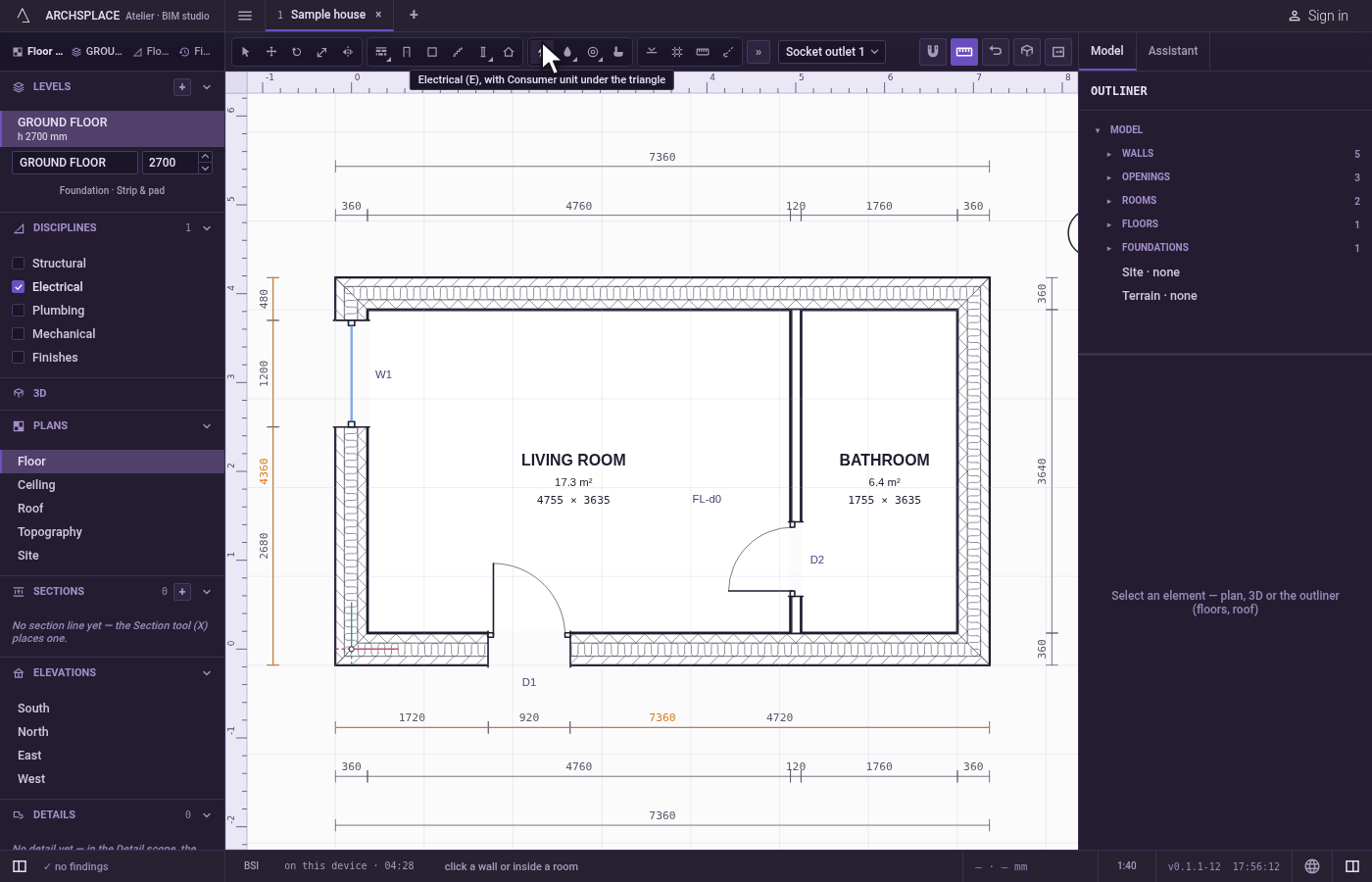
Choose the device. Pick it in the list beside the tools.
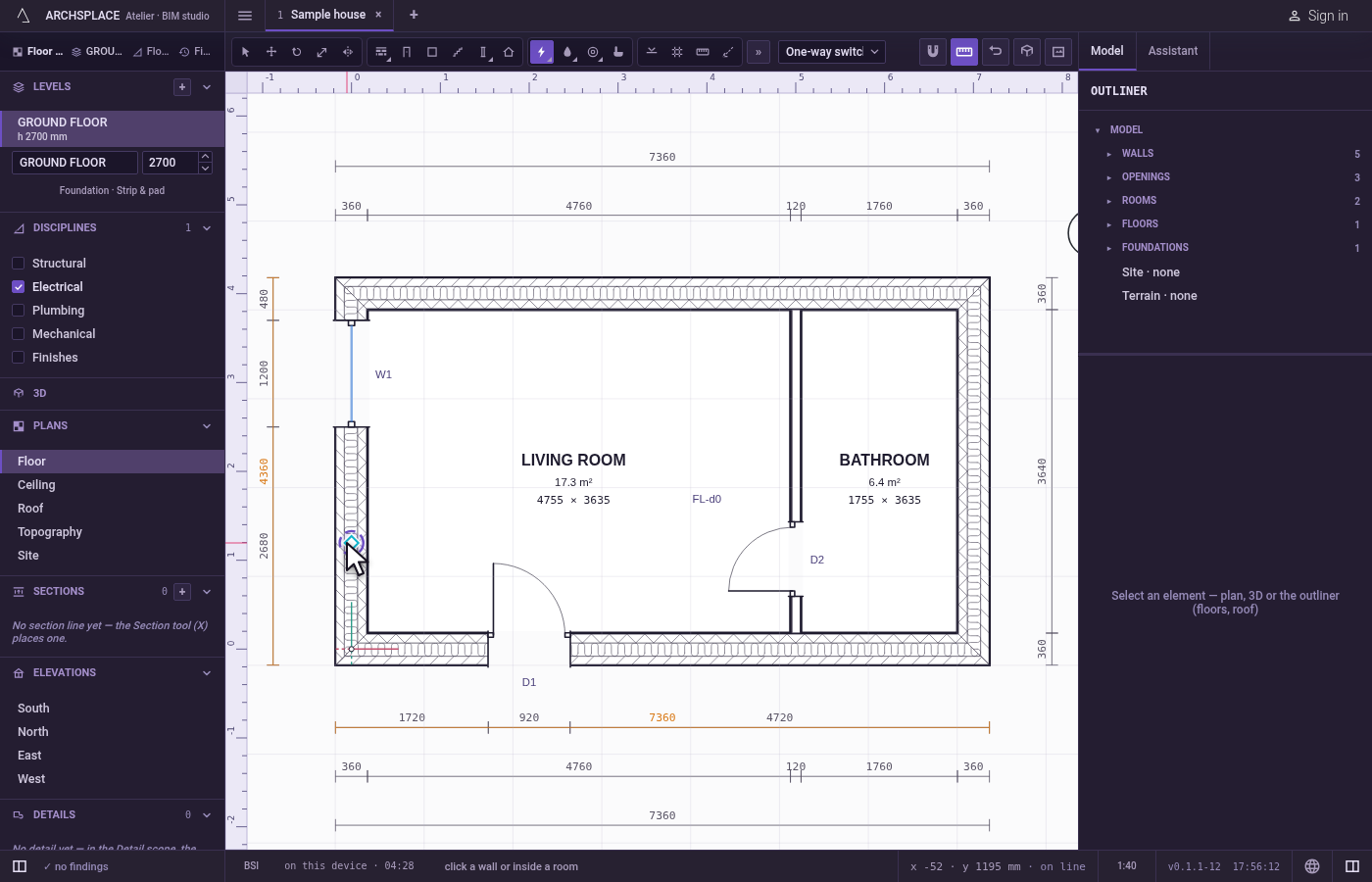
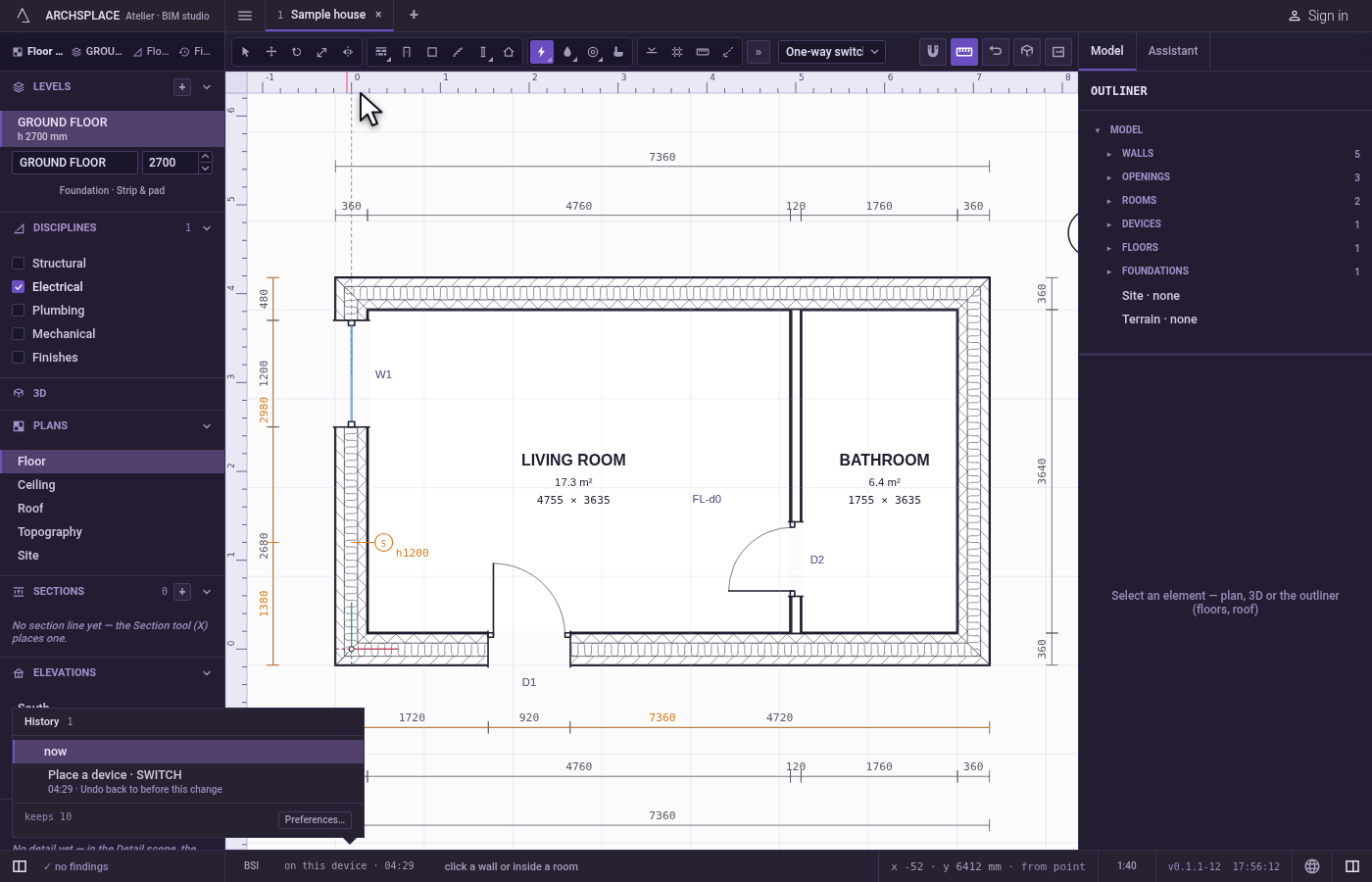
Click where it stands. For a wall device, click on the wall or within about 60 cm of it, on the side the device faces: it lands at the point of the wall nearest the click, at least 10 cm from the wall's ends. For a ceiling device, click inside a room. The tool stays in hand for the next one.
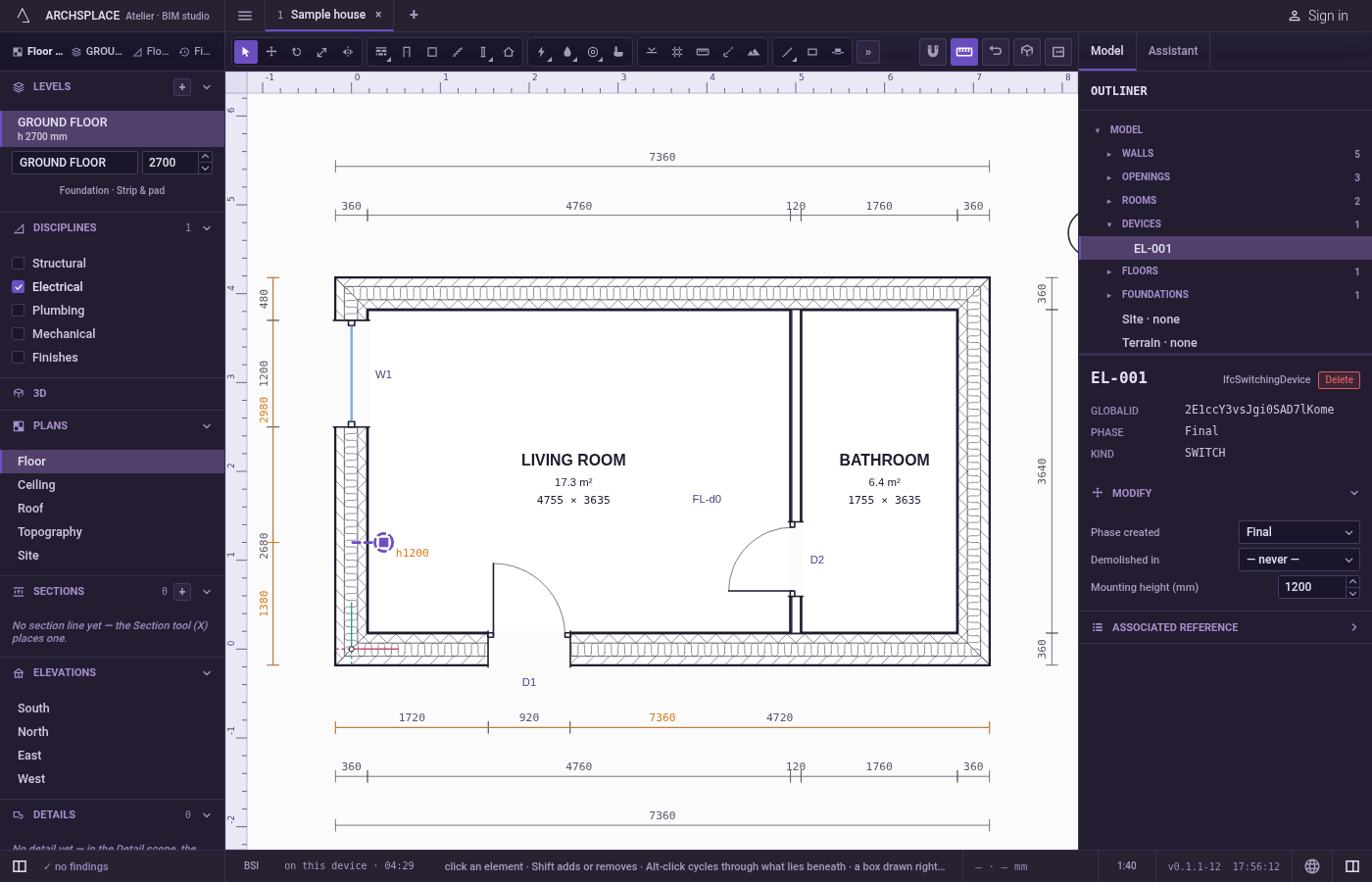
Adjust it in its panel. Select the device with Select. Its panel sets its mounting height and, once the project has more than one consumer unit, which one feeds it. To move it along its wall, use Move or the arrow keys.
What it refuses
- A wall device far from every wall. Farther than about 60 cm from any wall, nothing is placed.
- A ceiling device outside a room. Outside every room the walls enclose, a message says to click inside a room, and nothing is placed.
- The same point twice. A device of the same kind on the same face of the same wall, within 5 cm of one already there, is refused with a message: place it beside it.
- A device in an opening or where nothing can reach it. The project flags a device that stands in a window or a door, set above the ceiling, or hung under a hole in the slab, and lays no run to a device no run can reach.
What it writes to the contract
One new device entry at the end of the project's list of devices, as one step that one undo takes back: its kind, and either its wall, its distance along it to the centimetre and its face, or its room and its point, with the phase the view draws in. The circuits, the runs, the cables and the circuit breakers are never written: they are worked out from the devices each time the project is built.
Concepts
Common questions
Do I have to draw the wiring?
No. Once a consumer unit stands in the project, the studio groups the devices into circuits by your template's rules and lays each circuit's run from the consumer unit, through the walls and the ceiling, by itself. Moving a device lays them again.
Which face of the wall does a socket outlet go on?
The face on the side of your click. Click on the room side of the wall and the socket outlet faces that room.
Why did my ceiling light not appear?
A ceiling light, a downlight or a smoke alarm stands in a room. Click inside a room the walls enclose; outside every room, the studio says so and places nothing.