SketchTRTin the studio
Trim
Trim cuts a part of a line or a curve in the sketch editor back to the lines that cross it, by a click, a box dragged across several parts, or a fence. Every other line of the drawing cuts, unless you selected the cutting lines first.
What it is
Trim takes away the part of a line that lies between the lines crossing it. Point at a line and the part between the two nearest crossings on either side of the pointer is shown in red; a click takes it away. A part at the open end of a line goes from the last crossing to that end. A closed outline crossed twice keeps the rest as one open line, and a circle cut between two crossings becomes the arc that remains, still a true arc.
Trim works on the lines as you drew them: a rectangle is one closed line with four sides, a chain from Line is one line. Every other line of the drawing is a cutting edge, and so are the line's own sides that are not next to the part. If you select some lines before arming Trim, only those cut.
When to use it
- Cutting a circle or a rectangle back to a line drawn across it, to make a half circle or a notch.
- Cleaning the overshoot where two lines cross past a corner.
- Shaping an outline from several overlapping shapes.
The steps
Choose the cutting lines, if you want. In the sketch editor (see Select for the ways in), select the lines that should cut with Select. Skip this and every line cuts.
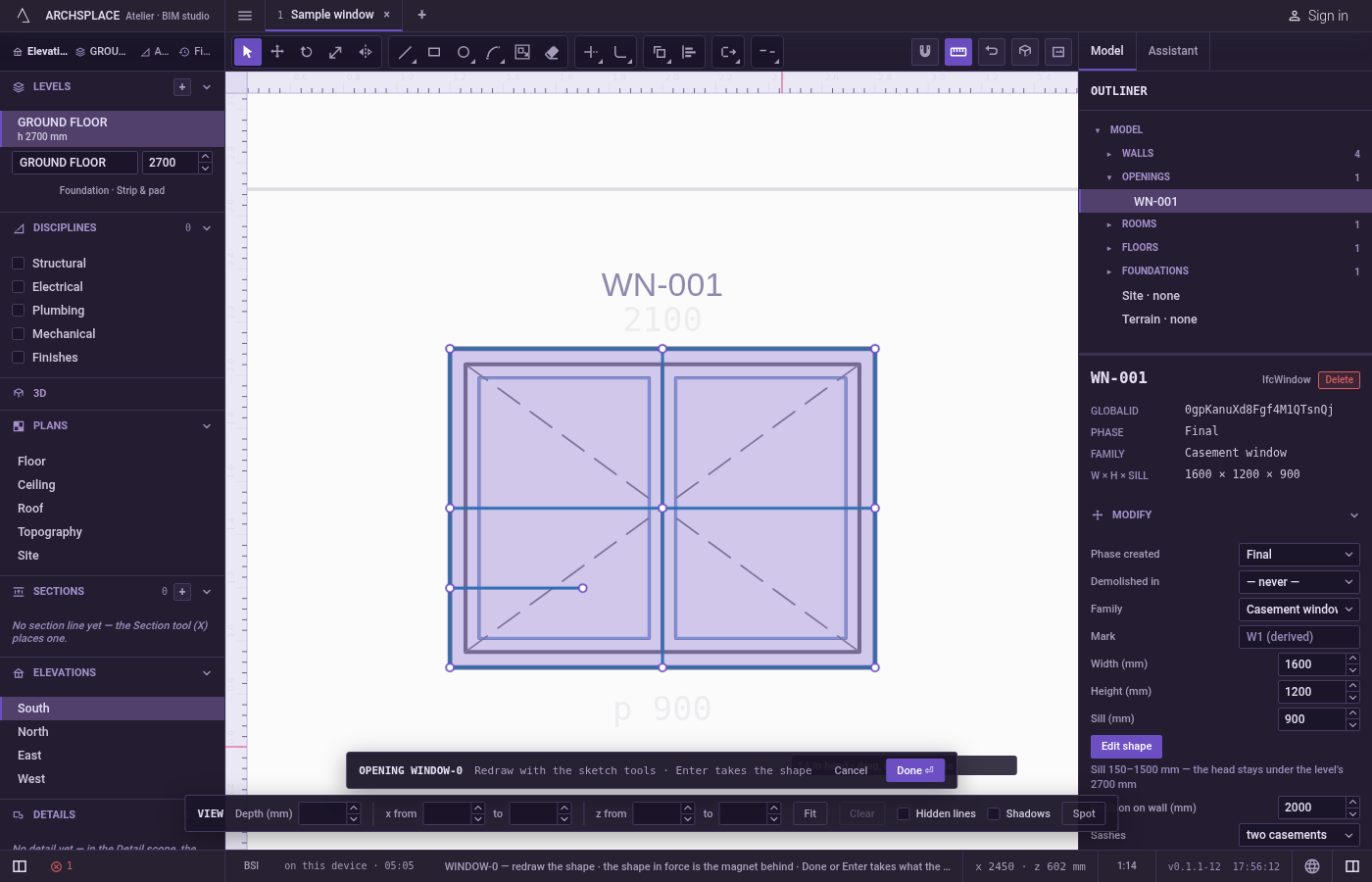
Arm Trim. Type
T, orTthenR, or click Trim on the editor's toolbar. The hint at the cursor says what a click will do.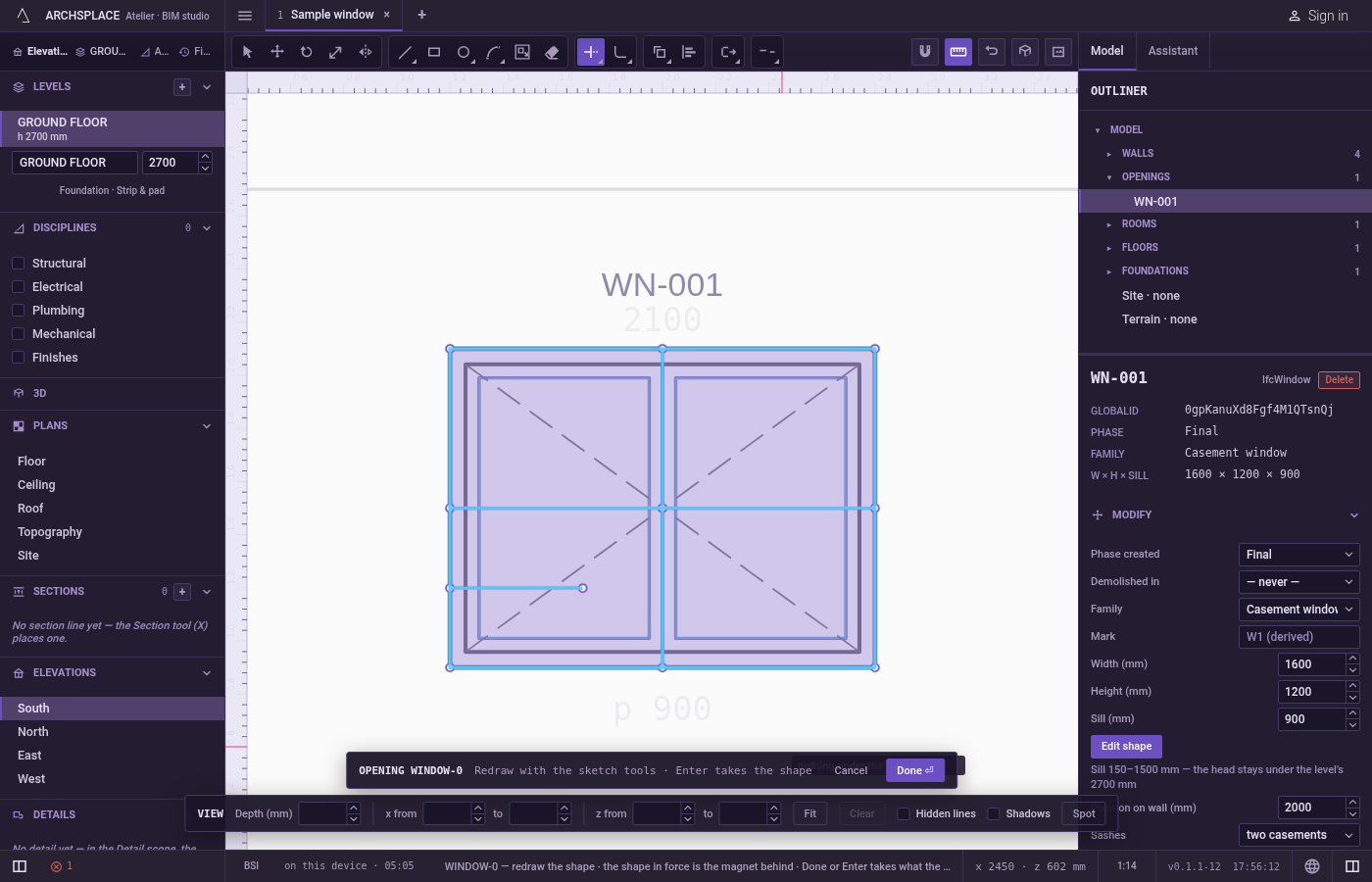
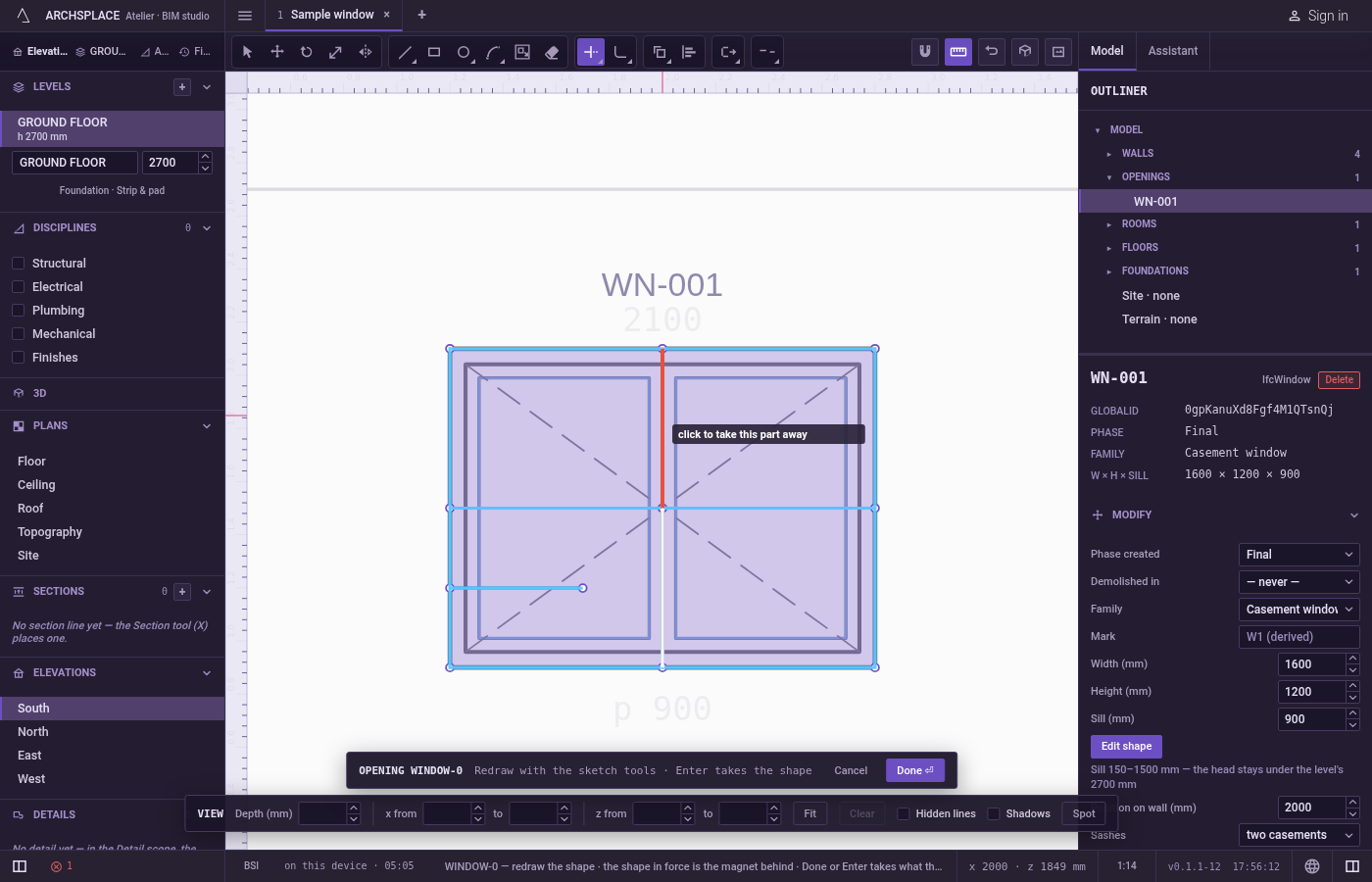
Point at the part to take away. The part between the nearest crossings lights in red and the hint says click to take this part away. Trim reads the pointer exactly, with no magnet, so at a crossing you get the line you are on.
Click. The part is gone, and Trim stays armed for the next one. The cutting lines you selected stay selected.
Or drag a box. Press beside the parts, drag across them in either direction and release. While you drag, every part the box touches is shown in red; on release all of them are trimmed, and the hint counts the parts done.
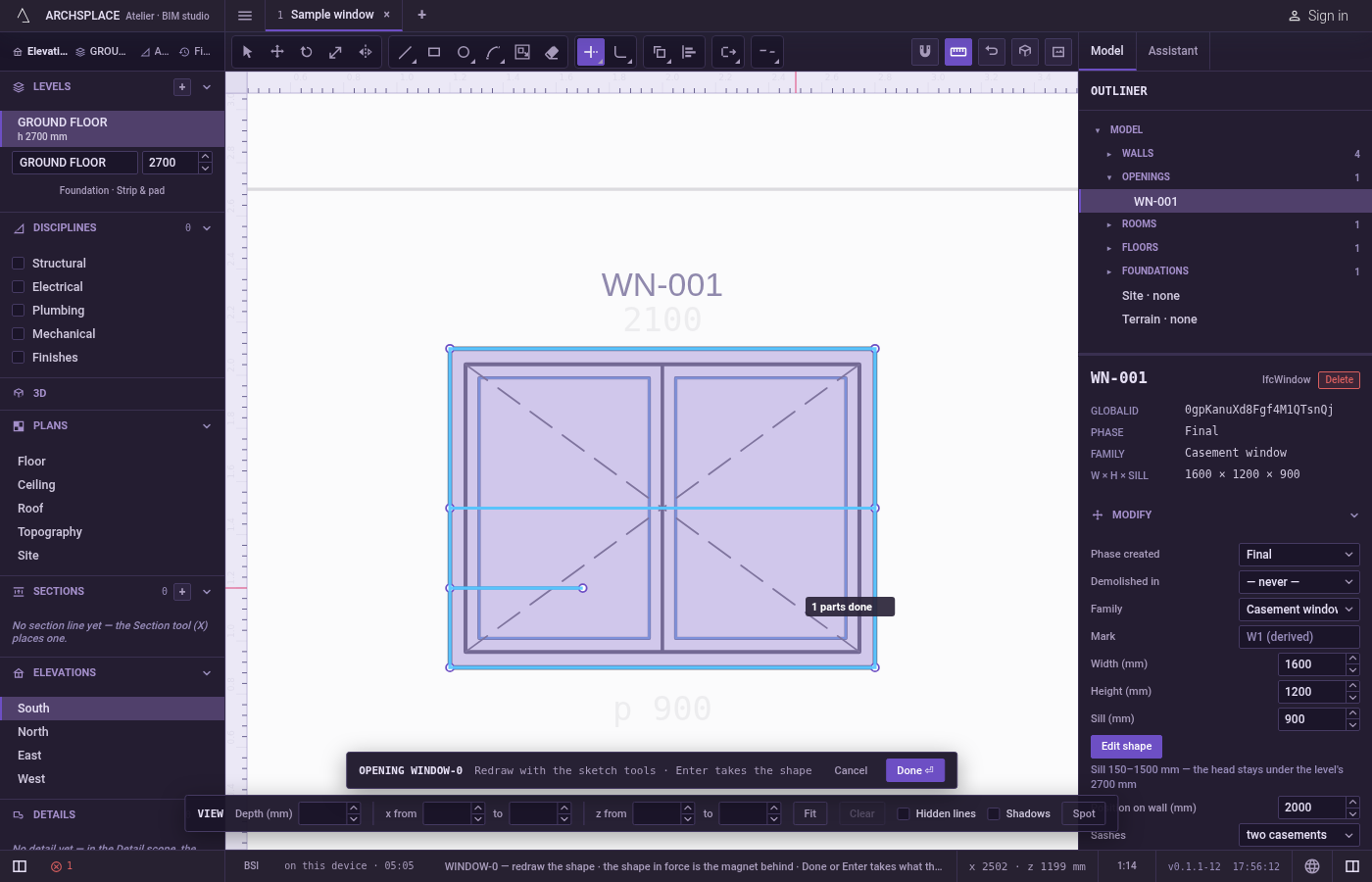
Or draw a fence. Press
F, then click the points of a line that crosses the parts to take away, and pressEnter. Each part the fence crosses is trimmed.Escapedrops the fence.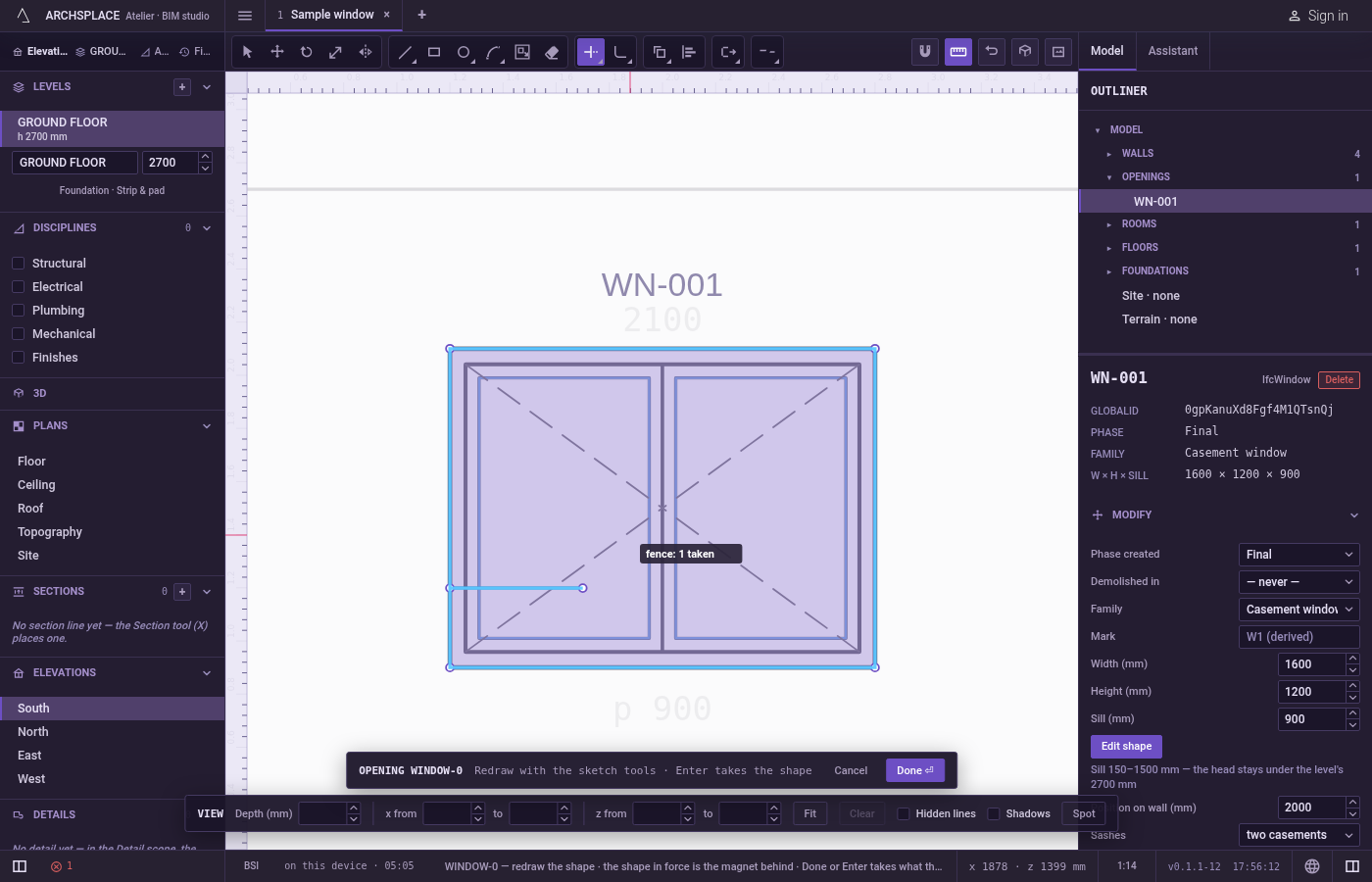
Extend instead. Hold
Shiftwhile you click, box or fence: the line under the pointer is extended to the next line instead, as Extend does.EscapeorSpacegoes back to Select.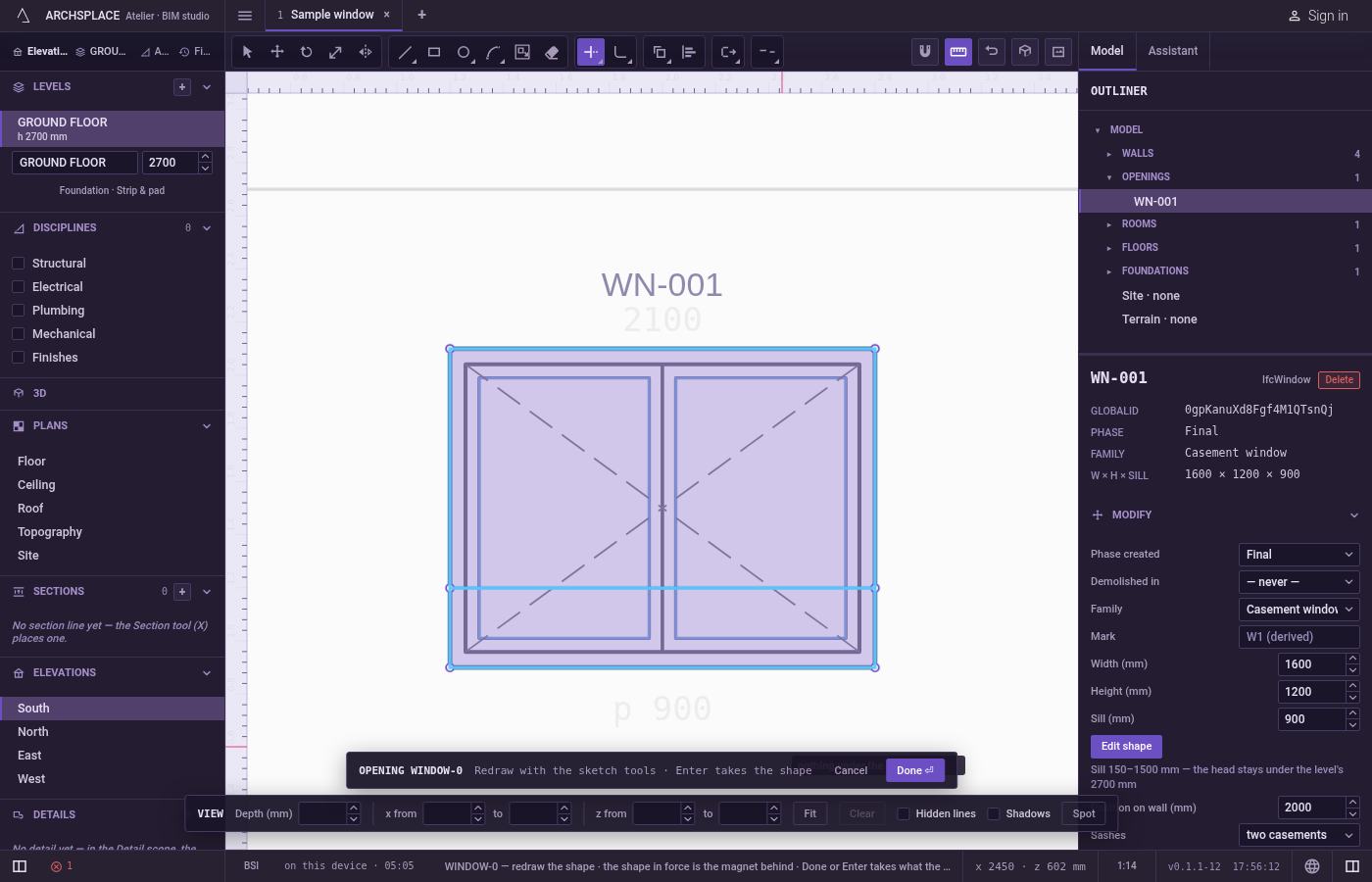
What it refuses
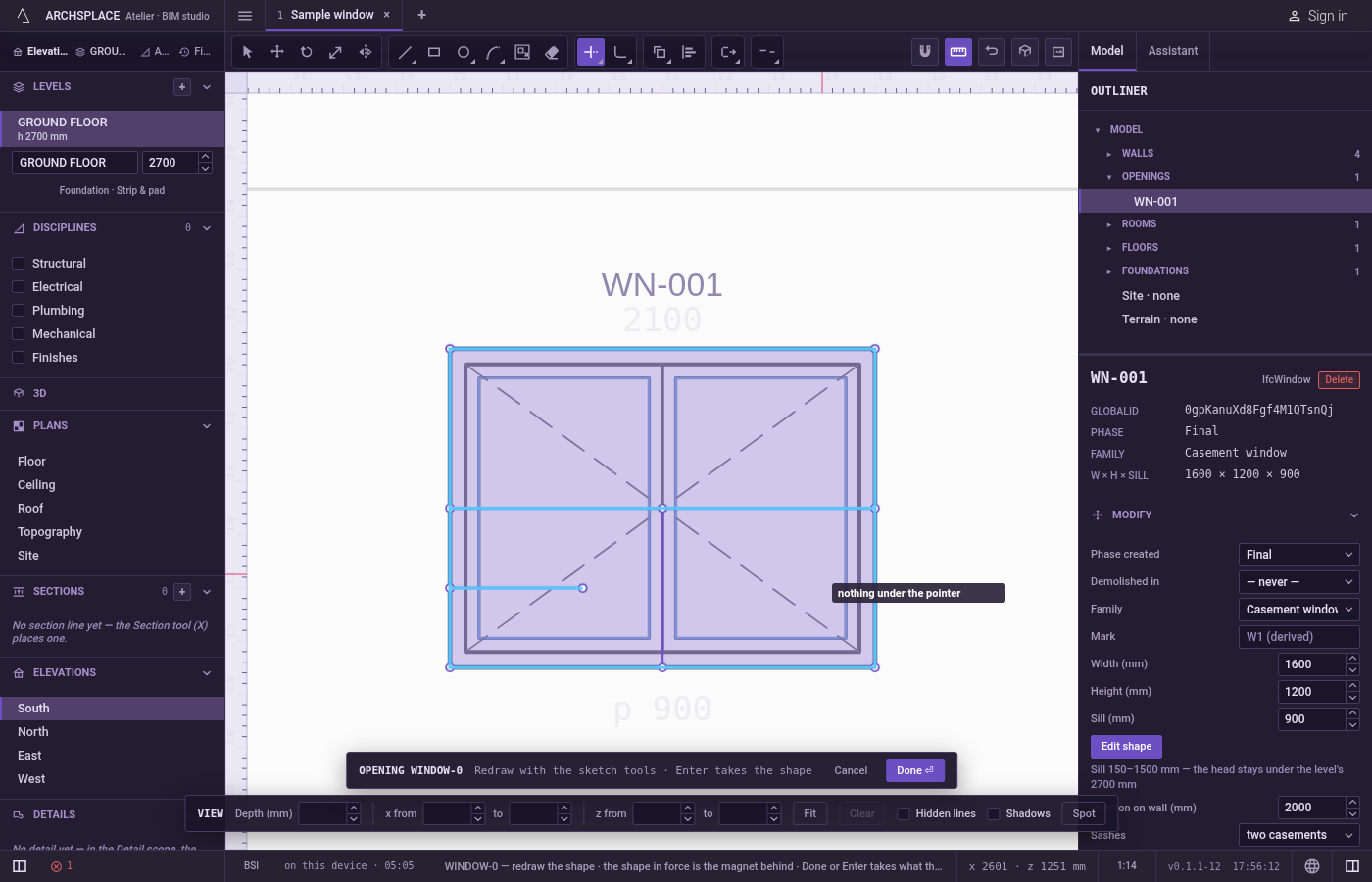
- A click on nothing. The hint says nothing under the pointer, and nothing changes.
- A line nothing crosses. The hint says no edge cuts this line. A closed outline needs two crossings. Draw a line across it first, or erase it whole with Erase.
- A box or a fence over nothing to trim. The hint says nothing to trim under that box, or the fence crosses nothing.
- The shape in force as a cutting edge. The dimmed shape behind your drawing never cuts. Draw a line over it to cut against it.
- A selected line that does not cross. With cutting lines selected, only they cut. A line they do not cross cannot be trimmed until you clear the selection.
What it writes to the contract
Nothing until you press Done. Each trim is one step inside the editor, and Ctrl+Z steps back through them. The contract changes when you press Done, or Enter with nothing in progress, as one step you can undo: what the lines enclose becomes the window's or door's profile, points [u, v] in metres across the wall and up from the floor, or the pattern area's outline in the room's floorAreas or ceilingAreas, points [x, y] in plan metres.
What is kept keeps its true arcs. A circle of radius 0.5 drawn with Circle, crossed by a line through its centre and trimmed below it, keeps its two upper quarter arcs; with the line, they enclose a half disc:
Common questions
How do I choose which lines cut?
Select the cutting lines with Select before you arm Trim. They then cut and nothing else does, and they stay selected for the next cut.
How do I trim many parts at once?
Drag a box across them, in either direction: every part the box touches is shown in red, and all of them go when you release. Or press F, click the points of a fence line across the parts, and press Enter.
Why does Trim say no edge cuts this line?
Nothing crosses the line you pointed at, so there is no place to cut it back to. Draw a line across it first, or use Erase to take it away whole.