Panels
Section panel
The section panel is what the column on the right shows when a section's cut line is selected on the plan: its label, the axis it cuts across, the way it looks and its exact position, with the door into its view. In the section view itself, the strip at its foot sets how deep it sees, how wide and how high it is cropped, and whether it draws hidden lines and shadows.
What it is
A section is a cut line drawn on the plan with the Section tool, across the X axis or the Y axis, and the view it opens. A click on its cut line selects it, and the column on the right shows its panel. Its head reads SECTION and its label, the axis it cuts, cut line · axis Y, and Delete. Under Modify:
- Label: the letter or the name the section is called by, on the plan's marker and on its view.
- Looks towards: the side it looks at. A section across the Y axis looks North, with the viewer standing south, or South; one across the X axis looks East or West.
- Position: where the cut line stands along its axis, such as Position y.
- Cut the 3D view: cuts the 3D view along the section's plane.
- Open section view: opens the section's drawing.
A line at the foot reminds that the arrow keys move the cut line along its axis on the plan, Shift by 25 cm, with Ctrl (⌘ on a Mac) by a finer step.
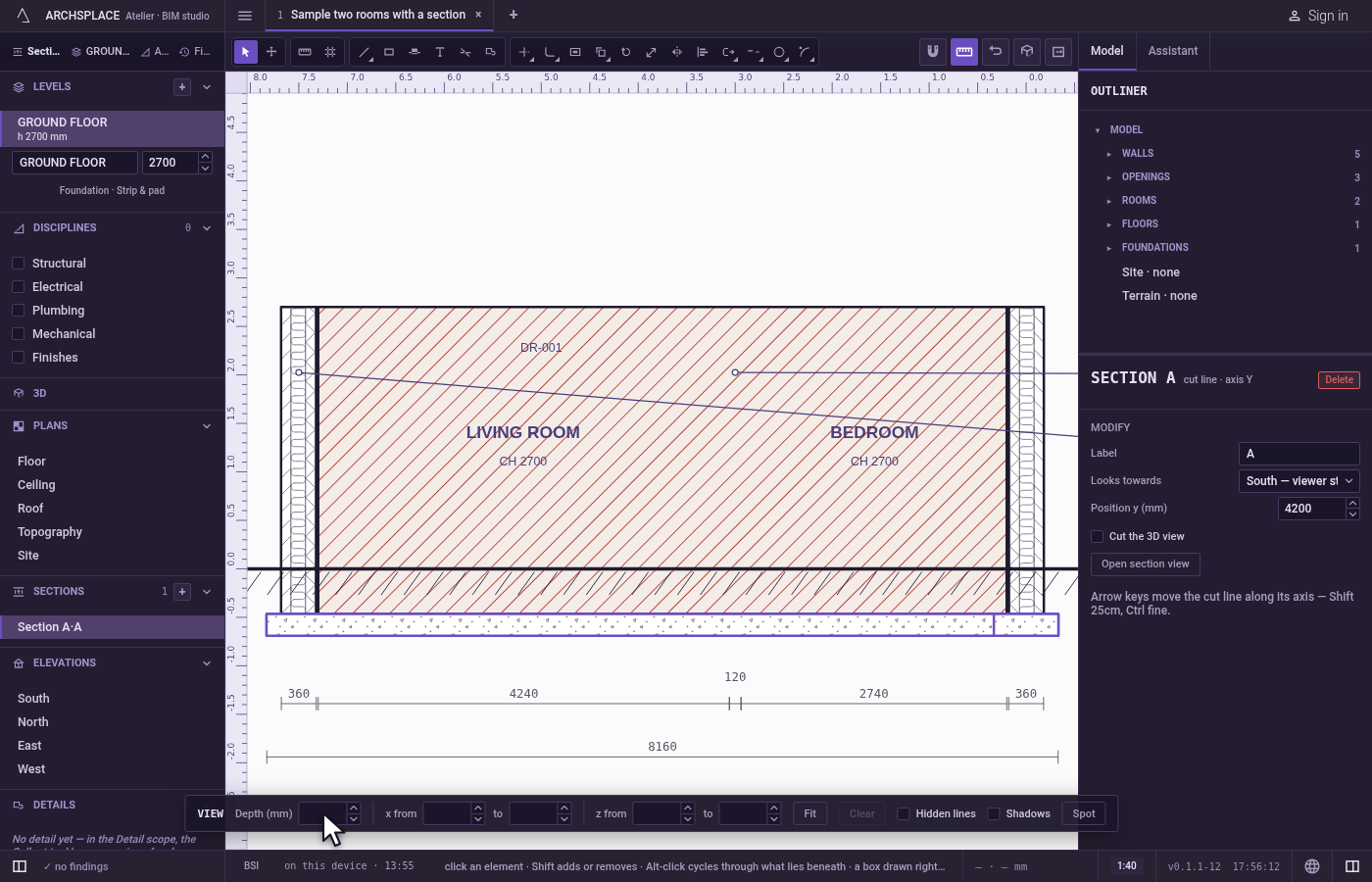
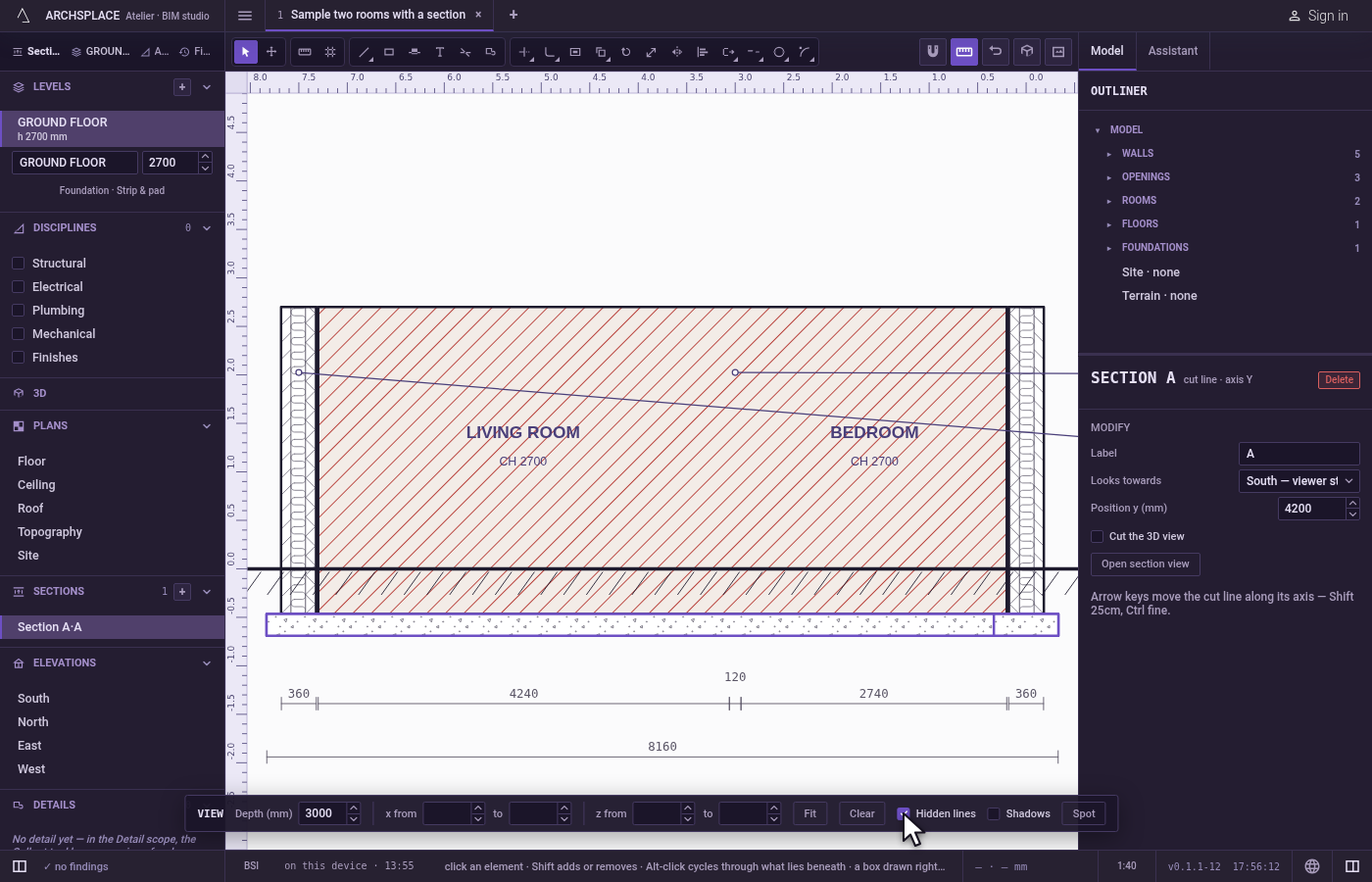
In the section view, the strip VIEW at the foot of the drawing sets what the section shows: its Depth, how far behind the cut line it sees; its span along the cut line, from one value to another; its heights, z from one value to another; Fit, which crops to what the view shows so it can be tightened; Clear, which shows the whole building again; Hidden lines, which draws the plates and the walls behind dashed; Shadows, the shadows of the eaves and the window reveals; and Spot, which places a spot level where you click. A field left empty means no limit.
When to use it
- Drawing the sections of a house through its stair or its roof.
- Moving a section line to an exact position.
- Keeping a section to the rooms it cuts, without the whole house behind.
- Showing a cut through the model in the 3D view.
The steps
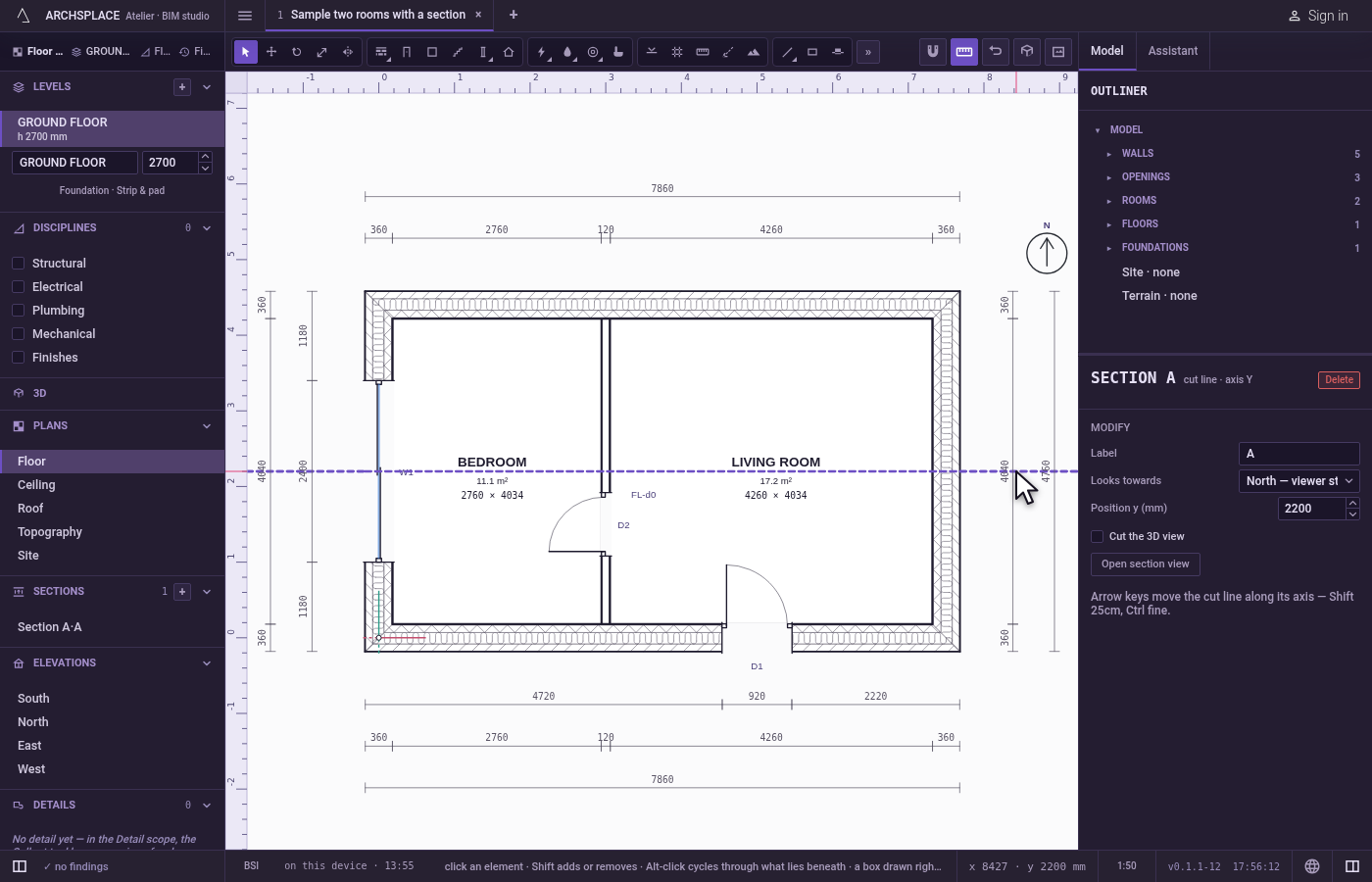
Select the section. On the plan, click the cut line of section A. The panel shows SECTION A, cut line · axis Y and its fields.
Set its position. In Position y, type 4200 and press
Enter. The cut line moves to 4.20 m.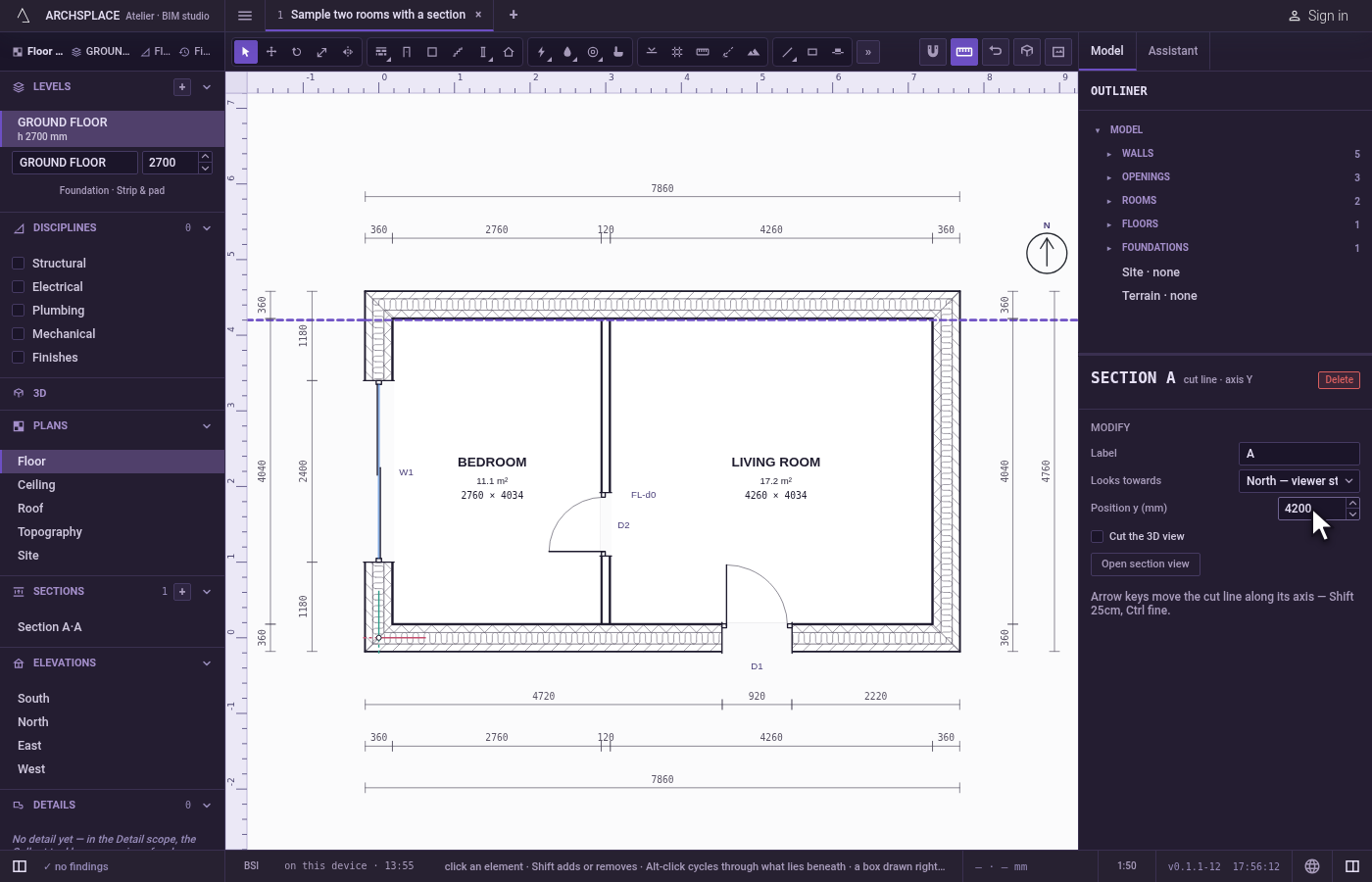
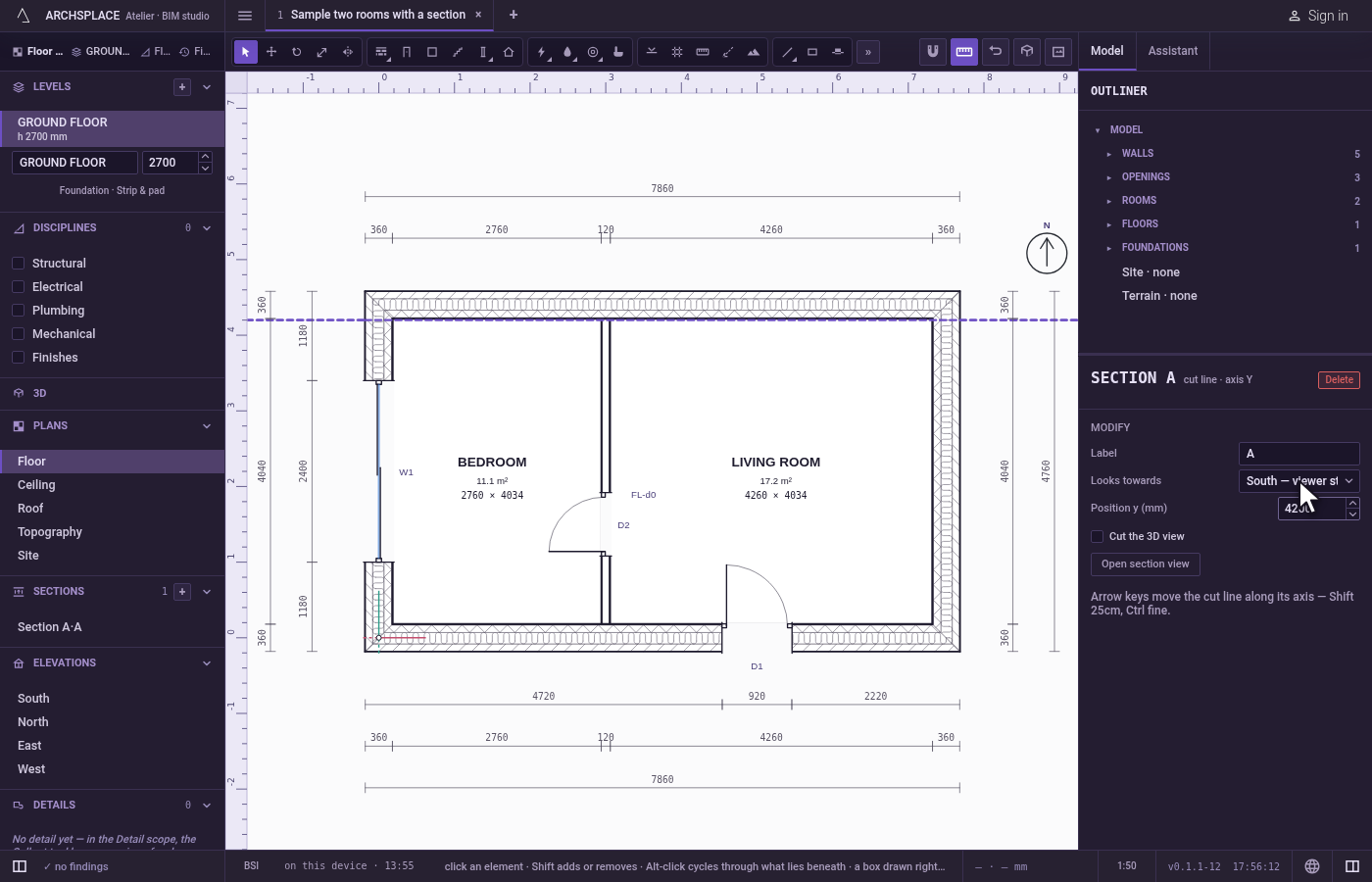
Turn it around. In Looks towards, choose South. The section's marker on the plan turns.
Open its view. Click Open section view. The section's drawing opens, the VIEW strip at its foot.
Limit its depth. In Depth, type 3000 and press
Enter. The section draws only what stands within 3 m behind the cut line.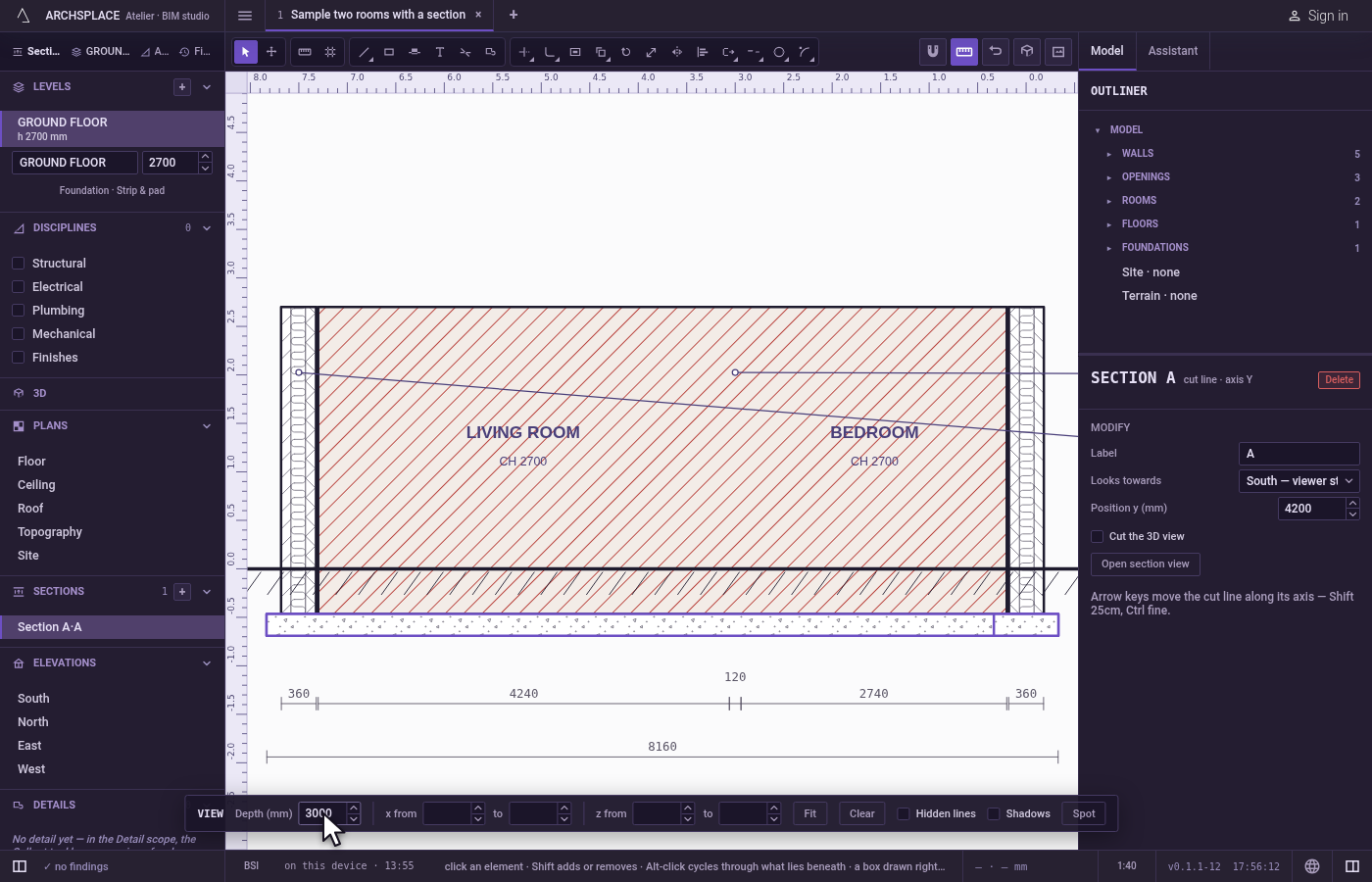
Show hidden lines. Tick Hidden lines. The plates and the walls behind are drawn dashed.
What it refuses
- A span or a height band whose end comes before its start. The value is not written.
- A value that is not a number in the strip's fields: it is not written.
- A look across the cut's axis. A section across Y looks only north or south, one across X only east or west.
What it writes to the contract
The sections are the project's stations, each with its axis, its at (the position), its label and its look. The strip writes on the same entry: depth, span and heights, with hidden, shadows and the spots placed with Spot. Clear takes depth, span and heights out. Each change is one step that one Ctrl+Z takes back. Cut the 3D view writes nothing: it belongs to the session.
Common questions
How do I flip the direction a section looks?
Select its cut line on the plan and choose the other side in Looks towards. A section across the Y axis looks north or south, one across the X axis east or west.
How do I stop a section from showing the whole house behind it?
Open the section view and type a Depth in the VIEW strip at its foot: nothing farther than that from the cut line is drawn. Fit crops to what the view shows, and Clear shows the whole building again.
How do I move a section line exactly?
Select it and type its position in Position, in the panel on the right. On the plan, the arrow keys move it along its axis, Shift by 25 cm, with Ctrl (⌘ on a Mac) by a finer step.