3DSCin the studio
Scale
Scale resizes what you hold in the 3D view so that a length you know becomes the length you want: a fixed point, the two ends of the known length, then its new length, clicked or typed. Everything selected grows or shrinks by that same factor in every direction, about the fixed point.
What it is
Scale resizes by reference. Instead of a factor, you show it a length on the model and say what that length should be: the studio divides one by the other and resizes everything selected by that factor, the same in every direction, about a fixed point you choose. Each point is taken through the same snapping as every 3D tool, the readout beside the pointer gives the length being read and the factor, and a ghost of the result grows about the fixed point.
It takes what is selected, or, with nothing selected, the body, component or element under the pointer.
When to use it
- To bring an imported model or a drawing to its real size from one dimension you know.
- To resize a component so that one of its edges matches a length.
- To resize several things together by the same factor.
The steps
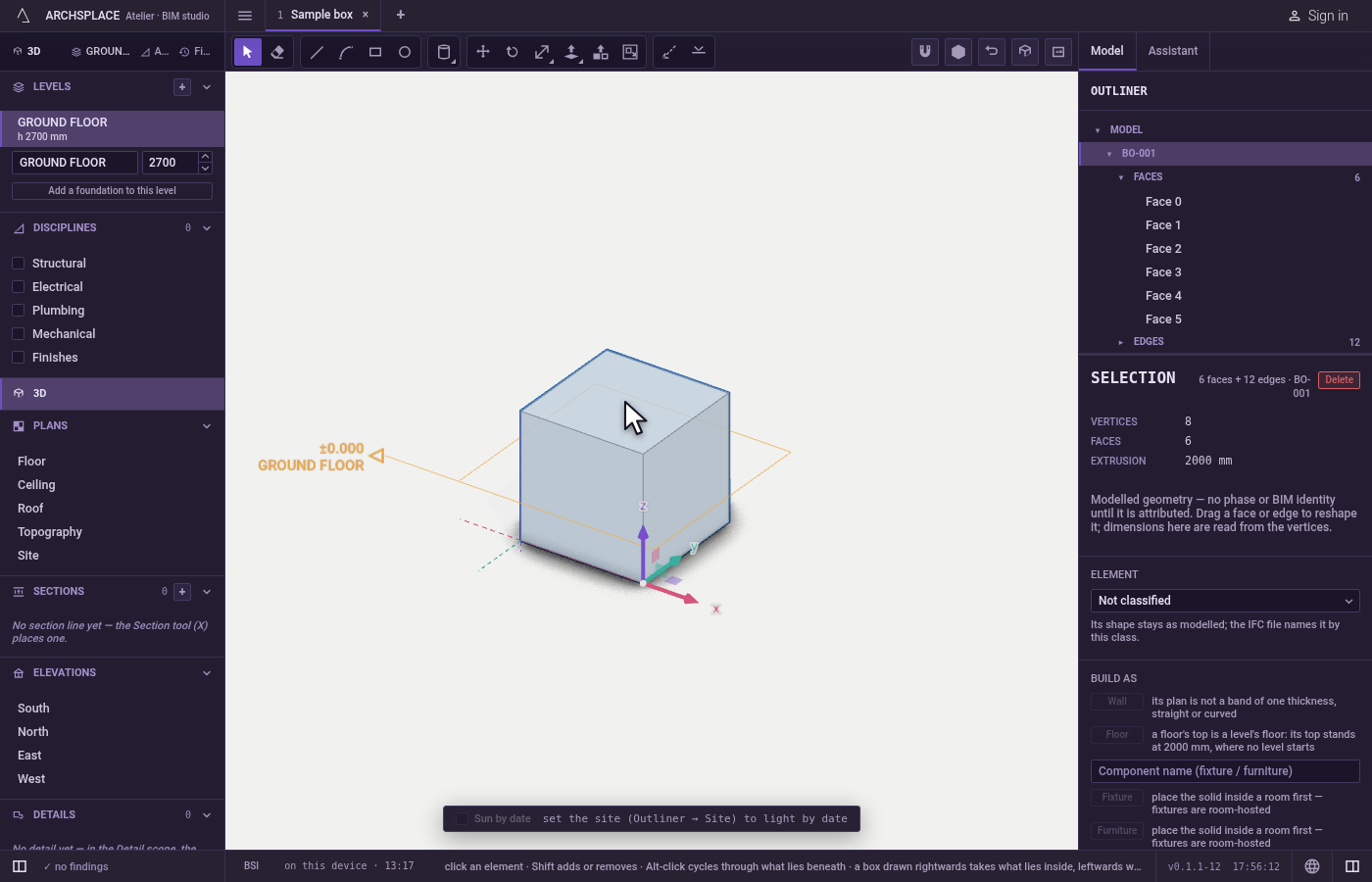
Choose what changes. Select it, or take the tool and point at it: what the first click takes lights in orange.
Take the tool. Type
SthenCwithin a short moment, or click Scale.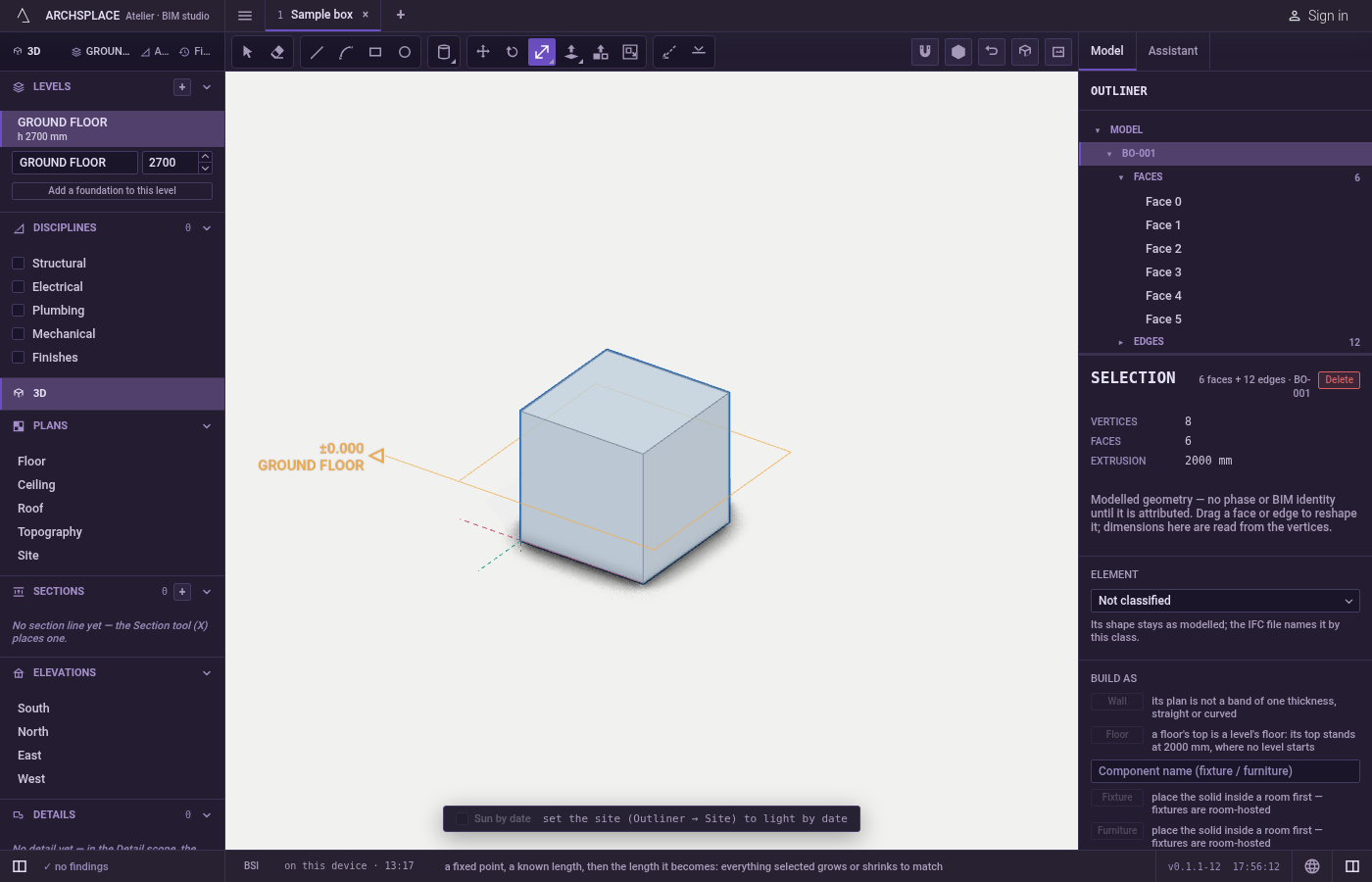
Click the fixed point. It stays where it is; everything else moves towards it or away from it. The hint reads the fixed point.
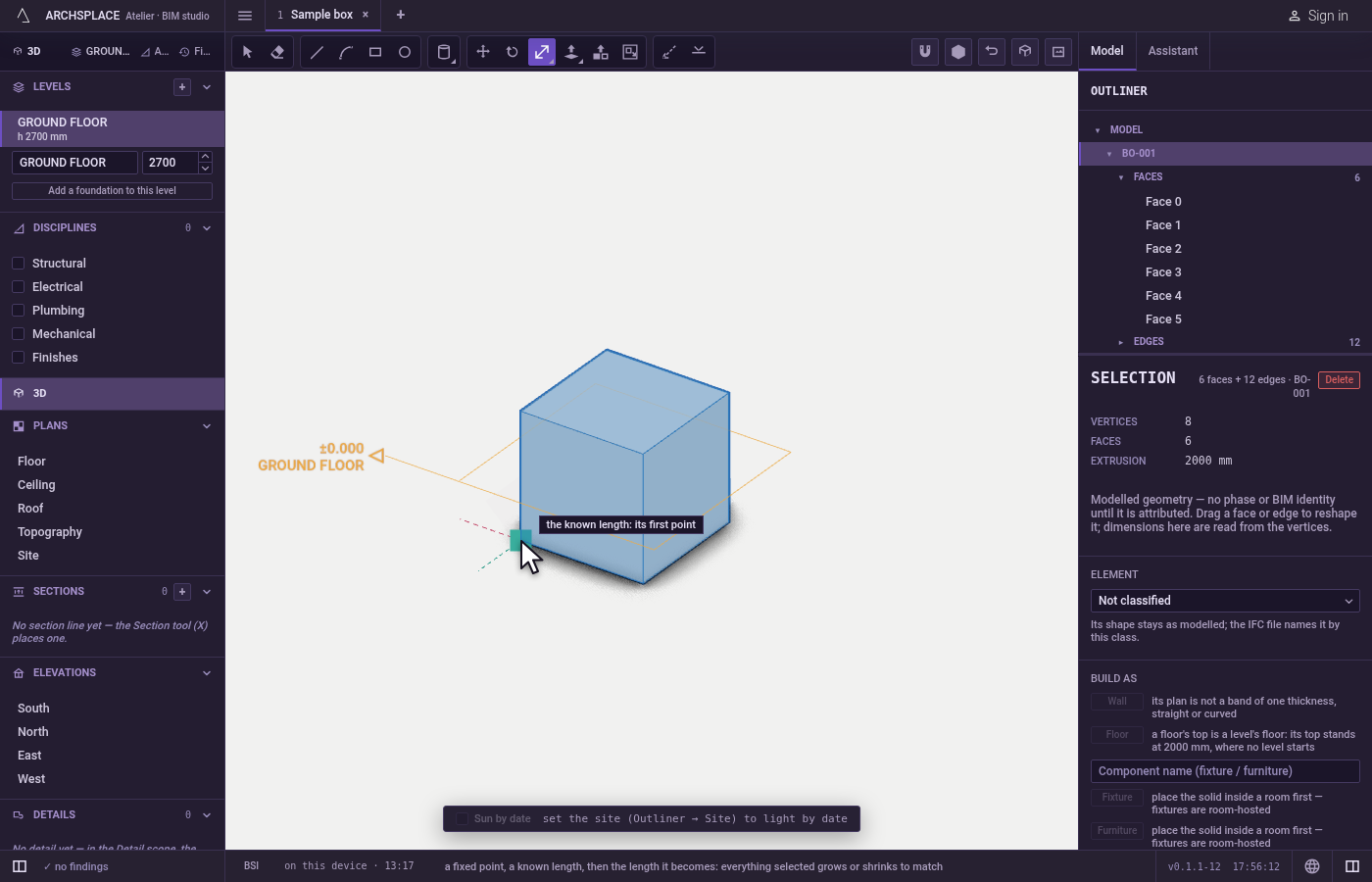
Click the two ends of the known length. Click its first point, then its second: the readout shows the length between them.
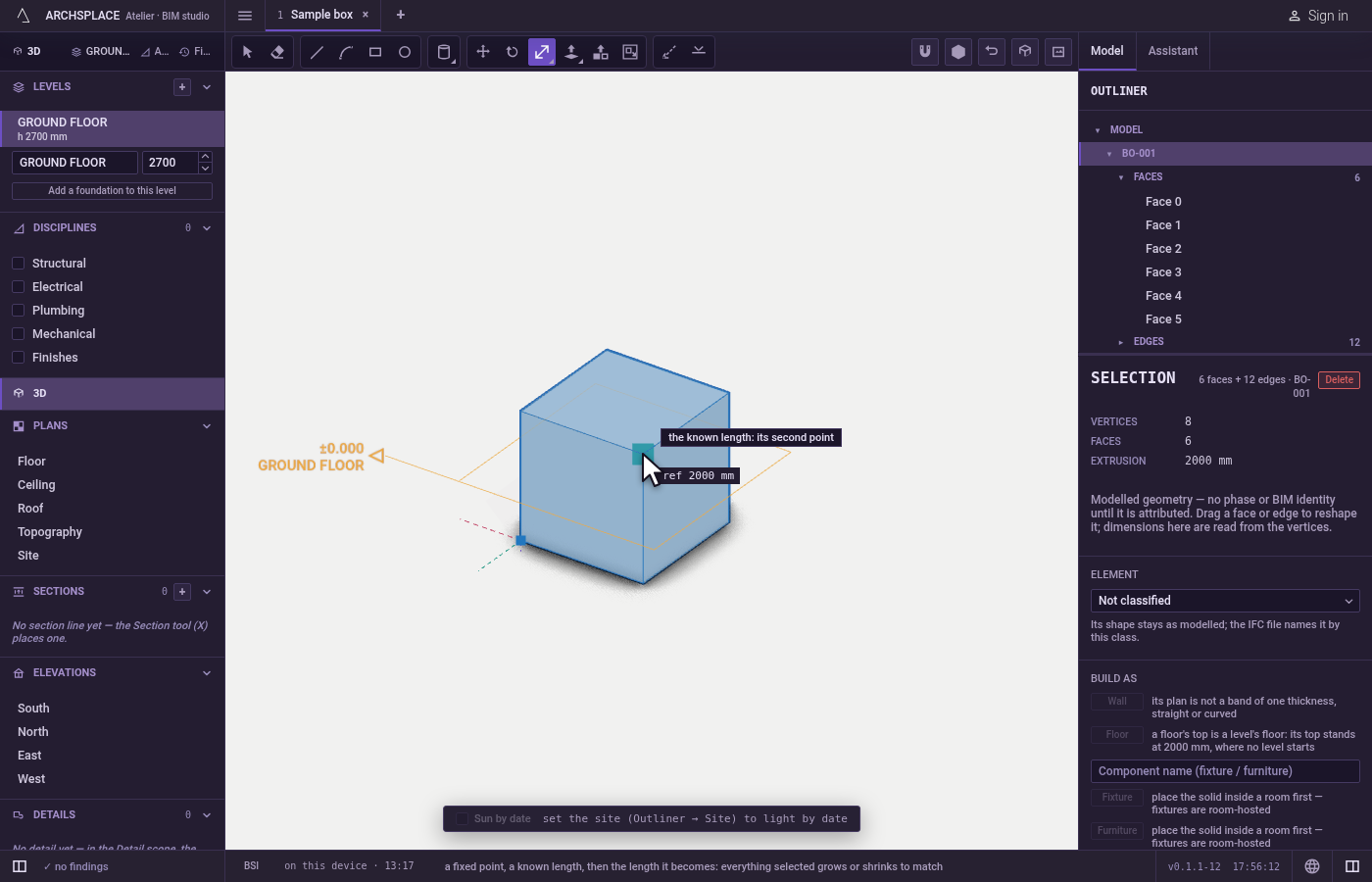
Give the new length. Move from the fixed point and click where the new length ends, or type the length and press
Enter. The readout gives the length and the factor it makes. HoldCtrl(⌘on a Mac) on the last click or onEnterto keep the original and resize a copy.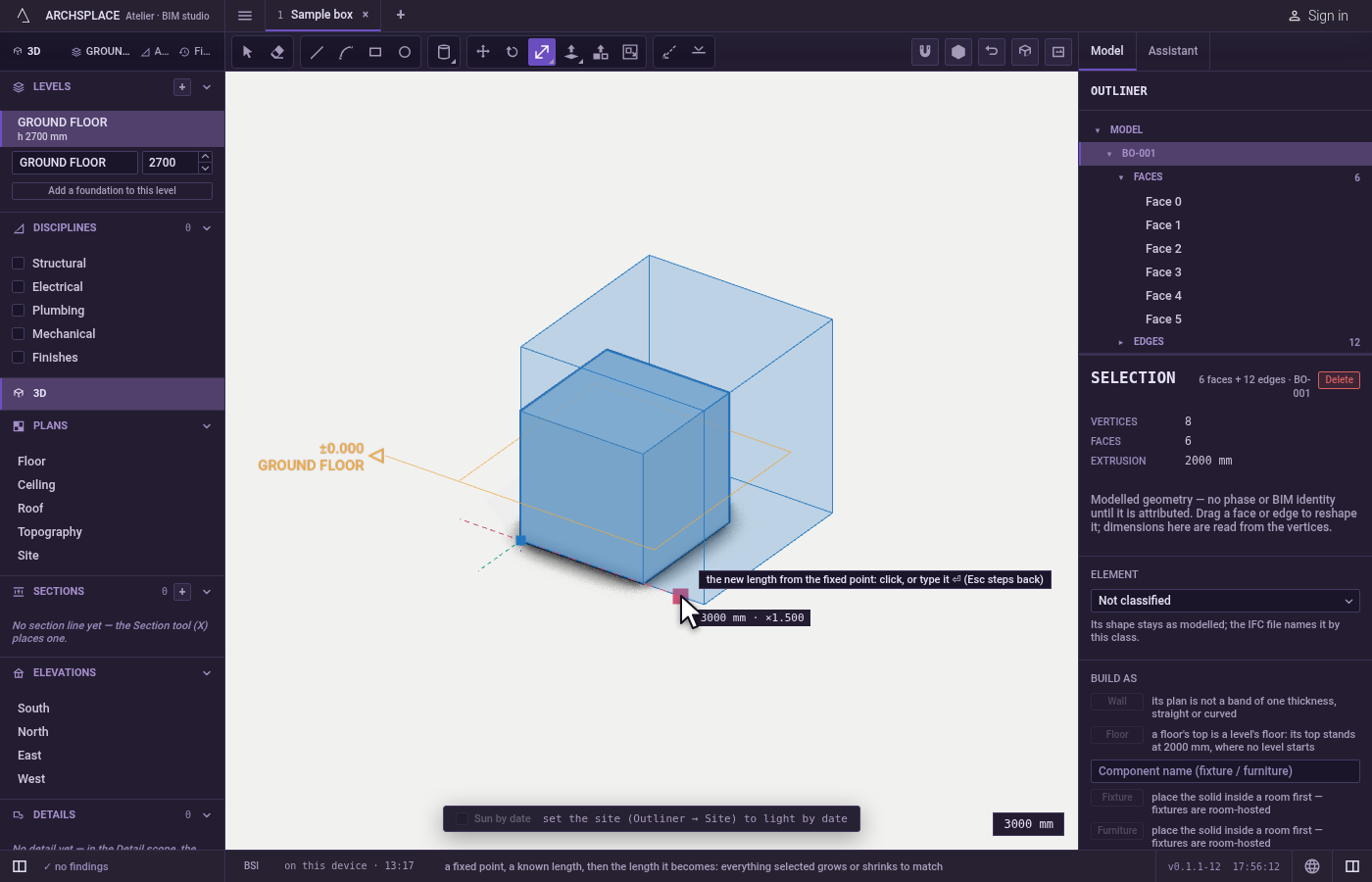
Step back if needed.
Escapesteps back one point at a time: the new length, the known length's second point, its first point, then the fixed point.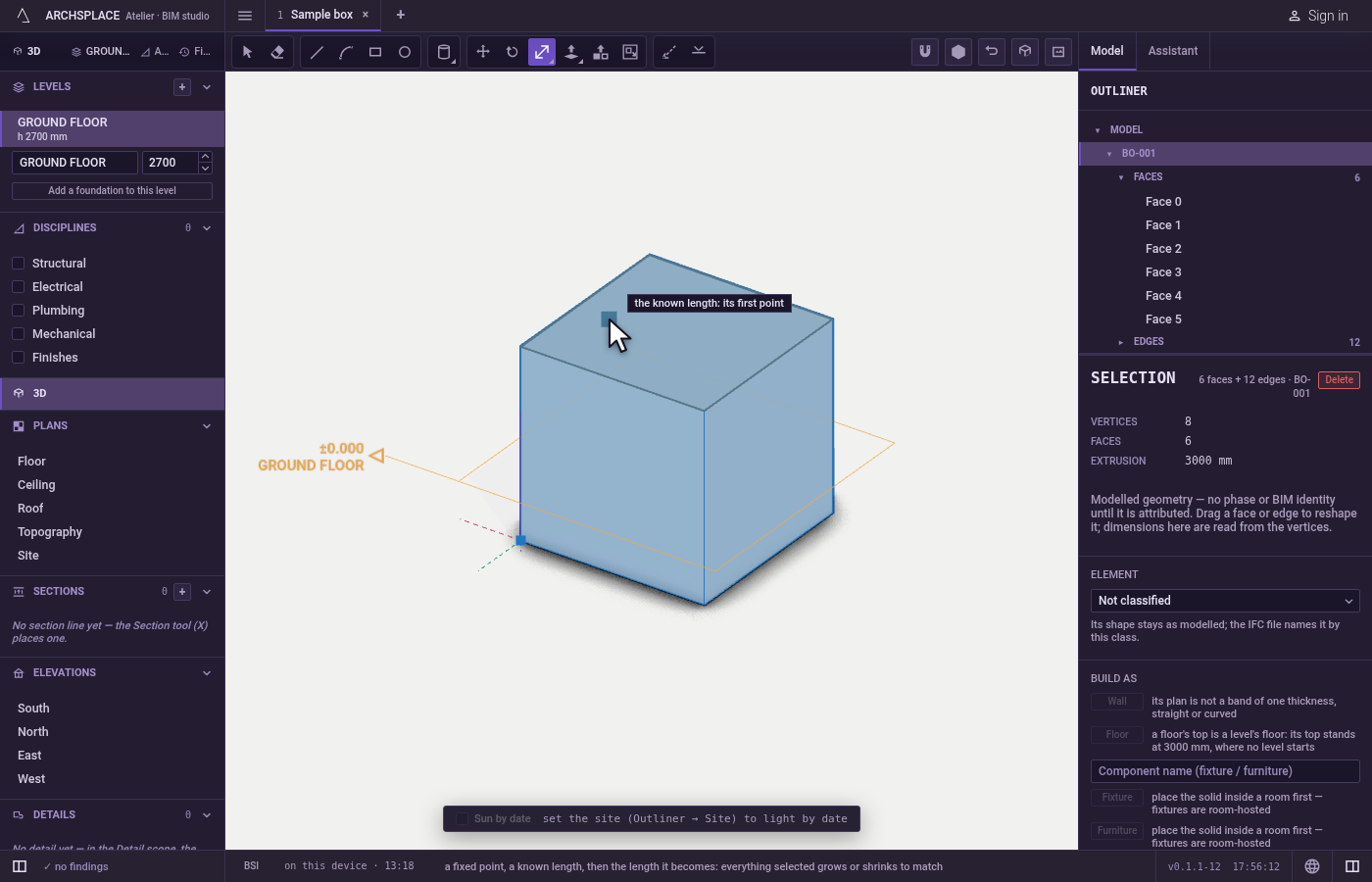
What it refuses
- Nothing to scale. A first click with nothing selected and nothing under the pointer says to select what to scale, or to point at it.
- A known length of nothing. Its two points must differ; the same point twice says so.
- A height for elements that sit on a level. Walls, columns, beams and stairs change only in plan; their height stays their level's.
What it writes to the contract
One undoable step resizes everything selected about the fixed point: bodies and loose lines take their new points, a component's placement keeps its new scale, and walls and the runs joined to them change in plan as the plan's own Scale changes them. With Ctrl, the original stays and the resized copy is added.
Common questions
How do I fix an imported model that came in at the wrong size?
Select it, take Scale (type S then C), click a fixed point, click both ends of an edge whose real length you know, then type that real length and press Enter. The whole model is resized so that edge measures what you typed.
What is the difference with the Transform tool?
Scale resizes by the same factor in every direction, worked out from a length you measure on the model. Transform stretches by grips, one, two or three directions at a time, and can mirror.
Can Scale keep the original and resize a copy?
Yes. Hold Ctrl on the last click, or on Enter, and the original stays while a resized copy is added.