SketchBRin the studio
Break in the tile editor
Break takes out the stretch of a joint between two points you choose on it, leaving the rest as separate joints. Pressing Enter after the first point splits the joint there without taking anything out.
What it is
Break cuts a gap into a joint, between two points you choose on it, without needing another joint to cut against. On a straight joint or an arc, what is left on each side stays as two separate joints, arcs keeping their curve. On a closed joint, such as a circle or a rectangle, the stretch from the first point to the second, going along the joint, is taken out, and the rest becomes one open joint. The hint shows the length that would be taken out as you move to the second point.
It is the same Break as in the other editors of the studio, acting here on the joints of the tile.
When to use it
- To open a gap in a joint where no other joint crosses it, which Trim needs.
- To split a joint in two at one point, so each part can be worked on alone.
- To turn a circle into an arc, or open a rectangle.
The steps
Take the tool. Type
BthenRone after the other, or click Break on the bar. It shares its button with Join and Explode.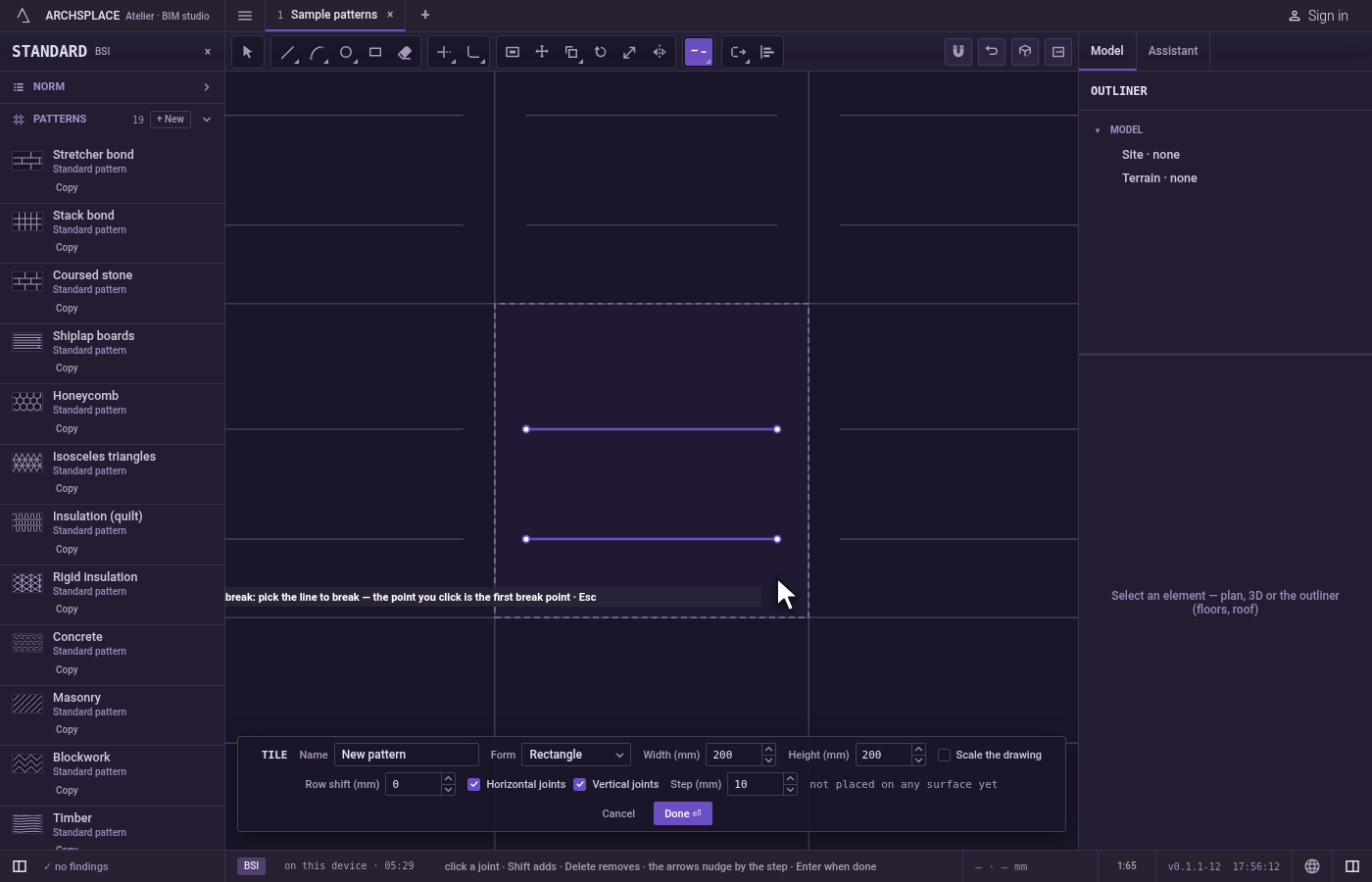
Click the joint. Click it where the gap should start: that click picks the joint and is also the first break point. The pick reads the pointer itself, not a snap.
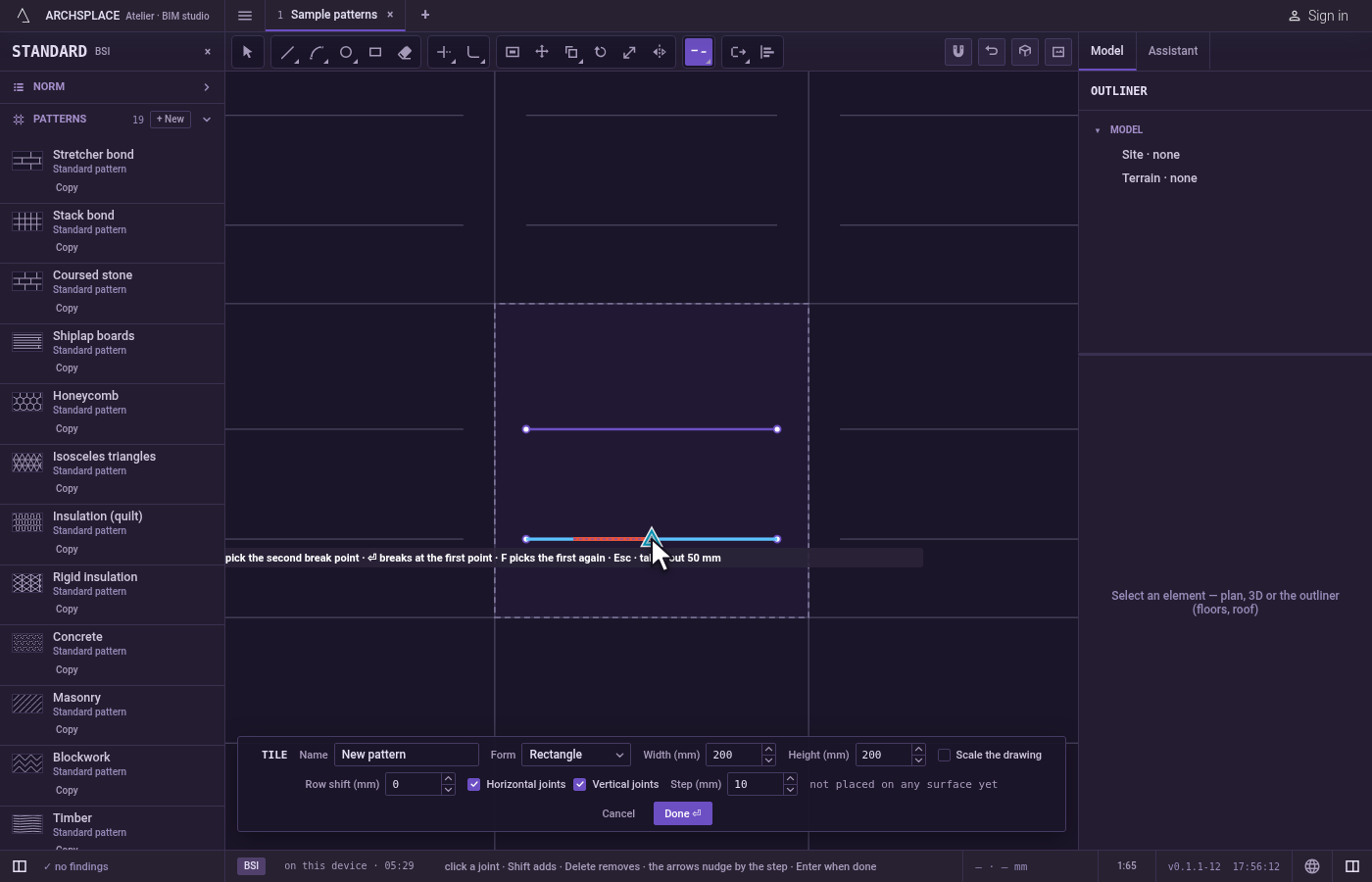
Choose the first point again, if you want. Press
Fto give the first break point separately: the next click is the first point, then the second.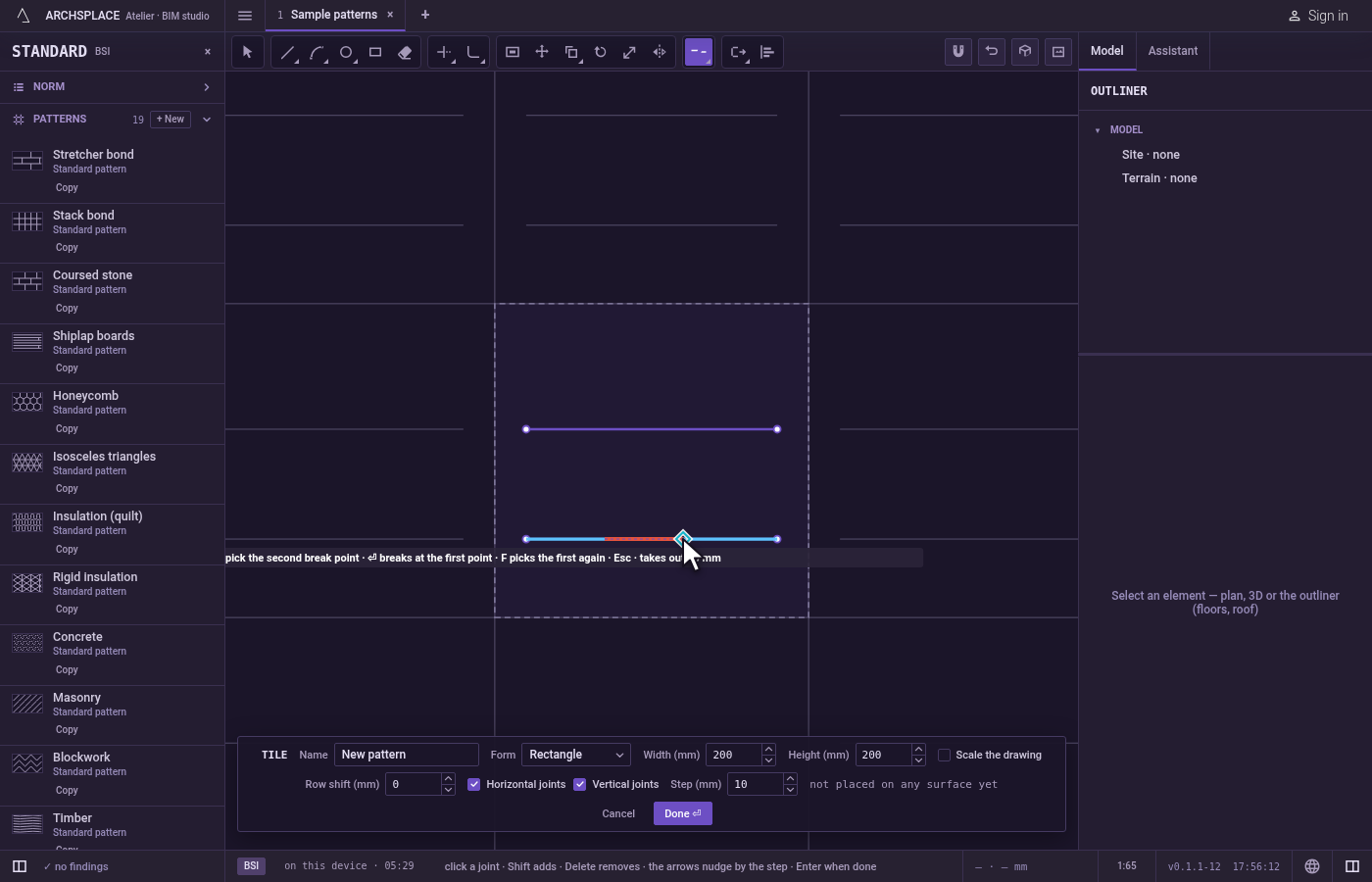
Click the second point. The stretch that would go is drawn in red, with its length in the hint. Click, and it is taken out.
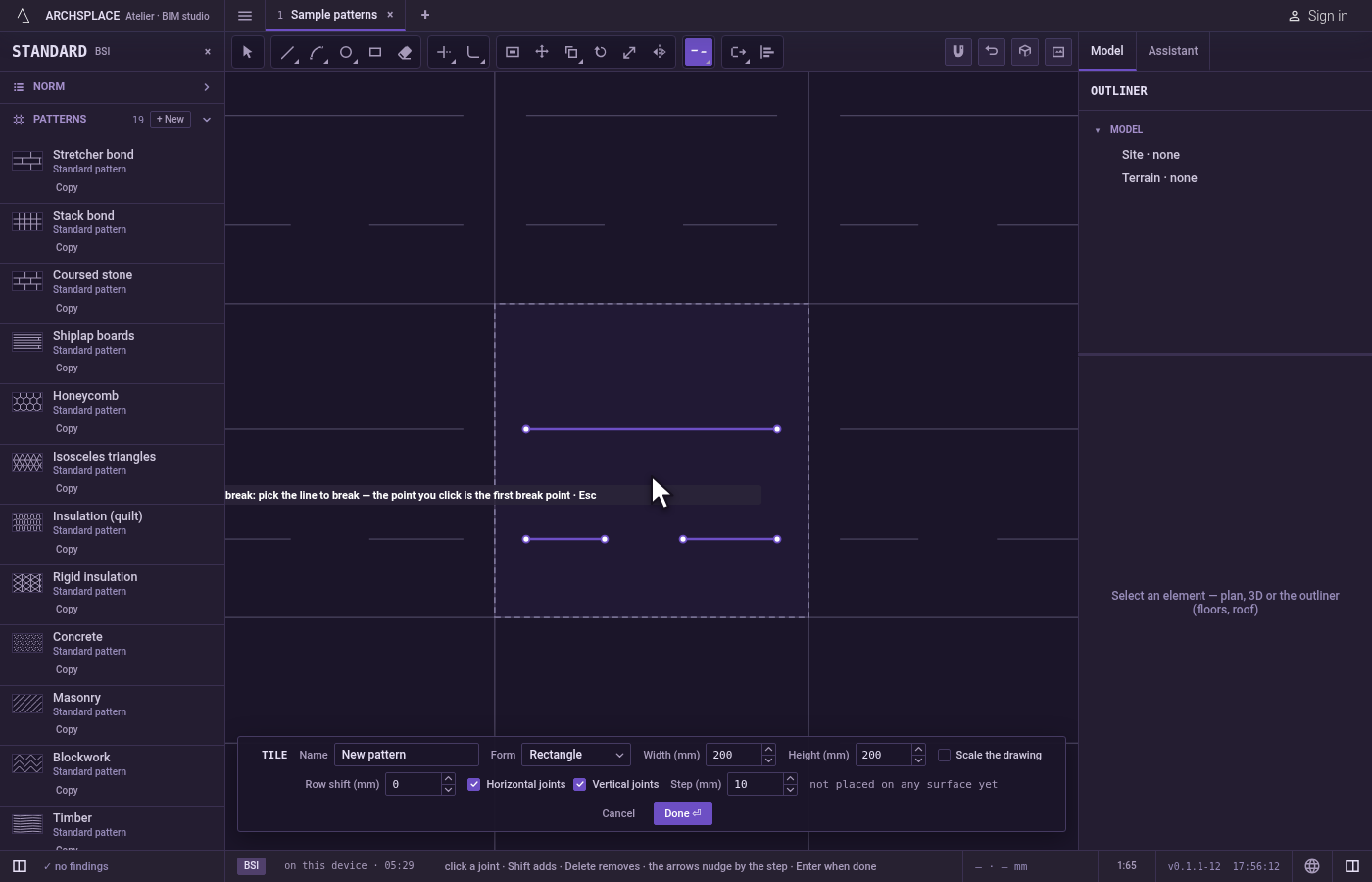
Or split at one point. Instead of a second click, press
Enter: the joint is split at the first point and nothing is taken out. A closed joint is opened there.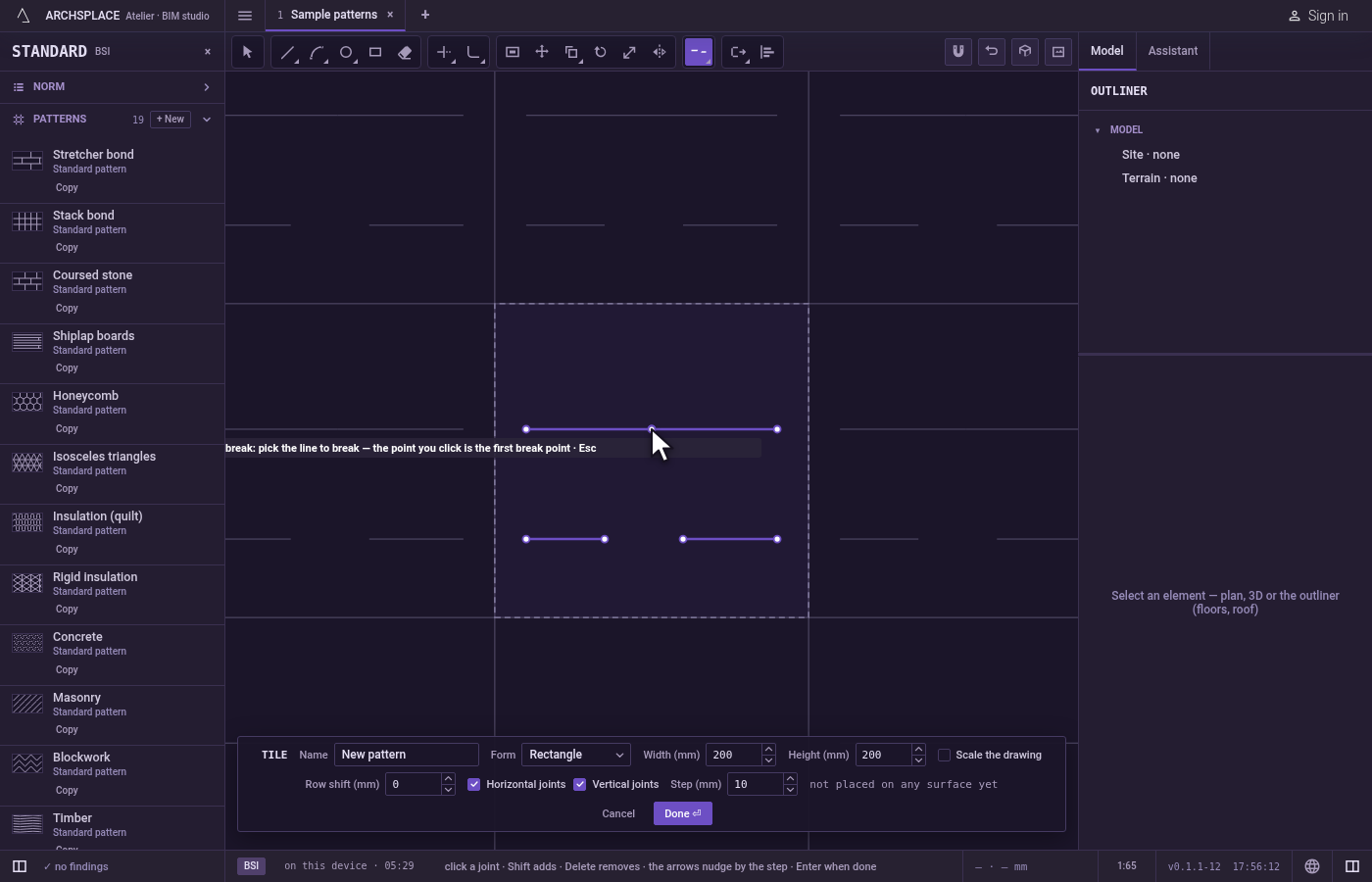
Finish. The tool then waits for the next joint.
Escapedrops what you had picked, then leaves Break for Select.Ctrl+Zbrings the joint back whole. Press Done on the bar at the foot to hand the tile back.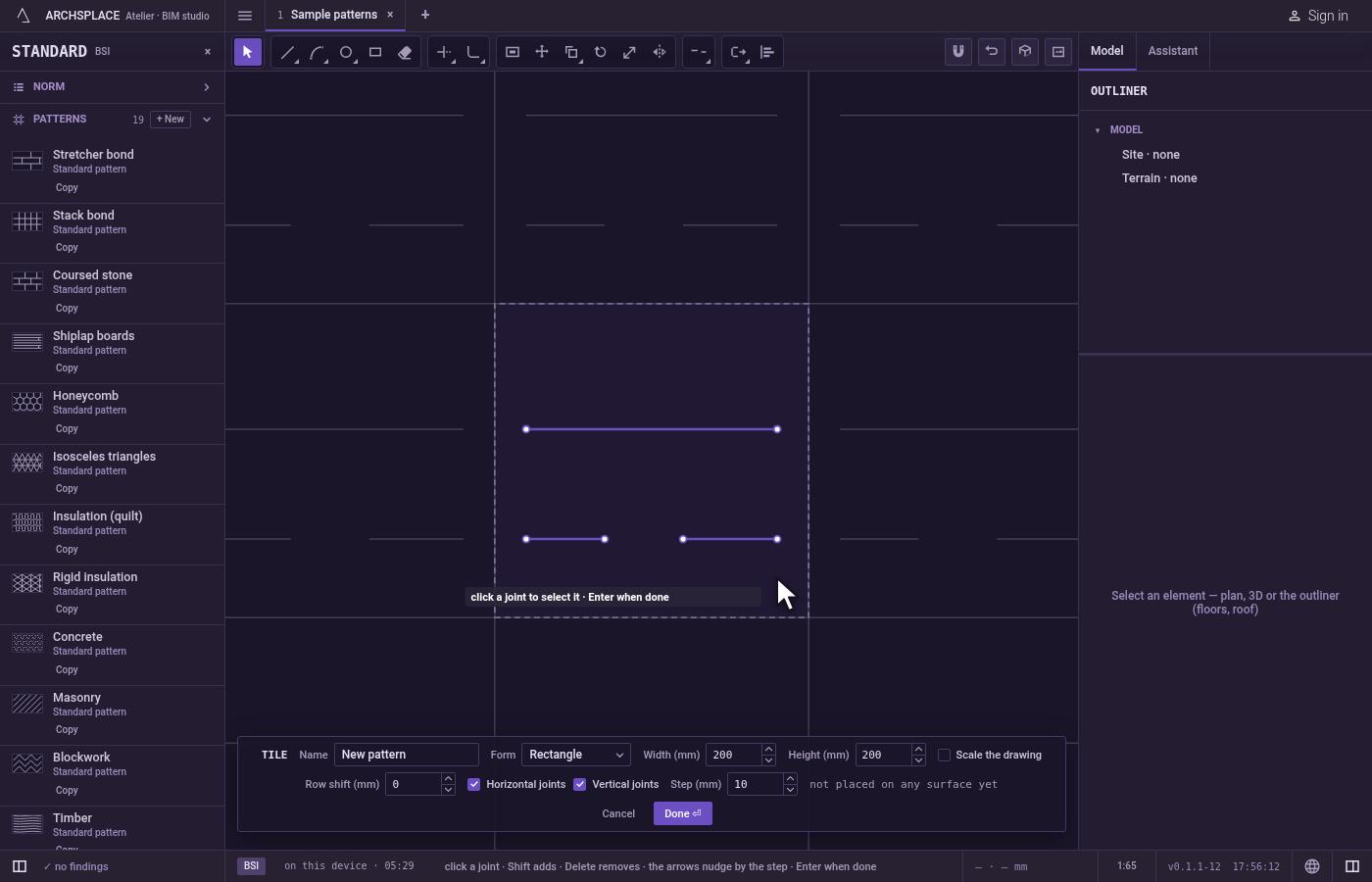
What it refuses
- A click on nothing. It picks nothing, and the hint says nothing under the pointer.
- A break that leaves nothing. Two points that would leave no piece and take nothing out are refused with nothing to break there.
- Specks. A piece shorter than a millimetre left by the break goes with it.
What it writes to the contract
Nothing while you work: the change stays in the tile editor, where Ctrl+Z steps back through it. When you press Done, the whole tile is written to the project's patterns in one step you can undo, every joint as its points in metres from the tile's lower-left corner, the pieces that remain as joints of their own. A standard pattern is never changed: Done saves the project's own version of it under the same name, and every surface that lays it follows. Save as new writes a new pattern instead. Cancel writes nothing.
Related
Common questions
How do I split a joint in two without leaving a gap?
Take Break, click the joint where it should split, and press Enter. The joint becomes two joints meeting at that point.
What happens when I break a circle or a rectangle?
A closed joint has no ends, so breaking it opens it: the stretch from the first point to the second, going along the joint, is taken out, and the rest becomes one open joint.
How do I break at a point other than where I clicked the joint?
After clicking the joint, press F. Then click the first break point, and then the second.