Workflows
Save
Save sends the project in hand to your archsplace cloud, where any atelier you sign in to can open it again. When nobody is signed in, Save asks first: sign in, and the save follows on its own, or keep a copy of the file on this computer.
What it is
Save is File, Save, or Ctrl+S (⌘S on a Mac). Where it goes depends on whether you are signed in:
- Signed in, the project goes to your archsplace cloud. The first save makes a new file there and binds the project to it; every later save writes over that same file. A toast says the project was saved to the cloud.
- Signed out, a dialog asks first, Save and the project's name: a save goes to your archsplace cloud, so sign in, or keep the file on this computer. Sign in opens the account section of the Settings dialog, and the save follows on its own once you are signed in. Save a copy to this computer writes the project file instead, as File, Save a copy to this computer… does.
In between saves, nothing is lost: every change is written at once to the atelier's own library on this computer, the list the Start screen shows. The status bar says where the project lives, on this device until it is saved to the cloud, then in the cloud, with the time of its last change.
When a project holds changes that went to no file and no cloud, closing it asks Save changes to and its name: Save, Don't save or Cancel. Don't save leaves the changes in this atelier's working copy only. In a browser, the first time you would leave the page with such changes, a toast reminds you that your work stays in this browser only.
Your cloud's files are listed in File, Cloud projects… (the Cloud section of the Settings dialog) and under In your cloud on the Start screen, each with its name, its date and its size. Open makes a copy in this atelier's library, bound to its cloud file; Delete removes the cloud file.
When to use it
- Keeping a project safe beyond this computer and this browser.
- Opening the same project on another computer, in the browser or the installed atelier.
- Closing a project with changes you want to keep.
The steps
Save. With the project in hand, press
Ctrl+S. Signed in, a toast says the project was saved to the cloud, and the status bar reads in the cloud with the time. Signed out, the Save dialog opens instead and asks you to sign in or to keep the file on this computer.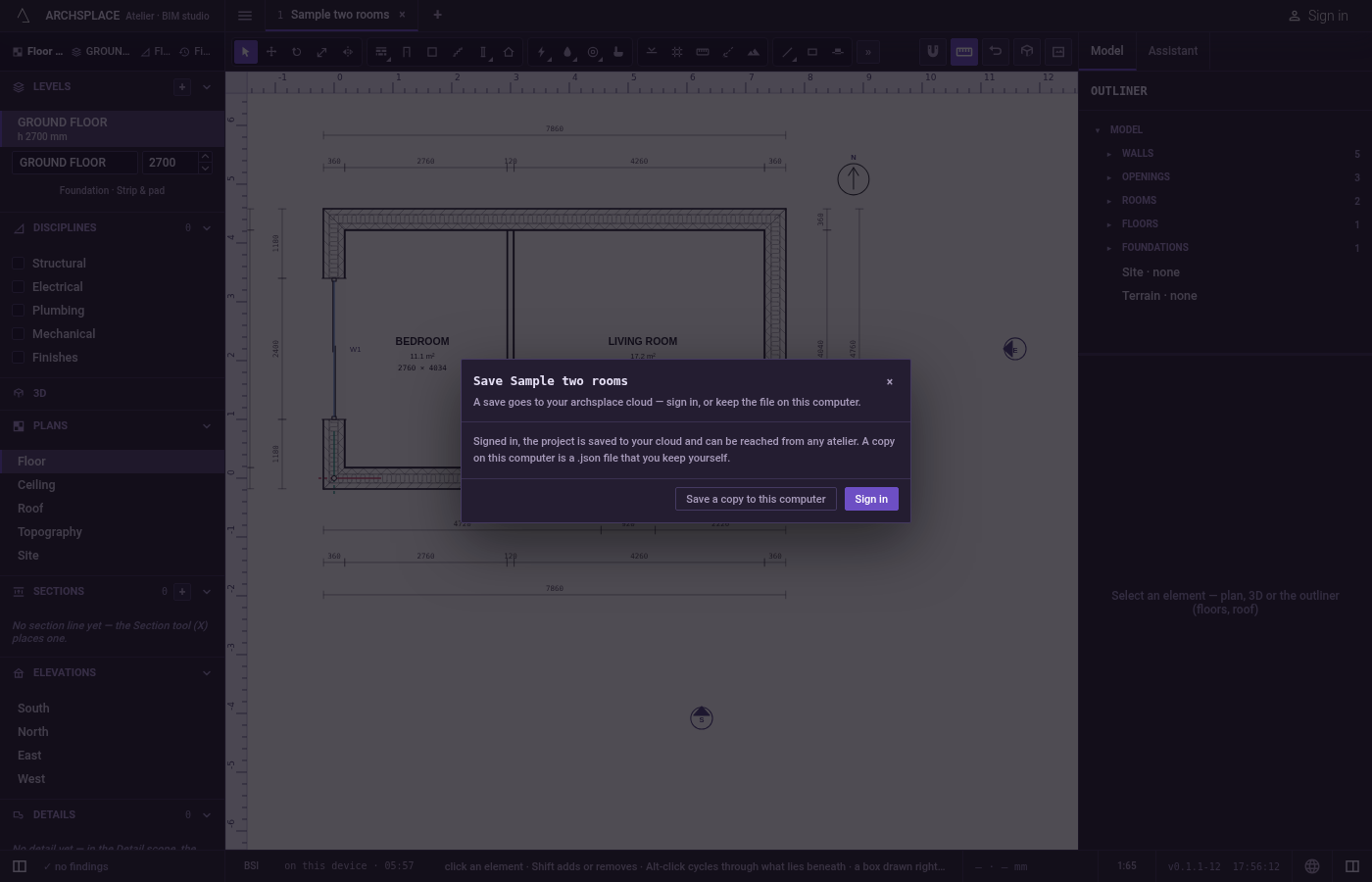
Sign in to save. In the Save dialog, click Sign in. The Settings dialog opens on Account, and the save follows on its own once you are signed in. From then on
Ctrl+Swrites over the same cloud file.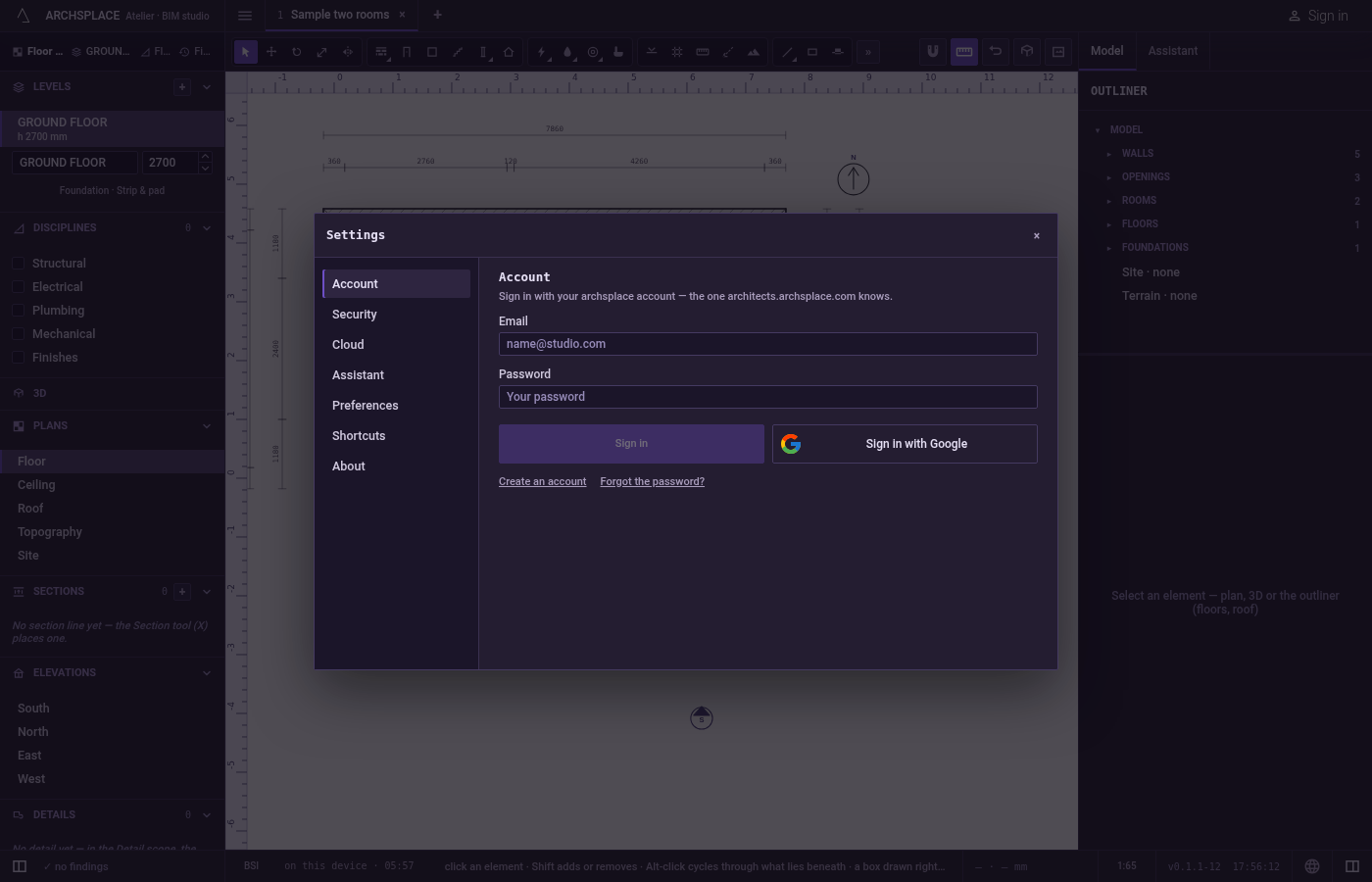
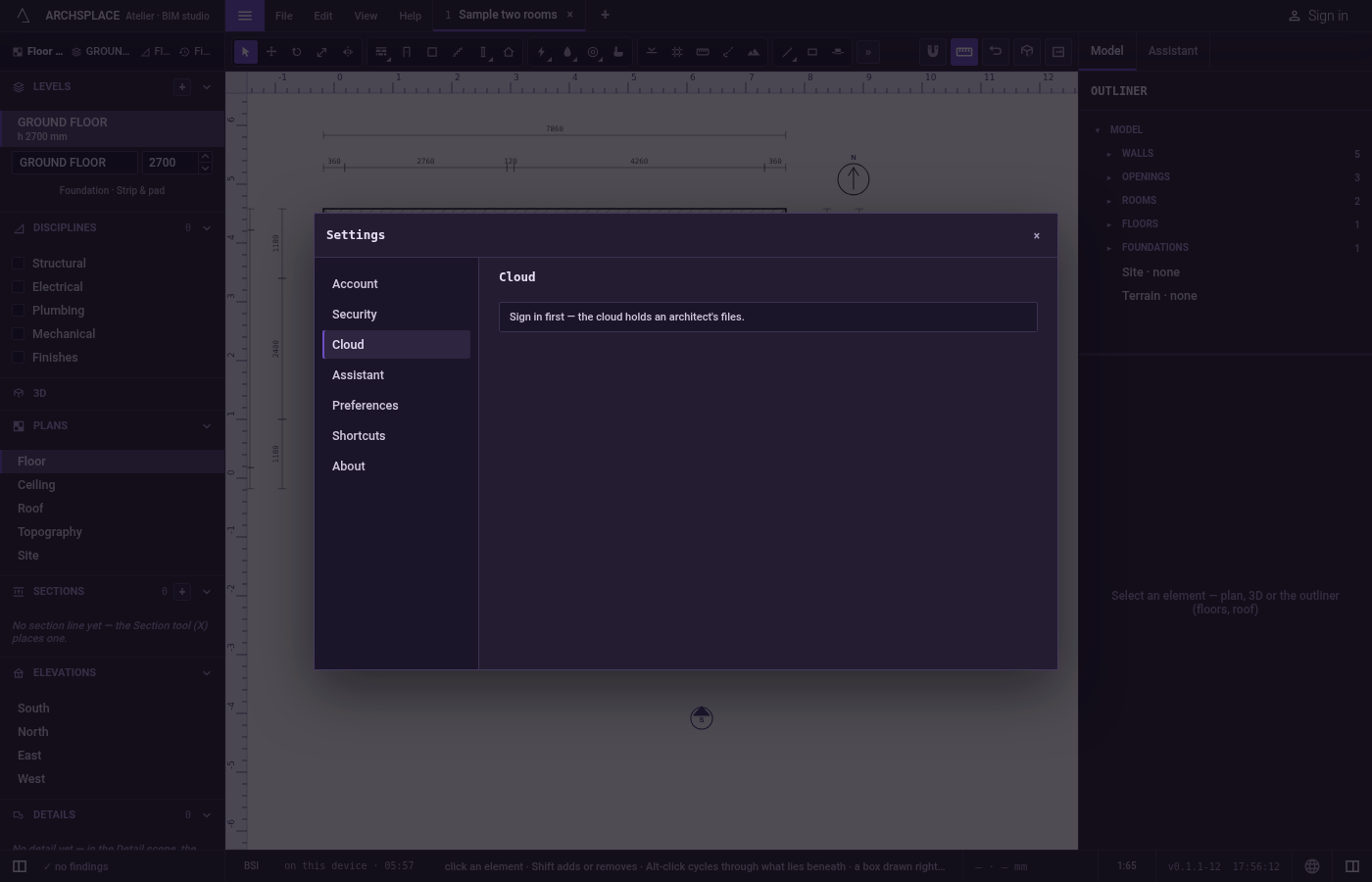
See your cloud. Open File and click Cloud projects…. Signed in, the Settings dialog opens on Cloud: the project in hand stands on top with Save over, saying it is bound to a file in the cloud, and your cloud's files are listed under it. Signed out, it opens on Account instead, and Cloud in the dialog's rail says to sign in first.
What it refuses
- Saving to the cloud while signed out. The dialog asks you to sign in, or to keep the file on this computer.
- A cloud that does not answer. A toast says so: try again. The project stays in this atelier's library.
- A cloud file that was deleted elsewhere. A toast says it is gone, and the next save makes a new one.
What it writes to the contract
Nothing in the contract changes. Save sends the whole contract, as it stands, with the project's name and the atelier's version to your cloud file. Which cloud file a project is bound to is kept by this atelier, beside the project, never in the contract.
Common questions
Where does Save put my project?
In your archsplace cloud, when you are signed in. The first save makes a new cloud file; every save after it writes over that same file. When nobody is signed in, Save asks you to sign in or to save a copy on this computer.
Is my work lost if I do not save?
Every change is kept in this atelier's own library as you work, and the project is there the next time you open the atelier on this computer. Saving to the cloud or to a file is what lets it leave this computer, and what keeps it if the browser's data is cleared.
How do I open a project from my cloud?
Choose File, Cloud projects…, or open the Start screen, where your cloud's files are listed under In your cloud. Open makes a copy in this atelier's library, bound to its cloud file, so the next save writes over it.